












So, search for a pair of shoes once online. Close the tab. By evening, those same shoes are sitting on your news site, your video app, and even your recipe blog. Nobody placed them there by chance. A cookie did. Well, yes! Cookies are small files that websites place on your device while you browse. […]
How To Activate/Enable Scanner On This PC Windows 11/10
Many people struggle with scanner setup on their computers. Learning how to enable scanner on this PC can seem tricky at first. But it’s actually quite simple once you know the right steps.
Scanners are useful devices for digitizing documents and photos. They help you create digital copies of important papers. Knowing how to activate the scanner on this PC will save you time and effort. This guide will walk you through the entire process step by step.
How To Activate/Enable Scanner To This PC: Quick Fix
The fastest way to get your scanner working is through Windows settings. Most scanner connection issues can be solved with basic troubleshooting steps. Here’s how to enable scanner on this PC using the quickest method.
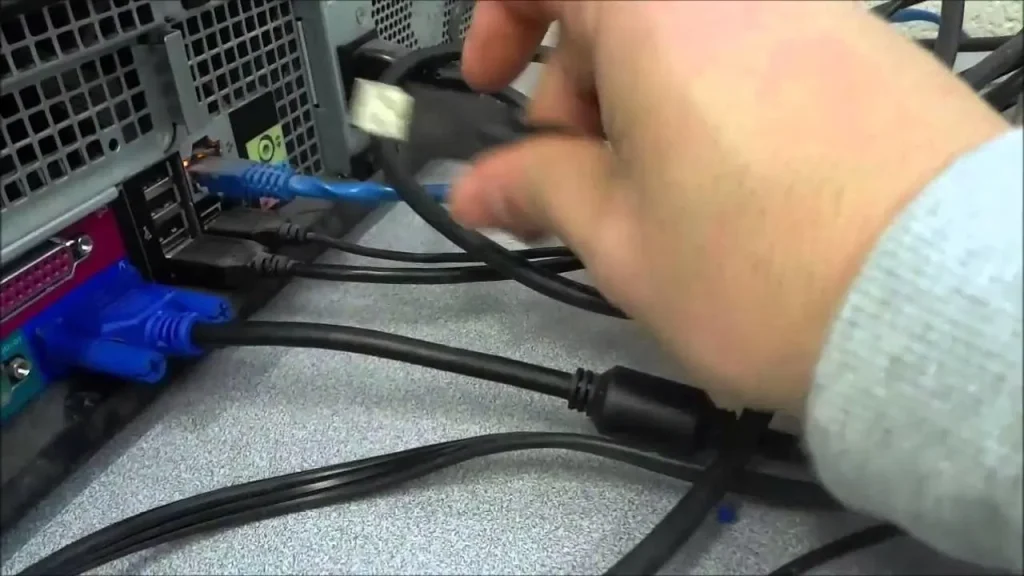
Step 1: Connect your scanner to your PC using a USB cable. Make sure both devices are powered on.
Step 2: Go to Settings > Devices > Printers & Scanners. Click “Add Device” and wait for your device to appear.
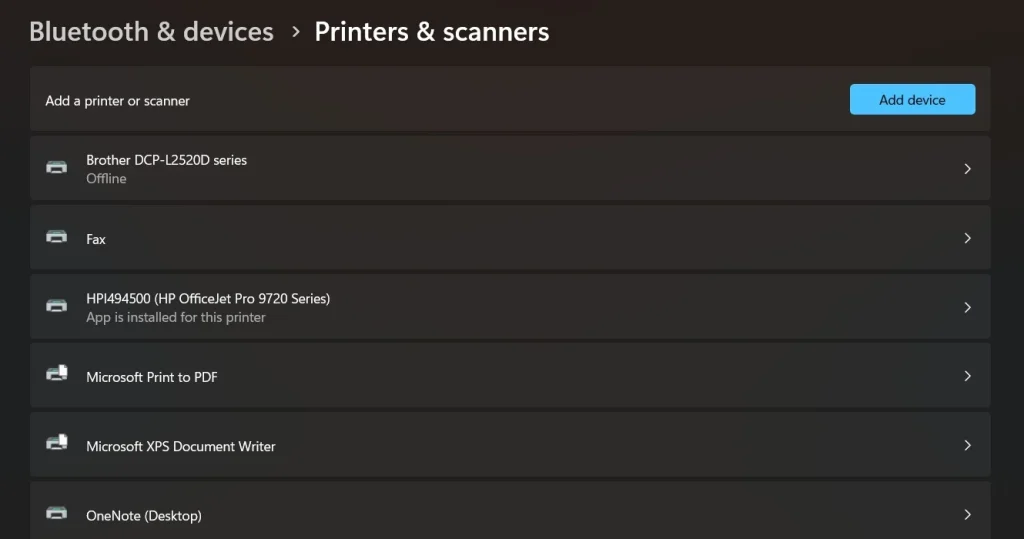
Step 3: Select your scanner from the list and click “Add device.” Windows will automatically install the necessary drivers.
Still Facing an Issue? Reasons Why Scanner Is Not Connecting To PC
Sometimes the quick fix doesn’t work for everyone. There can be several reasons why your scanner won’t connect properly. Driver issues, hardware problems, or Windows settings might be causing the trouble. Understanding these issues will help you find the right solution for how to activate the scanner on this PC.
8 Ways To Fix Scanner Not Connecting Issue
1. Update Scanner Drivers
Outdated drivers are the most common cause of scanner problems. Windows might not recognize your scanner without proper drivers. Installing the latest drivers usually solves most connection issues.
Driver problems can prevent your scanner from working correctly. Old or corrupted drivers make it impossible for Windows to communicate with your scanner. Getting fresh drivers from the manufacturer’s website often fixes these issues.
Precautions before performing the steps:
- Write down your scanner model number
- Ensure a stable internet connection
Step 1: Visit your scanner manufacturer’s website and download the latest drivers for your model.
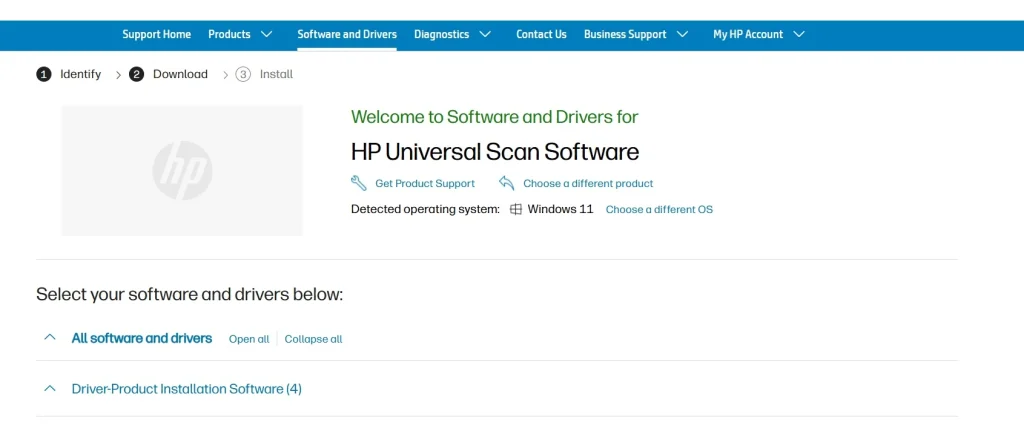
Step 2: Run the driver installer and restart your computer when prompted.
2. Check USB Connections
Loose or damaged USB cables can cause connection failures. Poor connections prevent proper data transfer between devices. This is often overlooked but can be the root cause of scanner issues.
USB ports can also malfunction over time. Dust and debris might block proper connections. Testing different ports helps identify hardware problems with your PC.
Precautions before performing the steps:
- Turn off both the scanner and the PC before checking cables
- Handle cables gently to avoid damage
Step 1: Unplug the USB cable and inspect it for visible damage or bent connectors.
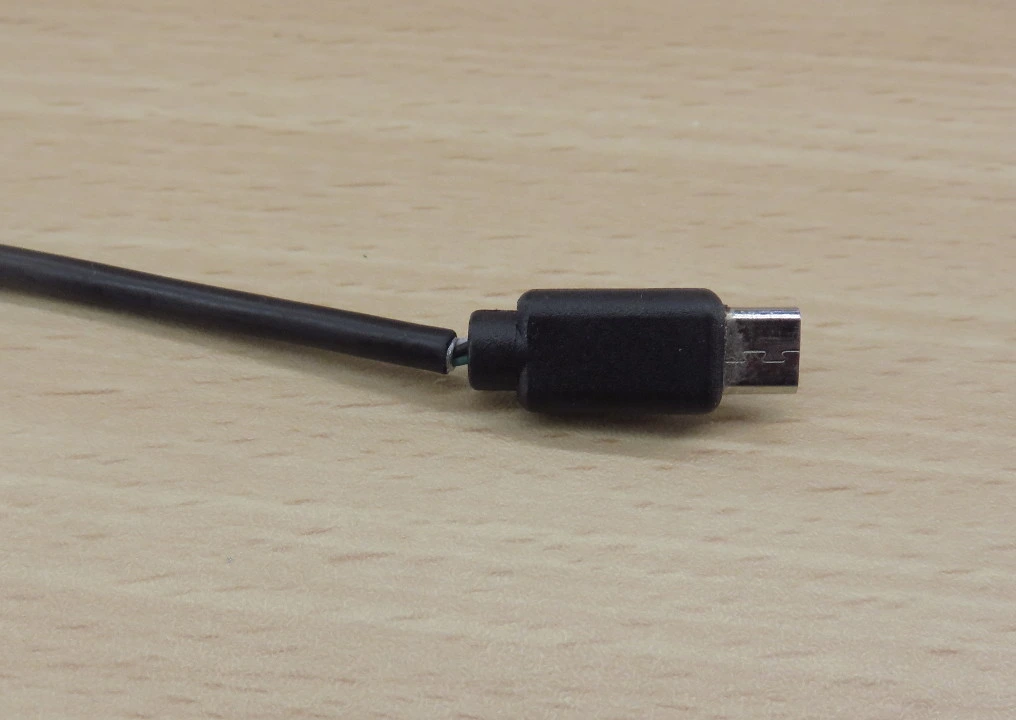
Step 2: Try connecting the scanner to a different USB port on your computer.
3. Run Windows Troubleshooter
Windows has built-in tools to diagnose scanner problems. The troubleshooter can automatically detect and fix common issues. This method works well for basic configuration problems.
The troubleshooter checks system settings and driver installations. It can reset scanner settings to default values. Many users find that this solves their scanner connection problems quickly.
Precautions before performing the steps:
- Close all scanner-related programs
- Save any important work before running the troubleshooter
Step 1: Go to Settings > Update & Security > Troubleshoot > Additional troubleshooters.
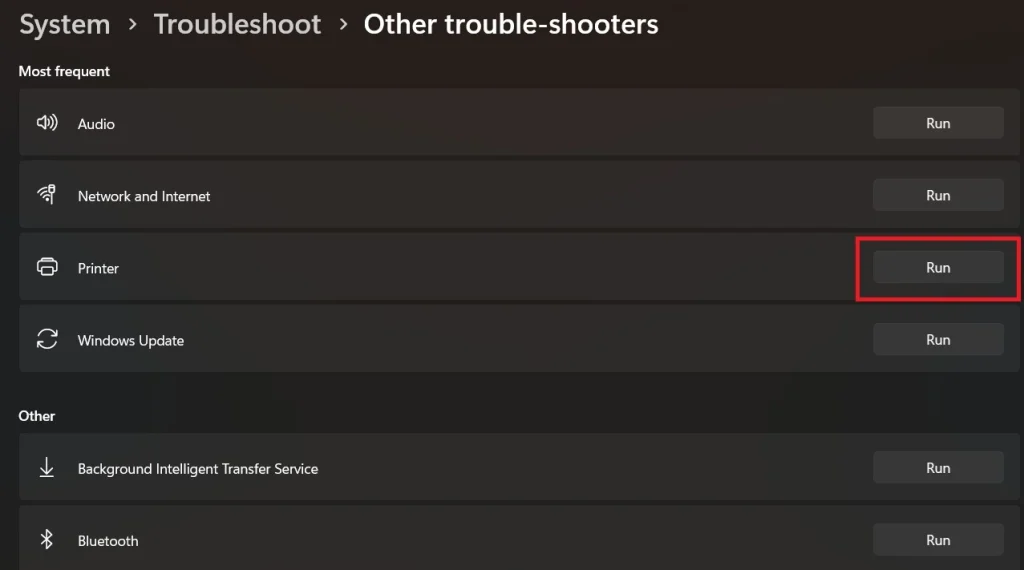
Step 2: Select “Printer” troubleshooter and follow the on-screen instructions.
4. Restart Scanner Services
Windows scanner services might stop running properly. These services handle communication between your scanner and computer. Restarting them can restore normal scanner functionality.
Service conflicts can occur when multiple programs try to access the scanner. Restarting services clears these conflicts and resets connections. This method often works when other solutions fail.
Precautions before performing the steps:
- Close all scanning applications
- Note down which services you’re restarting
Step 1: Press Windows + R, type “services.msc” and press Enter.
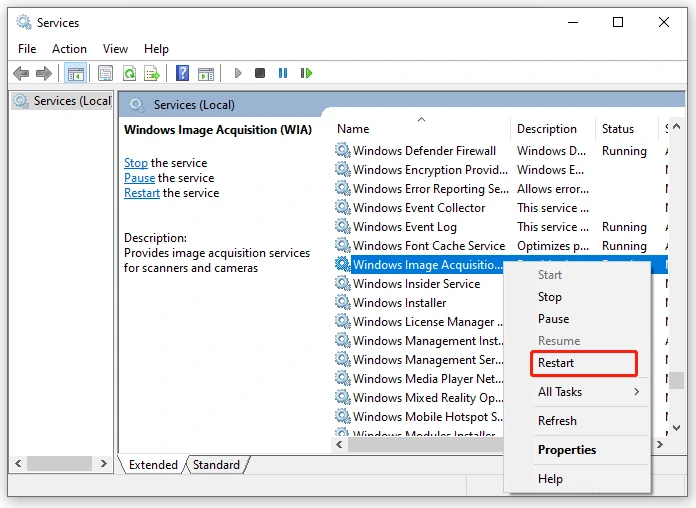
Step 2: Find “Windows Image Acquisition (WIA)” service, right-click it, and select “Restart.”
5. Check Scanner Power and Settings
Scanner power issues can prevent proper connection. Some scanners have separate power buttons or switches. Checking these basic settings often solves connection problems.
Scanner settings might be configured incorrectly. Connection modes or interface settings could be wrong. Resetting scanner settings to factory defaults helps eliminate configuration issues.
Precautions before performing the steps:
- Refer to your scanner’s user manual
- Note current settings before making changes
Step 1: Ensure your scanner is properly plugged into power and turned on.
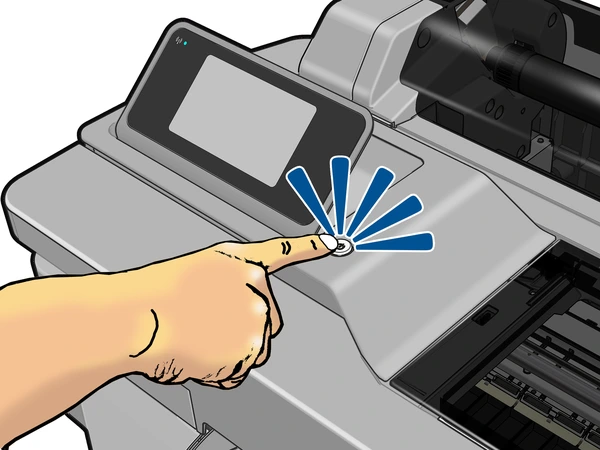
Step 2: Check scanner menu settings and reset to factory defaults if available.
6. Disable Antivirus Temporarily
Antivirus software sometimes blocks scanner drivers. Security programs might see scanner software as suspicious. Temporarily disabling antivirus software can help identify if it’s causing the problem.
Firewall settings can also interfere with scanner communication. Some security programs block USB device connections. Testing with disabled security helps isolate the issue.
Precautions before performing the steps:
- Only disable the antivirus temporarily
- Disconnect from the internet during testing
Step 1: Right-click your antivirus icon and select “Disable protection” temporarily.
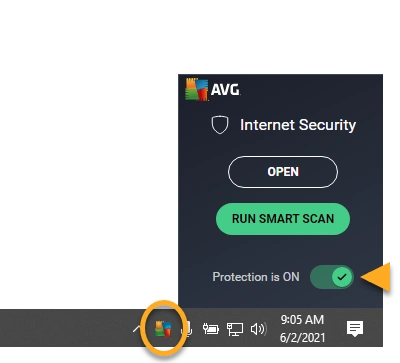
Step 2: Try connecting your scanner again and see if it works.
7. Reinstall Scanner Software
Corrupted scanner software can cause persistent connection issues. Complete removal and fresh installation often solves stubborn problems. This method clears all previous installation errors.
Registry entries from old installations might conflict with new drivers. Clean software installation removes these conflicts. Many scanner problems disappear after proper software reinstallation.
Precautions before performing the steps:
- Back up important scan settings if possible
- Download fresh software before uninstalling
Step 1: Go to Control Panel > Programs and uninstall all scanner-related software.
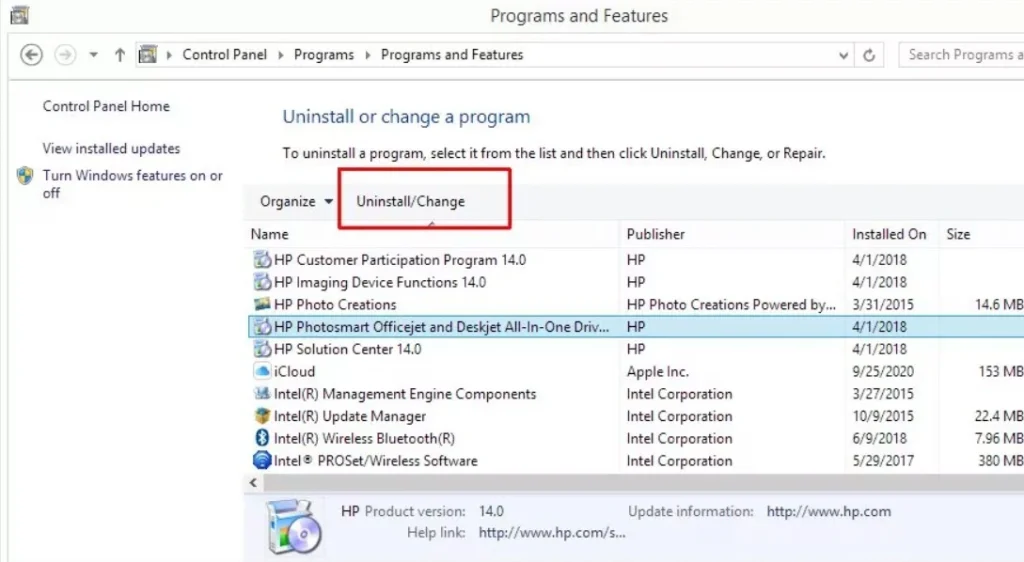
Step 2: Download and install the latest scanner software from the manufacturer’s website.
8. Check Windows Updates
Missing Windows updates can cause hardware compatibility issues. Microsoft regularly releases updates that improve device support. Installing updates often fixes scanner recognition problems.
System updates include new drivers and bug fixes. These updates can resolve conflicts between Windows and scanner hardware. Keeping Windows updated prevents many scanner issues.
Precautions before performing the steps:
- Ensure a stable internet connection.
- Close important applications before updating.
Step 1: Go to Settings > Update & Security > Windows Update.
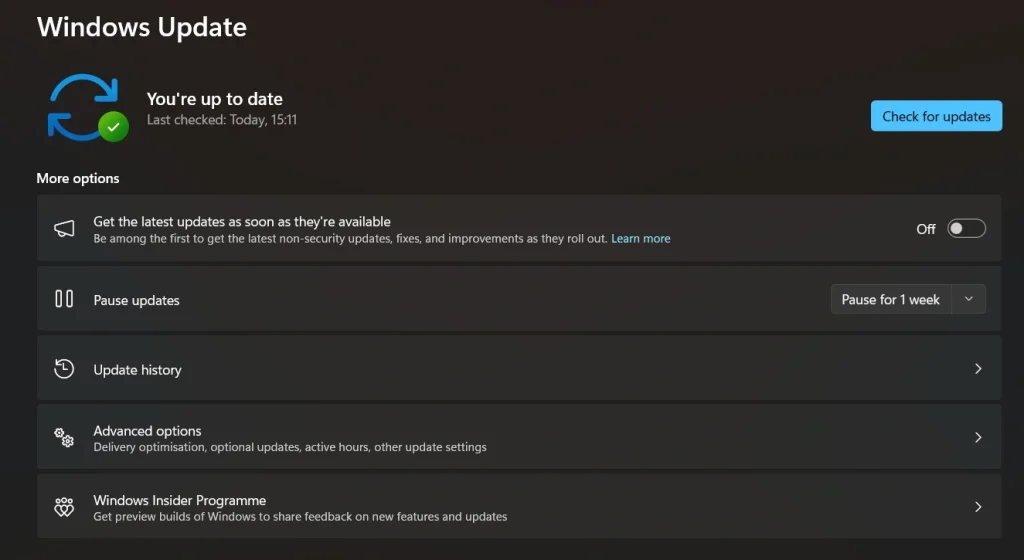
Step 2: Click “Check for updates” and install any available updates.
Author’s Tip
Getting your scanner to work doesn’t have to be complicated. Most scanner issues come from simple connection problems or outdated drivers. The key is to work through solutions systematically until you find what works.
We recommend starting with the quick fix method first. This solves most scanner problems without complex troubleshooting. If that doesn’t work, move through the other solutions one by one. Don’t try multiple fixes at once, as this can create new problems.
Remember that scanner technology is generally reliable. Most connection issues have simple solutions. With patience and the right approach, you can get any scanner working with your PC. Keep your drivers updated and maintain good cable connections for the best results.
Conclusion
Learning how to enable scanner on this PC is essential for modern computer users. Scanners help digitize important documents and preserve memories. With the right knowledge, anyone can set up and maintain a scanner connection.
Remember that knowing how to activate the scanner on this PC saves time and frustration. Keep this guide handy for future reference. With proper setup and maintenance, your scanner will provide years of reliable service. Don’t hesitate to seek professional help if these solutions don’t work for your specific situation.
FAQs:
Q1: Why won’t my scanner connect to Windows 10?
Scanner connection issues in Windows 10 usually stem from driver problems or USB connection failures. First, check if your USB cable is properly connected and not damaged. Try using a different USB port on your computer.
Download the latest drivers from your scanner manufacturer’s website. Many older scanners need specific drivers for Windows 10 compatibility. Run the Windows troubleshooter for printers and scanners from Settings.
Q2: How do I know if my scanner drivers are outdated?
Outdated scanner drivers show several warning signs that are easy to identify. Your scanner might not appear in the device list when you try to scan. Error messages about device not found or driver missing are common indicators. Scanning might work but produce poor quality results or strange colors. Check Device Manager for yellow warning triangles next to your scanner.
Q3: Can I use my scanner without installing special software?
Yes, Windows includes basic scanning functionality that works without additional software installation. The built-in Windows Scan app can handle most basic scanning tasks effectively. Windows Fax and Scan is another built-in tool that works with most scanners. These programs offer basic features like resolution selection and file format options.
However, manufacturer software usually provides advanced features like OCR, multi-page scanning, and image enhancement. Generic Windows drivers might not support all scanner features like automatic document feeders.
Author Bio:
Dinesh Lakhwani 

Dinesh Lakhwani, the entrepreneurial brain behind “TechCommuters,” achieved big things in the tech world. He started the company to make smart and user-friendly tech solutions. Thanks to his sharp thinking, focus on quality and the motto of never giving up, TechCommuters became a top player in the industry. His commitment to excellence has propelled the company to a leading position in the industry.
Popular Post
Recent Post

How To Disable Background Apps In Windows: 4 Quick Methods
A slow PC rarely gives a warning. One day, it simply takes longer to start. Apps open late. The fan runs loud, even when the screen is almost empty. Most people blame old hardware. Often, that is not the real reason. The real reason is hiding in plain sight. Windows keeps many apps active in […]

How to Activate Windows with a Product Key for Windows 11 & Windows 10
It always shows up at the worst time. You are halfway through a report, or about to join a video call. Then you spot it in the bottom right corner of the screen. Activate Windows. Go to Settings to activate Windows. Initially, an unactivated copy of Windows may seem like a minor inconvenience. Over time, […]

Is Easy Duplicate Finder Worth It? Honest Review
The photos folder looked normal at first glance. Then the storage warning popped up. One trip photo appeared four times. A tax PDF sat in three different folders. Two old setup files were still in Downloads, and each one was over 500 MB. Nobody plans this mess. Copies pile up slowly. A download runs twice. […]

Wise Duplicate Finder Review: Real Results from Wise Duplicate Finder
Read my honest Wise Duplicate Finder review. See features, pricing, pros and cons, and real PC test results. Find out if this free duplicate cleaner can free up your Windows storage.

How to Recover Deleted Files from Pen drive, USB Drive, SD Card
Introduction: On tech forums, you’ll often see posts like this: “I connected my pen drive to my laptop this morning, but the folder was empty. All my college project files had vanished. I don’t have a backup. Can someone help me?” Stories like this are very common. Pen drives, USB drives and SD cards are […]

How To Recover Files Deleted from the Recycle Bin [Windows 11]
Losing a file can happen in seconds. You clear your desktop, hit Delete, and empty the Recycle Bin. Then, just when you need that file again, it seems to have vanished. This guide will walk you through ways to restore files removed from the Recycle Bin. We will begin with simple fixes, then look at […]

Disk Drill Data Recovery Tool Explained: Full Review and Guide
It happens in a split second. You delete a folder by mistake. Your drive stops showing up. A photo album from your last trip just vanishes. And your stomach drops. Lost files feel personal. They are not just data. They are memories, work hours, and sometimes years of effort packed into a few gigabytes. When […]

Recover Deleted Files In Windows 11 With Software & Without
Introduction What is the first thing that goes through your mind the second an important file vanishes from a Windows 11 PC? For most people, it is a mix of panic and disbelief, followed by a frantic click through every folder that file could possibly be hiding in. It happens in a split second: one […]

EaseUS Data Recovery Wizard: Everything To Know
Data loss does not always come from a big disaster either. Most cases start small and boring. A drive gets formatted by mistake. A laptop freezes mid-save and restarts on its own. A memory card stops showing up after being pulled out too fast. None of these feel like emergencies at first, until you realize […]

