












So, search for a pair of shoes once online. Close the tab. By evening, those same shoes are sitting on your news site, your video app, and even your recipe blog. Nobody placed them there by chance. A cookie did. Well, yes! Cookies are small files that websites place on your device while you browse. […]
15 Most Essential Windows 11 Privacy And Security Settings
Introduction
Windows 11 includes key privacy and security options designed to protect your personal data. Skipping these settings during setup can leave your information exposed. Taking a few minutes to configure them early can help you avoid issues down the road.
Computer privacy settings control what apps can access. They decide what data Microsoft collects. Windows 11 privacy and security settings give you power over your information. You can stop unwanted tracking. You can block suspicious apps.
Learning to manage privacy settings takes time. But it pays off in the long run. Your personal files stay safe. Your browsing habits remain private. This guide shows you exactly what to do.
Why are Windows 11 Privacy and Security Settings Important?
Windows 11 privacy and security settings protect your digital life. They stop companies from collecting your data without permission. Computer privacy settings also block malicious software from harming your system.
- Block App Tracking: Computer privacy settings prevent apps from following your activity.
- Protect Personal Files: Manage privacy settings to keep documents and photos secure.
- Control Camera Access: Windows 11 privacy and security settings decide which apps use your webcam.
- Limit Microphone Use: Computer privacy settings stop unauthorized audio recording.
- Secure Location Data: Manage privacy settings to hide where you go.
- Block Unwanted Ads: Windows 11 privacy and security settings reduce targeted advertising.
- Prevent Identity Theft: Computer privacy settings make it harder for criminals to steal your information.
15 Most Essential Windows 11 Privacy And Security Settings
These Windows 11 privacy and security settings are must-haves for every user. Each setting protects a different part of your digital life. Computer privacy settings work together to create a strong defense.
It’s important to review these settings as soon as you install Windows 11. Some are tucked away in the menus, and a few may reset to default after updates. Thankfully, adjusting your privacy and security options only takes a few minutes.
1. General Privacy Settings
General privacy settings control basic data collection. Windows 11 privacy and security settings here affect your entire system. Computer privacy settings in this section are the foundation of your protection.
These settings decide what Windows shares with Microsoft. They control advertising and app suggestions.
Step 1. Go to Settings > Privacy & Security > General.
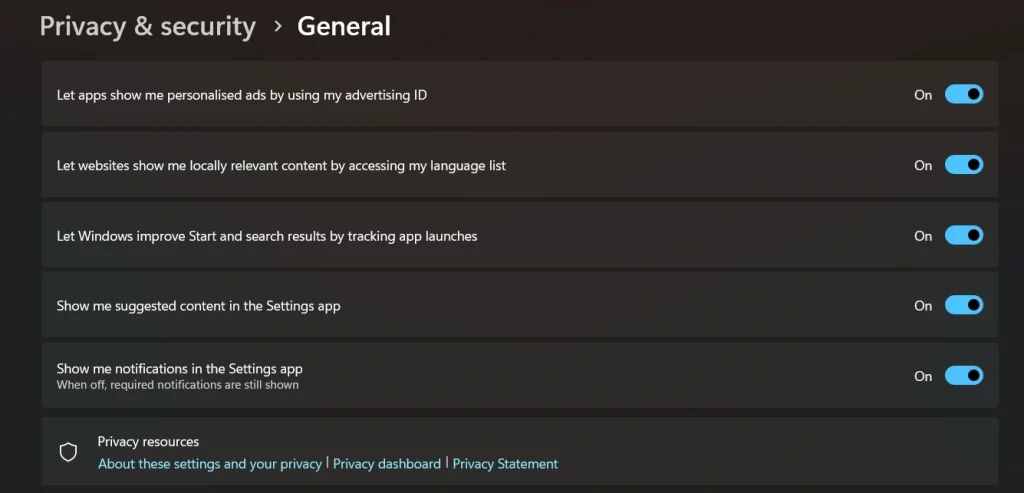
Step 2. Toggle OFF “Let apps show me personalized ads”. Also, disable “Let Windows improve Start”.
2. Speech Recognition Privacy
Speech recognition in Windows 11 can collect your voice data, which may include personal details. Your voice is unique—like a fingerprint—and can be used to identify you.
Privacy settings help protect your conversations and prevent Microsoft from saving your speech patterns. Adjust these settings to keep your voice data stored only on your device.
Step 1. Open Settings > Privacy & Security > Speech.
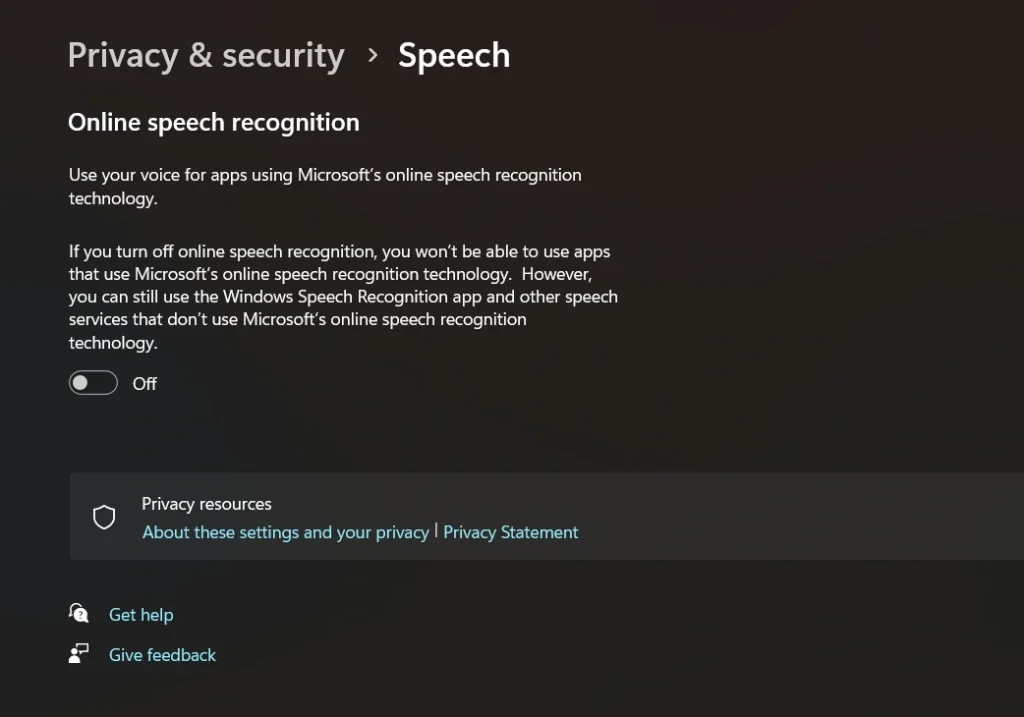
Step 2. Turn off “Online speech recognition”
3. Inking and Typing Personalization
Windows 11 can learn how you type and write to improve suggestions. It collects data from your keyboard and pen input, including your typing style and handwriting. While this can make your experience smoother, it may also affect your privacy. Privacy settings let you disable this data collection and ensure your typing and handwriting stay private.
Step 1. Navigate to Settings > Privacy & Security > Inking & typing personalization.
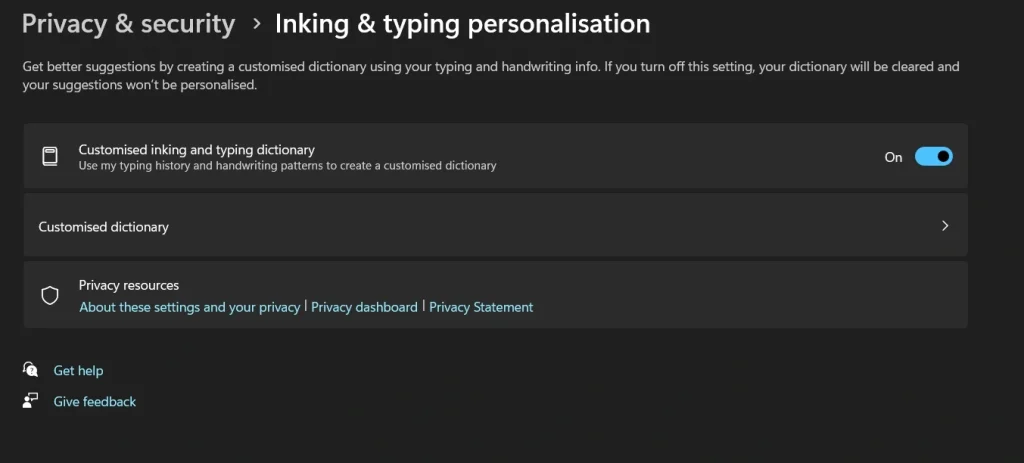
Step 2. Turn off “Customized Inking and Typing Dictionary”.
4. Diagnostics and Feedback Controls
Windows 11 collects diagnostic data like crash reports and usage info to help Microsoft fix problems. Some data is needed for updates, but privacy settings let you control what’s shared.
You can adjust these settings to send only the basic information and protect your privacy.
Step 1. Go to Settings > Privacy & Security > Diagnostics & feedback.
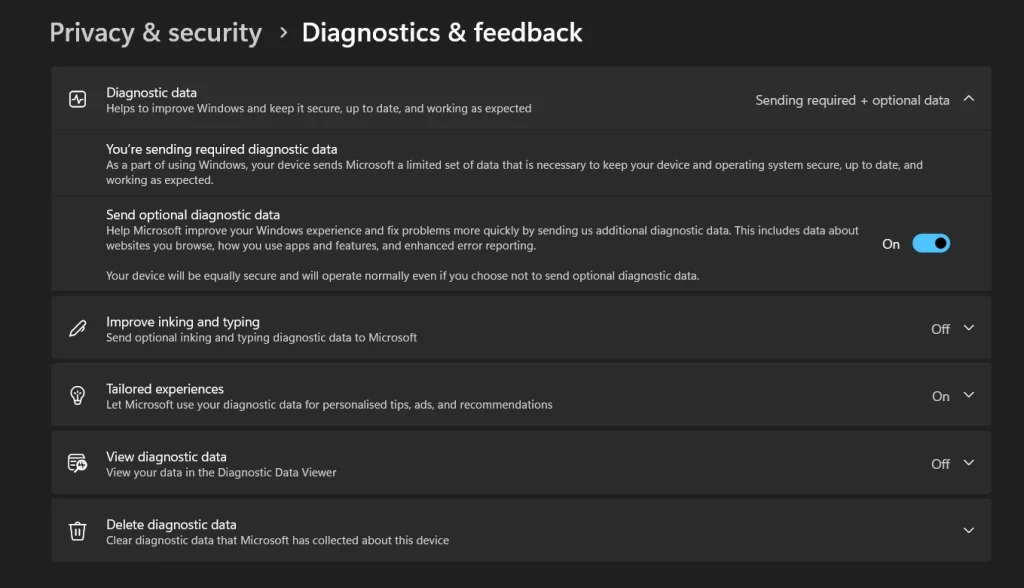
Step 2. Select “Required diagnostic data”.
5. Activity History Management
The timeline feature in Windows 11 logs your actions, such as the files you access and the websites you browse. When sync is enabled, this information may be shared with other devices. To keep your activity data private, you can adjust the settings to store it only on your computer.
Step 1: Open Settings. Click Privacy & Security. Select Search Permissions> Activity history.
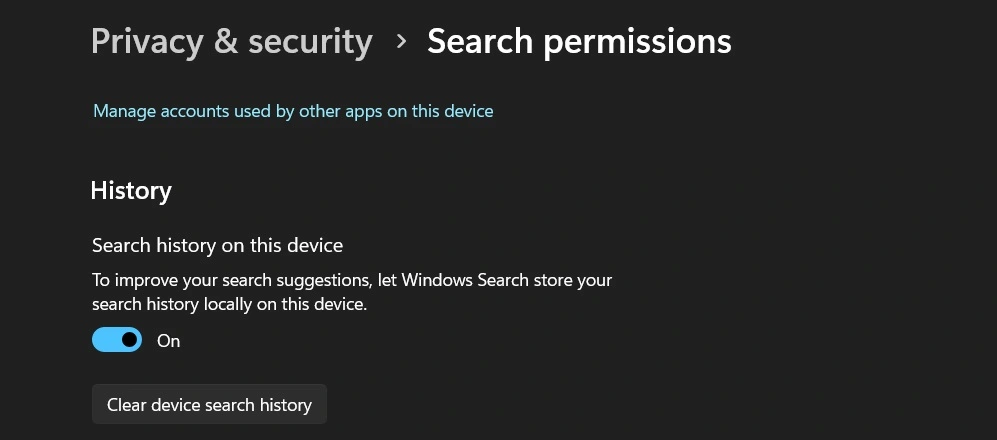
Step 2: Turn off “Search history on this device” to stop Windows from saving your searches locally. Just toggle the switch to disable this feature.
6. App Permissions for Location
Location permissions let apps know where you are. Windows 11 privacy and security settings control GPS access. Computer privacy settings protect your movement patterns.
Many apps request location data unnecessarily. Weather apps need it, but games do not.
Step 1. Go to Settings > Privacy & Security > Location.
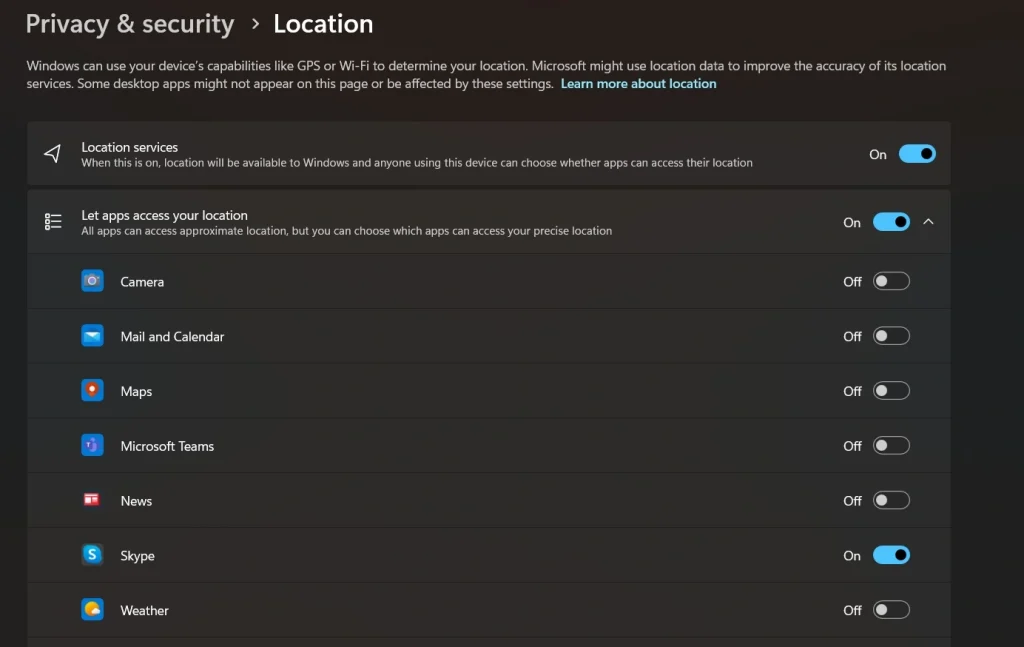
Step 2. Turn off location access. This reduces tracking and helps safeguard your privacy.
7. Camera Access Controls
Camera permissions decide which apps can use your webcam. Windows 11 privacy and security settings prevent unauthorized recording. Computer privacy settings block malicious camera access.
Hackers often target webcams for spying. Only trusted apps should access your camera. Manage privacy settings to review all camera permissions regularly.
Step 1. Navigate to Settings > Privacy & Security > Camera.
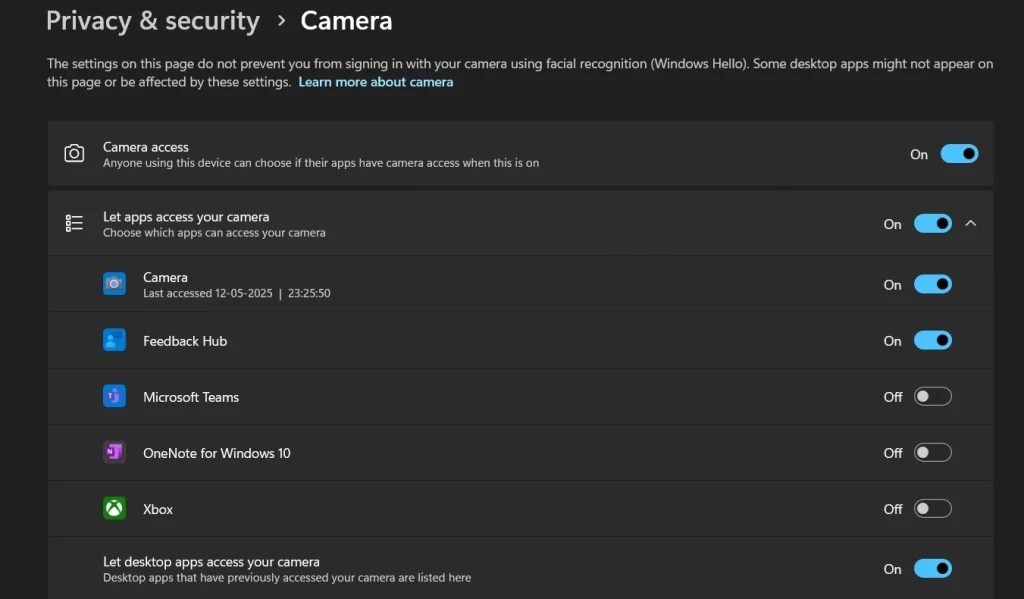
Step 2. Block camera access for apps. This prevents unwanted access and helps keep your device secure.
8. Microphone Permission Settings
Apps with microphone access can record sound, so it’s important to control which ones can listen. Windows 11 privacy settings help prevent unwanted or hidden recordings.
While voice assistants need microphone access, most games and photo editors don’t. Adjust your privacy controls to ensure that only essential apps have access to your microphone.
Step 1. Open Settings > Privacy & Security > Microphone.
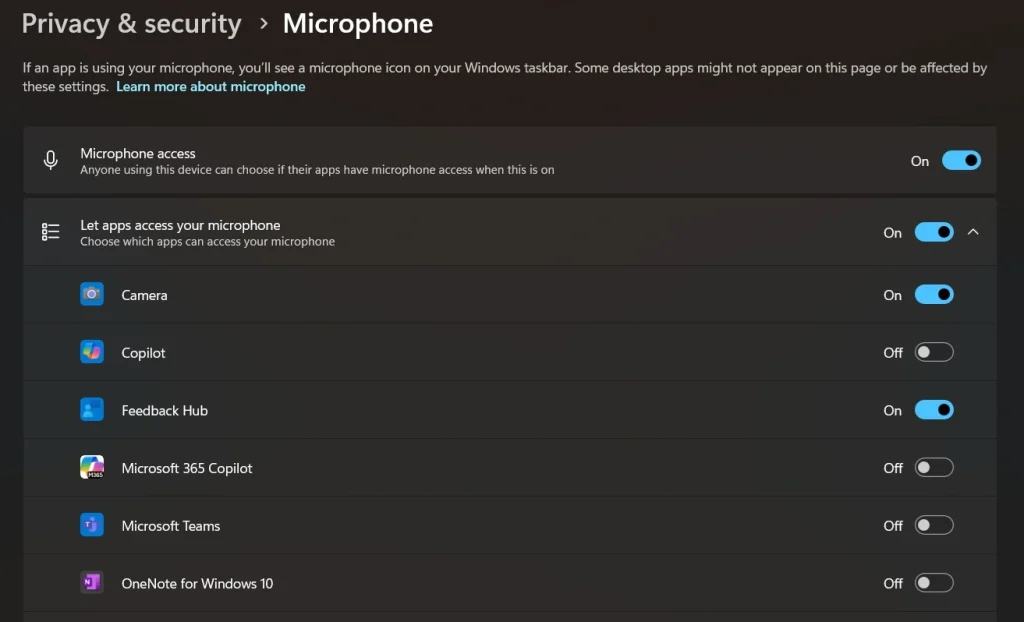
Step 2. Disable the microphone for apps that do not require audio
9. Contacts Access Management
Contacts permissions let apps read your address book. Windows 11 privacy and security settings protect personal connections. Computer privacy settings keep friend and family data private.
Social media apps often want contact access. Email apps need it, but games do not. Manage privacy settings to guard your contact list carefully.
Step 1. Go to Settings > Privacy & Security > Contacts.
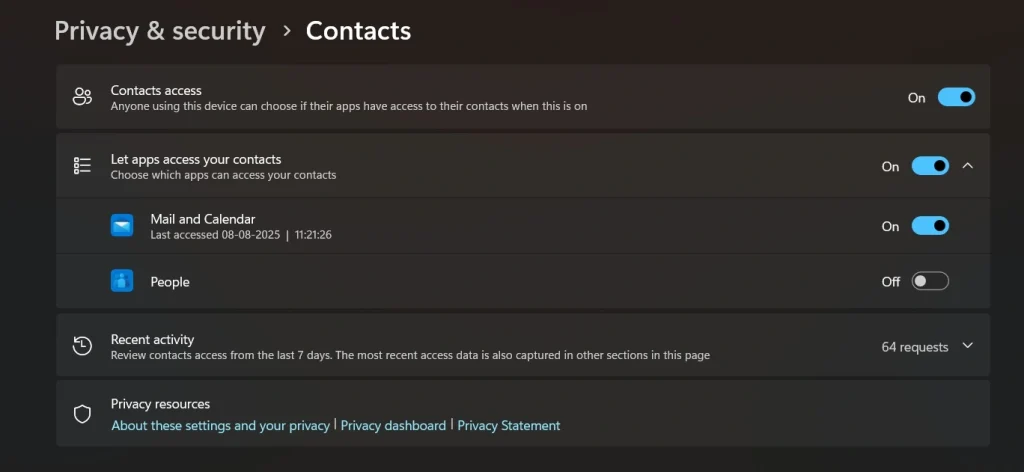
Step 2. Turn off contact access for non-essential apps.
10. Calendar Permission Controls
Calendar access shows your schedule and appointments. Windows 11 privacy and security settings protect your time management. Computer privacy settings keep meeting information private.
Calendar apps need this permission, obviously. But many other apps request it unnecessarily. Manage privacy settings to limit calendar access to essential apps only.
Step 1. Navigate to Settings > Privacy & Security > Calendar.
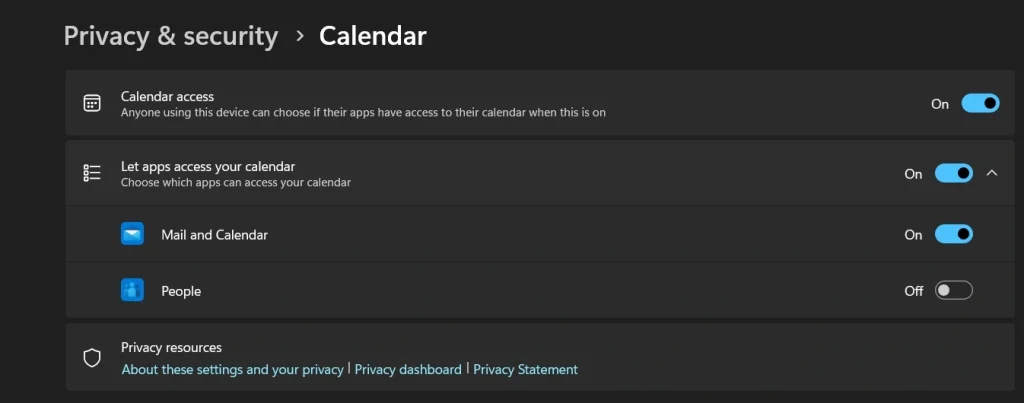
Step 2. Disable calendar permissions for apps that do not need scheduling data
11. Call History Privacy Settings
Call history shows your phone communication patterns. Windows 11 privacy and security settings on phones protect call logs. Computer privacy settings keep communication private.
Phone companion apps may need call history access. Most other apps should not see this data. Manage privacy settings to protect your calling patterns.
Step 1. Open Settings > Privacy & Security > Call history.
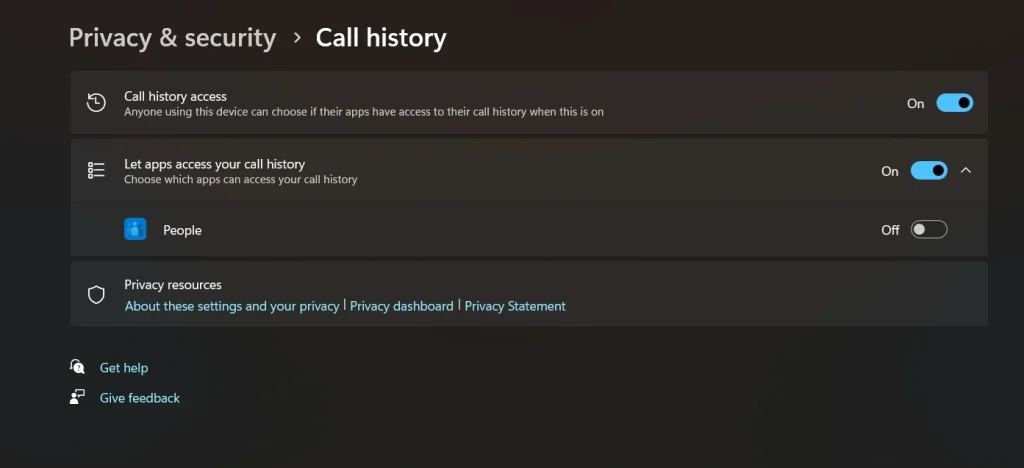
Step 2. Turn off call history access for unnecessary apps
12. Email Access Permissions
Email permissions let apps read your messages. Windows 11 privacy and security settings control mail access. Computer privacy settings protect personal correspondence.
Email apps obviously need message access. Social media and shopping apps often request it too. Manage privacy settings to keep email data away from advertising companies.
Step 1. Go to Settings > Privacy & Security > Email.
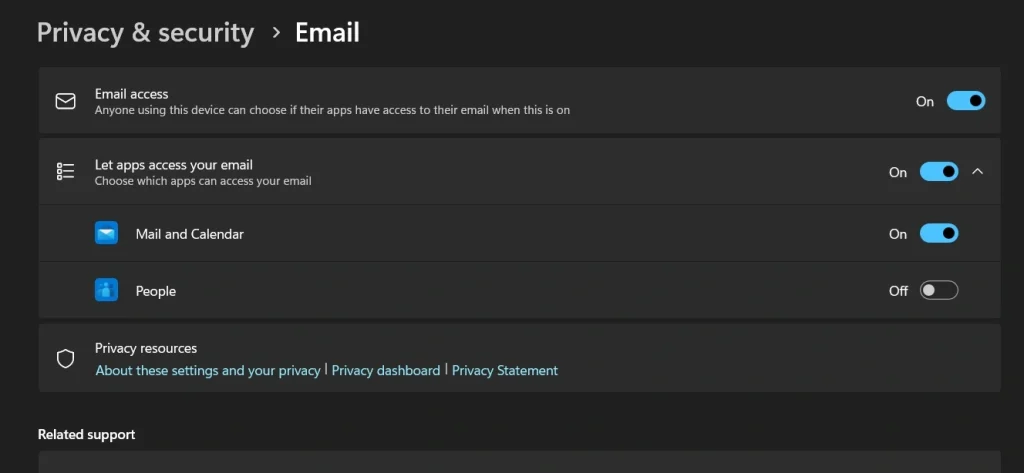
Step 2. Remove email access from apps that do not handle messages
13. Messaging App Controls
Messaging permissions control SMS and chat access. Windows 11 privacy and security settings protect text conversations. Computer privacy settings keep messages private.
Messaging apps need this access to work properly. But many apps request it for marketing purposes. Manage privacy settings to protect your text conversations.
Step 1. Navigate to Settings > Privacy & Security > Messaging.
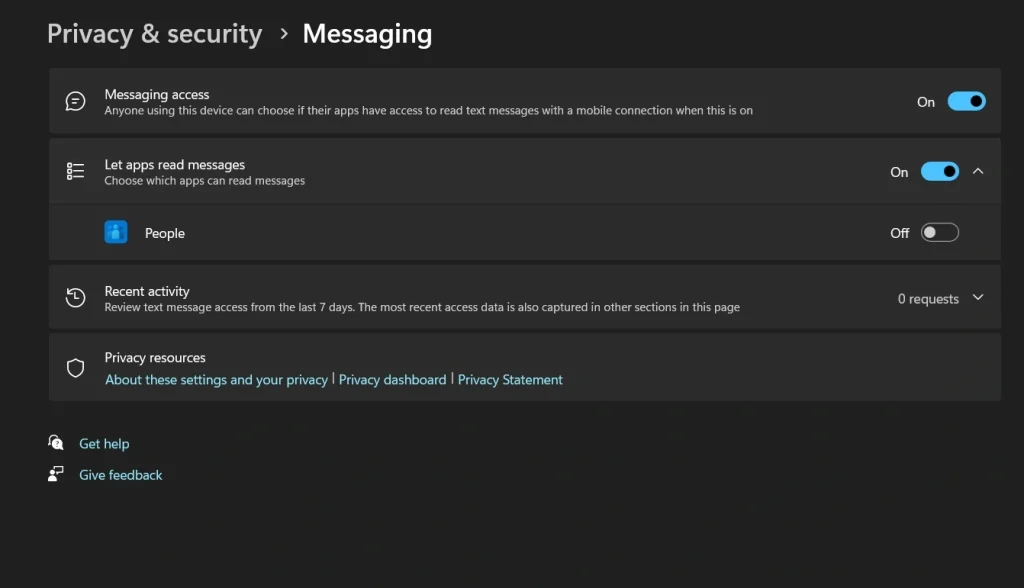
Step 2. Turn off messaging access for apps that do not send or receive texts
14. Phone Call Permissions
Phone call permissions let apps make and receive calls. Windows 11 privacy and security settings control calling access. Computer privacy settings prevent unauthorized phone use.
Communication apps legitimately need calling permissions. Shopping and game apps usually do not. Manage privacy settings to prevent apps from making expensive calls.
Step 1. Open Settings > Privacy & Security > Phone calls.
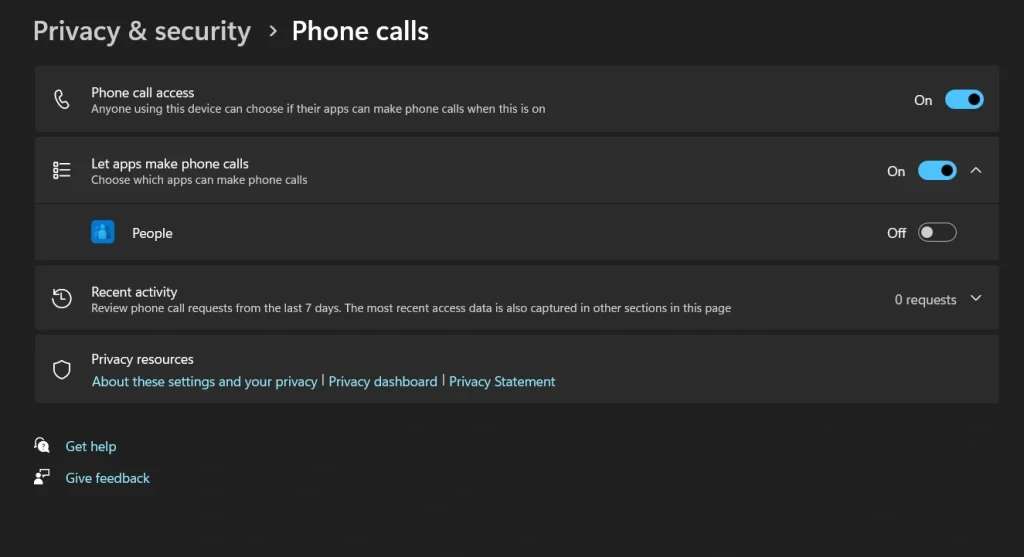
Step 2. Disable calling permissions for non-communication apps
15. Task Management Settings
Task permissions let apps view and control other programs. Windows 11 privacy and security settings limit system access. Computer privacy settings prevent malicious app behavior.
System utilities may need task access for legitimate functions. Most regular apps should not control other programs. Manage privacy settings to protect system integrity.
Step 1. Go to Settings > Privacy & Security > Tasks.
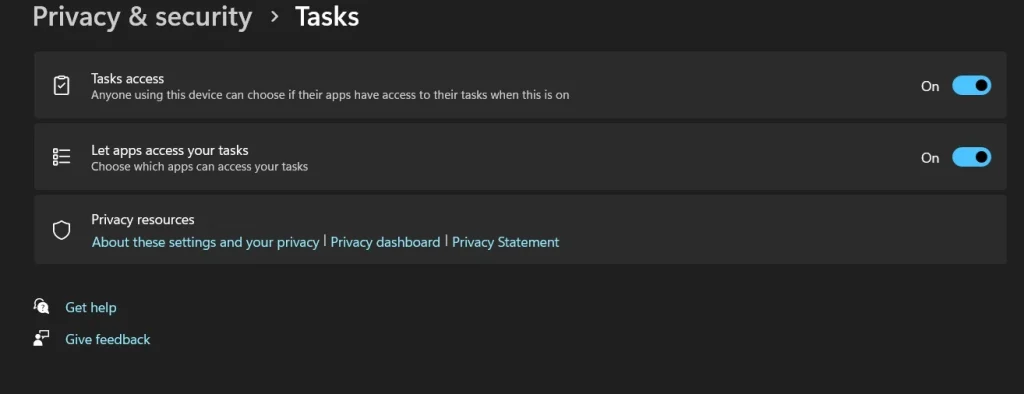
Step 2. Turn off task permissions for apps that do not manage system functions
Author’s TIP
Windows 11 privacy and security settings change with every major update. Microsoft sometimes resets your choices to defaults. Computer privacy settings you configured might return to factory settings automatically.
Check your Windows 11 privacy and security settings every few months. New apps often request permissions you previously denied. Manage privacy settings regularly to maintain strong protection. Create calendar reminders to review these settings quarterly.
Consider creating a backup of your computer’s privacy settings. Some third-party tools can export Windows 11 privacy and security settings. This makes it easier to restore your preferences after system updates or fresh installations.
Pro Tips to Manage Privacy Settings on Windows 11
Advanced users need more control over Windows 11 privacy and security settings. These tips go beyond basic computer privacy settings. Professional techniques help you manage privacy settings like an expert.
- Use Group Policy Editor: Advanced Windows 11 privacy and security settings through gpedit.msc
- Registry Tweaks: Deep computer privacy settings modifications for power users
- Third-Party Tools: Software that helps manage privacy settings automatically
- Network Monitoring: Track what Windows 11 privacy and security settings actually do
- Regular Audits: Schedule monthly reviews of computer privacy settings changes
- Backup Configurations: Save your Windows 11 privacy and security settings before updates
- Test New Apps: Always check what permissions new software requests
- Family Controls: Special computer privacy settings for children’s accounts
Conclusion
Windows 11 privacy and security settings are your first line of defense. Computer privacy settings protect your personal information from unwanted access. Learning to manage privacy settings properly takes time, but saves trouble later.
These Windows 11 privacy and security settings work together as a system. Each computer privacy settings category protects different types of data. When you manage privacy settings correctly, your digital life becomes much safer.
Start with the most important Windows 11 privacy and security settings first. Focus on camera, microphone, and location permissions initially. Then expand to other computer privacy settings as you get more comfortable. Remember that managing privacy settings is an ongoing process, not a one-time task.
FAQs:
Q: How often should I check my Windows 11 privacy and security settings?
Check your computer privacy settings every month or after major Windows updates. Microsoft sometimes resets Windows 11 privacy and security settings to default values. Regular reviews help you manage privacy settings effectively and catch any unwanted changes before they become problems.
Q: Do Windows 11 privacy and security settings slow down my computer?
Computer privacy settings usually do not slow down your system significantly. Most Windows 11 privacy and security settings simply turn features on or off. When you manage privacy settings to disable unnecessary features, your computer might actually run faster by using fewer resources.
Q: Can I restore default Windows 11 privacy and security settings if I make mistakes?
Yes, you can reset computer privacy settings to factory defaults anytime. Each Windows 11 privacy and security settings page has reset options. You can also manage privacy settings individually if you only want to change specific permissions back to their original state.
Author Bio:
Dinesh Lakhwani 

Dinesh Lakhwani, the entrepreneurial brain behind “TechCommuters,” achieved big things in the tech world. He started the company to make smart and user-friendly tech solutions. Thanks to his sharp thinking, focus on quality and the motto of never giving up, TechCommuters became a top player in the industry. His commitment to excellence has propelled the company to a leading position in the industry.
Popular Post
Recent Post

How To Disable Background Apps In Windows: 4 Quick Methods
A slow PC rarely gives a warning. One day, it simply takes longer to start. Apps open late. The fan runs loud, even when the screen is almost empty. Most people blame old hardware. Often, that is not the real reason. The real reason is hiding in plain sight. Windows keeps many apps active in […]

How to Activate Windows with a Product Key for Windows 11 & Windows 10
It always shows up at the worst time. You are halfway through a report, or about to join a video call. Then you spot it in the bottom right corner of the screen. Activate Windows. Go to Settings to activate Windows. Initially, an unactivated copy of Windows may seem like a minor inconvenience. Over time, […]

Is Easy Duplicate Finder Worth It? Honest Review
The photos folder looked normal at first glance. Then the storage warning popped up. One trip photo appeared four times. A tax PDF sat in three different folders. Two old setup files were still in Downloads, and each one was over 500 MB. Nobody plans this mess. Copies pile up slowly. A download runs twice. […]

Wise Duplicate Finder Review: Real Results from Wise Duplicate Finder
Read my honest Wise Duplicate Finder review. See features, pricing, pros and cons, and real PC test results. Find out if this free duplicate cleaner can free up your Windows storage.

How to Recover Deleted Files from Pen drive, USB Drive, SD Card
Introduction: On tech forums, you’ll often see posts like this: “I connected my pen drive to my laptop this morning, but the folder was empty. All my college project files had vanished. I don’t have a backup. Can someone help me?” Stories like this are very common. Pen drives, USB drives and SD cards are […]

How To Recover Files Deleted from the Recycle Bin [Windows 11]
Losing a file can happen in seconds. You clear your desktop, hit Delete, and empty the Recycle Bin. Then, just when you need that file again, it seems to have vanished. This guide will walk you through ways to restore files removed from the Recycle Bin. We will begin with simple fixes, then look at […]

Disk Drill Data Recovery Tool Explained: Full Review and Guide
It happens in a split second. You delete a folder by mistake. Your drive stops showing up. A photo album from your last trip just vanishes. And your stomach drops. Lost files feel personal. They are not just data. They are memories, work hours, and sometimes years of effort packed into a few gigabytes. When […]

Recover Deleted Files In Windows 11 With Software & Without
Introduction What is the first thing that goes through your mind the second an important file vanishes from a Windows 11 PC? For most people, it is a mix of panic and disbelief, followed by a frantic click through every folder that file could possibly be hiding in. It happens in a split second: one […]

EaseUS Data Recovery Wizard: Everything To Know
Data loss does not always come from a big disaster either. Most cases start small and boring. A drive gets formatted by mistake. A laptop freezes mid-save and restarts on its own. A memory card stops showing up after being pulled out too fast. None of these feel like emergencies at first, until you realize […]

