












Introduction: On tech forums, you’ll often see posts like this: “I connected my pen drive to my laptop this morning, but the folder was empty. All my college project files had vanished. I don’t have a backup. Can someone help me?” Stories like this are very common. Pen drives, USB drives and SD cards are […]
Top 6 Malware Checker Tools for Windows 11/10
Unexpected pop-ups appearing on your PC? Missing files? These might be warning signs of malware. Malicious software can compromise your data or even disrupt your entire system. Digital threats come in various forms, from viruses to ransomware, each capable of harming your PC in different ways.
Windows 11 and 10 need strong malware checker tools to stay safe. The web has many threats waiting to attack your PC. A good malware checker tool helps you find and remove these threats fast. Cyber attacks grow more clever each day. They can slip past basic defenses. This makes good protection more vital than ever.
In this guide, we’ll look at the top tools to check malware on Windows. We’ll help you pick the best malware checker for your needs. Let’s make your PC safe again! We’ll cover free options and paid tools. Each has pros and cons. By the end, you’ll know which malware checker fits your needs best. Your digital safety matters, so let’s find you the right shield.
6 Tool To Check Malware For Windows 11 and Widows 10
Part 1: What is a Malware Checker Tool?
A malware checker tool is software that finds and removes bad programs from your computer. It scans your files, memory, and system to spot harmful code. These tools look for viruses, spyware, ransomware, and other threats. They work like digital security guards. They check everything that tries to enter or run on your system. Their job is to keep the bad stuff out.
Most malware checker tools work in the background. They check new files as they enter your system. They also do full scans of your computer on a set schedule. Many use virus databases that update daily. These databases contain known threat patterns. When the tool finds a match, it takes action right away.
Part 2: Choosing a Malware Checker Tool: Top Factors to Consider
Finding the right malware checker for your Windows 11/10 PC means looking at several key factors. Not all tools are made equal, and some fit certain needs better than others.
- Detection Rate: How many threats can the tool find? Higher rates mean better protection.
- System Impact: The best tools to check malware run without slowing your PC down.
- Ease of Use: Look for a clean, simple interface that doesn’t need tech skills.
- Extra Features: Some tools offer VPN, password managers, or file shredders.
- Price: Free tools work well, but paid options often have more features.
- Update Frequency: Malware changes daily, so your tool should update often.
- Customer Support: Good help when you need it makes a big difference.
- Compatibility: Make sure the tool works well with Windows 11/10.
Part 3: Top 6 Malware Checker Tools for Windows 11 and Windows 10 (Comparison)
Choosing the right malware checker matters more than ever. Windows systems face constant threats from new viruses, spyware, and hidden background apps. While many tools promise full protection, they differ in speed, accuracy, and ease of use.
The table below compares the top six malware checker tools for Windows 11 and Windows 10. It focuses on real-world factors like detection strength, system impact, and who each tool is best suited for, so readers can make a clear and practical choice.
| Tool Name | Real-Time Protection | Malware Detection Level | System Impact | Ease of Use | Best For |
| Fortect Antivirus | Yes | Very High | Low | Very Easy | Fast scans, system repair, beginners |
| Bitdefender Antivirus Plus | Yes | Excellent | Low to Medium | Easy | Advanced protection with minimal slowdown |
| Malwarebytes | Yes (Premium) | High | Medium | Very Easy | Removing stubborn malware and threats |
| Windows Defender (Microsoft Defender) | Yes | Good | Very Low | Very Easy | Built-in protection with no extra install |
| Kaspersky Anti-Virus | Yes | Excellent | Medium | Easy | Strong security with detailed controls |
| Avast Free Antivirus | Yes | Good | Medium | Easy | Free real-time protection for basic use |
Part 4: Top 5 Tools to Check Malware
1. Fortect Antivirus
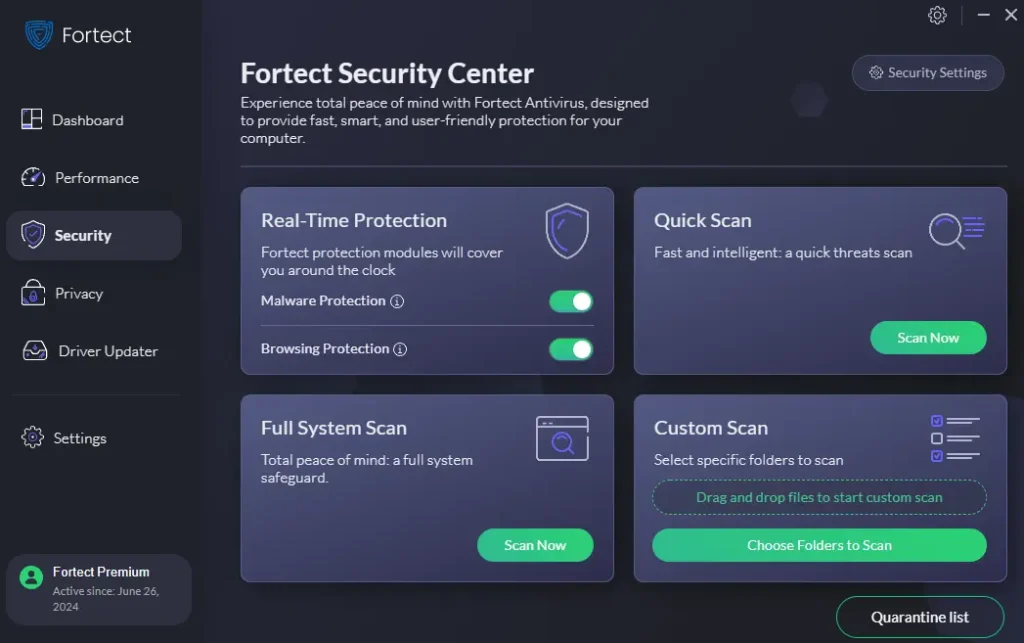
Fortect Antivirus stands out as a dependable malware scanner for Windows 11 and 10. It scans deeply for viruses, spyware, trojans, and other harmful software that can slow your system or steal data. The interface is straightforward. You can start a scan in moments and see clear results. Fortect also updates its threat database often so it recognizes new dangers as they appear in the wild. Beyond malware detection, it offers real-time protection to block threats before they run.
This tool also aims to keep your system stable. It checks for suspicious changes in system files and settings. If it finds risky patterns, it offers simple steps to fix them. Fortect works quietly in the background, so it does not interrupt work or play. For users who want a blend of protection and ease, Fortect is a solid choice on Windows 10 or 11.
Key Features
- Deep malware scanning with up-to-date threat definitions
- Real-time protection against viruses and spyware
- System repair suggestions for corrupted settings or files
- Easy, clean interface with quick scan options
Pros
- Strong detection and removal of many malware types
- Runs quietly without slowing daily tasks
- Clear, user-friendly display
- Frequent database updates
Cons
- Some advanced features require a paid license
- Occasional alerts may confuse less technical users.
2. Bitdefender Antivirus Plus

Bitdefender stands out as a top malware checker for Windows users. It has a clean interface and works with little input needed. The tool runs in autopilot mode to handle threats without bothering you.
Bitdefender uses AI to detect new threats before they spread, with little impact on system speed, even during full scans. It spots unknown malware based on behavior rather than known patterns, helping protect against zero-day attacks that other tools might miss.
Key Features:
- Real-time protection.
- Web filtering that blocks harmful sites before you visit them
- Anti-phishing tools that spot fake websites trying to steal your data
- Password manager. It helps to create and store strong passwords
- File shredder to permanently delete sensitive documents
- Network threat prevention that guards your Wi-Fi connection
Pros:
- Very high detection rates in lab tests
- Low system impact even during full scans
- Easy to use with minimal setup needed
- Good extra tools included in the package
- Strong technical support options
Cons:
- Full version costs money after trial period
- Some features hidden in menus
- Can conflict with some programs
3. Malwarebytes

Malwarebytes is a powerful malware checker known for finding threats others miss. It works well as both a main tool or alongside other antivirus programs. Many tech experts use it for tough malware cases. The tool gained fame for its ability to remove infections when other tools failed. It excels at cleaning already infected systems, making it a go-to rescue tool.
Malwarebytes is great at removing infections. The free version lets you scan when needed, while the paid version adds real-time protection to block threats before they install. Instead of relying on traditional methods, it looks for suspicious behavior and code patterns to detect new and unknown malware. The company updates its threat database multiple times a day to stay ahead of evolving threats.
Key Features:
- Deep scanning engine that checks hidden areas
- Ransomware protection that monitors file changes
- Exploit protection to guard against software weaknesses
- Web protection that blocks malicious sites
- Remediation tools to fix damage from infections
- Fast scans that check critical areas quickly
- Rootkit detection that finds deeply hidden malware
- Browser Guard extension that stops web threats
Pros:
- Excellent at cleaning infected systems
- Low false positive rate
- Fast scan times
- Clean interface
- Works alongside other security tools
Cons:
- The free version lacks real-time protection
- Uses more resources than some tools during scans
- Limited extra features compared to suite products
4. Windows Defender (Microsoft Defender)

Windows Defender is a free malware checker that comes with Windows 11 and Windows 10. It has improved a lot over the years and is now one of the best free tools for detecting malware. Microsoft has put a lot of effort into making Defender a strong security option, and it often outperforms paid alternatives in independent tests.
Microsoft updates Defender often with new protection features. It integrates perfectly with Windows and runs quietly in the background. For many users, no extra malware tool is needed. The settings sync with your Microsoft account. This makes it easy to manage protection across multiple devices. Defender also works with Microsoft’s cloud security to spot new threats faster. The tool checks files against online databases for better detection.
Key Features:
- Real-time protection is always running
- Cloud-based analysis of suspicious files
- Controlled folder access to prevent ransomware
- Network protection against internet threats
- System health reports and performance checks
Pros:
- Free and already installed on Windows 11/10
- No extra software needed
- Good detection rates in recent tests
- Low system impact
- Regular automatic updates
Cons:
- Fewer advanced features than paid options
- Sometimes less effective against the newest threats
- Limited customization options
5. Kaspersky Anti-Virus

Kaspersky offers a robust malware checker with an excellent detection rate. The tool works well on both Windows 11 and 10. It finds threats without slowing down your system much. The company has a strong research team that tracks new malware trends. This helps them update protection quickly when new threats emerge.
This malware checker tool has a simple interface that makes it easy to use. It also includes tools to boost PC performance along with security features. Kaspersky uses multiple layers of protection. It checks files, web traffic, emails, and system behavior. The tool can roll back changes made by malware. This helps recover from attacks without data loss. Its Safe Money feature adds extra protection when banking online.
Key Features:
- Real-time protection with multiple security layers
- Vulnerability scanner to find security gaps
- Gaming mode for uninterrupted play
- On-screen keyboard to avoid keyloggers
- Rescue disk creator for severe infections
- Privacy protection tools
- Webcam protection against spying
- Network monitor for Wi-Fi security
Pros:
- Top-rated detection ability in lab tests
- Frequent updates throughout the day
- Good performance tools included
- Strong ransomware protection
- Easy-to-understand interface
Cons:
- Basic version lacks some features
- Political concerns in some countries
- Can be pushy about upgrades
6. Avast Free Antivirus

Avast is a popular free malware checker used by millions. It offers strong basic protection without cost. The paid version adds more features for complete security. Avast has a large threat detection network. It uses data from its many users to find new threats quickly. When one user encounters malware, all users get protection against it soon after.
This tool includes a password manager and home network scanner, even in the free version. It works well for users who want good protection without spending money. Avast’s interface is modern and user-friendly. The tool offers good explanations of security issues. This helps less technical users understand threats. Avast also checks for outdated software that might have security holes.
Key Features:
- Behavior-based detection of unknown threats
- Wi-Fi network scanner to find vulnerabilities
- Game mode that minimizes interruptions
- Browser cleaning and safety tools
- Password manager for better login security
- Rescue disk for serious infections
- Software updater to patch security holes
- Email protection against phishing
Pros:
- Powerful free version with core protections
- Good detection rates in independent tests
- Extra tools included at no cost
- Regular updates to threat database
- Smart scan finds multiple issues
- Community-powered threat detection
Cons:
- Shows ads for the paid version
- It can slow down older PCs during scans
- Privacy concerns with data collection
- Some features lead to upsells
Part 5: Tips to Use a Malware Checker Tool Like a Pro
Even the best malware checker needs proper setup and use. These tips will help you get more from your tools to check malware on Windows 11/10.
- Run Regular Scans: Schedule weekly full system scans, not just quick scans.
- Keep Your Tool Updated: Always install the latest updates for your malware checker.
- Use Real-time Protection: Keep this feature on for constant safety.
- Scan Downloaded Files: Check new files before opening them.
- Use Boot-Time Scans: Run these deeper scans monthly to catch hidden threats.
- Don’t Run Multiple Antivirus Programs: They can conflict and cause problems.
- Check Quarantined Items: Review what your tool catches before deleting.
- Back Up Your Data: Even with good protection, backups provide extra safety.
Conclusion
A good malware checker is a must for any Windows 11/10 user. These tools help keep your data safe and your system running well. The five malware checker tools we covered offer great options for all needs and budgets. Each has strengths for different situations. Some excel at ease of use. Others offer the highest protection. Match your choice to your needs and technical skill level.
Check your malware tool settings and run scans regularly. This helps catch problems early. With the right tools to check malware and good habits, your Windows PC can stay safe from most threats. Take time to learn your tool’s features. Make full use of what it offers. The small effort pays off with fewer problems and a smoother computing experience. Stay safe out there in the digital world.
FAQs
How often should I run a malware checker scan?
Run a quick scan at least once a week. Do a full system scan once a month. Also, scan any new files before opening them. If your computer acts strange, run an extra scan right away. Regular checks help catch problems early. Many tools let you set up automatic scans on a schedule. This makes it easy to stay protected without remembering to run scans manually. Quick scans take minutes, while full scans might take an hour or more depending on your system and the tool you use.
Can I use multiple malware checker tools together?
It’s best to use one main real-time protection tool. Running two at once can cause conflicts and slow your PC. But you can use on-demand scanners like Malwarebytes alongside your main tool for extra checks. This gives you a second opinion without conflicts. The main tool handles day-to-day protection. The second tool runs occasional scans to catch anything missed. This layered approach works well if done right. Just make sure only one tool has its real-time features turned on at any time.
Are free malware checker tools good enough?
Free tools like Windows Defender and Avast provide good basic protection. They work well for most home users. Paid tools offer more features and sometimes better detection. Choose based on your needs and risks. For most people, a good free tool with regular updates works fine. High-risk users might want paid tools. These include people who bank online often, use public Wi-Fi, or handle sensitive data.
Author Bio:
Dinesh Lakhwani 

Dinesh Lakhwani, the entrepreneurial brain behind “TechCommuters,” achieved big things in the tech world. He started the company to make smart and user-friendly tech solutions. Thanks to his sharp thinking, focus on quality and the motto of never giving up, TechCommuters became a top player in the industry. His commitment to excellence has propelled the company to a leading position in the industry.
Popular Post
Recent Post

How To Recover Files Deleted from the Recycle Bin [Windows 11]
Losing a file can happen in seconds. You clear your desktop, hit Delete, and empty the Recycle Bin. Then, just when you need that file again, it seems to have vanished. This guide will walk you through ways to restore files removed from the Recycle Bin. We will begin with simple fixes, then look at […]

Disk Drill Data Recovery Tool Explained: Full Review and Guide
It happens in a split second. You delete a folder by mistake. Your drive stops showing up. A photo album from your last trip just vanishes. And your stomach drops. Lost files feel personal. They are not just data. They are memories, work hours, and sometimes years of effort packed into a few gigabytes. When […]

Recover Deleted Files In Windows 11 With Software & Without
Introduction What is the first thing that goes through your mind the second an important file vanishes from a Windows 11 PC? For most people, it is a mix of panic and disbelief, followed by a frantic click through every folder that file could possibly be hiding in. It happens in a split second: one […]

EaseUS Data Recovery Wizard: Everything To Know
Data loss does not always come from a big disaster either. Most cases start small and boring. A drive gets formatted by mistake. A laptop freezes mid-save and restarts on its own. A memory card stops showing up after being pulled out too fast. None of these feel like emergencies at first, until you realize […]

Recuva Data Recovery Tool: Is it Actually Worth it?
When I first tried Recuva Data Recovery, I wanted to see if it could really bring back lost files. The tool is free, small in size, and promises quick recovery, which made me curious enough to test it on my own PC. The setup was fast, and the wizard guided me step by step. I […]

GetData Recover My Files Data Recovery Tool: Honest Review
A hard drive error brings a special kind of silence. Well, yes! The screen freezes, then a message appears saying the drive can’t be found or must be formatted. In that moment, years of photos and work files feel at risk. It never happens at a good time. Coffee spills near a laptop, a memory […]

Windows File Recovery: A Complete Review [Tried & Tested]
Imagine this. You spend hours perfecting a video project. You hit save. Then your laptop freezes, reboots, and when the screen comes back. The file is gone. Your stomach sinks. It’s not just you. Lost files happen all the time. A dropped hard drive, a bad update, an accidental delete, or a corrupted partition can […]

5 Best Data Recovery Software For Windows 11 and Windows 10
Introduction: A crashed drive can ruin a whole day. One minute your photos, work files, and tax records sit safe on your PC. The next minute they are gone. A power cut, a bad update, or one wrong click can wipe out years of memories and months of work in seconds. That sinking feeling is […]

How To Update NVIDIA Drivers On Windows 11/10 PC
Learn how to update NVIDIA drivers on Windows 11/10 with simple methods, safety tips, and easy steps for smoother gaming and better PC performance.

