












A slow PC rarely gives a warning. One day, it simply takes longer to start. Apps open late. The fan runs loud, even when the screen is almost empty. Most people blame old hardware. Often, that is not the real reason. The real reason is hiding in plain sight. Windows keeps many apps active in […]
How to Update Display Driver on Windows 11/10 [Easiest Ways]
You might already be aware that between your graphics card and Windows OS, your display driver serves as an essential channel for communication. A driver that is out of date or corrupt can cause several annoying problems, ranging from slow performance and visual abnormalities to complete system instability.
Maintaining the most recent versions of your graphics drivers is crucial for gaming, system stability, and peak performance. You’ve arrived to the ideal location if you’re asking how to update the display drivers on Windows 11/10. This tutorial will show you how to make sure your system is using the newest and best display drivers in the simplest and most efficient ways possible.
What Are Display Drivers?
Well, Display Drivers are dedicated software which enable seamless communication between your operating system and graphics hardware. The graphics card or integrated GPU (Graphics Processing Unit) and Windows OS communicate with one other through these intermediaries. Your operating system instructs the display driver, which in turn instructs your graphics hardware on what to render on your screen while you play a game or watch a film. These drivers include essential code that enhances performance, resolves issues, and makes your graphics card capable of new functions.
To increase stability, performance, and compatibility, major graphics card makers like NVIDIA, AMD, and Intel frequently release driver upgrades. Your computer wouldn’t be able to take advantage of your graphics hardware’s full potential without the right display drivers.
When You Need to Update Display Drivers?
Understanding when to update your display driver can help you avoid annoying visual problems. The following significant circumstances usually call for updating your drivers:
- If you observe crashes, stuttering, or frame drops in graphics-intensive apps.
- For complete compatibility, new OS versions occasionally call for updated drivers.
- Manufacturers frequently use driver updates to introduce new features.
- If your system unexpectedly loses the ability to recognize monitors or keep the right resolutions.
- If your graphics driver is mentioned in any error messages that you receive.
- The optimizations found in the most recent drivers are frequently advantageous for new games.
- If you frequently see coloured dots, lines, or odd patterns that appear on your screen.
- Always upgrade to the most recent drivers when installing new hardware & after installing a new graphics card.
Updating your display driver on a regular basis guarantee that your graphics hardware is operating at peak efficiency and stability. Most manufacturers advise looking for upgrades every one to three months.
When You Should Avoid Updating Display Drivers On Your Windows 11/10 PC?
Well, updating your display drivers is generally a good practice, but there are certain times when performing a video driver update is not suggested.
- When your OS is running well: You might adhere to the “if it’s not broken, don’t fix it” philosophy if your system is reliable and operating efficiently.
- Just before crucial work: There’s always a chance of issues, so don’t update drivers right before significant deadlines or presentations.
- Beta Drivers: Avoid installing Beta or experimental drivers on production systems unless you’re debugging a specific problem.
- Very old hardware: Performance may be lowered if newer drivers eliminate optimizations for outdated hardware.
- Custom configuration systems: If you have unique configurations that function well with the drivers that are currently in use, or if you have customized multi-GPU setups.
- Without a contingency plan: Never update drivers without understanding how to undo the changes in case something goes wrong.
At last, always research for the specific update and consider its relevance to your system before proceeding.
Precautions Before Updating Display Drivers
Before you consider updating your display drivers on your Windows 11/10 PC, make sure you adhere to the following important precautions to ensure a smooth process:
- Perform System Restore: In the event that something goes wrong, you can restore your system by creating a restore point. For this, all you have to do is, simply go to the Search bar and look for “Create a restore point” option. Once found, click on the “Create” button on the same window and adhere to the instructions.

- Make a backup of your crucial files: Although they are uncommon, driver updates can occasionally result in unstable systems.
- Ensure stable power: To guarantee consistent power, plug laptops in and think about buying a UPS for desktop computers.
- Shut down every application: Make sure that no applications are active while the update is being performed.
- Note your current driver version: If you need to roll back, it will be easier if you take note of your current driver version. To do so, just hit the shortcut keys – WIN + X altogether and click on the “Device Manager”.
On the Device Manager window, simply locate “Display adapters” and expand the same. After this, just right-click your graphics card and choose “Properties” option from the right-click context menu. To see the most recent version, select the “Driver” tab.

- Verify the model of your hardware: To obtain the appropriate drivers, be sure to identify the specific graphics card you own.
- Temporarily turn off your antivirus program: Since some security programs can prevent drivers from installing, consider disabling it for some time.
- Download only from authorized sources: Drivers should always be downloaded via Windows Update or the manufacturer’s website.
- Check the release notes: Recognize any known problems and the modifications the new driver introduces.
- Be prepared for downtime: Because some driver upgrades require the requirement to let machine restarts.
By following these steps prior to updating your display driver, you may help avoid issues and make sure your system stays stable during the process.
How to Update Display Drivers on Windows 11/10?
These are some of the easiest methods to perform video driver updates:
Method 1: Using Windows Update
Although it might not always offer the most recent versions, Windows Update is the most straightforward method of updating display drivers.
STEP 1. Launch Windows Settings
For accessing this, simply click on the WIN + I key altogether.
STEP 2. On your operating system:
In Windows 11, select Windows Update from the panel on the left.
Click on Update & Security in Windows 10.
STEP 3. Click “Check for updates”
That’s it! At this point, Windows will automatically begin downloading and installing any relevant drivers that are available to install. Simply click on the Restart button to implement the changes with latest driver updates.

| Writer’s Tip: Windows Update usually offers more conservative, well-tested driver versions instead of the most recent releases, despite its convenience. |
Method 2: Using Device Manager
Device Manager provides a direct way to update drivers through Windows:
STEP 1. Launch Device Manager
After pressing Windows + X, choose Device Manager.
STEP 2. Extend the category of display adapters.
Expand the respective category of Display adapters by double clicking on the same.

STEP 3. Update your Display driver
To update your graphics card’s driver, right-click on it and choose Update from the context menu.
STEP 4. Follow the on-screen Instructions
Select “Search automatically for drivers” to allow Windows to locate the most recent version on the Internet.To finish the installation, adhere to the on-screen directions.
| Writer’s Tip: Device Manager may not always locate the most recent drivers, so if Windows is unable to locate them, try the manufacturer’s website as outlined in Method 3. |
Method 3: Directly from Manufacturer Websites
Get the most recent display driver update straight from the manufacturer of your graphics card:
On Your NVIDIA GPUs:
1. Go to the driver download website for NVIDIA.
2. Choose your product’s specifications (model, series, kind, etc.).
3. Select Search.
4. Download the operating system’s suggested driver.
5. Launch the installer that was downloaded and adhere to the prompts displayed on the screen.
6. Just restart your PC to implement the necessary changes once the updates are installed.

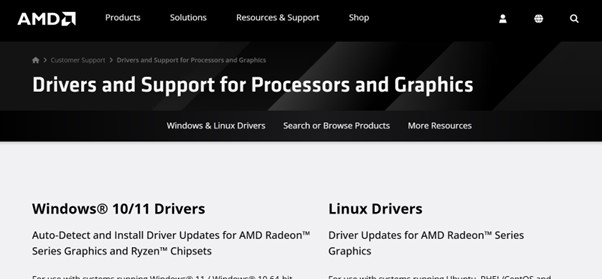
On Your AMD GPUs:
1. Go to the AMD driver download website.
2. From the drop-down choices, choose your product.
3. Press the Submit button.
4. Download the operating system’s suggested driver.
5. Launch the installer that was downloaded and adhere to the prompts displayed on the screen.
6. Just restart your PC to implement the necessary changes once the updates are installed.
On Your Intel Graphics:
1. Go to the Intel driver download page.
2. Determine which Intel graphics product you have.
3. Get the relevant driver.
4. Launch the installer that was downloaded & adhere to the prompts displayed on the screen.
5. After the installation is finished, restart your computer.

| Writer’s Tip: Make a folder just for driver downloads so you can quickly locate earlier iterations in case you need to roll back. |
Method 4: Using Manufacturer’s Software
Manufacturers of graphics cards provide exclusive software that can find and install driver updates automatically:
Experience with NVIDIA GeForce:
1. Install GeForce Experience after downloading it.
2. Open the app and log in using your NVIDIA credentials.
3. Select the “Check for updates” button under the Drivers tab.
4. Select Express Installation or Custom Installation after clicking Download, if it is available.
5. Observe the directions displayed on the screen.
6. When prompted, restart your computer.
Experience with AMD Radeon Software:
1. Install the AMD Radeon software after downloading it.
2. Open the program
3. Select the System tab
4. Click the Settings icon (gear).
5. Select “Check for Updates.”
6. If it’s accessible, download and install it by following the instructions.
7. When prompted, restart your computer.
Experience with Intel Support Assistant & Driver:
1. Install Intel DSA after downloading it.
2. Open the software
3. It will check your computer for out-of-date drivers automatically.
4. Download and install any available updates by following the instructions.
5. When prompted, restart your computer.
| Writer’s Tip: In addition to driver upgrades, these proprietary tools frequently come with extra settings and game optimization capabilities that can improve your gaming experience. |
Method 5: Use a Specialized Driver Updater Software
Multiple drivers can be updated and your system scanned by third-party tools:
1. Install and start the application after downloading a reliable driver updater (such as Driver Booster, Driver Easy, or Snappy Driver Installer).
2. To look for out-of-date drivers, run a scan.
3. From the list of available updates, pick your display driver.
4. To download and install, adhere to the instructions.
5. After the procedure is finished, restart your computer.

| Writer’s Tip: Use third-party tools with caution. Reputable solutions should be used instead than ones that demand money for fundamental features. In general, the official tools from the manufacturer are safer choices. |
How to Roll Back Display Drivers in case of Mishap?
Here’s how to reverse a display driver update if it’s giving you issues:
1. Press Windows + X keys altogether & choose Device Manager from the pop-up menu.
2. Extend the category of display adapters
3. Choose Properties by performing a right-click on your graphics card.
4. Select the Driver tab.
5. If the Roll Back Driver is available, click it.
6. Restart your computer and adhere to the on-screen directions.
Bottom Line
For Windows 11/10, keeping your display drivers up to date is crucial to preserving system stability and optimum graphics performance. Regular display driver updates guarantee you’re getting the most out of your hardware, whether you decide to upgrade via Windows’ built-in tools or straight from vendor websites.
Before updating, don’t forget to take the right measures, like making a system restore point and being aware of how to roll back if needed. While gamers and creative professionals may benefit from more frequent upgrades, most users find that checking for display driver updates every one to three months is adequate.
You can guarantee that your system always has the most up-to-date display drivers loaded by using the techniques described in this guide. This will increase performance, reduce graphics problems, and enhance your computer experience in general.
Frequently Asked Questions
Q1: How frequently should my display driver be updated?
A1: Unless the manufacturer recommends it, update only as required, such as to correct bugs or improve performance.
Q2: Will my gaming performance be enhanced by changing my drivers?
A2: Yes, frequently in a big way. Optimizations for the newest games are often included in new drivers, which results in improved frame rates and more fluid gameplay.
Q3: Can I have issues after updating my drivers?
A3: Although it is uncommon, a new driver may cause problems. For this reason, it’s a good idea to take safeguards like backing up your previous drivers, if at all possible. You may typically revert to the previous version if you experience issues after an upgrade.
Q4: Where can I locate the most recent drivers for my display?
A4: The official website of your graphics card manufacturer (NVIDIA, AMD, or Intel) is the most trustworthy source for the most recent drivers.
Q5: Why does installing a driver cause my screen to go black?
A5: This is certainly normal. The display service may repeatedly restart during a display driver upgrade, resulting in brief black screens.
Q6: Is it possible to prevent Windows from updating my display drivers automatically?
A6: Yes, you can use the Advanced Options in the Windows Update settings to set up Windows Update to give you control over when driver updates are installed.
Q7: After updating my display driver, what should I do if my computer still won’t boot up?
A7: Press F8 to enter Safe Mode at startup (or via recovery options), and then use Device Manager to remove or roll back the faulty driver.
NEXT READ:
- What is DDU? Full Guide to Use Display Driver Uninstaller
- Best Ways To Handle Windows 11 Driver Updates Issues: Complete Guide
- How To Update Drivers On Windows 11 Automatically & Manually
- Download Epson L3110 Driver for Windows 11/10/7 [Top 3 Ways]
- Install, Uninstall & Reinstall Bluetooth Drivers Windows 11/10
- How to Download/Update Canon G3010 Printer Driver
- Step-by-Step: How to Download and Update Lenovo G550 Drivers on Windows 10
- How to Download and Update Intel HD Graphics 5500 Driver
Author Bio:
Dinesh Lakhwani 

Dinesh Lakhwani, the entrepreneurial brain behind “TechCommuters,” achieved big things in the tech world. He started the company to make smart and user-friendly tech solutions. Thanks to his sharp thinking, focus on quality and the motto of never giving up, TechCommuters became a top player in the industry. His commitment to excellence has propelled the company to a leading position in the industry.
Popular Post
Recent Post

How to Activate Windows with a Product Key for Windows 11 & Windows 10
It always shows up at the worst time. You are halfway through a report, or about to join a video call. Then you spot it in the bottom right corner of the screen. Activate Windows. Go to Settings to activate Windows. Initially, an unactivated copy of Windows may seem like a minor inconvenience. Over time, […]

Is Easy Duplicate Finder Worth It? Honest Review
The photos folder looked normal at first glance. Then the storage warning popped up. One trip photo appeared four times. A tax PDF sat in three different folders. Two old setup files were still in Downloads, and each one was over 500 MB. Nobody plans this mess. Copies pile up slowly. A download runs twice. […]

Wise Duplicate Finder Review: Real Results from Wise Duplicate Finder
Read my honest Wise Duplicate Finder review. See features, pricing, pros and cons, and real PC test results. Find out if this free duplicate cleaner can free up your Windows storage.

How to Recover Deleted Files from Pen drive, USB Drive, SD Card
Introduction: On tech forums, you’ll often see posts like this: “I connected my pen drive to my laptop this morning, but the folder was empty. All my college project files had vanished. I don’t have a backup. Can someone help me?” Stories like this are very common. Pen drives, USB drives and SD cards are […]

How To Recover Files Deleted from the Recycle Bin [Windows 11]
Losing a file can happen in seconds. You clear your desktop, hit Delete, and empty the Recycle Bin. Then, just when you need that file again, it seems to have vanished. This guide will walk you through ways to restore files removed from the Recycle Bin. We will begin with simple fixes, then look at […]

Disk Drill Data Recovery Tool Explained: Full Review and Guide
It happens in a split second. You delete a folder by mistake. Your drive stops showing up. A photo album from your last trip just vanishes. And your stomach drops. Lost files feel personal. They are not just data. They are memories, work hours, and sometimes years of effort packed into a few gigabytes. When […]

Recover Deleted Files In Windows 11 With Software & Without
Introduction What is the first thing that goes through your mind the second an important file vanishes from a Windows 11 PC? For most people, it is a mix of panic and disbelief, followed by a frantic click through every folder that file could possibly be hiding in. It happens in a split second: one […]

EaseUS Data Recovery Wizard: Everything To Know
Data loss does not always come from a big disaster either. Most cases start small and boring. A drive gets formatted by mistake. A laptop freezes mid-save and restarts on its own. A memory card stops showing up after being pulled out too fast. None of these feel like emergencies at first, until you realize […]

Recuva Data Recovery Tool: Is it Actually Worth it?
When I first tried Recuva Data Recovery, I wanted to see if it could really bring back lost files. The tool is free, small in size, and promises quick recovery, which made me curious enough to test it on my own PC. The setup was fast, and the wizard guided me step by step. I […]

