












So, search for a pair of shoes once online. Close the tab. By evening, those same shoes are sitting on your news site, your video app, and even your recipe blog. Nobody placed them there by chance. A cookie did. Well, yes! Cookies are small files that websites place on your device while you browse. […]
14 Best Free Browser For Android TV [Latest List]
Introduction:
Watching videos, checking social media, and browsing the web on the big screen is easier than ever with Android TV. Most smart TVs today run on Android TV, allowing users to install apps directly on their televisions. This includes web browsers – opening up a whole new world of web experiences designed for the living room.
In 2026, there are more great browser options for Android TV than ever before. However, not all browsers for Android TV are created equal. Some excel at streaming video, others offer ad-blocking, and some prioritize speed and customization. With lots of options, it’s hard to choose the right one.
This guide will cover the 14 best browsers for Android TV to try. We’ll explore the key features of each browser, along with the pros and cons. Read on to discover which browser is best suited for your needs!
What To Look For In A Browser For Android TV?
Picking a browser for your TV is not the same as picking one for your phone or laptop. A big screen and a remote control change what actually matters. Before you install anything, check that the browser handles these basics well.
- Remote-friendly navigation: The browser should let you scroll, click links, and switch tabs using only the arrows and select button on your TV remote. If you constantly need a mouse, the app was not built for TV use.
- Readable text at a distance: Menus, tabs, and buttons should be large enough to read from a couch several feet away. Tiny mobile-style text is hard to see on a big screen.
- Video playback support: Look for support for common formats and flash content where needed, since a large part of TV browsing involves watching videos or clips.
- Speed on limited hardware: Many Android TV boxes have modest processors and RAM. A lightweight browser that loads pages quickly will feel far more usable than a heavy one.
- Tab and bookmark management: Being able to save favorite sites and jump between open tabs saves a lot of typing on a remote, where entering URLs is slow.
- Ad blocking: Pop-up ads are especially annoying on a TV screen. A built-in ad blocker keeps browsing clean without needing a separate extension.
- Voice search: Typing with a remote is tedious. A browser that accepts voice input through the remote mic makes searching much faster.
- Regular updates and security: Choose a browser that is still actively maintained. Frequent updates mean better compatibility with modern sites and fewer security gaps.
Top 5 Android TV Browsers Compared
Each browser on this list has its own strengths, and the right pick depends on how you plan to use it. The table below lines up five popular options side by side, so you can quickly see which one fits your setup best.
| Browser | Availability | Remote Optimization | Speed | Ad Blocking | Best For |
| Google Chrome | Not officially on Android TV Play Store, needs sideloading | Limited, built for touch and mouse | Fast on capable devices | No built-in blocker | Users who want a familiar interface and account sync |
| Mozilla Firefox | Not on the Android TV Play Store, needs sideloading | Limited, built for touch and mouse | Good, supports extensions | Available through extensions | Privacy-focused users who want tracker protection |
| Opera | Not officially available for Android TV | Limited, mobile-focused layout | Fast with data saving features | Built-in ad blocker | Users who already like Opera on phone or desktop |
| TV Bro | Free on Google Play for Android TV | Built specifically for TV remotes | Lightweight and fast even on older boxes | Built-in ad blocker | Everyday browsing with true TV optimization |
| Puffin Browser | Free on Google Play for Android TV | Designed for remote and D-pad use | Very fast due to cloud-based rendering | No dedicated blocker | Watching web video smoothly on weaker hardware |
14 Best Free Android TV Web Browsers To Try
1. Google Chrome
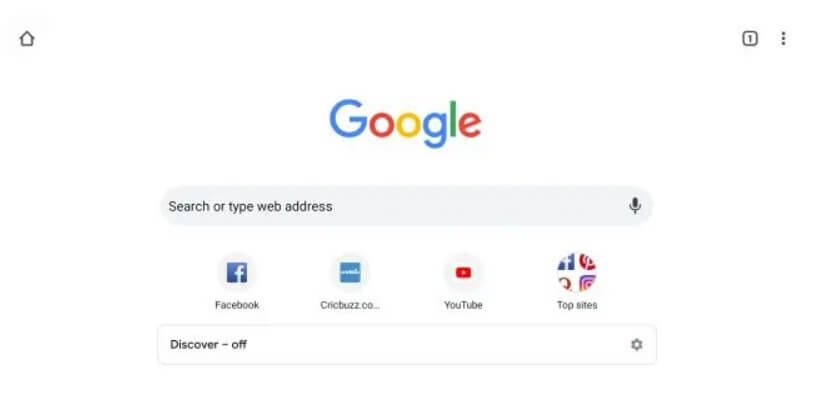
Google Chrome is the best browser for Android TV globally, and its version retains the same clean interface and performance. As you’d expect, it offers quick access to Google’s services like Search, YouTube, and Photos out of the box.
Key Features:
- Syncing with Chrome desktop browser
- Voice search
- Incognito browsing
- Google ecosystem integration
Pros:
- Familiar and easy to use
- Fast page loading speeds
- Supports Chromecast built-in
Cons:
- No ad-blocking
- Lacks customization options
As the default browser for Android TV, you can’t go wrong with Chrome if you want a fast, fuss-free browsing experience. Frequent Google service users will feel right at home with its tight integration. However, users looking for more customization may want to keep reading.
2. Mozilla Firefox
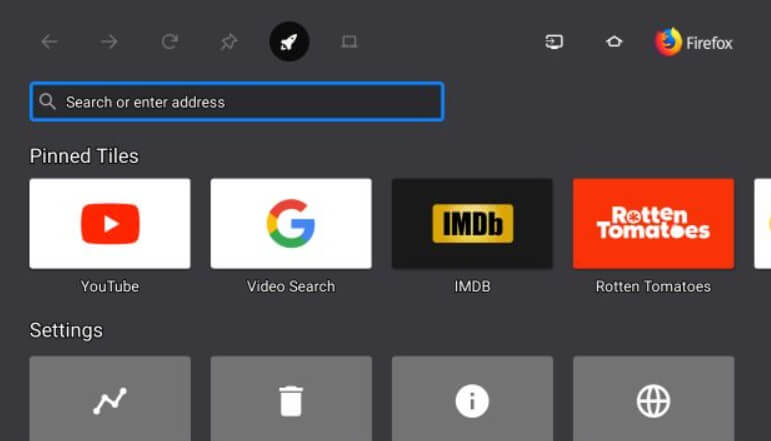
The popular Firefox browser also has a version optimized for Android TV. It retains Firefox’s focus on privacy and customization in a big-screen-friendly interface. Firefox allows installing extensions on Android TV like uBlock Origin to block ads.
Key Features:
- Extensions support
- Private browsing
- Customizable interface
- Syncs with Firefox on other devices
Pros:
- Open source values around user privacy
- Lots of customization via extensions
- Plenty of performance tweaks are possible
Cons:
- Slightly more complex interface
- Limited native app integration
Firefox strikes a balance between ease of use and customizability that Chrome lacks. It’s great for those who want more control over their Android TV web experience. The extension support opens up many possibilities.
3. Opera
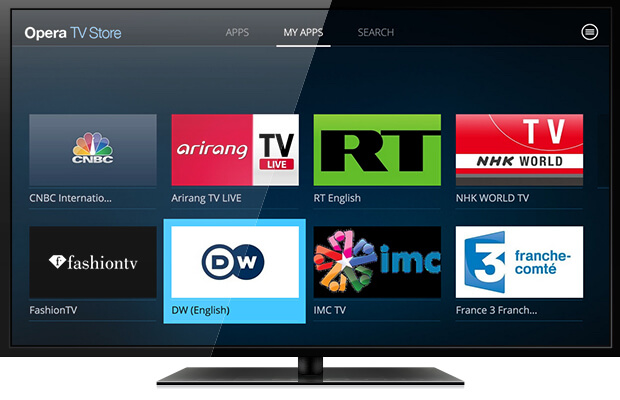
Opera is one of the best browsers for Android TV that has been around for decades, introducing many features before the competition like tabbed browsing and private mode. Its Android TV browser carries that spirit of innovation with a unique design. Opera puts visual bookmarks front and center while still allowing tabs.
Key Features:
- Speed Dial bookmark previews
- Built-in ad-blocker
- Video Pop-Out overlay
Pros:
- Innovative visual bookmarking
- Additional privacy protections
- The floating video feature enhances multitasking
Cons:
- Unconventional design has a learning curve
- Fewer browser extensions compared to Firefox
Opera for Android TV brings a distinctive take focused on visual navigation optimized for TVs. The interface takes some adjustments coming from other browsers. However, Opera’s usability improvements and added features like ad-blocking make it a solid all-around choice.
4. TV Bro
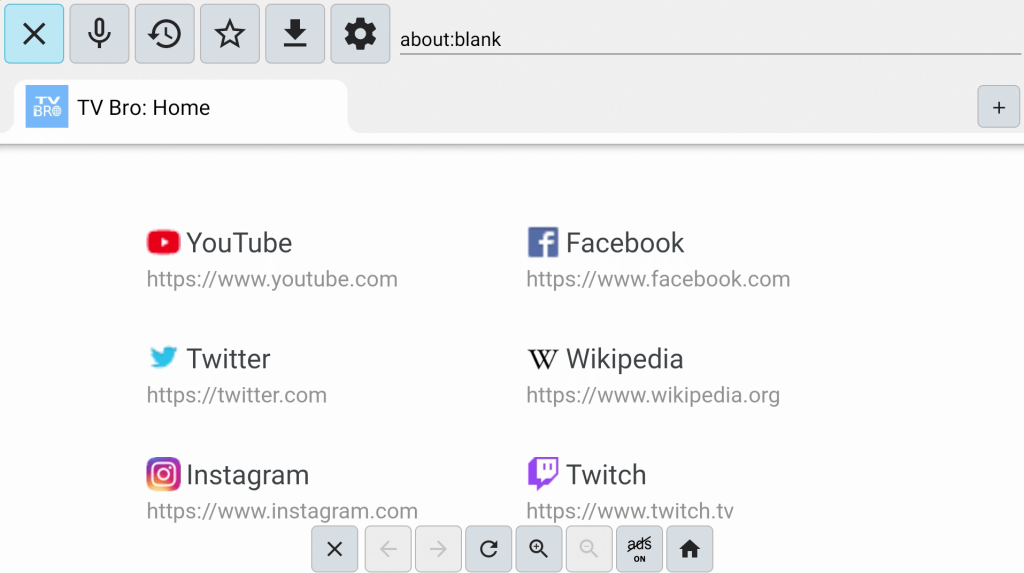
Developed specifically with Android TV in mind, TV Bro provides an alternative browser tuned for the living room experience. Its custom big-screen interface prioritizes easy site navigation from the couch. TV Bro also features helpful integrations like Google Translate built-in.
Key Features:
- Large font and icons
- Voice commands
- Google Translate integration
- Incognito mode
Pros:
- Interface designed for TV usage
- Helpful extra features like Translate
- Equally great on phones too
Cons:
- Lower extension support compared to Firefox
- Relatively newer app with fewer users
TV Bro offers a lean, TV-centric design that feels right at home on Android TV. Convenience features like Google Translate support further distinguish this specialty browser. It lacks some of the configurability of Firefox but provides a smoother experience out of the box.
5. Puffin Browser
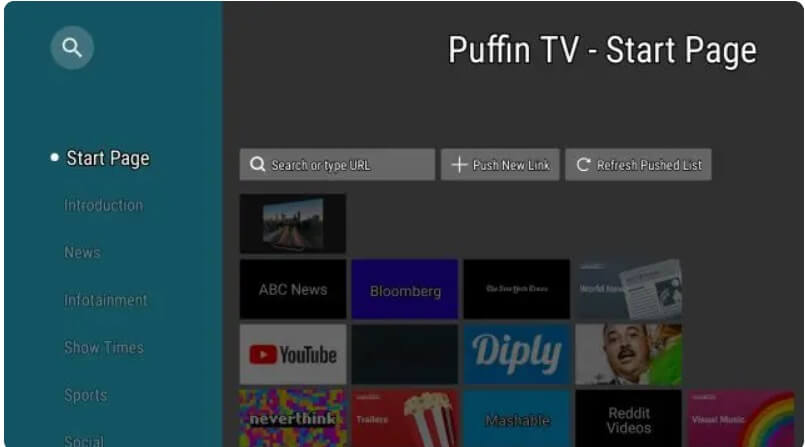
The Puffin Browser takes a unique approach – it uses cloud servers to pre-render pages before sending them to your device. This allows Puffin to promise fast browsing even on slower internet connections. Its Android TV version includes helpful remote control navigation options too.
Key Features:
- Cloud-based rendering for speed
- Remote-friendly navigation
- Supports Flash content
- Trackpad mode
Pros:
- Extremely quick page loading
- Useful remote control gestures
- Allows playing Flash videos and games
Cons:
- Unconventional browsing method
- Requires data to pass through Puffin servers
Puffin is ideal for older or constrained devices thanks to its cloud-assisted speed boost. The remote-optimized controls also make it very couch-friendly.
6. Aloha Browser
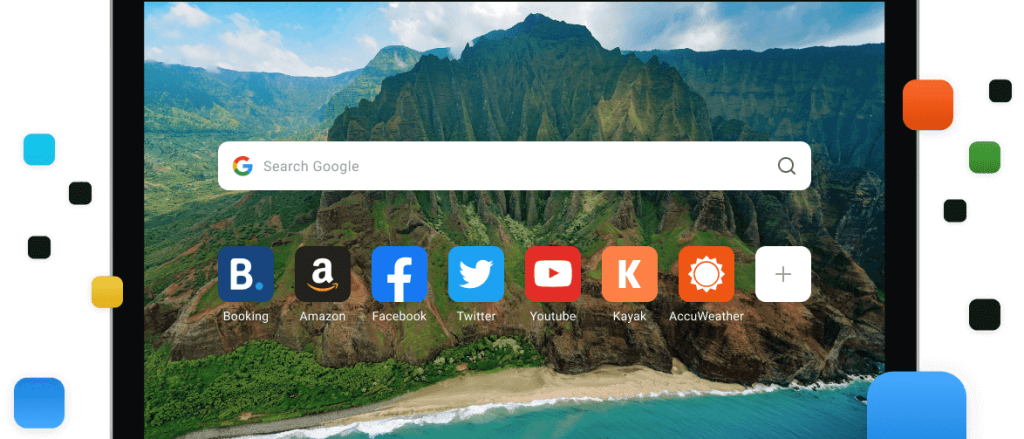
Here comes the next pick on our list of best browsers for Android TV. Aloha is an Android TV web browser focused on simplicity and ease of use with a remote. It features large, colorful icons and text – perfect for quick navigation on the TV. Aloha also supports convenient keyboard and gamepad controls.
Key Features:
- Large high-contrast UI
- Remote, keyboard, and gamepad support
- Incognito browsing
- Night mode
Pros:
- Designed for quick big-screen navigation
- Supports multiple input methods
- Additional dark mode for night
Cons:
- Fairly basic features overall
- Lacks advanced customization
If you want big, bold, and simple browsing optimized for your remote, Aloha delivers. It nails the basics but falls short for power users who want richer browser experiences. For casual web use Aloha excels thanks to its intuitive remote-friendly interface.
7. Ecosia Browser
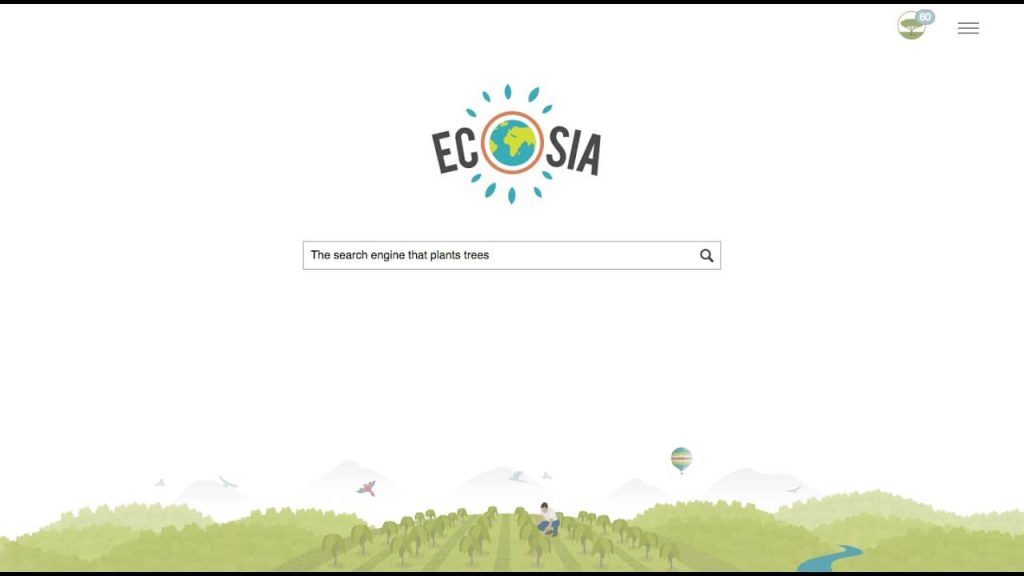
If you want to make an environmental impact with your browsing, Ecosia is the perfect Android TV browser choice. It uses ad revenue to plant trees worldwide – over 180 million and counting! Beyond its green footprint, Ecosia also focuses on privacy protection.
Key Features:
- Plants trees by clicks and searches
- Blocks web trackers
- Private search powered by Bing
- Minimalist energy-saving interface
Pros:
- Makes positive environmental impact
- Strong privacy protections
- Fast and energy-efficient
Cons:
- Limited features compared to major browsers
- Bing search instead of Google
Ecosia makes it easy to browse the web more sustainably on your Android TV. Its eco-friendly mission and privacy focus are ideal for environmentally conscious users. Just be prepared to use Bing instead of Google for searches.
8. Via Browser
Via Browser takes inspiration from mobile browsers like Opera Mini with a focus on data compression and speed. Pages go through Via’s servers first to shrink their size before hitting your device. Like Puffin, this allows fast loading even on slow connections.
Key Features:
- Data compression for fast loading
- Night/dark theme
- Ad blocking built-in
- Encrypted data transfer
Pros:
- Excellent speeds, especially on slower networks
- Dark mode friendly
- Reduces bandwidth usage
Cons:
- Passing data through third-party servers
- Limited customization options
If you’re on an older or limited data network, Via is a great choice for reducing bandwidth usage while accelerating page loads. Just know your browsing does go through their servers first before reaching you.
9. Brave Browser
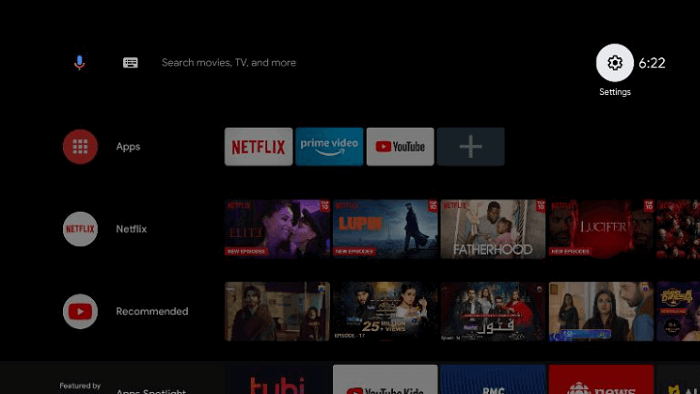
Brave has made a name for itself on mobile and desktop platforms as a privacy-first browser. Its Android TV version blocks trackers and ads by default for private, secure web surfing. Users can also opt into Brave’s payment system to reward sites and creators.
Key Features:
- Automatic ad blocking and tracker/script blocking
- Secure HTTPS by default
- Rewards system to pay websites
- Private tabs
Pros:
- Excellent default privacy protections
- Can directly pay and tip sites through rewards
- Very fast browser overall
Cons:
- Rewards system still somewhat limited
- Lesser-known brand among average users
For those looking for a private browsing experience without any complicated setup, Brave sticks out on Android TV. Its combination of robust default protections and optional tipping makes Brave a great privacy-minded choice.
10. Samsung Internet Browser
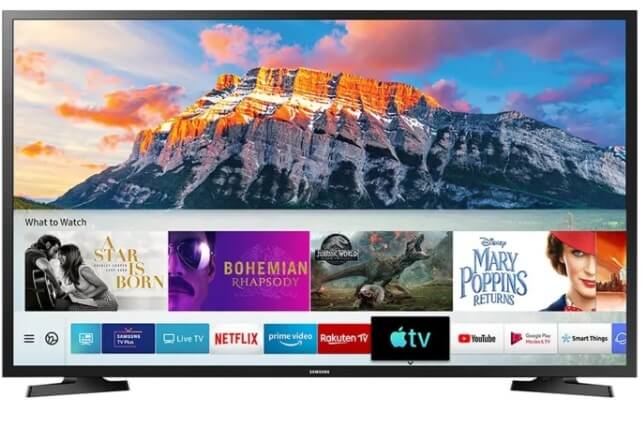
Pre-installed on many Samsung smart TVs, the Samsung Internet Browser unsurprisingly offers deep integration. It includes intuitive TV remote navigation and voice commands. You can sync it with the mobile version for bookmark access across devices too.
Key Features:
- TV remote and voice control
- Syncs with mobile app
- Dark mode
- Content blockers
Pros:
- Deep TV integration and voice control
- Cross-device syncing with mobile
- Clean and intuitive interface
Cons:
- Only available on Samsung Android TVs
- Mobile syncing is also Samsung-only
For Samsung smart TV owners, going with the proprietary Samsung Internet Browser is tough to beat. The combination of convenient control methods, dark mode, and cross-device sync makes for one of the most well-rounded Android TV browser options. (Find IPTV apps for Samsung here).
Other Borwsers Removed From The Google Play Store
11. Naked Browser
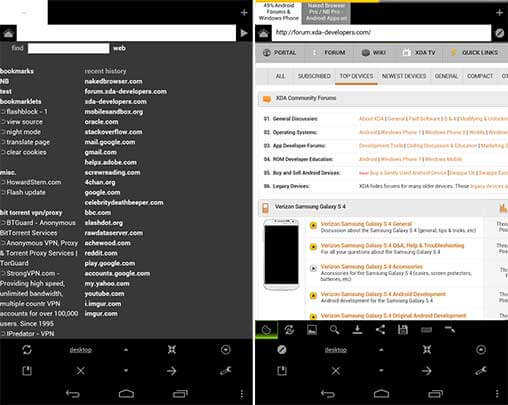
Naked Browser comes from the developer behind the popular ad blocker Blokada. As you’d expect, out-of-the-box ad blocking is one of Naked’s biggest selling points. Beyond that, it offers a streamlined interface that still allows for tabs, bookmarks, and more browser essentials.
Key Features:
- Built-in ad blocking
- Minimalist interface
- Tabbed browsing
- Incognito mode
Pros:
- Seamless ad blocking without extensions
- Lightning fast speeds
- Additional privacy options
Cons:
- Very basic default feature set
- Lack of personalization options
If your top priority is having an ad-free web experience, Naked Browser delivers that better than any
other Android TV option. It strips out everything else to focus on speed, simplicity, and blocking ads/trackers. Just don’t expect much beyond the basics feature-wise.
12. Tenta Browser
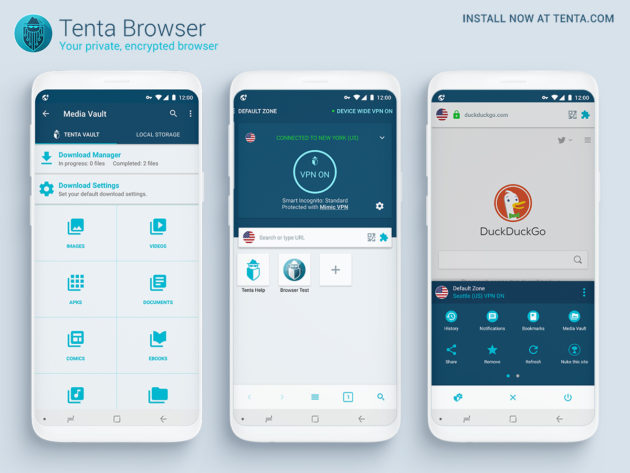
Tenta Browser’s emphasis is empowering users to take control of their privacy. To that end, it offers customizable ad blocking, task automation, encrypted DNS, and more. Tenta also has a built-in screenshot tool and bookmark management.
Key Features:
- Granular ad-blocking settings
- Customizable encrypted DNS
- Script/task automation options
- Private bookmark organization
Pros:
- Very customizable privacy settings
- Helpful screen capture tool
- Unique programmable features
Cons:
- Dense settings have a learning curve
- Too technical for average users
Tenta packs privacy configuration options no other Android TV browser can match. From custom block lists to programmable user scripts, it offers total user control. Tenta’s technical complexity makes it appealing most to power users who value such customization.
13. Kiwi Browser
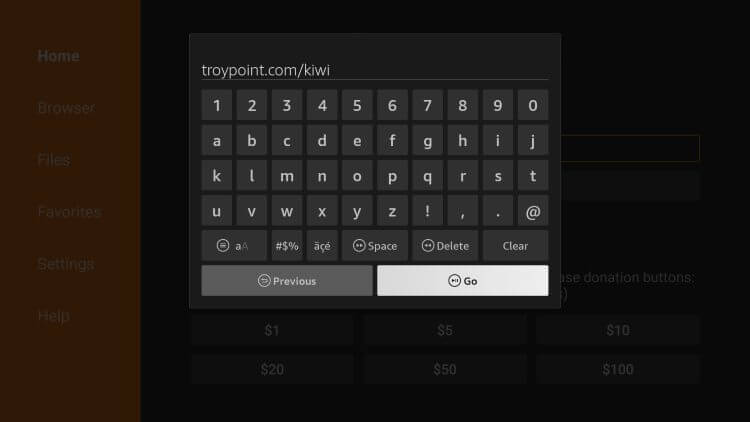
Kiwi is the best Android TV web browser that aims to bring something fresh to Android TV web browsing. Its unique spin includes built-in Chrome extension support. This allows adding features like ad-blockers easily. Kiwi also includes convenient tools like a visual homepage and night mode.
Key Features:
- Chrome extension support
- Speed dial bookmark previews
- Night/dark mode
- Chrome custom tab compatibility
Pros:
- Extra Chrome extension functionality
- User-friendly visual bookmark page
- Dark mode for night browsing
Cons:
- Extension support still limited on Android TV
- Lacks syncing with desktop browsers
If you want the extra functionality of Chrome extensions baked into your Android TV browser, Kiwi delivers. It also provides nice quality-of-life touches like dark mode and bookmark previews ideal for the TV experience.
14. Flynx Browser
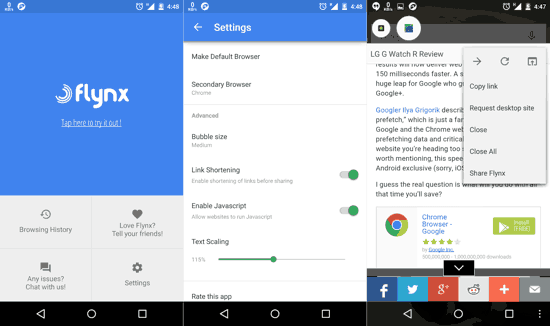
Flynx brings a unique multitasking focus to browsing on Android TV. It allows opening web links in floating small windows on your screen. You can keep watching a video or show with Flynx open on top. It also saves data by only loading essential page content.
Key Features:
- Floating web pop-up windows
- Data saving article mode
- Background audio playback
- Adblocking built-in
Pros:
- Web overlay windows enable multitasking
- Data and bandwidth-friendly
- Audio playback when in the background
Cons:
- Unconventional multi-window interface
- Less customizable than Firefox
Flynx rethinks the Android TV browsing experience for convenience and multitasking. If having web pages overlay your screen sounds useful, Flynx delivers that functionality in a polished package not found elsewhere.
Conclusion
Enhancing your Android TV with a dedicated browser opens up endless web possibilities optimized for the biggest screen in your home. Whether you prioritize speed, customization, privacy, or simplicity, one of these 14 best browser for Android TV is sure to suit your needs.
There’s never been a better time to surf the web on a TV. Any of these browsers can turn yours into a capable web browsing machine perfect for casual use or power users. So download a few that catch your interest and enjoy a new world of web experiences designed for the living room!
FAQs:
1. Does Android TV come with a browser?
Yes, Android TV comes with the Google Chrome browser pre-installed by default. This allows web browsing on the TV set right out of the box. However, users can also install any third-party Android TV-optimized browsers they prefer from the Play Store.
2. Can you get Google Chrome on Android TV?
You don’t need to install Chrome on Android TV since it comes pre-loaded as the default browser. However, you can download Chrome from the Play Store on Android TV you want to get the latest version with all features.
3. What is the best free browser for Android TV?
Some of the best free Android TV browsers include Google Chrome for simplicity, Mozilla Firefox for customization via extensions, Opera for innovative visual bookmarks, and TV Bro for its intuitive big-screen interface. Most browsers today are free on Android TV with optional premium add-ons.
4. Does Android TV support web browsers?
Yes, Android TV fully supports installing web browser apps from the Google Play Store. A vast array of browsers are available optimized for TV screens and remote navigation. Google Chrome comes built-in, while popular alternatives like Firefox and Opera are also available to download.
Author Bio:
Dinesh Lakhwani 

Dinesh Lakhwani, the entrepreneurial brain behind “TechCommuters,” achieved big things in the tech world. He started the company to make smart and user-friendly tech solutions. Thanks to his sharp thinking, focus on quality and the motto of never giving up, TechCommuters became a top player in the industry. His commitment to excellence has propelled the company to a leading position in the industry.
Popular Post
Recent Post

How To Disable Background Apps In Windows: 4 Quick Methods
A slow PC rarely gives a warning. One day, it simply takes longer to start. Apps open late. The fan runs loud, even when the screen is almost empty. Most people blame old hardware. Often, that is not the real reason. The real reason is hiding in plain sight. Windows keeps many apps active in […]

How to Activate Windows with a Product Key for Windows 11 & Windows 10
It always shows up at the worst time. You are halfway through a report, or about to join a video call. Then you spot it in the bottom right corner of the screen. Activate Windows. Go to Settings to activate Windows. Initially, an unactivated copy of Windows may seem like a minor inconvenience. Over time, […]

Is Easy Duplicate Finder Worth It? Honest Review
The photos folder looked normal at first glance. Then the storage warning popped up. One trip photo appeared four times. A tax PDF sat in three different folders. Two old setup files were still in Downloads, and each one was over 500 MB. Nobody plans this mess. Copies pile up slowly. A download runs twice. […]

Wise Duplicate Finder Review: Real Results from Wise Duplicate Finder
Read my honest Wise Duplicate Finder review. See features, pricing, pros and cons, and real PC test results. Find out if this free duplicate cleaner can free up your Windows storage.

How to Recover Deleted Files from Pen drive, USB Drive, SD Card
Introduction: On tech forums, you’ll often see posts like this: “I connected my pen drive to my laptop this morning, but the folder was empty. All my college project files had vanished. I don’t have a backup. Can someone help me?” Stories like this are very common. Pen drives, USB drives and SD cards are […]

How To Recover Files Deleted from the Recycle Bin [Windows 11]
Losing a file can happen in seconds. You clear your desktop, hit Delete, and empty the Recycle Bin. Then, just when you need that file again, it seems to have vanished. This guide will walk you through ways to restore files removed from the Recycle Bin. We will begin with simple fixes, then look at […]

Disk Drill Data Recovery Tool Explained: Full Review and Guide
It happens in a split second. You delete a folder by mistake. Your drive stops showing up. A photo album from your last trip just vanishes. And your stomach drops. Lost files feel personal. They are not just data. They are memories, work hours, and sometimes years of effort packed into a few gigabytes. When […]

Recover Deleted Files In Windows 11 With Software & Without
Introduction What is the first thing that goes through your mind the second an important file vanishes from a Windows 11 PC? For most people, it is a mix of panic and disbelief, followed by a frantic click through every folder that file could possibly be hiding in. It happens in a split second: one […]

EaseUS Data Recovery Wizard: Everything To Know
Data loss does not always come from a big disaster either. Most cases start small and boring. A drive gets formatted by mistake. A laptop freezes mid-save and restarts on its own. A memory card stops showing up after being pulled out too fast. None of these feel like emergencies at first, until you realize […]

