










A slow computer makes it hard to focus. Programs take too long to open. Free space keeps shrinking until the disk is almost full. This happens to most PC owners at some point. Even new machines can slow down after a while. That is the exact problem cleanup tools are built to solve. They comb […]
“Network Discovery is Turned Off” Error on Windows 11/10
Introduction:
Among many common Windows errors, the “network discovery is turned off” error is an annoying obstacle that disrupts your workflow. Whether you’re trying to share files, stream media, or access shared printers, encountering this error can be perplexing and disruptive. The good news is that understanding the causes and solutions for this error can help you quickly resolve the issue and restore seamless network communication on your Windows system.
This blog post aims to provide a thorough understanding of the “Network Discovery Turned Off” error in Windows. It has covered its possible reasons, and its impact, along with a comprehensive guide to troubleshooting the issue and getting your network discovery functionality up and running again within no time.
What is the Network Discovery Feature on Windows?
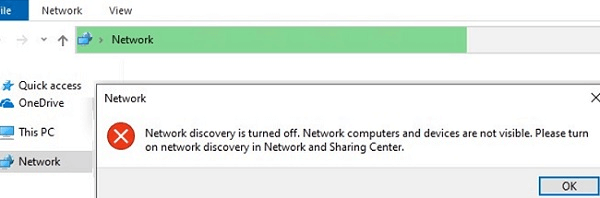
Network Discovery is a utility feature on Windows that helps your computer find and connect with other devices on your home or office network. For example, it allows you to easily share files, printers, or media devices with other devices on the network.
If Network Discovery is turned off, your device won’t be able to find other devices on the network, and you might run into some connectivity issues. So, it’s a handy feature to have turned on if you want your devices to communicate and share resources with each other.
Why Does the “Network Discovery is Turned Off” Error Occur?
Network discovery allows Windows to detect and connect to other devices on the same network. When it’s disabled or disrupted, you’ll see the “Network Discovery is Turned Off” error. This can happen for several reasons, ranging from simple misconfigurations to deeper system issues. Understanding the root causes helps you fix the problem faster and prevent it from coming back.
Common Reasons Behind the Error
Incorrect Network Profile
- If your PC is set to a Public network instead of Private, Windows automatically disables discovery for security reasons.
Disabled Network Discovery Setting
- The option may simply be turned off in the advanced sharing settings, preventing your computer from detecting other devices.
Stopped Essential Services
- Services like Function Discovery Resource Publication or SSDP Discovery must be running. If they’re disabled, discovery won’t work.
Firewall Restrictions
- Overly strict firewall rules can block discovery traffic, stopping your PC from seeing other devices.
Outdated Network Drivers
- Old or corrupted drivers can cause connectivity issues, including blocking discovery features.
Third‑Party Security Tools
- Some antivirus or security software may interfere with Windows networking functions, disabling discovery unintentionally.
Group Policy or Registry Changes
- In corporate or customized setups, policies or registry tweaks may disable discovery for compliance or security.
Temporary Network Glitches
- A simple restart of your router or PC can sometimes clear minor issues that trigger the error.
How to Fix the “Network Discovery is Turned Off” Error on Windows 10/11?
If you encountered the network discovery disabled error on your device, try the below-listed workarounds.
Solution 1: Reboot Your Device
When you reboot your computer, it clears temporary settings and restarts all the necessary services, which can potentially resolve any software glitches or conflicts that may have caused the error. It’s a simple and often effective troubleshooting step to try before diving into more advanced troubleshooting methods. So, if you encounter this error, it’s worth giving your computer a restart to see if it resolves the issue and restores network discovery functionality.
Solution 2: Enable Dependencies Services
Press the Win + R key combination to open the Run dialog box. Type “Services.msc” and hit Enter.
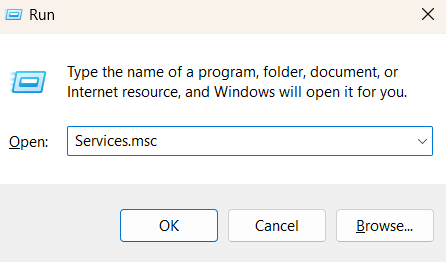
In the Services window, look for the following services one by one and follow these steps:
- DNS Client.
- UPnP Devices Host.
- SSDP Discovery.
- Function Discovery Resource Publication
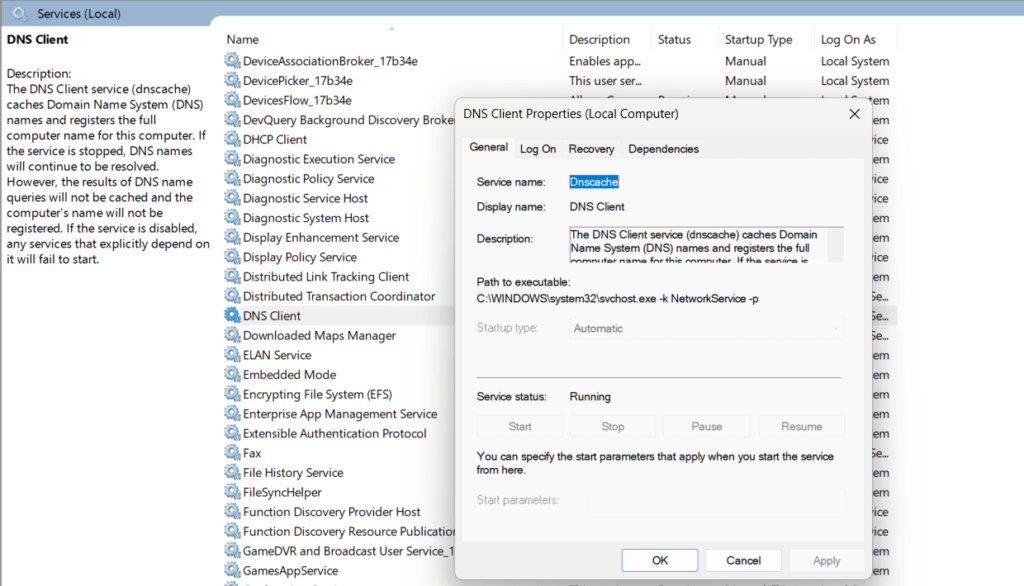
Right-click on each service and select “Properties”. In the Properties window, set the “Startup Type” value to “Automatic” Hit on the OK and Apply button to save the recent changes.
Solution 3: Configure Windows Firewall Settings
To make sure that network discovery is enabled in Windows Firewall settings, follow these steps:
Open the Control Panel app and switch to the “Small Icons” view. Select “Windows Defender Firewall” from the list of options.
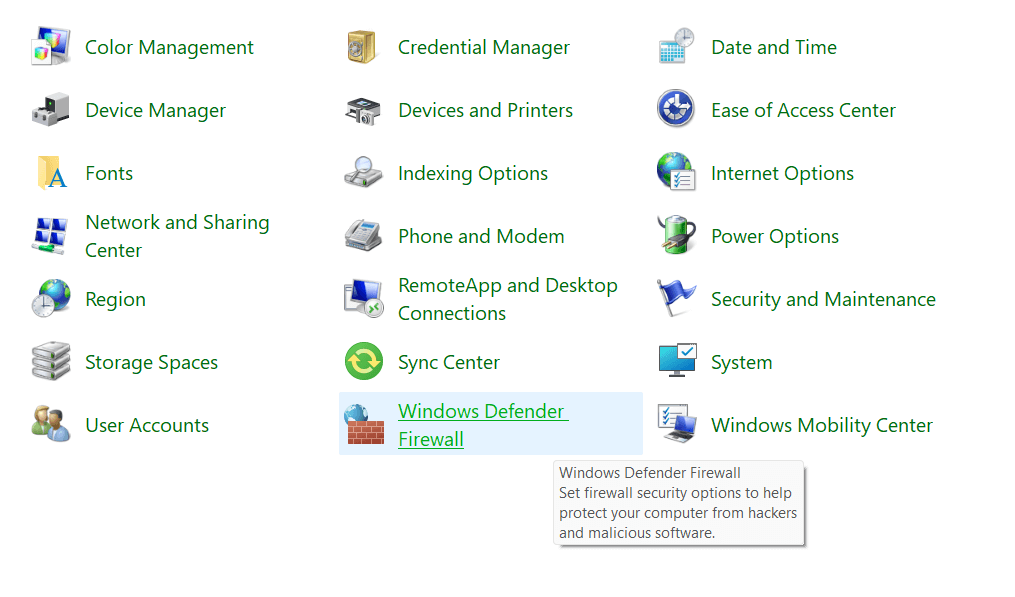
On the next window, tap on “Allow an app or feature through Windows Defender Firewall”.
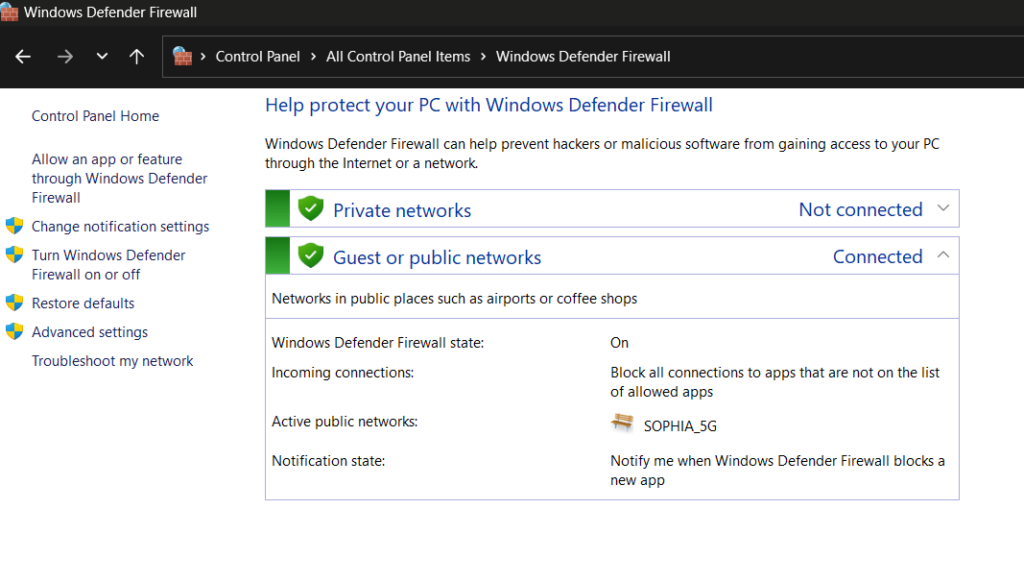
Under the “Allowed apps and features” section, look for the “Network Discovery” feature.
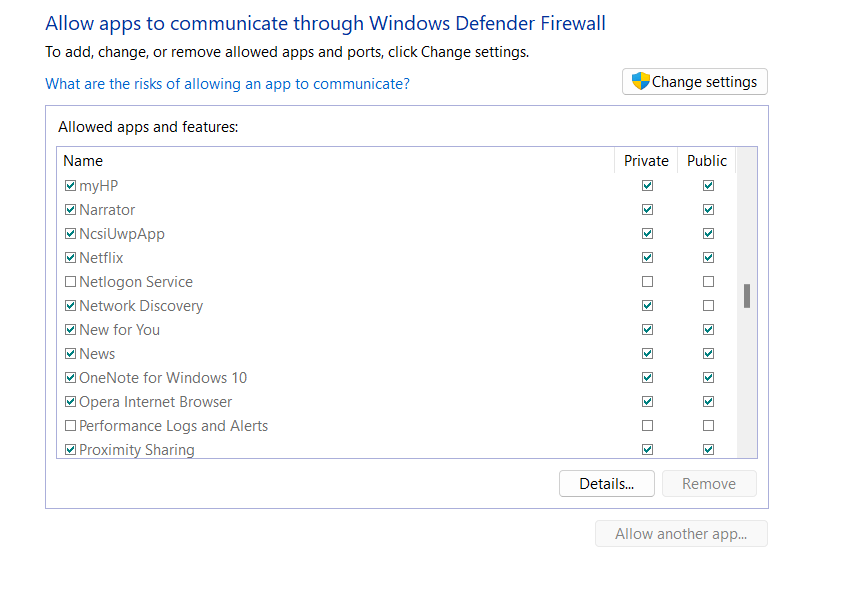
Check both the boxes placed next to “Network Discovery” for Public and Private settings.
If these features are greyed out by default, you can tap on the “Change Settings” button. Enter your admin credentials and then make the necessary changes to enable network discovery on your Windows PC.
Solution 4: Run the Network Adapter Troubleshooter
Here comes another simple workaround to fix the network discovery is turned off error on Windows 10/11.
Open the Settings app, and switch to the “System” tab. Scroll down and head to Troubleshoot> Other Troubleshooters.
You will now see a list of Windows built-in troubleshooters. Scroll down and look for the “Network Adapter” troubleshooter. Hit on the “Run” button placed next to it.
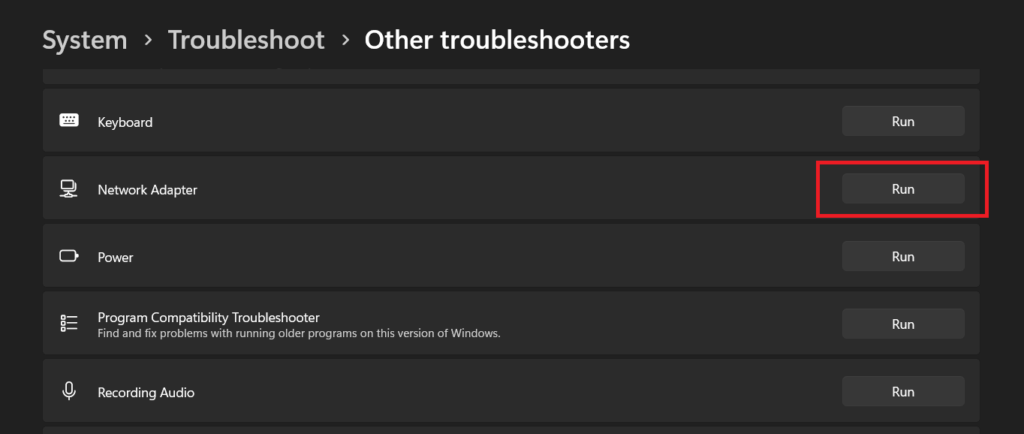
Follow the on-screen instructions and run the network troubleshooter so that Windows can automatically scan and diagnose network-related issues.
Solution 5: Reset the Network Stack
If all configurations have been done correctly, another method to resolve the error is by resetting the network stack. This involves removing and reinstalling the network adapters while clearing any cached settings. Here’s what you need to do:
Tap on the search bar placed on the Taskbar, type “Command Prompt” and select the “Run as administrator” option.
In the Terminal window, execute each of the below-listed commands one by one to reset the network stack.
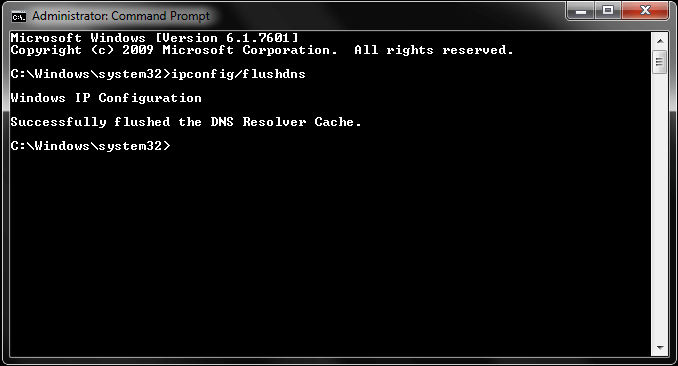
- ipconfig /release
- ipconfig /flushdns
- ipconfig /renew
- netsh int ip reset
- netsh winsock reset
After executing all of these commands successfully, restart your device and check if you are still encountering the “network discovery is turned off error”.
Solution 6: Change Advanced Sharing Settings
To enable network discovery through advanced sharing settings in the Control Panel:
- Open the Control Panel and go to “Network and Sharing Center.”
- Select “Change Advanced Sharing Settings”.
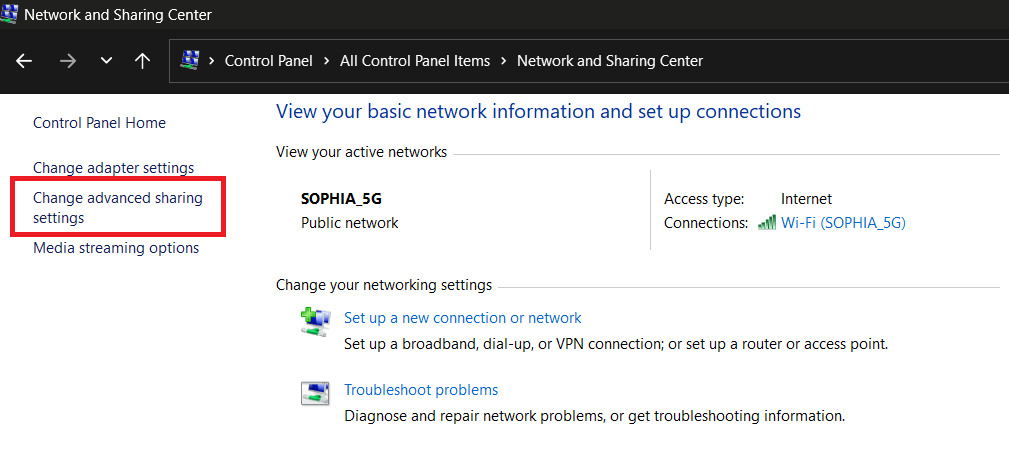
- Enable “File and Printer Sharing”.
- Also, enable “Network Discovery” in case it was turned off by default.
Solution 7: Reset Network Settings
To reset network settings on Windows, you can follow these steps:
- Open the Settings app and switch to the “Network & Internet” tab from the left menu pane.
- Select “Advanced Network Settings”.
- Scroll down and tap on “Network Reset”.
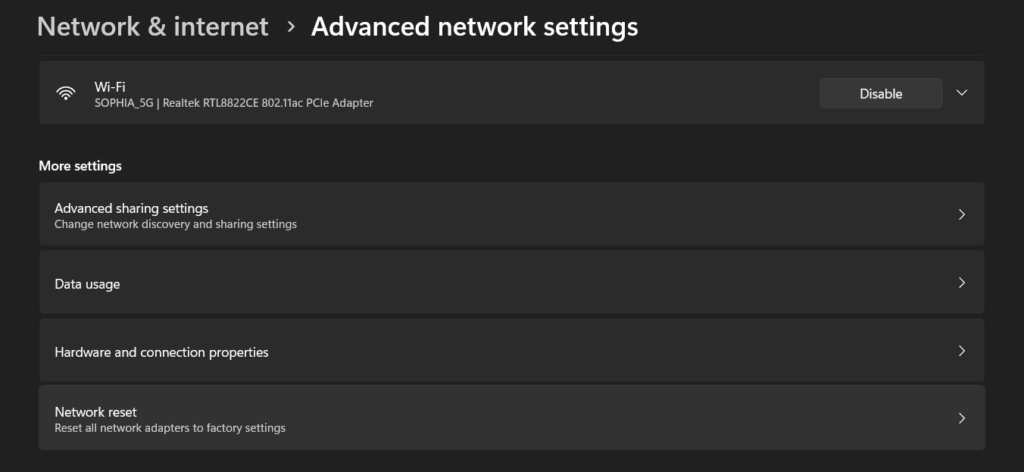
- A confirmation window will appear. Read the information provided and click on the “Reset now” button.
Windows will now reset your network settings. This process may take a few minutes. Your computer will restart automatically when the reset is complete. After your computer restarts, you’ll need to set up your network connections again, including connecting to Wi-Fi networks and reconfiguring any VPN or proxy settings.
Conclusion
Here are a few simple yet effective solutions that you can try to fix the “network discovery is turned off” error on Windows 10/11. By following these steps, you can overcome the error and ensure your devices can discover and connect with each other on the network. Remember to always back up your network configurations before making any changes, and don’t hesitate to reach out to technical support if needed.
FAQs
1. Is network discovery required for home networks?
Yes, if you want to share files, printers, or access other devices easily. On a trusted home network, enabling discovery makes collaboration smoother.
2. Can I leave network discovery off permanently?
You can, but it limits functionality. Your PC won’t detect or connect to shared devices automatically. It’s fine for public Wi‑Fi, but inconvenient on private networks.
3. How do I know if network discovery is working?
Once enabled, you should see other devices listed under Network in File Explorer. If nothing appears, check your settings, services, and firewall rules.
Author Bio:
Dinesh Lakhwani 

Dinesh Lakhwani, the entrepreneurial brain behind “TechCommuters,” achieved big things in the tech world. He started the company to make smart and user-friendly tech solutions. Thanks to his sharp thinking, focus on quality and the motto of never giving up, TechCommuters became a top player in the industry. His commitment to excellence has propelled the company to a leading position in the industry.
Popular Post
Recent Post

Fortect Software Review: The Ultimate PC & Mobile Cleaning, Optimization & Security Tool
Slow computers are a common problem for almost every Windows user. Well, yes! Over time, your PC picks up junk files. These files sit quietly in the background. They take up space and slow things down. Programs open slower. Windows takes longer to boot. Even simple tasks like opening a folder can feel sluggish. There […]

CCleaner PC Optimizer Review: A Complete Guide for Windows Users
If your computer has started to feel slow, you are not alone. Most Windows PCs slow down over time. Junk files pile up. The registry gets messy. Too many apps open when you start your PC. All this adds up and makes even a good machine feel tired. This is where a PC cleaner tool […]

Auslogics Duplicate File Finder: Full Review and User Guide
A computer quietly gathers clutter over time. This includes duplicate photos, repeated downloads, and forgotten backups hiding in random folders. This buildup slowly eats away at storage and can make even a fast PC feel sluggish. Manually finding and deleting duplicates is tedious. It means checking every folder, comparing file names, and guessing which copies […]

CCleaner Duplicate File Finder: Key Features, Pricing, Step-by-Step Guide and More
Every computer collects junk over time. Right? Well, yes! Photos often get copied twice. Documents get saved in two folders by mistake. Old downloads pile up and never get deleted. This slowly eats up your storage space, and most people do not even notice until their drive is almost full. That is where a duplicate […]

Duplicate File Finder Pro: A Complete Review, Everything You Should Know
Computers collect thousands of files over time. Well, yes! Many of them end up being duplicates created by backups, downloads, or accidental copies. These extra files take up valuable storage space and make it harder to keep everything organized. Finding and removing them manually can take hours. Right? Duplicate File Finder Pro is a tool […]
Top 3 Duplicate File Finder for Windows 11 & Windows 10
If your PC storage keeps filling up even after you delete big files, duplicate files could be the real reason. Most of us save the same photo twice, download a document more than once, or copy a whole folder by mistake. Over months and years, these duplicate files pile up quietly. You do not even […]
Monitor Screen Calibration Guide: Everything You Should Know
Your monitor shows colors every single day. But are those colors actually correct? Most people never stop to check this. They just use the screen as it comes out of the box. This habit can lead to wrong colors in photos, videos, and work files. Colors may look too warm or too cold without you […]
How To Check Installed RAM and RAM Slots [Complete Guide]
RAM plays an important role in how smoothly a computer runs. Short for Random Access Memory, it stores the data and instructions that Windows and active applications need at any given moment. From opening multiple browser tabs to running games and productivity software, RAM helps keep everything responsive. A system with limited memory may experience […]

What is Microsoft Autopilot Everything You Need To Know
Technology has changed the way companies manage computers. Well, yes! Employees now work from offices, homes, and remote locations. Setting up devices manually for every worker takes time and effort. It can also create mistakes that slow down productivity. This is where Microsoft Autopilot becomes useful. It helps businesses prepare and deploy Windows devices with […]

