











Picture this. A hacker finds a secret crack in your favorite app. You don’t know it’s there. The company that built the app doesn’t know either. But the hacker does. And they use it right away, before anyone can stop them. This is the heart of a zero-day attack. It strikes when a flaw is […]
ONLYOFFICE DocSpace: Make Document Collaboration Simpler- Complete Review
Introduction:
In today’s fast-paced and globally connected business world, effective collaboration is crucial. Don’t you agree? Hence, a document collaboration tool is a powerful way to connect people and documents in the right space, improving collaboration with customers, partners, and colleagues. By enabling real-time communication, facilitating seamless teamwork, and promoting transparency and accountability, a document collaboration tool can enhance productivity, speed up decision-making processes, and ensure the success of your projects.
Whether you’re working on a complex proposal or a simple report, a document collaboration tool can help you streamline your workflows, achieve your goals, and take your collaboration to the next level.
Brief Overview:
Developed by Ascensio System SIA, ONLYOFFICE DocSpace is one of the best cross-based document collaboration tools that enable team members to communicate and collaborate on documents in real time, regardless of their location. This helps to reduce delays and increase efficiency in completing tasks. It includes wide a range of features for document editing, collaboration, and management.
DocSpace is a powerful document collaboration tool designed to simplify the way you work. With flexible access permissions, you can easily create rooms, invite people, and collaborate on projects, no matter where you are.
This platform provides a seamless user experience that allows you to communicate and collaborate with your team in real-time, making it easy to get work done quickly and efficiently. With DocSpace, you have full control over who can access your documents, ensuring that your sensitive information is always protected.
Whether you’re working on a group project or sharing important files with clients or partners, DocSpace offers a safe, secure, and flexible way to collaborate and achieve your goals.
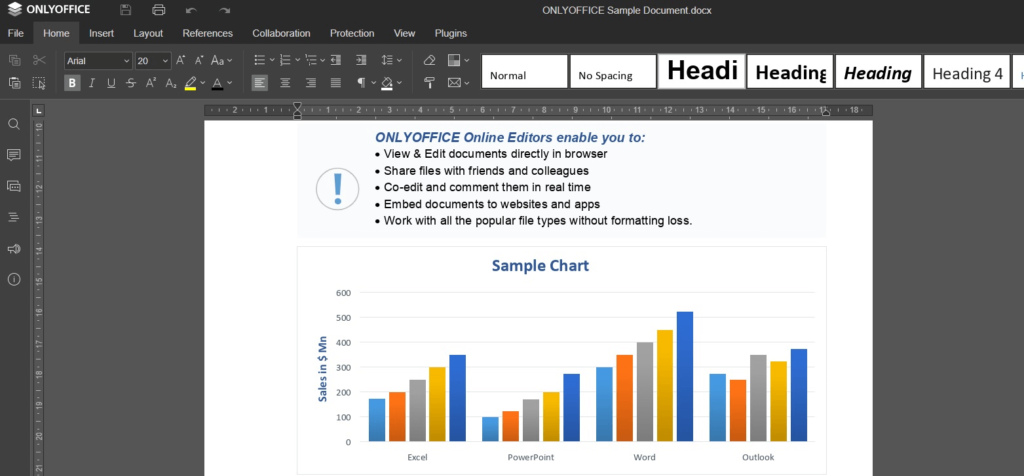
In this post, we have covered an in-depth ONLYOFFICE DocSpace review highlighting all the key features, how to use it, its pros and cons, and everything else that you need to know.
Let’s dive in!
Highlights: ONLYOFFICE DocSpace
Here are some of the best features offered by the DocSpace platform that you can put to best use to streamline your workflow and boost productivity.
- Advanced Collaboration Tools: Provides real-time co-authoring, comments, and notifications, allowing teams to work together more efficiently.
- Multiple integrations: Seamless integration with a range of third-party services and tools, including Google Drive, Dropbox, Box, OneDrive, Nextcloud, and more.
- Document editing: Features a highly advanced document editor and allows you to create and edit documents, spreadsheets, and presentations with ease.
- Security and privacy: Highly secure and offers robust data encryption, two-factor authentication, and other security measures to keep your data safe.
- Cloud-based: Allows you to access your files from anywhere, at any time, and on any device with an internet connection.
- Custom branding: Allows you to customize your workspace with your company’s branding, including logos, colors, and more.
- Mobile compatibility: Compatible with mobile devices, including smartphones and tablets, making it easy to work on the go.
- User-friendly interface: It comes packed with a user-friendly interface that is easy to navigate, even for beginners.
Compatibility
ONLYOFFICE DocSpace is an incredibly versatile document management suite that supports a wide range of platforms, making it easily accessible to users across various devices and operating systems (Windows, Linux, and macOS).
Whether you prefer to work on the web, desktop, or mobile platforms, ONLYOFFICE has got you covered. This accessibility ensures that you can create, edit, and collaborate on documents anytime and from anywhere.
Additionally, this digital platform also supports multiple file formats, so you can work with a diverse range of documents without having to worry about compatibility issues.
Pricing Plans and Subscription Cost:
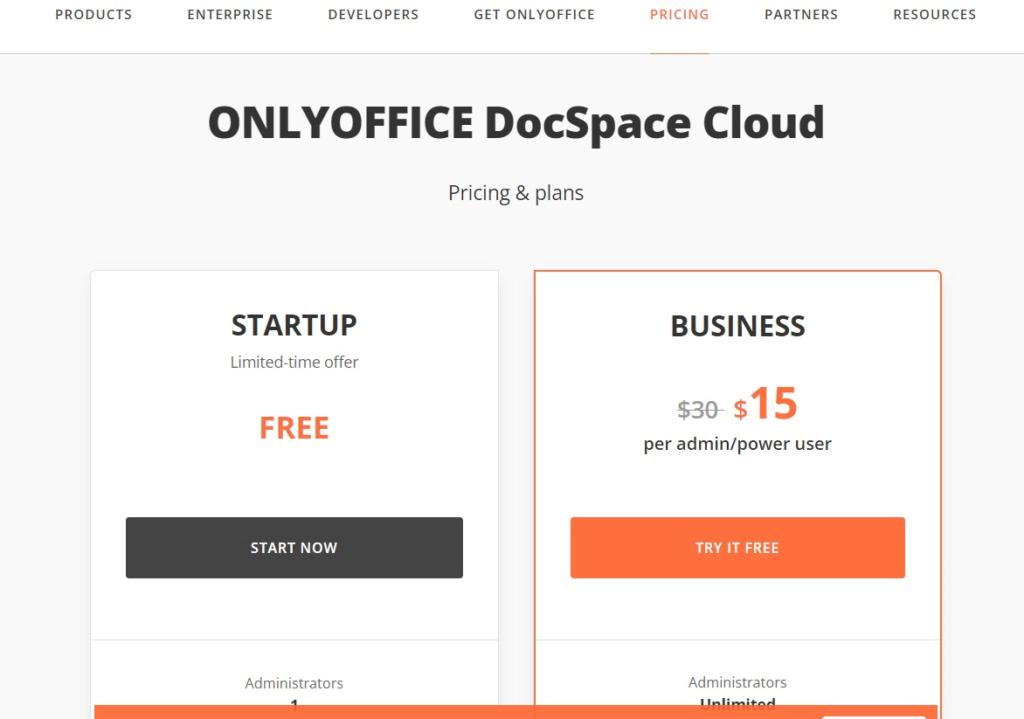
ONLYOFFICE offers a range of pricing plans, including both cloud-based and self-hosted options, to suit the needs of different users.
- Free: The free cloud-based version allows you to store up to 2GB of data and includes basic document editing and collaboration features.
- Business: The Enterprise plan is designed for larger teams and businesses, and it costs $15 per admin/power user a month (billed annually). Along with the Business Plant, you’ll have access to a wide range of features that can help you take your document collaboration to the next level. These features include the ability to create an unlimited number of rooms and users, customize your branding, track user logins and actions, and activate automatic backup.
Features: Full Review of ONLYOFFICE DocSpace
So, yes, let’s begin a complete, in-depth ONLYOFFICE DocSpace review highlighting the key features that will help you in gaining insights into how this digital suite works.
1. Collaboration Rooms
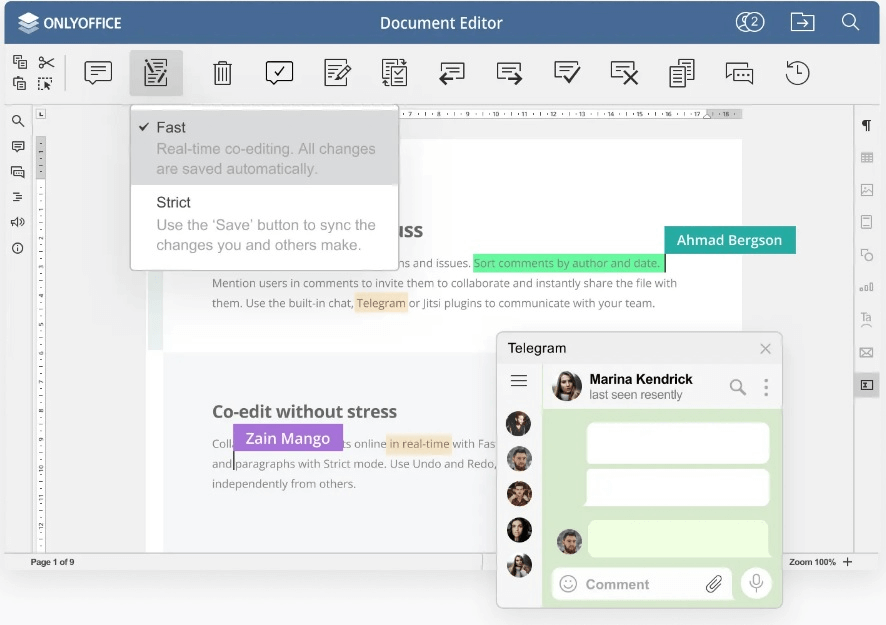
Collaborating on documents has never been easier with our document collaboration tool. With two co-editing modes, real-time and paragraph-locking, you can co-author documents seamlessly with your team members. This platform also allows you to track changes in real-time and communicate with your team members through the built-in chat feature or audio and video calls.
With real-time co-editing, multiple team members can work on the same document simultaneously, making it easy to get work done quickly and efficiently.
2. Custom Rooms
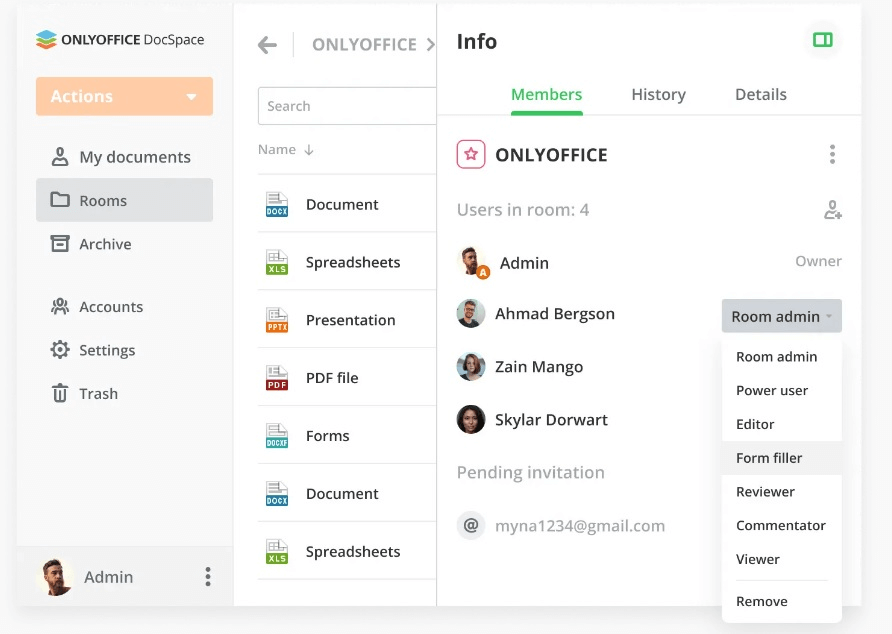
OnlyOffice DocSpace document collaboration tool provides you with the flexibility to customize your settings and use rooms for any purpose that suits your needs. Whether you need to share content for viewing only, request a review or comments on documents, or collaborate on complex projects, this platform allows you to apply your own settings and create rooms tailored to your specific requirements.
3. Work on Any Content
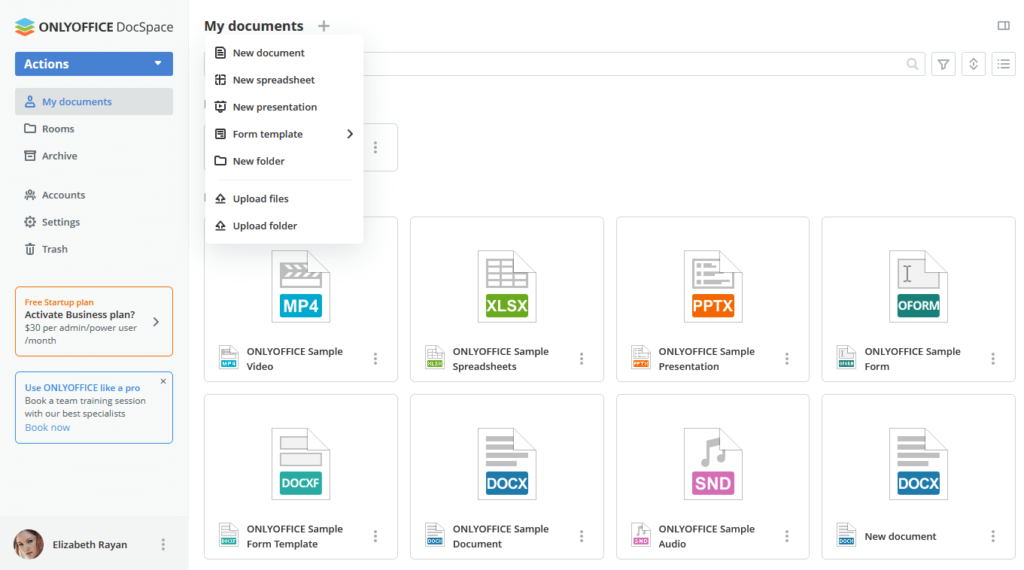
ONLYOFFICE DocSpace is a comprehensive document collaboration tool that includes a range of collaborative editors and viewers, making it easy for you to work on any type of content. Whether you’re working on text documents, spreadsheets, presentations, fillable forms, e-books, or PDF files, our platform provides you with the tools you need to collaborate seamlessly with your team members.
4. Strong Encryption
With ONLYOFFICE, you can rest assured that your data is safe and secure at all times. It uses industry-leading AES-256 encryption standards to protect your sensitive data at rest, ensuring that your information remains secure even when it is not being actively accessed. In transit, ONLYOFFICE uses HTTPS protocols with up-to-date TLS encryption algorithms to ensure that your data is protected from unauthorized access and interception.
5. Advanced Security Features
ONLYOFFICE is committed to ensuring the security and confidentiality of your documents. To achieve this, it offers a range of robust security features designed to safeguard your data from unauthorized access, data breaches, and malware attacks. It supports two-factor authentication (2FA), which provides an additional layer of security by requiring a second form of authentication in addition to a username and password.
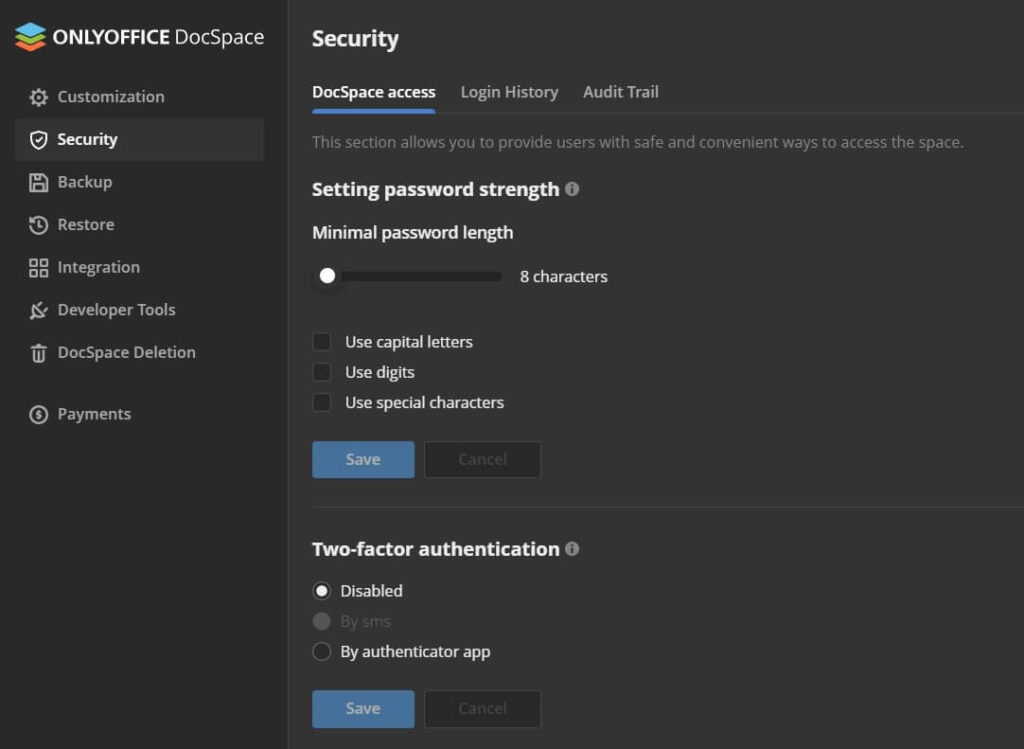
Access control is another important security feature offered by ONLYOFFICE. With this feature, you can set granular permissions and access controls to your documents, giving you complete control over who can access your data.
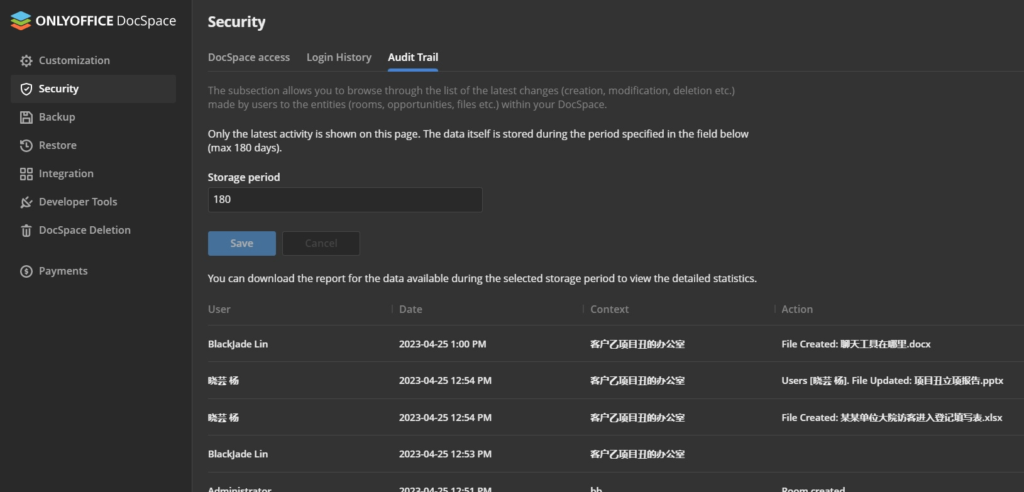
To help you keep track of who has accessed your documents and when ONLYOFFICE provides an audit trail of all actions performed within the system.
6. Integration With Third-Party Apps and Services
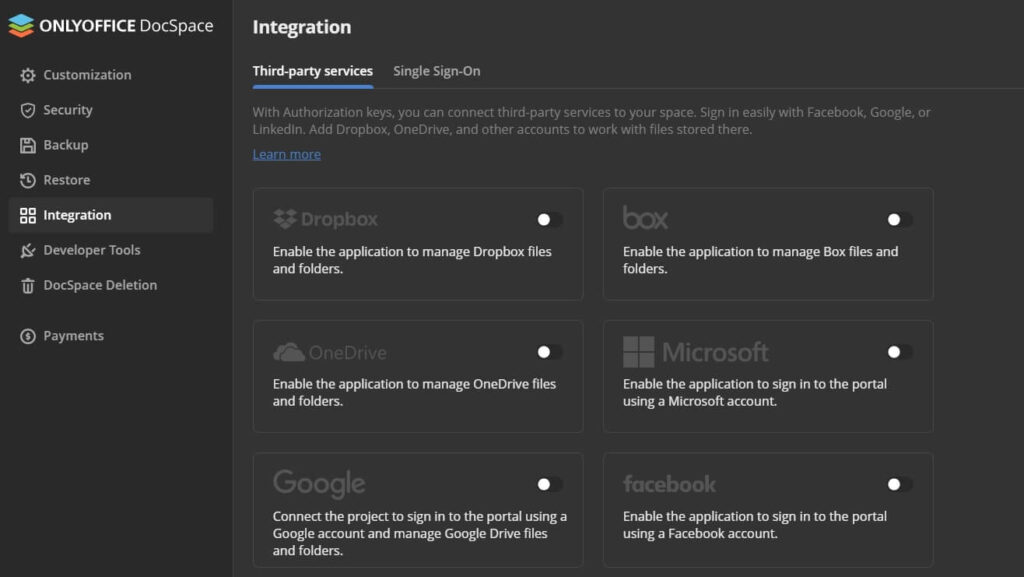
ONLYOFFICE integrates with third-party apps and services, including DocuSign for e-signatures and Twilio for cloud communications. These integrations streamline your workflow and enhance productivity.
7. Customize Your Workspace
ONLYOFFICE provides a wide range of customization options that allow you to tailor your workspace to your specific needs and preferences. The customization section is divided into 3 broad categories: General, Branding, and Appearance.
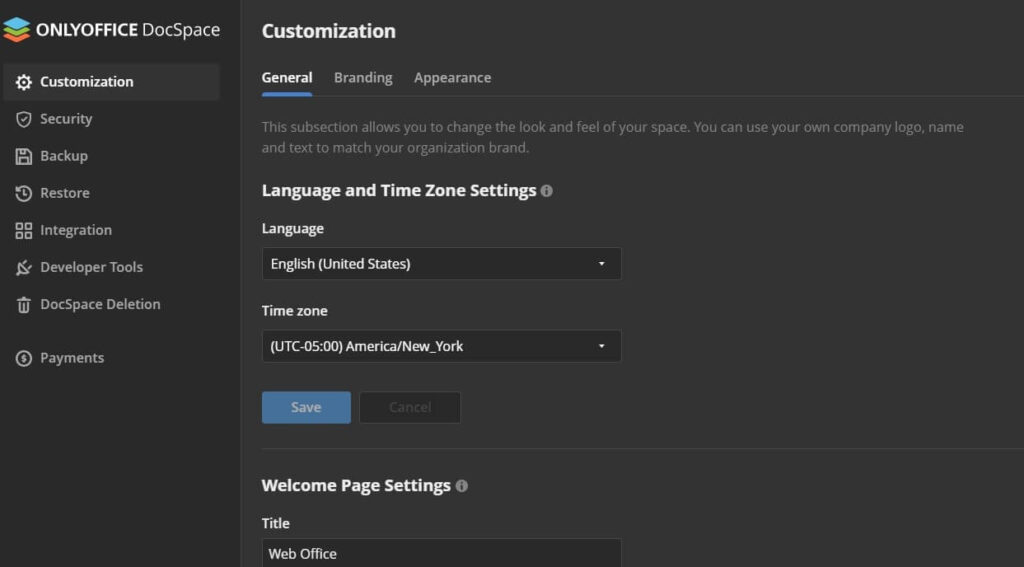
In the General section, you can configure basic settings including date and time, the layout of the welcome page, etc.
In the Branding section, you can customize the logo settings.
And third, is the “Appearance” section which can be used to change the look and feel of the workspace. You can even switch between the Light and Dark themes as per your preference.
8. Account Deletion
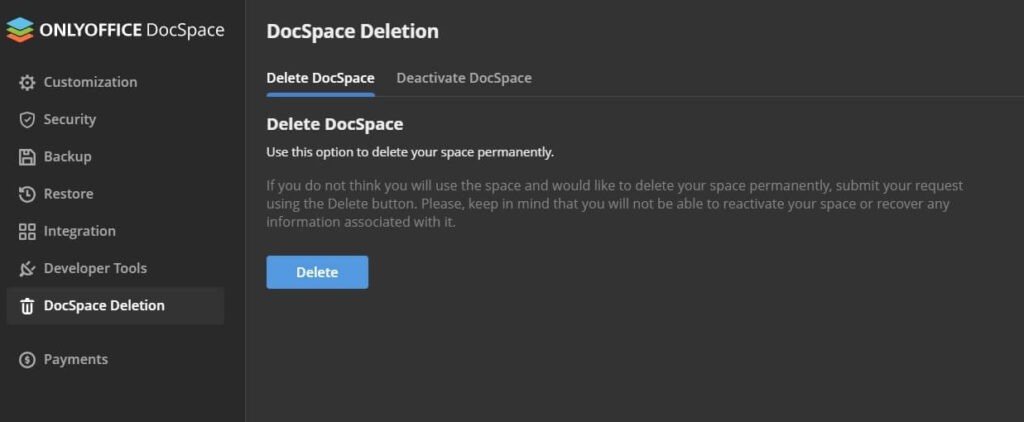
To delete or deactivate your ONLYOFFICE account, you can switch to the “DocSpace Deletion” section in Settings.
Pros & Cons of ONLYOFFICE DocSpace:
Pros:
- A versatile document management suite that supports multiple platforms and file formats.
- Robust security measures are in place to protect your data.
- Offers the ability to create collaboration and custom rooms as per your need and requirement.
- Document processing is performed at lightning-fast speed.
- Easy customization features are available to revamp your workspace.
- The GUI is quite close to MS Office which makes the transition of shifting to a new platform easier.
- Doesn’t eat up much of system resources even while working on heavy-sized files.
- Multi-language support extends up to 26 different languages.
Cons:
- The free version of ONLYOFFICE has a limited storage capacity.
- Compatibility issues with certain file types.
- Limited integrations with third-party tools compared to some other document management suites.
How to Use ONLYOFFICE DocSpace?
Well, now that you have learned all about this nifty digital workspace, follow these steps to use the tool on your device.
Step 1: Visit ONLYOFFICE website and select the pricing plan that suits your needs. You can choose between the free cloud-based plan or the Business Plan.
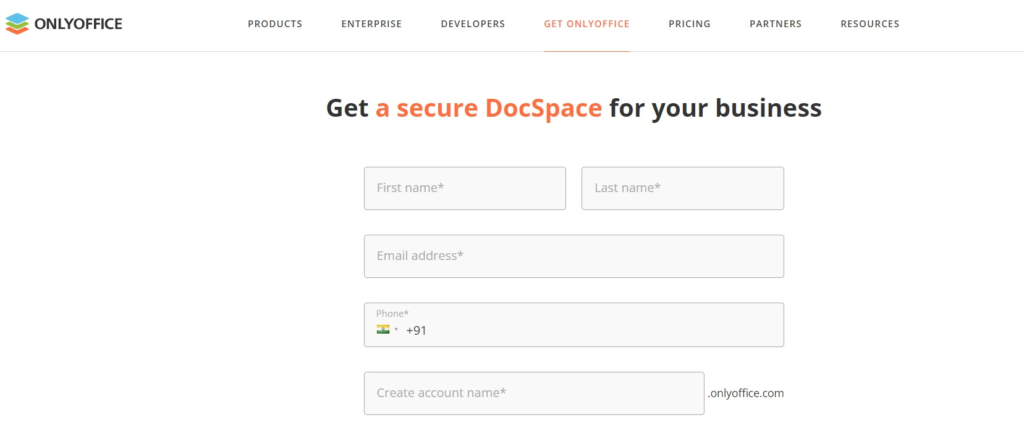
Step 2: Once you have selected your pricing plan, create an account with ONLYOFFICE by providing your email address and password.
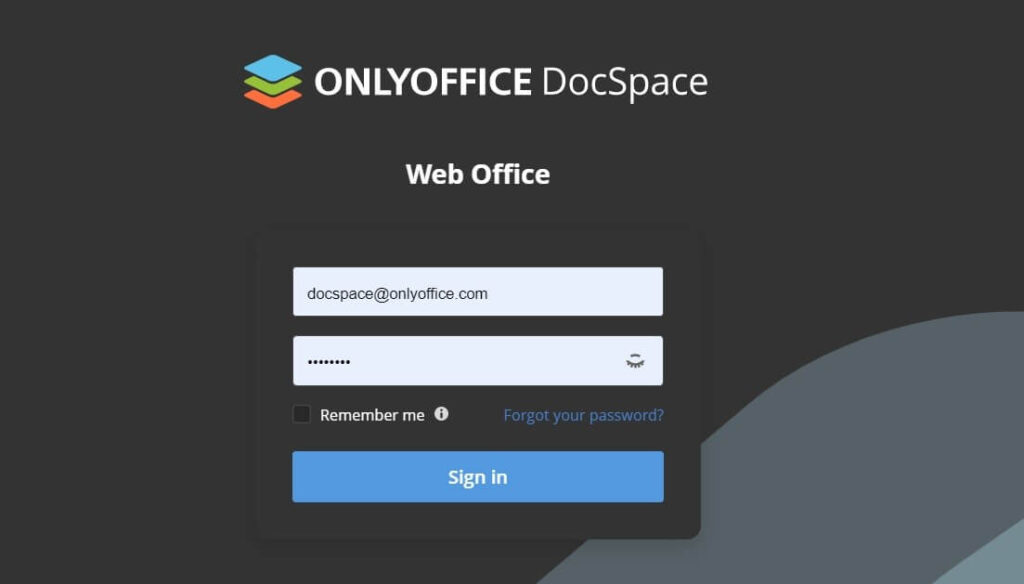
Step 3: To get started on the ONLYOFFICE platform, you can upload existing documents or create new ones using the advanced document editing tools.
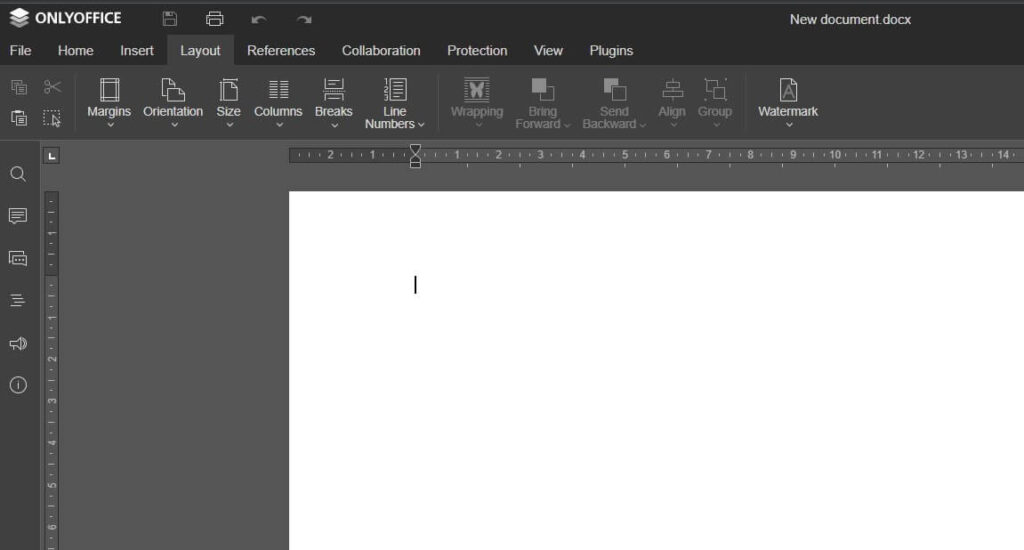
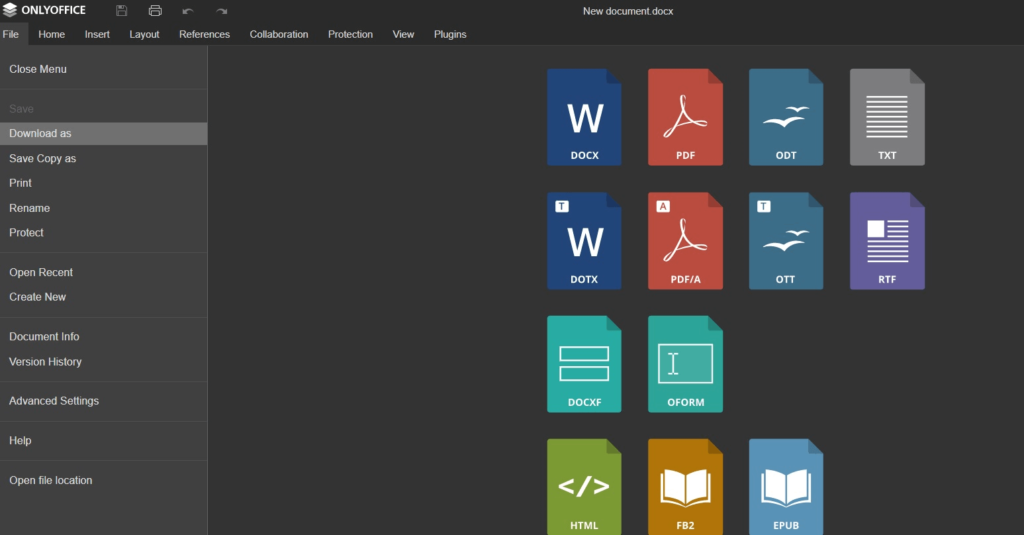
Step 4: Once you have completed your work, save your documents to your preferred location, or export them in a range of different file formats, including Microsoft Office formats.
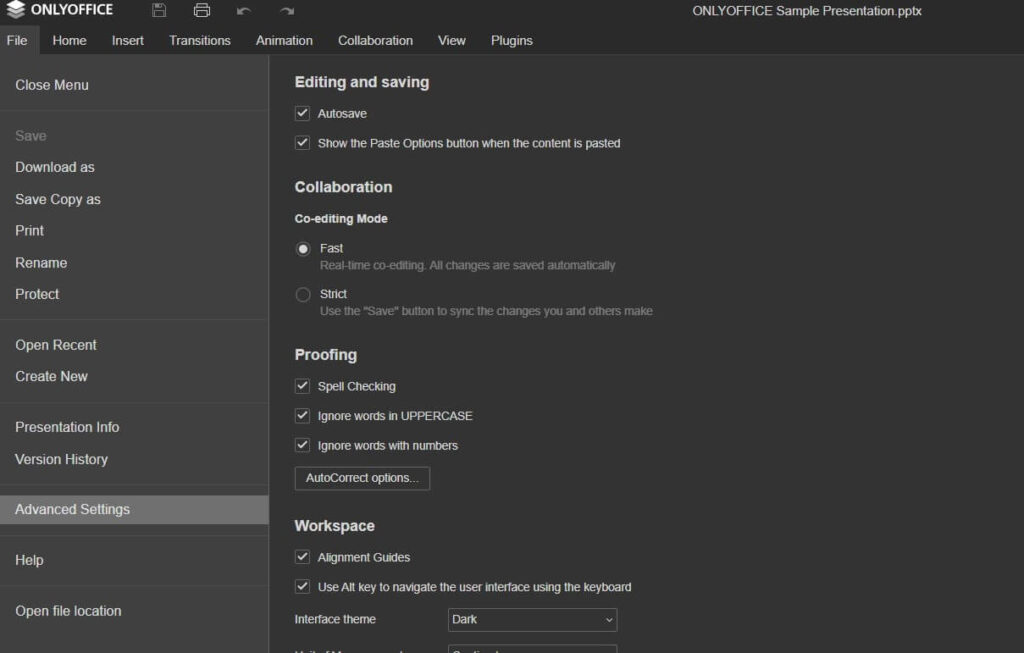
Step 5: Manage your account by accessing your user dashboard, where you can view your billing information, adjust your settings, and manage your storage capacity.
Final Verdict
This wraps up our comprehensive guide on ONLYOFFICE DocSpace review. Agree or not, but ONLYOFFICE can act as a Swiss army knife for getting things done. Overall, ONLYOFFICE is a powerful and versatile document collaboration suite that offers advanced collaboration tools, secure storage, and support for multiple platforms and file formats. With its user-friendly interface and extensive range of features, ONLYOFFICE is suitable for individuals, small businesses, and large organizations alike.
With its range of pricing plans, ONLYOFFICE DocSpace is currently available only in the cloud-based option. ONLYOFFICE is a powerful tool that is accessible to users with varying needs and budgets. Overall, ONLYOFFICE is an excellent choice for anyone looking for a comprehensive collaboration suite that is both powerful and easy to use.
Do you think ONLYOFFICE DocSpace can offer a brand-new way of collaborating on documents? Feel free to share your thoughts in the comments section.
Author Bio:
Dinesh Lakhwani 

Dinesh Lakhwani, the entrepreneurial brain behind “TechCommuters,” achieved big things in the tech world. He started the company to make smart and user-friendly tech solutions. Thanks to his sharp thinking, focus on quality and the motto of never giving up, TechCommuters became a top player in the industry. His commitment to excellence has propelled the company to a leading position in the industry.
Popular Post
Recent Post

Iolo System Mechanic PC Cleanup Software: Hands-On Performance Review
PCs feel fast on the first day. Every click is quick. Apps open right away. With time, things slow down. Programs take longer to load. Files open slowly. Fans get loud even during light use. This happens to almost every computer, no matter how careful you are. The reason is clear. Junk files build up […]

Advanced SystemCare PC Cleanup Tool: A Detailed Review
You turn on your PC and wait. And wait. The same laptop that once opened apps in a snap now feels tired. This is not bad luck. It just happens over time. Files pile up. The registry gets messy. Old drivers stay installed long after they are useful. Junk data quietly eats up space on […]

Avast Cleanup PC Cleaner and Optimizer: Everything You Need to Know
A slow computer makes it hard to focus. Programs take too long to open. Free space keeps shrinking until the disk is almost full. This happens to most PC owners at some point. Even new machines can slow down after a while. That is the exact problem cleanup tools are built to solve. They comb […]

Fortect Software Review: The Ultimate PC & Mobile Cleaning, Optimization & Security Tool
Slow computers are a common problem for almost every Windows user. Well, yes! Over time, your PC picks up junk files. These files sit quietly in the background. They take up space and slow things down. Programs open slower. Windows takes longer to boot. Even simple tasks like opening a folder can feel sluggish. There […]

CCleaner PC Optimizer Review: A Complete Guide for Windows Users
If your computer has started to feel slow, you are not alone. Most Windows PCs slow down over time. Junk files pile up. The registry gets messy. Too many apps open when you start your PC. All this adds up and makes even a good machine feel tired. This is where a PC cleaner tool […]

5 Best PC Cleaners for Windows 11 & 10 | Top PC Optimizers
Remember when your PC felt fast? Every click was quick. Every app opened in seconds. Now it feels like a different machine. Windows takes forever to boot. Programs freeze for no reason. Even opening a browser feels like a chore. You are not alone in this. Almost every PC slows down over time. Files pile […]

Auslogics Duplicate File Finder: Full Review and User Guide
A computer quietly gathers clutter over time. This includes duplicate photos, repeated downloads, and forgotten backups hiding in random folders. This buildup slowly eats away at storage and can make even a fast PC feel sluggish. Manually finding and deleting duplicates is tedious. It means checking every folder, comparing file names, and guessing which copies […]

CCleaner Duplicate File Finder: Key Features, Pricing, Step-by-Step Guide and More
Every computer collects junk over time. Right? Well, yes! Photos often get copied twice. Documents get saved in two folders by mistake. Old downloads pile up and never get deleted. This slowly eats up your storage space, and most people do not even notice until their drive is almost full. That is where a duplicate […]

Duplicate File Finder Pro: A Complete Review, Everything You Should Know
Computers collect thousands of files over time. Well, yes! Many of them end up being duplicates created by backups, downloads, or accidental copies. These extra files take up valuable storage space and make it harder to keep everything organized. Finding and removing them manually can take hours. Right? Duplicate File Finder Pro is a tool […]

