












A computer quietly gathers clutter over time. This includes duplicate photos, repeated downloads, and forgotten backups hiding in random folders. This buildup slowly eats away at storage and can make even a fast PC feel sluggish. Manually finding and deleting duplicates is tedious. It means checking every folder, comparing file names, and guessing which copies […]
10 Ways to Fix the Videos Not Playing on Facebook Issue [Updated Guide]
Introduction
Facebook provides different interesting features for users, including the ability to watch short-form videos on the platform. Whether that involves watching the content on your feed or other specialized features like Facebook Shorts, these types of content are simple to view and scroll through.
However, some people may notice the Facebook video not playing on their device, regardless of how many times they access it. Now, this happens for many reasons- and you can take specific steps to fix the error. In this post, that is what you will learn about.
Reasons for Error in Playing Facebook Videos
Typically, specific conditions are responsible for a person not having the ability to play videos on their device. The following are the most common reasons such an error occurs.
- Too much cache available on Facebook– People may notice app performance issues if too much cache is left uncleaned.
- Bad network connection- Sometimes, the reason why Facebook videos not playing for users is due to connection to a bad internet connection. That can cause interruptions in using features on the Facebook website or app, like watching video content.
- Low storage– Facebook works best when the device has a specific amount of empty storage space. When the storage amount increases, that causes low storage conditions, and users cannot play videos at a fast rate.
- Issues in the app launch sequence– If the app does not launch properly at startup, that can cause defects like sudden issues with video playback on Facebook.
- Video is unavailable– Of course, there is the possibility that the original poster of the video removed it from Facebook. In that case, nobody can access the video, even after multiple shares of the source file.
Top Solutions for Facebook Videos Not Playing Problem
As mentioned, the potential causes of the Facebook video not playing problem are diverse. Depending on the conditions, there are different fixes you can take up here. The following are the best tools for the process.
Solution 1: Reboot the Smartphone
Only restarting the device can often fix many errors, mainly due to interrupted configuration issues or settings. For example, if you have a damaged file in the system, that can interfere with the functional problems in the device system.
Therefore, you should reboot your smartphone to access the Facebook app. This will block the underlying problem, whether due to wrong software reactions or damaged system files.
Restarting the smartphone will clear out excess memory build-up, and you can access a smoother video-watching experience after.
Solution 2: Check Whether the Facebook Servers are Operational
On some rare occasions, the servers for Facebook may appear inactive. In that case, users find it hard to watch Facebook videos. It would be best to turn to a trustworthy tool to detect the server condition in such a situation. Then, you can confirm whether the servers are still active.
Solution 3: Utilize a VPN software
For some users, VPN software is useful for accessing the Facebook app with careful steps. In case people notice the Facebook video not playing error in specific locations, using a VPN software like ExpressVPN will hide your IP address/location.
You can also adjust your content to show Facebook Videos at specific times and access different server options to get videos from other sites.
Solution 4: Check the Network
In many cases, the problem people see when videos won’t play on Facebook is due to network issues, not internal ones. If you are using a network that shows unstable or low internet connectivity range, you switch to a more stable network. Indeed, the videos on Facebook typically have 720 pixels resolution quality, so a speedier internet connection is necessary.
Here, restart the internet device and then wait some time. After that, reconnect the connection- this can reboot the network connection. Or, in the case of mobile users, you can shift to another network connection from the one you were using, like cellular data from a WiFi connection or vice versa.
How to do this?
Step 1: On your smartphone, go to the Settings menu.
Step 2: Choose the WiFi option and deactivate it.

Step 3: Return to the Settings menu and access the Cellular option.
Step 4: Toggle the option for Cellular Data to ON.
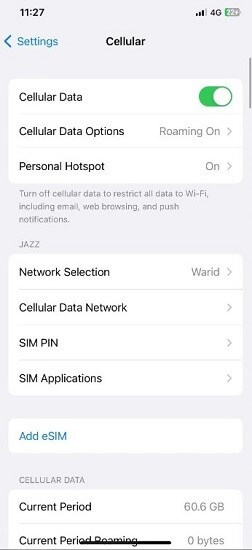
Solution 5: Switch Data Save Mode to OFF on Facebook
Many users have limitations when it comes to available data amount. While most functions have now turned digital, it is still important to plan your internet usage expectations around the total data plan amount you can use.
Here, many Facebook users utilize the Data Saver feature, which takes less amount of power. However, that means that the app cannot play video files. So, disable the problem as soon as possible.
How to do this?
Step 1: Access the Facebook app and choose Menu. It will appear as a three-line icon at the bottom right.
Step 2: In the drop-down menu that appears, scroll down and choose Settings and Privacy.
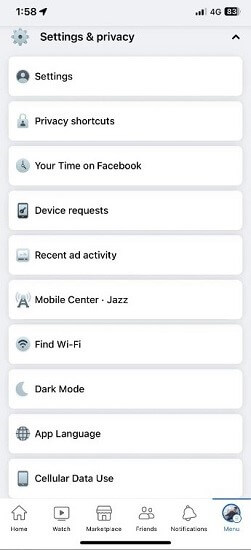
Step 3: Next, click on Cellular Data Use.
Step 4: Go to the Video Quality section. You will see the Data Saver setting in place. Click on Optimized to disable this setting.
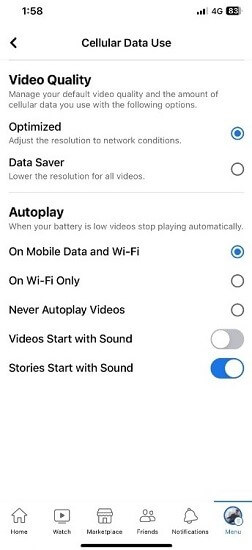
Solution 6: Adjust the Video Quality
When people post videos on Facebook in HD format, that affects the speed capacity of the video loading process.
Therefore, when you open the video you want to watch on Facebook, choose the network speed and playback quality to suit your needs specifically.
How to do this?
Step 1: Open the Facebook video on the app and click on the Settings icon shaped in a gear-shaped style.
Step 2: Choose Quality and select one of the lower quality options, like 360p.

Step 3: Play this video again to see if it works now.
Solution 7: Update or Reinstall the Facebook Application
Sometimes, the video may not play on the Facebook app properly, and that is typically due to an outdated app version. You should update the app on the Apple App Store or Google Play Store or re-download it.
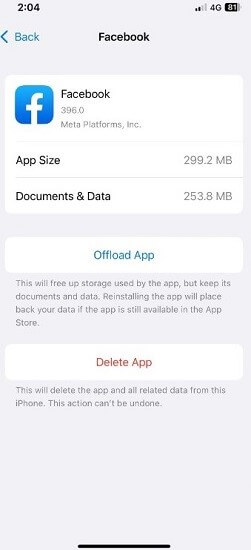
Solution 8: Offload the Facebook app
In some cases, only offloading the app can remove all additional files that took up the excess space in the rooms. This process gives users extra space in the storage, and you can continue with a normal Facebook user experience. To note, the process works mainly for iPhone and iPad users.
How to do this?
Step 1: Access the Settings menu.
Step 2: In this section, continue browsing and then press General.
Step 3: Click on iPhone Storage.
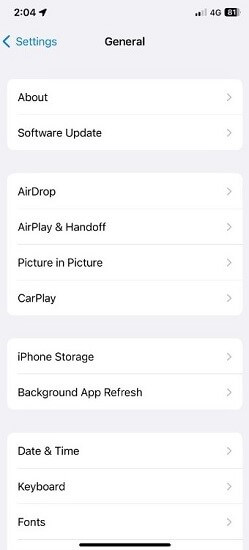
Step 4: Next, search for Facebook and access it.
Step 5: Press the Offload App button.
Solution 9: Log Out and Log In
Abrupt stops in ongoing sessions can cause functional issues, which is a potential issue for Facebook users. In this case, users cannot watch the videos playing on Facebook. To resolve it, you should log out and back into the account.
Solution 10: Switch on Data Saver/Low Data Mode
You can disable the Data Saver or Low Data Mode on a smartphone device. The steps here can be different as per the device operating system type.
How to do this on iOS devices?
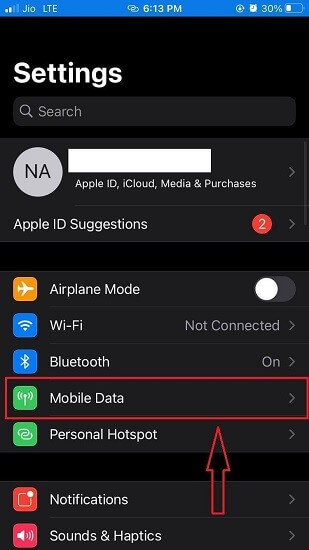
Step 1: Access the Settings app on your iOS device and choose Mobile Data.
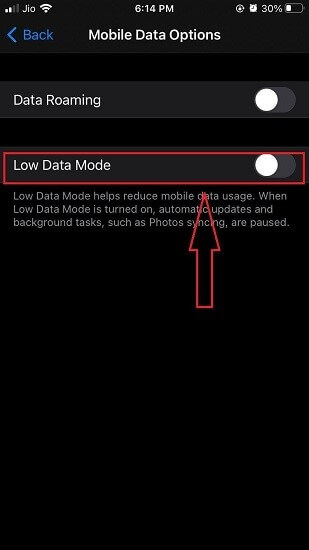
Step 2: Choose the Mobile Data Options selection next.
Step 3: Disable the Low Data Mode if it appears active.
How to do this on Android devices?
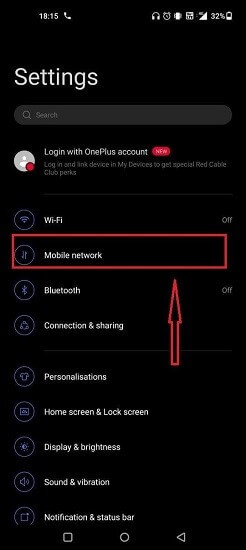
Step 1: Go to the Settings option.
Step 2: When the menu opens, click on Mobile Network.
Step 3: Press the Data Usage option on the next page > Data Savings.
Step 4: Disable the Data Saving option here.

Conclusion
Overall, depending on the cause of the issue and the specific device where you are accessing Facebook, you may notice the Facebook video not playing problem. You can use multiple manners to rectify the problem, like adjusting the network connection, reconfiguring settings, etc. Learn the fixes mentioned here for the issue and then follow through with the steps to fix the problem entirely.
Author Bio:
Dinesh Lakhwani 

Dinesh Lakhwani, the entrepreneurial brain behind “TechCommuters,” achieved big things in the tech world. He started the company to make smart and user-friendly tech solutions. Thanks to his sharp thinking, focus on quality and the motto of never giving up, TechCommuters became a top player in the industry. His commitment to excellence has propelled the company to a leading position in the industry.
Popular Post
Recent Post

CCleaner Duplicate File Finder: Key Features, Pricing, Step-by-Step Guide and More
Every computer collects junk over time. Right? Well, yes! Photos often get copied twice. Documents get saved in two folders by mistake. Old downloads pile up and never get deleted. This slowly eats up your storage space, and most people do not even notice until their drive is almost full. That is where a duplicate […]

Duplicate File Finder Pro: A Complete Review, Everything You Should Know
Computers collect thousands of files over time. Well, yes! Many of them end up being duplicates created by backups, downloads, or accidental copies. These extra files take up valuable storage space and make it harder to keep everything organized. Finding and removing them manually can take hours. Right? Duplicate File Finder Pro is a tool […]

Monitor Screen Calibration Guide: Everything You Should Know
Your monitor shows colors every single day. But are those colors actually correct? Most people never stop to check this. They just use the screen as it comes out of the box. This habit can lead to wrong colors in photos, videos, and work files. Colors may look too warm or too cold without you […]

How To Check Installed RAM and RAM Slots [Complete Guide]
RAM plays an important role in how smoothly a computer runs. Short for Random Access Memory, it stores the data and instructions that Windows and active applications need at any given moment. From opening multiple browser tabs to running games and productivity software, RAM helps keep everything responsive. A system with limited memory may experience […]

What is Microsoft Autopilot Everything You Need To Know
Technology has changed the way companies manage computers. Well, yes! Employees now work from offices, homes, and remote locations. Setting up devices manually for every worker takes time and effort. It can also create mistakes that slow down productivity. This is where Microsoft Autopilot becomes useful. It helps businesses prepare and deploy Windows devices with […]
Enable Automatic Device Locking Feature Windows: Complete Guide
Introduction: Your computer stores important information such as emails, documents, passwords, and personal photos. Leaving it unlocked can put that data at risk. Thankfully, Windows includes built-in features that can automatically lock your device when you are away. Setting up automatic device locking is quick and does not require any extra software. In this guide, […]
How to Update Wireless Network Driver in Windows 11 and 10
Your Wi-Fi keeps dropping. Pages load slowly. The connection feels unstable? Well, you are not alone. Most of the time, the problem is not with your internet plan. It is with your wireless network driver. A driver is a small piece of software that helps your computer talk to its hardware. When it gets outdated, […]
Common Windows 11 Problems and Solutions (2026 Version)
Windows 11 has become more polished over the years, but it is still not completely free from problems. Even after regular updates from Microsoft, many users continue to face issues like lagging performance, failed updates, audio troubles, random crashes, and network errors. Some problems appear after installing new features, while others develop gradually as the […]
Fortect Driver Updater Review: Features, Steps, Pros, and Cons.
A new PC usually feels quick and responsive. Applications open instantly, games run smoothly, and everything works as expected. As time passes, however, you may notice slower performance, system crashes, hardware glitches, or devices that stop working properly. While many people assume malware or low storage space is to blame, outdated drivers are often the […]

