











Antivirus is the one kind of software that people think about at only two moments. The first is right after installing it. The second is right after something goes wrong. In between, it runs quietly, and most users never check if it is doing a good job. That silence makes the choice harder. Windows 10 […]
CCleaner PC Optimizer Review: A Complete Guide for Windows Users
If your computer has started to feel slow, you are not alone. Most Windows PCs slow down over time. Junk files pile up. The registry gets messy. Too many apps open when you start your PC. All this adds up and makes even a good machine feel tired.
This is where a PC cleaner tool like CCleaner comes in. It has been around for many years and is one of the most downloaded PC cleaning tools in the world. It promises to clear out junk, fix small system issues, and help your PC run better. But does it really work in 2026? That is what this guide will help you find out.
In this article, we will walk through what CCleaner PC Optimizer does, how to use it, its pros and cons, pricing, and real feedback from using it.
By the end, you will know if this tool is right for your PC.
Part 1: Brief Overview: CCleaner PC Optimizer
CCleaner was first launched in 2004 by a company called Piriform. Today it is owned by Gen Digital, the same company behind Avast and Norton. Over the years, it has grown from a simple junk file cleaner into a full PC optimization tool. It now handles cleaning, privacy, registry repair, driver updates, and more. It works on Windows, Mac, and Android, though the Windows version has the most features.
The main goal of CCleaner PC Optimizer is simple. It removes files you do not need and fixes small system problems that build up over time. This can free up storage space and may help your PC feel faster, especially if it has not been cleaned in a while.
Here are some quick features of the tool:
- Cleans temporary files, cache, and cookies
- Clears browser history across many browsers
- Removes leftover files from uninstalled programs
- Repairs registry errors
- Manages startup programs
- Updates outdated drivers (Pro version)
- Finds and removes duplicate files
- Offers a one-click Health Check option
Part 2: Why Every Windows User Should Consider CCleaner PC Optimizer?
Windows PCs collect a lot of hidden clutter. Most people never look at it because it is not easy to see. CCleaner PC Optimizer makes this clutter visible and easy to remove. Below are reasons why this tool is worth trying.
- It frees up storage space. Over time, temporary files and cache build up without you noticing. CCleaner finds these files and removes them safely, giving you back space on your hard drive.
- It is simple to use. You do not need any technical skill. The layout is clean, and most actions need just one click. This makes it a good pick for beginners.
- It protects your privacy. CCleaner clears your browsing history, cookies, and saved form data. This keeps your personal browsing habits private, especially if you share your PC with others.
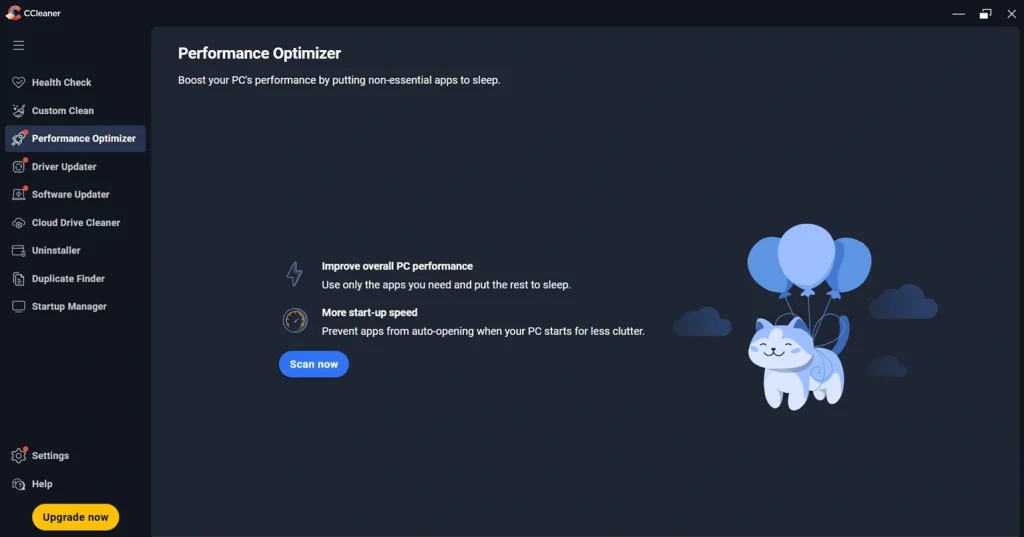
- It helps manage startup programs. Many apps quietly launch when you turn on your PC. CCleaner lets you see this list and turn off the ones you do not need, which can speed up boot time.
- It offers a registry cleaner. Windows keeps a registry of settings and program data. Over time, this can collect broken or unused entries. CCleaner scans for these and helps clean them up.
- It supports driver updates. Outdated drivers can cause slowdowns or bugs. The Pro version checks your drivers and helps you update them without hunting for files online.
- It works quietly in the background. Once set up, CCleaner does not need daily attention. You can schedule cleanups and let it run on its own.
- It has a long track record. CCleaner has been around for over 20 years. It has millions of users worldwide, which means it has been tested by a large community over a long time.
Part 3: Key Features Explained: CCleaner PC Cleaner and Optimizer Tool
CCleaner PC Optimizer comes packed with tools, but a few stand out as the core of what it does. Below, we explain the six key features that make this tool useful for everyday Windows users.
1. Cleaner Tool
This is the heart of CCleaner. It scans your system and browser for temporary files, cache, cookies, and logs. Before deleting anything, it shows you how much space each item will free up. You choose what to remove, so nothing important gets deleted by mistake.
2. Registry Cleaner
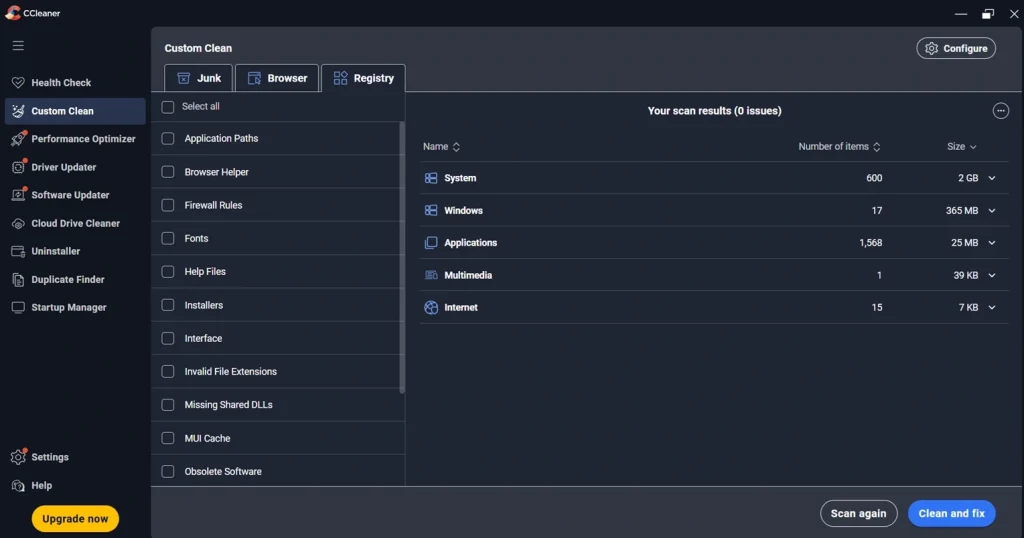
Windows stores settings in something called the registry. Over time, old or broken entries build up here. This feature scans for these issues and backs them up before making any changes. This gives you a way to undo changes if something goes wrong.
3. Health Check
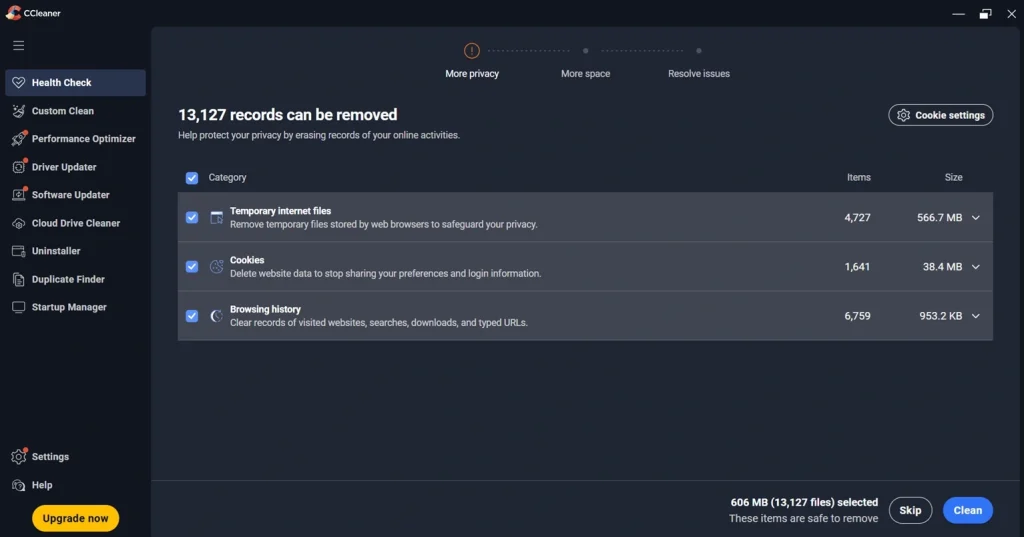
This is a simple, one-click option built for users who do not want to go through every setting. It runs a scan across your system, checks common problem areas, and suggests fixes. It is a good starting point if you are new to the tool.
4. Startup Manager
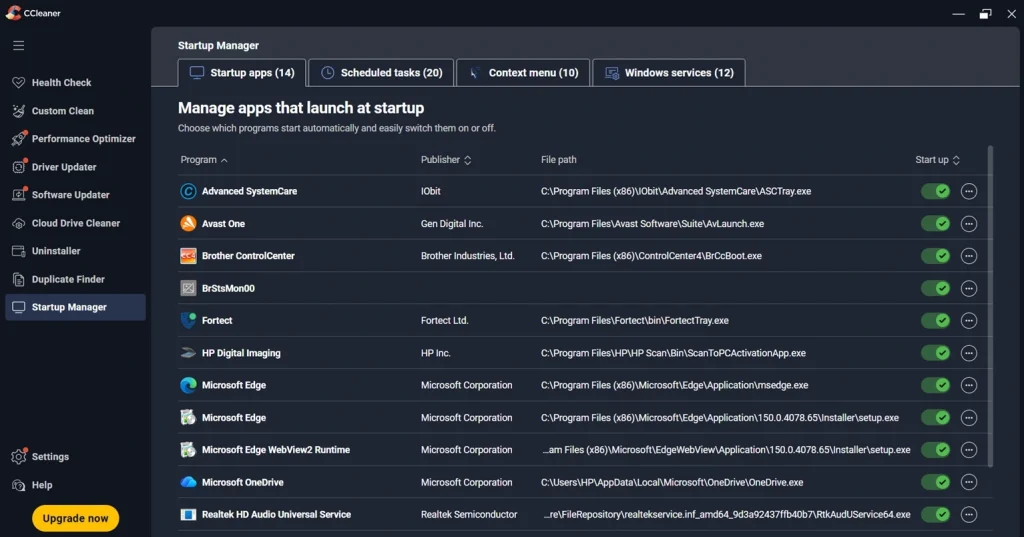
This feature shows you every program set to launch when Windows starts. Many of these are not needed right away. You can disable them here, which can help your PC boot faster and use less memory in the background.
5. Driver Updater
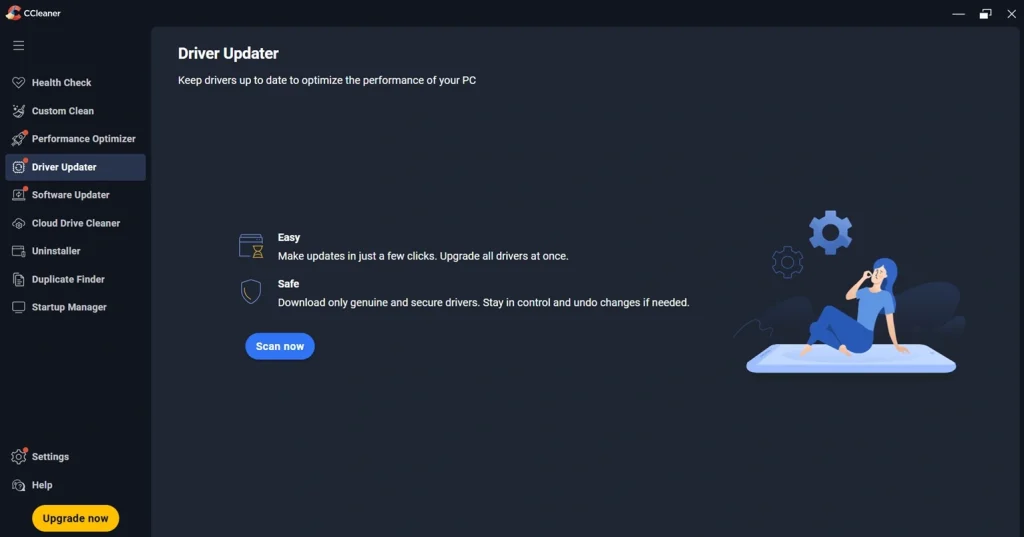
Old drivers can slow down hardware or cause small glitches. This feature, found in the paid version, scans your system for outdated drivers and helps you download the correct updates directly, saving you the trouble of searching manually.
6. Duplicate Finder
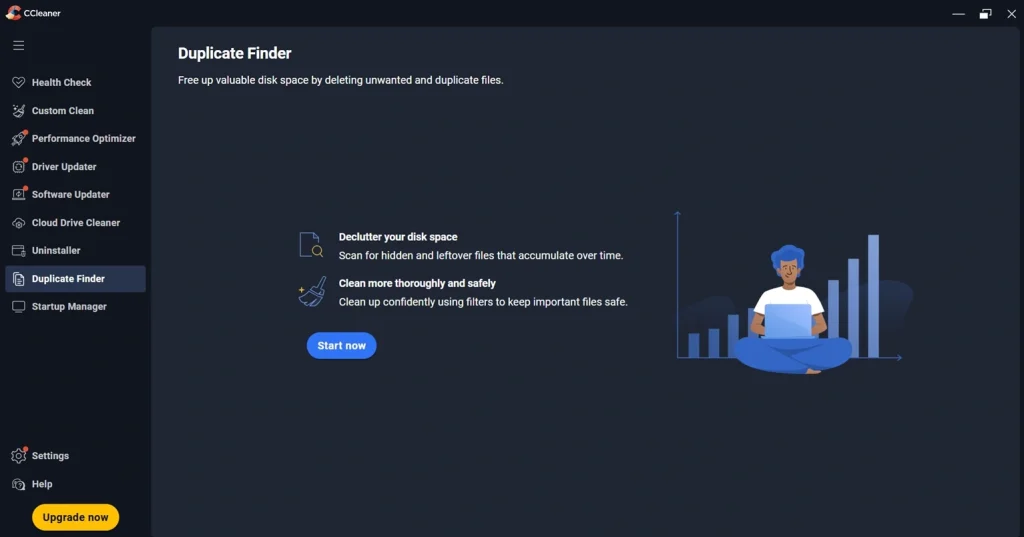
Many of us end up with copies of the same files without knowing it, especially photos and documents. This tool scans your drive and flags duplicate files, helping you clear out repeated data and free up more space.
Part 4: How to Use CCleaner PC Optimizer: Step-by-Step Guide
Getting started with CCleaner PC Optimizer does not take long. The setup is quick, and most users can complete their first cleanup within a few minutes. Below is a simple guide to help you get going.
Before you begin, make sure you download the tool only from the official CCleaner website. This keeps you safe from fake versions that may carry malware.
Step 1: Go to the official CCleaner website and download the installer. Open the app. Choose Health Check for a quick, guided scan.
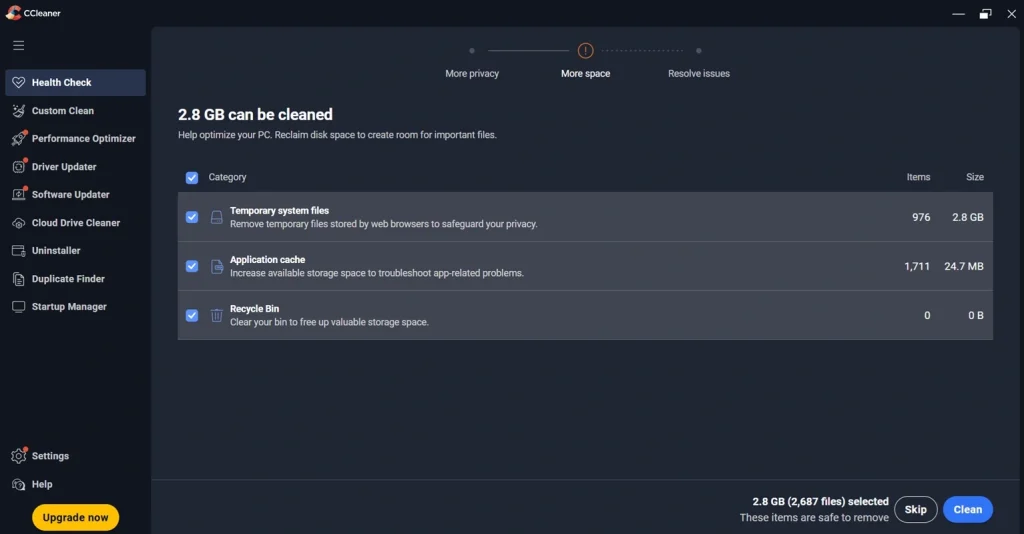
Step 2: Go to the Custom Clean tab if you want more control. Review what it plans to delete, then click the Clean button to remove the selected files.
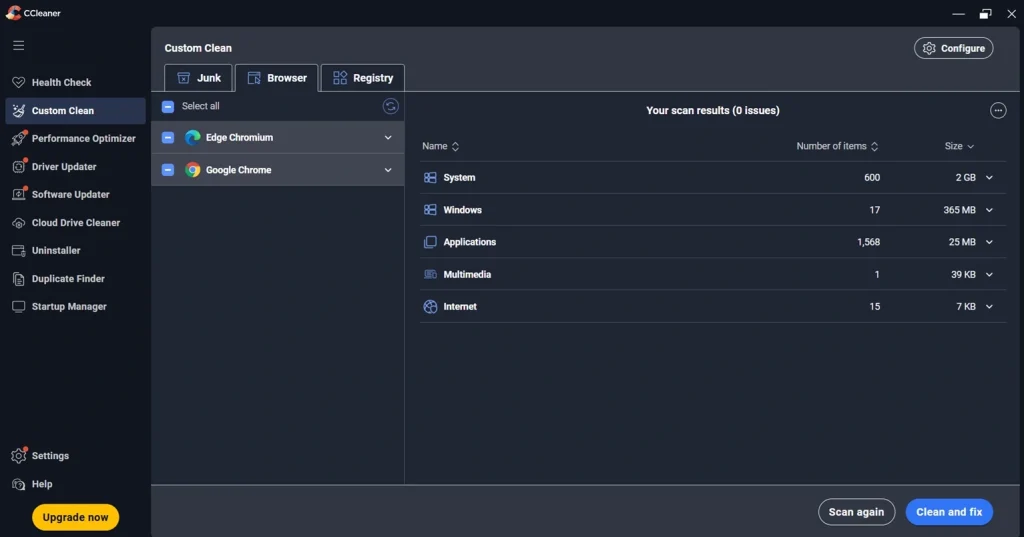
Step 3: Once your first clean is done, check out the Registry, Startup, and Tools sections. Fix registry issues, turn off startup apps you do not need, and if you have the Pro version, run a driver scan to catch outdated drivers.
Part 5: Pros and Cons of CCleaner PC Cleaner Explained
No tool is perfect, and CCleaner PC Optimizer is no different. It does many things well, but it also has a few downsides worth knowing before you decide to use it.
Pros:
- Quick cleanup — After running a scan, it cleared out nearly 2.8 GB of junk files on my PC in under a minute, which instantly freed up space.
- Startup boost — Disabling a few auto‑launch apps shaved about 20 seconds off my boot time, which I noticed right away.
- Browser privacy — It wiped cookies and history across Chrome and Edge without touching my saved logins, which felt like a smart balance.
- Simple dashboard — Everything is laid out clearly, so I didn’t waste time figuring out where to click.
- Lightweight tool — It runs quietly in the background without hogging CPU or slowing down other tasks.
Cons:
- Over‑cleaning risk — The registry cleaner flagged items I wasn’t sure about; after removing them, one app acted glitchy, so I had to reinstall it.
- Limited free features — Real‑time monitoring and automatic updates are locked behind the paid plan, so the free version feels a bit barebones.
- Manual double‑check — I found myself reviewing the list of files before hitting “clean” because I didn’t fully trust the defaults.
Part 6: Pricing Plans: CCleaner PC Cleaner
CCleaner PC Optimizer offers a free plan along with a few paid tiers. Pricing can change based on region and ongoing promotions, so it is worth checking the official site before buying. Here is a general breakdown:
- Free – Basic cleaning tools at no cost
- Professional – Around $29.95 per year for one device
- Professional Plus – Around $44.95 per year, covers up to three devices
- Premium Bundle – Around $64.95 per year, covers up to five devices with extra privacy tools
| Feature | Free Plan | Paid Plan (Professional and above) |
| Junk file cleaning | Yes | Yes |
| Browser cleaning | Yes | Yes |
| Registry cleaner | Yes | Yes |
| Scheduled automatic cleaning | No | Yes |
| Real-time monitoring | No | Yes |
| Driver updater | No | Yes |
| Priority customer support | No | Yes |
| Multi-device coverage | No | Yes (Plus and Premium tiers) |
| File recovery tool (Recuva Pro) | No | Yes (Plus and Premium tiers) |
| System info tool (Speccy Pro) | No | Yes (Plus and Premium tiers) |
Most paid plans come with a 30-day money-back guarantee, so you can try the Pro features and get a refund if they do not work for you.
Part 7: Honest Feedback of Using CCleaner On My PC
When I first ran CCleaner, the scan speed really impressed me. It finished in under a minute and found hundreds of temporary files I didn’t even realize were eating up space. The interface felt intuitive; everything was neatly labeled, so I didn’t have to dig through menus to find what I needed.
I especially liked the Startup Manager. Disabling a few unnecessary apps noticeably improved my boot time. The privacy cleaning feature also came in handy; it wiped browser traces and cookies without affecting saved passwords.
But it’s not all perfect. The registry cleaner made me a bit nervous. I used it once and noticed a minor glitch afterward, so I’ve avoided that part since. Also, the pop‑up prompts for upgrading to the paid version can get annoying if you’re just trying to do a quick cleanup.
Overall, CCleaner feels like a reliable everyday tool. Great for freeing up space and keeping things tidy, as long as you double‑check what it’s deleting.
Part 8: How Trusted Is CCleaner PC Optimizer Worldwide?
CCleaner has built a large user base over the past two decades, and its reputation has held up despite a few bumps along the way. Here is a look at how it is viewed by users and reviewers around the world.
- Millions of weekly downloads — CCleaner consistently ranks among the most downloaded PC utilities worldwide, with millions of installs every week. That kind of volume shows it’s not just popular. It’s trusted by everyday users and IT professionals alike.
- Strong average ratings — On major review platforms like Trustpilot and CNET, CCleaner typically holds ratings around 4 out of 5 stars, backed by tens of thousands of user reviews. Most praise its ease of use and noticeable performance boost.
- Long history in the industry — Launched back in 2004, CCleaner has survived countless Windows updates and system changes. Few optimization tools have managed to stay relevant for over two decades.
- Backed by Gen Digital — Now owned by Gen Digital. The same company behind Avast and Norton. CCleaner benefits from the credibility and resources of a major cybersecurity brand. That backing adds a layer of trust to its continued development.
Conclusion
CCleaner PC Optimizer remains a solid choice for anyone looking to clean up their Windows PC without much hassle. It does the basics well, clearing junk files, managing startup programs, and protecting your browsing privacy. For most casual users, the free version alone covers what is needed.
If you want more, like scheduled cleaning or driver updates, the paid plans add real value, though they come at a yearly cost. The tool is not perfect. The upsells can feel repetitive, and the registry cleaner should be used with some care. Still, its long history and large user base show that it has earned its place among trusted PC tools.
In the end, whether CCleaner PC Optimizer is worth it depends on how much you value convenience and automation. For a simple, one-time cleanup, the free version is more than enough. For ongoing maintenance across multiple devices, the paid plans are worth a look.
FAQs
Is CCleaner PC Optimizer safe to use in 2026?
Yes, the current version is safe as long as you download it from the official CCleaner website. The 2017 security incident was fixed long ago, and the company has since added stronger checks to prevent similar issues.
Does the free version of CCleaner PC Optimizer do enough?
For most everyday users, the free version covers the basics well, including junk file cleaning, browser privacy tools, and a simple registry cleaner. You would only need the paid version if you want automation or driver updates.
Will CCleaner PC Optimizer actually make my PC faster?
It can help, especially if your PC has not been cleaned in a while or has many startup programs running. On a well-maintained, modern PC, the speed difference may be smaller, but it can still free up useful storage space.
Author Bio:
Dinesh Lakhwani 

Dinesh Lakhwani, the entrepreneurial brain behind “TechCommuters,” achieved big things in the tech world. He started the company to make smart and user-friendly tech solutions. Thanks to his sharp thinking, focus on quality and the motto of never giving up, TechCommuters became a top player in the industry. His commitment to excellence has propelled the company to a leading position in the industry.
Popular Post
Recent Post

Top 5 Lightest Antivirus Software To Protect Your PC
Introduction: Antivirus software helps protect Windows PCs from digital threats. It detects viruses, blocks ransomware, and alerts users about unsafe websites. However, some security tools consume too much RAM and CPU power. This can make everyday tasks feel slow. Older laptops and low-end PCs often face this problem. The computer may take longer to start. […]

How To Disable Cookies in Browser [Complete Guide]
So, search for a pair of shoes once online. Close the tab. By evening, those same shoes are sitting on your news site, your video app, and even your recipe blog. Nobody placed them there by chance. A cookie did. Well, yes! Cookies are small files that websites place on your device while you browse. […]

How To Disable Background Apps In Windows: 4 Quick Methods
A slow PC rarely gives a warning. One day, it simply takes longer to start. Apps open late. The fan runs loud, even when the screen is almost empty. Most people blame old hardware. Often, that is not the real reason. The real reason is hiding in plain sight. Windows keeps many apps active in […]

How to Activate Windows with a Product Key for Windows 11 & Windows 10
It always shows up at the worst time. You are halfway through a report, or about to join a video call. Then you spot it in the bottom right corner of the screen. Activate Windows. Go to Settings to activate Windows. Initially, an unactivated copy of Windows may seem like a minor inconvenience. Over time, […]

Is Easy Duplicate Finder Worth It? Honest Review
The photos folder looked normal at first glance. Then the storage warning popped up. One trip photo appeared four times. A tax PDF sat in three different folders. Two old setup files were still in Downloads, and each one was over 500 MB. Nobody plans this mess. Copies pile up slowly. A download runs twice. […]

Wise Duplicate Finder Review: Real Results from Wise Duplicate Finder
Read my honest Wise Duplicate Finder review. See features, pricing, pros and cons, and real PC test results. Find out if this free duplicate cleaner can free up your Windows storage.

How to Recover Deleted Files from Pen drive, USB Drive, SD Card
Introduction: On tech forums, you’ll often see posts like this: “I connected my pen drive to my laptop this morning, but the folder was empty. All my college project files had vanished. I don’t have a backup. Can someone help me?” Stories like this are very common. Pen drives, USB drives and SD cards are […]

How To Recover Files Deleted from the Recycle Bin [Windows 11]
Losing a file can happen in seconds. You clear your desktop, hit Delete, and empty the Recycle Bin. Then, just when you need that file again, it seems to have vanished. This guide will walk you through ways to restore files removed from the Recycle Bin. We will begin with simple fixes, then look at […]

Disk Drill Data Recovery Tool Explained: Full Review and Guide
It happens in a split second. You delete a folder by mistake. Your drive stops showing up. A photo album from your last trip just vanishes. And your stomach drops. Lost files feel personal. They are not just data. They are memories, work hours, and sometimes years of effort packed into a few gigabytes. When […]

