












A computer quietly gathers clutter over time. This includes duplicate photos, repeated downloads, and forgotten backups hiding in random folders. This buildup slowly eats away at storage and can make even a fast PC feel sluggish. Manually finding and deleting duplicates is tedious. It means checking every folder, comparing file names, and guessing which copies […]
How to Run the System File Checker (SFC) in Windows?
Introduction
Many kinds of issues can cause defects in the systems files within computers. In some situations, a wrong move can cause damage to specific system files, like deleting the folder containing the file, which is important for system performance. Other events can affect system files, like forced shutdowns or malware attacks. A sudden power outage can turn off systems during ongoing operations, and that, too, can cause functional problems.
To combat such issues, you can utilize an online multi-functional tool like Avast Premium Security to keep your system safe from external and sometimes internal attacks. However, using native solutions like the System File Checker is also useful. This post will discuss how to run the SFC protocols safely and correctly on Windows PC.
What is System File Checker?
The System File Checker or SFC is a built-in utility of Windows for fixing system conditions because of the corruption of system files or random software crashes.
If the solution is not automatically possible, users must carry out some manual steps to handle the anomalies.It is possible to run this through the native computer system or opt for recovery media for a non-bootable Windows system.
Ways to Run the System File Checker on Windows
Different methods are available for running the SFC on Windows 10 or other Windows versions. It is important to follow the steps for the processes carefully to avoid errors.
Method 1: Repair Windows Directly from SFC
Repairing the Windows 10 system through the System File Checker is not complex and works through the Command Prompt.
In Windows 10, 11, and 8/8.1 versions, the process involves the following steps to access the SFC tool.
How to do this?
Step 1: Click the Start button.
Step 2: In the dialog box, type Command Prompt.
Step 3: Right-click on the app option that comes up in the search. Then, pick “Run as Administrator” from the options.
Step 4: Insert the next command and hit the Enter button on the keyboard:
sfc/scannow
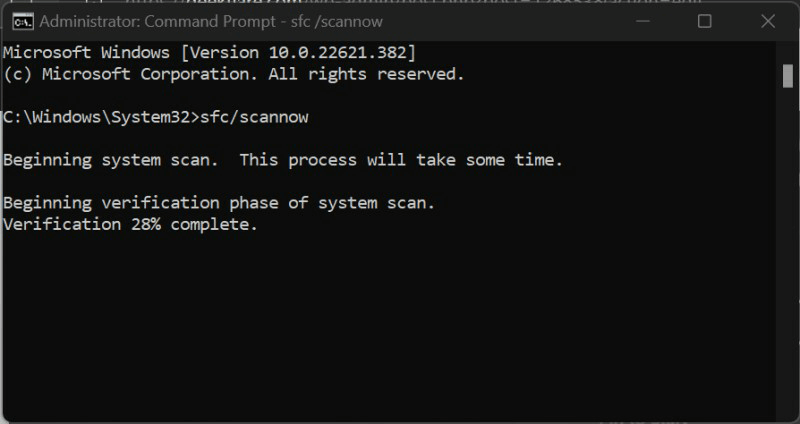
Step 5: Multiple command results can come up. Confirm the one that is relevant to your system:
- “Windows Resource Protection did not find any integrity violations.”
- “Windows Resource Protection found corrupt files but was unable to fix some of them.”
- “Windows Resource Protection found corrupt files and successfully repaired them.”
- “Windows Resource Protection could not perform the requested operation.”
Step 6: The System File Checker Windows 10 command-line tool will take time to detect, scan, and fix the issues in the system files.
You can manually run separate steps to fix the issue depending on the command results mentioned.
Fix 1: Resolve issues if no integrity violation occurs.
In this case, the system files are in working condition, so users do not have to target system files. However, there are other underlying problems causing system issues.
Fix 2: Resolve corrupted files available that were not all solved by the SFC tool.
After regular processing of the System File Checker on Windows to find and fix the issues, sometimes the corrupt system files do not resolve. In these cases, you must manually handle steps to fix them by replacing corrupt files with functional system files from another Windows system with the same version.
How to do this?
Step 1: Access the log file as you navigate through the following route: %WinDir%\Logs\CBS\CBS.log
The log file will open within the Notepad app.
Step 2: All the recent scan results will appear in a list. Scroll through them to the latest scan and search for files that cannot repair information beside them.
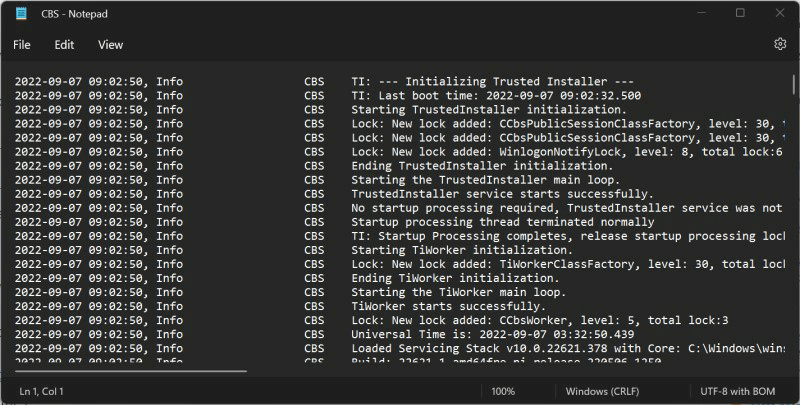
Step 3: Run the System File Checker command on the available source for safe import:
sfc/scannow
Step 4: Run the next commands one by one in the Command Prompt window to allow the corrupt file’s copy-paste rights:
takeown /f filepath\filename
icacls filepath\filename /grant administrators:f
Step 5: Then, put the working system file in the place of the damaged file and restart the device. Use Avast Free Antivirus to run a full scan on the device for malware as an additional precaution after rebooting.
Fix 3: Check SFC repair details if the corrupted system files are found and fixed.
In this context, you do not have to do many steps. However, view the “%WinDir%\Logs\CBS\CBS.log” file to see the repair details for the system file. Then, restart the Windows PC and see if the problem still exists. The steps to check the log file are only possible during the online scan through Command Prompt on Windows 10 devices.
How to do this?
Step 1: Go to the Start menu and type “Command Prompt” in the search box. Right-click on the first app option and choose Run as Administrator.
Step 2: Insert the next command and hit the Enter button:
findstr /c:”[SR]” %windir%\Logs\CBS\CBS.log > C:\sfclogs.txt”
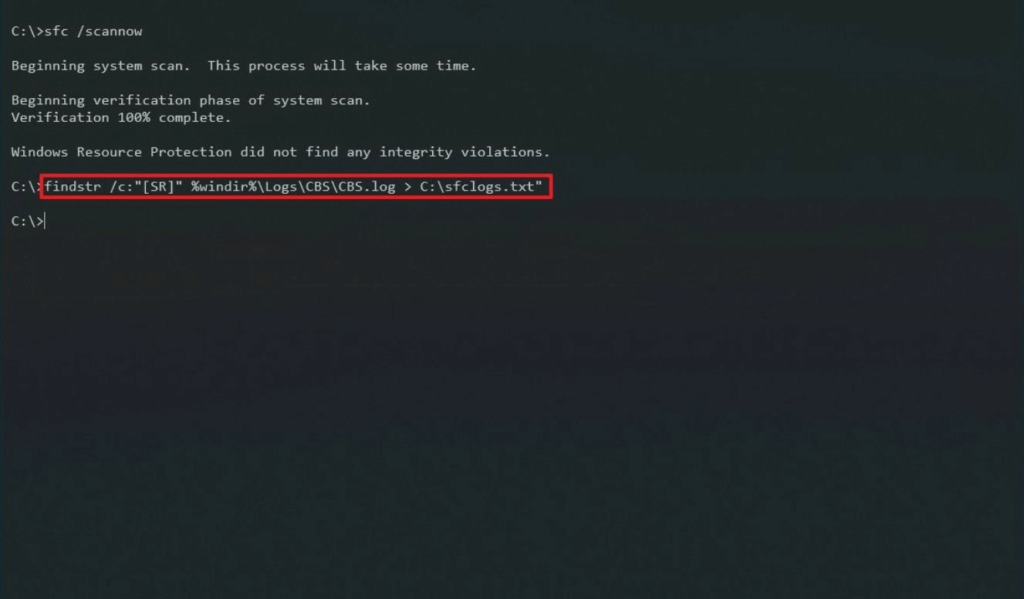
Step 3: Click the Win + E keys on the keyboard to access File Explorer.
Step 4: From the left-hand side panel, choose This PC > Devices and Drives.
Step 5: Access the Local Disk Drive, typically the (C:) Drive.
Step 6: Search for and then double-click on the sfclogs.txt file. The log file will then open in the default text editor app showing all scanned data from system files.
Fix 4: Do extra steps if Windows Resource Protection fails to complete the operation request.
If the Windows Resource Protection utility fails to handle the requested operation, you have to carry out specific steps to boot the PC and do the scan. You must boot up the system in Safe Mode with the basic utilities and drivers available.
Then, access the Command Prompt window and run SFC scanning again. Then, follow the steps mentioned in fixes 1-3 to resolve the problem in your system.
Method 2: Run System File Checker via Windows Recovery Media
Another method users can try is to access the Windows Recovery Media and run the SFC command line through that. You have to create a bootable installation disk for this process.
How to do this?
Step 1: Prepare an installation disk for Windows using a recovery tool for your system.
Step 2: Sync the USB-based installation disk into the PC and switch the computer ON.
Step 3: Tap on the F12 key on your keyboard until the One Time Boot Menu comes up.
Step 4: Choose the USB drive you inserted from the list and hit Enter. The PC will start loading with the installation disk.
Step 5: Choose the preferred language > Next.
Step 6: Click on the “Repair your computer” button.
Step 7: Tap the Troubleshoot option > Advanced Options > Command Prompt.
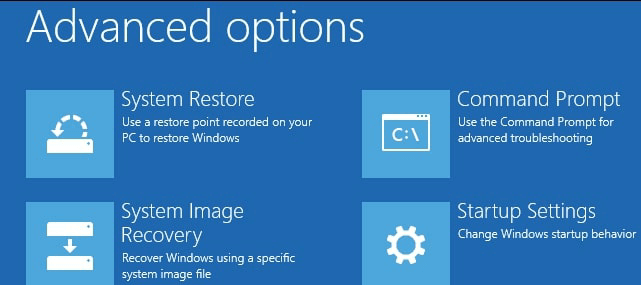
Step 8: Run this command and hit the Enter button:
sfc /scannow /offbootdir=c:\ /offwindir=c:\windows
Step 9: The SFC tool will analyze the system files and conduct repairs if needed. The whole process can take a long time, depending on the computer settings. Finally, restart the device.
Conclusion
You can take steps to run the SFC scanner directly on your computer or use recovery media from another device if needed. The steps for different manual fixes can become complex to handle. So, follow the steps carefully and take technical assistance if needed.
Author Bio:
Dinesh Lakhwani 

Dinesh Lakhwani, the entrepreneurial brain behind “TechCommuters,” achieved big things in the tech world. He started the company to make smart and user-friendly tech solutions. Thanks to his sharp thinking, focus on quality and the motto of never giving up, TechCommuters became a top player in the industry. His commitment to excellence has propelled the company to a leading position in the industry.
Popular Post
Recent Post

CCleaner Duplicate File Finder: Key Features, Pricing, Step-by-Step Guide and More
Every computer collects junk over time. Right? Well, yes! Photos often get copied twice. Documents get saved in two folders by mistake. Old downloads pile up and never get deleted. This slowly eats up your storage space, and most people do not even notice until their drive is almost full. That is where a duplicate […]

Duplicate File Finder Pro: A Complete Review, Everything You Should Know
Computers collect thousands of files over time. Well, yes! Many of them end up being duplicates created by backups, downloads, or accidental copies. These extra files take up valuable storage space and make it harder to keep everything organized. Finding and removing them manually can take hours. Right? Duplicate File Finder Pro is a tool […]

Monitor Screen Calibration Guide: Everything You Should Know
Your monitor shows colors every single day. But are those colors actually correct? Most people never stop to check this. They just use the screen as it comes out of the box. This habit can lead to wrong colors in photos, videos, and work files. Colors may look too warm or too cold without you […]

How To Check Installed RAM and RAM Slots [Complete Guide]
RAM plays an important role in how smoothly a computer runs. Short for Random Access Memory, it stores the data and instructions that Windows and active applications need at any given moment. From opening multiple browser tabs to running games and productivity software, RAM helps keep everything responsive. A system with limited memory may experience […]

What is Microsoft Autopilot Everything You Need To Know
Technology has changed the way companies manage computers. Well, yes! Employees now work from offices, homes, and remote locations. Setting up devices manually for every worker takes time and effort. It can also create mistakes that slow down productivity. This is where Microsoft Autopilot becomes useful. It helps businesses prepare and deploy Windows devices with […]
Enable Automatic Device Locking Feature Windows: Complete Guide
Introduction: Your computer stores important information such as emails, documents, passwords, and personal photos. Leaving it unlocked can put that data at risk. Thankfully, Windows includes built-in features that can automatically lock your device when you are away. Setting up automatic device locking is quick and does not require any extra software. In this guide, […]
How to Update Wireless Network Driver in Windows 11 and 10
Your Wi-Fi keeps dropping. Pages load slowly. The connection feels unstable? Well, you are not alone. Most of the time, the problem is not with your internet plan. It is with your wireless network driver. A driver is a small piece of software that helps your computer talk to its hardware. When it gets outdated, […]
Common Windows 11 Problems and Solutions (2026 Version)
Windows 11 has become more polished over the years, but it is still not completely free from problems. Even after regular updates from Microsoft, many users continue to face issues like lagging performance, failed updates, audio troubles, random crashes, and network errors. Some problems appear after installing new features, while others develop gradually as the […]
Fortect Driver Updater Review: Features, Steps, Pros, and Cons.
A new PC usually feels quick and responsive. Applications open instantly, games run smoothly, and everything works as expected. As time passes, however, you may notice slower performance, system crashes, hardware glitches, or devices that stop working properly. While many people assume malware or low storage space is to blame, outdated drivers are often the […]

