












It always shows up at the worst time. You are halfway through a report, or about to join a video call. Then you spot it in the bottom right corner of the screen. Activate Windows. Go to Settings to activate Windows. Initially, an unactivated copy of Windows may seem like a minor inconvenience. Over time, […]
GPU Fans Not Spinning? How To Fix
Introduction
The GPU handles much of the power consumption during high-powered processes like streaming, gaming, etc. Too much of it can badly heat up the GPU and harm the device from regular functioning, like slowing down the device, the screen freezing up, etc. Using a GPU fan at the moment is useful for cooling the heatsink in the graphics card down. This helps avoid overheating, which is why these fans are important for users.
Thus, functional issues, like GPU fans not spinning, can cause major issues during high-intensive functions like gaming. So, fixing the issue as soon as possible is important, and there are processes for that.
Precautions to Take Before You Touch That GPU: Safety First!
Before diving into fixes for your GPU fan issue, it’s crucial to take a few safety steps. Graphics cards are sensitive components, and improper handling can lead to permanent damage—or worse, void your warranty. Whether you’re a seasoned builder or a curious first-timer, these precautions will help you troubleshoot confidently and responsibly.
- Power Down Completely: Always shut down your PC and unplug it from the wall before opening the case.
- Use Anti-Static Protection: Wear an anti-static wrist strap or touch a grounded metal object to discharge static electricity.
- Let It Cool: Wait for the GPU and other components to cool down before touching anything.
- Clean Workspace: Work in a clean, dust-free environment to avoid introducing debris into your system.
- Inspect Visually First: Look for loose cables, dust buildup, or physical damage before attempting any fixes.
- Check Warranty Status: Know whether your GPU is still under warranty—some fixes may void it.
- Use Proper Tools: Avoid makeshift tools; use precision screwdrivers and plastic prying tools if needed.
- Document Your Steps: Take photos before disconnecting anything so you can reassemble correctly.
Best ways to fix the GPU fans not spinning issue
When you see the GPU fans spin, then stop- there can be various software and hardware related issues that are responsible here. Based on that, you can run a suitable solution that will work to fix the main issue causing the GPU fan performance defects. Here are some of the best solutions available to rectify the error.
Solution 1: Replace or Upgrade the Power Supply Unit
For some users, the current PSU on a computer may underpower the available GPU. Then, it can cause the GPU fans to stop operating normally. If this is the main reason for the issue, you should invest in a better power supply unit.
Then, mount the available GPU on it. If the fans spin while on the power supply unit, that signifies that the PSU here is not defective or the main cause. Otherwise, you have to consider removing it.
Solution 2: Clean the Dust Accumulation in The Fan
After long-term usage, dust and debris are stored in the GPU hardware between the fan blades. Since this area is not easily visible, many users rarely clean it. After a long period of dust accumulation, gradually, the amount increases to a point where it becomes a blockage in the fan blades, stopping it from spinning.
The best way to fix the GPU fans not spinning issue if the dusty fans are the main cause is to clean them. A more extensive cleaning process is necessary for users who do not clean the fans occasionally.
The two most common solutions for thorough cleaning are cotton swabbing (for tighter spots or cleaning individual parts) or using compressed air (mainly for dust particles in hard-to-reach sections).
How to do it?
Step 1: Gather all of the necessary tools for the cleaning process, like rubbing alcohol, compressed air, cotton swabs, screwdriver, and thermometer.
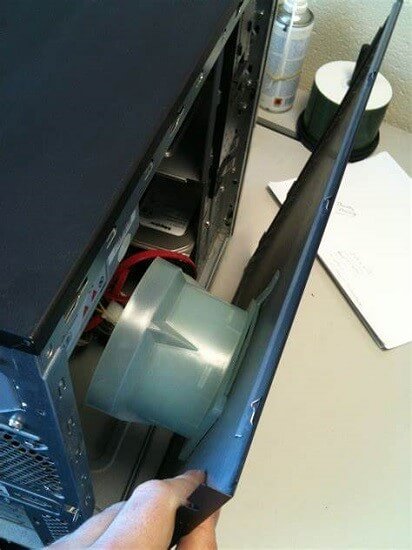
Step 2: Carefully unplug the PC from the power supply socket after shutting the device off. Then, use a screwdriver to remove the side panel.
Step 3: When you see the internal components, use the compressed air can spray dust and debris from the fan area and surrounding sections.
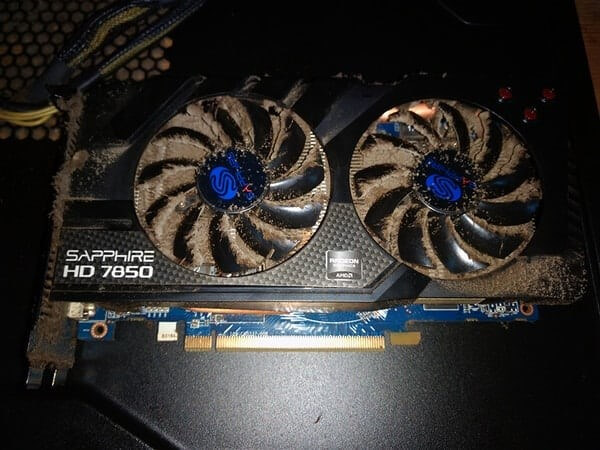
Step 4: Dip the cotton swab into a little bit of rubbing alcohol solution. Then, use it to clean the fan blades gently, avoiding the delicate sections.
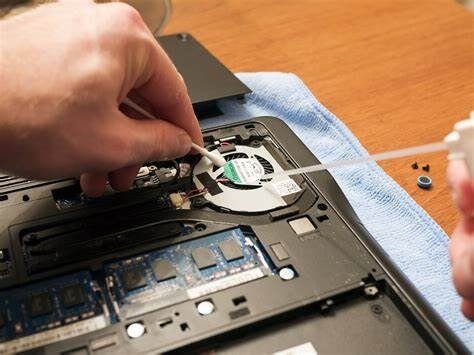
Step 5: Put the side panel in place again and screw it shut. Then, plug the device into the power point and turn the device on.
Step 6: Check the GPU temperature and the fan speed to see if any defects are noticeable, like high temperature again.
Solution 3: Update GPU Drivers
When people see GPU fans spin, then stop, one of the common reasons is due to issues in the GPU drivers. It is advisable to keep the GPU drivers upgraded consistently to handle bug fixes and have the latest features. If there are software issues like glitches or outdated driver conditions, that can cause the GPU fans to stop spinning.
At this time, it is best to use software like IObit Driver Booster 10 Free for the automatic detection of defective, damaged, or outdated drivers. If that is the case for the GPU drivers, the software will analyze it and instantly fix the issue.
Solution 4: Control GPU Fan Curve
Typically, the fans in a GPU need to reach a specific temperature to start spinning. So, when the temperature in the system increases to a high rate, the fans start spinning faster to manage the expelling heat. In this case, users can adjust the fan curve to make it spin before the default setting, i.e., the GPU reaches the specified temperature.
To explain, the fan curve graphs the temperature of the card in relation to the fan speed. If the GPU fans show issues while spinning, that may have to do with configuration issues in the fan curve. You can use tools like the MSI Afterburner or AMD software to modify the fan curve.
How to do this?
Step 1: Access the AMD Software and launch it on your PC.
Step 2: Go to the Performance tab > Tuning > Custom.
Step 3: Activate the Fan Tuning option.
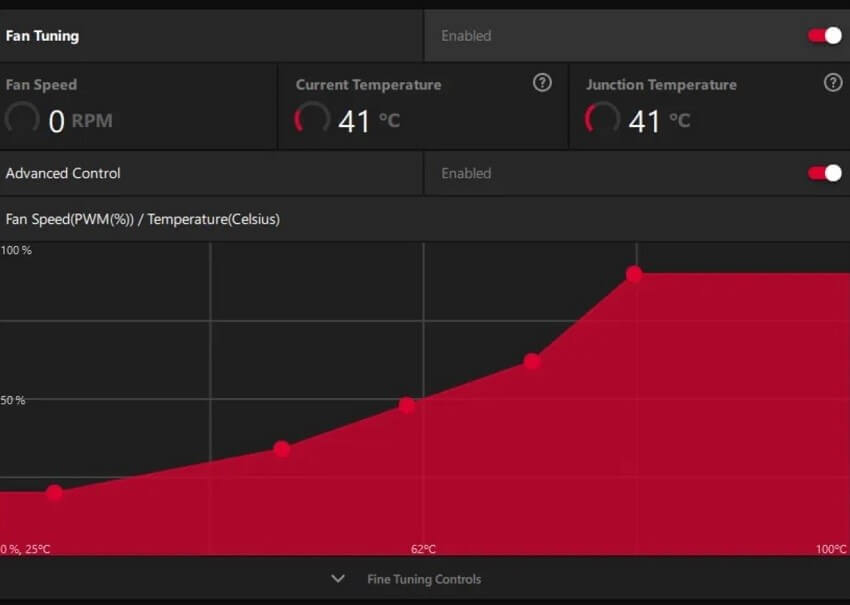
Step 4: In the next window, activate the Advanced Control option. Change the value of the fan spinning rate at specific temperatures.
Solution 5: Check the Power Amount in the Fans
In case the fans available in the graphics card are not getting a lot of power, they may stop spinning as normal. So, check the condition of the power supply to see if the graphics card is getting enough power. Also, see that you have connected the power cable securely.
You should also note if the PCle power connectors in the back or top part of the card are fixed correctly or damaged.
Solution 6: Install the GPU on another Motherboard
Sometimes, the GPU fans are not spinning due to buggy PCle slot types or a defective motherboard. In these cases, the solution is to install the GPU on another PCle lane. Following that, install it on another motherboard.
If this solves the GPU fans not spinning issue, your motherboard is defective. You need to purchase a new one.
Solution 7: Check that GPU Fan Motions are Functional
Some users notice specific sound types when they see GPU fans spin, then stop. Examples include buzzing, grinding, or squeaking noises- these indicate the defective condition of the motors. If the motors are not functional, the electricity cannot flow through them and start building up, which overheats the center part of the fan.
In this case, you have to change the fans completely. Check that the graphics card you are using is over the warranty period first, and take professional help from a trained technician.
Solution 8: Use Another Computer or GPU
If you still continue to see the poor performance of the GPU fans after trying out the various processes, the graphics card may be the defective part. In such a situation, the best solution is to replace the GPU entirely. Before going for this step, do take the time to confirm that the graphics card is not working. You can put the graphics card in another functional computer to check that.
After putting the mechanism in another device, if the fans in the second one stop spinning, that signifies that the graphics card is damaged. You can remove the graphics card and get a new one or hire a technician to repair this element.
Conclusion
GPU fans not spinning can be alarming, but most issues stem from simple causes like software glitches, dust, or loose connections. By following a structured approach—starting with basic checks and moving toward more advanced solutions—you can often resolve the problem without professional help.
Remember, patience is key. Rushing through troubleshooting can lead to mistakes. If all else fails, don’t hesitate to contact the manufacturer or a trusted technician. A cool GPU is a happy GPU—and a happy gamer.
FAQs: Quick Answers to Common Concerns
1. Why do GPU fans stay off even when the PC is on?
Many modern GPUs use a zero-RPM mode where fans remain off until the temperature crosses a threshold (usually around 60°C). This helps reduce noise and wear. If your GPU is idle or under light load, the fans may not spin at all—and that’s perfectly normal.
2. Can I manually control GPU fan speed?
Yes! You can use software like MSI Afterburner or EVGA Precision X1 to create custom fan curves. These tools allow you to adjust fan behavior based on temperature, giving you more control over cooling and noise levels.
3. Is it safe to replace GPU fans myself?
It depends. Replacing fans is possible, but it requires technical skill and may void your warranty. If you’re confident and the warranty has expired, go ahead—but always use compatible parts and follow proper disassembly guides.
Author Bio:
Dinesh Lakhwani 

Dinesh Lakhwani, the entrepreneurial brain behind “TechCommuters,” achieved big things in the tech world. He started the company to make smart and user-friendly tech solutions. Thanks to his sharp thinking, focus on quality and the motto of never giving up, TechCommuters became a top player in the industry. His commitment to excellence has propelled the company to a leading position in the industry.
Popular Post
Recent Post

Is Easy Duplicate Finder Worth It? Honest Review
The photos folder looked normal at first glance. Then the storage warning popped up. One trip photo appeared four times. A tax PDF sat in three different folders. Two old setup files were still in Downloads, and each one was over 500 MB. Nobody plans this mess. Copies pile up slowly. A download runs twice. […]

Wise Duplicate Finder Review: Real Results from Wise Duplicate Finder
Read my honest Wise Duplicate Finder review. See features, pricing, pros and cons, and real PC test results. Find out if this free duplicate cleaner can free up your Windows storage.

How to Recover Deleted Files from Pen drive, USB Drive, SD Card
Introduction: On tech forums, you’ll often see posts like this: “I connected my pen drive to my laptop this morning, but the folder was empty. All my college project files had vanished. I don’t have a backup. Can someone help me?” Stories like this are very common. Pen drives, USB drives and SD cards are […]

How To Recover Files Deleted from the Recycle Bin [Windows 11]
Losing a file can happen in seconds. You clear your desktop, hit Delete, and empty the Recycle Bin. Then, just when you need that file again, it seems to have vanished. This guide will walk you through ways to restore files removed from the Recycle Bin. We will begin with simple fixes, then look at […]

Disk Drill Data Recovery Tool Explained: Full Review and Guide
It happens in a split second. You delete a folder by mistake. Your drive stops showing up. A photo album from your last trip just vanishes. And your stomach drops. Lost files feel personal. They are not just data. They are memories, work hours, and sometimes years of effort packed into a few gigabytes. When […]

Recover Deleted Files In Windows 11 With Software & Without
Introduction What is the first thing that goes through your mind the second an important file vanishes from a Windows 11 PC? For most people, it is a mix of panic and disbelief, followed by a frantic click through every folder that file could possibly be hiding in. It happens in a split second: one […]

EaseUS Data Recovery Wizard: Everything To Know
Data loss does not always come from a big disaster either. Most cases start small and boring. A drive gets formatted by mistake. A laptop freezes mid-save and restarts on its own. A memory card stops showing up after being pulled out too fast. None of these feel like emergencies at first, until you realize […]

Recuva Data Recovery Tool: Is it Actually Worth it?
When I first tried Recuva Data Recovery, I wanted to see if it could really bring back lost files. The tool is free, small in size, and promises quick recovery, which made me curious enough to test it on my own PC. The setup was fast, and the wizard guided me step by step. I […]

GetData Recover My Files Data Recovery Tool: Honest Review
A hard drive error brings a special kind of silence. Well, yes! The screen freezes, then a message appears saying the drive can’t be found or must be formatted. In that moment, years of photos and work files feel at risk. It never happens at a good time. Coffee spills near a laptop, a memory […]

