










Imagine this. You spend hours perfecting a video project. You hit save. Then your laptop freezes, reboots, and when the screen comes back. The file is gone. Your stomach sinks. It’s not just you. Lost files happen all the time. A dropped hard drive, a bad update, an accidental delete, or a corrupted partition can […]
How To Fix A Failed Microsoft Defender Update?
Introduction
New updates come up for software and operating systems consistently, at least under Microsoft. However, the Microsoft Defender update failure can make it difficult to apply improvements. Multiple reasons block the updating process for Windows Defender in devices running on Windows 10 or 11.
These include problems like corrupted Windows Update components, partial damage to the software update of Windows Defender, and corruption in the dependencies for Windows Update.
Depending on the cause of the error, there are several steps you can take to rectify the problem. You can utilize Systweak Software Updater to instantly upgrade your Windows Defender software update issues or follow the given solutions. Learn each variation first.
Solution 1: Activate the Windows Update Troubleshooter
One of the easiest and fast solutions for the Microsoft Defender update failure issue is working with the respective troubleshooter setting on Windows. This feature can fix specific software issues in the system, including problems interfering with Windows Updates.
How to do this?
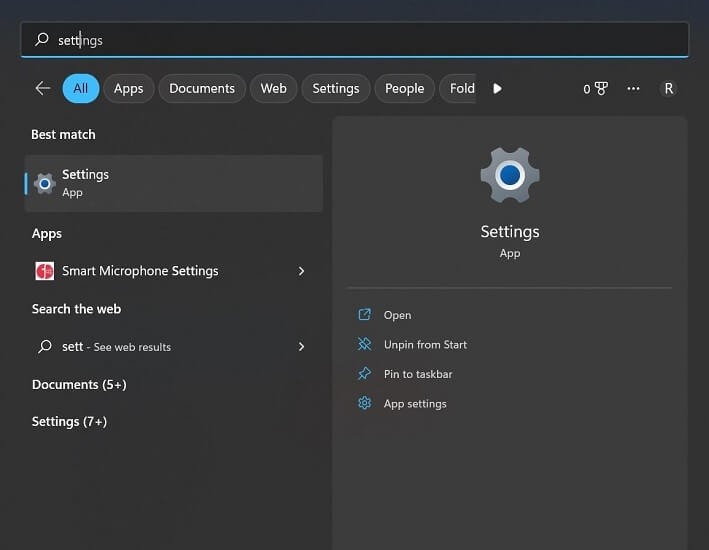
Step 1: On your keyboard, tap on the Windows and I keys simultaneously. This will open the Settings window on your PC. Alternatively, you can click on the Search menu and search for Settings via the search bar- click on the App that appears in the options.
Step 2: At the left-vertical menu, click on the System option.
Step 3: Then tap on the Troubleshoot button in the right pane.
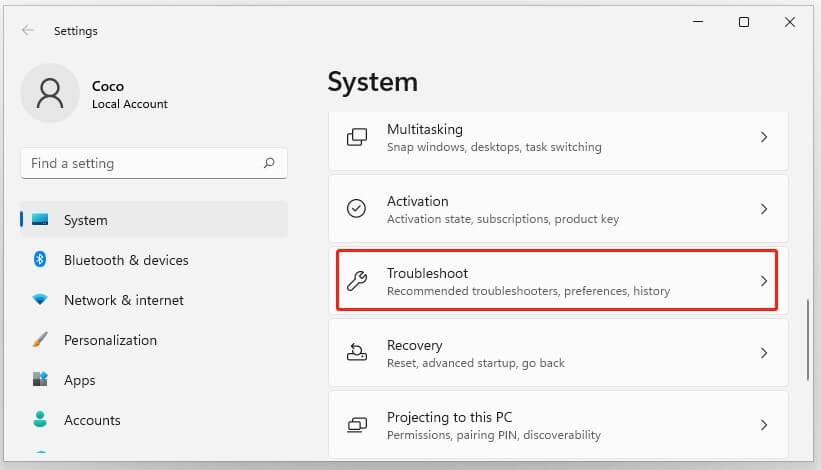
Step 4: Choose the “Other Troubleshooters” option and tap on the Run button beside the Windows Update option from this list. ‘
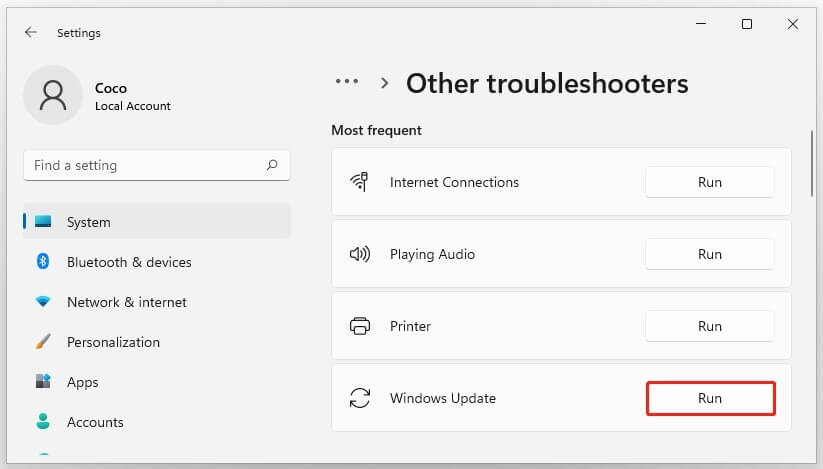
Step 5: The Windows Update troubleshooter will start scanning the system for any issues with the components in Windows Update. After the results come, tap on the “Apply this fix” button. Continue with the following instructions that come up and repair the issue.
Step 6: Finally, restart the device. Then, try to update the Windows Defender solution and see if Windows 11 can run the process.
Solution 2: Use Windows Update to upgrade the Windows Defender
In case you see the Windows Defender won’t update prompt, one of the possible reasons is due to connectivity problems. At this point, you can work with Windows Update software on the device to upgrade the features on Windows 11.
How to do this?
Step 1: Go to the Search menu and type in Settings. Click on it to access it.
Step 2: In the Settings menu, tap on the Update & Security choice.
Step 3: Choose and click on Windows Update from the left-hand pane.
Step 4: Next, tap the Check for Updates button in the right panel. This will prompt the device to analyze all available software updates.
If there are recent updates available for Windows Defender, they will download automatically into the system. Then, they will start installing. Check if the failure issue occurs again after this installation is successful.
Solution 3: Set the Service of Windows Defender as Automatic
Another fix for the failure of the Microsoft Defender technology update is to set it up as automatic. This process will work on Windows 10, with specific steps.
How to do this?
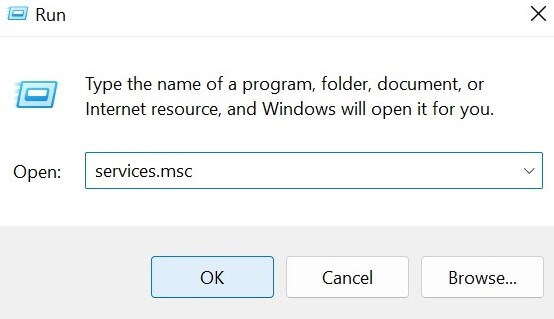
Step 1: On the Start menu on your homepage, right-click on it and tap the Run option.
Step 2: In the next dialog box that appears, type in the term “services.msc” and press the OK button.
Step 3: The Services window will open. In this window, search for Windows Defender Antivirus Service. Right-click on it and choose the Properties option.
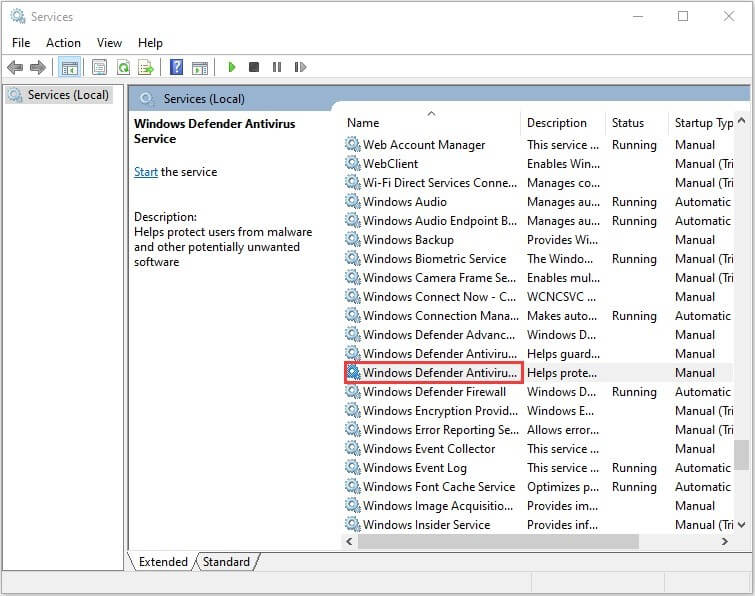
Step 4: Check that the Service Status section shows the “Running” status. If not, change it to this.
Step 5: Under the Startup Type section, check that it is set to Automatic. If this is unavailable, choose the Automatic option under Startup Type and tap the Start button.
Step 6: Finally, click on the Apple button and press OK. Then, running the DISM and SFC scans on your device would be best.
On the results, you should see what the differences come up between DISM, SFC, and CHKSK and follow the instructions that come up. This way, you can check if there are corruption issues that are causing the Microsoft Defender update failure.
Step 7: You should verify if the issue is resolved on your system.
Solution 4: Manually Download the Updates for Windows Defender
Sometimes, users notice the failure in the upgrade since it is set as automatically already, and that is not operating as it should. In that case, you have to download each update from the Catalog manually, which can fix the issue. However, this issue can be rectified on Windows 11 with a 32-bit or 64-bit system.
How to do this?
Step 1: Take note of the OS your device is running on. After knowing the right architecture for your system, go to the Microsoft Update Catalog homepage.
Step 2: At the top search field, type in Windows Defender and search for the failing updates. For an easier searching process, you should check the error code in the Windows Update that appeared on your system.
Step 3: When the list of many software results comes up, browse through the options to find the correct software update version for Microsoft Defender. Then, tap on the Download button at the side.
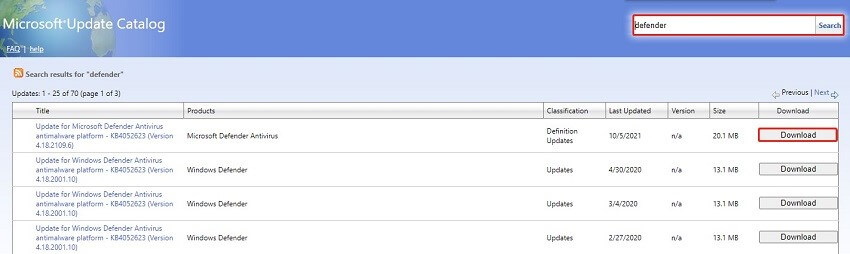
Step 4: After completing the downloading process, access the saving location for the update. Click on the “.msu” installation package here. You will see multiple instructions come up for safely installing the update in your system manually.
Follow the set of instructions correctly and then restart the device. Check if the issue is resolved in your system.
Solution 5: Reset the Components for Windows Update
In case the issue that is causing the Microsoft Defender update failure problem is due to corrupt or damaged components, that is what you should target. You have to fix the components to install the recent updates after that. Then, the update service can work as it is intended.
For this, you have to use the Command Prompt administrator function to reset the Windows Update components to the original settings.
How to do this?
Step 1: Go to the Windows Search icon on the homepage and type in the term “Command Prompt” into the search field. Click on the first app option that appears and press the Run as Administrator choice.
Alternatively, you can use the Windows + R hotkeys on the keyboard and type in “cmd” > Press OK.
Step 2: Under the User Account Control window, choose the Yes button.
Step 3: In the next window, add the following commands one by one:
- net stop wuauserv
- net stop cryptSvc
- net stop bits
- net stop msiserver
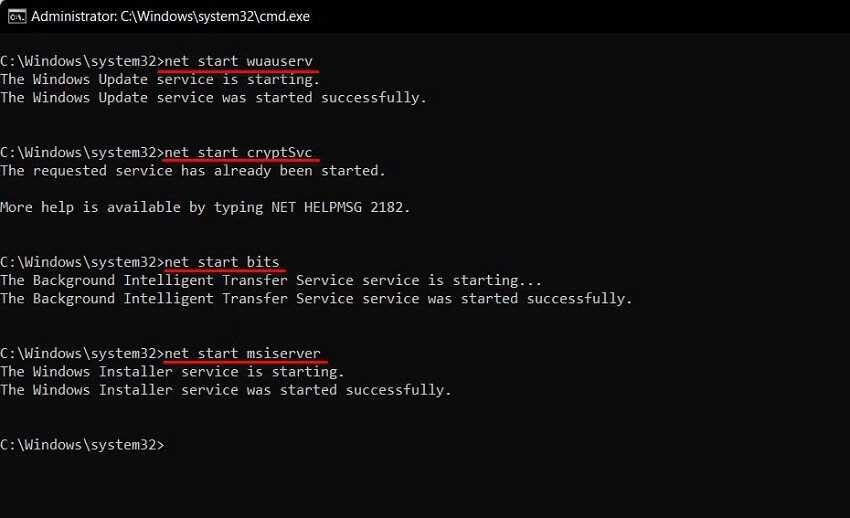
Step 4: After these work successfully, you have to add more commands into the Command Prompt window. These will restart previously deactivated services in the system:
- net start wuauserv
- net start cryptSvc
- net start bits
- net start msiserver
Step 5: Then, close the window. Try to run the Microsoft Defender updates again to see whether the issue is resolved.
Solution 6: Switch off third-party antivirus software options
You can install and use different antivirus software types with valuable protection against spyware and viruses, like Avast Antivirus. However, while they are useful, sometimes these antivirus software types can interface with the functionality of Microsoft Defender when both are operating simultaneously.
In that case, the best step is temporarily deactivating the antivirus software when trying to update Windows Defender. Later, you can reactivate it.
How to do this?
Step 1: Right-click on the software via taskbar icons.
Step 2: Choose Disable.
Step 3: Tap on the command to Disable until the next update.
Bonus: Utilize the Systweak Software Updater to Upgrade Windows Defender
Another easy-to-operate solution for you to try in case of Microsoft Defender update failure is utilizing Systweak Software Updater. The application works on Windows to automatically analyze the outdated software in the system and handle the upgrading process. This assures faster and automated PC performance improvement and security patchwork.
Furthermore, you can set a specific schedule for the updates, check the list of the reviewed updates that the software scans, and start the updates instantly with one click.
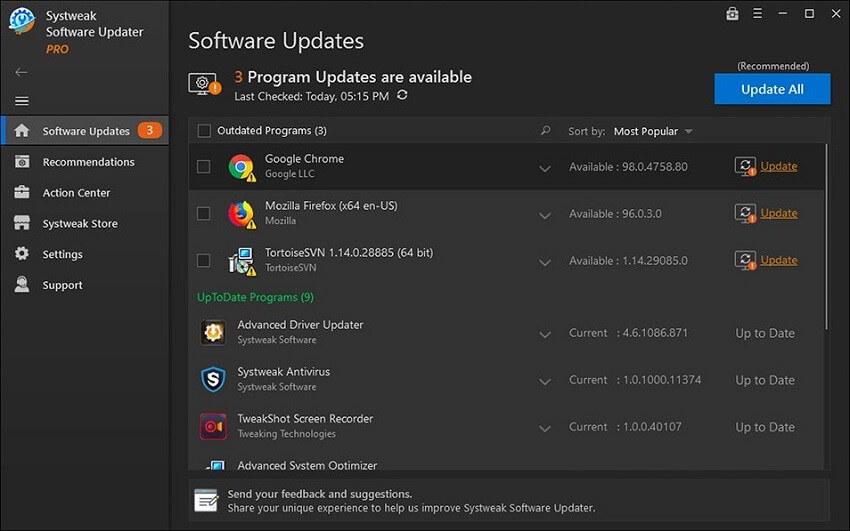
Best Features to Look Out For:
- User-friendly and simple to navigate UI for the software.
- Choose specific software updates to monitor and handle.
- View the history of software updates, installation, and monitoring that this software handled.
- Choose specific software updates that you do not want happening automatically.
Conclusion
Overall, there are different tactics you can follow, as mentioned in this list, to rectify the updating issue with Microsoft Defender on your PC. Troubleshoot the errors, update the Microsoft Defender Antivirus Service, and download the Windows Updates manually. But the easiest solution is to download the Systweak Software Updater to choose and automatically upgrade the functionality.
Study all your options in this context and choose the solution that will perfectly work for your specific situation.
Author Bio:
Dinesh Lakhwani 

Dinesh Lakhwani, the entrepreneurial brain behind “TechCommuters,” achieved big things in the tech world. He started the company to make smart and user-friendly tech solutions. Thanks to his sharp thinking, focus on quality and the motto of never giving up, TechCommuters became a top player in the industry. His commitment to excellence has propelled the company to a leading position in the industry.
Popular Post
Recent Post

5 Best Data Recovery Software For Windows 11 and Windows 10
A crashed drive can ruin a whole day. One minute your photos, work files, and tax records sit safe on your PC. The next minute they are gone. A power cut, a bad update, or one wrong click can wipe out years of memories and months of work in seconds. That sinking feeling is why […]
How To Update NVIDIA Drivers On Windows 11/10 PC
Learn how to update NVIDIA drivers on Windows 11/10 with simple methods, safety tips, and easy steps for smoother gaming and better PC performance.

Top AI Features Hidden Inside Windows 11
Explore the top AI features in Windows 11, from Copilot to Recall, plus safety tips and simple steps to use each tool the right way.

Customize Your Screen Saver Settings in Windows [Easy Steps]
Learn how to customize screen saver settings in Windows 11 with easy steps, safety tips, and simple tricks to personalize your PC screen.
Driver Easy Windows Driver Updater Tool Review: Tried & Tested
In-depth information about Driver Easy’s functions and features can be found in our review. Learn how to update drivers more easily with this tool for a more seamless computer experience.

Is Avast Driver Updater Worth It? A Hands-On Analysis
A full review of Avast Driver Updater covering features, setup steps, pricing, pros and cons, and real PC results, to help you decide if it is worth buying.
IObit Driver Booster 13 (PRO) Review: [Tried & Tested]
IObit Driver Booster 13 is built for one purpose: keeping your PC drivers up to date. Well, yes! Outdated drivers can cause crashes, slowdowns, and hardware issues. This tool scans fast and updates with one click. The interface is simple. Even beginners can use it without confusion. Updates are pulled from a huge database, covering […]

Auslogics Driver Updater: A Detailed Walkthrough [2026]
This comprehensive review covers the key features, pros, and cons, pricing, and a final verdict on Auslogics’ driver update utility. Learn how it stacks up against manual driver maintenance.

5 Best Driver Updater Tools for Windows to Use (Free and Paid)
Introduction: Most people blame their PC for problems that a driver caused. A driver works like a bridge between your hardware and your operating system. When this bridge cracks, strange things start to happen. Screens flicker without reason. Printers go silent mid-task. Games freeze or crash out of nowhere. Manually finding the right driver is […]

