












So, search for a pair of shoes once online. Close the tab. By evening, those same shoes are sitting on your news site, your video app, and even your recipe blog. Nobody placed them there by chance. A cookie did. Well, yes! Cookies are small files that websites place on your device while you browse. […]
How Do You Fix the “Your Computer Is Low on Memory” Error on Windows 7/8/10/11?
Are you constantly getting messages saying “your computer is low on memory” on your Windows device? Then, don’t panic. From exhausted RAM to system malfunctioning — there are several reasons behind the problem.
But, most causes are easy to fix without any hassle. So, let’s see how to fix the “your computer is low on memory” error.
Other Error Messages Related to Low Memory
You might not only see the “your computer is low on memory” error message. Some Windows users have reported the following related errors as well:
Your computer has insufficient memory (but it does not).
Some users report that when this alert appears, PC memory functions appropriately. However, the computer seems to misinterpret various memory indicators.
Your computer is running out of memory for Claymore.
This cryptocurrency miner appears to use excessive memory, resulting in low memory alerts.
Your computer’s memory is low, which causes black screen problems.
Low memory errors can also cause black screen issues, forcing users to restart their computers.
CutePDF Your computer is running out of memory warnings.
CutePDF is a PDF converter that frequently displays low-memory warnings. These messages are typically displayed when users attempt to print converted PDF files.
Excel requires more memory on your computer.
The low memory error message can sometimes be difficult to save an Excel file.
Your computer’s memory is running low for games like Dying Light, Call of Duty, World of Warcraft, and others.
If you’re a gamer, you’ve probably seen this error message a few times. Because games use large amounts of memory, they frequently cause low memory errors.
11 Methods to Fix “Your Computer Is Low on Memory” Error on Windows
No matter what type of low-memory error you are getting, there is a solution to fix it. After exploring the Microsoft community and many other online guides, we found these methods perfect for fixing the problem:
Method 1. Turn Off Programs Taking Too Much Memory on Your Device
Some processes that use a lot of memory will almost certainly give you a low memory error on your computer. In fact, when Windows OS has a high RAM or CPU usage issue, the following method of terminating the process that is using too much memory in the Task Manager is beneficial. Here’s how to do it:
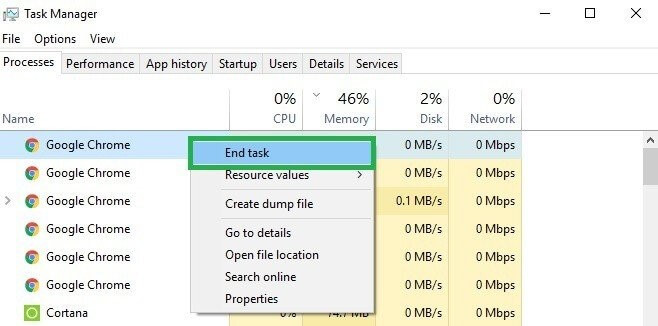
Step 1. To open a menu, press “Ctrl + Alt + Del” and select “Task Manager.”
Step 2. Under the Process tab, you can see which processes consume the most memory. Select “End task” from the context menu when right-clicking the process name. This should solve your issues.
Method 2. Use Windows Troubleshooter
If a program or something else fails to function properly on your Windows 7/8/10/11 system, the Your Computer is low on memory error message may appear. In this case, you can resolve the problem by running Windows Troubleshooter and performing system maintenance.
Step 1. In the search box, type Troubleshooting.
Step 2. Select “View All” from the left panel and “System Maintenance.”
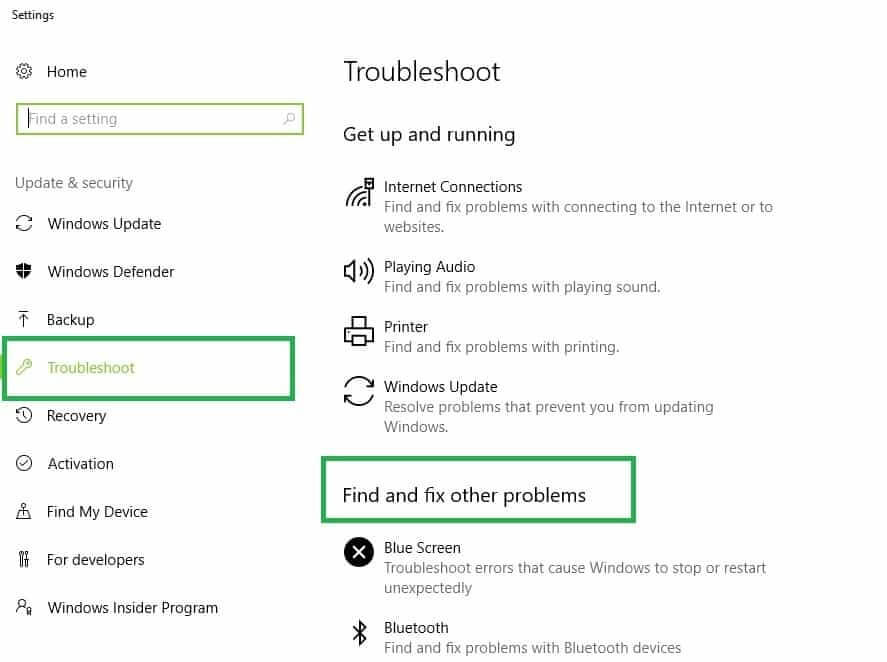
Step 3. Select “Next” and wait for your system to complete the troubleshooting process.
Method 3. Run SFC Scans
You may also receive the error if your system files, such as registry files, are corrupted. For example, Windows computers have insufficient memory. To check for system file corruption, use Microsoft’s System File Checker. This utility tool can check the integrity of all protected system files and repair any damaged ones.
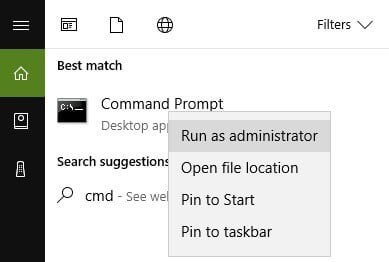
Step 1. In the Search box, enter cmd. Select Run as Administrator from the context menu when you right-click Command Prompt.
Step 2. Type the sfc /scannow command and hit Enter.
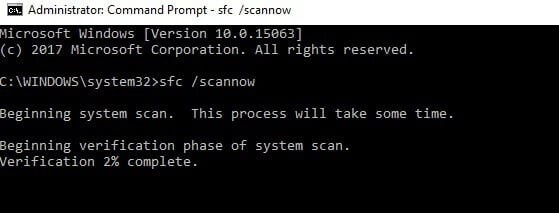
Step 3. Once the scanning process has finished, restart your computer. The issue will be resolved if corrupted system files cause the computer to run out of memory.
Method 4. Expand Your Virtual Memory
You can solve the computer’s low memory problem by increasing virtual memory. However, because there are no apps for this, follow the steps below to do it manually:
Step 1. Type sysdm.cpl in the Run dialog box, then click “OK” to open System Properties.
Step 2. Navigate to “Advanced system settings.”
Step 3. On System Properties, click “Settings” in the Advanced pane.
Step 4. In the Advanced pane, click “Change.”
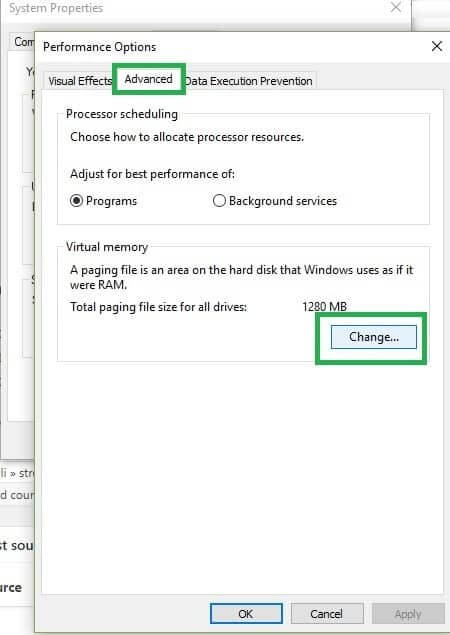
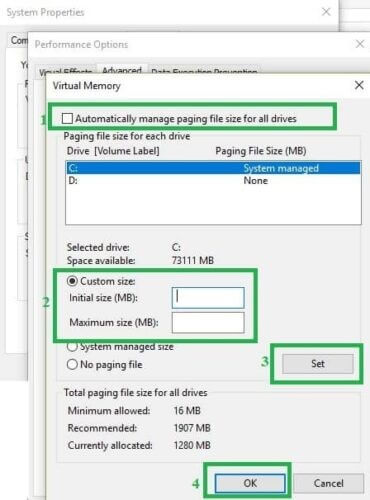
Step 5. Untick the option next to “Automatically manage paging file size for all drives.”
- Select “Custom Size.”
- Then, set “Initial size” and “Maximum size.” (Your sizes should be larger than the Recommended size.)
- Finally, click “Set” and then “OK.”
Method 5. Scan Your Entire System
Some malicious files may alert you that your computer is running low on memory. The same programs will prompt you to download specialized software to resolve low-memory issues.
Of course, this is a scam, and you should not download or install anything on your Windows 11 computer.
In this case, you only need a powerful antivirus program and an antimalware tool. Then, to remove malware, run a full scan on your computer.
You can use the built-in antivirus in Windows or third-party antivirus solutions like McAfee, Norton, etc.
If malware infection was the main cause behind the low-memory error, the low-memory pop-up should disappear after using a security tool.
Method 6. Upgrade Your RAM
If you don’t have sufficient memory and frequently experience a computer low memory problem, you can upgrade your RAM. RAM upgrades can pace up your computer and reduce system freezes and hangs.
It is ideal not to attempt this if you are not a computer professional. Instead, you can seek assistance from a computer expert.
Method 7. Update Your Windows OS
Ensure you have the latest Windows version. Microsoft releases Windows updates regularly to improve system stability and address various issues. Updating your Windows operating system to the current version is one solution if your computer runs out of memory.
Step 1. Launch “Settings” on your Windows 11/10/8/7 computer. To see if a new version of Windows is available, go to “Update & security” and click “Check for updates” below the Update status.
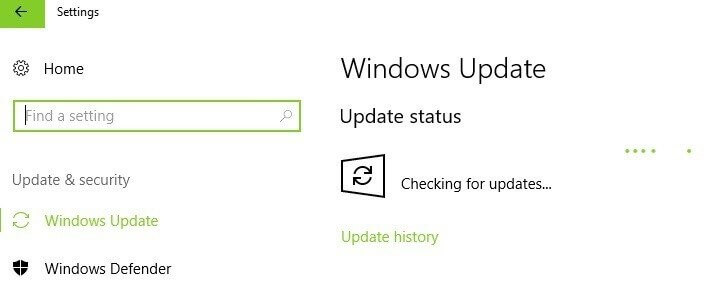
Step 2. If there is an update is available, install it immediately and restart your computer.
Method 8. Disable Startup Programs
If you have a lot of startup programs, you might be bothered by the computer running out of memory. We recommend disabling these startup programs in this case. Here’s how to do it:
Step 1. Press the Win + R keys together.
Step 2. Type msconfig in the run command box and press Enter.
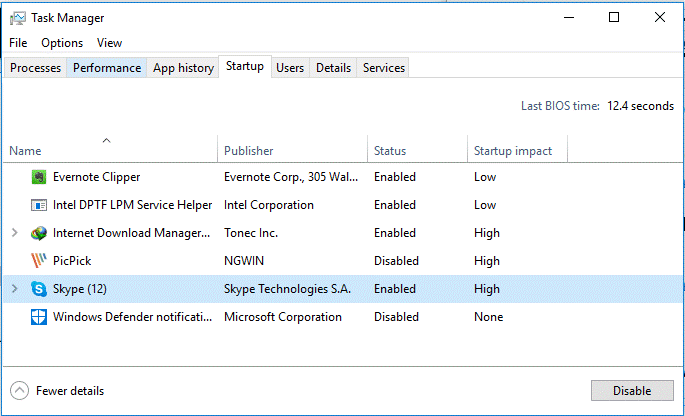
Step 3. On the Startup tab, click Open Task Manager, then right-click on one of the programs and select Disable.
Method 9. Check Disk Errors
You can use Command Prompt to perform a disk check.
Start Command Prompt as administrator and enter the chkdsk C: /f command. C should be replaced with the letter of your hard drive partition.
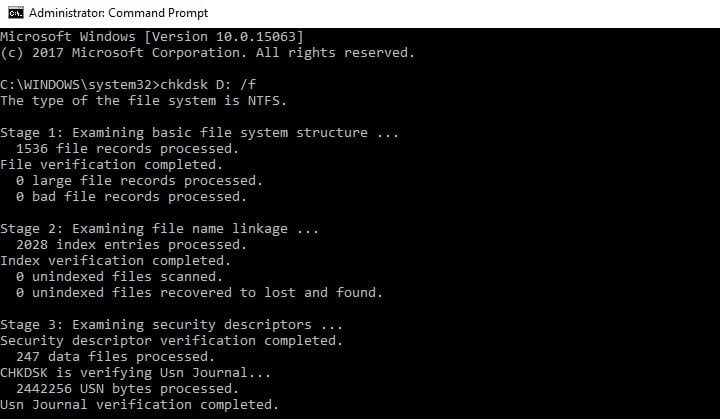
If you do not use the /f parameter, chkdsk displays a message indicating that the file needs repairing but does not correct any issues.
The chkdsk D: /f command can detect and repair logical problems with your hard drive. Run the /r parameter as well to repair physical issues.
Method 10. Delete Temporary Files
Another helpful way when your computer is low on memory is deleting junk and temporary files and folders. Here’s a free PC disk cleanup tool to help you get it done quickly.
Step 1. Go to Start, type Disk Cleanup, and run the program.
Step 2. Choose the disk you want to clean. Then, the tool will calculate how much space you can save.
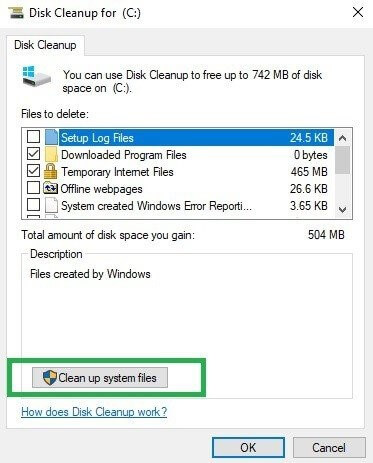
Step 3. Choose Clean up system files.
Method 11. Uninstall Latest Programs
Uninstall any new software that you have recently installed on your computer.
Go to Start and search for the Control Panel. Next, select the recently added program(s) and click Uninstall.
Parting Remarks
RAM cleaners and optimizers are programs designed to increase the amount of memory available on your computer.
You can use any of them to increase the memory available in Windows 11, which is a less expensive option than purchasing additional RAM. Buying new RAM, on the other hand, is just as effective.
These are the best 11 solutions for dealing with the Your Computer is low on memory Windows error by our expert team.
If you cannot resolve these issues after following these guidelines, you should consider increasing your RAM. If you have further questions, please leave a message in the comments section below.
Moreover, you can check other Windows guides and fixes on this website.
Author Bio:
Dinesh Lakhwani 

Dinesh Lakhwani, the entrepreneurial brain behind “TechCommuters,” achieved big things in the tech world. He started the company to make smart and user-friendly tech solutions. Thanks to his sharp thinking, focus on quality and the motto of never giving up, TechCommuters became a top player in the industry. His commitment to excellence has propelled the company to a leading position in the industry.
Popular Post
Recent Post

How To Disable Background Apps In Windows: 4 Quick Methods
A slow PC rarely gives a warning. One day, it simply takes longer to start. Apps open late. The fan runs loud, even when the screen is almost empty. Most people blame old hardware. Often, that is not the real reason. The real reason is hiding in plain sight. Windows keeps many apps active in […]

How to Activate Windows with a Product Key for Windows 11 & Windows 10
It always shows up at the worst time. You are halfway through a report, or about to join a video call. Then you spot it in the bottom right corner of the screen. Activate Windows. Go to Settings to activate Windows. Initially, an unactivated copy of Windows may seem like a minor inconvenience. Over time, […]

Is Easy Duplicate Finder Worth It? Honest Review
The photos folder looked normal at first glance. Then the storage warning popped up. One trip photo appeared four times. A tax PDF sat in three different folders. Two old setup files were still in Downloads, and each one was over 500 MB. Nobody plans this mess. Copies pile up slowly. A download runs twice. […]

Wise Duplicate Finder Review: Real Results from Wise Duplicate Finder
Read my honest Wise Duplicate Finder review. See features, pricing, pros and cons, and real PC test results. Find out if this free duplicate cleaner can free up your Windows storage.

How to Recover Deleted Files from Pen drive, USB Drive, SD Card
Introduction: On tech forums, you’ll often see posts like this: “I connected my pen drive to my laptop this morning, but the folder was empty. All my college project files had vanished. I don’t have a backup. Can someone help me?” Stories like this are very common. Pen drives, USB drives and SD cards are […]

How To Recover Files Deleted from the Recycle Bin [Windows 11]
Losing a file can happen in seconds. You clear your desktop, hit Delete, and empty the Recycle Bin. Then, just when you need that file again, it seems to have vanished. This guide will walk you through ways to restore files removed from the Recycle Bin. We will begin with simple fixes, then look at […]

Disk Drill Data Recovery Tool Explained: Full Review and Guide
It happens in a split second. You delete a folder by mistake. Your drive stops showing up. A photo album from your last trip just vanishes. And your stomach drops. Lost files feel personal. They are not just data. They are memories, work hours, and sometimes years of effort packed into a few gigabytes. When […]

Recover Deleted Files In Windows 11 With Software & Without
Introduction What is the first thing that goes through your mind the second an important file vanishes from a Windows 11 PC? For most people, it is a mix of panic and disbelief, followed by a frantic click through every folder that file could possibly be hiding in. It happens in a split second: one […]

EaseUS Data Recovery Wizard: Everything To Know
Data loss does not always come from a big disaster either. Most cases start small and boring. A drive gets formatted by mistake. A laptop freezes mid-save and restarts on its own. A memory card stops showing up after being pulled out too fast. None of these feel like emergencies at first, until you realize […]

