











Imagine this. You spend hours perfecting a video project. You hit save. Then your laptop freezes, reboots, and when the screen comes back. The file is gone. Your stomach sinks. It’s not just you. Lost files happen all the time. A dropped hard drive, a bad update, an accidental delete, or a corrupted partition can […]
How to Fix iCloud Notes Not Syncing on Your Device?
You wrote an awesome idea in the Notes app, but when you try to access it on your Mac or iPhone, it’s gone! So, what is the reason for this? It’s primarily due to Apple Notes not syncing data between iPhone and Mac. Don’t be concerned. We faced a similar issue and were able to solve it using the solutions listed below! Continue reading.
Reasons Behind iCloud Not Syncing on Your Mac or iPhone
Over one billion people use Apple devices today. Since the Notes app is a default installed app on most Apple devices; thus, the majority of users rely upon it. So, small turbulence with the Notes can disturb almost all Apple users.
However, there is no particular reason behind the Apple Notes not syncing issue. Many things collaborate to cause the error, like:
- The problem with the Internet connection
- The Notes server is not working properly
- Incorrect settings cause some bugs
- Pending update Incorrect settings
How to Fix Apple Notes Not Syncing on Your Mac or iPhone?
Before fixing the iCloud Notes not syncing or working problem, How-To Geek suggests checking whether iCloud Notes is enabled for you.
Notes must sync with iCloud to appear on other devices. To accomplish this, make sure that Notes is enabled in your iCloud settings and that you’re saving your notes to the iCloud account rather than storing them locally on your iPhone, iPad, or Mac.
Open Settings on your Apple device and tap on your name at the top of the list to see if you have iCloud sync enabled for the Notes app. Next, scroll down until you see Notes under “iCloud.” Check that the toggle next to the app is turned on.
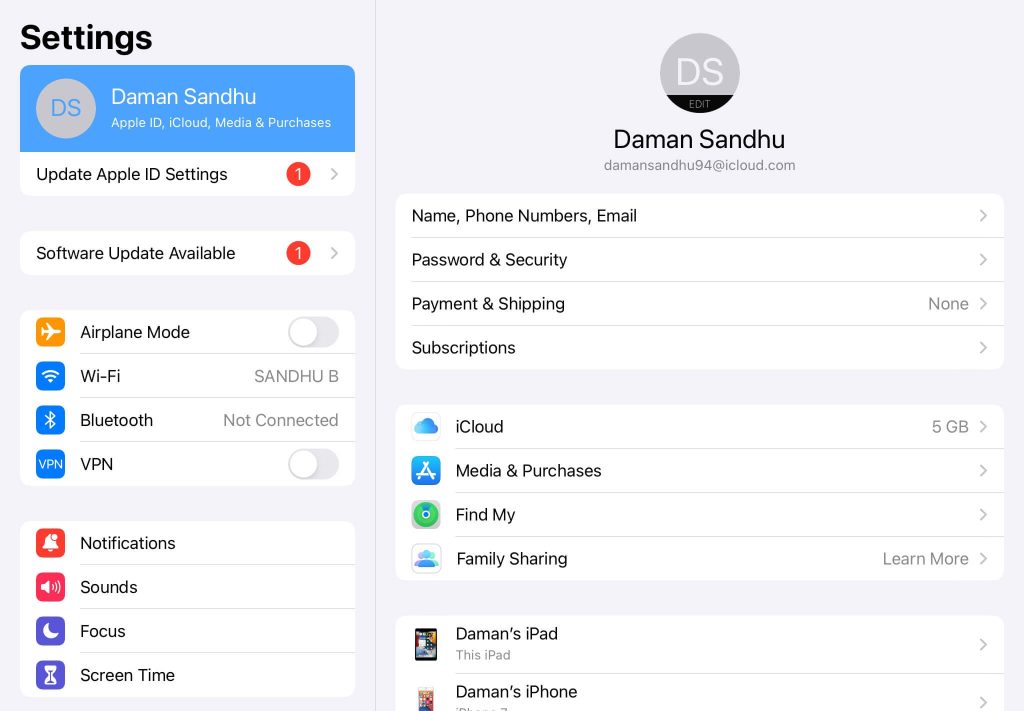
If iCloud Notes is enabled on your account, but still you are not seeing your notes on other Apple devices, you can try the following solutions:
Solution 1. Check Your Internet Connection
Firstly, if you are using a VPN, you should turn it off because it may interfere with the normal performance of applications. Then you can test your other apps on your device to see if they work properly.
If your Internet connection is intermittent, try the following fixes to improve it.
- Reboot both your router and modem.
- Disconnect and reconnect your Internet connection.
- Bring yourself closer to the Wi-Fi source.
- Instead of wireless, use Ethernet.
Solution 2. Restart Your Apple Device
Most problems with your electric appliances can be resolved with a simple restart. You can do the same for this problem. For example, if you cannot restart your iPhone normally, force restarts it.
To restart a Mac, you must do the following:
Step 1. Click the Apple logo from the top right corner.
Step 2. Choose Restart.
Step 3. To confirm again, click Restart.
See if you still have issues with note syncing after restarting your device. If yes, follow next solutions.
Solution 3: Update Your Device
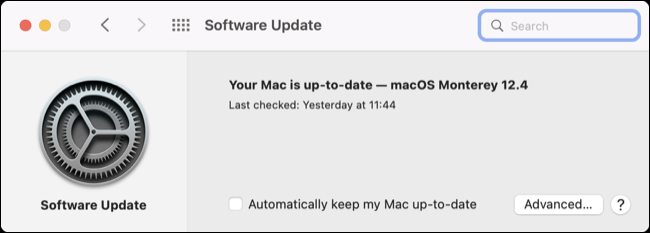
The “Apple Notes not syncing over iCloud” problem is caused by a pending update. As a result, you should check if your device is up to date.
Step 1: Navigate to Settings, then General.
Step 2: Click on Software Update.
Solution 4. Check the System Status Page
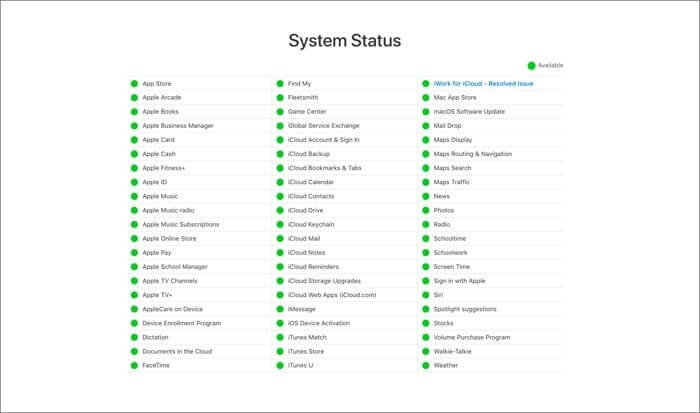
Check Apple’s System Status page whenever you encounter problems using an Apple service. You can see which services are currently operational here. For example, if the Apple Notes server is down for maintenance or unavailable, Apple will notify you on the page, and you can wait until it is restored.
If it’s green, it’s time to move on to the next solution!
Solution 5. Login Using the Same Apple ID
If you don’t already know, you must log in with the same Apple ID to sync data across all of your Apple devices. To check your Apple ID, go to:
iPhone: Go to Settings > Apple ID. This section shows which ID has been used on your iPhone.
Open System Preferences Apple ID on your Mac. On the left, you can see your Apple ID.
Sign out and back in with the ID you want to use for syncing Apple Notes if they are different.
Solution 6. Force Quit and Restart the Notes app
Because the iPhone and Mac have good RAM management, users frequently run apps in the background. However, leaving some apps open in the background for an extended period may interfere with their proper operation. For example, you can force quit apps on your Apple devices to solve the iCloud Notes not syncing problem.
Restart the app to see if it has resumed syncing notes.
Solution 7. Disable VPN
As you may know, a VPN creates a virtual private network of a specific location, and Apple’s cloud services may not function correctly in some of these locations. So, disable the VPN and see if the problems persist. Otherwise, avoid using a VPN while using the Notes app.
Quick Solution to Fix iCloud Notes Not Syncing
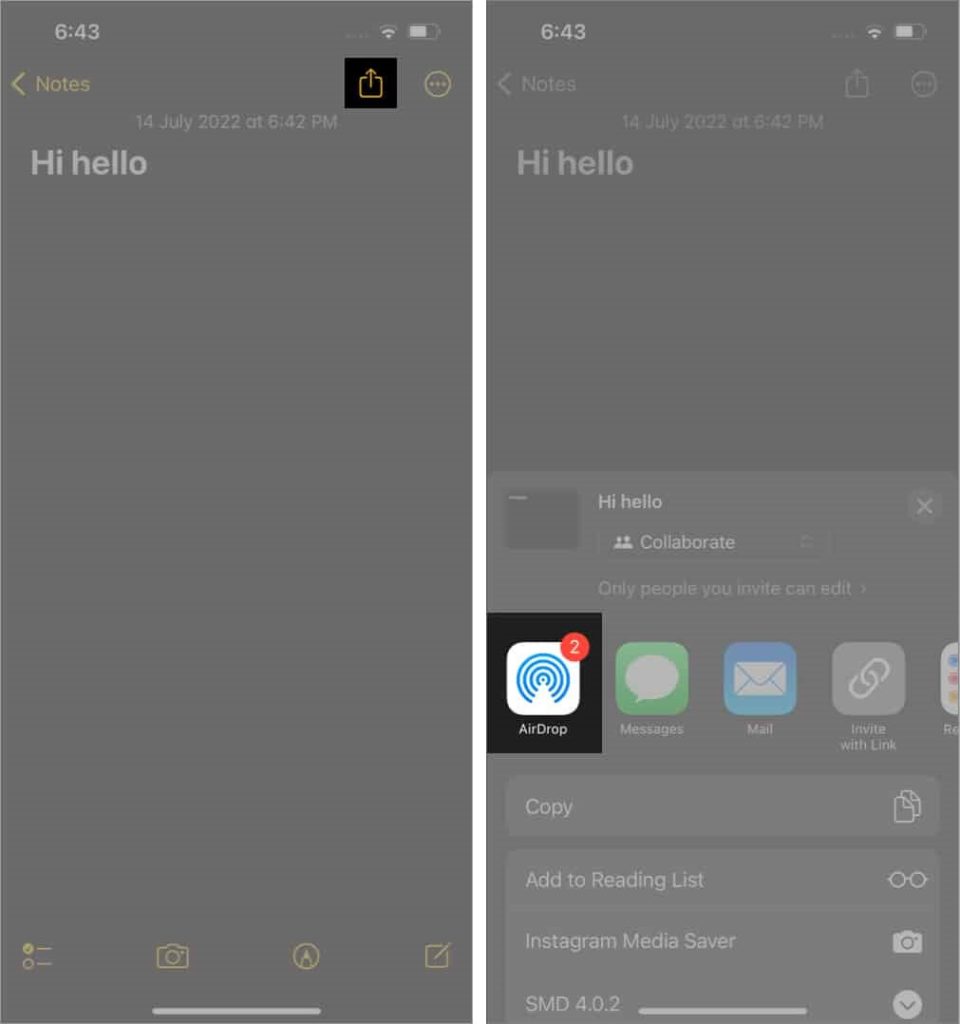
Because data cannot be synced between iPhone and Mac, the next best option is to transfer these notes via AirDrop. To transfer notes from your iPhone, follow these steps:
Step 1. Launch the Notes app.
Step 2. Choose the note that you want to send.
Step 3. Next, tap the share button in the top right corner.
Step 4. Now, choose AirDrop and the device of your choice.
To transfer notes from your Mac, follow these steps:
Step 1. Launch the Notes app.
Step 2. Choose the note that you want to send.
Step 4. At the top right, click the share button.
Step 5. Then, choose Airdrop.
Now, choose the device you want to transfer the notes to. If the Apple ID is not on your contact list, you must accept the file via AirDrop on the other device.
Related Issue: Transferring Notes From Third-party Tools
The initial sync may be problematic from another note-taking app, such as Evernote or One Note. For example, moving from Evernote requires exporting your notebooks one by one to ENEX files and importing them into folders into Apple Notes.
Unfortunately, Notes on macOS appears to dislike large uploads. As a result, when you check your collection on an iPhone or the web at iCloud.com, you may notice that not everything has been successfully uploaded.
The first step should be to be patient. We have witnessed a folder of around 150 notes take a few hours to display correctly on all devices. Then, when the notes do appear, compare the collection on your iPhone with your Mac collection.
Cleaning up the chaos left by an incomplete export can take time. However, if the folders you’ve uploaded to your Mac don’t appear, move them offline by dragging them to the “On My Mac” section (ensure this is enabled under Notes > Preferences in the menu bar at the top of the screen).
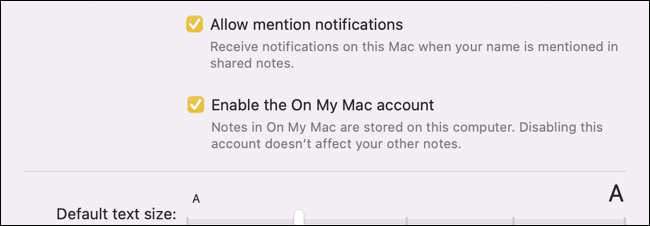
Once you’ve saved all of your notes to your Mac, disable Notes in iCloud in System Preferences (or System Settings) > Apple ID by unchecking the box next to “Notes” in the iCloud tab. You can then reactivate the feature and wait for your Mac to download any notes in your iCloud account from other devices.
Be patient at this point. This stage syncs your Mac with everything else, so you should wait until all your devices have the same notes library before proceeding. After that, you can drag and drop folders back to iCloud.
Because the Mac app doesn’t seem to like large transfers, you may want to move slowly and upload folders one at a time. Check that the changes are reflected on your other devices and iCloud.com as you go. If you run into any issues, simply drag your folders to the “On My Mac” account to keep your data safe.
Special Note for Mac Users
According to firsthand experience and online anecdotes, Apple’s Notes app for macOS appears slow to push changes to the server. There is no “Sync Now” button to upload and download changes, and the small spinning pinwheel next to the “iCloud” account label appears seemingly randomly.
This includes spontaneously created notes and large uploads initiated when moving notes into Apple’s cloud ecosystem. Unfortunately, there is nothing much that can be done about this other than to be patient before becoming too frustrated that things aren’t showing up where they should.
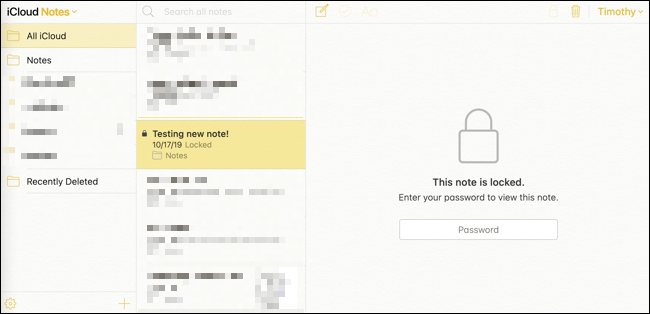
Fortunately, you can access your Notes via iCloud.com and get a quick overview of what is happening. In addition, retrieving the most recent version of your notes and displaying them in a web interface eliminates the possibility that the iPhone app isn’t working properly.
Parting Remarks
There you go, peeps! You can now easily fix iCloud Notes not syncing on your iPhone and Mac.
As you can see, sometimes a simple restart is sufficient and other times, tweaking the settings is essential. So, try to use all the relevant solutions, and don’t forget to share your experience in the comments. Also, check our other Apple guides to resolve your iPhone, iPad, or Mac problems.
Dinesh Lakhwani
Author Bio:
Dinesh Lakhwani 

Dinesh Lakhwani, the entrepreneurial brain behind “TechCommuters,” achieved big things in the tech world. He started the company to make smart and user-friendly tech solutions. Thanks to his sharp thinking, focus on quality and the motto of never giving up, TechCommuters became a top player in the industry. His commitment to excellence has propelled the company to a leading position in the industry.
Popular Post
Recent Post

5 Best Data Recovery Software For Windows 11 and Windows 10
A crashed drive can ruin a whole day. One minute your photos, work files, and tax records sit safe on your PC. The next minute they are gone. A power cut, a bad update, or one wrong click can wipe out years of memories and months of work in seconds. That sinking feeling is why […]

How To Update NVIDIA Drivers On Windows 11/10 PC
Learn how to update NVIDIA drivers on Windows 11/10 with simple methods, safety tips, and easy steps for smoother gaming and better PC performance.

Top AI Features Hidden Inside Windows 11
Explore the top AI features in Windows 11, from Copilot to Recall, plus safety tips and simple steps to use each tool the right way.

Customize Your Screen Saver Settings in Windows [Easy Steps]
Learn how to customize screen saver settings in Windows 11 with easy steps, safety tips, and simple tricks to personalize your PC screen.

Driver Easy Windows Driver Updater Tool Review: Tried & Tested
In-depth information about Driver Easy’s functions and features can be found in our review. Learn how to update drivers more easily with this tool for a more seamless computer experience.

Is Avast Driver Updater Worth It? A Hands-On Analysis
A full review of Avast Driver Updater covering features, setup steps, pricing, pros and cons, and real PC results, to help you decide if it is worth buying.

IObit Driver Booster 13 (PRO) Review: [Tried & Tested]
IObit Driver Booster 13 is built for one purpose: keeping your PC drivers up to date. Well, yes! Outdated drivers can cause crashes, slowdowns, and hardware issues. This tool scans fast and updates with one click. The interface is simple. Even beginners can use it without confusion. Updates are pulled from a huge database, covering […]

Auslogics Driver Updater: A Detailed Walkthrough [2026]
This comprehensive review covers the key features, pros, and cons, pricing, and a final verdict on Auslogics’ driver update utility. Learn how it stacks up against manual driver maintenance.

5 Best Driver Updater Tools for Windows to Use (Free and Paid)
Introduction: Most people blame their PC for problems that a driver caused. A driver works like a bridge between your hardware and your operating system. When this bridge cracks, strange things start to happen. Screens flicker without reason. Printers go silent mid-task. Games freeze or crash out of nowhere. Manually finding the right driver is […]

