












It always shows up at the worst time. You are halfway through a report, or about to join a video call. Then you spot it in the bottom right corner of the screen. Activate Windows. Go to Settings to activate Windows. Initially, an unactivated copy of Windows may seem like a minor inconvenience. Over time, […]
How to use a voice changer for the WhatsApp application
Are you planning to surprise your loved one with a sweet and cute melodious voice over the WhatsApp call?
Do you want to play a prank on your bestie with a spooky and scary voice over the WhatsApp voice message?
If yes, then you need to use a WhatsApp voice changer application. It allows you to change your voice according to some pre-integrated voice options. You can sound like a funny person, a child, or a ghost with ease.
As multiple such options are available on the market, using them can be tricky, especially when you haven’t used any such software before. Keeping this in mind, we have introduced the best ways to use a voice-changing app for WhatsApp.
Part 1: How to change voice with WhatsApp voice changer when making a call?
There are many scenarios where you might have to place a call using WhatsApp but with a changed voice. Let’s say you want to play a prank on your best friend and scare him. To do so, you need to change your voice into something that resembles the spooky ghost voice one can hear in horror movies. You can quickly transform your voice using a WhatsApp voice change application, like Funcalls.
This is one of the best applications that can help you change your voice while making a real-time WhatsApp call to anyone. It has several innovative and user-friendly features that make voice hanging fun and engaging.
Features of Funcalls vice changing application
Below are some of the most prominent features of this beautiful application.
- Cross-platform compatibility: This application is based on cross-platform coding, which means both Android and iPhone users can use it on their mobiles. There will be no change in the performance and efficiency of the device’s application or the operating system.
- Intuitive user interface: The user interaction of this application is quite simple and elegant. Perhaps that’s why using it is so easy that even a beginner can start changing the voice and make WhatsApp calls. The best part is the app’s functionalities are not rocket science that you won’t be able to understand appropriately.
- International call: Funcalls allows users to make international calls without charging anything extra. You don’t need to use the device’s cellular network to make calls and interact with your loved ones.
- Numerous voice options: The app has many voice options that you can select while making calls over WhatsApp. You can even add these tunes to the background to create a different ambiance just the way you desired for.
- Free usage: You don’t need to take any subscription to use this voice changer app for WhatsApp. It is entirely free, and there aren’t any in-app purchases. You will have full access to all its features right after you create an account on this platform.
- Daily rewards: The application is offering daily rewards. As a user, you can quickly redeem it once you log in to the app and do some activity with it, whether making calls to your friend living in another country or your parents.
- Maximum privacy and confidentiality: Funcalls also ensure maximum privacy and confidentiality of the calls, as you can easily hide your number or make private calls.
Steps to make the WhatsApp call with a changed voice through Funcalls
If you haven’t used any mobile-based voice changing application before, using Funcalls can be a bit overwhelming. So, to guide you, we have listed the steps to be followed for the same purpose.
- Launch the application on your device and change the app permission settings. For this, go to Settings and then click on Apps. Several options will be displayed on the new page where you must choose Permissions. Click on Call logs, Contacts, Location, Microphone, SMS, Telephone, Storage, and others. Once done, change the permission settings of Funcalls from denied to allowed.
- Now go back to the application and scroll down. A dialer button will be there. Click on it and enter the number to which you want to make the call. It can be a domestic or international number. Add the country code first for the international mobile number and then enter the rest of the digits.
- Open the voice and audio files menu and select the one you want to add while making the calls. Several options include Regular, Funny, Man, Helium, Scary, and so on. Once done, click the dialing button, and the call will start.
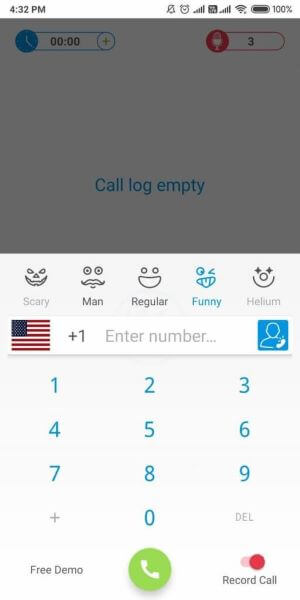
4. If you want to record the conversation, enable the red toggle button at the bottom. After the call, download the recording and save it to the local storage per call.
Part 2: How to add voice effects when sending a message on WhatsApp?
Are you planning to surprise your sister with a man’s voice over a WhatsApp message?
Do you want to play a prank on your boyfriend, demanding chocolates in a child’s voice?
If yes, then using the best voice changer WhatsApp is crucial. These applications come with several built-in voice-changing modules that allow you to transform your voice differently and record the voice message. One such app is Voicemod.
It has recently gained a lot of popularity, thanks to the many user-friendly and innovative features you might not get in any regular GB WhatsApp voice changer app. Besides, the accuracy and precision with which it transforms the voice are indeed excellent.
Features of Voicemod voice changing application
- Compatibility: Voicemod is compatible with Windows 10 and 11, provided it is 64-bit.
- Live voice changer: You don’t have to record your voice or any audio you want to add to the WhatsApp voice message from early. Instead, you can change your voice in real time and record whatever you say to your loved ones.
- Easy setup: You will need only 5 to 10 minutes maximum to install and finish the setup of Voicemod on your PC or laptop.
- Customization: You can create voices yourself if you don’t want to use the ones already in the application. This way, you will have more leverage over the voice message you want to send with a transformed vocal over WhatsApp.
- A huge audio library: There are 90 voice effects at Voicemod. So, you won’t be running out of options any time soon.
- Full integration: Voicemod is an emulator program that can be easily integrated with several apps, including WhatsApp.
A step-by-step guide to transforming your voice with Voicemod for WhatsApp voice message
As the Voicemod application is compatible with a PC, you need to use the desktop version of WhatsApp to record the voice message and add the desirable sound effects. Here is a comprehensive guide for doing so.
- First, you must download the Voicemod application on your laptop or PC. As it won’t be configured, you must do the task manually. Add Microphone as the default voice input device.
- Open the application and enable the voice changer toggle button at the bottom of the screen.
- Click on Library and scroll through the options to choose the best audio effect you want to use to transform your voice.
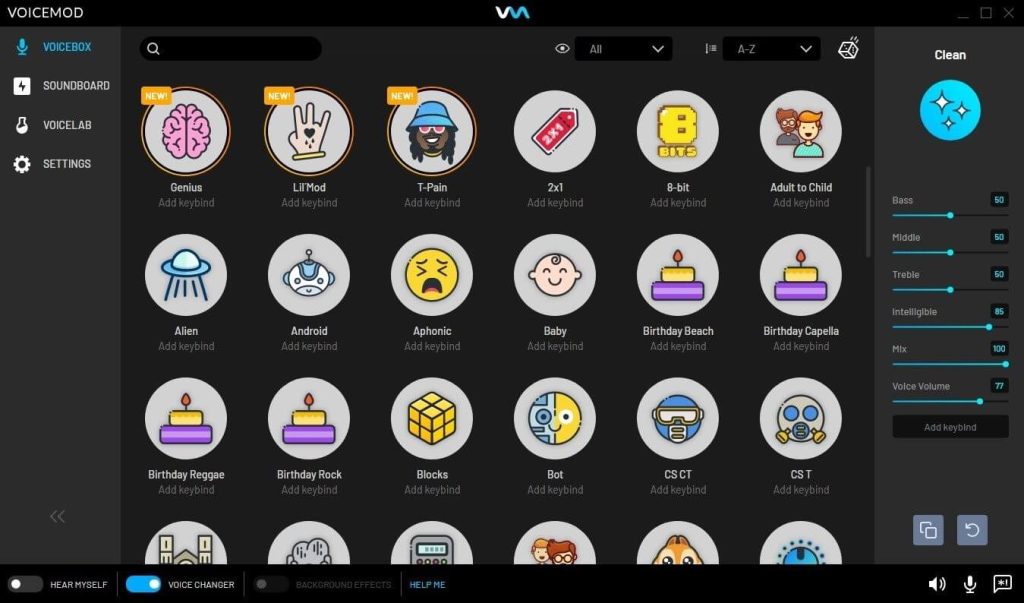
4. The virtual Microphone of Voicemod needs to be selected as the primary microphone input on WhatsApp. Click on it to record the voice and send it to the desired contact.
Bonus skill: How to add fake background noise to a voice message?
You might often want to add fake background music to a voice message before sending the same over WhatsApp. For example, if you’re going to escape from your cousins, you can easily add background music in the classroom and lie that you are in college.
You won’t be able to add the background music normally to the voice message. Instead, you should use the Uniconverter tool to add the fake music to the voice message and then send it to the desired contact on WhatsApp.
Bottom line
With the best voice changer applications known to you, it’s time you set everything and start pranking on your friends or surprising your loved ones. The apps are easy to use and you can even customize the voice options according to your desires.
Author Bio:
Dinesh Lakhwani 

Dinesh Lakhwani, the entrepreneurial brain behind “TechCommuters,” achieved big things in the tech world. He started the company to make smart and user-friendly tech solutions. Thanks to his sharp thinking, focus on quality and the motto of never giving up, TechCommuters became a top player in the industry. His commitment to excellence has propelled the company to a leading position in the industry.
Popular Post
Recent Post

Is Easy Duplicate Finder Worth It? Honest Review
The photos folder looked normal at first glance. Then the storage warning popped up. One trip photo appeared four times. A tax PDF sat in three different folders. Two old setup files were still in Downloads, and each one was over 500 MB. Nobody plans this mess. Copies pile up slowly. A download runs twice. […]

Wise Duplicate Finder Review: Real Results from Wise Duplicate Finder
Read my honest Wise Duplicate Finder review. See features, pricing, pros and cons, and real PC test results. Find out if this free duplicate cleaner can free up your Windows storage.

How to Recover Deleted Files from Pen drive, USB Drive, SD Card
Introduction: On tech forums, you’ll often see posts like this: “I connected my pen drive to my laptop this morning, but the folder was empty. All my college project files had vanished. I don’t have a backup. Can someone help me?” Stories like this are very common. Pen drives, USB drives and SD cards are […]

How To Recover Files Deleted from the Recycle Bin [Windows 11]
Losing a file can happen in seconds. You clear your desktop, hit Delete, and empty the Recycle Bin. Then, just when you need that file again, it seems to have vanished. This guide will walk you through ways to restore files removed from the Recycle Bin. We will begin with simple fixes, then look at […]

Disk Drill Data Recovery Tool Explained: Full Review and Guide
It happens in a split second. You delete a folder by mistake. Your drive stops showing up. A photo album from your last trip just vanishes. And your stomach drops. Lost files feel personal. They are not just data. They are memories, work hours, and sometimes years of effort packed into a few gigabytes. When […]

Recover Deleted Files In Windows 11 With Software & Without
Introduction What is the first thing that goes through your mind the second an important file vanishes from a Windows 11 PC? For most people, it is a mix of panic and disbelief, followed by a frantic click through every folder that file could possibly be hiding in. It happens in a split second: one […]

EaseUS Data Recovery Wizard: Everything To Know
Data loss does not always come from a big disaster either. Most cases start small and boring. A drive gets formatted by mistake. A laptop freezes mid-save and restarts on its own. A memory card stops showing up after being pulled out too fast. None of these feel like emergencies at first, until you realize […]

Recuva Data Recovery Tool: Is it Actually Worth it?
When I first tried Recuva Data Recovery, I wanted to see if it could really bring back lost files. The tool is free, small in size, and promises quick recovery, which made me curious enough to test it on my own PC. The setup was fast, and the wizard guided me step by step. I […]

GetData Recover My Files Data Recovery Tool: Honest Review
A hard drive error brings a special kind of silence. Well, yes! The screen freezes, then a message appears saying the drive can’t be found or must be formatted. In that moment, years of photos and work files feel at risk. It never happens at a good time. Coffee spills near a laptop, a memory […]

