












So, search for a pair of shoes once online. Close the tab. By evening, those same shoes are sitting on your news site, your video app, and even your recipe blog. Nobody placed them there by chance. A cookie did. Well, yes! Cookies are small files that websites place on your device while you browse. […]
How to Reset Gmail Password Using Verification Code
Introduction
Many platforms require password verification to access the site, like Gmail. While this site is relatively safe to use and comes with strong password protection support, some users can have privacy concerns. Another problem that prompts users to reset passwords is if they forgot your password email.
In the context of security, you can use software like Avast One to check password strength and safety and change yours if it is compromised. You can reset your profile’s password and make your Gmail account safe through multiple steps. We have compiled the best ways to do this are detailed in this post. Go ahead and learn what they are.
Best Ways to Reset Gmail Password Using Verification Code
One can take multiple methods to recover or reset a password after forgetting it or someone changing it. For this, you have to consider the standards for account recovery that are already activated, like the email address or phone number you added. Here, we explain the steps you can take when you specifically forgot your password email and need to recover it.
Method 1: Reset the Gmail Password via Desktop
If you want to reset the Gmail password intentionally, you can do so through your Google Account. The steps for that are explained here.
How to do this?
Step 1: Go to your preferred browser and open it. Access the Google Account page there.
Step 2: Log into the Google Account you are using.
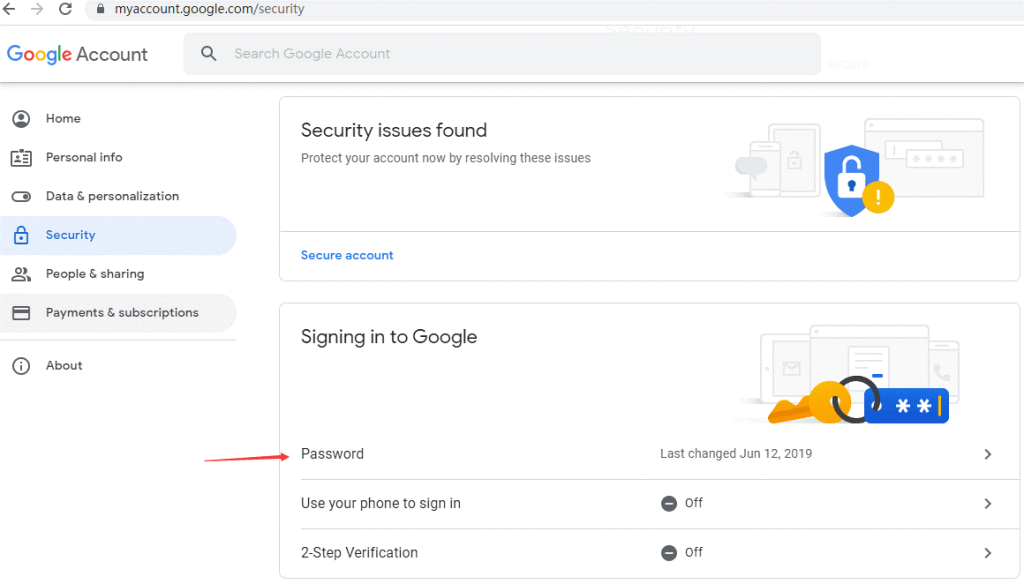
Step 3: On the next window, click on the “Security” option from the left-hand panel.
Step 4: On the right-side panel, you should scroll to find the “Signing into Google” option.
Step 5: Click on the “Password” option and put the current password into the text field.
Step 6: After this confirmation, you must add a newer and more complex password. Press the “Change Password” option next.
Method 2: Reset with Recovery Phone Number
Google allows users to reset their Gmail password if they provide the right details or use a device attached to the account. So, the platform does allow users to add their phone numbers to recover older passwords and change the current ones.
How to do this?
Step 1: Access the login page for Gmail and add the email address. Or, you can open the recovery center of Gmail, add the email address, and press Next.
Step 2: On the next page, click on Forgot Password.
Step 3: The system would redirect your account to the last password it remembers.
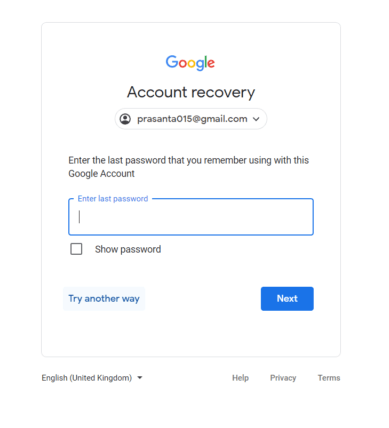
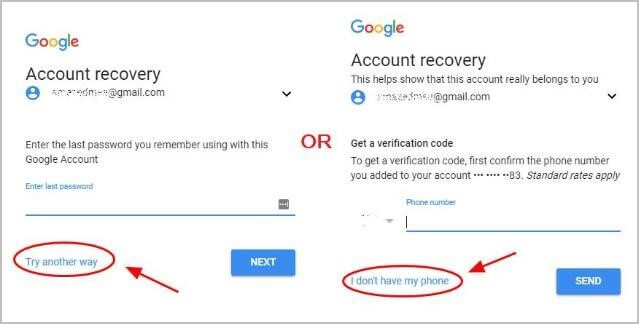
Step 4: Add the last password you remember for the account and click on Next again.
Step 5: Next, press the “Try another way” choice and follow the given instructions carefully.
Step 6: Choose “Get a verification code with your phone number” for the list.
Step 7: Add the registered phone number you created the account with. Click on the Next button.
Step 8: The software would present multiple methods for receiving code, e.g., via phone call/text. If these options come up, choose your preferred medium.
Step 9: Add the verification code and press the Next button.
Step 10: Follow the next instructions for resetting the password.
Method 3: Use the Recovery Email
As a precaution for you if you forgot your password email, the recovery email options are available. During the initial registration, Gmail asks users to add another recovery email for their account data and password.
How to do this?
Step 1: Go to the official page of Gmail. Add your login information like the email you use.
Step 2: Then, click on the “Forgot password” choice.
Step 3: Try adding the last password you used to log in. If it does not work, click on the “Try another way” option.
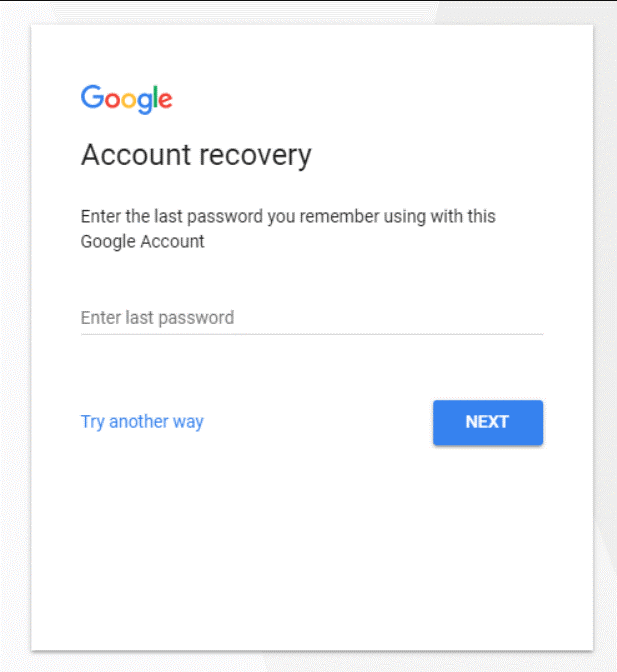
Step 4: Put in the recovery email account you added to your Gmail account. It would verify it and send the code to your secondary account.
Step 5: Open the second recovery account and click on the recovery email. You would find a 6-digit verification code.
Step 6: Go back to your Gmail page and add this code.
Step 7: You can reset the Google password now if it is successful.
Method 4: Use the Time of Registration as Verification
Another tactic you can use to reset the password is to add the time you created the account. This tactic is not the most common way of recovering or resetting the password since not everyone remembers the exact date. But it can work for this process.
How to do this?
Step 1: Open your browser and go to the Gmail homepage. Add your Gmail address that you will recover.
Alternatively, you can open the recovery center and put the Gmail address there. Press the Next button after that.
Step 2: After this, click on the Forgot Password button.
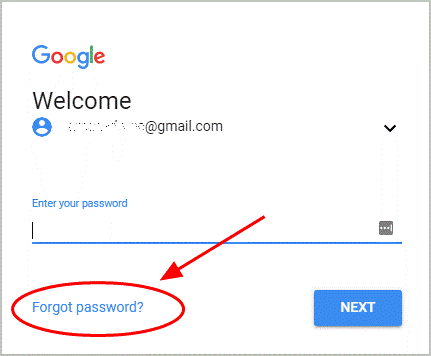
Step 3: Press either “I don’t have my phone” or “Try another way” instead of the options you keep getting. Finally, stop and answer when you reach the “When did you create this Google Account” option.
Step 4: Add the right Year and Month. Press Next.
Step 5: The site would ask you to reset the password next. You can do so following the given on-screen instructions.
Miscellaneous Tips to Follow for a Safe Recovery and Reset Process for Gmail Password
You should carry out the right steps to ensure that the process of resetting the Gmail password is smooth, even with a verification code. Here are some of the main actions you should take for the proper safety of your account details.
- Use a password manager- You can download and utilize another password management software like the Norton Password Manager. Here, you can keep all your passwords secure and even check which ones are defective or need resetting. Additionally, you can generate a unique password to use after you reset the password, thereby increasing account safety.
- Remember earlier passwords– Gmail would ask for your previous passwords, like the most recent one, during the recovery part of the process. You can add the older ones you remember as well, so keep them in mind. If you have Norton Password Manager, it is a suitable software for storing older passwords.
- Device choice– While trying to recover and reset your password, you would have an easier time doing it correctly if you utilized a familiar device. If you previously logged in through a computer browser, smartphone, or tablet, use that device for this process since Gmail would recognize the device.
- Correct recovery email– When trying to recover the verification code, you should use the same email account you already used.
Conclusion
It is possible to safely recover a password and then reset it through an email account or phone number. You can use other software as a password manager app to save older passwords or generate new ones. Also, use the right recovery email address and device for the process. That would make this process simpler to handle.
FAQs:
1. What should I do if I do not receive the Gmail verification code?
First, check your internet connection and make sure your phone number or recovery email is correct. Wait for a few minutes, as delays can happen. You can also request the code again. If it still does not arrive, check your spam or junk folder, or try using a different verification method provided by Gmail.
2. Can I reset my Gmail password without a verification code?
In most cases, a verification code is required for security reasons. However, Gmail may offer other options like answering security questions or using a trusted device. If none of these work, you may need to go through the account recovery process, which can take some time.
3. How many times can I request a Gmail verification code?
You can request the code multiple times, but there is a limit within a short period. If you request too many times, Gmail may temporarily block further attempts. It is better to wait a few minutes before trying again to avoid delays in the recovery process.
Author Bio:
Dinesh Lakhwani 

Dinesh Lakhwani, the entrepreneurial brain behind “TechCommuters,” achieved big things in the tech world. He started the company to make smart and user-friendly tech solutions. Thanks to his sharp thinking, focus on quality and the motto of never giving up, TechCommuters became a top player in the industry. His commitment to excellence has propelled the company to a leading position in the industry.
Popular Post
Recent Post

How To Disable Background Apps In Windows: 4 Quick Methods
A slow PC rarely gives a warning. One day, it simply takes longer to start. Apps open late. The fan runs loud, even when the screen is almost empty. Most people blame old hardware. Often, that is not the real reason. The real reason is hiding in plain sight. Windows keeps many apps active in […]

How to Activate Windows with a Product Key for Windows 11 & Windows 10
It always shows up at the worst time. You are halfway through a report, or about to join a video call. Then you spot it in the bottom right corner of the screen. Activate Windows. Go to Settings to activate Windows. Initially, an unactivated copy of Windows may seem like a minor inconvenience. Over time, […]

Is Easy Duplicate Finder Worth It? Honest Review
The photos folder looked normal at first glance. Then the storage warning popped up. One trip photo appeared four times. A tax PDF sat in three different folders. Two old setup files were still in Downloads, and each one was over 500 MB. Nobody plans this mess. Copies pile up slowly. A download runs twice. […]

Wise Duplicate Finder Review: Real Results from Wise Duplicate Finder
Read my honest Wise Duplicate Finder review. See features, pricing, pros and cons, and real PC test results. Find out if this free duplicate cleaner can free up your Windows storage.

How to Recover Deleted Files from Pen drive, USB Drive, SD Card
Introduction: On tech forums, you’ll often see posts like this: “I connected my pen drive to my laptop this morning, but the folder was empty. All my college project files had vanished. I don’t have a backup. Can someone help me?” Stories like this are very common. Pen drives, USB drives and SD cards are […]

How To Recover Files Deleted from the Recycle Bin [Windows 11]
Losing a file can happen in seconds. You clear your desktop, hit Delete, and empty the Recycle Bin. Then, just when you need that file again, it seems to have vanished. This guide will walk you through ways to restore files removed from the Recycle Bin. We will begin with simple fixes, then look at […]

Disk Drill Data Recovery Tool Explained: Full Review and Guide
It happens in a split second. You delete a folder by mistake. Your drive stops showing up. A photo album from your last trip just vanishes. And your stomach drops. Lost files feel personal. They are not just data. They are memories, work hours, and sometimes years of effort packed into a few gigabytes. When […]

Recover Deleted Files In Windows 11 With Software & Without
Introduction What is the first thing that goes through your mind the second an important file vanishes from a Windows 11 PC? For most people, it is a mix of panic and disbelief, followed by a frantic click through every folder that file could possibly be hiding in. It happens in a split second: one […]

EaseUS Data Recovery Wizard: Everything To Know
Data loss does not always come from a big disaster either. Most cases start small and boring. A drive gets formatted by mistake. A laptop freezes mid-save and restarts on its own. A memory card stops showing up after being pulled out too fast. None of these feel like emergencies at first, until you realize […]

