











Imagine this. You spend hours perfecting a video project. You hit save. Then your laptop freezes, reboots, and when the screen comes back. The file is gone. Your stomach sinks. It’s not just you. Lost files happen all the time. A dropped hard drive, a bad update, an accidental delete, or a corrupted partition can […]
Recover Deleted Pictures/Videos/Documents for Free with iBeesoft Free Data Recovery
One of the golden rules of modern IT is always to back up your data. However, cloud computing has turned us into couch potatoes due to which most of the time we forget to back up everything. For example, if you’re a programmer, the most recent version of your files is probably on Slack or Dropbox, but what about the old data?
It’s not necessary that everything is on the cloud. Therefore, to keep data secure, keeping a regular backup is a must. However, people don’t realize this until the file they are working on is not lost or accidentally lost.
Luckily, if you have forgotten to take backup, the good news is that there are options for recovering your data. Unfortunately, it is not always this simple. At the very least, you’ll require the appropriate equipment, and data recovery software makes recovering data accessible.
Today, we’ll be looking at the iBeesoft Free Data Recovery software for Windows. This is a comprehensive software package for recovering data from any device. You’ll be able to recover your data whether you’re working with Windows or an external hard drive. That is, at least, how it works in theory. However, is the iBeesoft Data Recovery software package up to the task? We examined each feature and benefit in detail. We also noted flaws we discovered along the way. Here’s what we found. So let’s talk in detail about iBeesoft Free Data Recovery software.
What is iBeesoft Free Data Recovery, and how does it work?
First appeared in public in 2015, iBeesoft is relatively recent compared to the data recovery developers who first appeared in the early 2000s. However, it has helped thousands of people around the world solve the data loss issues. It mainly offers data recovery tools and provides technical solutions for data backup and erasing data solutions.
Using iBeesoft Free Data Recovery Software, you can recover data lost due to any reason. Some common examples are listed below:
- Accidentally deleted file and/or emptied the Recycle Bin
- Data deleted from a hidden partition, misplaced, deleted, or otherwise corrupted.
- Restored device to factory settings by accident.
- Removing a storage device during a transfer or before safely ejecting it.
- Overwriting data after incorrectly formatting a drive.
- Files were deleted, locked, or rearranged due to a virus or malware attack.
- Data loss due to human error, poor data management, and backup procedures.
Review iBeeSoft Free Data Recovery Tool – Windows
System Requirement – Windows
OS: Windows 11, Windows 10, Windows 8, Windows 7, Windows Vista, Windows XP, Windows Server 2016, Windows Server 2012, Windows Server 2008, Windows Server 2003
- CPU: 1GHz (32 bit or 64 bit)
- RAM: 256 MB or more RAM (1024MB Recommended).
- Space: 200 MB
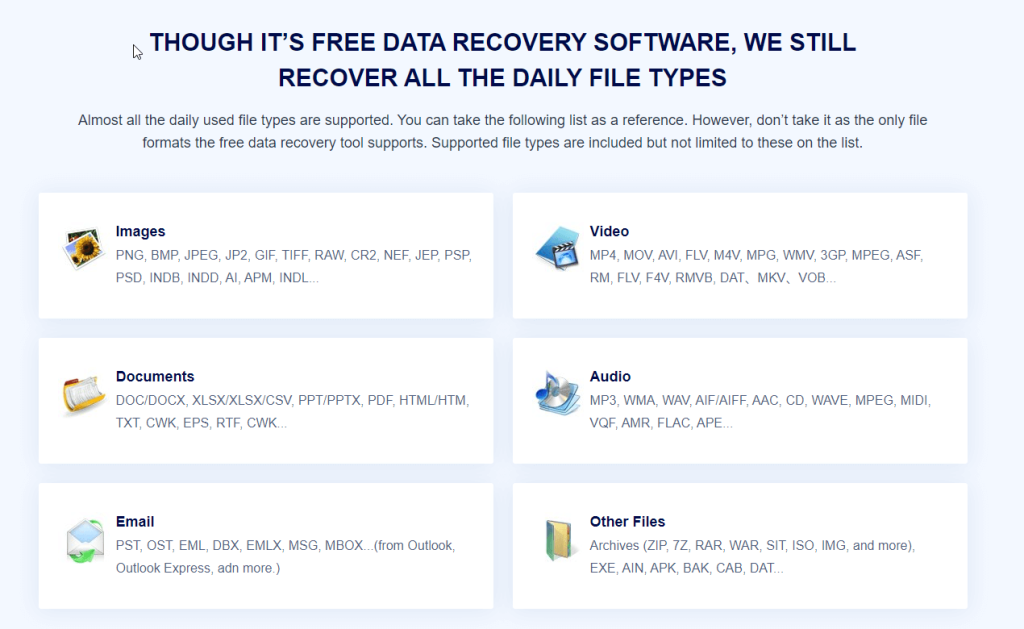
Support Various File Formats (1000+ Types)
File types such as images, video, music, archived, email docs, and others can be retrieved quickly and almost without fail.
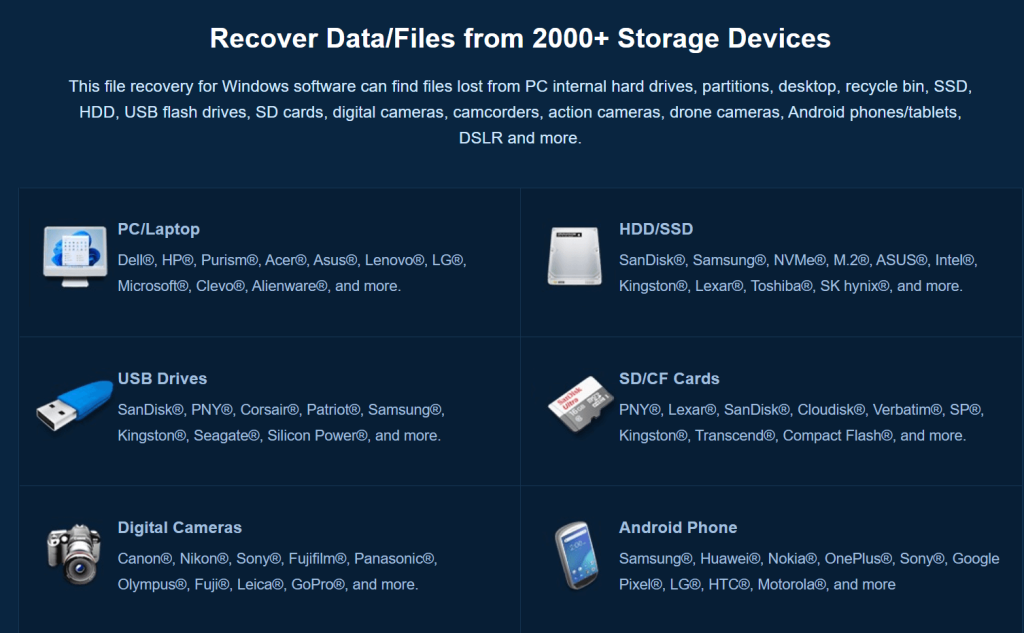
Data From Supported Devices (2000+ Devices)
Moreover, you’ll be able to use iBeesoft Free Data Recovery Software on any Mac or Windows OS. You can retrieve files from microSD cards, USB thumb drives, and similar storage devices. The iBeesoft recovery system can read various HDD format types: NTFS, FAT32, FAT, ext2, ext3, exFAT, NTFS, and HSFs.
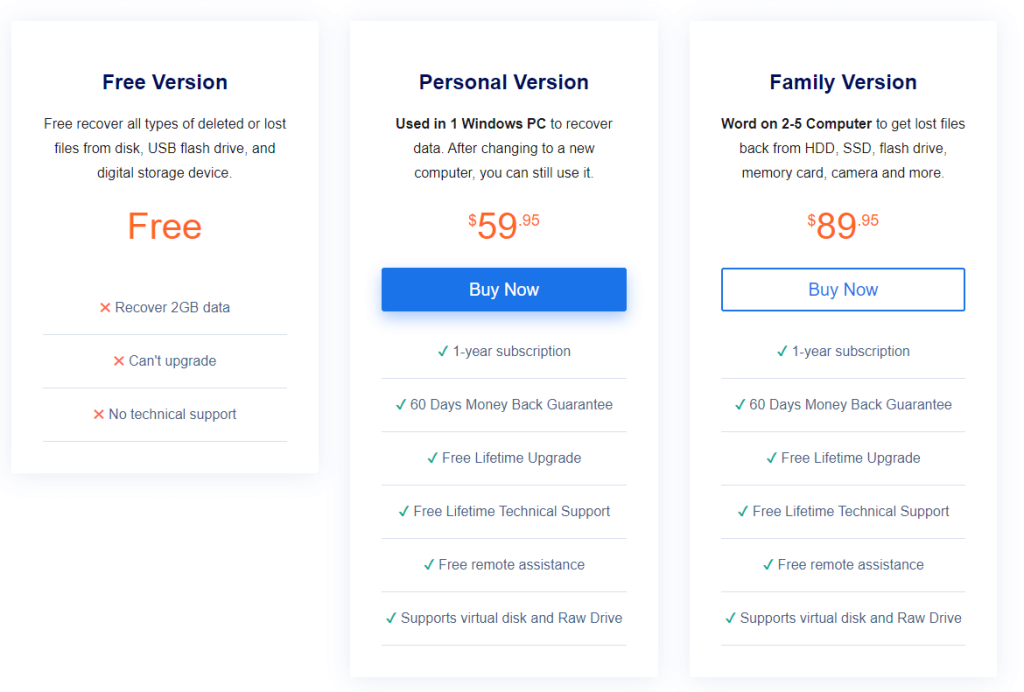
Pricing
Advantages:
- Both macOS and Windows versions are available though we here emphasized the Windows version. iBeesoft Data Recovery for Mac helps users recover files on Mac too.
- Helps restore from internal and external hard drives, memory cards, digital devices, & removable drive
- You can recover various file types: doc, video, audio, image, etc.
- Allows file preview before recovery.
Disadvantages:
- Not all detected files can be previewed.
- It might run slow during the scanning process.
Review
Designed to recover deleted or formatted files from internal and external hard drives, iBeesoft Free Data Recovery is a must-have tool. Using it, you can quickly gain access to important files that were accidentally deleted.
Interface
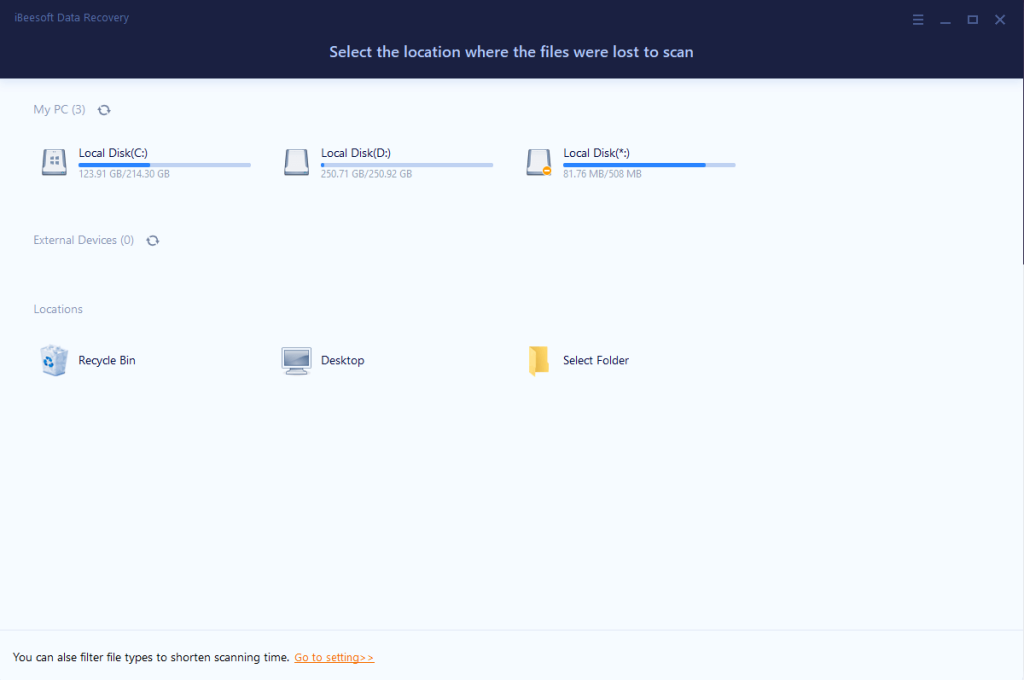
The main interface of the recovery tool is straightforward. Anyone from beginner to advanced users can use it and select file types for scanning, making it easy to begin a data recovery procedure.
Support File Type
iBeesoft WindowsData Recovery support virtually all file types.
- Photos: JPG, PNG, BMP, GIF, PSD, RAW, SWF, SVG, TIFF, etc.
- Documents: Word, Excel, PowerPoint, PDF, HTML, EPS, PS, WPD, ODT, ODS, etc.
- Videos: AVI, WMV, MP4, MPV, M4V, 3GP, MKV, VOB, MPEG, FLC, etc.
- Audios: MP3, M4A, WAV, WMA, AAC, AIFF, etc.
- Archives: ZIP, 7Z, TAR, RAR, etc.
- Others: Emails, EXE, DMG, OLM, etc.
Scan Modes
When you initially begin the scanning procedure, iBeesoft runs a Quick scan. When the Quick Scan finishes, it begins the Deep Scan automatically.
Scanning Speed
iBeesoft includes a preview feature allowing users to cross-check the results and files before recovering them. However, there’s a catch. You can only preview photos and text files; other items, such as movies, PDFs, and Word documents, cannot be seen.
Recovery Rate
Though iBeesoft’s recovery rate outperforms other high-rated data recovery apps. The success data recovery rate is as high as 99.85%. It does work to recover lost, deleted, or formatted files. Furthermore, it displays specific information (file name, size, location, and create date) to assist users in recovering the desired files.
How iBeesoft Free Data Recovery Helps Recover Data?
So, what kind of lost data may be recovered by iBeesoft Free Data Recovery software? To begin, it can recover files that you accidentally erased. It doesn’t matter how they were deleted or lost; iBeesoft can restore all data types. The sooner you retrieve data, the better your chances of data recovery. The more operations you perform on the disk, the lesser chances of getting back data as removed data will be permanently overwritten.
How to Use iBeesoft Free Data Recovery Solution?
To use the iBeesoft Free Data Recovery program, follow the step by step instructions given below:
- Download and install the iBeesoft Free Data Recovery tool
- When done, launch iBeesoft Free Data Recovery.
- You will now see a straightforward interface to select hard drives.
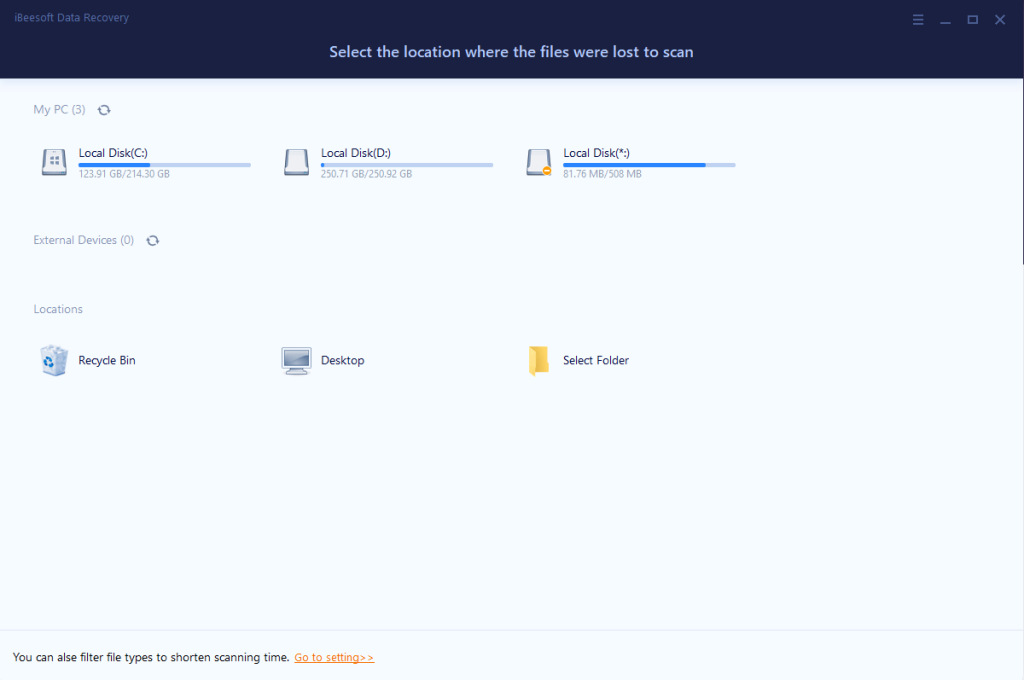
By default, all file types are selected. If you run the software in this mode, it will try to recover all files. However, if you know what you’re looking for, click Go to setting option > check the file types you want to run the scan.
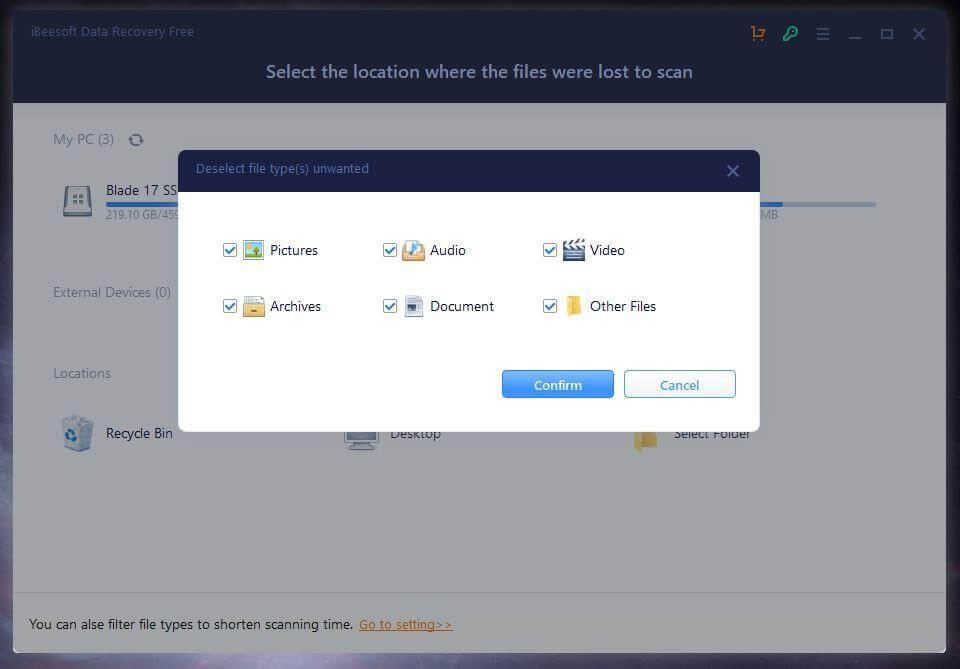
- Confirm the selection > select the location and click “Scan” to search for lost or deleted files.
- Wait for the scan to finish.
- Preview scan results > select the location. Make sure you don’t save data on the same drive you are trying to restore data.
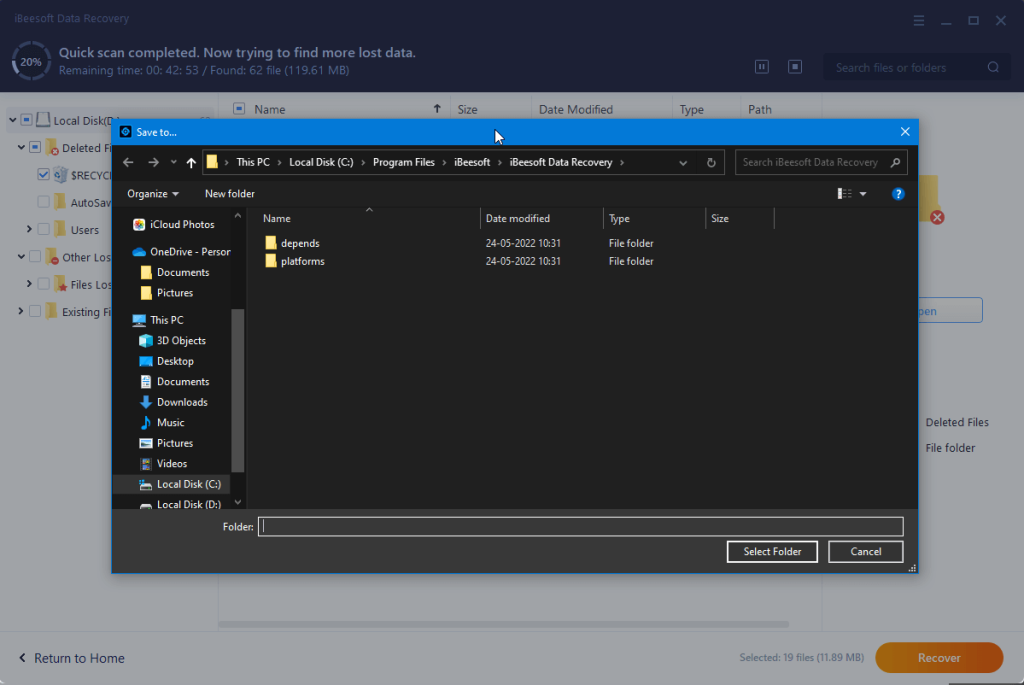
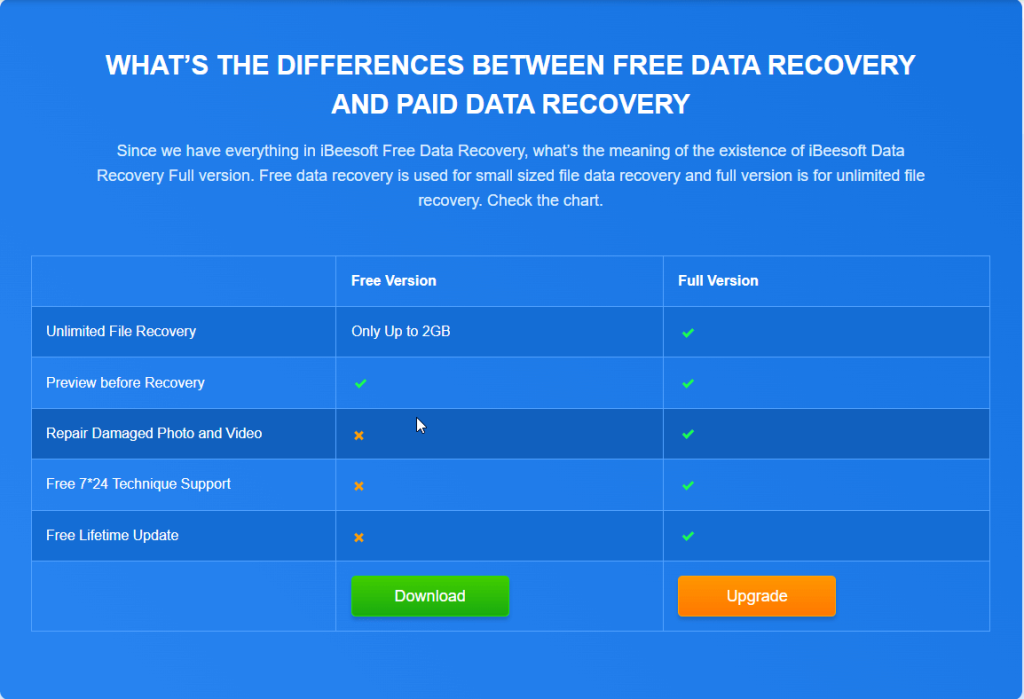
Note: To confirm if the product works or not, take advantage of the iBeesoft Free Data Recovery software. You can run a search and install the software for free and it can recover up to 2GB files for free. Once you’ve sure to recover files more than 2GB, pay to access the complete edition of the software.
- That’s all. This is how using the free data recovery solution from iBeesoft, you can restore any type of data.
This is how using the iBeesoft Fee Data Recovery solution; you can restore all types of deleted data from a storage device. However, if you have aunty doubts about the tool, you can ask questions in the comments section below:
Does iBeesoft Free Data Recovery Software Work?
Yes, for sure.
It does help to recover deleted documents, photos, videos, audio, or others from both internal and external hard drives, and most of the recovered files can be opened and viewed successfully. However, no data recovery tool guarantees a 100% successful recovery, nor does iBeesoft.
Is iBeesoft Data Recovery Safe?
Yes, it is safe to use. You will not find any bundled software or advertising, except that you are redirected to its product page every time you run it. To stay safe, always download the installer from its official website.
Can I Recover formatted, inaccessible/RAW disk Data?
Yes, iBeesoft Data Recovery offers a complete undelete solution that helps recover lost data from hard drives, inaccessible/RAW disk, virus infection, system crash, volume loss, incorrect operation, or other reasons.
You can also restore deleted data files from portable media and internal hard drives. Furthermore, you can control the recovery wizard as per your need. You can pause or restart the scan process with just a few clicks.
How Does Hard Drive Data Get Lost?
Before we go any further, it’s essential to understand how data loss happens. This will help us understand why some data can be recovered while others are entirely lost.
Corruption is the leading cause of hard disc data loss. Corruption is a catch-all category, but it encompasses most read/write mistakes. For example, sudden power failure, computer crash, file system errors, and erasing data are common reasons for data loss.
Fortunately, using the iBeesoft Free Data Recovery solution, you can recover such deleted data.
Final Verdict
So, in the end, we can say spending time and money on iBeesoft Free Data Recovery software is worthwhile. Though the tool is a little sluggish, you might not like it when in a hurry. However, it can recover more files than other apps. Therefore, it is a go-to-solution when looking for data recovery under 2GB. We hope you enjoyed the article and will give the iBeesoft Data Recovery solution a try.
Author Bio:
Dinesh Lakhwani 

Dinesh Lakhwani, the entrepreneurial brain behind “TechCommuters,” achieved big things in the tech world. He started the company to make smart and user-friendly tech solutions. Thanks to his sharp thinking, focus on quality and the motto of never giving up, TechCommuters became a top player in the industry. His commitment to excellence has propelled the company to a leading position in the industry.
Popular Post
Recent Post

5 Best Data Recovery Software For Windows 11 and Windows 10
A crashed drive can ruin a whole day. One minute your photos, work files, and tax records sit safe on your PC. The next minute they are gone. A power cut, a bad update, or one wrong click can wipe out years of memories and months of work in seconds. That sinking feeling is why […]

How To Update NVIDIA Drivers On Windows 11/10 PC
Learn how to update NVIDIA drivers on Windows 11/10 with simple methods, safety tips, and easy steps for smoother gaming and better PC performance.

Top AI Features Hidden Inside Windows 11
Explore the top AI features in Windows 11, from Copilot to Recall, plus safety tips and simple steps to use each tool the right way.

Customize Your Screen Saver Settings in Windows [Easy Steps]
Learn how to customize screen saver settings in Windows 11 with easy steps, safety tips, and simple tricks to personalize your PC screen.

Driver Easy Windows Driver Updater Tool Review: Tried & Tested
In-depth information about Driver Easy’s functions and features can be found in our review. Learn how to update drivers more easily with this tool for a more seamless computer experience.

Is Avast Driver Updater Worth It? A Hands-On Analysis
A full review of Avast Driver Updater covering features, setup steps, pricing, pros and cons, and real PC results, to help you decide if it is worth buying.

IObit Driver Booster 13 (PRO) Review: [Tried & Tested]
IObit Driver Booster 13 is built for one purpose: keeping your PC drivers up to date. Well, yes! Outdated drivers can cause crashes, slowdowns, and hardware issues. This tool scans fast and updates with one click. The interface is simple. Even beginners can use it without confusion. Updates are pulled from a huge database, covering […]

Auslogics Driver Updater: A Detailed Walkthrough [2026]
This comprehensive review covers the key features, pros, and cons, pricing, and a final verdict on Auslogics’ driver update utility. Learn how it stacks up against manual driver maintenance.

5 Best Driver Updater Tools for Windows to Use (Free and Paid)
Introduction: Most people blame their PC for problems that a driver caused. A driver works like a bridge between your hardware and your operating system. When this bridge cracks, strange things start to happen. Screens flicker without reason. Printers go silent mid-task. Games freeze or crash out of nowhere. Manually finding the right driver is […]

