












A computer quietly gathers clutter over time. This includes duplicate photos, repeated downloads, and forgotten backups hiding in random folders. This buildup slowly eats away at storage and can make even a fast PC feel sluggish. Manually finding and deleting duplicates is tedious. It means checking every folder, comparing file names, and guessing which copies […]
Top 10 Best Text Editors for Programmers: Complete Guide
Pre-built text editors are available in Mac and Windows systems, but they are mainly used for basic-level typing. These text editing apps are not suitable for a more intensive workflow like code changing or programming files from beginning with JavaScript, CSS, or HTML.
The best solutions are the advanced editor apps for programmers. They can use these to open the source code of files, remove formatting/font styles, or make code changes.
Text Editors for Programmers for Free
There are multiple software types available for Mac and Windows users that they can use for programming intensive and basic-level codes easily. We looked through multiple free apps to edit text that are available in the market, testing their functionality, features, and usability. Here are the top 10 options that we found.
1. Sublime Text
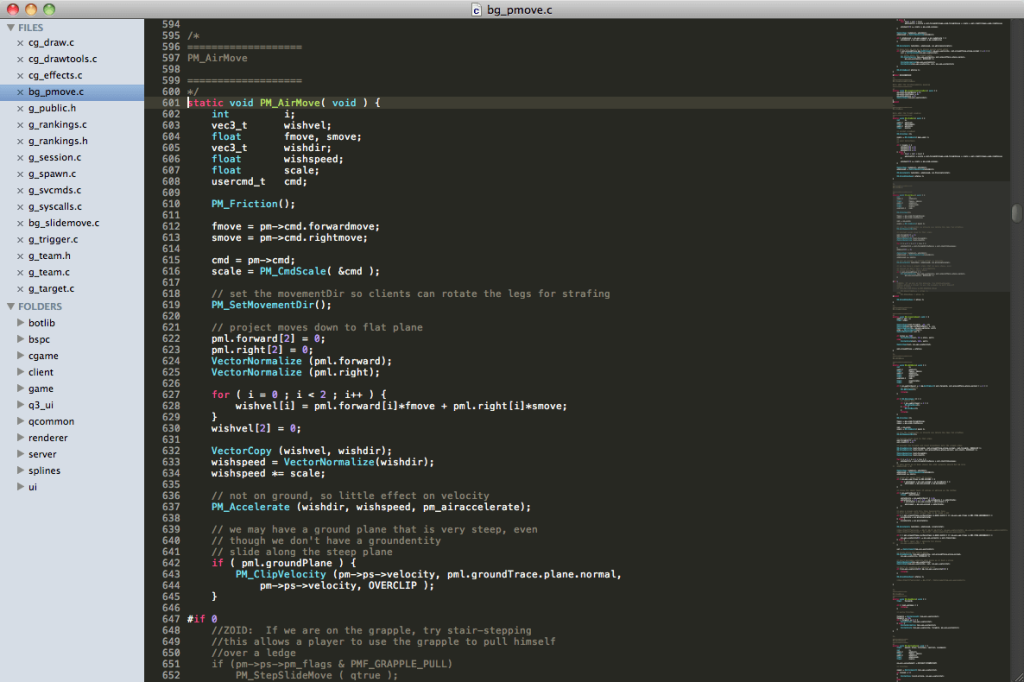
Sublime Text is one of the available best text editors for programmers that is suitable for cross-platform code editing. It supports Python and C++ programming languages and allows the integration of different plugin extensions.
The application includes multiple types of standard and high-level editing tools for optimized text editing. The interface is simple to use and easily navigable. The syntax highlights properly for easier viewing during the editing processes. Plus, the text auto-completes for standard-level texts while making code changes, assuring faster performance.
Compatibility: Windows, Linux, Mac
Price: Free
Features:
- Both dark and light modes are available
- Advanced editing features like syntax highlighting/formatting
- Availability of more than 23 pre-set visual themes
- Wide range of screen modes for multi-panel editing
Pros:
- Best for cross-platform coding
- Breakdown the screen into one window or multiple windows
- Auto-complete feature for faster editing
Cons:
- The premium version with more advanced features is not available for free
- The free version shows some errors
2. Bluefish
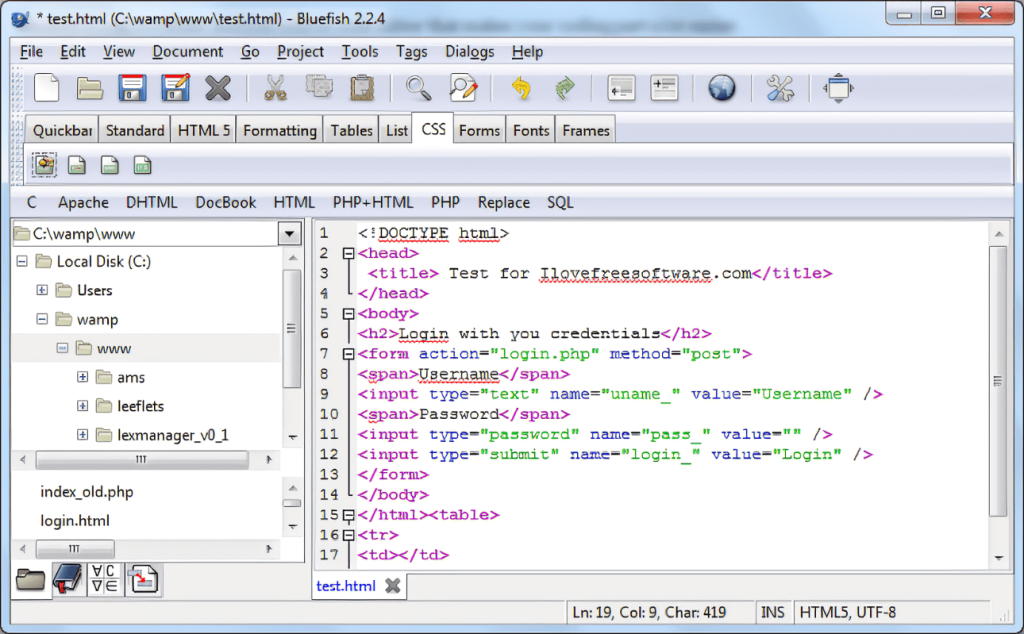
This robust app is suitable for web developers and programmers who work on various scripts, websites, and software code development. The tool is compatible with a wide group of programming/markup languages.
This multi-platform app works suitably well on diverse types of desktop OS options. Users can also run documents in different file formats and sizes on this platform for editing. Features like syntax formatting, code error detection, and spell checker make it a high-grade option for software experts.
Compatibility: Mac, FreeBSD, Windows, Solaris, OpenBSD, Linux
Price: Free
Features:
- Integration possible of external programs like link, make, weblink, javac, etc., for advanced code processing
- Unlimited number of redo/undo actions
- In-build spell checker that works inline
- Strong search/replace functions
Pros:
- Clean and lightweight GUI editor
- Edit in full screen
- Auto-recovery of unsaved edits on files after sudden shutdown/crashes
Cons:
- Slightly outdated interface
- Opening files can take some time
3. Notepad++
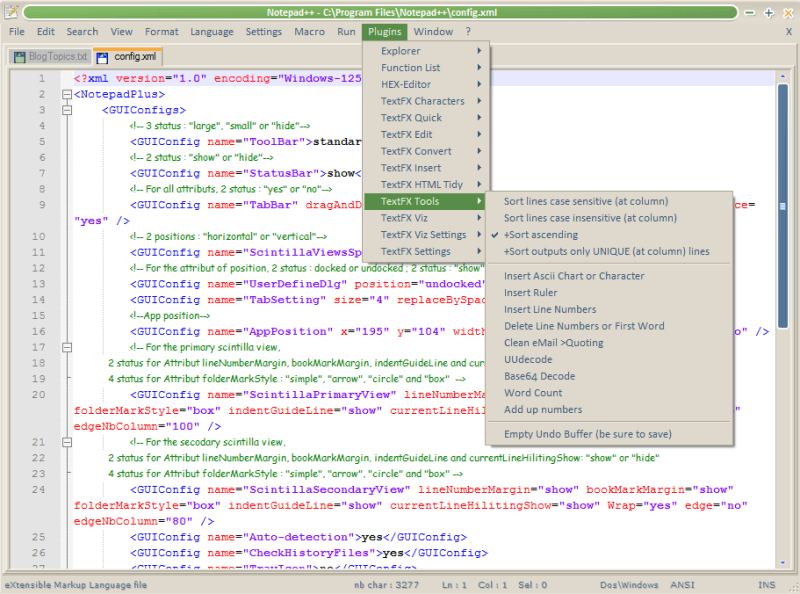
Notepad++ is one of the top free text editors for software development experts to edit source codes efficiently. This software is a more advanced and robust version of Notepad, with various editing/formatting features. Programmers can write code text in different types of coding languages on this software.
Besides the multi-language compatibility, Notepad++ supports multiple file formats, making it easier for users to handle multiple projects on one platform. It works with STL and Win32 API, which provides a high execution speed for the workflow.
Compatibility: Windows
Price: Free
Features:
- Auto-completion feature
- Add characters into files via the ASCII-based insertion panel
- Easy to add or remove comments
- Find/replace text in the file with some clicks
Pros:
- A dark theme is available
- Focuses on CO2 emission reduction with their lightweight less-CPU-power-consuming system
- Open-source
Cons:
- Real-time syntax checking is unavailable
- Auto-indention is not automatic after the colon input
4. Atom
Atom is one of the top free text editors available with diverse levels of features and specifications. You can access the integrated file manager to find and view whole projects, single files, or multiple projects simultaneously.
The multi-pane function allows users to break their projects into multiple windows on one platform. This makes it easier to compare the side-by-side codes and make the right changes. Additionally, it is very simple to search, preview, and even replace texts across multiple projects or in one file with one step. Multiple open-source packages are available with various features- use them to optimize your files/projects.

Compatibility: Windows
Price: Free
Features:
- Install pre-set packages or customize new ones on Atom
- Cross-platform editing possible
- Complete coding faster with the intuitive auto-completion feature
- Split the workflow table into several panes for better coding experience/comparison
Pros:
- Integrated with JavaScript, Electron, HTML, Node.js, and CSS
- Easy customization features
- Pre-set UI themes are available
Cons:
- Not available in multiple OS types
- Upgrades are still ongoing
5. Brackets
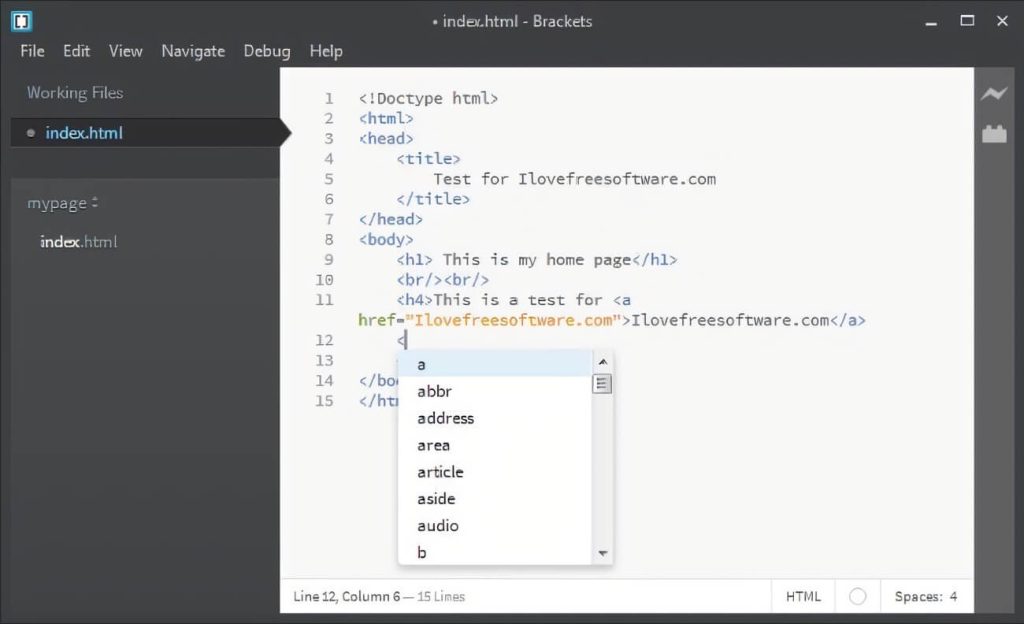
Brackets is one of the best apps for programmers due to its open-source nature. This is a modern and robust tool with multiple features that makes it simpler for front-end development and web design-related coding. Multiple extensions are compatible with this software that the users can easily integrate into their projects.
There is preprocessor support and miscellaneous visual tools available under Brackets. Using the latter, it is possible to blend these tools and handle creative web design programming suitably.
Compatibility: Mac, Windows, Linux
Price: Free
Features:
- Real-time view of code files in the live preview
- Create inline editing fields and add codes
- Supports diverse preprocessors for better workflow
- Includes plugin extensions like Indent guides, Autoprefixer, File Icons, etc.
Pros:
- It is an open-source software
- Best for front-end developers and web designers
- It is very lightweight and simple to use
Cons:
- Sometimes difficult to manage multiple projects
- The startup period can take some time
6. Light Table
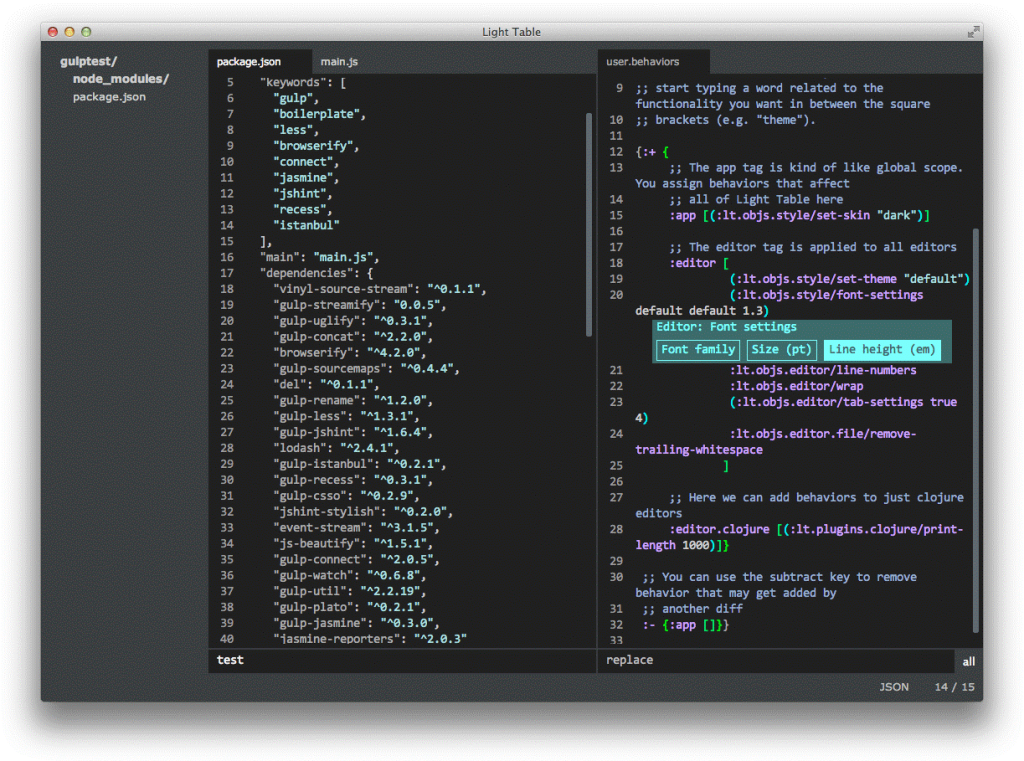
Light Table is another of the finest text editors for programmers. They can use the diverse tools available under the software for customized code building and editing. Through the in-built community, programmers can easily find the necessary tools/frameworks due to the open-source structure of the software.
Plus, there is an integrated plugin manager, which is easily accessible. So, it is simple to find the necessary plugins and add them to the file. Additionally, users can embed diverse graphics, debug files, and manage files easily through Light Table.
Compatibility: Mac, Windows, Linux
Price: Free
Features:
- Next-generation analytics feature for code value tracking
- Open-source with extensive community support
- Check codes and get inline results
- Clean and lightweight editor with powerful formatting tools
Pros:
- Lightweight well-designed layout
- Quickly generate new codes and ideas
- Easy to find files and plugins through the in-built manager
Cons:
- Not the easiest for new users to understand easily
- Complex layout
7. ConTEXT
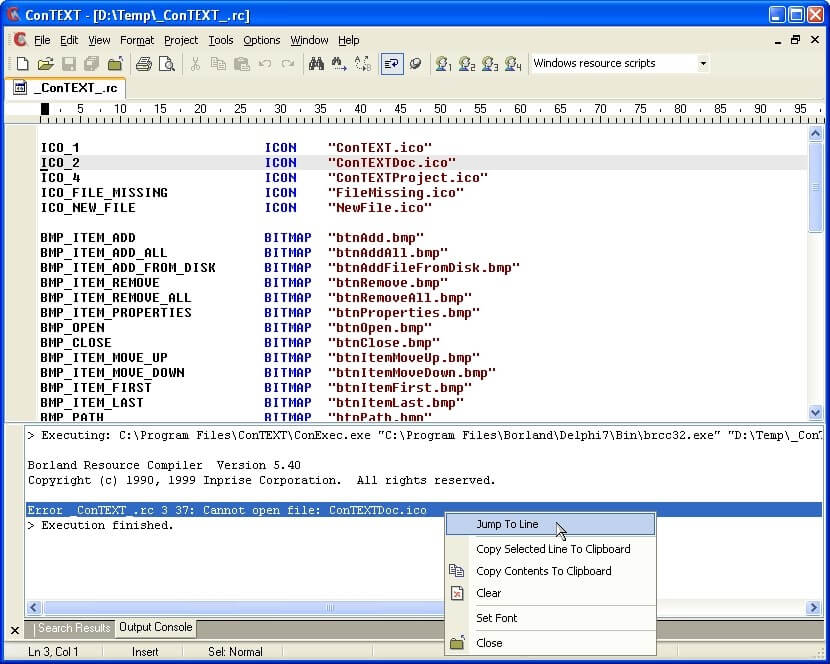
ConTEXT is one of the best software for programmers that is available in the market currently. The freeware solution guarantees smooth performance and fast coding work for the users with its small size. Due to its multi-lingual support, software developers in global regions can easily download and utilize this application.
Besides that, the software includes advanced features like powerful syntax highlighting, with more than 200 coding languages supported. Therefore, software developers can program using C/C++, C#, Pascal, JavaScript, Java, HTML, PHP, SQL, and other languages on this editor.
Compatibility: Windows
Price: Free
Features:
- The small size of 1.57 MB assures fast performance
- Build-in library for easy file storage and search
- Pre-set help file for better documentation
- Robust syntax highlighting function
Pros:
- Simple user interface
- Multiple languages are supported
- Fast performance
Cons:
- Only available for Windows users
- Not open-source
8. VIM
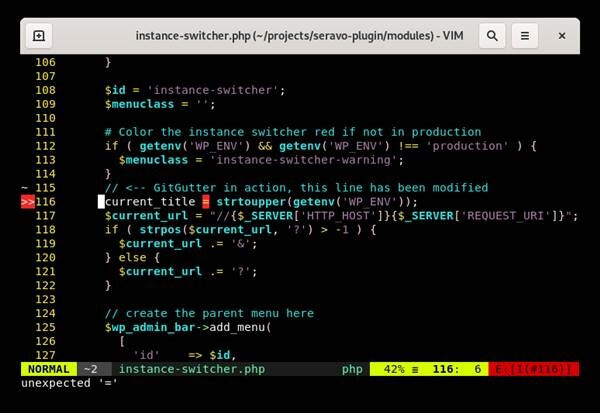
VIM is a usable text editor available for free that the software development experts can use to make coding changes. It supports various programming languages, making it simpler for users to view and edit multiple source code versions.
This is one of the free text editors that are very easily configurable, and users can run different coding structures in this. The editor works stably and integrates suitably with diverse tools. You can use the software without difficulty for Apple OS X and several UNIX system types.
Compatibility: Mac, Linux/GNU
Price: Free
Features:
- Persistent undo tree available in multiple levels
- Powerful features for searching and code replacement
- Compatible with diverse file formats and programming languages
- Stable interface structure available
Pros:
- Compatible with multiple tools
- Smooth performance
- Widescale plugin system available
Cons:
- Not suitable for extreme beginners
- Relatively outdated interface
9. Komode Edit- Komode IDE
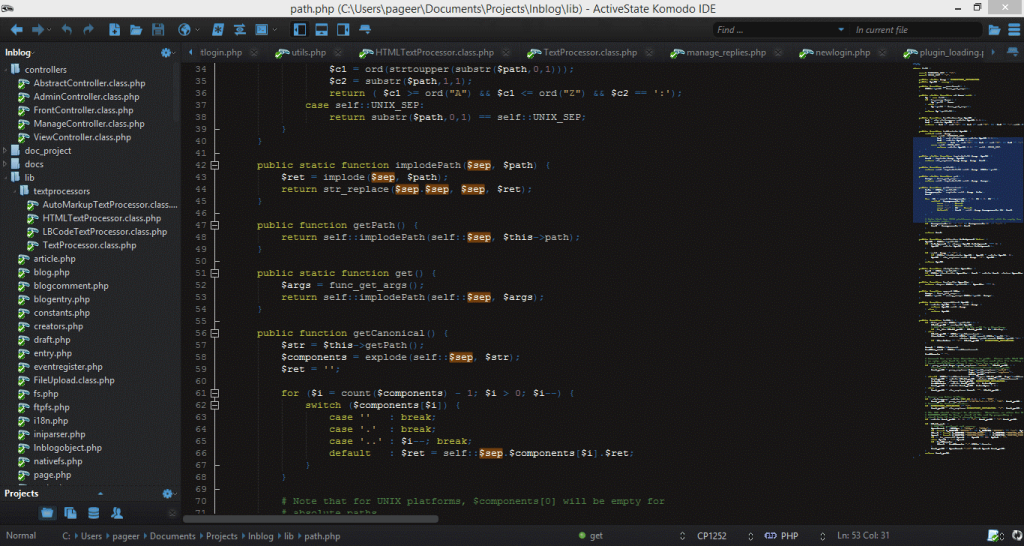
It has rich functionalities like autocomplete, syntax highlighting, and code refactoring, making it a top option in the market. The Komode IDE software supports Subversion, Mercurial, Perforce, Git, Bazaar, and CVS versions.
Users can use this application to visually check the code for bugs and quickly make necessary fixes. It supports various programming languages like JavaScript, Node.js, Go, Python, Ruby, and PHP. This makes it suitable for multi-level code editing, simple project navigation, and collaboration.
Compatibility: Windows, Mac
Price: Free
Features:
- Easier programming management with split windows
- Highlight variables and sort/group files easily
- Cold blocks and code folding is possible
- Conditional snippets are available for users
Pros:
- The live preview feature is available
- Track the edits easily
- Code refactoring and key bindings are possible
Cons:
- Does not operate well in the macOS Big Sur version
- Have to buy the paid version for bigger teams
10. Visual Studio Code
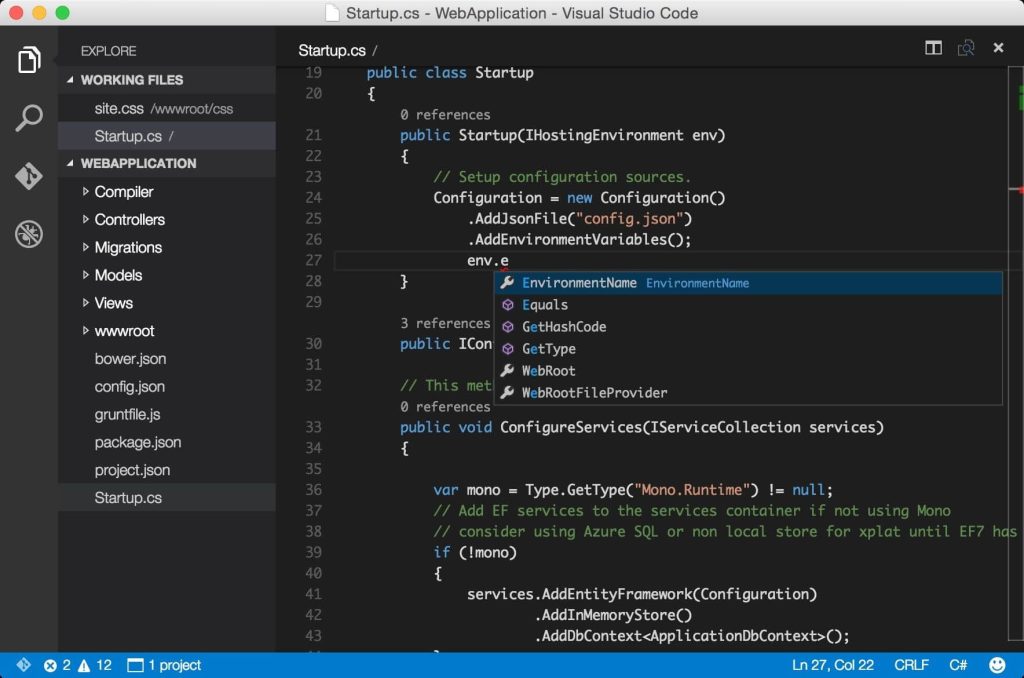
Visual Studio Code is one of the best tools for text editing currently available. The open-source software supports a stable community that provides a host of feature-rich extensions. Users can add them to the file or text code during editing. The available plugin library is simple to access and browse through during the text editing process.
It is relatively new among the available options but includes many modern and intuitive features. For example, it supports blank operations, extra blank removal, EOL editing, and Trim trailing space removal.
Compatibility: Mac, Windows, Linux
Price: Free
Features:
- Smart features like autocomplete, advanced upgrades, and syntax highlighting
- Integrated terminal available
- Add repetitive code patterns in snippets
- Debug the code directly from the editor
Pros:
- Standard editing functions are available like multi-select, find/replace text, auto-save, etc.
- Use the TASK option to integrate external tools
- Refactoring options available like variable extraction method
Cons:
- Debugging can be slow
- The interface for settings is not easily manageable
Conclusion
All these options provide the key functions that are necessary for quick and efficient code writing and formatting. Out of the options available for the best free text editors, ConTEXT is useful for the availability of advanced features like syntax highlighting, and Sublime Text has a high-quality user interface.
Please go through all options carefully before choosing one that best covers all your requirements. Let us know your thoughts.
Author Bio:
Dinesh Lakhwani 

Dinesh Lakhwani, the entrepreneurial brain behind “TechCommuters,” achieved big things in the tech world. He started the company to make smart and user-friendly tech solutions. Thanks to his sharp thinking, focus on quality and the motto of never giving up, TechCommuters became a top player in the industry. His commitment to excellence has propelled the company to a leading position in the industry.
Popular Post
Recent Post

CCleaner Duplicate File Finder: Key Features, Pricing, Step-by-Step Guide and More
Every computer collects junk over time. Right? Well, yes! Photos often get copied twice. Documents get saved in two folders by mistake. Old downloads pile up and never get deleted. This slowly eats up your storage space, and most people do not even notice until their drive is almost full. That is where a duplicate […]

Duplicate File Finder Pro: A Complete Review, Everything You Should Know
Computers collect thousands of files over time. Well, yes! Many of them end up being duplicates created by backups, downloads, or accidental copies. These extra files take up valuable storage space and make it harder to keep everything organized. Finding and removing them manually can take hours. Right? Duplicate File Finder Pro is a tool […]

Monitor Screen Calibration Guide: Everything You Should Know
Your monitor shows colors every single day. But are those colors actually correct? Most people never stop to check this. They just use the screen as it comes out of the box. This habit can lead to wrong colors in photos, videos, and work files. Colors may look too warm or too cold without you […]

How To Check Installed RAM and RAM Slots [Complete Guide]
RAM plays an important role in how smoothly a computer runs. Short for Random Access Memory, it stores the data and instructions that Windows and active applications need at any given moment. From opening multiple browser tabs to running games and productivity software, RAM helps keep everything responsive. A system with limited memory may experience […]

What is Microsoft Autopilot Everything You Need To Know
Technology has changed the way companies manage computers. Well, yes! Employees now work from offices, homes, and remote locations. Setting up devices manually for every worker takes time and effort. It can also create mistakes that slow down productivity. This is where Microsoft Autopilot becomes useful. It helps businesses prepare and deploy Windows devices with […]

Enable Automatic Device Locking Feature Windows: Complete Guide
Introduction: Your computer stores important information such as emails, documents, passwords, and personal photos. Leaving it unlocked can put that data at risk. Thankfully, Windows includes built-in features that can automatically lock your device when you are away. Setting up automatic device locking is quick and does not require any extra software. In this guide, […]
How to Update Wireless Network Driver in Windows 11 and 10
Your Wi-Fi keeps dropping. Pages load slowly. The connection feels unstable? Well, you are not alone. Most of the time, the problem is not with your internet plan. It is with your wireless network driver. A driver is a small piece of software that helps your computer talk to its hardware. When it gets outdated, […]

Common Windows 11 Problems and Solutions (2026 Version)
Windows 11 has become more polished over the years, but it is still not completely free from problems. Even after regular updates from Microsoft, many users continue to face issues like lagging performance, failed updates, audio troubles, random crashes, and network errors. Some problems appear after installing new features, while others develop gradually as the […]

Fortect Driver Updater Review: Features, Steps, Pros, and Cons.
A new PC usually feels quick and responsive. Applications open instantly, games run smoothly, and everything works as expected. As time passes, however, you may notice slower performance, system crashes, hardware glitches, or devices that stop working properly. While many people assume malware or low storage space is to blame, outdated drivers are often the […]

