











Imagine this. You spend hours perfecting a video project. You hit save. Then your laptop freezes, reboots, and when the screen comes back. The file is gone. Your stomach sinks. It’s not just you. Lost files happen all the time. A dropped hard drive, a bad update, an accidental delete, or a corrupted partition can […]
Top 10 Best Evernote Alternatives: Comparison Table
Are you tired of Evernote’s clutter, lag, and rising costs? You’re not alone. More users than ever are ditching bulky apps for cleaner, faster note-taking tools.
This year’s lineup of alternatives is impressive. Some apps offer sleek design and lightning-fast sync. Others focus on privacy, giving you full control over your data. Collaboration is smoother, and organization feels effortless.
Whether you’re a student juggling assignments, a professional managing projects, or a creative capturing ideas, there’s a tool built just for you.
Comparison Table: Top 5 Evernote Alternatives
Here’s a quick look at five strong Evernote alternatives. Each tool has its own strengths. Some are great for teams. Others focus on privacy or speed.
| Tool | Key Features | Collaboration | Platform Support | Privacy Focus |
| Notejoy | Rich text, fast search, team sharing | Yes | Web, iOS, Android, Mac | Moderate |
| SimpleNote | Markdown, sync, clean interface | Limited | Web, iOS, Android | Low |
| OneNote | Deep Microsoft integration, flexible layout | Yes | Windows, Mac, Mobile | Moderate |
| Notesnook | Encrypted notes, open-source, secure sync | No | Web, Windows, Mobile | High |
| CintaNotes | Tagging, fast search, and offline access | No | Windows only | Moderate |
Top Evernote Alternatives
Many high-quality modern, and reliable note-making apps are available with various uses and good storage. After careful research and deliberation, we have compiled a list of the top 10 options in this post. Read ahead to know what they are.
1. Notejoy
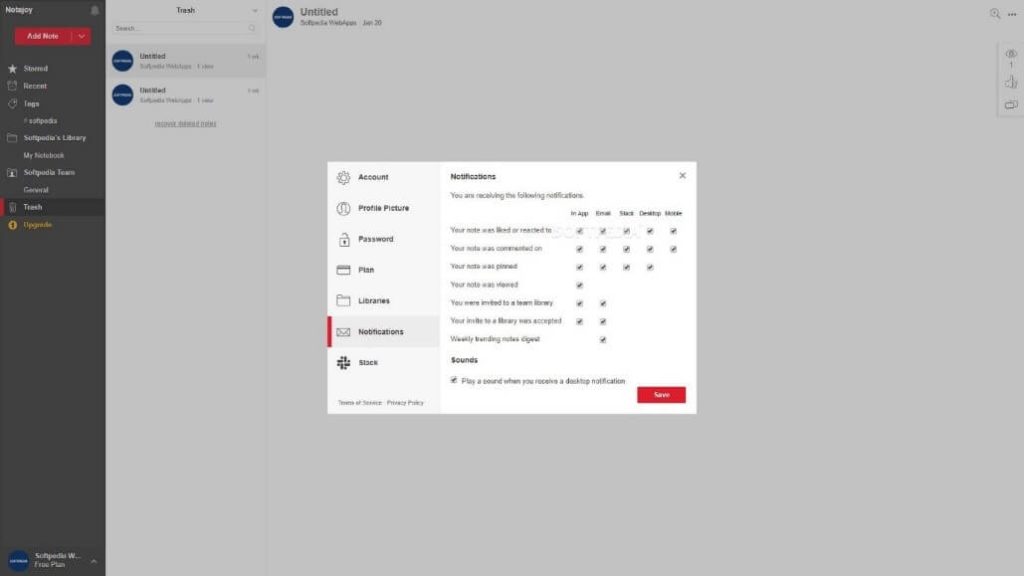
Users can easily create different notes on Notejoy. They can add task checklists and use the drag-and-drop editor to capture, copy, and paste images. The app supports various docs well, like PDFs, audio, videos, Microsoft Office docs, and Google docs.
Plus, you can use keyboard shortcuts and markdown syntax for quicker note composition. The app works offline and is compatible with different OS, browsers, and device types.
Compatibility: Web, Android, Mac, Windows, iOS
Price: Free; Solo- $4 per month; Plus- $8 per month; Premium- $12 per month
Features:
- Bi-directional linking feature available for easy backlinking
- Integrates with platforms like Google Drive and Trello smoothly
- Markdown editor available
- Focus mode is easy to use
Pros:
- Supports around 5 uses for each library under the free plan
- Clean and smooth UI
- Fast and efficient Web Clippers
Cons:
- Limited storage of 100 MB and 5 notebooks supported under the free version
- Advanced features are for Pro users, mainly
2. SimpleNote
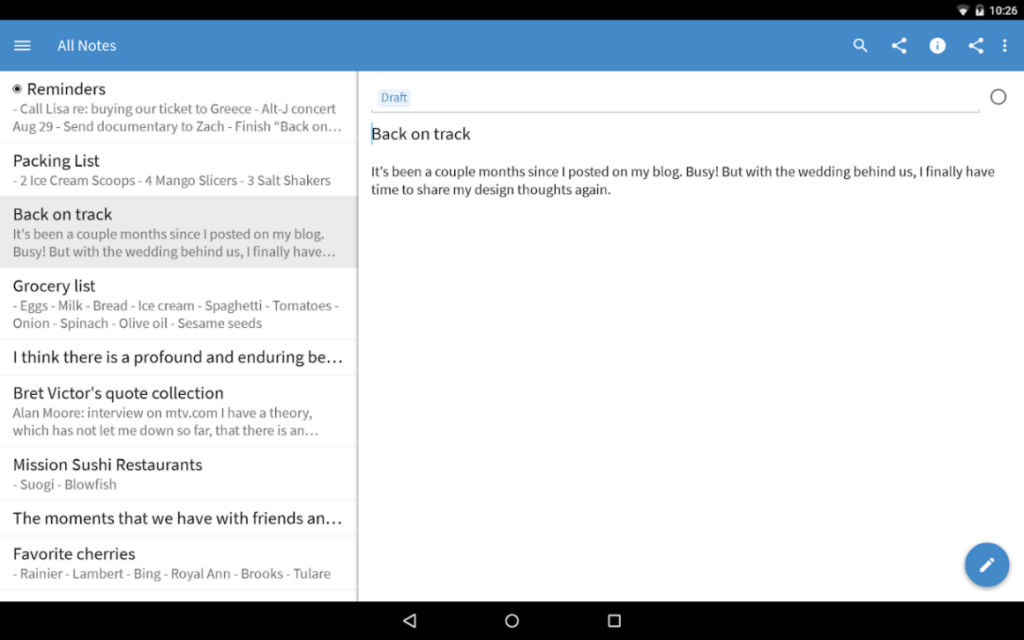
SimpleNote is one of the best Evernote alternatives available currently. It is easy to access the app from any device or network connection. In addition, the notes get updated in real-time, so users do not have to sync the information at each time of entry manually.
Users can share instructions and to-do lists or public notes through this app directly online. The notes are backed up correctly; you can find older notes easily.
Compatibility: Browsers, iOS, Mac, Linux, iOS, Android
Price: Free
Features:
- Easy to sync across many devices easily
- Simple to navigate UI
- Free functions like backups, sharing, and syncing files
- Quickly write and publish Markdown-based notes with no tables
Pros:
- Free to use
- Markdown editor is feature-rich and easy to use
- Secure note saving guarantee
Cons:
- Not possible to backlink or bi-directional linking
- Cannot import any notes from the alternative note-making apps
3. Microsoft OneNote
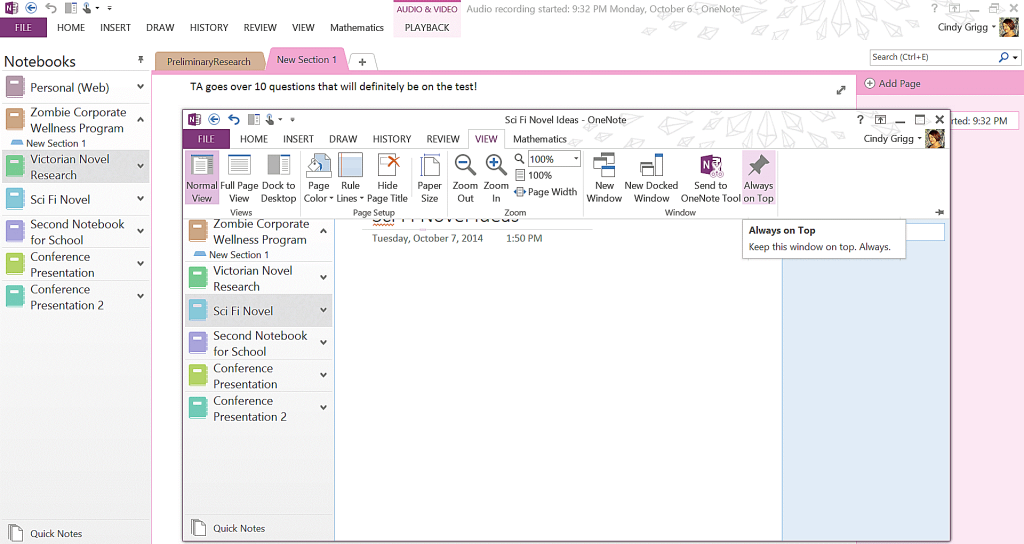
Microsoft OneNote is one of the most valuable note-taking and file management services. This offering from Microsoft is easy to access with a Microsoft account. You can sort all content into pages, sections, and notebooks. Plus, it is possible to add tags to the content pieces to highlight the priority notes.
Another notable benefit here is linking online videos and recording audio directly through the app. Then, save and share the notes afterward.
Compatibility: Web, Windows, Mac, Android, iOS
Price: Available with Microsoft 365 plan
Features:
- Use the integrated web clipper for single-click content saving
- Mobile-intuitive interface
- Add different types of media files, videos, audio
- Drawing feature available
Pros:
- Cross-functional notebook for different note-making functionals
- Multi-OS support
- Suitable for education organizations for lesson planning and organizing
Cons:
- Need to buy the Microsoft 365 pack to avail this service for web usage
- Costly for many users
4. Notesnook
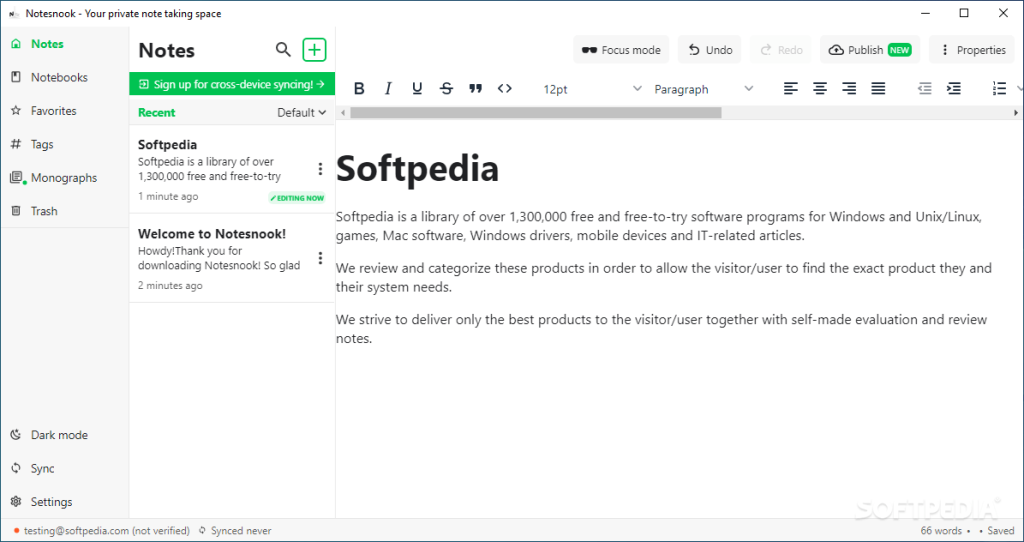
Notesnook is a suitable app for writing and saving offline notes and easy sharing in a team setting. Users can create unlimited notes while using this application. The interface is easy to understand for beginners and professional-level users easily.
The app assures top-security with end-to-end encryption protection during sharing. In addition, the text editor comes with various features and is easy to use.
Compatibility: Web, Windows, Mac, iOS, Android
Price: $4.49 per month
Features:
- The app is entirely end-to-end encrypted
- No tracking or data mining issues
- Private vault for notes
- End-to-end encrypted syncing and password protection for notes is free
Pros:
- Offline working is possible
- Import notes from other note-taking apps
- Easy to sync with different devices
Cons:
- Limited storage and attachments allowed under the free plan
- Full markdown and text editor support in Pro version only
5. CintaNotes
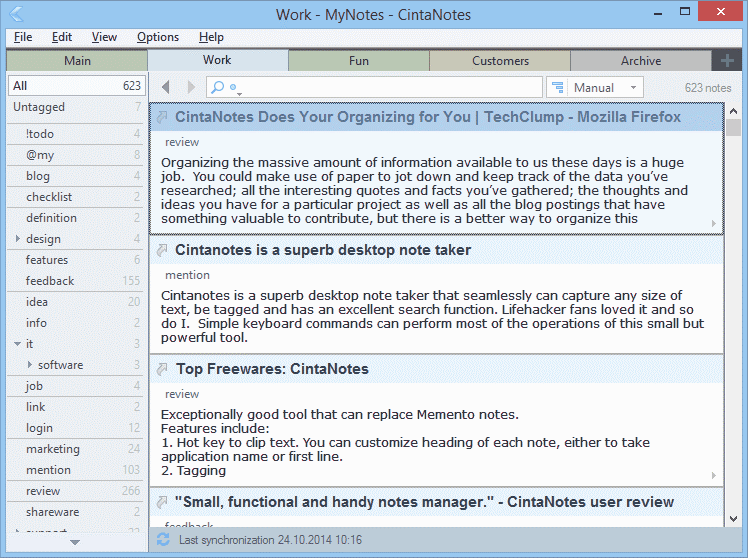
CintaNotes is one of the most suitable Evernote alternatives for easy note creation, organization, and sharing. You can create text-based content and pull such text from other applications to ClintaNotes. In addition, it is easy to sync notes from different notes using one ClintaNotes account from one place.
Also, add images and files to notes for content optimizable. You can organize the notes in sections and notebooks. Search notes with full text.
Compatibility: Windows
Price: $39 per year
Features:
- Offline notes writing and storage
- Password encryption protection
- Automated backups for notebooks
- Tag different notes using hierarchic tags
Pros:
- One-time payment only for premium plans
- Free to use
- Simple UI
Cons:
- High cost for some
- Not supported on many OS types
6. ProofHub
With this alternative to Evernote, users can manage their tasks and assign activities to team members from this cohesive platform. All users of ProofHub can easily open the app and see the organized task list. Also, one can prepare and manage scheduled meetings, events, milestones, project deadlines, and appointments here.
Users can create and communicate through conversation threads and easily share documents and files with clients/remote teams. You can create private sections as well.

Compatibility: Web, iOS, Android
Price: $45 per month billed annually for 5 users
Features:
- Quick proof-read the documents/fast file approval
- Track task timing
- A timeline view of charts and tasks
- Easily share feedback, data, and ideas in threads
Pros:
- Manage/assign tasks from one location
- Directly get support queries, tickets, and request forms
- Multiple-language support
Cons:
- High cost
- Not the best proofing ability
7. Nimbus Note
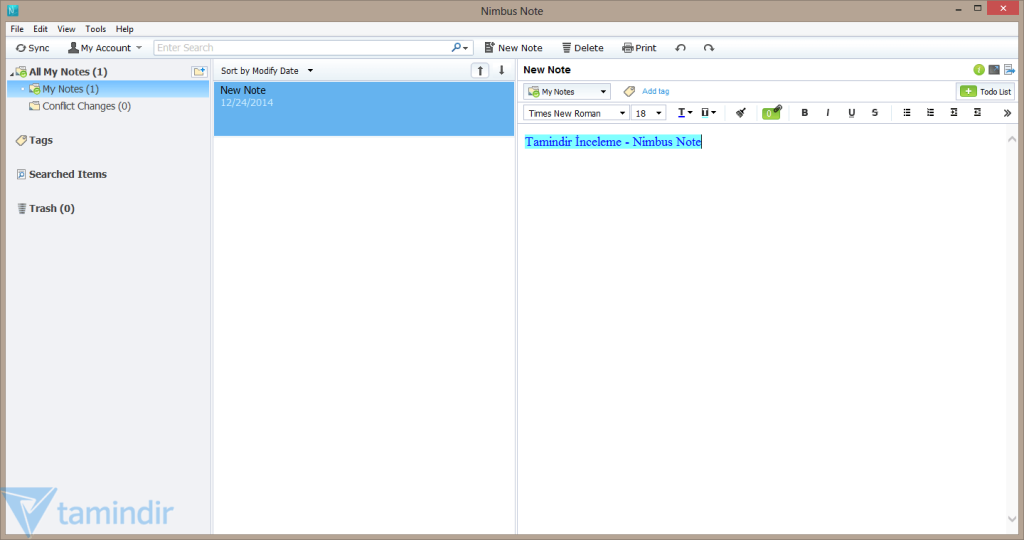
Nimbus Note is one of the best Evernote alternatives due to its high-quality features and simple-to-use structure. Users can create docs, notes, and wikis online and manage different lists and tasks. In addition, it is easy to prepare spreadsheets, tablets, and databases through this application.
Users can handle professional data organization while using the Pro and Business account. In addition, there is the possibility to manage a client portal for guest users and manage custom branding/domain.
Compatibility: Windows, Web, Mac, Android, iOS
Price: $4 per month
Features:
- Focus mode available
- The app holds strong OCR capability
- Export files easily in HTML or PDF format
- Access the app online and attach varying file types (text, image, etc.)
Pros:
- Suitable for multiple platforms and OS
- Includes a high-quality web clipper feature
- Block note-taking functionality
Cons:
- The features under the free version are limited
- No ability to bi-directional linking
8. Notion
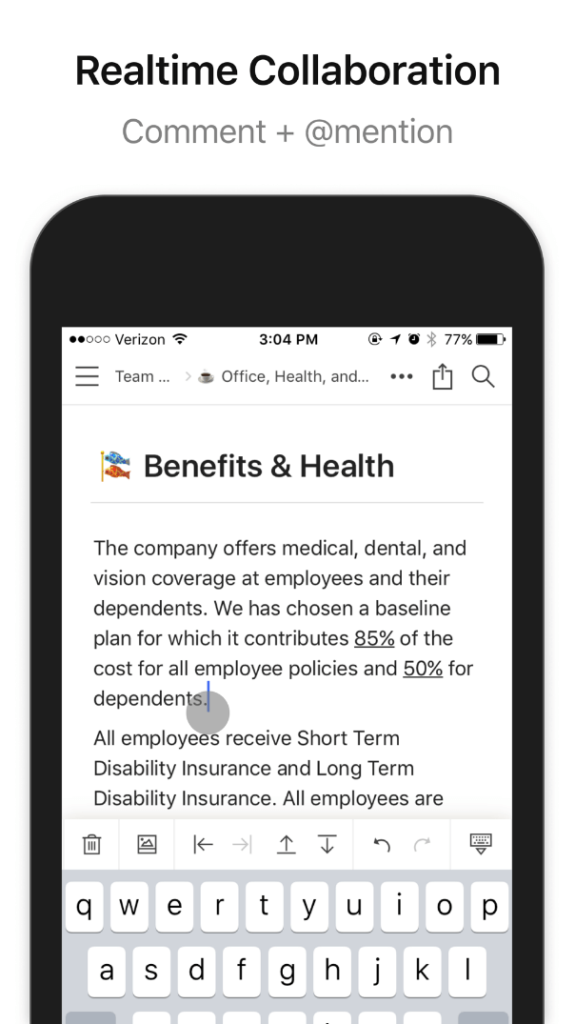
The notion is a suitable application for professional note-making and management usage. Users can utilize Notion is the primary platform for managing different wikis, docs, and projects from one platform. For companies, it is simple to access a Notion account and share/work on all documents collectively.
Users can custom-create their personalized dashboard using simple drag-and-drop abilities. In addition, all docs and wikis saved here are easy to find and well-organized on the simple interface.
Compatibility: Mac, Windows, Web, Android, iOS
Price: $4 per month
Features:
- A diverse list of free features for teams of 4 and more
- Works well as a case management system
- Easy to create and store notes
- Simplified file management
Pros:
- Easily export files HTML, PDF, and CSV Markdown
- Works as an alternative for accounting functions
- Personalized and well-managed knowledge base
Cons:
- Lacks OCR functions for images
- Not available for offline use
9. Obsidian
Obsidian is one of the best Evernote alternatives available online for quick and high-quality note-taking and management. In addition, users can manage different types of documents and files through this platform and add additional media-type content.
The search feature on Obsidian is straightforward to use and intuitive. So, it is not challenging to find files and notes quickly. In addition, the app has a local storage ability for files and a strong security structure.
Compatibility: Windows, Mac, Linux, iOS, Android
Price: $25+ onetime payment
Features:
- Easy to use and a functional text editor (full markdown)
- Add voice-based notes and other media types
- Huge core with third-party CSS Themes and Plugins
- Easy to organize dashboard
Pros:
- Works as a valuable alternative to LibreOffice, MS Word, etc.
- Blocks out Bi-Directional linking
- Secure usability
Cons:
- Lack of WYSIWYG features
- A lot of features are missing
10. Dropbox Paper
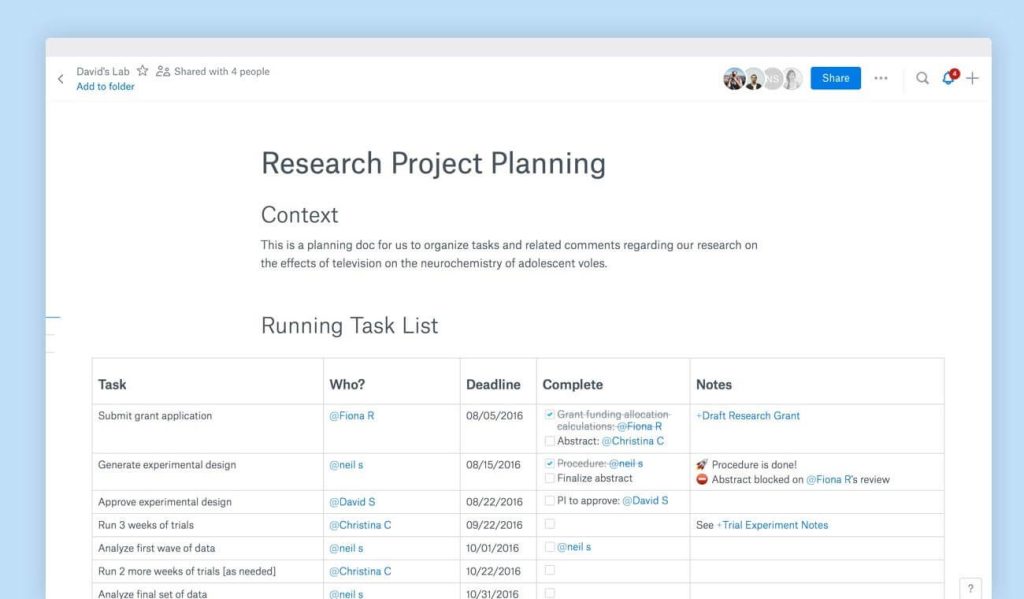
Dropbox Paper works as a suitable alternative to Evernote due to its diversified note-taking benefits. In addition, teams can do collaborative editing work in real-time using this app. So, in terms of usability, the app is more of a comprehensive co-editing tool.
The app is suitable for managing different meetings, agendas, lists, and notes in one place. It is easy to access the app with a Google account or Dropbox account.
Compatibility: Web, Android, iOS, Windows, Linux, Mac
Price: $9.99 per month
Features:
- Easy management system for notes
- Co-editing tool for team-wise editing
- Comprehensive dashboard
- Suitable for multiple teams
Pros:
- More features than just note-making, like meeting planning with calendars
- Easy-to-use templates
- Add multiple elements like emojis and images
Cons:
- Not available for free
- No offline capability
Conclusion
The best note-taking app depends on your style. Some users want clean design. Others need strong security or team features.
Evernote was once the leader. But now, better tools are here. Try a few and see what works. Your notes deserve a smarter home.
FAQs
1. Why should I switch from Evernote in 2026?
Evernote has lost its edge. It’s slower, more expensive, and packed with features many users don’t need. Sync issues and cluttered design frustrate people. New apps offer smoother performance, better privacy, and simpler interfaces. If you want a fresh experience, it’s time to explore alternatives.
2. Which Evernote alternative is best for privacy?
Notesnook stands out for privacy. It uses end-to-end encryption, so only you can read your notes. It’s open-source, meaning anyone can inspect its code. It doesn’t collect personal data or track your activity. If privacy is your top concern, Notesnook is a strong choice.
3. Can I import my notes from Evernote to these apps? Yes, most top alternatives support imports. Notejoy and OneNote offer built-in tools to transfer notes easily. Notesnook also provides guides for safe migration. You can keep your old notes and enjoy new features. Just check each app’s help section for step-by-step instructions.
Author Bio:
Dinesh Lakhwani 

Dinesh Lakhwani, the entrepreneurial brain behind “TechCommuters,” achieved big things in the tech world. He started the company to make smart and user-friendly tech solutions. Thanks to his sharp thinking, focus on quality and the motto of never giving up, TechCommuters became a top player in the industry. His commitment to excellence has propelled the company to a leading position in the industry.
Popular Post
Recent Post

5 Best Data Recovery Software For Windows 11 and Windows 10
A crashed drive can ruin a whole day. One minute your photos, work files, and tax records sit safe on your PC. The next minute they are gone. A power cut, a bad update, or one wrong click can wipe out years of memories and months of work in seconds. That sinking feeling is why […]

How To Update NVIDIA Drivers On Windows 11/10 PC
Learn how to update NVIDIA drivers on Windows 11/10 with simple methods, safety tips, and easy steps for smoother gaming and better PC performance.

Top AI Features Hidden Inside Windows 11
Explore the top AI features in Windows 11, from Copilot to Recall, plus safety tips and simple steps to use each tool the right way.

Customize Your Screen Saver Settings in Windows [Easy Steps]
Learn how to customize screen saver settings in Windows 11 with easy steps, safety tips, and simple tricks to personalize your PC screen.

Driver Easy Windows Driver Updater Tool Review: Tried & Tested
In-depth information about Driver Easy’s functions and features can be found in our review. Learn how to update drivers more easily with this tool for a more seamless computer experience.

Is Avast Driver Updater Worth It? A Hands-On Analysis
A full review of Avast Driver Updater covering features, setup steps, pricing, pros and cons, and real PC results, to help you decide if it is worth buying.

IObit Driver Booster 13 (PRO) Review: [Tried & Tested]
IObit Driver Booster 13 is built for one purpose: keeping your PC drivers up to date. Well, yes! Outdated drivers can cause crashes, slowdowns, and hardware issues. This tool scans fast and updates with one click. The interface is simple. Even beginners can use it without confusion. Updates are pulled from a huge database, covering […]

Auslogics Driver Updater: A Detailed Walkthrough [2026]
This comprehensive review covers the key features, pros, and cons, pricing, and a final verdict on Auslogics’ driver update utility. Learn how it stacks up against manual driver maintenance.

5 Best Driver Updater Tools for Windows to Use (Free and Paid)
Introduction: Most people blame their PC for problems that a driver caused. A driver works like a bridge between your hardware and your operating system. When this bridge cracks, strange things start to happen. Screens flicker without reason. Printers go silent mid-task. Games freeze or crash out of nowhere. Manually finding the right driver is […]

