











Imagine this. You spend hours perfecting a video project. You hit save. Then your laptop freezes, reboots, and when the screen comes back. The file is gone. Your stomach sinks. It’s not just you. Lost files happen all the time. A dropped hard drive, a bad update, an accidental delete, or a corrupted partition can […]
Top 10 Video Editing Apps for iPhone: Complete Guide
Currently, people use videos in shorter sizes for different platforms, be it for professional reasons or social media. Some apps are capable of providing high-quality videos and editing features.
Many of iPhone’s available video editing apps provide great benefits like advanced editors and 4K support. We looked through different options in the market to compile a list of the best ten alternatives. Read ahead to learn more about these apps.
Best Video Editors for iPhone
Many video editing apps for iPhone come with additional features like picture-in-picture videos, audio integration, video segmentation, video cropping, etc. We tried out different options available and narrowed it down to the ten best options for video editing for iPhone devices. Here, we checked the app features, compatibility, cost, and pros to decide.
1. iMovie
iMovie is a premier-level iPhone video editor available online that allows users to edit videos in a movie-like style. The software has an intuitive gesture feature with Multi-Touch technology for an easy editing experience.
Professionals and new users utilize this app to create trailers, movie-style videos, and short videos online. You can choose from 14 templates of trailers with audio and graphics and add out of 8 pre-built themes. Editors like to customize elements like credits, studio logs, and cast names for each video type.
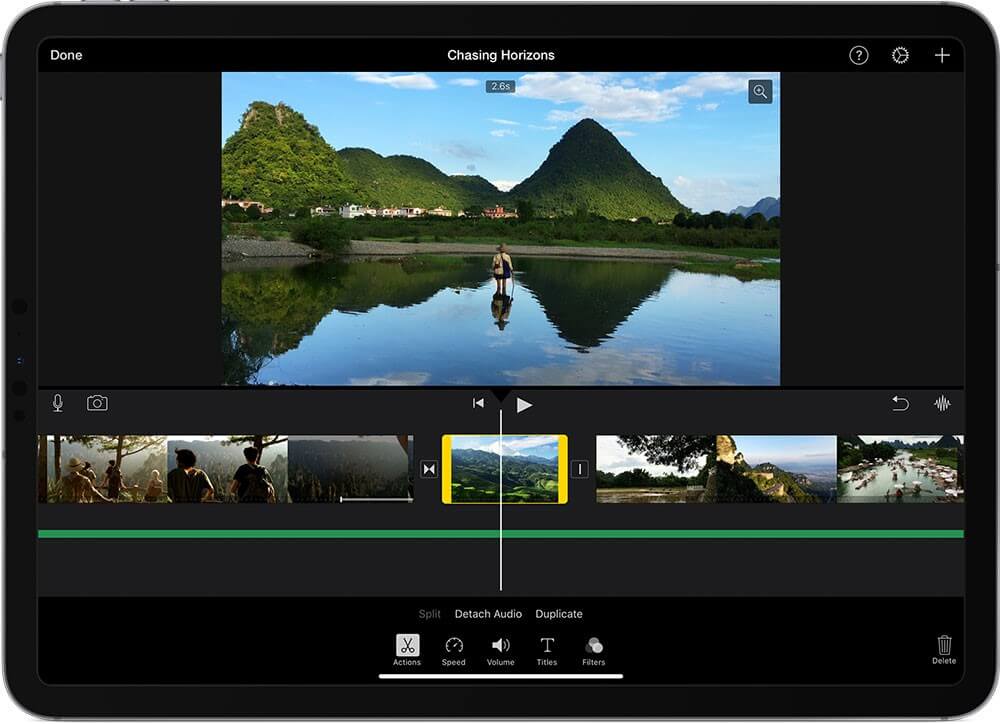
Price: $39.95
Features:
- iCloud support for file storage
- Add narration or songs from the music library
- connection possible to trackpads/mouse/keyboard for fast editing control
- Adjust, add, and delete your video focus points during editing
Pros:
- 4K video quality supported on some iOS devices
- Easy sharing with AirDrop, messages, and mail
- Export social media platform-optimized videos
Cons:
- You would need 2nd Generation Apple TV connection to use AirPlay
- Suitable with more advanced versions only
2. InShot
One of the most useful video editing apps for iPhone is InShot. With this software, users can trim longer videos and remove any unnecessary middle parts. In addition, there is a fully functional timeline available for adding texts or stickers to videos from a range of options available. You can sync these elements with the video easily.
Besides that, adding audio to the video you edit is simple using InShot. Users get access to free music for vlogs and integrate them into the video. Also, you can add your voiceover.
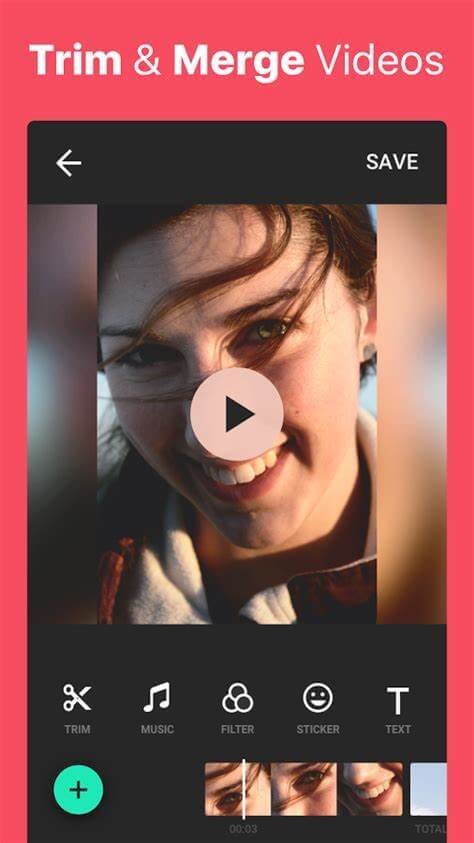
Price: Free
Features:
- Trim and merge video clips
- Remove the unnecessary parts
- Video splitting
- Library of free music to add
Pros:
- Easy to use
- Add texts and stickers
- Include music in the video
Cons:
- Not available for all OS types
- Best for simple editing only
3. KineMaster
Users can work with the simplistic Splice app to create personalized and professional-quality videos, right on the iPad or iPhone. The editing features are easy to use and mobile-intuitive. Users can utilize this app for trimming video clips easily and adding effects like slow motion. Moreover, you can overlay different clips for a unified video that runs seamlessly.
You can make edits to photos using this app as well and apply different pre-set masks in the software. Users can easily make adjustments like saturation, exposure, and contrast on the video for better video quality.
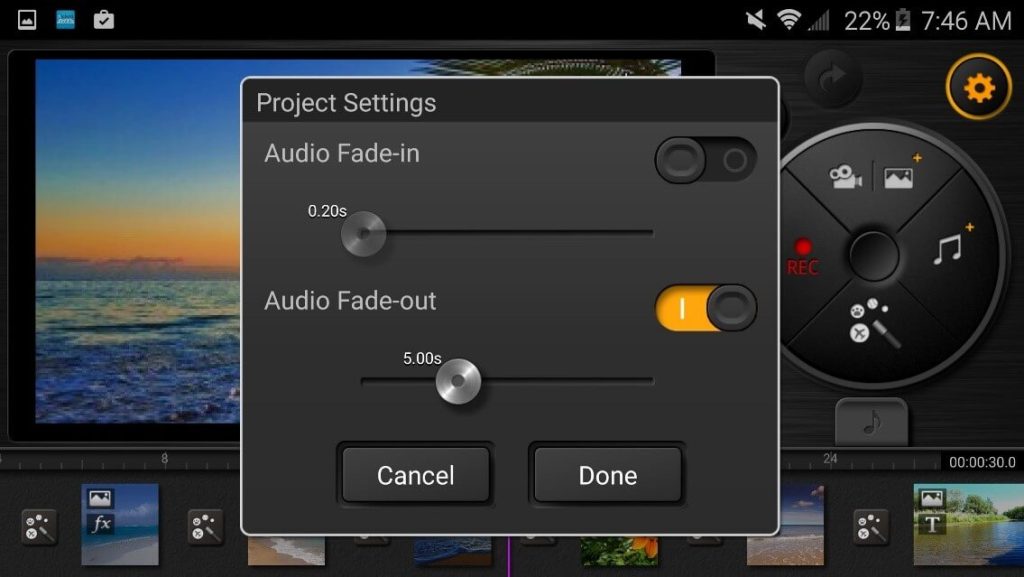
Price: Free with in-app purchases
Features:
- Social media sync for easy sharing
- Mix and trim audio tracks into the videos with precise cuts
- Select out of 6000+ royalty-free audio tracks from Shutterstock and Artlist libraries
- Use the integrated voice recorder to add personalized sound effects and narration
Pros:
- Offline saving of videos
- The small size of the application
- Easy to use for beginners
Cons:
- The annual subscription version costs high at USD 22.99 for some users
- Does not support devices under iOS 13.2
4. VideoShop
A very useful iPhone video editor that you can use is VideoShop. It is a free video editing tool that comes with many features and tools for easy edit work. For example, you can add effects and stickers to personalize the video content after cutting unwanted parts.
Plus, you can add audio recordings and background music from the Videomall or your iPod library. You can also add various sound effects and easily adjust the audio and video’s motion.
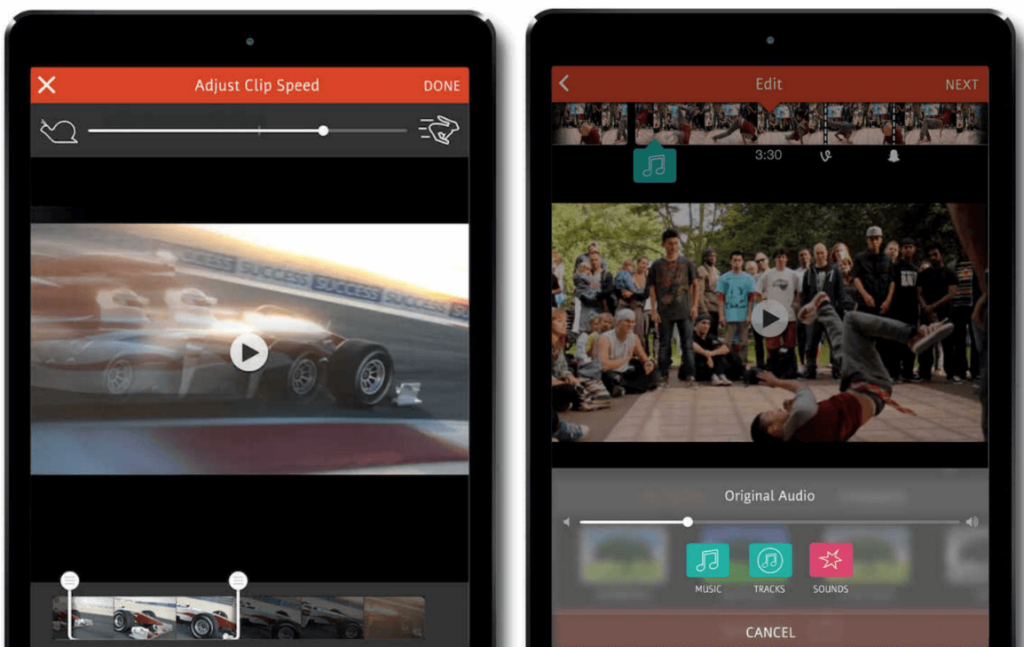
Price: Free with in-app costs
Features:
- Layered video effect
- Rotate and flip video clips
- Undo/reset any editing errors
- Add lip-synced audio
Pros:
- Easy to use
- Simple social media sharing
- Create bite-sized snippets
Cons:
- In-app purchases are high
- Power issues if you edit huge files
5. Filmmaker Pro
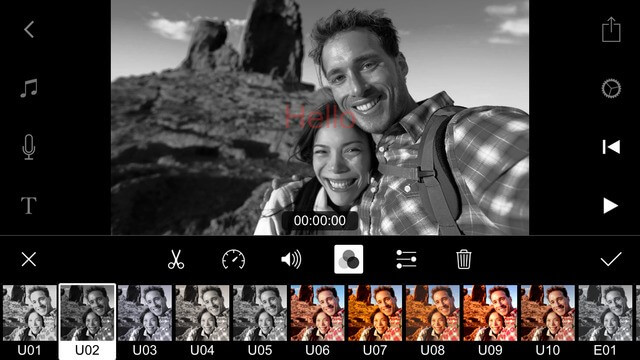
Users who choose this iPhone video editor can easily prepare and modify multiple types of projects from one platform. The app support 4K video quality. You can use the long-press type gesture to reposition assets. Also, you can easily adjust elements of the video like the frame rate while exporting, background colour, and aspect ratio.
While editing video projects, users can add diverse voiceover audios, music tracks, text overlays, and video clips through these premier-level video editors. Also, you can duplicate, split, and trim different types of video clips easily.
Price: $7.99 per month
Features:
- 96 custom-made audio tracks (theme-based)
- Pre-made labels and illustrations; 220 options available
- Adjustable duration
- Around 79 font collection types present
Pros:
- You can adjust the colours in the background/foreground
- Compatible with iPad’s Apple Pencil device component
- Use pinch, rotate, or pan gestures to adjust video elements while editing
Cons:
- Comparative bigger app size
- In-app purchases are very high
6. LumaFusion
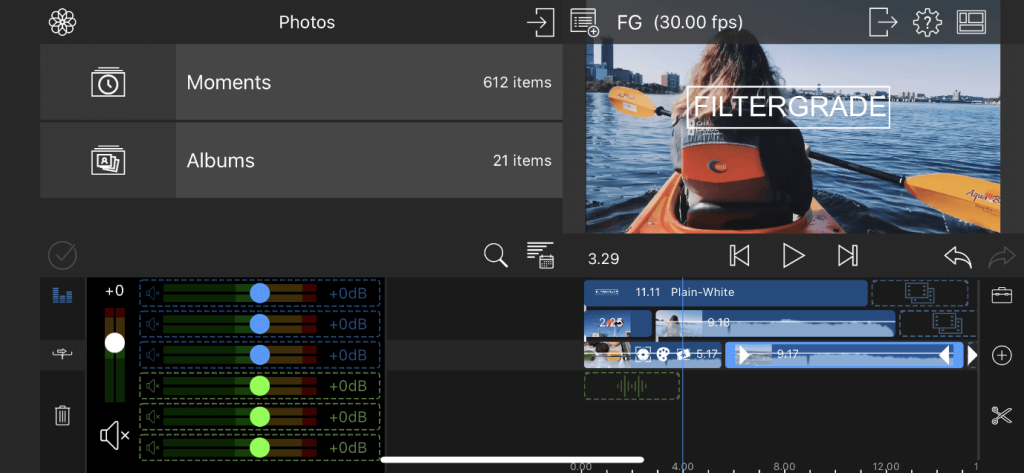
One of the best video editing apps for iPhone people in the film or journalism industry can utilize is LumaFusion. It is suitable for iPhone and iPad users and includes various features.
Users can access a collaborative community of creators, get free customer support, and take help from detailed video tutorials.
You can edit your videos with six audio/video tracks and an extra six audio track options. Additionally, you can link or unlink your video clips or overwrite on top of the videos with some steps through LumaFusion.
Price: $19.99
Features:
- Prepare projects with different aspect ratio modifications like portrait, square, landscape, and widescreen film
- Add multi-layered titles with images and shapes
- Include royalty-free audio available for free
- Edit directly on devices like USB-C Drives
Pros:
- You can take snapshots of different frames
- Share videos easily
- Export files at different frame rates
Cons:
- Advanced features like motion tracking are not usable here
- Multi-tasking is not easy to handle on this app
7. Splice
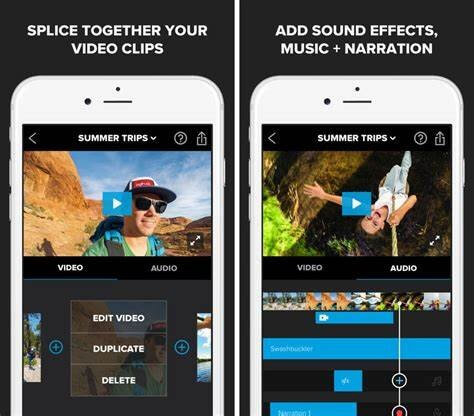
One powerful iPhone video editor you should try out is Splice. It has a very simple UI, and the features are easy to use as well.
You can easily operate the app to create professional-quality personalized video clips directly through your iPhone.
The best features you can use here are clip trimming, video overlaying, and speed adjustments like speed ramping, fast motion, and slow motion.
With the integrated Chroma Key, users can simple delete the background in the video while editing. Plus, make adjustments like video contrast, exposure, and video saturation.
Price: Free with in-App costs
Features:
- Use Ken Burns effect for clip animation
- Adjust the orientation, background colours, etc.
- Ad effects like vintage or glitch and use filters
- Add text overlays, titles slide, and customized outro
Pros:
- Suitable for younger users
- Supports different languages
- Share videos across different social media platforms
Cons:
- Requires permission for data access
- Only iOS 11.2 or later models can work with it
8. VideoProc Vlogger
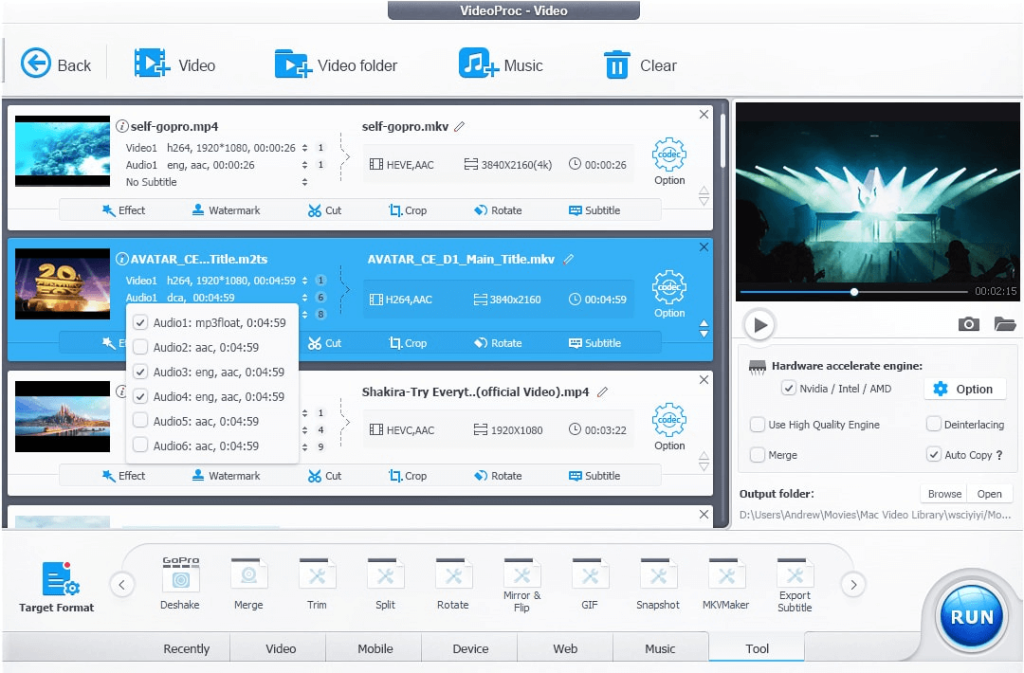
VideoProc Vlogger is another usable software for different video and vlog editing needs. Casual users and professional videographers can equally utilize this software to create a high-quality video with HDR and 4K-level quality. In addition, you can adjust different settings to optimize videos, like adding the soundtrack, filters, texts, and transitions.
Also, users can easily make edits with steps like video merging, rotating, cropping, and splitting. Afterwards, adjust the video speed ramp and motion as per your requirement.
Price: Free
Features:
- Highly functional render engine
- Control speed of the video platform
- Precise and mobile-intuitive timeline-based editing
- More than 999 tracks are available
Pros:
- Autosaves videos during edits
- Easy to review edits in real-time
- Use shortcuts to edit
Cons:
- Mainly usable for Windows; the iOS version is less efficient
- Limited features
9. Quik
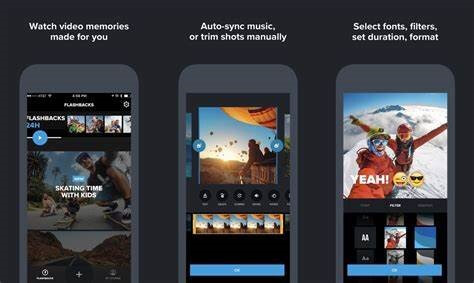
Quik is another notable iPhone video editor that is useful for editing different types of video editing work. Users can get all of their shots together and adjust the video playback. The internal Mural feature is useful for storing all important shots in one place for future visibility and usage.
It is very easy to share the shots through Quik, and edit photos and videos with advanced editing tools. Premium filters and themes are available for an easy editing experience. You can automatically make videos as well, with synced-in beats from GoPro original songs library or your device-centric audio files.
Price: $1.99 per month
Features:
- Capture frame while playing the video
- Build-in levelling function for video horizon adjustment
- Latest firmware updates
- Live streaming support
Pros:
- Easily stream videos on social media apps with RTMP URL
- Unlimited access to iCloud storage
- Simplified UI
Cons:
- Not supported on devices below iOS 14
- 1-year subscription costs are high for some users, i.e., USD 49.99
10. VideoLeap
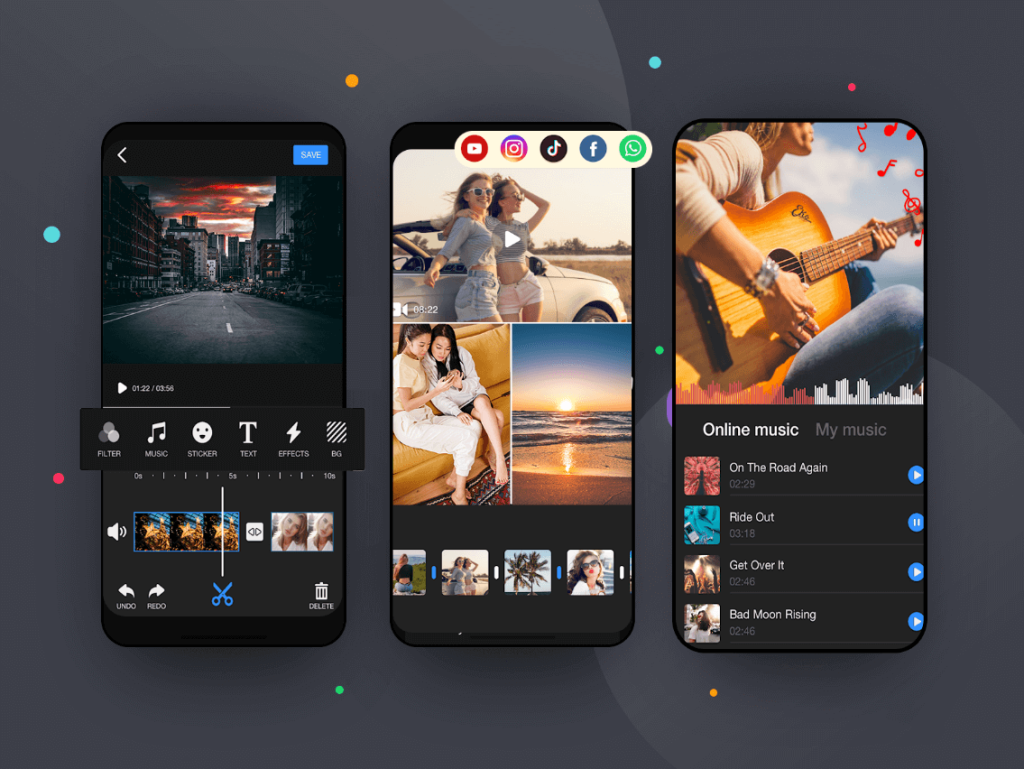
VideoLeap is another useful iPhone video editor that comes with extensive features for easily mobile-based video editing benefits. Afterwards, you can expect high-quality, professional-looking videos with overlaying clips, artistic effects, and filters.
Beginner-level users and professional editors can use this app to add different video effects, filters, sound effects, and animates to enhance video quality. You can format different video clips into a coloured or blank canvas or against a green screen background. If there are issues, you can easily redo parts of the editing.
Price: Free with in-app purchases
Features:
- Add voiceovers and dub audio in videos
- Control video speed and audio volume easily
- Customize background-colour
- Customize the video layers with masking, transformation, and blending modes
Pros:
- Mini-tutorials are available for easily using different feature
- Full-screen preview
- Stock images and videos, like overlays and green videos
Cons:
- Does not work well on iPhones under iOS 13
- Not very useful for children
Conclusion
However, options like Filmmaker Pro and iMovie are suitable for editing videos. So make your choice for the right iPhone video editor to use based on your requirements of the video quality, size, and additional elements.
Dinesh Lakhwani
Author Bio:
Dinesh Lakhwani 

Dinesh Lakhwani, the entrepreneurial brain behind “TechCommuters,” achieved big things in the tech world. He started the company to make smart and user-friendly tech solutions. Thanks to his sharp thinking, focus on quality and the motto of never giving up, TechCommuters became a top player in the industry. His commitment to excellence has propelled the company to a leading position in the industry.
Popular Post
Recent Post

5 Best Data Recovery Software For Windows 11 and Windows 10
A crashed drive can ruin a whole day. One minute your photos, work files, and tax records sit safe on your PC. The next minute they are gone. A power cut, a bad update, or one wrong click can wipe out years of memories and months of work in seconds. That sinking feeling is why […]

How To Update NVIDIA Drivers On Windows 11/10 PC
Learn how to update NVIDIA drivers on Windows 11/10 with simple methods, safety tips, and easy steps for smoother gaming and better PC performance.

Top AI Features Hidden Inside Windows 11
Explore the top AI features in Windows 11, from Copilot to Recall, plus safety tips and simple steps to use each tool the right way.

Customize Your Screen Saver Settings in Windows [Easy Steps]
Learn how to customize screen saver settings in Windows 11 with easy steps, safety tips, and simple tricks to personalize your PC screen.

Driver Easy Windows Driver Updater Tool Review: Tried & Tested
In-depth information about Driver Easy’s functions and features can be found in our review. Learn how to update drivers more easily with this tool for a more seamless computer experience.

Is Avast Driver Updater Worth It? A Hands-On Analysis
A full review of Avast Driver Updater covering features, setup steps, pricing, pros and cons, and real PC results, to help you decide if it is worth buying.

IObit Driver Booster 13 (PRO) Review: [Tried & Tested]
IObit Driver Booster 13 is built for one purpose: keeping your PC drivers up to date. Well, yes! Outdated drivers can cause crashes, slowdowns, and hardware issues. This tool scans fast and updates with one click. The interface is simple. Even beginners can use it without confusion. Updates are pulled from a huge database, covering […]

Auslogics Driver Updater: A Detailed Walkthrough [2026]
This comprehensive review covers the key features, pros, and cons, pricing, and a final verdict on Auslogics’ driver update utility. Learn how it stacks up against manual driver maintenance.

5 Best Driver Updater Tools for Windows to Use (Free and Paid)
Introduction: Most people blame their PC for problems that a driver caused. A driver works like a bridge between your hardware and your operating system. When this bridge cracks, strange things start to happen. Screens flicker without reason. Printers go silent mid-task. Games freeze or crash out of nowhere. Manually finding the right driver is […]

