












Read my honest Wise Duplicate Finder review. See features, pricing, pros and cons, and real PC test results. Find out if this free duplicate cleaner can free up your Windows storage.
TOp 10 Best Photo Resizer Apps: Complete Guide
With today’s advanced technology, people can easily take high-quality images with their mobile devices. However, many platforms like social media apps do not accept pictures with bigger sizes that have resolutions upto 2,000 pixels of width. So, users have to resize the photo, but that can compromise the photo quality.
Here, using top-quality photo resizer apps to adjust the size is the best option available instead of deleting bigger-sized options. If you have deleted them, install and use photo recovery software to recover your deleted/damaged photos and resize them before posting.
You will learn about the best photo resizer applications available now through this post. So, read ahead.
Top Photo Resizer Apps
Multiple apps claim to edit photo size without affecting the quality at all. We went through many of these apps to compile a comprehensive list of the top 10 best options available. Choose as per your needs.
1. Adobe Photoshop Express
Adobe Photoshop Express is one of the best photo resizer apps available that allows for simple online image editing/cropping instantaneously. Later, you can download the file into your device for offline use. In addition, you can optimize the total page content and get quicker loading during the resizing process.
Tools are available to edit the image further and change the overall look completely.
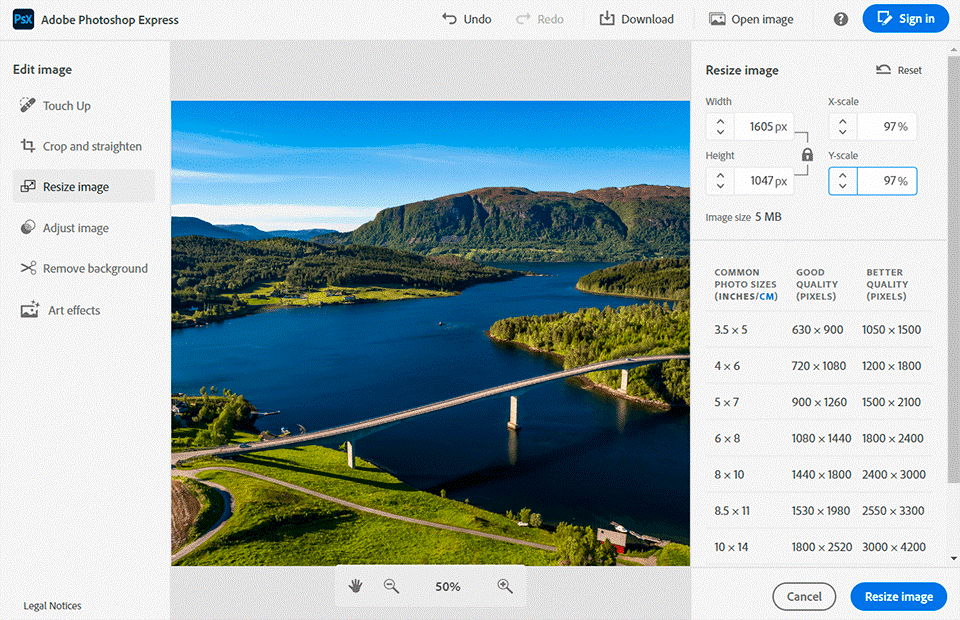
Compatibility: All OS types
Price: Free
Features:
· Choose template types like portrait, square, landscape, and vertical
· Multiple pre-configured sizes are available
· Add effects like GIFs
· Highlight subject or remove the image backdrop
Pros:
· More than 100,000 assets and templates are available
· Easy to use
· Free
Cons:
· Advanced features available under the premium plan
· Some users may have trouble adjusting the sizing
2. Promo Free Image Resizer
This is one of the easiest to use photo resizer apps available online, with a simple interface that is easy to use daily. You can easily upload an image of your choice or drag a picture to the area for resizing by pasting the URL link.
The image conversion process occurs quickly and efficiently in the chosen format. You can even decide between resizing a section of the image or the whole picture.
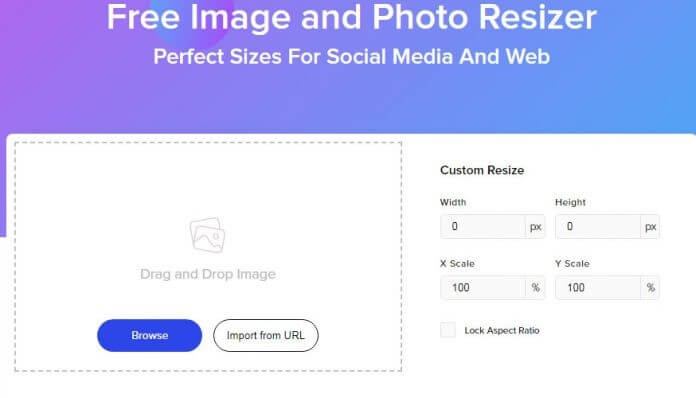
Compatibility: All OS types
Price: Free
Features:
Pre-built templates and image styles
Advertising formats like Leaderboard and Large Rectangle
Easy image resizing, conversion, and sharing to Facebook, LinkedIn, Instagram, Twitter, YouTube, Snapchat, and Pinterest
Pros:
· Drag and drop editor
· Simple UI
· Best for social media manages
Cons:
· Some of the other apps have more than 60 settings for image sizes
· Privacy policy details are limited
3. Social Image Resizer Tool
This is another useful app for quickly editing bigger images into social media-compatible options. You can use it for free and upload the image, specifying the main resizing requirements. Some examples here include size (e.g., 50×50), type of image (e.g., Facebook profile icon), and custom. After that, download the converted file for your social media usage.
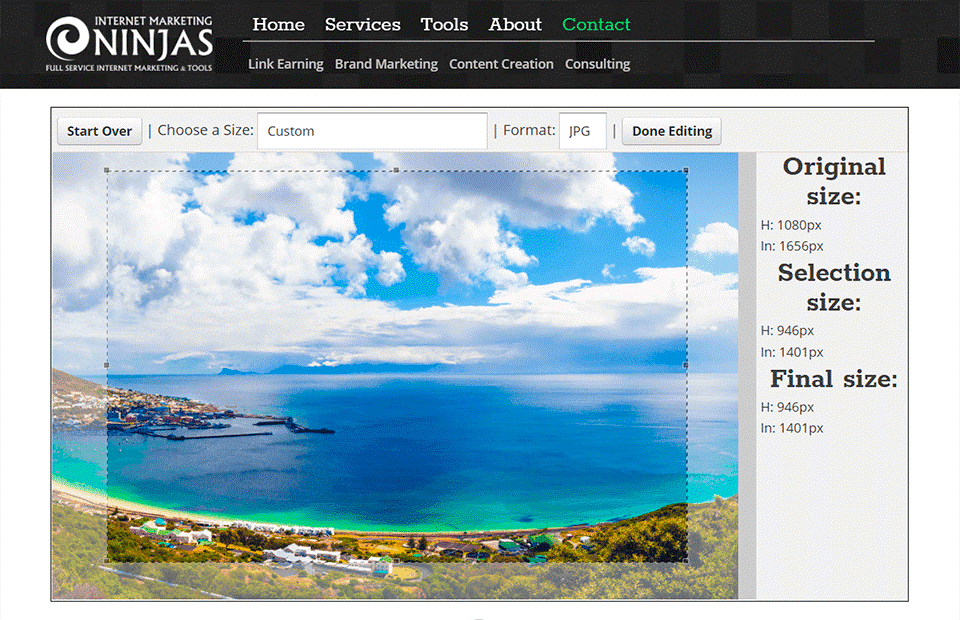
Compatibility: Any OS
Price: Free
Features:
· Manually edit the image
· Formats like the cover image, profile picture, video thumbnail, etc.
· Straightforward upload and conversion tool
· JPG/PNG/ICO/GIF types are supported
Pros:
· Easy to use
· Many image output formats supported
· No cost
Cons:
· Social media users can mainly use it
· Only 2MB-sized files are supported
4. BeFunky
BeFunky is a suitable online platform for creating new graphic designs, editing image size and layouts, and making collages. Integrated features and tools are available here that make it easy to resize and crop different photos, even in batches.
You can use the Touch-Up tool to enhance the photos and portraits and even omit the background using Background Remover.
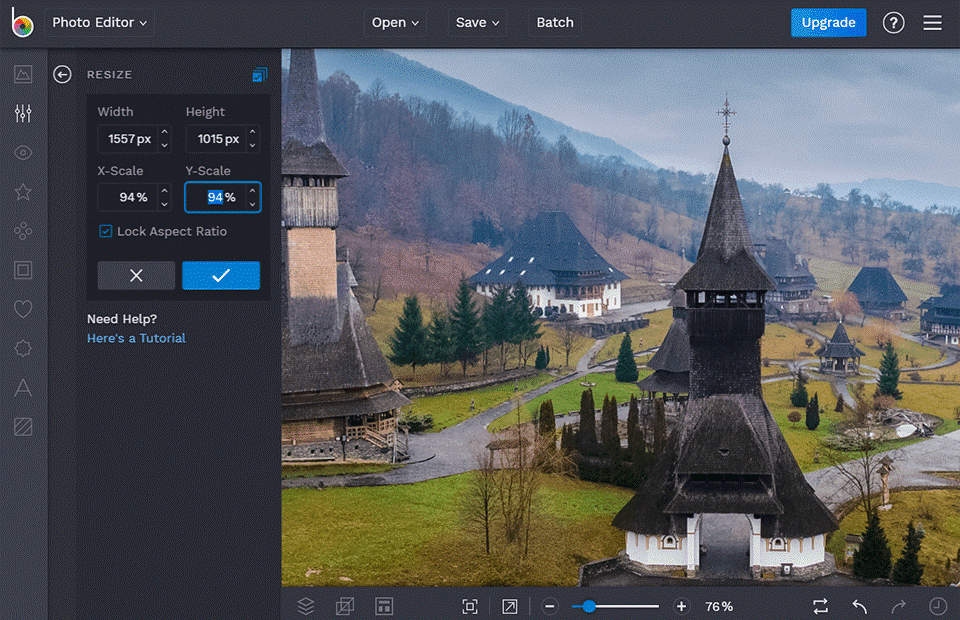
Compatibility: iOS and Android
Price: $4.99 per month
Features:
· Graphic Designing and photo editing
· Customizable collage layouts
· AI-powered innovative image editing tools
· Vector graphics and icons are available
Pros:
· Full-screen mode
· High-quality AI-powered editing choices
· Add overlays, photo frames, collages, etc.
Cons:
· Advanced features come under the paid subscription plan
· Many of the available features are limited
5. Biteable
Users can easily edit image size into smaller options with this free photo size editing tool. You can easily drag and drop a select image and choose the new sizing options for the width and height.
Then, run the resizing tool and automatically carry out the task. Next, you can manually drag and slide your cursor over the image to choose the crucial image parts. Then, download the new file.
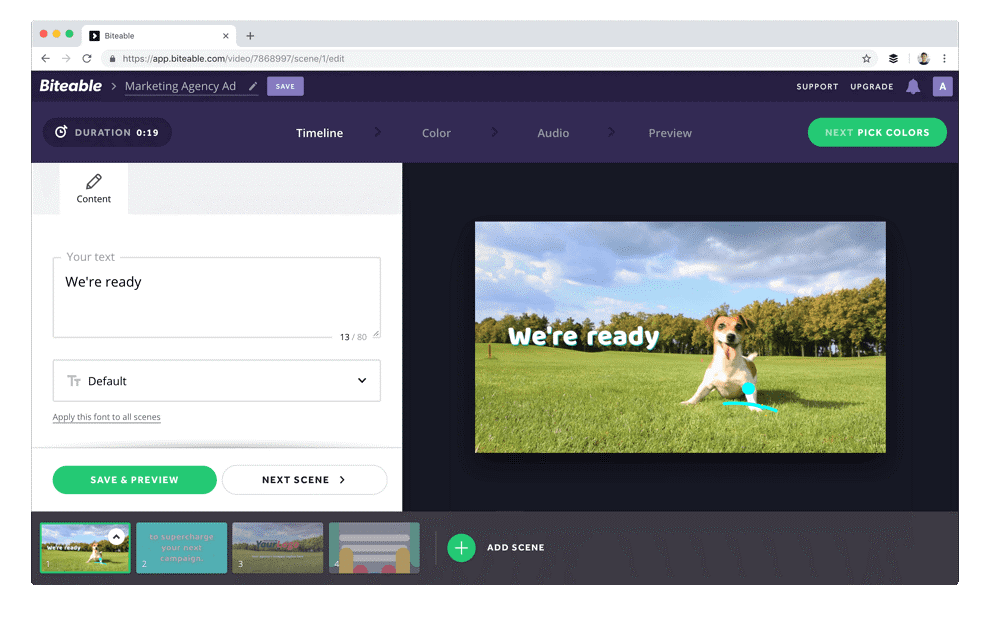
Compatibility: Mac and PC
Price: $49 per month for Ultimate Professionals
Features:
· There are many standard sizes for Twitter, Instagram, Facebook, Pinterest, etc.
· More than 50 images are available
· Easy slider functionality for image resizing
· Automatic resizing to set options
Pros:
· Easily add images into videos
· Resize/crop videos
· Conversion of images into videos
Cons:
· Not best for mobile OS, like iOS
· Limited features
6. ILoveIMG
This is one of the most popular platforms for photo editing for quick and high-quality image cropping and editing functions. Users can convert the images to other formats, like JPG or PNG. Plus, make edits to the photo using the editor feature.
This application has additional features like watermark addition and meme generation tool.
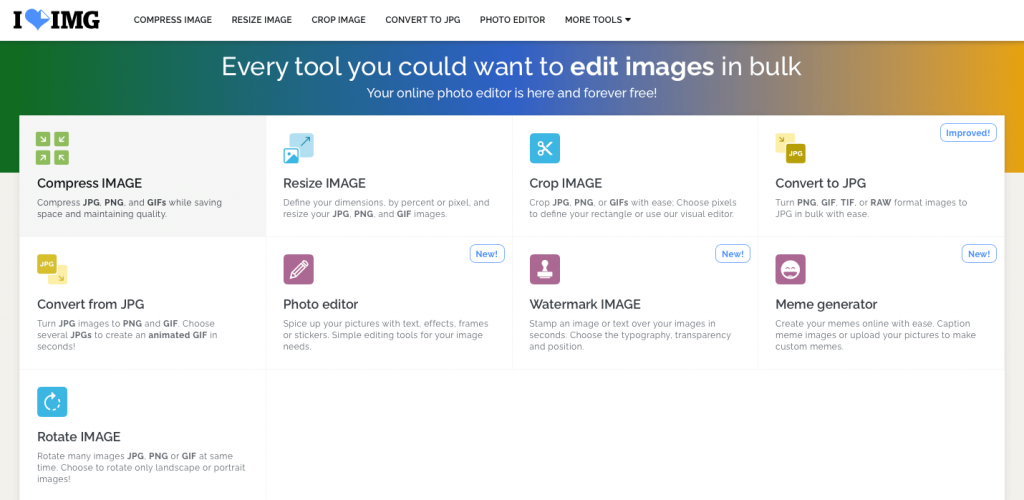
Compatibility: All OS types
Price: Custom pricing tailored for your business
Features:
· Pre-set image size options are available
· Support multiple image types, like SVG
· Multiple languages are available
· Custom editing
Pros:
· Simple UI
· Easy to use
· Batch processing is available
Cons:
· The free version has limited features
· Percentage mode not available
7. Instasize Photo Editor + Video
Instasize is one of the best photo resizer apps available for users to quickly and safely edit their photos and videos for social media posting. In addition, you would get a library of premium-quality presets, filters, and tools for color editing.
There is the option to create collages through this app and post it quickly onto social media platforms like Pinterest, Instagram, Snapchat, and Twitter.
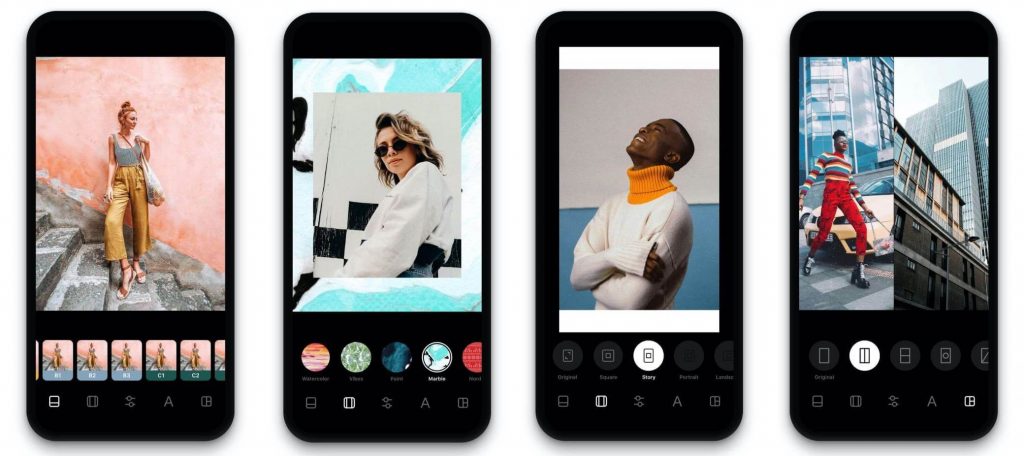
Compatibility: Mac, iOS
Price: $4.99/month
Features:
· Add image frames
· Include background video
· More than 130 filters and borders
· Edit photo elements like tanning, whitening, etc.
Pros:
· Smooth functioning after conversion
· Easy to use
· Vintage overlay edits
Cons:
· Not available for Android
· Huge app size
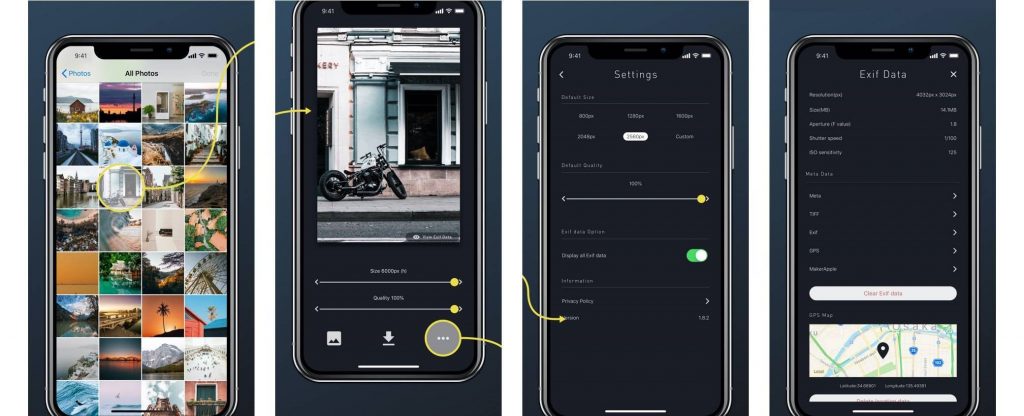
8. Image Size Photo Resizer
Use Image Size Photo Resizer for your image resizing needs. You can select more than one photo and change them in bulk for easier management. Furthermore, you can showcase or omit the location data or the Exif data attached with different images.
You can choose an image from your gallery and resize its proportion. Use the zoom feature to see the changed areas.
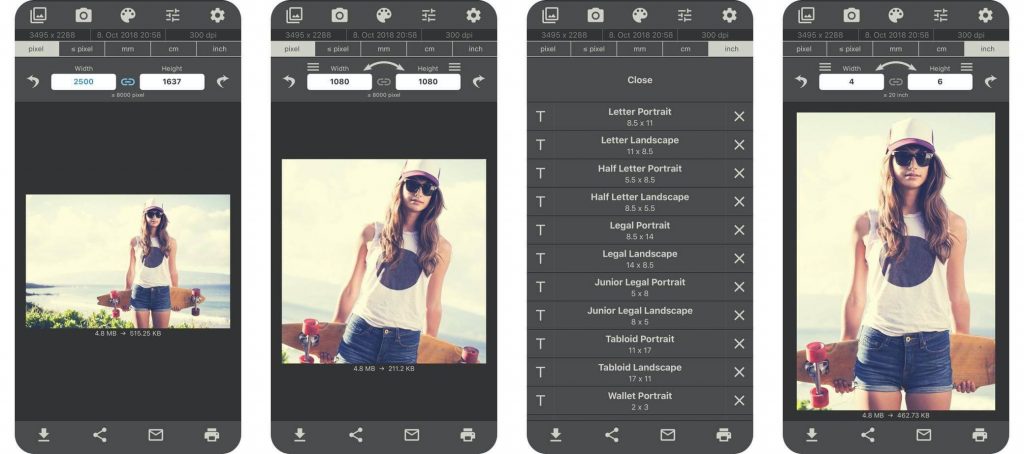
Compatibility: Android
Price: Free
Features:
· Resize apps in batches
· Locally save images
· Choose custom resizing preferences
· Pre-set options available
Pros:
· Lightweight
· Free to use
· Simple to use
Cons:
· Not available for Android users
· Functionality can get slow at times
9. Simple Image Resizer
Users can easily change the pictures saved in their system with image resizer apps like this one. Choose the percentage of the new image size or dimensions for the resizing process after simple uploading. The website supports different image formats like JPEG and GIF and can turn them into small-sized pictures. There is no installation necessary.
Compatibility: Android
Price: Free
Features:
· Blog-based photo sizing
· Supports image formats like JPG, JPEG, BMP, PNG, and GIF
· Create social media posts or auction page type images, like Facebook or eBay
· Add changed images as email attachments
Pros:
· Resized images have no quality changes
· Edit images within PDF or Word Files
· Post images onto the community forum
Cons:
· Not many features compared to others
· No app version
10. Canva Pro
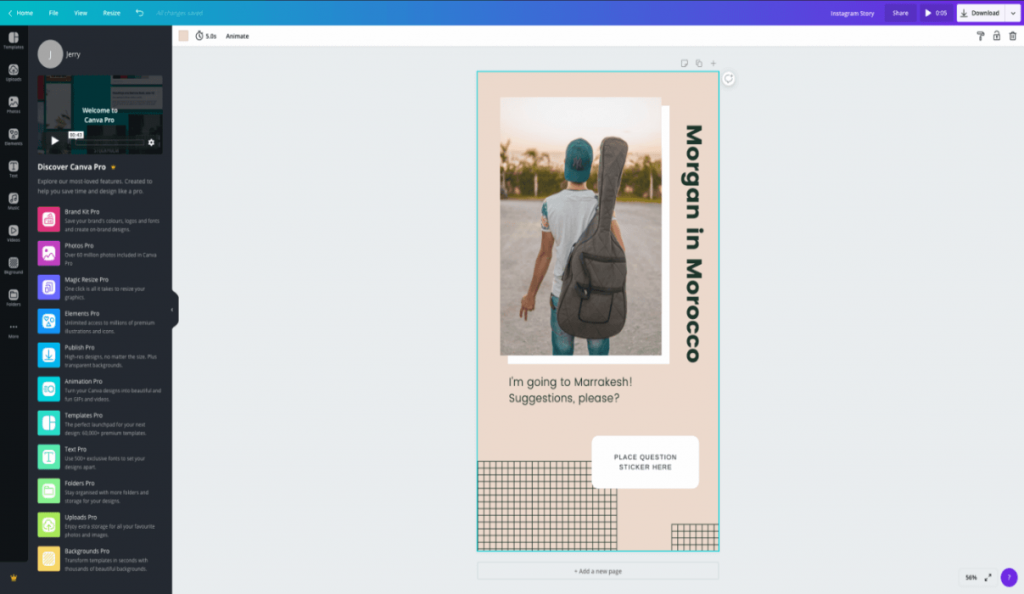
Canva Pro is a suitable application for resizing graphical designs into different sizes without affecting the quality or resolutions. Users can first opt for a free trial to resize the images in minutes using the Magic Resize feature and save. The photos you save would be suitable for different platforms, including websites, social media, or physical printing.
Compatibility: PC, Mac, iOS, Android
Price: $52.95/year for up to 5 people
Features:
· Library of 100+ million audio, videos, photos, and graphics (stock pictures)
· Magic Resize feature for Design resizing
· Cloud storage of 100GB
· Background Remover instantly deletes background image
Pros:
· More than 610,000 free and premium images
· Save for offline use
· Scheduled social media posting (8 platforms at a time)
Cons:
· Not free
· Complex to use for some users
Conclusion
With the photo resizer apps like these, you can easily reconfigure the size of the photos for various apps and edit them further. The best one, in our opinion, is the Adobe Photoshop Express app with high-quality features and smooth usability. Make your choice based on what suits your device and requirements.
Author Bio:
Dinesh Lakhwani 

Dinesh Lakhwani, the entrepreneurial brain behind “TechCommuters,” achieved big things in the tech world. He started the company to make smart and user-friendly tech solutions. Thanks to his sharp thinking, focus on quality and the motto of never giving up, TechCommuters became a top player in the industry. His commitment to excellence has propelled the company to a leading position in the industry.
Popular Post
Recent Post

How to Recover Deleted Files from Pen drive, USB Drive, SD Card
Introduction: On tech forums, you’ll often see posts like this: “I connected my pen drive to my laptop this morning, but the folder was empty. All my college project files had vanished. I don’t have a backup. Can someone help me?” Stories like this are very common. Pen drives, USB drives and SD cards are […]

How To Recover Files Deleted from the Recycle Bin [Windows 11]
Losing a file can happen in seconds. You clear your desktop, hit Delete, and empty the Recycle Bin. Then, just when you need that file again, it seems to have vanished. This guide will walk you through ways to restore files removed from the Recycle Bin. We will begin with simple fixes, then look at […]

Disk Drill Data Recovery Tool Explained: Full Review and Guide
It happens in a split second. You delete a folder by mistake. Your drive stops showing up. A photo album from your last trip just vanishes. And your stomach drops. Lost files feel personal. They are not just data. They are memories, work hours, and sometimes years of effort packed into a few gigabytes. When […]

Recover Deleted Files In Windows 11 With Software & Without
Introduction What is the first thing that goes through your mind the second an important file vanishes from a Windows 11 PC? For most people, it is a mix of panic and disbelief, followed by a frantic click through every folder that file could possibly be hiding in. It happens in a split second: one […]

EaseUS Data Recovery Wizard: Everything To Know
Data loss does not always come from a big disaster either. Most cases start small and boring. A drive gets formatted by mistake. A laptop freezes mid-save and restarts on its own. A memory card stops showing up after being pulled out too fast. None of these feel like emergencies at first, until you realize […]

Recuva Data Recovery Tool: Is it Actually Worth it?
When I first tried Recuva Data Recovery, I wanted to see if it could really bring back lost files. The tool is free, small in size, and promises quick recovery, which made me curious enough to test it on my own PC. The setup was fast, and the wizard guided me step by step. I […]

GetData Recover My Files Data Recovery Tool: Honest Review
A hard drive error brings a special kind of silence. Well, yes! The screen freezes, then a message appears saying the drive can’t be found or must be formatted. In that moment, years of photos and work files feel at risk. It never happens at a good time. Coffee spills near a laptop, a memory […]

Windows File Recovery: A Complete Review [Tried & Tested]
Imagine this. You spend hours perfecting a video project. You hit save. Then your laptop freezes, reboots, and when the screen comes back. The file is gone. Your stomach sinks. It’s not just you. Lost files happen all the time. A dropped hard drive, a bad update, an accidental delete, or a corrupted partition can […]

5 Best Data Recovery Software For Windows 11 and Windows 10
Introduction: A crashed drive can ruin a whole day. One minute your photos, work files, and tax records sit safe on your PC. The next minute they are gone. A power cut, a bad update, or one wrong click can wipe out years of memories and months of work in seconds. That sinking feeling is […]

