











Imagine this. You spend hours perfecting a video project. You hit save. Then your laptop freezes, reboots, and when the screen comes back. The file is gone. Your stomach sinks. It’s not just you. Lost files happen all the time. A dropped hard drive, a bad update, an accidental delete, or a corrupted partition can […]
Ways to Completely Clear Search History on Your Mac
People use their Mac devices for various reasons, one of the most prominent ones being for browsing purposes. However, after visiting any website on the device, the browser version stores cache and other records of the query in the system. This affects the performance of the system as the excess records can lag the disk speed.
Plus, there is a concern over privacy as well since the browser automatically saves information for future login attempts.
Therefore, for better device performance, you should0 from each browser location. Are you wondering how? In this post, we cover various appropriate methods available to effectively clear out the search history on Mac. Read on to find out more.
Why Should You Keep Your Browser History on Mac Clean?
For different individuals, the reason to delete search history on their Mac device varies. The common ones include:
- Potential security threat- Hackers can use cookies remaining in your search history with account and password information. They can acquire personal data and enter one’s accounts easily.
- Space issue– The system records the searched page URLs and caches for easier re-downloading. Not deleting the browsing history accumulates a lot of cookies; this lags the hard drive storage and slows it down.
- Corrupted cookies– Some of the stored cookies can be outdated and corroded, causing system issues.
- Loss of privacy-Users use their personal information to access certain websites, like e-commerce stores. These are visible to potential hackers.
It is important to remove the browser search history to keep the device and system security.
Methods to Delete Search History on Mac
There are varying methods for removing search history on Mac, depending on the type of browser. You can use the tool of CleanMyMac X for a quick and simple cleaning process.
Method 1: Use CleanMyMac X
One of the most efficient manners of clearing out Mac history is using the comprehensive and user-friendly cleaner app, CleanMyMac X. It can remove unwanted apps, system junk, and malware after a quick scanning process.
The software can find massive and outdated files that are hidden and unused DMGs, detect and shield against malware/virus, and erase sensitive search history. The software is useful to find the apps and files that are wasting excess space and remove them directly.
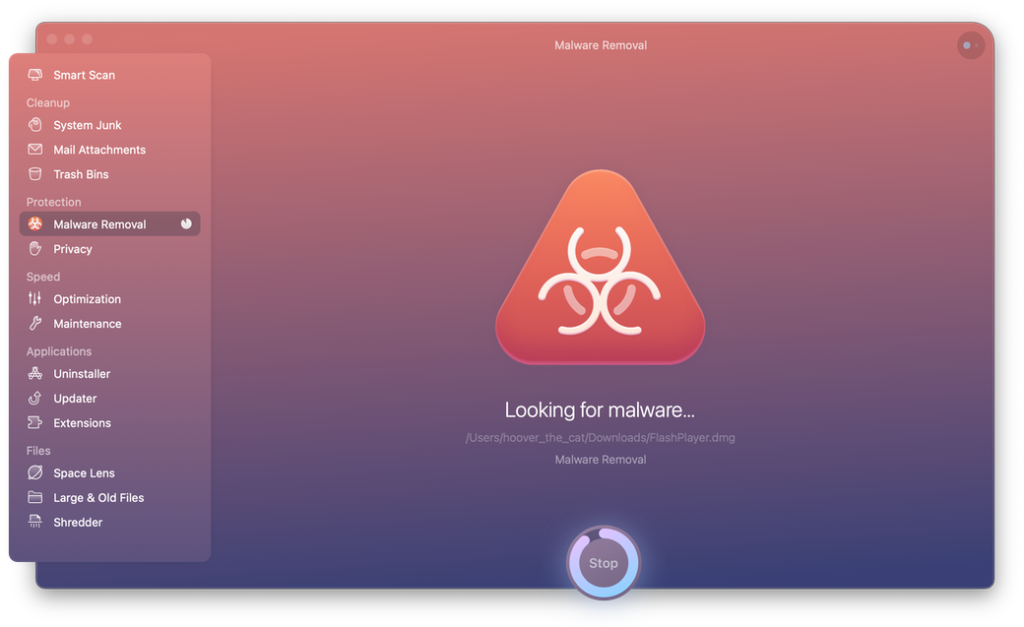
The application is an Apple-authorized software and includes a wide range of features besides the cleaning service. Here are the steps to use the CleanMyMac X for search history cleaning.
Step 1: Download & install CleanMyMac X.
Step 2: Access the Privacy module.
Step 3: Select the main browsers you operate regularly.
Step 4: Click on the “Browser History” option.
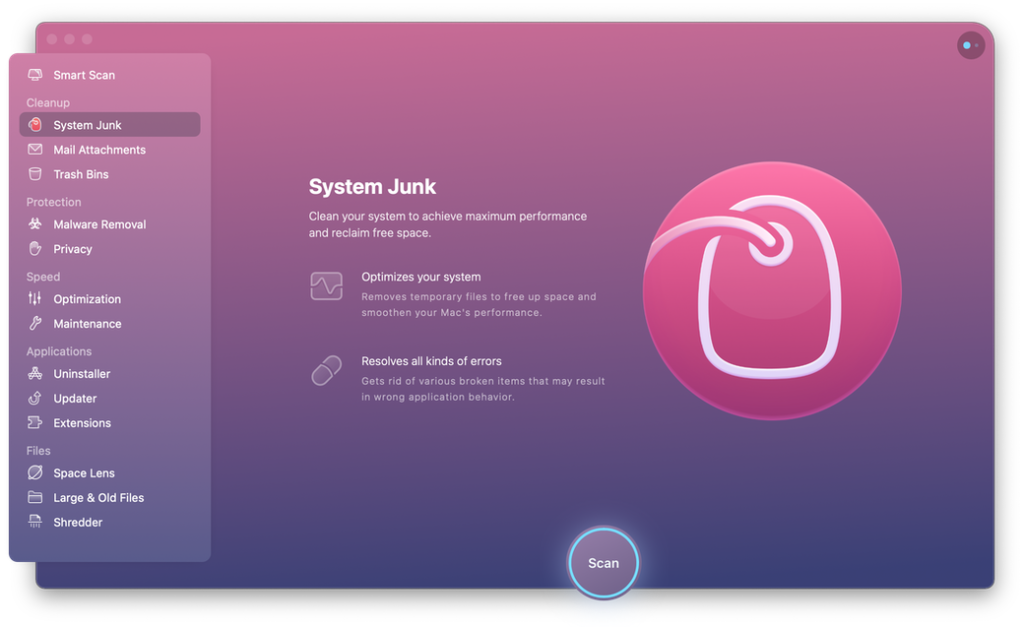
Step 5: Select Remove.
The application is useful for clearing out more than the browsing history site URLs and cookies. Other modules target different types of junk files in the device and internet-based components like old files, downloads, logs, and caches.
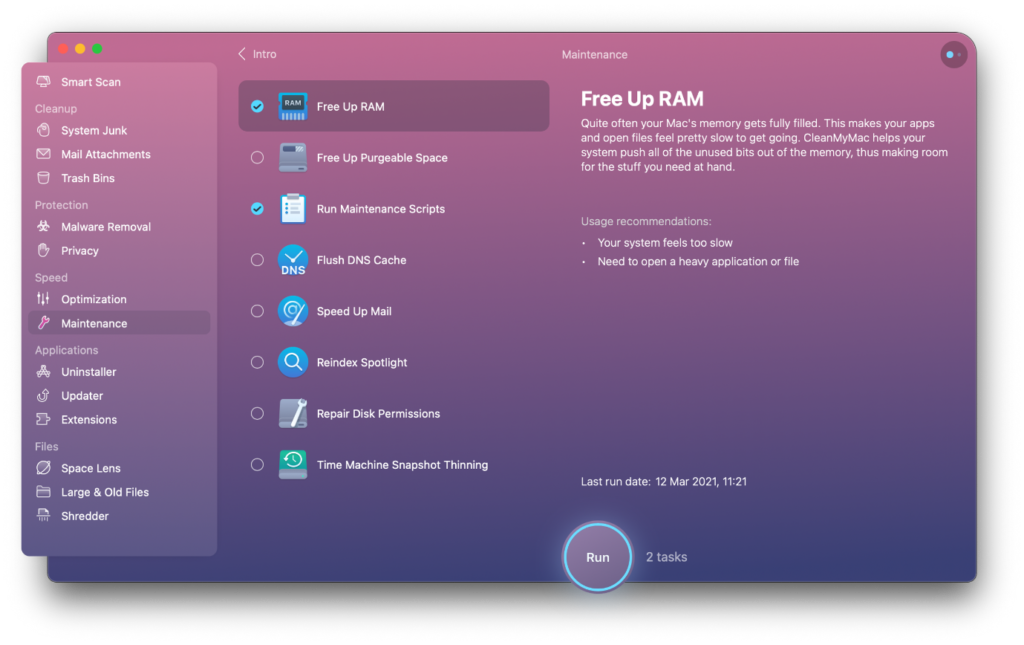
Besides using CleanMyMac X software, another tactic you can adopt is to target each browser and clean their records individually.
Method 2: Manually Delete Safari Browsing History in Mac
Users can directly remove all records from the Safari browser history for specific periods. The browser history information is removed from all devices that have Safari if they are connected to one iCloud, and the devices have the iCloud preferences turned on.
To note, the websites that you visit would still keep the browsing record even if you clean the local browsing history.
The type of data that Safari deletes after users clear the history include:
- The back-and-forth sequence of website URL access that is currently active
- Previous web pages that you visited
- Recent searches
- List of sites visited frequently
- Web page icons
- Snapshots of open webpages
- Website URLs under Quick Website Search
- Links of downloaded items (this does not remove the downloaded file)
- Websites with notifications switched on
- Websites with location settings on
Main Steps to Clear Search History from Safari
Step 1: Access Safari through iMac or MacBook Air/Pro device.
Step 2: Choose History > Clear History.
Step 3: Choose the particular dates you want to delete the browsing history of. Alternately, select “Full History” if you want to remove the full search history from Safari.
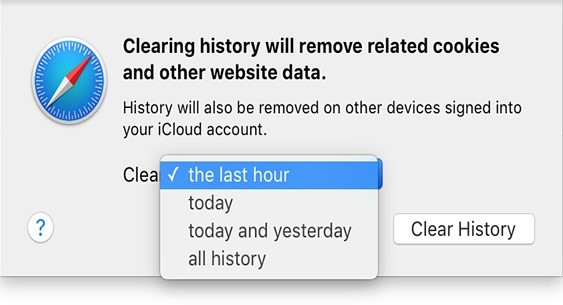
Step 4: Press on “Clear History”.
You can directly use the Safari feature for cleaning out Recent Searches for a quick removal process. Through the Recent Search List feature, users can normally check the past search items and reach the site without much browsing.
Main Steps to Remove Safari Recent Search List on Mac
Step 1: Access the Safari browser on your Mac device.
Step 2: Select the URL bar. It would show all recently searched URLs in a list format.
Step 3: Scroll to the bottom of the list and click on “Clear Recent Searches”.
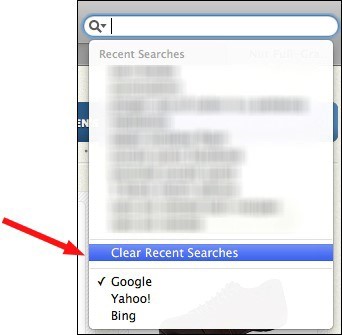
Additionally, you can browse through the Private Browsing Mode on your Mac through the Safari browser. This does not record any search details.
Method 3: Manually Delete Firefox Browsing History in Mac
Another popular browser of choice for Mac users is Firefox. The steps for removing search history cookies on this browser are as follows:
Step 1: Launch the Firefox browser via Mac.
Step 2: Select the “Clear Recent History” option.
Step 3: Choose download history, browsing history, search/form history, cookies, caches, and other preferences. Click on “Clear Now”.
Main Steps to Remove Specific Firefox Pages from Search History
Step 1: You would see a menu icon with a hamburger shape on the browser. Choose that.
Step 2: Access History and then select “Manage History”.
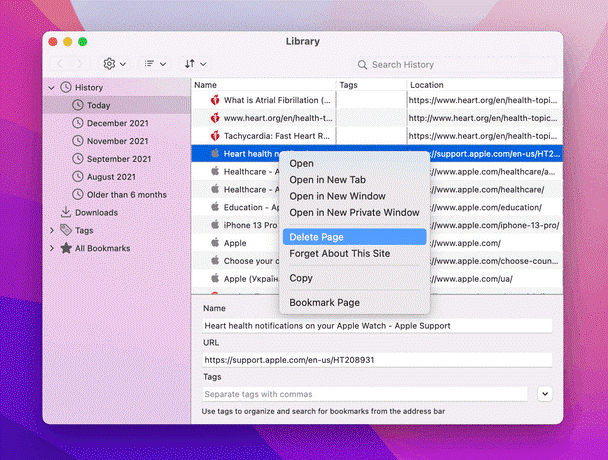
Step 3: Use the control button and select all pages you wish to remove one by one.
Step 4: Clear the page. You can delete all related data for a page as well through the “Forget About This Site” option.
Main Steps to Privately Browse Firefox on Mac
Step 1: Select the File option from the menu on top of the screen.
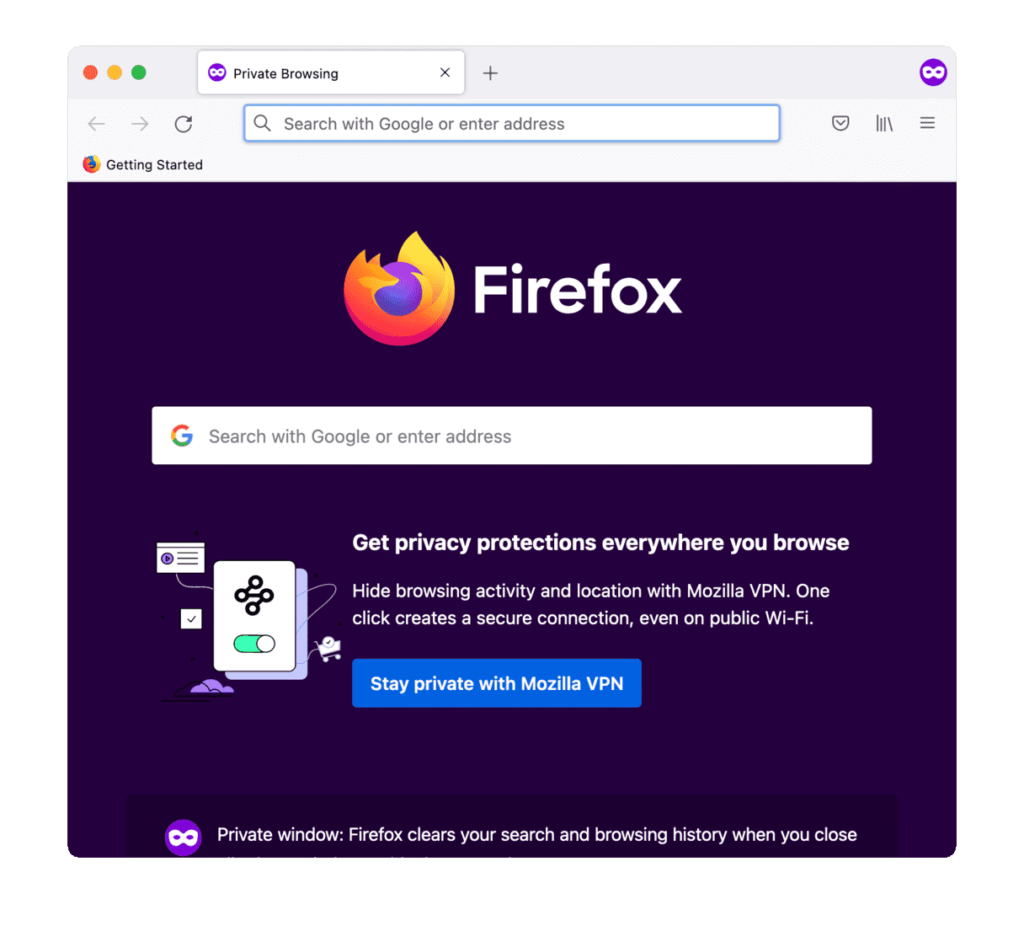
Step 2: Click on “New Private Window”. Then, begin private browsing.
Method 4: Manually Delete Chrome Browsing History in Mac
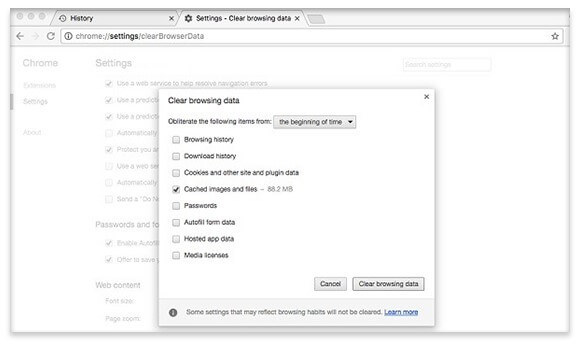
You can clear the browsing history while using the Google Chrome browser through the following steps on Mac.
Step 1: Access the Google Chrome browser.
Step 2: Select “Clear Browsing Data” after clicking on the Chrome icon.
Step 3: A pop-up window would appear. Select all of the items you wish to delete. Select “Clear Browsing Data” to permanently remove Google records.
Main Steps to Remove Specific Chrome Pages from Search History
Step 1: You would notice a three-dot icon at the top of the screen after opening Chrome browse. Press on that and then choose History.
Step 2: After the list “History” opens, select specific pages that you want to delete.
Step 3: Click on the “Delete” button.
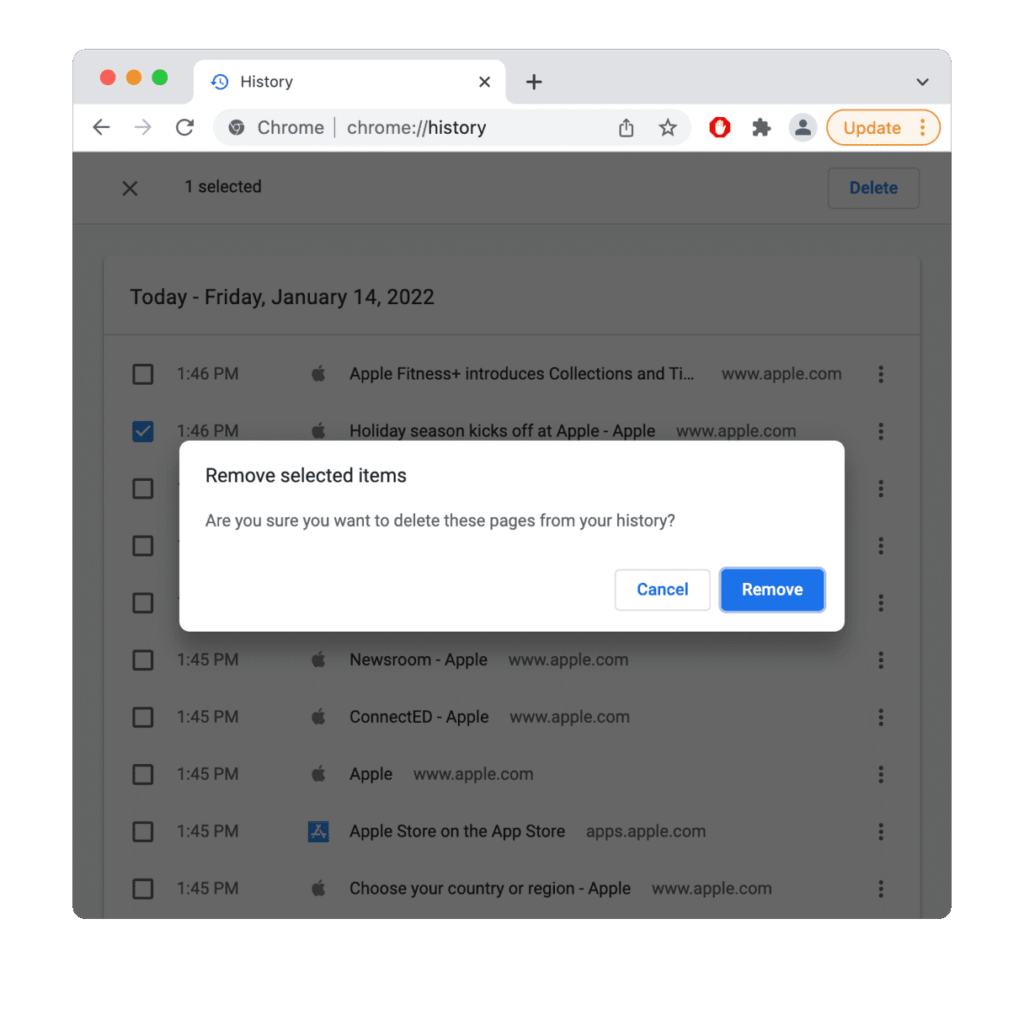
Step 4: Press “Remove” for the final confirmation.
Main Steps to Privately Browse Chrome on Mac
Step 1: Access the Chrome browser and open the three-dot icon (menu).
Step 2: Choose the “New Incognito Window” option.
Method 5: Manually Delete Opera Browsing History in Mac
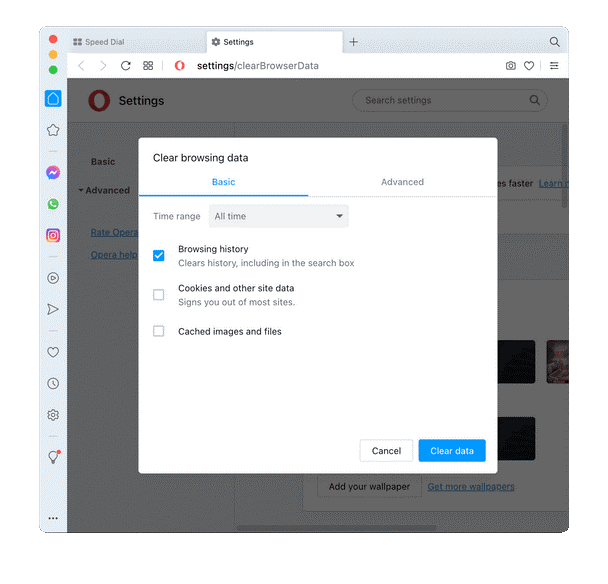
The following are the steps to manually remove all search history from Opera on Mac.
Step 1: Launch the Opera browser on your device.
Step 2: Select History from the top screen menu and choose “Show All History”.
Step 3: Select the “Clear Browsing Data” option.
Step 4: Under the time range selection, opt for the “All Time” choice.
Step 5: Click Browsing History > Clear Data.
Main Steps to Remove Specific Opera Pages from Search History
Step 1: Open the History menu through the top-most bar on Opera.
Step 2: Select “Open Full History View”.
Step 3: Choose the pages you want to delete.
Step 4: Click your cursor on the “X” sign icon.
Main Steps to Privately Browse Opera on Mac
Step 1: Open the File Menu under this browser.
Step 2: Then, open “New Private Window”.
Conclusion
It is important for you to delete all data history from your browsers to keep your Mac device safe and fast. Either manually clear all browsing history or use the one-in-all application of ClearMyMac X. You should read through all of the processes we have listed to make up your mind.
Author Bio:
Dinesh Lakhwani 

Dinesh Lakhwani, the entrepreneurial brain behind “TechCommuters,” achieved big things in the tech world. He started the company to make smart and user-friendly tech solutions. Thanks to his sharp thinking, focus on quality and the motto of never giving up, TechCommuters became a top player in the industry. His commitment to excellence has propelled the company to a leading position in the industry.
Popular Post
Recent Post

5 Best Data Recovery Software For Windows 11 and Windows 10
A crashed drive can ruin a whole day. One minute your photos, work files, and tax records sit safe on your PC. The next minute they are gone. A power cut, a bad update, or one wrong click can wipe out years of memories and months of work in seconds. That sinking feeling is why […]

How To Update NVIDIA Drivers On Windows 11/10 PC
Learn how to update NVIDIA drivers on Windows 11/10 with simple methods, safety tips, and easy steps for smoother gaming and better PC performance.

Top AI Features Hidden Inside Windows 11
Explore the top AI features in Windows 11, from Copilot to Recall, plus safety tips and simple steps to use each tool the right way.

Customize Your Screen Saver Settings in Windows [Easy Steps]
Learn how to customize screen saver settings in Windows 11 with easy steps, safety tips, and simple tricks to personalize your PC screen.

Driver Easy Windows Driver Updater Tool Review: Tried & Tested
In-depth information about Driver Easy’s functions and features can be found in our review. Learn how to update drivers more easily with this tool for a more seamless computer experience.

Is Avast Driver Updater Worth It? A Hands-On Analysis
A full review of Avast Driver Updater covering features, setup steps, pricing, pros and cons, and real PC results, to help you decide if it is worth buying.

IObit Driver Booster 13 (PRO) Review: [Tried & Tested]
IObit Driver Booster 13 is built for one purpose: keeping your PC drivers up to date. Well, yes! Outdated drivers can cause crashes, slowdowns, and hardware issues. This tool scans fast and updates with one click. The interface is simple. Even beginners can use it without confusion. Updates are pulled from a huge database, covering […]

Auslogics Driver Updater: A Detailed Walkthrough [2026]
This comprehensive review covers the key features, pros, and cons, pricing, and a final verdict on Auslogics’ driver update utility. Learn how it stacks up against manual driver maintenance.

5 Best Driver Updater Tools for Windows to Use (Free and Paid)
Introduction: Most people blame their PC for problems that a driver caused. A driver works like a bridge between your hardware and your operating system. When this bridge cracks, strange things start to happen. Screens flicker without reason. Printers go silent mid-task. Games freeze or crash out of nowhere. Manually finding the right driver is […]

