











A crashed drive can ruin a whole day. One minute your photos, work files, and tax records sit safe on your PC. The next minute they are gone. A power cut, a bad update, or one wrong click can wipe out years of memories and months of work in seconds. That sinking feeling is why […]
How to Increase Internet Speed on Windows 10
Internet connectivity is a mandated requirement for many routine works on Windows 10 systems. Whether it is some official work or personal work, having a smooth internet connection is important for both. However, internet connectivity is not so smooth for all Windows 10 users. This is due to multiple reasons like geographical issues, increased traffic, type of service provider, etc. So, is it like there is no solution to speed up the internet on Windows 10?
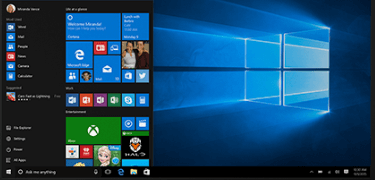
Thankfully, there are a couple of quick but effective ways to increase the internet speeds on any device working on the Windows 10 operating system. So today, we bring you a detailed list of all the top ways that may help you to optimize your internet connectivity. If you’ve been thinking about how to speed up the internet on Windows 10, have a quick look at the top methods mentioned below.
Precautions Before Improving Internet Speed on Windows 10
Before making changes, a few precautions help avoid network errors and system issues. Internet speed problems often come from settings, drivers, or external factors. Rushing into fixes without checks can cause unstable connections. These precautions keep the process safe and effective.
- Check your actual internet plan speed
ISP limits may be the real cause, not the system. - Restart the modem and router first
This clears temporary network congestion. - Use a wired connection if possible
Ethernet is more stable than Wi-Fi. - Close background downloads and apps
They consume bandwidth silently. - Note current network settings
This helps revert changes if needed. - Avoid unknown speed booster tools
Many cause more harm than good. - Ensure Windows is activated and updated
Some network features depend on updates. - Save ongoing work before changes
Network resets can interrupt active tasks.
Top ways to speed up the internet on Windows 10:
Speeding up the internet is all about improving the uploading and downloading speeds. The top ten answers of how to speed up the internet on Windows 10 include the following:
Turning off background apps:
Background apps may be the culprits affecting the internet speeds on your Windows 10 system. If there are multiple apps running in the background of your Windows 10, these apps can significantly bring down the uploading and downloading speeds.
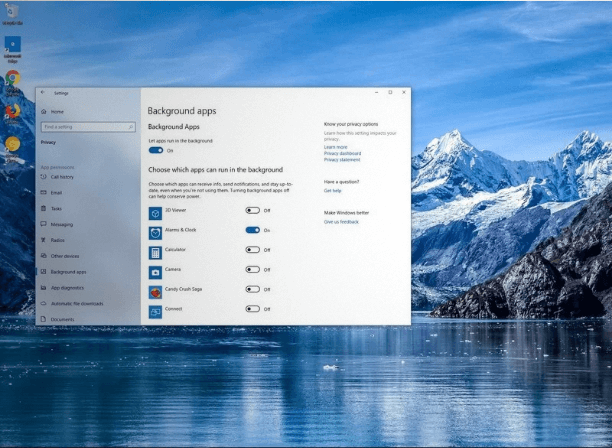
The quick steps to ensure the same are:
- Go to the “Settings” option.
- Go to the “Privacy” option.
- Locate the “Background apps” in the left sidebar of the “Privacy” option.
- Go to the “Let apps run in the background” option and change it to “off.” Alternatively, individual apps can be turned on or off.
Removing viruses and other malware:
Continuous internet connectivity may secretly expose your Windows 10 system to multiple virus attacks and malware. There are multiple viruses and malware that can damage the smooth internet speeds on the system. Hence, it is crucial to download an effective antivirus program and let it scan the system at regular intervals. This antivirus easily detects and removes viruses and malware affecting internet speeds on Windows 10.
Disabling metered connections:
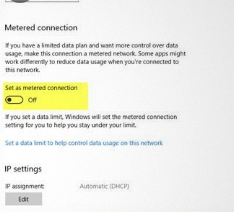
Metered connections on Windows 10 places a cap on the daily internet usage from the source. Hence, in the process of increasing the internet speeds on Windows 10, you may go for disabling the metered connections on your system. The quick steps to do so are:
- Go to “Settings” on Windows 10 system.
- Go to the “Network and Internet” option.
- Go to the “Change Connection Properties” option.
- Go to “Metered connection” and turn the selection to “OFF.”
- Disabling apps using high bandwidth: Many times, multiple apps may use high internet bandwidth on Windows 10. Some of the best ways to disable apps using high bandwidth are:
- Go to the “Settings” app.
- Go to “Network and Internet.”
- Go to “Data Usage” and select “View usage per app.”
- Check the usage details and disable apps using high internet bandwidth.
- Deleting temporary files:
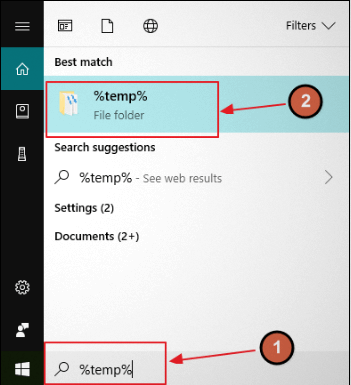
Windows 10 creates multiple temporary files that may slow down internet speeds on the system. Hence, deleting these temporary files may help in increasing internet speeds on Windows 10. The quick steps for the same are:
- Open “Run” by clicking “Windows + R” simultaneously.
- Type “%temp%” in the “Open” window.
- Click all files appearing in the temporary folder and go for deleting all these files.
- Go to Recycle Bin and empty it to permanently delete the temporary files.
Upgrading existing internet plans:
Many times, the simple way to increase internet speed on Windows 10 is to change your internet plan. It is easy to find the best match according to daily data quota and internet speeds. After changing the plan according to your internet speeds, you can reboot the system to enjoy faster uploading and downloading speeds.
Changing Wi-Fi passwords:
Wi-Fi passwords are often prone to hacking, which leads to the unauthorized use of your internet. Multiple devices using single Wi-Fi may lead to slow download and upload speeds. Hence, one of the best ways to increase internet speed on Windows 10 is to change your Wi-Fi password. It is ideal to go for some strong passwords involving alphabets, numbers, and symbols.
Changing bandwidth limits:
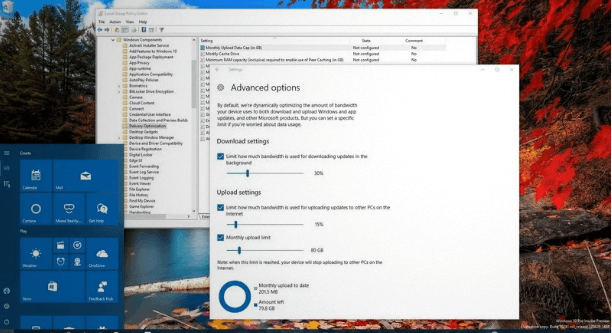
The bandwidth limits of Windows 10 define the use of an internet connection while downloading multiple updates. It is easy to change this internet bandwidth limits in the following ways:
- Go to the “Settings” app.
- Go to “Update and Security.”
- Go to “Advanced options.”
- Find the “Delivery Optimization” and go to “Advanced options.”
- Go to “Download Settings” and “Upload Settings” to find the ideal bandwidths.
Using another web browser:
Sometimes, the web browser is the main cause of the slow internet speeds on your Windows 10 system. The best step in such cases is to switch to another web browser if the regular one is facing speed challenges. Using a couple of web browsers can help you get to the best high-performing web browser for your Windows 10 needs. This is due to the issue that many browsers are not optimized for ensuring high-speed internet.
Using Download Manager Program:
Windows 10 uses default tools to download files on the system. Hence, these tools are the deciding factor for internet downloads. Switching to the Download Manager Program can significantly improve internet speeds. The secret of their success is multi-threading, which enables quick downloading speeds. Like, Download Manager Program, upload tools can be used to increase uploading speeds.
After having a look at all the methods mentioned above, it can be safely concluded that it is easy and quick to speed up the internet on your Windows 10 system. Hence, no more issues in uploading, downloading, or internet surfing when you can optimize the internet connection speeds. You can go for some technical steps like changing the Windows 10 bandwidth, managing background apps, removing malware, or simply upgrading your internet plans.
Author’s Tip
Focus on simple fixes before advanced tweaks. Updating network drivers, adjusting DNS, and limiting background apps often deliver noticeable speed improvements. Many users overlook router placement and signal strength. Small physical changes can improve Wi-Fi speed more than software tweaks.
Do not apply multiple changes at once. Test speed after each step. This helps identify what actually works on your system. Consistent testing avoids confusion and unnecessary settings changes. Slow internet is usually a combination issue, not a single fault.
Conclusion
Improving internet speed on Windows 10 does not require complex tools. Most speed issues relate to settings, outdated drivers, or network congestion. Starting with basic steps like restarting devices and updating drivers gives quick results. Advanced tweaks help once the basics are covered.
A stable and fast connection improves productivity and reduces frustration. Regular system maintenance keeps network performance steady. Avoid unreliable booster apps and focus on proven methods. With the right approach, Windows 10 can deliver smooth and reliable internet speeds.
FAQs
Why is my internet slow only on Windows 10 and not on other devices?
This usually points to system-specific issues. Outdated network drivers are a common cause. Background apps may be using bandwidth. Incorrect DNS or power settings can also slow speeds. Updating drivers and checking network usage often fixes it.
Can Windows updates slow down my internet?
Yes, updates download files in the background. This reduces available bandwidth temporarily. Update delivery optimization can also share bandwidth. Pausing updates during work hours helps. Speed returns once downloads finish.
Is using DNS change safe to increase internet speed?
Yes, changing DNS is safe and common. Public DNS servers often respond faster. This improves browsing and page load times. DNS does not increase ISP speed limits. It improves how quickly sites are reached.
Author Bio:
Dinesh Lakhwani 

Dinesh Lakhwani, the entrepreneurial brain behind “TechCommuters,” achieved big things in the tech world. He started the company to make smart and user-friendly tech solutions. Thanks to his sharp thinking, focus on quality and the motto of never giving up, TechCommuters became a top player in the industry. His commitment to excellence has propelled the company to a leading position in the industry.
Popular Post
Recent Post

How To Update NVIDIA Drivers On Windows 11/10 PC
Learn how to update NVIDIA drivers on Windows 11/10 with simple methods, safety tips, and easy steps for smoother gaming and better PC performance.

Top AI Features Hidden Inside Windows 11
Explore the top AI features in Windows 11, from Copilot to Recall, plus safety tips and simple steps to use each tool the right way.

Customize Your Screen Saver Settings in Windows [Easy Steps]
Learn how to customize screen saver settings in Windows 11 with easy steps, safety tips, and simple tricks to personalize your PC screen.

Driver Easy Windows Driver Updater Tool Review: Tried & Tested
In-depth information about Driver Easy’s functions and features can be found in our review. Learn how to update drivers more easily with this tool for a more seamless computer experience.

Is Avast Driver Updater Worth It? A Hands-On Analysis
A full review of Avast Driver Updater covering features, setup steps, pricing, pros and cons, and real PC results, to help you decide if it is worth buying.

IObit Driver Booster 13 (PRO) Review: [Tried & Tested]
IObit Driver Booster 13 is built for one purpose: keeping your PC drivers up to date. Well, yes! Outdated drivers can cause crashes, slowdowns, and hardware issues. This tool scans fast and updates with one click. The interface is simple. Even beginners can use it without confusion. Updates are pulled from a huge database, covering […]

Auslogics Driver Updater: A Detailed Walkthrough [2026]
This comprehensive review covers the key features, pros, and cons, pricing, and a final verdict on Auslogics’ driver update utility. Learn how it stacks up against manual driver maintenance.

5 Best Driver Updater Tools for Windows to Use (Free and Paid)
Introduction: Most people blame their PC for problems that a driver caused. A driver works like a bridge between your hardware and your operating system. When this bridge cracks, strange things start to happen. Screens flicker without reason. Printers go silent mid-task. Games freeze or crash out of nowhere. Manually finding the right driver is […]
Fixing Lock Screen Timeout – Screen Timeout Settings
Your Windows screen does not stay on forever. After a certain amount of idle time, it turns off or locks automatically. This is a normal feature found on both laptops and desktop PCs. It helps save battery power and reduces electricity use. It also keeps your files and personal information safe when you step away […]

