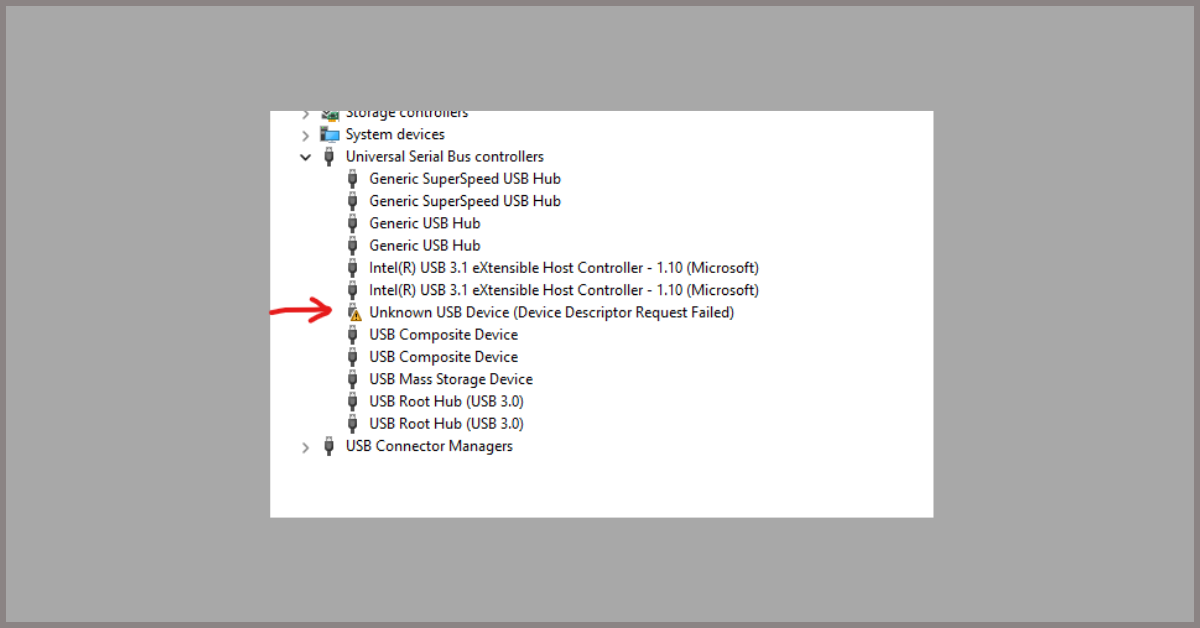
Unknown USB Device (Device Descriptor Request Failed) [Fixed]
Last updated on June 2nd, 2024 at 2:40 pm
USB devices have become an integral part of our daily lives, allowing us to connect and transfer data between various devices effortlessly. However, encountering issues like the “Unknown USB Device (Device Descriptor Request Failed)” error can be frustrating and hinder our productivity.
This error occurs when your computer fails to recognize or communicate with a connected USB device. Here, we will explore 11 effective ways to fix this problem and get your USB device up and running again.
Understanding the Error
The error message “Device Descriptor Request Failed” indicates that the USB device connected to the computer is not being recognized properly. When a USB device is plugged in, the computer sends a request for the device’s descriptor, which contains information about the device, such as its manufacturer, product ID, and other details. If the computer is unable to retrieve this information, it will display the error message.
Unknown USB Device (Device Descriptor Request Failed) On Windows 11 and Windows 10
There are many methods to effectively resolve the “Unknown USB Device” error. Here are some of the most effective methods:
Method 1: Restart Your Computer
Sometimes, a simple restart can resolve many technical glitches, including the “Unknown USB Device” error. Restarting your computer allows the system to refresh and reset any temporary configurations that might be causing the issue. After the restart, reconnect the USB device and check if the error persists.
Method 2: Unplug and Reconnect the USB Device
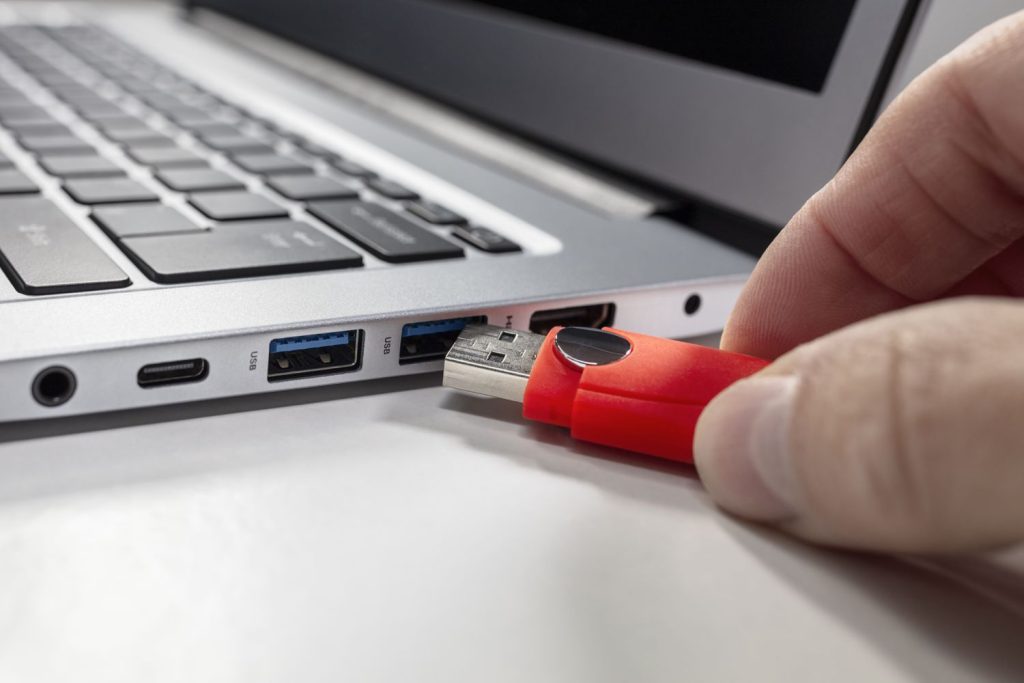
In some cases, the error could be due to a loose connection between the USB port and the device. Unplug the USB device and reconnect it firmly to a different USB port on your computer. This simple step can often fix the issue and establish a proper connection.
Method 3: Update the Driver
Outdated or incompatible USB drivers can also trigger the “Device Descriptor Request Failed” error. To update the drivers, follow these steps:
Step 1: Press the Windows key + X and select Device Manager from the menu.
Step 2: Expand the Universal Serial Bus controllers category.
Step 3: Right-click on the unknown USB device and choose Update driver.
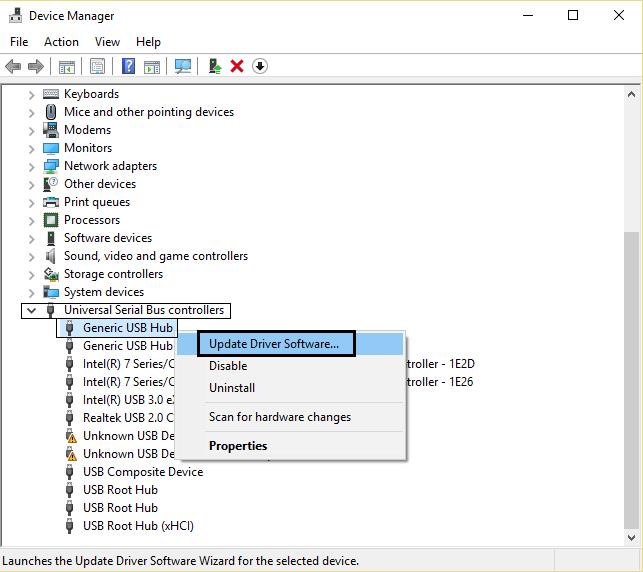
Step 4: Select “Search automatically for updated driver software” and let Windows find and install the latest driver.
Method 4: Uninstall and Reinstall USB Drivers
If updating the drivers doesn’t resolve the”Unknown USB Device” error, try uninstalling and reinstalling them. Follow these steps:
Step 1: Open Device Manager (Windows key + X and select Device Manager).
Step 2: Expand the Universal Serial Bus controllers category.
Step 3: Right-click on the unknown USB device and select Uninstall device.
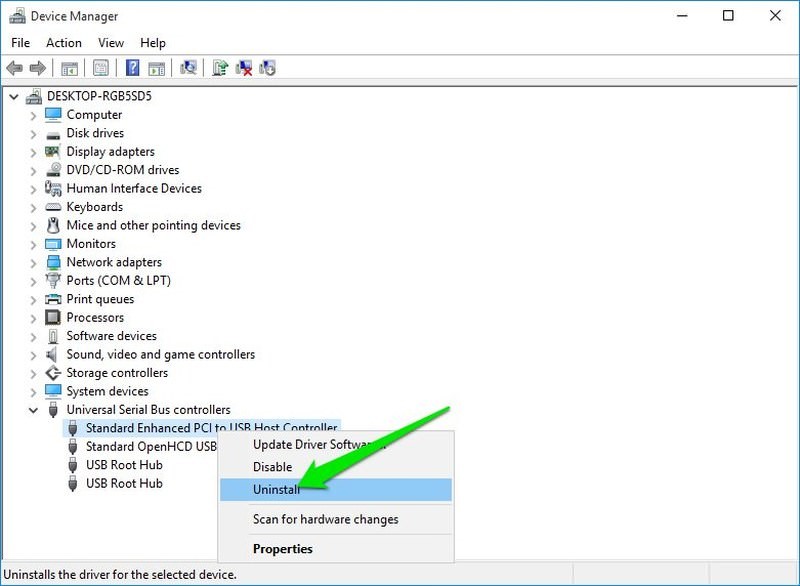
Step 4: Restart your computer, and Windows will automatically reinstall the USB drivers.
Method 5: Disable Fast Startup
Fast Startup is a feature in Windows that allows your computer to boot up quickly. However, this feature can sometimes conflict with USB devices, resulting in the “Device Descriptor Request Failed” error. Disabling Fast Startup may help resolve the issue. Here’s how:
Step 1: Press the Windows key + X and select Power Options.
Step 2: Click on “Choose what the power buttons do” from the left panel.
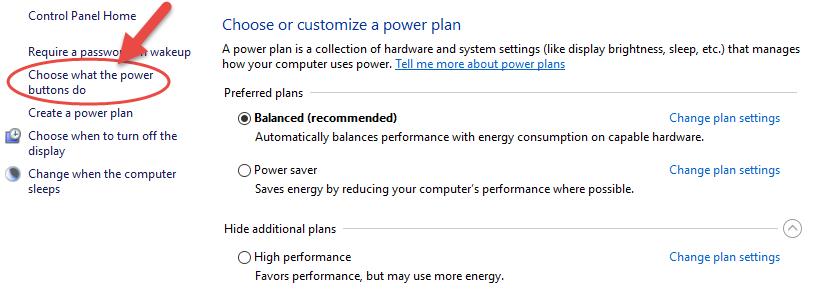
Step 3: Click on “Change settings that are currently unavailable.”
Step 4: Under the “Shutdown settings” section, uncheck “Turn on fast startup.”
Step 5: Save the changes and restart your computer.
Method 6: Run Hardware and Devices Troubleshooter
Windows provides a built-in tool called the Hardware and Devices troubleshooter that can automatically detect and fix common hardware issues. To run the troubleshooter, follow these steps:
Step 1: Press the Windows key + I to open the Settings menu.
Step 2: Click on Update & Security, then select Troubleshoot from the left panel.
Step 3: Click on Additional Troubleshooters.
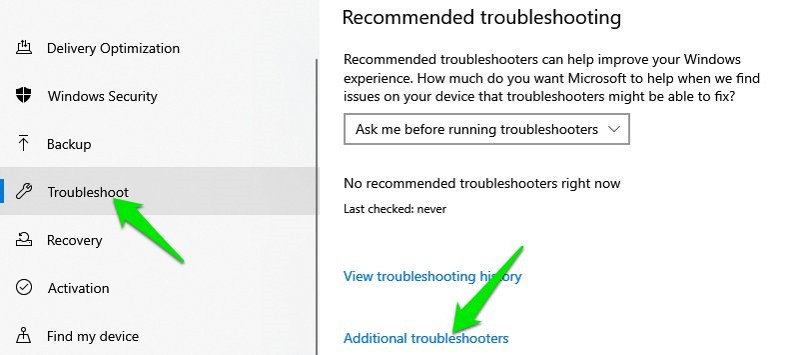
Step 4: Select “Hardware and Devices” and click on Run the troubleshooter.
Step 5: Follow the on-screen instructions and let the troubleshooter diagnose and fix any issues.
Method 7: Disable USB Selective Suspend
USB Selective Suspend is a power-saving feature that allows Windows to turn off USB devices when they are not in use. However, this feature can sometimes interfere with proper USB device recognition. Disabling the USB Selective Suspend can help resolve the “Device Descriptor Request Failed” error. Here’s how:
Step 1: Open the Power Options window (Windows key + X and select Power Options).
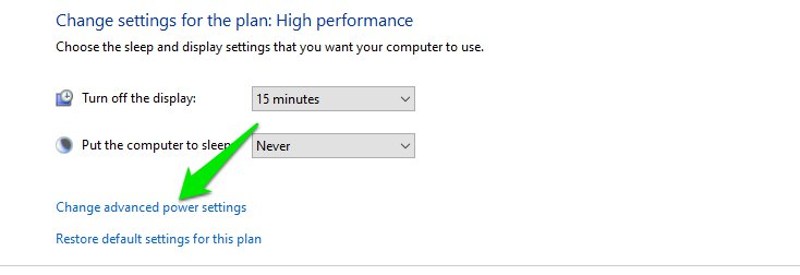
Step 2: Click on “Change plan settings” next to your selected power plan.
Step 3: Click on “Change advanced power settings.”
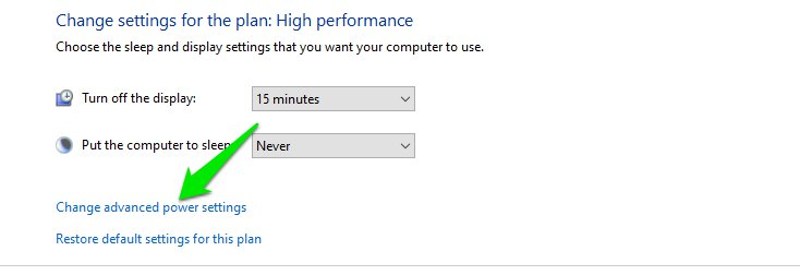
Step 4: Expand the USB settings and USB selective suspend setting.
Step 5: Set both “On battery” and “Plugged in” options to Disabled.
Step 6: Click Apply and OK, then restart your computer.
Method 8: Check for Windows Updates
Microsoft regularly releases updates to improve the stability and performance of the operating system. Updating your Windows to the latest version can sometimes fix USB-related issues. To check for updates, follow these steps:
Step 1: Press the Windows key + I to open the Settings menu.
Step 2: Click on Update & Security and select Windows Update from the left panel.
Step 3: Click on “Check for updates” and let Windows search for available updates.
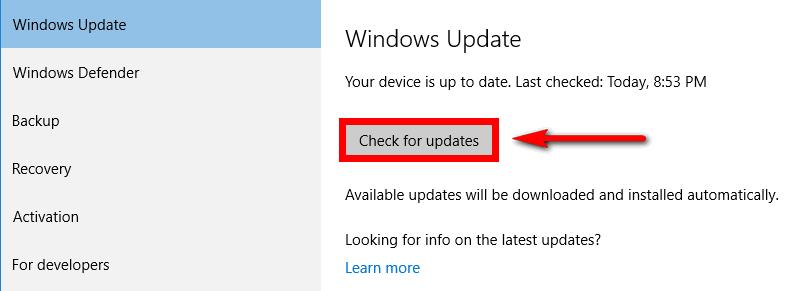
Step 4: If any updates are found, click on Install to download and install them.
Method 9: Disable USB Root Hubs
Disabling USB Root Hubs can help refresh the USB ports and resolve any conflicts causing the “Device Descriptor Request Failed” error. Here’s how:
Step 1: Open Device Manager (Windows key + X and select Device Manager).
Step 2: Expand the Universal Serial Bus controllers category.
Step 3: Right-click on each USB Root Hub and select Disable device.
Step 4: After disabling all the USB Root Hubs, restart your computer.
Step 5: Windows will automatically reinstall the USB Root Hubs upon restart.
Method 10: Use USB Troubleshooting Tools
There are several third-party USB troubleshooting tools available that can help diagnose and fix USB-related issues. These tools scan your system for any errors or conflicts and provide solutions accordingly.
Method 11: Test the USB Device on Another Computer
If none of the above methods work, it’s possible that the USB device itself is faulty. To confirm this, try connecting the device to another computer or laptop. If the device works fine on another system, the issue lies with your computer. In such cases, seeking professional help or contacting the device manufacturer’s support may be necessary.
Common Causes of the Error (Device Descriptor Request Failed)
There are several common causes of the “Device Descriptor Request Failed” error, including:
1. Driver Issues
One of the most common causes of the “Unknown USB Device” error is related to driver issues. When a USB device is connected to a computer, the operating system relies on the device’s drivers to communicate and establish a connection.
If the drivers are outdated, corrupted, or incompatible with the operating system, the device descriptor request may fail, resulting in an error message. To address driver issues, users can try updating the drivers for the USB device through the Device Manager or by visiting the manufacturer’s website to download and install the latest drivers.
2. Power Supply Problems
Another potential cause of the error is related to power supply problems. USB devices require a certain amount of power to function properly, and if the computer’s USB port is unable to provide adequate power, the device descriptor request may fail. This can happen if the USB port is damaged, the power management settings are not configured correctly, or if multiple high-power USB devices are connected simultaneously, drawing more power than the system can provide.
To troubleshoot power supply problems, users can try connecting the USB device to a different USB port, using a powered USB hub, or adjusting the power management settings in the operating system.
3. USB PortIssues
The USB port itself can be a source of the error. If the port is physically damaged, dirty, or experiencing a hardware malfunction, it may fail to properly recognize and communicate with the connected USB device.
Users can inspect the USB port for any visible damage or debris and attempt to clean the port with compressed air or a soft brush. If the port appears to be damaged, it may require professional repair or replacement.
4. Corrupted USB Controller
The USB controller, which manages the operation of the USB ports on the computer can become corrupted or experience a malfunction, leading to the “Device Descriptor Request Failed” error.
Users can attempt to resolve this issue by uninstalling and reinstalling the USB controller drivers through the Device Manager or by using built-in troubleshooting tools provided by the operating system to repair the controller.
5. Faulty USB cable
In some cases, the USB cable used to connect the USB device to the computer may be faulty, damaged, or of low quality, leading to communication errors and the “Unknown USB Device” error.
Users can try using a different USB cable to rule out cable-related issues, ensuring that the replacement cable is compatible with the device and capable of transmitting data effectively.
6. Compatibility Issues
Compatibility issues between the USB device and the hardware or operating system can also result in the “Device Descriptor Request Failed” error. This can occur if the USB device is designed for a different operating system if it requires specific drivers that are not available or if it is not fully compliant with the USB standards supported by the computer.
To address compatibility issues, users can check the device specifications and ensure that it is compatible with their system, as well as seek out any necessary drivers or updates provided by the device manufacturer.
7. Software Conflicts
Software conflicts within the operating system or third-party applications can interfere with the proper recognition and functioning of USB devices, leading to the “Unknown USB Device” error.
Users can attempt to identify and resolve software conflicts by performing a clean boot, disabling unnecessary startup programs and services, and updating or uninstalling any recently installed software that may be causing the issue.
8. SystemUpdates
System updates, including Windows updates and driver updates, can sometimes introduce changes that affect the behavior of USB devices and lead to the “Device Descriptor Request Failed” error.
In such cases, users can try rolling back recent updates to see if the issue is resolved or installing additional updates that address known compatibility issues and bugs related to USB devices.
9. HardwareMalfunctions
Underlying hardware malfunctions within the computer, such as problems with the motherboard, USB controller, or other components can contribute to the occurrence of the “Unknown USB Device” error.
Diagnosing and resolving hardware malfunctions typically requires professional expertise and may involve component replacement or repair.
10. FirmwareIssues
The firmware of the USB device itself, including its internal software and settings can impact its ability to communicate with the computer and lead to the “Device Descriptor RequestFailed” error.
Users can check for firmware updates provided by the device manufacturer and follow any instructions for updating the device’s firmware to potentially resolve the issue.
Best Practices to Prevent the Error
There are some best practices that can be implemented to prevent the “Unknown USB Device” error. Some of them are:
1. Use High-Quality USB Cables and Devices: The quality of USB cables and devices can significantly impact their performance and compatibility with the computer. Using high-quality, certified USB cables and devices can reduce the likelihood of encountering connectivity issues and device descriptor failures.
2. Keep DeviceDrivers Updated: Regularly updating device drivers is essential for ensuring compatibility and optimal performance of USB devices. Manufacturers often release driver updates to address known issues and improve compatibility with the latest operating systems.
3. Avoid Using USB Hubs with Multiple Devices: While USB hubs provide additional connectivity options, using multiple devices through a single hub can lead to power and data transfer issues. Whenever possible, connect USB devices directly to the computer’s USB ports to minimize potential conflicts.
4. Disable USB selective Suspend: USB Selective Suspend is a power-saving feature in Windows that can sometimes interfere with the proper functioning of USB devices. Disabling this feature, through the Power Options settings, can prevent power-related issues that may trigger the “Device Descriptor RequestFailed” error.
5. Scan for Malware and Viruses: Malware and viruses can disrupt the normal operation of USB devices and cause errors such as the “Unknown USB Device (DeviceDescriptor Request Failed)” error. Regularly scanning the computer for malware and viruses using reputable antivirus software can help maintain the integrity of USB connectivity.
6. Utilize USBPort Cleaning and Maintenance: Over time, USB ports can accumulate dust and debris, leading to poor connectivity and potential errors. Periodically cleaning the USB ports using compressed air or specialized cleaning tools can ensure reliable connections and minimize the risk of errors.
7. MonitorSystem Event Logs for USB-Related Errors: System event logs can provide valuable insights into USB-related errors and issues. Regularly monitoring the event logs for any recurring USB-related errors can help identify potential issues before they escalate into major errors.
8. Implement System Updates and Patches: Operating system updates and patches often include fixes for USB-related issues and vulnerabilities. Keeping the operating system up to date with the latest updates from the respective vendors can help mitigate potential causes of the “Device DescriptorRequest Failed” error.
9. Utilize USB device Compatibility Lists: Some manufacturers provide compatibility lists for their USB devices, detailing the supported operating systems and hardware configurations. Consulting these compatibility lists before purchasing or using USB devices can help ensure seamless compatibility and reduce the risk of encountering errors.
Conclusion
The “Unknown USB Device” error can be frustrating, but with the right troubleshooting steps, it can be resolved. Here, we highlighted 11 effective ways to fix the issue, ranging from simple restarts and driver updates to more advanced solutions like disabling USB Selective Suspend and USB Root Hubs. By following these methods, you should be able to get your USB device recognized and functioning properly once again.
FAQs
1. What causes the “Device Descriptor Request Failed” error?
There are several potential causes for the “Device Descriptor Request Failed” error. One common reason is a malfunctioning or incompatible USB device. This can occur if the device is defective or damaged or if its drivers are not properly installed. Additionally, issues with the USB port, driver conflicts, or outdated system software can also lead to this error.
2. What should I do if none of the troubleshooting steps resolve the error?
If the “Device Descriptor Request Failed” error persists despite troubleshooting efforts, it may indicate a more complex hardware or software issue. In such cases, seeking assistance from a professional technician or contacting the device manufacturer’s support may be necessary.
3. What should I do if the USB device works on another computer but not on mine?
If the USB device functions properly on another computer, the issue may be specific to your computer’s configuration. Try updating the USB drivers, checking for system updates, or using a different USB port.
Author Bio:
Dinesh Lakhwani 

Dinesh Lakhwani, the entrepreneurial brain behind “TechCommuters,” achieved big things in the tech world. He started the company to make smart and user-friendly tech solutions. Thanks to his sharp thinking, focus on quality and the motto of never giving up, TechCommuters became a top player in the industry. His commitment to excellence has propelled the company to a leading position in the industry.
Popular Post











Recent Post

How To Change Default Apps For File Types In Windows
Windows is designed to make using your computer easy. One way it does this is by assigning default apps to different file types. This means when you open a file, Windows automatically opens it with a specific program. For example, photos may open with Photos, music with Groove Music, and PDFs with Edge. These default […]

How To Adjust The Mouse Pointer Speed: Complete Guide
Using a computer every day means you use the mouse a lot. The mouse pointer moves on the screen and helps you click, scroll, and select items. Many people never think about the speed of the mouse pointer. They have used the default setting for years. This can cause small problems over time. A slow […]

How to Change Mouse Scrolling Settings In Windows
A mouse is one of the most used computer tools. People use it every day. They scroll through emails. They scroll through documents. They scroll through websites and images. The movement becomes automatic. Most users do not notice it. That is why problems often go unnoticed. Scrolling problems show up slowly. At first, it feels […]

Keyboard Light Settings: Keyboard Lighting Control [Complete Guide]
Keyboards are no longer simple typing tools. Well, yes! Over time, they have evolved to include features that improve comfort, visibility, and overall experience. One of the most useful features today is keyboard lighting. It helps users work comfortably in low-light conditions. It also reduces strain when typing for long hours. Many users first notice […]

Customizing Pointer Appearance: Complete Guide
The way your mouse pointer looks on your computer may seem like a small detail. But customizing pointer appearance can make using your PC more comfortable and visually appealing. Many users do not realize that they can change the pointer size, color, and style to fit their needs. Whether you want a bigger pointer for […]

How To Choose a Computer Monitor: Monitor Buying Guide
Buying a monitor looks easy. Many people think all screens are the same. That belief causes regret later. A monitor is not just a display. It is a daily tool. You read on it. You work on it. You relax with it. Small problems become big over time. Poor brightness hurts eyes. Bad size causes […]

How To Get Help With File Explorer in Windows 11 [Complete Guide]
File Explorer is one of the most important tools in Windows 11. It is used to open folders, view files, and manage stored data. Almost every action on a Windows computer depends on it in some way. When users open documents, save downloads, or organize photos, File Explorer is always involved. Because it is used […]

How To Fix A Frozen Computer: Complete Guide [Windows 11/10]
A frozen computer is one of the most common problems Windows users face. The screen stops responding. The mouse pointer does not move. Keyboard inputs do nothing. You may hear the fan running loudly. Sometimes the system looks alive, but nothing works. This situation often happens when you are busy or working on something important. […]

How to Upgrade Computer RAM: Complete Guide
Upgrading RAM is one of the simplest ways to improve a computer. It helps the system feel faster and smoother. Apps open quicker. Browsers handle more tabs. Games and tools run with less delay. Many users search for how to upgrade computer RAM because it gives real results without high cost. You do not need […]

How To Clean Your Computer Keyboard: Complete Guide
A computer keyboard is touched more than almost any other device you own. It is used during work, study, gaming, and casual browsing. Fingers carry natural oils, sweat, and dirt. Small food crumbs fall between keys without notice. Dust settles each day slowly. Over time, this creates a hidden layer of grime. Many users do […]

