












A computer quietly gathers clutter over time. This includes duplicate photos, repeated downloads, and forgotten backups hiding in random folders. This buildup slowly eats away at storage and can make even a fast PC feel sluggish. Manually finding and deleting duplicates is tedious. It means checking every folder, comparing file names, and guessing which copies […]
Customizing Pointer Appearance: Complete Guide
The way your mouse pointer looks on your computer may seem like a small detail. But customizing pointer appearance can make using your PC more comfortable and visually appealing. Many users do not realize that they can change the pointer size, color, and style to fit their needs. Whether you want a bigger pointer for better visibility or a stylish pointer to match your desktop theme, this guide will show you everything you need to know.
Customizing pointer appearance is also useful for accessibility. People with visual difficulties or other special needs can benefit from a pointer that is easier to see or distinguish. Windows and other operating systems offer many options to change pointer design, speed, and even add trails or shadows.
This guide explains all methods clearly, including step-by-step instructions. By the end, you will know exactly how to personalize your pointer to your liking.
Common Questions About Pointer Customization
What does customizing pointer appearance mean?
Customizing pointer appearance means changing the look and behavior of your mouse pointer on the computer. This can include adjusting its size, color, shape, speed, or adding effects like trails or shadows to make it easier to see and use.
Can customizing pointer appearance improve computer use?
Yes, it can improve how you use your computer. A pointer that is easy to see or matches your preferences can reduce eye strain, improve accuracy, and make navigation faster and more comfortable.
Is customizing pointer appearance safe?
Yes, it is safe when using Windows settings or official software. You should avoid unknown third-party programs, but changing pointers through trusted sources poses no risk to your computer.
Do all computers allow customizing pointer appearance?
Most modern computers and operating systems, including Windows and macOS, support pointer customization. Older systems may have fewer options or less flexibility in changing the pointer.
Precautions Before Customizing Pointer Appearance
Make Your Pointer Customization Safe
Customizing pointer appearance is simple, but some care is needed. Making changes incorrectly can cause visibility issues or make your pointer hard to see. Always follow instructions carefully. Backing up settings is a good idea before making major changes.
Here are some precautions to keep in mind:
- Avoid downloading unknown pointers: Only use official or trusted sources to prevent malware.
- Test new pointers: Before finalizing, try the new style to ensure it is easy to see.
- Adjust size slowly: Making the pointer too large may cover important areas on your screen.
- Check color contrast: Make sure the pointer color stands out against your desktop and apps.
- Avoid extreme effects: Pointers with excessive animations can slow down older computers.
- Backup default settings: Keep a record of your original pointer settings to revert if needed.
- Update drivers if needed: Outdated mouse drivers may not support some custom pointers.
- Restart if changes fail: Sometimes, a restart is needed for new settings to take effect.
How to Customize Pointer Appearance in Windows PC
Customizing pointer appearance in Windows allows you to make your pointer visible, stylish, or easier to use. People often change pointers for comfort, accessibility, or personal taste. A visible and clear pointer can make work faster and reduce eye strain.
Why do it? A personalized pointer improves navigation. It can help you locate the pointer quickly, especially on large screens or multiple displays. You can also choose a style that matches your desktop theme.
Here are six useful pointer customization options:
- Change pointer size: Increase or decrease the pointer size for better visibility.
- Change pointer color: Use black, white, inverted, or custom colors.
- Add pointer trails: Shows a trail behind the pointer for easier tracking.
- Change pointer speed: Adjust how fast the pointer moves on your screen.
- Enable pointer shadow: Adds a subtle shadow for better visibility.
- Use precision settings: Enhance pointer accuracy for detailed tasks.
Methods to Customize Pointer Appearance
Once you understand the basic options for customizing pointer appearance, it’s time to learn the methods to make these changes on your computer. Windows offers several ways to change the pointer, from built-in settings to the Control Panel, and even trusted third-party software. Each method has its own steps and advantages, so you can choose the one that works best for you.
Following these methods allows you to adjust size, color, speed, and style safely and effectively.
Method 1: Using Windows Settings
Windows Settings provides a quick and easy way to change your pointer appearance without opening extra tools. This method is ideal for most users because it is built into the system and requires no extra downloads. You can adjust size, color, and some basic pointer features in just a few clicks.
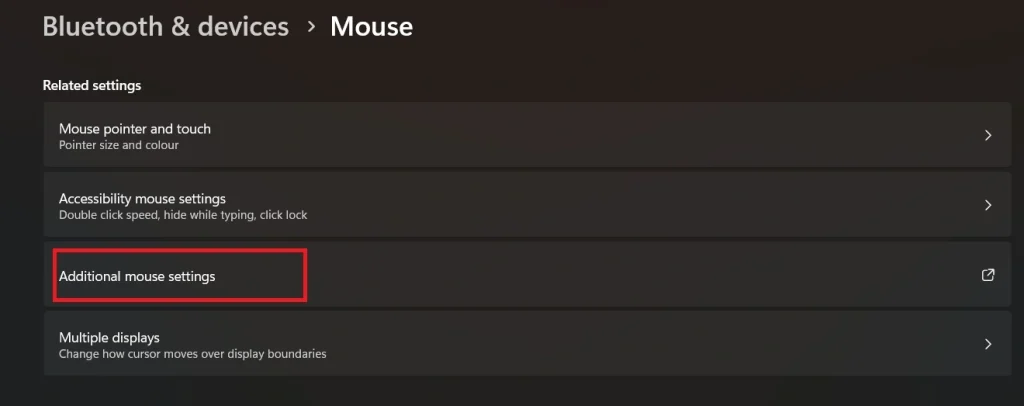
- Open Settings → Select Bluetooth and Devices → Click Mouse → Click Additional mouse Settings.
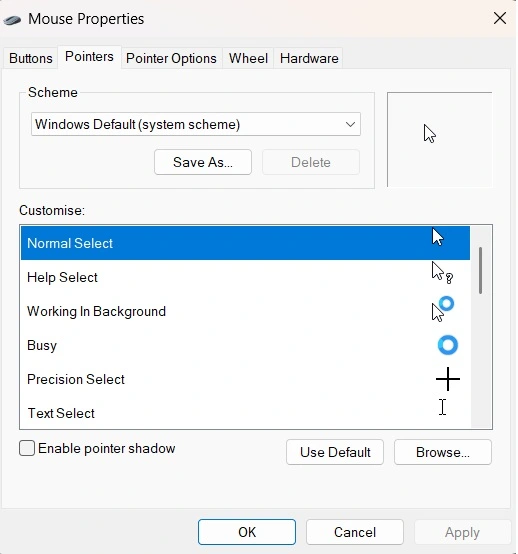
- Go to the Pointers tab, select a scheme, and click Apply.
Method 2: Using Control Panel
The Control Panel offers a more detailed set of pointer customization options. This method is useful if you want to access all pointer schemes or make precise adjustments like enabling shadows or trails. It provides more flexibility than the basic Settings menu.
- Open Control Panel → Click Hardware and Sound → Click Mouse → Go to Pointers tab.
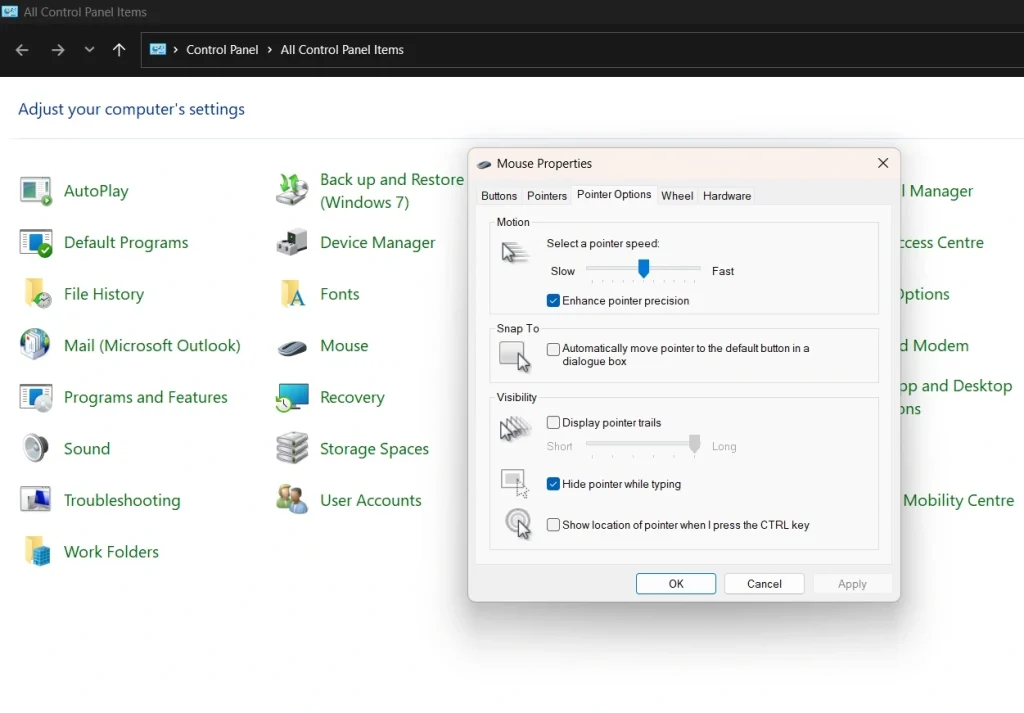
- Switch to the Pointer Options tab. Customize the settings. Click OK and Apply.
Method 3: Using Third-Party Software to Customize Windows Pointer
Some users may want unique pointer designs or advanced effects that Windows does not offer. Trusted third-party software allows for creative pointers, animations, or highly customized styles. This method is best for users who want a more personalized or visually striking pointer.
- Install trusted pointer customization software from the official website or Microsoft Store.
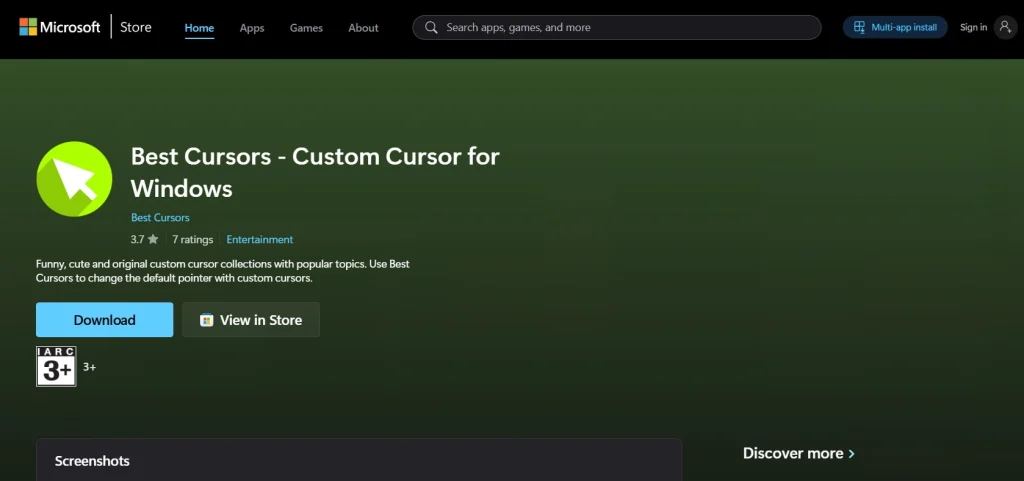
- Use the software interface to choose new pointers, adjust size, and color, then save changes.
Advanced Pointer Customization Options
For users who want more than size and color changes, Windows and other tools offer advanced pointer options. These features improve precision, accessibility, and style. You can enable pointer precision to make fine movements smoother.
High-contrast pointers help with visibility. You can even use different pointers for tasks like gaming or design.
Advanced options also include pointer trails, shadows, and click animations. These make the pointer easier to see on busy screens.
Accessibility Benefits of Pointer Customization
Customizing pointer appearance is not just about style; it can help users with visual or motor challenges. A larger or high-contrast pointer can make it easier for users with low vision to follow the cursor.
Changing pointer speed or enabling trails can support those with limited hand mobility or coordination. These adjustments make everyday tasks like clicking, dragging, or selecting text simpler and reduce frustration. Accessibility-focused pointers can also improve productivity and reduce fatigue during long computer sessions.
Tips for Choosing the Right Pointer
Choosing the right pointer is important for both comfort and efficiency. The pointer is the main tool you use to navigate your computer, so making sure it suits your needs can make a big difference. The wrong pointer size, color, or speed can slow you down, cause mistakes, or strain your eyes. This section gives practical tips to select a pointer that works well for daily use.
Every user’s needs are different. Some prefer a minimal and precise pointer, while others may need a larger or high-contrast pointer for better visibility. By following these tips, you can select a pointer that improves your workflow, reduces fatigue, and even enhances accessibility.
Tips:
- Choose a pointer size that suits your screen: Large screens may require a bigger pointer for easy visibility, while smaller screens work better with medium-sized pointers.
- Pick a color that stands out: Ensure your pointer contrasts with your desktop and apps. High-contrast colors help you locate the pointer quickly.
- Use a pointer shape that fits your tasks: Simple arrow shapes work for general use, while precise crosshairs or small pointers are better for graphic design or gaming.
- Adjust pointer speed to match your comfort: A pointer that moves too fast or too slow can make navigation frustrating. Test different speeds until it feels natural.
- Enable pointer trails if needed: Pointer trails leave a faint path behind the cursor, making it easier to track on busy or high-resolution screens.
- Consider accessibility features: High-contrast or large pointers help users with low vision, while customizing click sounds or visual cues can assist those with coordination challenges.
- Avoid overly flashy pointers for long sessions: Animated or very fancy pointers can distract or cause eye strain during extended computer use.
- Test multiple pointers before deciding: Try different sizes, colors, and speeds in your regular apps to find what is most comfortable and effective for your workflow.
Author’s Tip
Customizing pointer appearance is more than just a cosmetic change. It can boost productivity by making navigation smoother. When choosing a pointer, consider visibility in all lighting conditions. A pointer that is clear on a dark desktop may not be as visible on a bright background. Always test different styles in your most-used apps to ensure comfort.
Another tip is to keep it simple. Fancy pointers with animations or unusual shapes may look attractive but can distract or slow down tasks. Focus on pointers that are clear, visible, and comfortable for daily use. If you work long hours on a PC, the right pointer can reduce strain on your eyes and hands.
Conclusion
Customizing pointer appearance is a simple way to enhance your computer experience. With the right settings, you can improve visibility, reduce strain, and enjoy a more personalized desktop. Windows provides many options to adjust pointer size, color, speed, and style. Using the methods explained, anyone can change the pointer appearance safely.
Taking the time to personalize your pointer can make a noticeable difference. Whether for accessibility, comfort, or style, these changes are easy to implement. Remember to follow the precautions, test new settings, and choose pointers that make work or gaming easier.
By customizing pointer appearance, you make your PC environment more efficient and enjoyable.
FAQs
How do I restore the default pointer appearance?
To restore the default pointer appearance, open Windows Settings, go to Devices, select Mouse, then click Additional mouse options. In the Pointers tab, choose the default scheme or “None” and click Apply to return to the original pointer style.
Can I use animated pointers in Windows?
Yes, Windows supports animated pointers. You can use them safely by choosing official or trusted pointer files, as unverified sources may cause malware or slow down your system.
Does changing the pointer’s appearance affect other users?
No, pointer settings apply only to the current user account. Other users on the same computer will continue using their own default or customized pointers without any changes.
Author Bio:
Dinesh Lakhwani 

Dinesh Lakhwani, the entrepreneurial brain behind “TechCommuters,” achieved big things in the tech world. He started the company to make smart and user-friendly tech solutions. Thanks to his sharp thinking, focus on quality and the motto of never giving up, TechCommuters became a top player in the industry. His commitment to excellence has propelled the company to a leading position in the industry.
Popular Post
Recent Post

CCleaner Duplicate File Finder: Key Features, Pricing, Step-by-Step Guide and More
Every computer collects junk over time. Right? Well, yes! Photos often get copied twice. Documents get saved in two folders by mistake. Old downloads pile up and never get deleted. This slowly eats up your storage space, and most people do not even notice until their drive is almost full. That is where a duplicate […]

Duplicate File Finder Pro: A Complete Review, Everything You Should Know
Computers collect thousands of files over time. Well, yes! Many of them end up being duplicates created by backups, downloads, or accidental copies. These extra files take up valuable storage space and make it harder to keep everything organized. Finding and removing them manually can take hours. Right? Duplicate File Finder Pro is a tool […]

Monitor Screen Calibration Guide: Everything You Should Know
Your monitor shows colors every single day. But are those colors actually correct? Most people never stop to check this. They just use the screen as it comes out of the box. This habit can lead to wrong colors in photos, videos, and work files. Colors may look too warm or too cold without you […]

How To Check Installed RAM and RAM Slots [Complete Guide]
RAM plays an important role in how smoothly a computer runs. Short for Random Access Memory, it stores the data and instructions that Windows and active applications need at any given moment. From opening multiple browser tabs to running games and productivity software, RAM helps keep everything responsive. A system with limited memory may experience […]

What is Microsoft Autopilot Everything You Need To Know
Technology has changed the way companies manage computers. Well, yes! Employees now work from offices, homes, and remote locations. Setting up devices manually for every worker takes time and effort. It can also create mistakes that slow down productivity. This is where Microsoft Autopilot becomes useful. It helps businesses prepare and deploy Windows devices with […]
Enable Automatic Device Locking Feature Windows: Complete Guide
Introduction: Your computer stores important information such as emails, documents, passwords, and personal photos. Leaving it unlocked can put that data at risk. Thankfully, Windows includes built-in features that can automatically lock your device when you are away. Setting up automatic device locking is quick and does not require any extra software. In this guide, […]
How to Update Wireless Network Driver in Windows 11 and 10
Your Wi-Fi keeps dropping. Pages load slowly. The connection feels unstable? Well, you are not alone. Most of the time, the problem is not with your internet plan. It is with your wireless network driver. A driver is a small piece of software that helps your computer talk to its hardware. When it gets outdated, […]
Common Windows 11 Problems and Solutions (2026 Version)
Windows 11 has become more polished over the years, but it is still not completely free from problems. Even after regular updates from Microsoft, many users continue to face issues like lagging performance, failed updates, audio troubles, random crashes, and network errors. Some problems appear after installing new features, while others develop gradually as the […]
Fortect Driver Updater Review: Features, Steps, Pros, and Cons.
A new PC usually feels quick and responsive. Applications open instantly, games run smoothly, and everything works as expected. As time passes, however, you may notice slower performance, system crashes, hardware glitches, or devices that stop working properly. While many people assume malware or low storage space is to blame, outdated drivers are often the […]

