











A computer quietly gathers clutter over time. This includes duplicate photos, repeated downloads, and forgotten backups hiding in random folders. This buildup slowly eats away at storage and can make even a fast PC feel sluggish. Manually finding and deleting duplicates is tedious. It means checking every folder, comparing file names, and guessing which copies […]
How To Adjust The Mouse Pointer Speed: Complete Guide
Using a computer every day means you use the mouse a lot. The mouse pointer moves on the screen and helps you click, scroll, and select items. Many people never think about the speed of the mouse pointer. They have used the default setting for years. This can cause small problems over time. A slow pointer can waste time. A very fast pointer can feel out of control. Learning how to adjust it can improve daily computer use. It can also reduce hand stress.
The process of changing mouse speed is not hard. Most systems already have built-in options for this. When you change the speed, the pointer reacts differently to your hand movement. This small change can make work smoother. It can help while gaming, designing, or simply browsing. How to Adjust the Mouse Pointer Speed is a useful skill for every computer user.
Advantages of Adjusting Mouse Pointer Speed
Why adjusting the mouse pointer speed is helpful
Changing mouse pointer speed can improve how you work on a computer. It can make tasks feel natural and smooth. Many people feel tired because the pointer does not match their hand movement. Adjusting the speed can fix this issue. It allows better control and comfort during long work hours.
When the pointer speed fits your style, you work faster. You make fewer mistakes while clicking. This helps both beginners and experienced users. Learning How To Adjust The Mouse Pointer Speed can make a big difference in daily productivity.
Key advantages
- Better control
A balanced pointer speed gives more control. You can click small icons easily. You avoid missing buttons on the screen. - Faster workflow
With the right speed ,you move across the screen quickly. This saves time during daily tasks. - Less hand strain
You move your hand less when the speed is correct. This reduces wrist and finger stress. - Improved accuracy
A steady pointer helps with precise tasks. This is useful for design and editing work. - Better gaming experience
Games feel smoother with adjusted speed. You can react faster to movement. - Comfort for long use
Working for hours feels easier. The mouse feels more natural in your hand. - Custom experience
Each person has a different comfort level. Speed adjustment allows personal settings. - Supports different screens
Large screens need a different speed. Adjusting helps cover more screen space easily.
Disadvantages of Adjusting Mouse Pointer Speed
Why do some users face issues
Adjusting the pointer speed may not always feel right at first. Some users find the change uncomfortable. It can take time to adapt. A wrong setting can cause frustration. This is common for users who change speed suddenly.
If not done properly, the pointer may move too fast or too slow. This can reduce accuracy. Understanding How To Adjust The Mouse Pointer Speed correctly helps avoid these problems.
Possible drawbacks
- Initial discomfort
New settings can feel strange. Your hand needs time to adapt. - Too fast movement
High speed may cause overshooting clicks. This can reduce accuracy. - Too slow response
Low speed may feel laggy. This can slow down work. - Learning curve
Users need time to find the right balance. This can take patience. - Gaming issues
Wrong speed affects aim. This is common in fast games. - Inconsistent feel
Different apps may feel different. Speed may not suit all programs. - Shared computers
Others may not like your setting. This can be a problem on shared systems. - Accidental clicks
High speed can increase misclicks. This causes small errors.
Precautions Before Adjusting Mouse Pointer Speed
Why precautions matter
Before changing any settings, it is important to understand your needs. Mouse speed affects daily tasks. Making random changes can lead to discomfort. It is better to adjust slowly.
Taking precautions helps you avoid frustration. It also protects your hand and wrist health. Knowing How To Adjust The Mouse Pointer Speed carefully improves results.
Important precautions
- Change speed slowly
Avoid large jumps in speed. Adjust in small steps. - Test after each change
Move the pointer around. Check comfort and control. - Consider your work type
Design work needs a slower speed. Browsing may need a faster speed. - Check mouse quality
Low-quality mice behave differently. This affects speed feel. - Use a mouse pad
A good surface improves movement. This supports accuracy. - Note screen size
Large screens need a higher speed. Small screens need less speed. - Avoid frequent changes
Constant changes confuse muscle memory. Stick to one setting for a while. - Rest your hand
Do not test for long periods. Take short breaks.
4 Quick Methods to Adjust The Mouse Pointer Speed
Understanding different methods
There are several ways to change the mouse pointer speed. Each method serves a different need. Some are simple and quick. Others offer deeper control. Choosing the right method depends on your system and preference.
Learning different ways of How To Adjust The Mouse Pointer Speed helps you find the best setup. Below are four reliable methods that work for most users.
Method 1: Using Windows Mouse Settings
Windows has built-in settings to adjust the mouse pointer speed. This method is simple and works on almost all Windows versions. You do not need any extra software. The adjustment is done through a slider, so you can increase or decrease the speed easily. Most users prefer this method because it gives instant results. You can move the slider and see the pointer react immediately.
This method is ideal for everyday computer use. Whether you are browsing, working on documents, or doing light design work, this setting helps. Beginners can adjust the speed without worrying about complex menus. Even advanced users find it convenient because changes are quick and reversible. Learning this method is the first step for anyone who wants to control how fast the pointer moves.
How it helps
- Easy to access
- Visual speed control
- No extra tools needed
- Instant feedback
Steps
- Open Settings and go to Bluetooth and Devices, then Mouse.
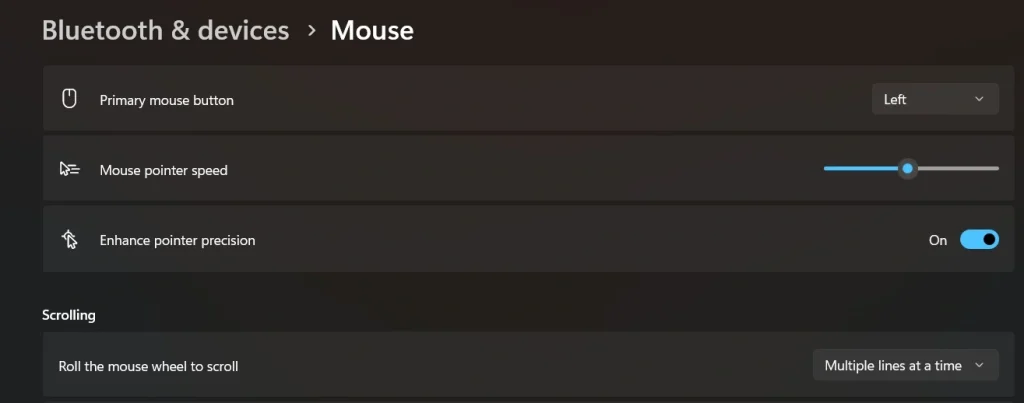
- Move the pointer speed slider and test.
Method 2: Using Control Panel
The Control Panel method provides more detailed options than the basic Windows settings. Here you can adjust both pointer speed and pointer precision. This method works on both older and newer versions of Windows. It gives users better control over how the pointer moves, which is useful for precise tasks. Many professionals prefer this method when they need accuracy.
Using Control Panel also allows you to fine-tune how the pointer reacts to small hand movements. It is especially helpful for designers, editors, or anyone doing detailed work. While slightly more complex than the Windows slider, it is not difficult to use. The extra options make it possible to find a speed that feels just right for your hand and screen size.
How it helps
- More precise control
- Enhanced accuracy options
- Works on older systems
- Professional level settings
Steps
- Open the Control Panel and select Mouse.
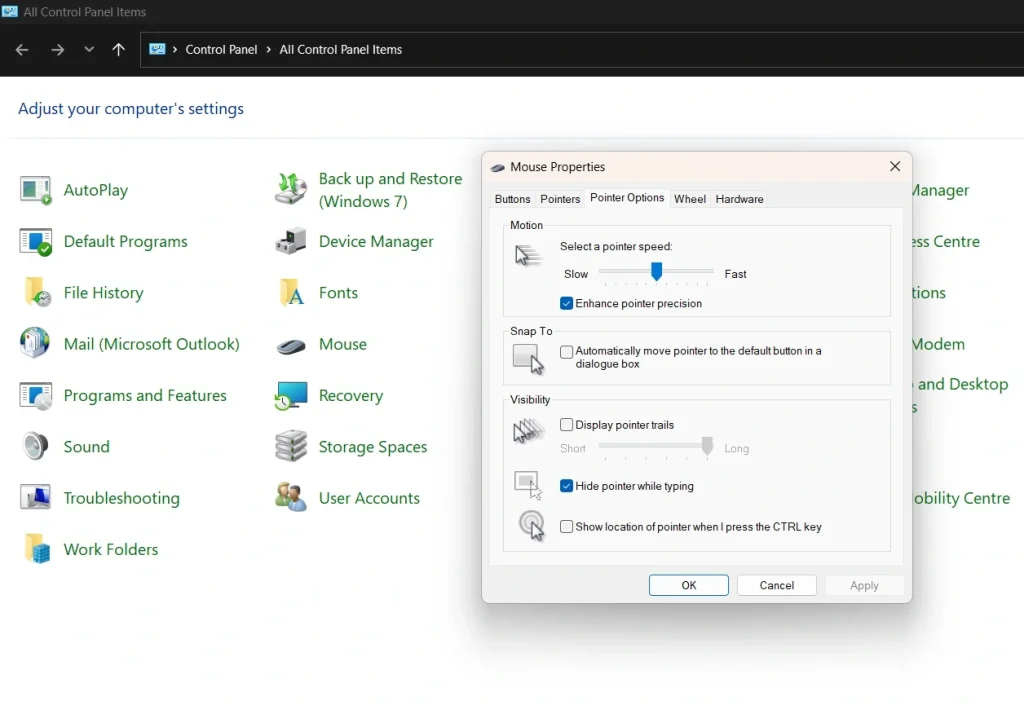
- Adjust speed under Pointer Options tab.
Method 3: Using Mouse Software
Many branded mice come with their own software. This software provides advanced options that Windows settings do not offer. You can create custom speed profiles, adjust DPI, and even switch between different speed settings for work and gaming. This method is particularly popular among gamers and professionals who need high precision.
Mouse software often allows instant switching between profiles, which is very convenient. You can set one speed for office work and another for gaming, for example. It also lets you test different speeds without affecting other users on the same computer. This method gives more control and personalization, making it ideal for anyone who spends long hours using a mouse.
How it helps
- Custom profiles
- High precision tuning
- Gaming friendly
- Easy switching
Steps
- Install the mouse software from the manufacturer.
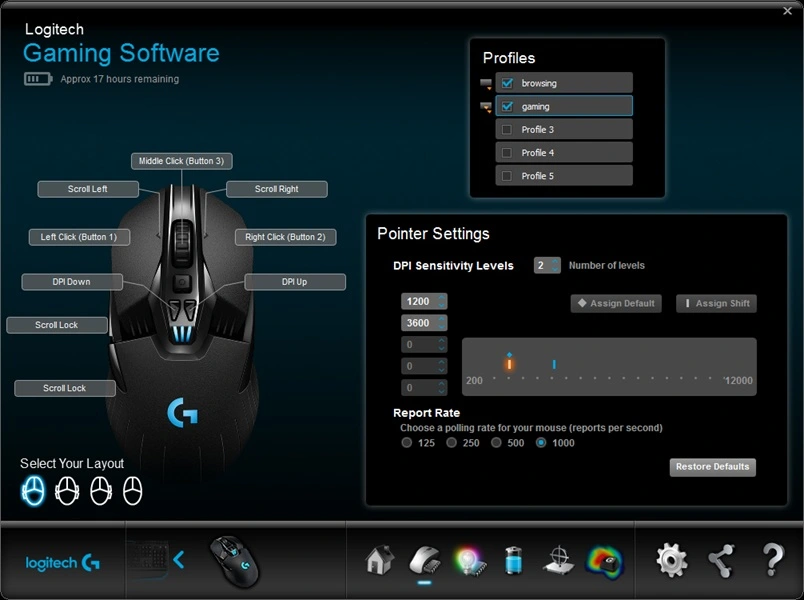
- Adjust speed settings inside the app.
Method 4: Using DPI Buttons on the Mouse
Some mice come with DPI buttons that let you change pointer speed instantly. DPI stands for dots per inch and controls how sensitive the mouse is. Pressing the button cycles through preset speeds, which is useful when switching tasks quickly. You do not need to open settings or software. The change happens immediately, which is great for fast-paced activities.
This method is especially helpful for gamers or users who switch between tasks often. You can move quickly across large screens or slow down for precision tasks without going into menus. DPI buttons give instant control over speed, letting you adapt to the task at hand. It is simple, fast, and effective, making it a favorite for users who need flexibility.
How it helps
- Instant speed change
- No software needed
- Task-based control
- Quick response
Steps
- Locate the DPI button on the mouse.
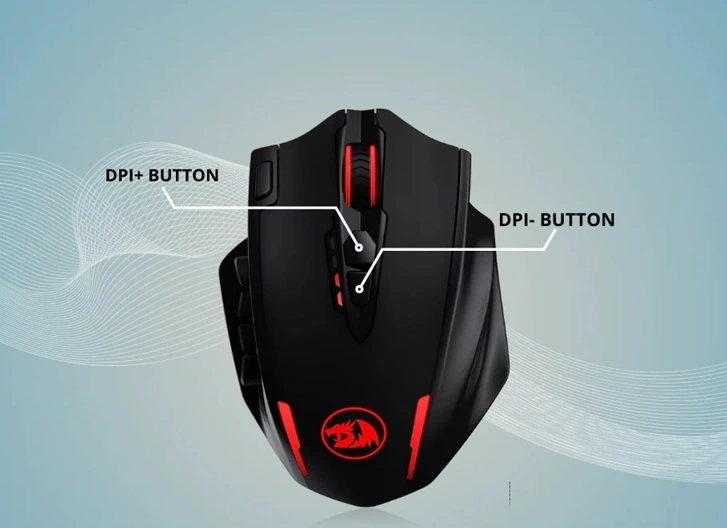
- Press to cycle through speeds.
Author’s Tip
Always adjust the mouse pointer speed according to the type of activity you do most often. Do not simply copy someone else’s settings, because what feels right for one person may feel completely wrong for you. Take the time to test different speeds and see how each feels with your own hand movements. Try using the pointer while performing real tasks, such as browsing, typing, designing, or gaming. This practical testing gives much better results than guessing or using default settings.
Comfort should always come before speed. If your hand and wrist feel relaxed and natural while using the mouse, the speed is likely correct. How to Adjust the Mouse Pointer Speed is about finding the right balance between control and efficiency. Once you discover a speed that works for you, stick with it for a while. This allows your hand to build muscle memory, making your pointer movements smooth, accurate, and effortless over time.
Conclusion
Mouse pointer speed affects daily computer use more than most people realize. Even a small adjustment can make a noticeable difference in comfort and accuracy. A properly set pointer reduces hand and wrist strain, helps prevent fatigue, and can even save time when performing routine tasks. Learning how to adjust the speed allows you to work more efficiently and gives you better control over the pointer, whether you are browsing, editing documents, designing, or gaming.
Understanding How To Adjust The Mouse Pointer Speed helps users work smarter and more comfortably. By following the right methods and taking necessary precautions, anyone can improve their computer experience. It is important to take time to test different settings and find the one that feels natural for you. Once the pointer speed is set correctly, daily computer use becomes smoother, faster, and much more enjoyable.
FAQs
What is mouse pointer speed
Mouse pointer speed is how fast the pointer moves on your screen in response to your hand movement. Adjusting it can make your work more comfortable and accurate. A good speed helps you click, drag, and navigate smoothly, making daily computer tasks easier.
Can changing the pointer speed damage the mouse
Changing the pointer speed does not harm your mouse. It only changes how your computer interprets movement. You can always reset it to the default, so it is completely safe and reversible.
How often should I adjust the mouse speed
You should adjust the mouse speed only when necessary. Frequent changes can confuse your hand movements. Once you find a comfortable speed, keep it consistent to build muscle memory and work efficiently.
Author Bio:
Dinesh Lakhwani 

Dinesh Lakhwani, the entrepreneurial brain behind “TechCommuters,” achieved big things in the tech world. He started the company to make smart and user-friendly tech solutions. Thanks to his sharp thinking, focus on quality and the motto of never giving up, TechCommuters became a top player in the industry. His commitment to excellence has propelled the company to a leading position in the industry.
Popular Post
Recent Post

CCleaner Duplicate File Finder: Key Features, Pricing, Step-by-Step Guide and More
Every computer collects junk over time. Right? Well, yes! Photos often get copied twice. Documents get saved in two folders by mistake. Old downloads pile up and never get deleted. This slowly eats up your storage space, and most people do not even notice until their drive is almost full. That is where a duplicate […]

Duplicate File Finder Pro: A Complete Review, Everything You Should Know
Computers collect thousands of files over time. Well, yes! Many of them end up being duplicates created by backups, downloads, or accidental copies. These extra files take up valuable storage space and make it harder to keep everything organized. Finding and removing them manually can take hours. Right? Duplicate File Finder Pro is a tool […]
Monitor Screen Calibration Guide: Everything You Should Know
Your monitor shows colors every single day. But are those colors actually correct? Most people never stop to check this. They just use the screen as it comes out of the box. This habit can lead to wrong colors in photos, videos, and work files. Colors may look too warm or too cold without you […]
How To Check Installed RAM and RAM Slots [Complete Guide]
RAM plays an important role in how smoothly a computer runs. Short for Random Access Memory, it stores the data and instructions that Windows and active applications need at any given moment. From opening multiple browser tabs to running games and productivity software, RAM helps keep everything responsive. A system with limited memory may experience […]

What is Microsoft Autopilot Everything You Need To Know
Technology has changed the way companies manage computers. Well, yes! Employees now work from offices, homes, and remote locations. Setting up devices manually for every worker takes time and effort. It can also create mistakes that slow down productivity. This is where Microsoft Autopilot becomes useful. It helps businesses prepare and deploy Windows devices with […]
Enable Automatic Device Locking Feature Windows: Complete Guide
Introduction: Your computer stores important information such as emails, documents, passwords, and personal photos. Leaving it unlocked can put that data at risk. Thankfully, Windows includes built-in features that can automatically lock your device when you are away. Setting up automatic device locking is quick and does not require any extra software. In this guide, […]
How to Update Wireless Network Driver in Windows 11 and 10
Your Wi-Fi keeps dropping. Pages load slowly. The connection feels unstable? Well, you are not alone. Most of the time, the problem is not with your internet plan. It is with your wireless network driver. A driver is a small piece of software that helps your computer talk to its hardware. When it gets outdated, […]
Common Windows 11 Problems and Solutions (2026 Version)
Windows 11 has become more polished over the years, but it is still not completely free from problems. Even after regular updates from Microsoft, many users continue to face issues like lagging performance, failed updates, audio troubles, random crashes, and network errors. Some problems appear after installing new features, while others develop gradually as the […]
Fortect Driver Updater Review: Features, Steps, Pros, and Cons.
A new PC usually feels quick and responsive. Applications open instantly, games run smoothly, and everything works as expected. As time passes, however, you may notice slower performance, system crashes, hardware glitches, or devices that stop working properly. While many people assume malware or low storage space is to blame, outdated drivers are often the […]

