












So, search for a pair of shoes once online. Close the tab. By evening, those same shoes are sitting on your news site, your video app, and even your recipe blog. Nobody placed them there by chance. A cookie did. Well, yes! Cookies are small files that websites place on your device while you browse. […]
Repair Apps And Programs: Repair Apps That Aren’t Working
Computers have become an essential part of everyday life, supporting work, study, communication, and entertainment. Most of these activities rely on apps and programs, so when one stops functioning, even simple tasks can be disrupted. Common problems include error messages, frozen screens, or apps that fail to open. On Windows systems, such issues often arise from updates, missing files, or incorrect settings. Knowing how to repair apps and programs equips you to manage these situations calmly and effectively.
Many users feel confused when apps stop working. They may restart the system or uninstall apps without knowing the cause. This wastes time. It is better to use simple repair methods. Windows offers easy built-in tools along with safe manual steps.
In this guide, you will learn how to repair apps that aren’t working properly on Windows with clear steps. The aim is to make the process simple, so anyone can follow it without stress.
Repair Apps And Programs: Advantages, Disadvantages, Questions, Precautions, Methods
Advantages: Key Benefits of Fixing Apps the Right Way
Fixing apps the correct way helps your system stay stable. It also improves performance and reduces future issues.
- Saves time
When you fix an app instead of reinstalling it, you save time. You do not need to download the app again or go through setup steps. Your settings often stay the same. - Improves system speed
Faulty apps use extra system resources. They may run in the background and slow things down. Repairing them removes these issues. Your computer can then use its resources in a better way. - Reduces errors
Many issues come from broken or missing files. These files affect how the app works. Repairing apps replaces or fixes these files. This reduces crashes and error messages. - Keeps your data safe
Repair options usually keep your personal data. Your saved files, login details, and settings remain safe. You do not have to worry about losing important information. - Better user experience
Apps work smoothly after repair. You can open them faster and use all features without trouble. This makes your tasks more comfortable. - Avoids full system reset
Small issues do not need a full system reset. Repairing apps is a simple and direct solution. It helps you fix the problem without affecting other parts of your system. - Supports regular updates
Fixed apps can update without errors. Updates deliver new features and strengthen security, while repairs help keep the app properly aligned with your system. - Builds basic troubleshooting skills
You learn simple steps while fixing apps. Over time, you understand common problems better. This helps you handle future issues without needing outside help.
Disadvantages: Common Drawbacks You Should Know
Repairing apps is useful, but it is not always perfect.
- Not all issues get fixed
Some problems go deeper than simple file errors. They may be linked to core system files or major app faults. In such cases, a basic repair may not work. You may need to reinstall the app or take advanced steps. - Takes time in some cases
Certain repairs do not finish quickly. The time depends on the app size and system condition. If many files are damaged, the process can take longer than expected. - Risk of incorrect steps
If you follow the wrong steps, the issue may become worse. Changing the wrong settings can affect other apps, too. It is important to follow clear and correct instructions. - Temporary fixes
Some repairs solve the issue only for a short time. The problem may return after a restart or update. This usually means the root cause is still present. - Needs admin access
Many repair options require administrator rights. Without proper access, some tools may not work. This can limit what you are able to fix. - System updates may interfere
If your system is updating in the background, it can affect the repair process. Updates may change files while you are fixing them. This can lead to incomplete repairs. - Compatibility issues remain
If the app is outdated, a repair may not solve the issue. It may not match the current version of Windows. In such cases, updating or replacing the app is a better option. - May not fix hardware-related problems
If the issue is caused by hardware, software repair will not help. Problems with RAM, storage, or other parts need a different solution.
Most Asked Questions About App Repair
1. Why do apps stop working on Windows?
Apps can stop working due to many reasons. One common reason is a faulty update. When Windows or the app updates, some files may not install properly. Another reason is corrupted system files. These files help apps run smoothly. If they are damaged, apps may crash or freeze.
2. Is it safe to repair apps instead of reinstalling them?
Yes, it is usually safe to repair apps. Most repair options are designed to fix issues without removing your data. This means your files and settings stay the same. It is a good first step before reinstalling an app. However, you should still be careful. Always close other programs before starting a repair. Make sure your system is not updating at the same time. If the repair does not work, then you can try reinstalling the app as the next step.
3. What is the difference between repair and reset?
Repair and Reset are two distinct options. Repair attempts to fix the app while keeping your data intact. It works by correcting corrupted files and restoring normal functionality. Reset, however, erases all app data and returns the app to its default state, which means you may lose saved settings or personal information. Because of this, Repair is the safer first step. Reset should only be used if Repair doesn’t resolve the issue.
4. Can built-in Windows tools fix app problems?
Yes, Windows has built-in tools that can help fix app issues. These tools are easy to use and do not require technical knowledge. For example, the troubleshooter can detect and fix common problems. System file tools can repair damaged files. These tools are helpful when you want to repair apps and programs without using third-party software.
Important Precautions Before You Begin
Before you start fixing apps, it is important to take some basic precautions. These steps help you avoid mistakes and protect your data.
- Save your work
Always save open files before starting any repair process. Some steps may restart the app or the system. Saving your work helps you avoid losing important data. - Close running apps
Close all unnecessary programs before you begin. Running apps can interfere with the repair process. This also frees up system resources and makes the repair smoother. - Check the internet connection
Some repairs need internet access to download missing or updated files. A stable connection helps the process complete without errors or delays. - Update Windows
Make sure your system is updated before you start. Updates often fix known issues and improve compatibility. This increases the chances of a successful repair. - Backup important data
Keep a backup of your important files as a safety step. Even though repair does not usually delete data, it is better to stay prepared. - Use admin account
Many repair tools need administrator access. Without it, some options may not work properly. Using an admin account ensures full access to repair features. - Avoid interruptions
Do not shut down or restart your system during the repair. Interruptions can damage files and make the issue worse. - Scan for malware
Viruses and harmful programs can affect app performance. Running a quick scan helps detect and remove such threats before you start the repair.
5 Methods to Repair Apps And Programs: Repair Apps That Aren’t Working Properly on Windows
Fixing apps on Windows does not have to be complex. This section explains clear methods to repair apps and programs and helps you repair apps that aren’t working properly on Windows with confidence.
Method 1: Use Built-in Repair Option
The built-in repair feature is the easiest way to fix most app issues. It is available in Windows settings and works for many installed apps. This method checks the app files and fixes common errors without removing your data. It is quick and safe to try first.
This option is useful when apps crash, freeze, or do not open properly. It does not change your personal settings or saved data. That is why it is often the first step before trying anything else.
If the issue is minor, this method can solve it within minutes. It is also helpful for users who do not want to take risks with advanced settings or tools.
Step 1:
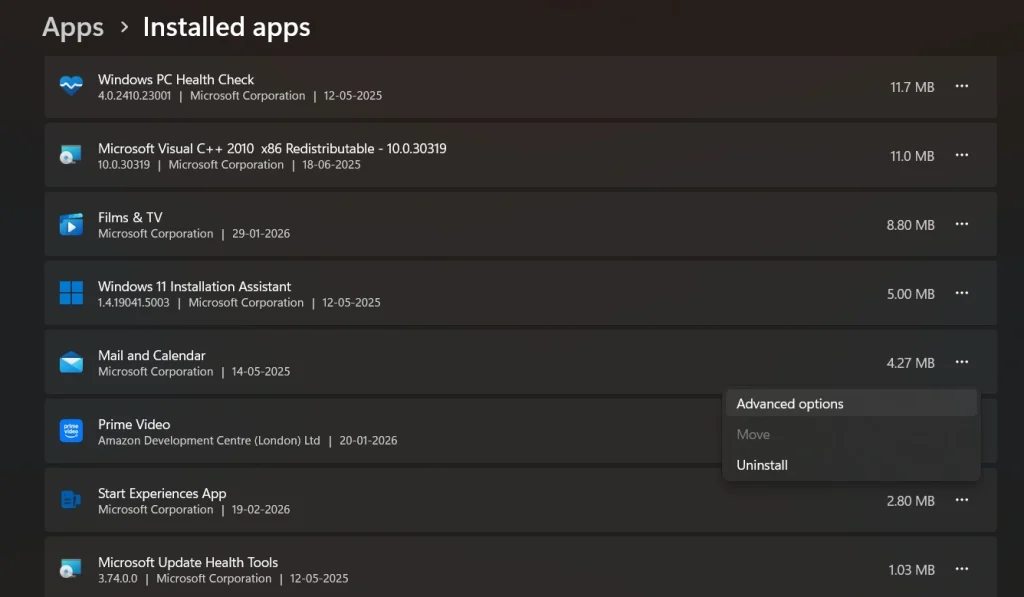
Open Settings and go to Apps. Find the app from the list, click on it, and select Advanced options.
Step 2:
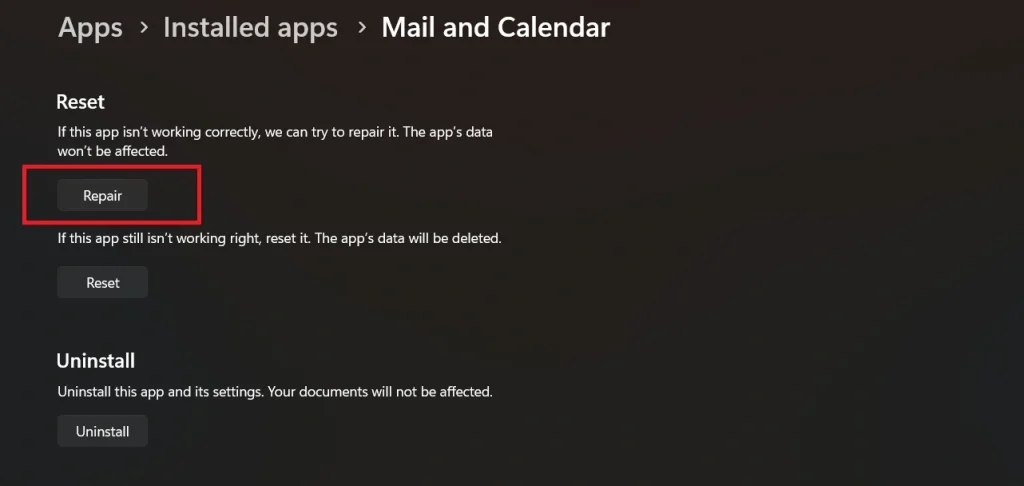
Scroll down and click on Repair. Wait for the process to finish, then open the app again to check.
Method 2: Reset the App
If the repair option does not work, resetting the app is the next step. This method removes app data and restores default settings. It helps when the app behaves in an unusual way or keeps crashing.
Reset is stronger than repair. It clears saved data, login details, and custom settings. This makes the app act like a fresh install without downloading it again.
You should use this method only when basic repair fails. It is effective for fixing deeper issues that are linked to app data or settings.
Step 1:
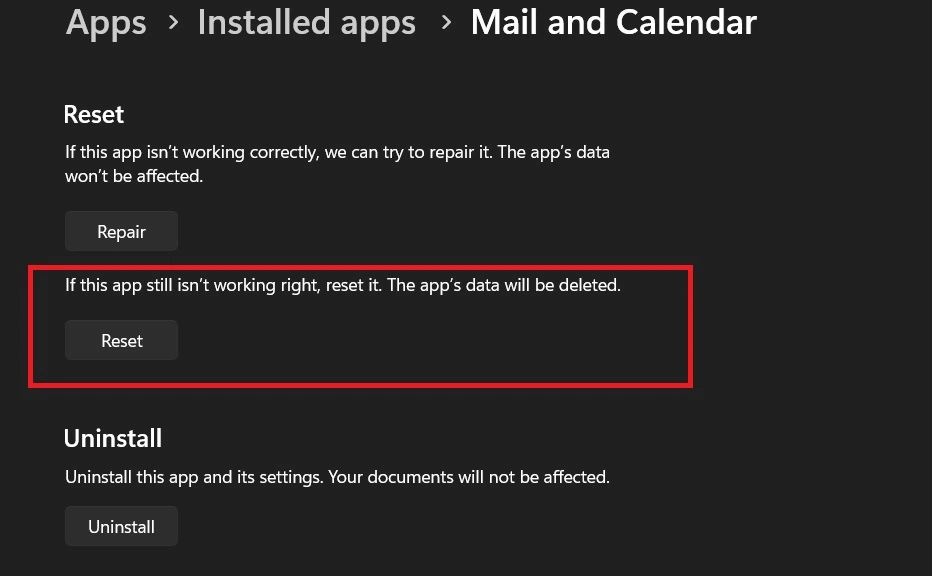
Go to Settings, open Apps, select the app, and click on Advanced options.
Step 2:
Click on Reset and confirm. After the process is complete, open the app and set it up again.
Method 3: Update the App and Windows
Outdated apps often cause problems. Updates fix bugs and improve compatibility. Keeping both the app and Windows updated helps prevent many issues.
Sometimes, an app may stop working after a system update. In such cases, updating the app can restore compatibility. Regular updates also improve security and performance.
This method is simple but very effective. It ensures that your system and apps work together without conflicts.
Step 1:
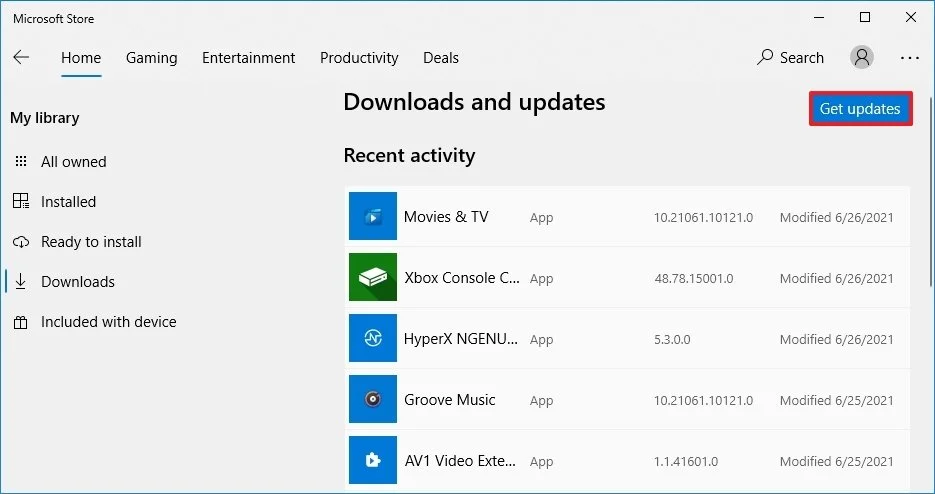
Open Microsoft Store or the app’s official source and check for updates. Install any available updates.
Step 2:
Go to Windows Settings, open Update & Security, and install the latest system updates. Restart your system after completion.
Method 4: Use Windows Troubleshooter
Windows includes a troubleshooter tool that helps detect and fix common problems. It scans your system and applies fixes automatically. This is useful when you are not sure what is causing the issue.
The troubleshooter checks for errors in settings, files, and system processes. It can resolve issues that are not visible to the user. This makes it a helpful option for beginners.
Although it may not fix every problem, it often points you in the right direction. It is a good method to try before moving to advanced fixes.
Step 1:
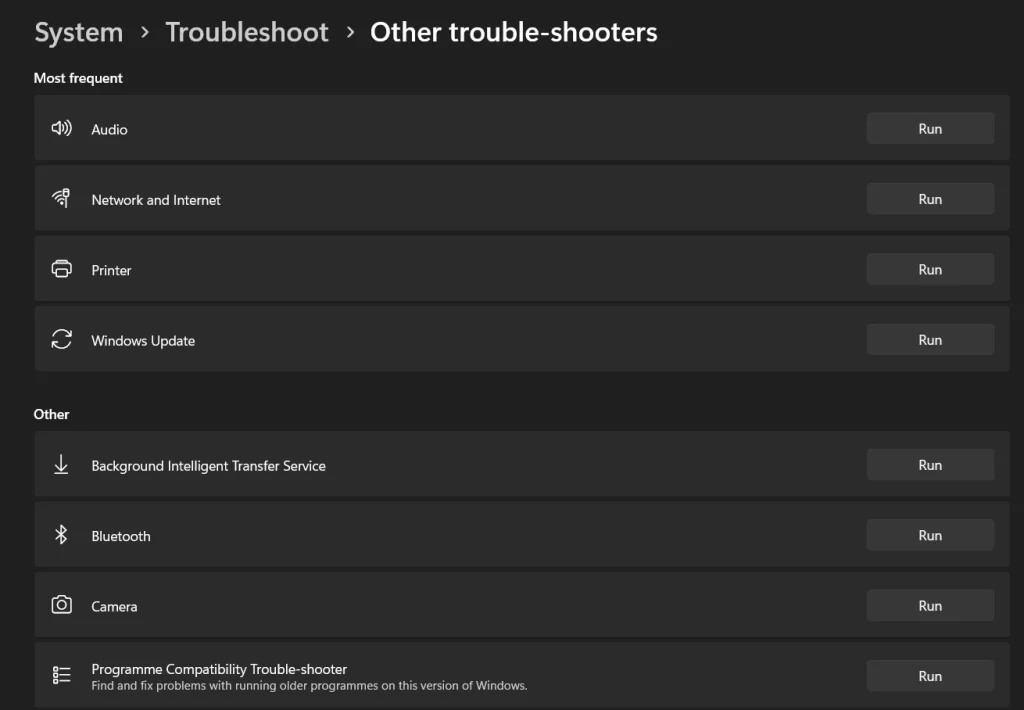
Open Settings, go to System, and select Troubleshoot. Click on Other troubleshooters.
Step 2:
Find the relevant troubleshooter and click Run. Follow the on-screen instructions to complete the process.
Method 5: Reinstall the App
Reinstalling is a reliable method when other fixes do not work. It removes all files and installs a fresh version of the app. This clears hidden issues that repair cannot fix.
This method is useful for apps that crash often or fail to open at all. It ensures that all files are clean and properly installed.
Although it takes more time, it often provides a complete solution. Make sure to save any important data before uninstalling the app.
Step 1:
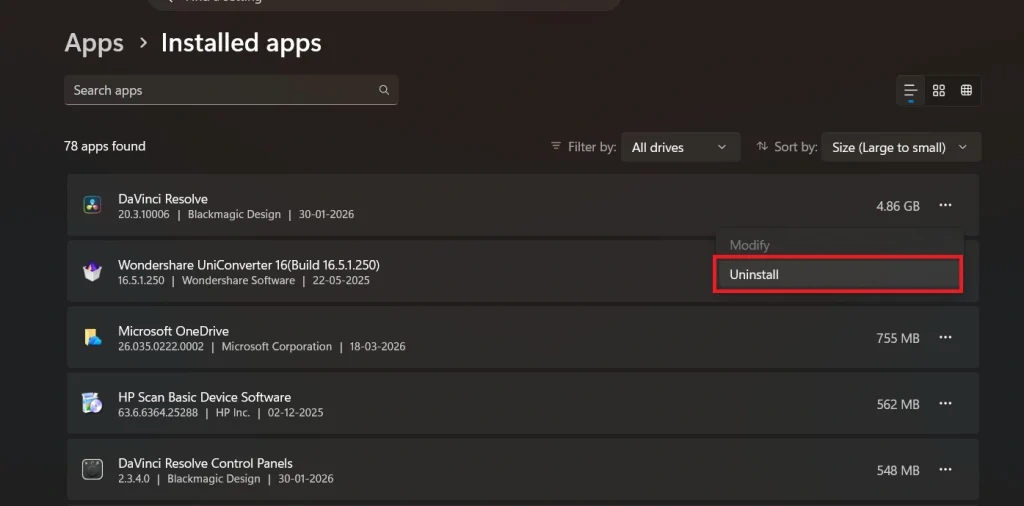
Go to Settings, open Apps, select the app, and click Uninstall. Confirm the action.
Step 2:
Download the app again from a trusted source and install it. Open it and check if the issue is resolved.
Author’s Tip
Start with the simplest method. Do not jump to complex steps at once. Many problems get fixed with basic repair or a simple restart. Take time to observe the issue. Try to notice when it happens. This can help you understand the cause. Keep your system clean and updated. Regular updates reduce the chances of errors. Also, avoid installing too many unnecessary apps. They can slow down your system and create conflicts.
Another helpful habit is to maintain storage space. Keep enough free space on your system drive. This helps apps run smoothly. You should also scan your system regularly for malware. Harmful programs can affect app performance.
If you often face issues, consider creating restore points. These allow you to go back to a previous state. It is a safe way to fix problems without losing data.
Conclusion
Apps and programs play a major role in how we use computers. When they stop working, it can disrupt daily tasks. However, most issues are not serious. They can be fixed with simple steps. Learning how to repair apps and programs helps you save time and effort. It also improves your confidence in handling system issues.
With the right approach, you can solve many problems on your own. Start with basic methods and move step by step. Always take precautions before making changes. By following these steps, you can easily repair apps that aren’t working properly on Windows and keep your system running smoothly.
FAQs:
1. Can I repair apps without losing data?
Yes, in most cases, you can repair apps without losing your data. The repair option is designed to fix broken or missing files while keeping your personal information safe. Your saved files, settings, and login details usually remain unchanged. This makes it a safe first step when an app is not working properly. However, it is still a good idea to keep a backup of important data. This gives you extra safety in case something does not go as expected.
2. When should I reset an app?
You should reset an app when the repair option does not fix the problem. Reset is a stronger step that removes all app data and restores it to its default state. This can help when the issue is caused by corrupted settings or stored data. After a reset, you may need to sign in again and set up the app from the beginning. It is best to use this option only when simple repair methods do not work.
3. Do I need technical knowledge to repair apps?
No, you do not need technical knowledge to repair apps on Windows. Most repair methods are simple and easy to follow. Windows provides built-in tools with clear options and steps. You can access them through settings without using complex commands. As long as you follow the steps carefully, you can fix many common issues on your own without expert help.
Author Bio:
Dinesh Lakhwani 

Dinesh Lakhwani, the entrepreneurial brain behind “TechCommuters,” achieved big things in the tech world. He started the company to make smart and user-friendly tech solutions. Thanks to his sharp thinking, focus on quality and the motto of never giving up, TechCommuters became a top player in the industry. His commitment to excellence has propelled the company to a leading position in the industry.
Popular Post
Recent Post

How To Disable Background Apps In Windows: 4 Quick Methods
A slow PC rarely gives a warning. One day, it simply takes longer to start. Apps open late. The fan runs loud, even when the screen is almost empty. Most people blame old hardware. Often, that is not the real reason. The real reason is hiding in plain sight. Windows keeps many apps active in […]

How to Activate Windows with a Product Key for Windows 11 & Windows 10
It always shows up at the worst time. You are halfway through a report, or about to join a video call. Then you spot it in the bottom right corner of the screen. Activate Windows. Go to Settings to activate Windows. Initially, an unactivated copy of Windows may seem like a minor inconvenience. Over time, […]

Is Easy Duplicate Finder Worth It? Honest Review
The photos folder looked normal at first glance. Then the storage warning popped up. One trip photo appeared four times. A tax PDF sat in three different folders. Two old setup files were still in Downloads, and each one was over 500 MB. Nobody plans this mess. Copies pile up slowly. A download runs twice. […]

Wise Duplicate Finder Review: Real Results from Wise Duplicate Finder
Read my honest Wise Duplicate Finder review. See features, pricing, pros and cons, and real PC test results. Find out if this free duplicate cleaner can free up your Windows storage.

How to Recover Deleted Files from Pen drive, USB Drive, SD Card
Introduction: On tech forums, you’ll often see posts like this: “I connected my pen drive to my laptop this morning, but the folder was empty. All my college project files had vanished. I don’t have a backup. Can someone help me?” Stories like this are very common. Pen drives, USB drives and SD cards are […]

How To Recover Files Deleted from the Recycle Bin [Windows 11]
Losing a file can happen in seconds. You clear your desktop, hit Delete, and empty the Recycle Bin. Then, just when you need that file again, it seems to have vanished. This guide will walk you through ways to restore files removed from the Recycle Bin. We will begin with simple fixes, then look at […]

Disk Drill Data Recovery Tool Explained: Full Review and Guide
It happens in a split second. You delete a folder by mistake. Your drive stops showing up. A photo album from your last trip just vanishes. And your stomach drops. Lost files feel personal. They are not just data. They are memories, work hours, and sometimes years of effort packed into a few gigabytes. When […]

Recover Deleted Files In Windows 11 With Software & Without
Introduction What is the first thing that goes through your mind the second an important file vanishes from a Windows 11 PC? For most people, it is a mix of panic and disbelief, followed by a frantic click through every folder that file could possibly be hiding in. It happens in a split second: one […]

EaseUS Data Recovery Wizard: Everything To Know
Data loss does not always come from a big disaster either. Most cases start small and boring. A drive gets formatted by mistake. A laptop freezes mid-save and restarts on its own. A memory card stops showing up after being pulled out too fast. None of these feel like emergencies at first, until you realize […]

