PowerISO – Review

Last updated on April 25th, 2025 at 6:04 am
If you’re a savvy computer user, you must have already dealt with Image file processing at some point of your life. Well, there are numerous categories that come under this section, among which the most prominent are ISO, audio, video, and many more file types.
Usually, gaming community heavily deals with ISO file processing, as many games are offered in this format. Furthermore, this file format can be used to create bootable operating system setup as well. In order to operate such processes, you should have a good image file processing software that works effectively and efficiently.
One of such tools is none other than the famed PowerISO. This tool offers a great deal of features which are quite useful when you’re working with image processing, CD/DVD burning, and several other processes.
Highlights: PowerISO – Review
- Compatible with both 32-bit and 64-bit operating systems.
- Offers a wide range of features that span over different categories.
- Available for Windows, Linux, and Mac.
- Consistent updates that bring new features and bug fixes.
Features: PowerISO – Review
Although there are many image file processing programs out there, only a few work properly and offer multiple features. Now, it’s time to see what exactly PowerISO has to offer and how you could benefit from them:
- ISO Manager:
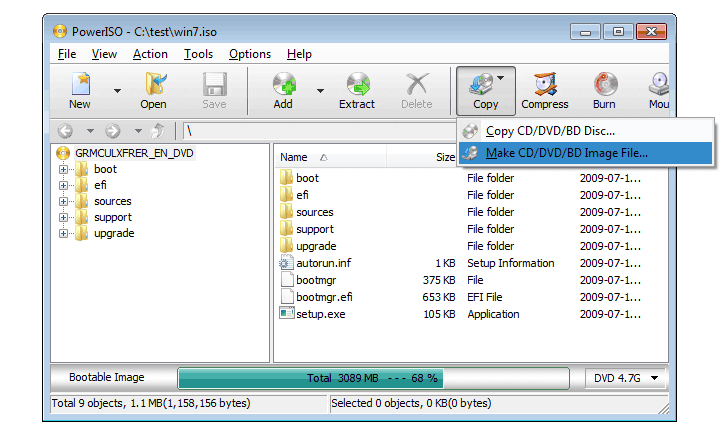
One of the most complicated file types that most people couldn’t deal with is ISO. Basically, these files contain exact copy of the content without any exceptions. You can load games, audio, video, or any type of files into this file type. But, not many software programs can read and access this file type.
Here, you can use PowerISO to deal with these files seamlessly. You can create, edit, and extract ISO files with this program. Additionally, you can also burn and mount these files without any hassles.
Audio CD Creator:
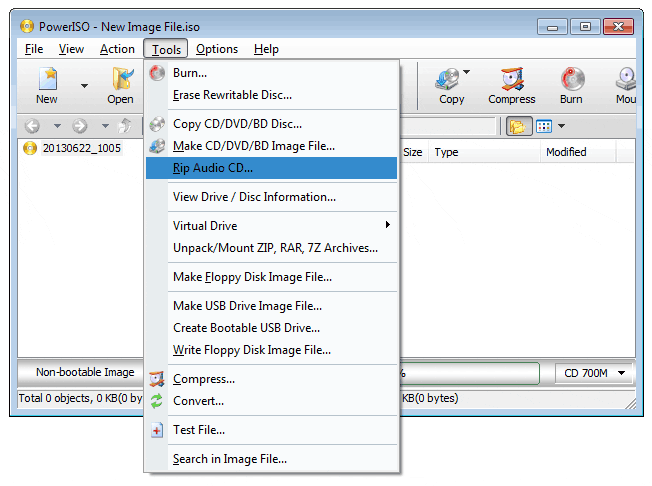
The digital world has been using CDs for a long time and they continue to be an important part of file systems. Not many people are knowledgeable on creating a CD file. But, even the beginners can easily create an audio CD with the help of this tool.
You can burn many types of audio files such as mp3, Wav, Wma, ape, flac, and many more. Furthermore, you can also edit the existing audio image files as well. In addition to that, this program lets you rip audio CD to different types of files such as mp3, wav, wma, flac, and many more.
BIN and ISO Converter:
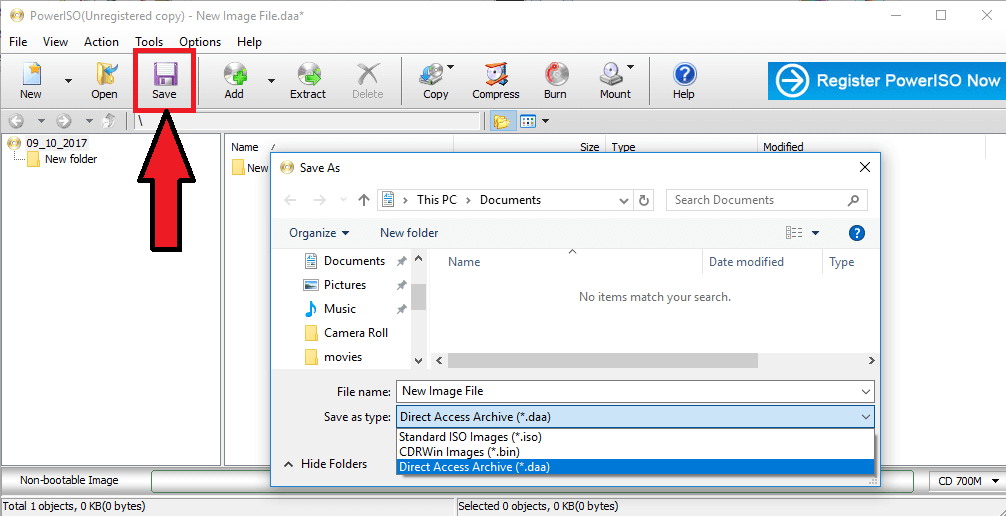
This program not only helps you create and edit ISO files, but also convert them as well. You can covert ISO to BIN and vice-versa with ease. Not only that you can also conduct other conversion operations with PowerISO. This tool lets you convert Apple DMG to ISO easily.
Furthermore, you can convert pretty much any image file to ISO file. Not many tools out there offer this feature and this program provides this rare feature that works quite effectively.
Disk Image File Manager:
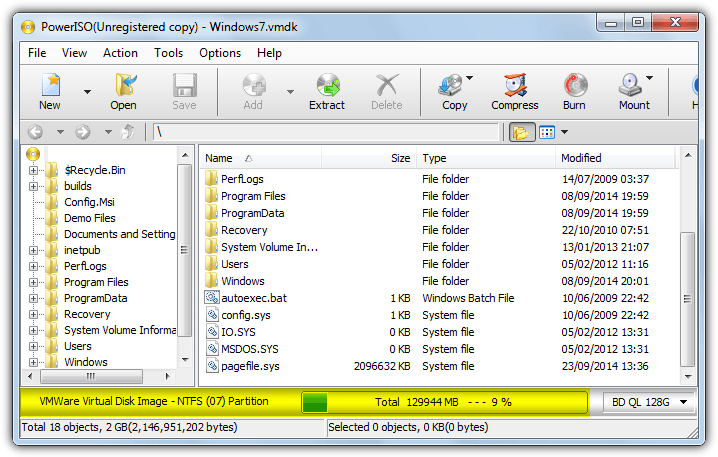
While dealing with different types of files, you may have come across virtual disk image files and other types of disk images as well. If you’re facing troubles accessing these files, PowerISO is here to help. With this tool, you can easily open, edit, and extract almost all types of disk image files seamlessly.
You can access popular virtual image files such as vdi, vmdk, and many more. Additionally, you can also deal with usual disc images such as FAT, FAT12, FAT32, ext2, ext3, and NTFS.
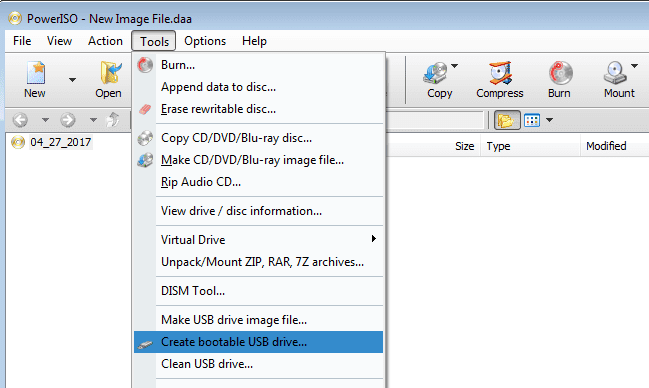
Bootable USB Driver Creator:
Are you experienced with installing operating system on your computer? Well, if yes, you must have already known the fact that it’s very frustrating when you try installing OS on your computer without a DVD drive.
But, you can still proceed with the process without the drive, if you can create a bootable USB drive. To do that, you can take help of this program. It lets you create a bootable USB drive for almost all Windows operating systems.
Pros & Cons
Now, let’s have a look at some of the main pros and cons of this program:
Pros:
- Extremely easy to use, even if you don’t have any prior experience with similar stuff.
- Free version available along with premium version which offers extra features.
- Consumes very little amount of hardware resources of your computer.
- Supports many file types, making it a universal software.
- Consistent support updates which eliminates any types of bugs and also brings new features.
- Multi-platform program which runs on Windows, OSX, and Linux.
Cons:
- Interface looks a bit old and out-dated.
Final Verdict: PowerISO
PowerISO is one of the best image file processing software out there. This tool has been around the block for quite some time. Many tech experts have lauded this program as one of the most reliable and efficient tools.
Author Bio:
Dinesh Lakhwani 

Dinesh Lakhwani, the entrepreneurial brain behind “TechCommuters,” achieved big things in the tech world. He started the company to make smart and user-friendly tech solutions. Thanks to his sharp thinking, focus on quality and the motto of never giving up, TechCommuters became a top player in the industry. His commitment to excellence has propelled the company to a leading position in the industry.
Popular Post











Recent Post

How to Upgrade Computer RAM: Complete Guide
Upgrading RAM is one of the simplest ways to improve a computer. It helps the system feel faster and smoother. Apps open quicker. Browsers handle more tabs. Games and tools run with less delay. Many users search for how to upgrade computer RAM because it gives real results without high cost. You do not need […]

How To Clean Your Computer Keyboard: Complete Guide
A computer keyboard is touched more than almost any other device you own. It is used during work, study, gaming, and casual browsing. Fingers carry natural oils, sweat, and dirt. Small food crumbs fall between keys without notice. Dust settles each day slowly. Over time, this creates a hidden layer of grime. Many users do […]

Computer Mouse Buying Guide for Beginners and Advanced Users
Buying a mouse looks easy at first. Many people think all mouse work the same way. Well, that idea often leads to regret later. A mouse affects comfort, speed, and daily work. It matters for office tasks, gaming, design, and study. The right choice reduces strain and improves control. The wrong one feels annoying every […]

How To Overclock a Computer: A Complete Guide
Overclocking is the process of making your computer run faster than its factory settings. It mainly affects the processor, graphics card, and sometimes memory. Many people choose this method to improve performance without buying new hardware. It is popular among gamers, video editors, and users who run heavy software. When done properly, overclocking can give […]

How To Find Password Saved on This Computer: Complete Guide
Many people forget their login details at some point. It happens often. We create many accounts every year. Each one needs a username and a password. Over time, it becomes hard to remember all of them. That is why computers offer ways to store login details. These saved details help users sign in faster. They […]

How To Open/Access Computer Management & Advanced Tips
Every Windows computer has many hidden tools. Most users never see them. They only use basic settings. They change wallpapers. They install apps. They adjust sound and display. That is enough for daily work. But problems still happen. The system slows down. Storage fills up. Errors appear without warning. At this stage, normal settings do […]

How To Transfer Photos From Android Phone To PC/Laptop [2026]
Moving photos from a phone to a computer is something most people need to do often. Phones fill up fast. Photos also matter more than apps. You may want a safe backup. You may want to edit images on a bigger screen. This guide explains how to transfer photos from Android to PC without stress. […]

Top 9 Browsers With Built-In VPN – VPN Browser
Online browsing is no longer private by default. Every website collects data in some form. This includes location details, device information, and browsing habits. Over time, this data builds a clear picture of user behavior. Many people are now uncomfortable with this level of tracking. A VPN browser helps reduce this exposure. It adds a […]

AI In Cyber Security: Who is Winning, Hackers or Security Companies
Cybersecurity once followed clear rules. Companies built firewalls. Users created passwords. Antivirus tools scanned files and removed known threats. When an attack happened, security teams studied it and added new rules. This method worked for many years. It created a sense of control and stability. That sense is gone today. Artificial intelligence has changed how […]

The Biggest AI-Run Cyber Attacks Of All Time
Artificial intelligence is now part of everyday technology. It helps people search faster. It improves medical research. It supports businesses in making better choices. But AI is not used only for good purposes. Cyber criminals have also learned how to use it. This has changed the nature of cyber attacks across the world. In the […]

