












The photos folder looked normal at first glance. Then the storage warning popped up. One trip photo appeared four times. A tax PDF sat in three different folders. Two old setup files were still in Downloads, and each one was over 500 MB. Nobody plans this mess. Copies pile up slowly. A download runs twice. […]
How To Open/Access Computer Management & Advanced Tips
Every Windows computer has many hidden tools. Most users never see them. They only use basic settings. They change wallpapers. They install apps. They adjust sound and display. That is enough for daily work. But problems still happen. The system slows down. Storage fills up. Errors appear without warning. At this stage, normal settings do not help much.
Windows includes a powerful system utility that solves many of these issues. It brings several technical tools together in one place. You do not need to download anything. You do not need special software. This tool is designed for control, clarity, and system insight. It helps users understand what is really happening inside the computer.
Many people avoid system tools because they sound complex. The truth is different. With clear guidance and careful steps, even regular users can benefit. You do not need to touch risky options. Viewing information alone can answer many questions. This guide explains everything slowly and clearly. Each section uses plain words and short sentences to keep reading easy.
What is Computer Management?
Computer Management is a tool built into Windows. It puts different system controls in one place, so you can manage hardware, storage, and settings easily. You don’t need to install anything, and it works on most versions of Windows.
It is mainly used to view system information and perform basic administrative tasks. You can check disk status, manage users, and review system errors. Many features are visual and menu-based, which makes them easier to understand over time. With careful use, even non-technical users can benefit from it.
Key Features
- Disk Management
Allows you to view, create, format, and resize disk partitions. It helps you understand how storage is being used. - Device Manager
Shows all connected hardware devices. It helps detect driver problems and hardware issues. - Event Viewer
Records system events, errors, and warnings. It helps identify the cause of system problems. - User and Group Management
Lets you create, remove, and manage local user accounts. Access levels can also be adjusted. - Service Control
Allows you to start, stop, or review background services that run with Windows.
How to Open Computer Management
Windows offers more than one way to open this tool. You can choose the fastest method. All methods open the same window. The layout remains the same.
You do not need advanced skills to open it. Some actions inside may need admin permission. Opening the tool itself is simple. Follow the steps below carefully.
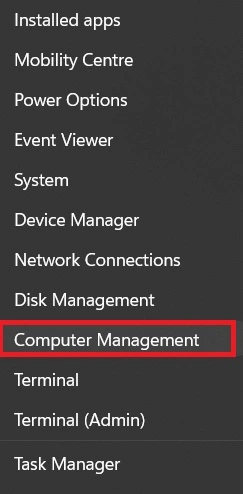
Step 1. Move your mouse to the Start button. Right-click on it. A menu will appear. Click on the option named Computer Management.
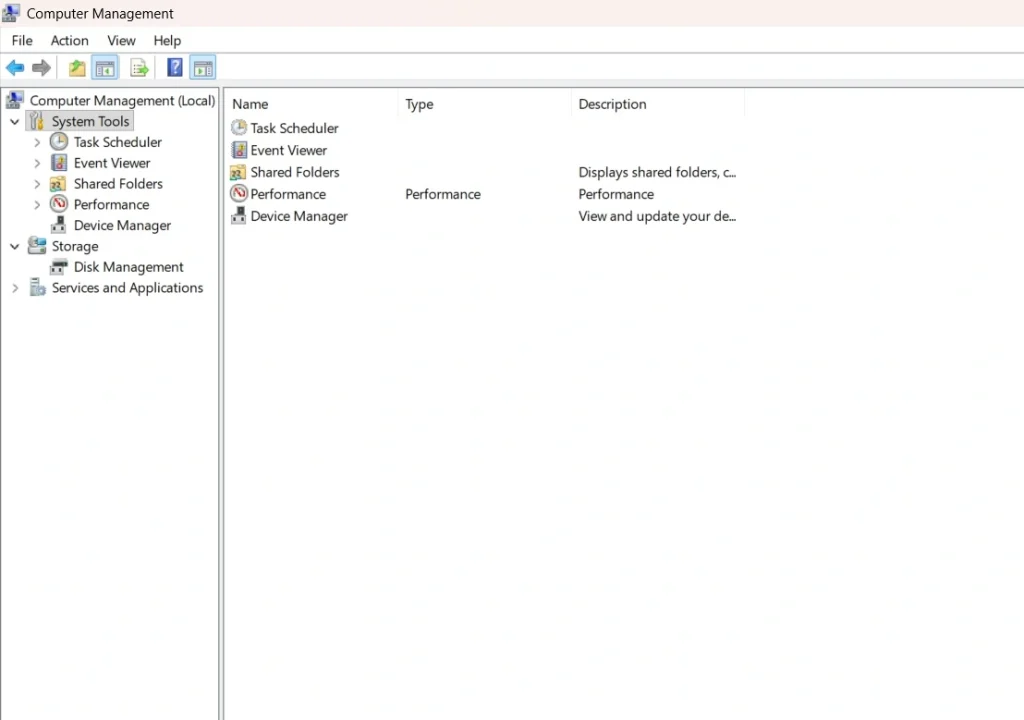
Step 2. After a short wait, the tool will appear in a separate window.
Benefits of Using Computer Management
Using this tool gives you deeper control over your system. It helps you understand how Windows works behind the scenes. You can detect problems early. You can also avoid many common mistakes.
This utility is helpful for home users and office systems. It reduces dependence on third-party tools. It also saves time during troubleshooting. Below are the main benefits explained in simple terms.
- One place for many tools
You do not need to search for different system features. Everything stays organized in one window. - Better storage control
You can see all drives clearly. You can manage partitions and unused space. - Clear system error logs
Errors and warnings are recorded. You can check when and why problems occurred. - User account handling
You can create local users. You can limit access when needed. - Control background services
Many programs run silently. You can stop once you do not need. - Hardware overview
All connected devices appear in one list. You can spot driver issues quickly. - Network and sharing insight
You can view shared folders. You can check who is using them. - No extra downloads required
The tool comes with Windows. This keeps your system clean and stable.
FLUQs: Before You Start Let’s Discuss These Questions First
Is this tool meant only for experts?
No, it is not limited to experts. Anyone can open and use it with basic guidance. Beginners should start by viewing information only. Reading logs, checking disks, and seeing device status are safe actions. Changes should be made slowly and only when the purpose is clear.
Can changes be reversed if something goes wrong?
Some changes can be undone, but not all. Simple actions like restarting services are easy to reverse. Disk or user changes may be permanent. Creating a system restore point before major edits is always a safe step. It gives you a way back if something goes wrong.
Does using this tool harm system performance?
No, using the tool itself does not slow down the system. Opening it or viewing details has no impact on performance. Only specific actions, such as disabling important services, can cause issues. Careful use keeps the system stable.
Advanced Tips
This system utility is more powerful than it looks. With time and care, you can use it for deeper control. The tips below focus on safety and clarity. Always read labels before changing anything.
Study the Event Viewer Section
- Why it matters: Event Viewer logs system activity, including errors, warnings, and informational messages.
- Tip: Focus on entries marked as errors or warnings to identify potential issues. Repeated normal logs can be safely ignored to avoid clutter.
Review Startup Services Carefully
- Why it matters: Startup services affect boot time and system performance.
- Tip: Only disable services you recognize and know are non-essential. Some are critical for system stability, so research before making changes.
Inspect the Disk Layout Often
- Why it matters: Disk Management shows how your storage is partitioned and used.
- Tip: Check for unallocated space regularly. You can use it to create new partitions or expand existing ones, improving storage efficiency.
Rename Drives with Clear Labels
- Why it matters: Clear drive names help avoid confusion during file operations.
- Tip: Use descriptive labels like “Backup Drive” or “Media Storage” to make navigation and disk tasks easier and safer.
Monitor Shared Folder Usage
- Why it matters: Shared folders can expose sensitive data if not monitored.
- Tip: Use the Shared Folders section to see who’s accessing files in real time. This helps with security and troubleshooting access issues.
Check Device Status Icons
- Why it matters: Device Manager shows hardware health and driver status.
- Tip: Yellow warning icons indicate driver problems. Update or reinstall drivers to fix issues and ensure hardware functions properly.
Create Restore Points Before Changes
- Why it matters: Restore points let you roll back system changes safely.
- Tip: Always create a restore point before installing new software or tweaking system settings. It’s a safety net against accidental damage.
Learn Sections One by One
- Why it matters: Computer Management is a powerful tool with many components.
- Tip: Don’t rush. Explore each section—like Services, Disk Management, and Event Viewer gradually to build confidence and understanding.
Conclusion
Windows hides many useful tools from plain sight. This utility brings them together in a simple layout. With patience and care, users gain better control over their systems. You do not need expert knowledge to benefit. Even viewing information improves awareness and confidence.
Regular use helps prevent problems. It reduces reliance on outside software. Over time, you learn how your system behaves. This knowledge leads to better decisions and a more stable computer. Computer management remains one of the most useful built-in tools for long-term system care.
FAQs
Can this tool fix system errors automatically?
No, it cannot fix errors on its own. The tool mainly shows system details, logs, and settings. It helps you understand what is wrong and where the issue started. After that, you decide the next step. You may restart a service, update a driver, or free disk space. The tool supports decision making, not automatic repair.
Is it available in Windows 11?
Yes, it is fully available in Windows 11. The design looks slightly more modern compared to older versions. Some menus may appear in a different style. The core tools remain the same. Disk management, event logs, and device controls all work as expected.
Should I use it often or only when problems appear?
You do not need to open it every day. Occasional checks are enough for most users. It is best used when something feels wrong with the system. Slow startup, disk issues, or device errors are good reasons. Regular viewing can also help you spot problems early.
Author Bio:
Dinesh Lakhwani 

Dinesh Lakhwani, the entrepreneurial brain behind “TechCommuters,” achieved big things in the tech world. He started the company to make smart and user-friendly tech solutions. Thanks to his sharp thinking, focus on quality and the motto of never giving up, TechCommuters became a top player in the industry. His commitment to excellence has propelled the company to a leading position in the industry.
Popular Post
Recent Post

Wise Duplicate Finder Review: Real Results from Wise Duplicate Finder
Read my honest Wise Duplicate Finder review. See features, pricing, pros and cons, and real PC test results. Find out if this free duplicate cleaner can free up your Windows storage.

How to Recover Deleted Files from Pen drive, USB Drive, SD Card
Introduction: On tech forums, you’ll often see posts like this: “I connected my pen drive to my laptop this morning, but the folder was empty. All my college project files had vanished. I don’t have a backup. Can someone help me?” Stories like this are very common. Pen drives, USB drives and SD cards are […]

How To Recover Files Deleted from the Recycle Bin [Windows 11]
Losing a file can happen in seconds. You clear your desktop, hit Delete, and empty the Recycle Bin. Then, just when you need that file again, it seems to have vanished. This guide will walk you through ways to restore files removed from the Recycle Bin. We will begin with simple fixes, then look at […]

Disk Drill Data Recovery Tool Explained: Full Review and Guide
It happens in a split second. You delete a folder by mistake. Your drive stops showing up. A photo album from your last trip just vanishes. And your stomach drops. Lost files feel personal. They are not just data. They are memories, work hours, and sometimes years of effort packed into a few gigabytes. When […]

Recover Deleted Files In Windows 11 With Software & Without
Introduction What is the first thing that goes through your mind the second an important file vanishes from a Windows 11 PC? For most people, it is a mix of panic and disbelief, followed by a frantic click through every folder that file could possibly be hiding in. It happens in a split second: one […]

EaseUS Data Recovery Wizard: Everything To Know
Data loss does not always come from a big disaster either. Most cases start small and boring. A drive gets formatted by mistake. A laptop freezes mid-save and restarts on its own. A memory card stops showing up after being pulled out too fast. None of these feel like emergencies at first, until you realize […]

Recuva Data Recovery Tool: Is it Actually Worth it?
When I first tried Recuva Data Recovery, I wanted to see if it could really bring back lost files. The tool is free, small in size, and promises quick recovery, which made me curious enough to test it on my own PC. The setup was fast, and the wizard guided me step by step. I […]

GetData Recover My Files Data Recovery Tool: Honest Review
A hard drive error brings a special kind of silence. Well, yes! The screen freezes, then a message appears saying the drive can’t be found or must be formatted. In that moment, years of photos and work files feel at risk. It never happens at a good time. Coffee spills near a laptop, a memory […]
Windows File Recovery: A Complete Review [Tried & Tested]
Imagine this. You spend hours perfecting a video project. You hit save. Then your laptop freezes, reboots, and when the screen comes back. The file is gone. Your stomach sinks. It’s not just you. Lost files happen all the time. A dropped hard drive, a bad update, an accidental delete, or a corrupted partition can […]

