












The photos folder looked normal at first glance. Then the storage warning popped up. One trip photo appeared four times. A tax PDF sat in three different folders. Two old setup files were still in Downloads, and each one was over 500 MB. Nobody plans this mess. Copies pile up slowly. A download runs twice. […]
How To Find Password Saved on This Computer: Complete Guide
Many people forget their login details at some point. It happens often. We create many accounts every year. Each one needs a username and a password. Over time, it becomes hard to remember all of them. That is why computers offer ways to store login details. These saved details help users sign in faster. They also reduce stress during daily work. In many cases, users do not even notice when their system saves them. Later, they want to check or recover them. This is where learning about passwords saved on this computer becomes useful.
A computer can store login details in several places. Web browsers do this first. Operating systems do it too. Some apps also keep their own records. Knowing where to look saves time. It also avoids risky tools on the internet. Many guides online feel complex. They use hard terms.
This article keeps things simple. It explains how to find password stored on this computer using safe steps. You do not need advanced skills. You only need patience and care.
Where are the passwords saved on this computer?
Most saved passwords live inside web browsers. Chrome, Edge, Firefox, and Safari all have this feature. When you log in to a site, the browser asks to save the password. If you agree, it stores it in its settings. These passwords stay linked to your user account. They are protected by your system login in most cases.
Some passwords are stored by the operating system. Windows uses Credential Manager. macOS uses Keychain Access. These tools store Wi-Fi passwords, app logins, and network details. Email apps and office tools may also save passwords. Each app decides where to keep them. Knowing this helps you search in the right place.
How To Find Passwords Saved On This Computer
Finding saved passwords is easier than it sounds. You only need to follow the correct path. The method depends on where the password was saved. Browsers, system tools, and apps all work differently. Below are three safe and common methods.
Method 1: Check saved passwords in web browsers
Web browsers are the most common place for saved logins. Most users rely on them daily. Browsers store usernames and passwords for websites you visit often. They also protect this data with your system login.
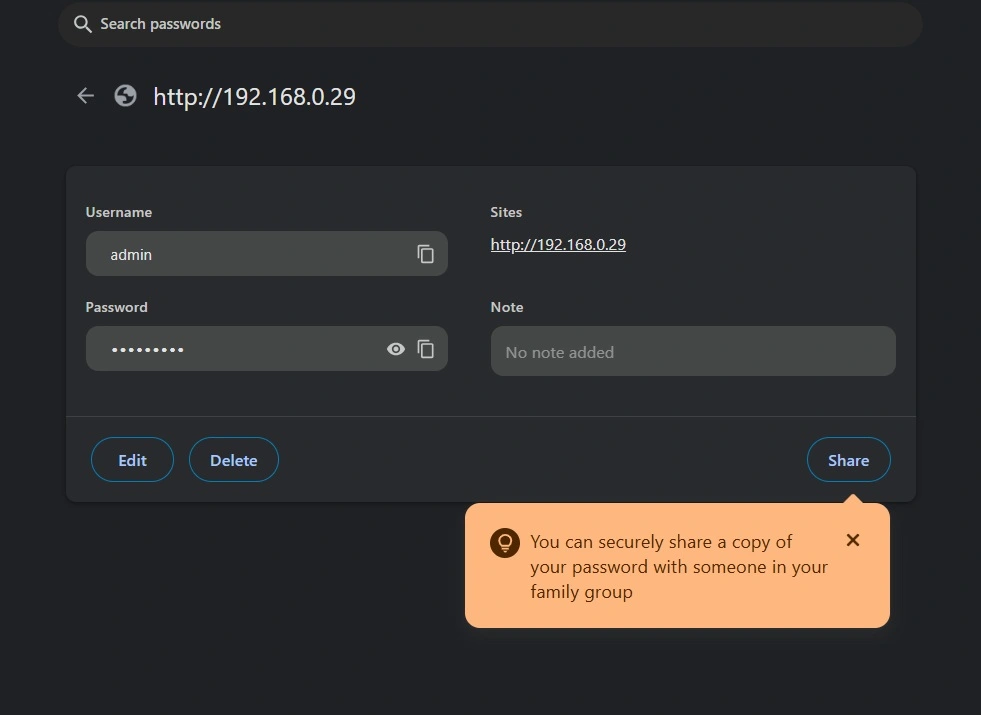
To access browser passwords, you must open settings. Look for the password or privacy section. The browser will ask for your system password. This step protects your data. After that, you can view saved details. Be careful when doing this in public.
Steps
- Open your browser settings and go to the passwords section.
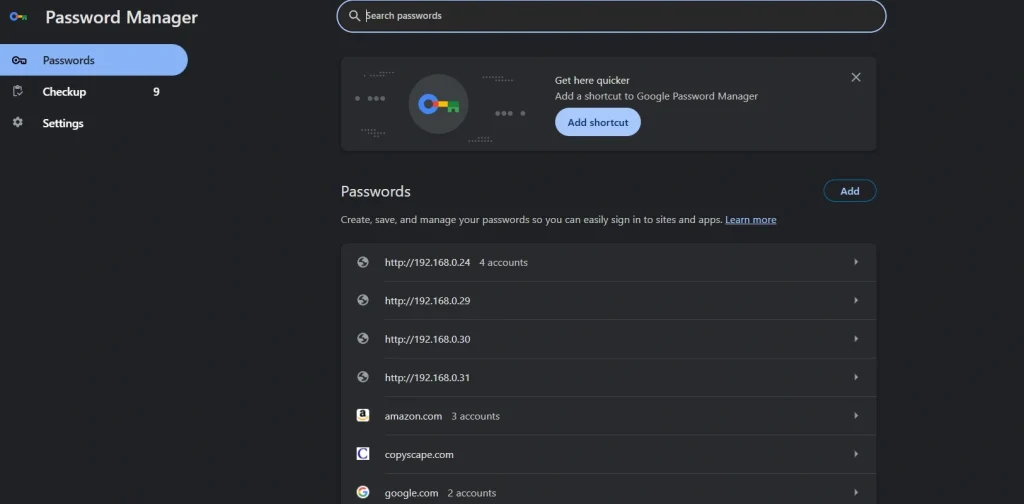
- Select the site and verify your system login to view the password.
Method 2: Use system password managers
Operating systems have built-in password tools. These tools store Wi-Fi and app passwords. They also keep network login details. Windows and macOS both offer this feature.
These tools are secure by default. They require admin access or system login. This keeps your data safe from others. You can view, edit, or remove saved items here. Use this only on your personal computer.
Steps
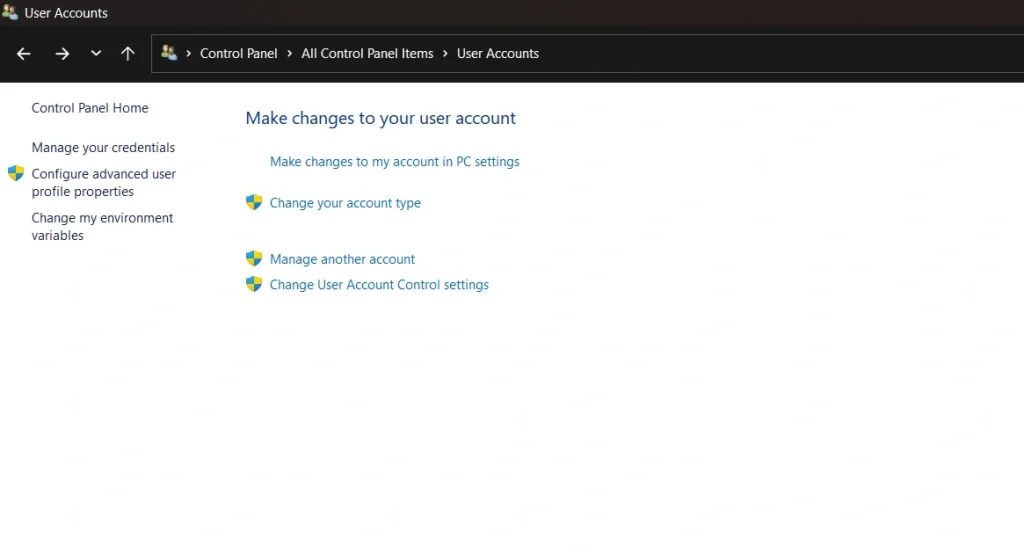
- On Windows: Press Win + R, type control, and press Enter to open Control Panel. Or press Win + I to open Settings. Navigate to User Accounts > Manage Your Credentials (Control Panel) or Accounts > Sign-in options (Settings).
- In Credential Manager, select either Web Credentials (for browser-saved passwords) or Windows Credentials (for system/network logins). In Settings, scroll to Password Manager if available (depends on Windows version).
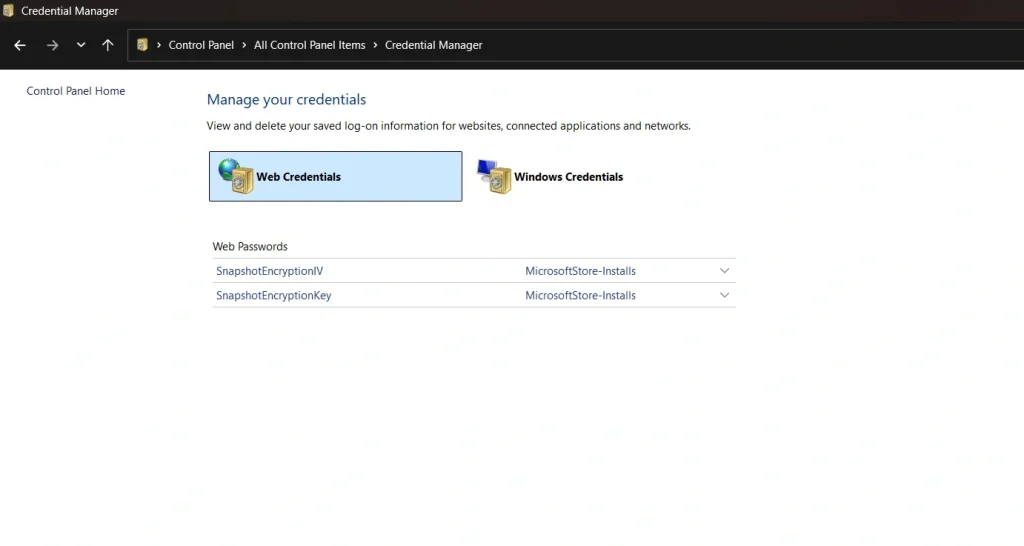
- Browse the list of saved credentials. Click the entry you want to view or edit. A prompt will appear asking for your Windows account password (or PIN/biometric if configured). Enter it to unlock and view the saved password.

Method 3: Check passwords saved in apps
Some apps save passwords inside their own settings. Email clients are a good example. Cloud storage apps also do this. Each app handles passwords differently.
You need to open the app settings. Look for account or security options. Some apps hide passwords for safety. Others allow viewing after verification. Always log out after checking.
Steps
- Open the app’s settings or account section. Look for options like Security, Privacy, or Password Manager.
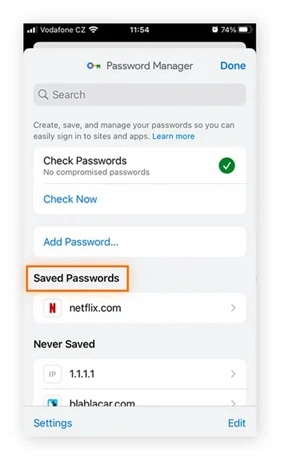
- Select the saved login entry and authenticate. Tap the account, then confirm with your device password, PIN, or biometric to reveal the stored password.
Security Tips While Saving Passwords On A Computer
Saving passwords is helpful but risky if done wrong. You should always think about safety first. A small mistake can expose private data. Follow these tips to stay protected.
- Use a strong system login password. This is the first layer of protection for your computer. A weak login makes it easy for others to access everything, including saved passwords. A strong password helps keep all stored data safe.
- Avoid saving passwords on shared computers. When multiple people use the same device, anyone with access may view saved details. This increases the risk of misuse. It is better to enter passwords manually on such systems.
- Enable the screen lock when you step away. Even a short break is enough for someone to access your computer. A locked screen blocks quick and unauthorized access. This habit adds simple but strong protection.
- Keep your system updated at all times. Updates fix known security holes and bugs. Old software is easier to exploit. Regular updates help protect saved passwords and other private data.
- Use browser profiles for different users or purposes. Profiles keep personal data separate. This reduces accidental access to saved passwords. It is useful on shared or family computers.
- Turn on two-step verification wherever possible. This adds an extra check beyond the password. Even if someone gets the password, they cannot log in easily. It greatly improves account safety.
- Remove old saved passwords that you no longer use. Unused logins can still be exploited. Cleaning them out reduces risk. It also keeps your password list easier to manage.
- Avoid installing unknown or untrusted software. Some programs are designed to steal saved data. Always download software from trusted sources. This keeps your system and saved passwords secure.
Authors tip
Always pause before saving a password on any computer. Think about who owns the device and who can access it later. Ask yourself if the system is truly private and secure. A personal laptop with a strong login is usually safe. Office computers are often shared or monitored. Public machines should never store login details under any condition.
If you ever need to find password stored on this computer, take a careful approach. Do it in a private space where others cannot see your screen. Avoid checking saved passwords in public places. Once you are done, close all settings and lock your screen. Small habits like these reduce risk and help protect your digital life every day.
Password Management Tips: How to Manage Passwords More Securely
Good password habits reduce future trouble. They also lower the risk of hacks. Managing passwords well saves time later. It also keeps accounts safe.
- Use unique passwords for each site. This limits damage.
- Choose longer passwords. Length adds strength.
- Mix letters and numbers. It makes guessing harder.
- Avoid personal details. Names and dates are easy to guess.
- Change important passwords often. Banking needs extra care.
- Use trusted password managers. They store data safely.
- Back up important logins. Use secure notes.
- Never share passwords via message. Use secure methods only.
Conclusion
Finding saved passwords does not need special tools or risky software. Your computer already includes safe and trusted options for this task. Web browsers and system password managers are built for everyday users. They protect your information and ask for verification before showing anything. Once you understand where these features are, the process becomes simple and quick.
Learning about passwords saved on this computer also builds better awareness of your digital habits. It helps you understand how your data is stored and protected.
When you manage saved passwords carefully, you reduce the chance of mistakes or leaks. Good habits today prevent problems later. Staying careful and informed keeps your accounts safe and your mind at ease.
FAQs
Can I see saved passwords without admin access?
In most cases, you cannot see saved passwords without admin or user login access. Computers are designed this way to protect personal data. Saved passwords are linked to the user account. Without proper access, the system blocks viewing them. This helps prevent misuse if someone else uses the computer.
Is it safe to use third-party tools to recover passwords?
Using third-party tools is usually not safe. Many such tools can contain malware or spyware. They may steal your data instead of helping you. Built-in browser and system tools are more secure. They follow system rules and protect your information better.
Do saved passwords sync across devices?
Saved passwords can sync across devices if syncing is enabled. This often happens through browser accounts or cloud services. When you sign in on another device, the passwords appear there too. Syncing depends on your settings and internet connection.
What should I do if someone accessed my saved passwords?
You should change all affected passwords immediately. Start with email, banking, and important accounts. Enable two-step verification if available. Also, check recent login activity for anything unusual. This reduces further risk and secures your accounts again.
Author Bio:
Dinesh Lakhwani 

Dinesh Lakhwani, the entrepreneurial brain behind “TechCommuters,” achieved big things in the tech world. He started the company to make smart and user-friendly tech solutions. Thanks to his sharp thinking, focus on quality and the motto of never giving up, TechCommuters became a top player in the industry. His commitment to excellence has propelled the company to a leading position in the industry.
Popular Post
Recent Post

Wise Duplicate Finder Review: Real Results from Wise Duplicate Finder
Read my honest Wise Duplicate Finder review. See features, pricing, pros and cons, and real PC test results. Find out if this free duplicate cleaner can free up your Windows storage.

How to Recover Deleted Files from Pen drive, USB Drive, SD Card
Introduction: On tech forums, you’ll often see posts like this: “I connected my pen drive to my laptop this morning, but the folder was empty. All my college project files had vanished. I don’t have a backup. Can someone help me?” Stories like this are very common. Pen drives, USB drives and SD cards are […]

How To Recover Files Deleted from the Recycle Bin [Windows 11]
Losing a file can happen in seconds. You clear your desktop, hit Delete, and empty the Recycle Bin. Then, just when you need that file again, it seems to have vanished. This guide will walk you through ways to restore files removed from the Recycle Bin. We will begin with simple fixes, then look at […]

Disk Drill Data Recovery Tool Explained: Full Review and Guide
It happens in a split second. You delete a folder by mistake. Your drive stops showing up. A photo album from your last trip just vanishes. And your stomach drops. Lost files feel personal. They are not just data. They are memories, work hours, and sometimes years of effort packed into a few gigabytes. When […]

Recover Deleted Files In Windows 11 With Software & Without
Introduction What is the first thing that goes through your mind the second an important file vanishes from a Windows 11 PC? For most people, it is a mix of panic and disbelief, followed by a frantic click through every folder that file could possibly be hiding in. It happens in a split second: one […]

EaseUS Data Recovery Wizard: Everything To Know
Data loss does not always come from a big disaster either. Most cases start small and boring. A drive gets formatted by mistake. A laptop freezes mid-save and restarts on its own. A memory card stops showing up after being pulled out too fast. None of these feel like emergencies at first, until you realize […]

Recuva Data Recovery Tool: Is it Actually Worth it?
When I first tried Recuva Data Recovery, I wanted to see if it could really bring back lost files. The tool is free, small in size, and promises quick recovery, which made me curious enough to test it on my own PC. The setup was fast, and the wizard guided me step by step. I […]

GetData Recover My Files Data Recovery Tool: Honest Review
A hard drive error brings a special kind of silence. Well, yes! The screen freezes, then a message appears saying the drive can’t be found or must be formatted. In that moment, years of photos and work files feel at risk. It never happens at a good time. Coffee spills near a laptop, a memory […]

Windows File Recovery: A Complete Review [Tried & Tested]
Imagine this. You spend hours perfecting a video project. You hit save. Then your laptop freezes, reboots, and when the screen comes back. The file is gone. Your stomach sinks. It’s not just you. Lost files happen all the time. A dropped hard drive, a bad update, an accidental delete, or a corrupted partition can […]

