Iolo System Mechanic: Full Review & Performance Breakdown
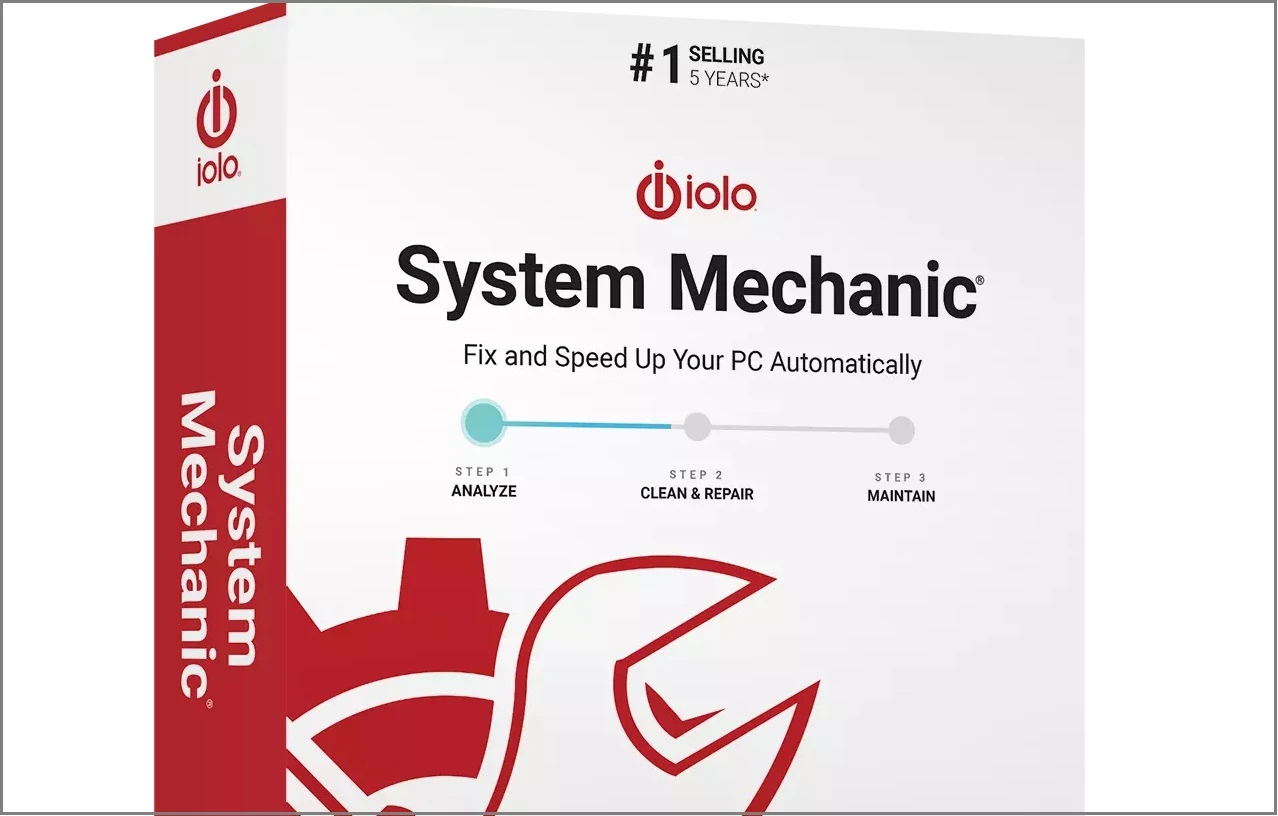
A fast computer is vital today. Slow systems waste time and hurt productivity. Common reasons include too many startup apps, junk files, and broken settings.
There are many tools that claim to fix these issues. Some are light cleaners. Others act as full optimization suites. Iolo System Mechanic belongs in the second group.
It is not just a junk cleaner. It also improves speed, repairs errors, and protects privacy. It is designed for regular users who want better performance without deep tech knowledge.
In this review, we will cover every part of System Mechanic. You will see what it does, how it works, how much it costs, and how it compares to rivals. We will also go through setup steps, pros, cons, and common questions.
Part 1: What Is Iolo System Mechanic?

System Mechanic is a Windows-only software built by Iolo Technologies. The company has been in the PC optimization market for more than 20 years.
The goal is simple. Keep your PC fast and stable. Over time, a Windows computer collects clutter. Old files, cached data, registry errors, and startup apps all slow down the system.
System Mechanic solves this with a set of automated tools. Unlike manual fixes, it handles cleanup, repair, and optimization with one click. It is safe for beginners. At the same time, advanced users can fine-tune specific areas.
Main focus areas
- Remove unwanted files
- Free up RAM and CPU power
- Boost startup and shutdown speed
- Repair registry errors
- Protect online privacy
- Tweak internet settings
Part 2: Features and Performance Breakdown
System Mechanic has many features. Let’s break them into clear sections.
1. PC Cleanup
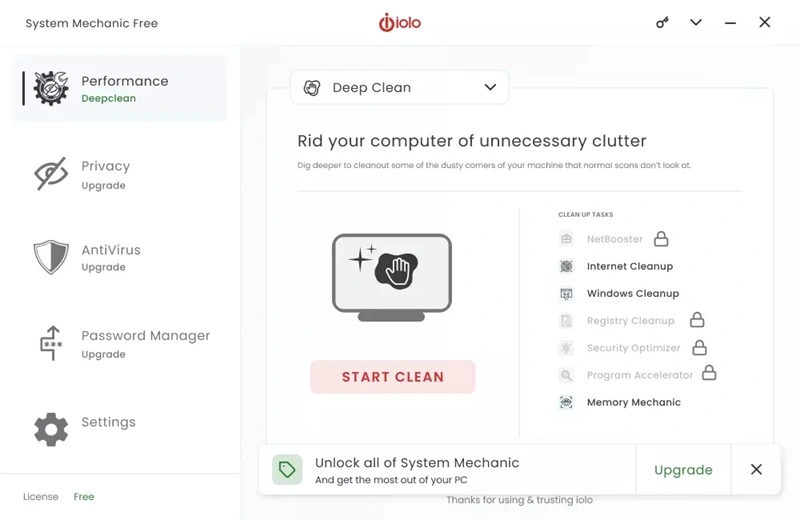
Windows creates temporary files. Browsers store cache and cookies. Log files pile up. All of these slow down performance.
System Mechanic scans the whole PC for junk. With one click, it deletes unnecessary files. This frees space and reduces load on the system.
For example, users with older hard drives often gain gigabytes of free storage after a single scan.
2. Startup Optimizer
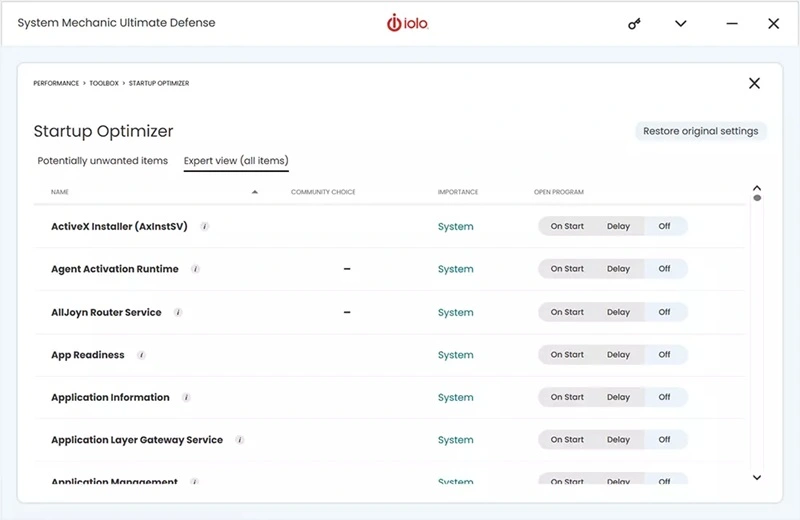
Many apps add themselves to the startup. This delays boot. Some of them are not needed.
System Mechanic lists all startup items. It shows which apps you can disable. The tool even gives recommendations. Removing extra apps can cut boot time in half.
3. Registry Repair
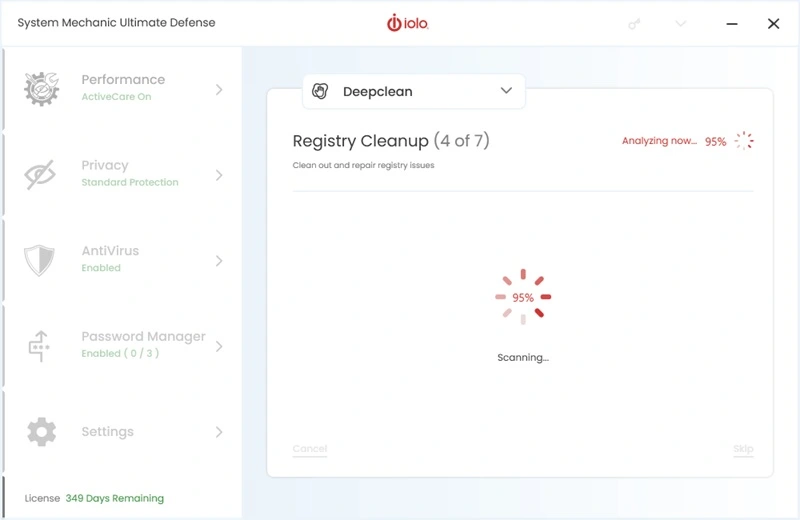
The registry is a database in Windows. It stores system settings. Over time, broken entries build up. These can cause crashes or errors.
System Mechanic scans the registry for problems. It repairs invalid keys and cleans leftovers from uninstalled apps. This reduces instability.
4. Internet Speed Optimizer
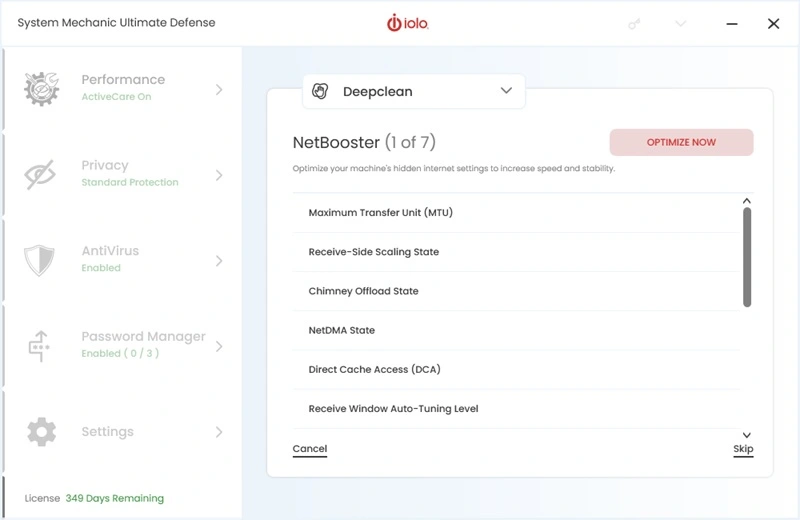
Not all slowdowns are caused by hardware. Network settings also play a role.
System Mechanic includes a tool that tweaks TCP/IP and DNS settings. It aims to improve page load times and reduce lag during downloads.
5. Privacy Tools
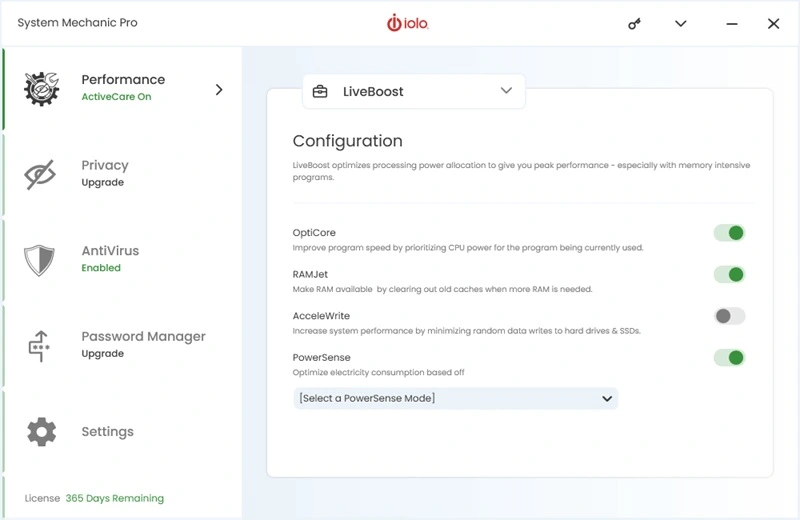
Privacy is key today. Many sites track activity. Browsers store history and cookies.
System Mechanic wipes tracking files and browsing data. This helps keep personal activity private.
7. Automated Maintenance
Manual cleanup takes time. System Mechanic offers AutoCare. Once enabled, it runs in the background. It cleans junk, repairs errors, and updates settings without asking.
Performance in Action
When tested on a mid-range PC, startup time dropped from 85 seconds to 48 seconds. Browser speed improved slightly. The system felt smoother when multitasking. Storage cleanup freed almost 10 GB.
For an older PC, the difference was even more noticeable. Apps opened faster. Freezes reduced. Users often report the system feels “like new” after the first cleanup.
Part 3: Step-by-Step Guide to Use Iolo System Mechanic
Iolo System Mechanic is designed to keep your PC running at peak performance. Whether you’re dealing with slow boot times, cluttered storage, or system errors, this tool offers a streamlined way to clean, optimize, and protect your computer. It’s especially useful for users who want quick results without diving into technical details.
Before you begin, make sure your system meets the basic requirements and that you’re connected to the internet. The installation process is simple, and once it’s up and running, System Mechanic provides real-time feedback and automated maintenance options to keep your PC healthy over time.
Follow Simple Steps to Get Started
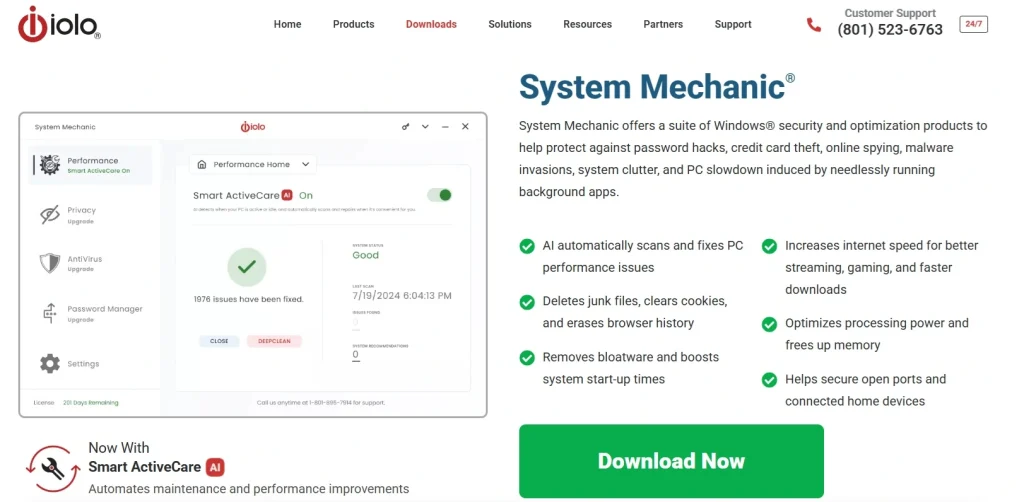
Step 1. Visit Iolo’s official website. Hit the Download Now button. Download System Mechanic and run the installer. Follow the prompts to complete setup.
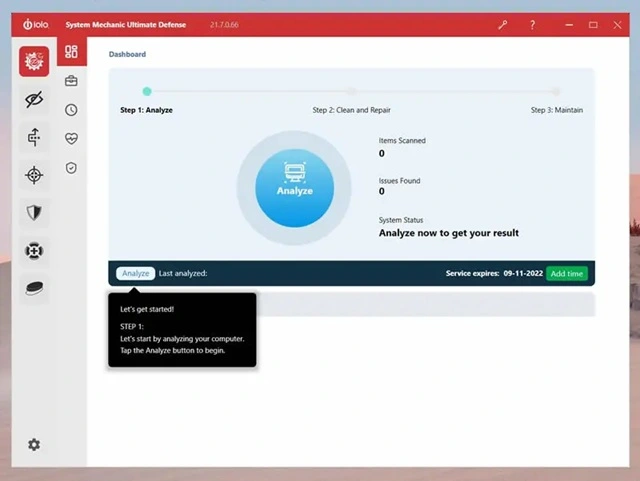
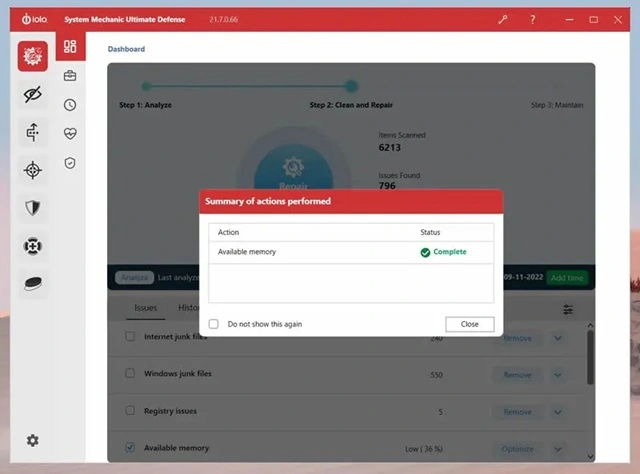
Step 2. Launch the program and click “Analyze.” It will scan your system for issues like junk files, broken shortcuts, and registry errors.
Step 3. Review the scan results and click “Repair All.” You can also enable ActiveCare to automate future cleanups and tune-ups.
Part 4: Pricing of Iolo System Mechanic
Iolo offers several plans.
| Version | Key Features | Price (Per Year) | Devices |
| System Mechanic | Cleanup, repair, speed boost | $49.95 | 1 PC |
| System Mechanic Pro | Adds antivirus, file recovery | $69.95 | 1 PC |
| System Mechanic Ultimate Defense | Full suite with privacy shield, password manager, antivirus | $79.95 | 1 PC |
| System Mechanic Business / Family Pack | Covers multiple devices | From $89.95 | Up to 10 PCs |
Notes on pricing
- Free version has very limited tools.
- Paid versions have a 30-day money-back guarantee.
- Often, discounts are available during holidays.
Part 5: Pros and Cons of Iolo System Mechanic
Before deciding whether Iolo System Mechanic is the right tool for your PC, it’s important to weigh its strengths and limitations. This section breaks down the key advantages and drawbacks based on user experience, performance, and overall value.
Pros
- Simple for beginners: The interface is clean and easy to navigate. No technical knowledge is required.
- Quick scans and one-click repair: You can scan your system in minutes. Fixes are applied with a single click.
- Improves boot and browsing speed: Startup times become faster. Web browsing feels smoother.
- Privacy cleaning included: It removes tracking cookies and browser history. Helps protect your personal data.
- AutoCare for background tasks: Optimization runs silently in the background. You don’t have to remember to launch it.
- Trusted brand with a long history: Iolo has been around for years. It’s known for reliable PC utilities.
Cons
- Windows only: It doesn’t support macOS or Linux. Limited to Windows users.
- Free trial is very limited: Most features are locked. You need to upgrade to see full benefits.
- Full scans can use system resources: Deep scans may slow down your PC temporarily. Best run during idle time.
- Registry repair may not always be needed: Registry fixes are sometimes unnecessary. They offer minimal performance gains.
Part 6: Comparison with Other Tools
You can see the quick comparison below or read this detailed guide on the top PC cleaner tools for Windows.
| Feature | Iolo System Mechanic | CCleaner | Advanced SystemCare | Ashampoo WinOptimizer |
| Price (Basic) | $49.95 | $24.95 | $29.95 | $29.99 |
| Registry Repair | Yes | Yes | Yes | Yes |
| Startup Optimizer | Yes | Limited | Yes | Yes |
| Internet Boost | Yes | No | Yes | Limited |
| Privacy Tools | Yes | Limited | Yes | Yes |
| Antivirus | Yes (Pro/Ultimate) | No | Yes (with add-on) | No |
| Ease of Use | Very Easy | Easy | Moderate | Moderate |
Summary
- System Mechanic: Best all-in-one option.
- CCleaner: Cheaper, but lacks internet and security features.
- Advanced SystemCare: Balanced, good for cleanup but less strong in internet tweaks.
- Ashampoo: Strong cleaner, but lacks automation tools like AutoCare.
Part 7: Who Should Use System Mechanic?
System Mechanic is designed for anyone looking to improve their PC’s speed, stability, and overall health. Whether you’re a casual user or someone who relies on your computer daily for work or study, this tool offers automated maintenance and easy-to-use features that suit a wide range of needs.
- Home users with aging PCs that feel sluggish
- Students who need reliable performance for online classes and assignments
- Remote workers who depend on smooth multitasking and fast boot times
- Small business owners managing multiple systems without IT support
- Beginners who prefer one-click solutions over manual tweaks
- Tech-savvy users who want access to advanced tools and diagnostics
- Privacy-conscious individuals looking to clear tracking data and browser history
- Windows users seeking an all-in-one optimization suite
Part 8: Who Should Avoid System Mechanic?
Not every user will need this tool.
- Mac users cannot install it.
- People with new, high-end PCs may not see big gains.
- Users who only want a simple cleanup may find cheaper tools enough.
- Heavy IT professionals may prefer manual tuning.
If your PC is new and already fast, you may not notice much. But for older or slower systems, the tool is more useful.
Part 9: Support and Updates
Iolo provides regular updates. These include bug fixes, performance tweaks, and new features.
Support options:
- Knowledge base: Guides and articles.
- Live chat: For fast help.
- Email support: For detailed issues.
- Phone support: Available in some plans.
Final Verdict
Iolo System Mechanic is a strong choice for Windows users. It is easy, effective, and built for both casual and advanced users.
It can clean junk, repair the registry, improve speed, and protect privacy. Performance gains are clear, especially for older PCs.
The downsides are the lack of Mac support and the limited free trial. Also, some experts argue that registry cleaning is not always essential.
Still, if you want a tool that handles everything with one click, System Mechanic is worth the price. It can extend the life of a PC and save money compared to replacing hardware.
FAQs:
1. Is System Mechanic safe to use?
Yes. System Mechanic is safe. It comes from Iolo Technologies, a trusted company with over 20 years in the market. The tool removes junk files and fixes errors, but it does not touch personal files. If you download it from the official site, you will not face hidden risks. It is clean and secure to install.
2. Can I use System Mechanic on Windows 11?
Yes. System Mechanic works on Windows 11. It also runs on older systems like Windows 10, 8, and 7. This wide support helps users with different PCs at home or in the office. Old systems may see bigger gains since they hold more clutter. Newer ones stay fast with regular scans.
3. Does System Mechanic help with gaming?
Yes. The tool can boost gaming. It frees RAM by closing background apps. It also gives more CPU power to the game. This reduces lag and shortens load times. It cannot replace a graphics card, but it makes the current hardware smoother. Many gamers run it before starting heavy games.
4. How many PCs can I install System Mechanic on?
This depends on the plan. A standard license covers one PC. Family or business plans cover more devices, even up to ten PCs. This is useful for homes with many laptops or desktops. It is also good for small offices that need the same care on all systems.
Author Bio:
Dinesh Lakhwani 

Dinesh Lakhwani, the entrepreneurial brain behind “TechCommuters,” achieved big things in the tech world. He started the company to make smart and user-friendly tech solutions. Thanks to his sharp thinking, focus on quality and the motto of never giving up, TechCommuters became a top player in the industry. His commitment to excellence has propelled the company to a leading position in the industry.
Popular Post











Recent Post

How To Switch To A Dark Background Theme In Windows [2026]
Most people spend many hours each day in front of a computer screen. Office work, online classes, editing, browsing, and streaming all require long screen time. A bright white background may look clean at first. However, over time, it can feel sharp and tiring. The strong contrast between white backgrounds and black text may cause […]

How to Switch From Local To Microsoft Account On Windows
Many users begin with a local account when they set up a new Windows computer. A local account works only on that single device. It stores settings, files, and preferences locally. It does not connect to online Microsoft services. For basic offline use, it works well. However, as digital needs grow, many users want better […]

How to Switch Windows 10 to a Local Account: Complete Guide
Windows 10 allows users to sign in with either a Microsoft account or a local account. When you set up a new computer, the system often suggests using a Microsoft account. This account connects your device to Microsoft services such as Outlook, OneDrive, and the Microsoft Store. It also syncs settings, themes, and passwords across […]

How To Change Default Apps For File Types In Windows
Windows is designed to make using your computer easy. One way it does this is by assigning default apps to different file types. This means when you open a file, Windows automatically opens it with a specific program. For example, photos may open with Photos, music with Groove Music, and PDFs with Edge. These default […]

How To Adjust The Mouse Pointer Speed: Complete Guide
Using a computer every day means you use the mouse a lot. The mouse pointer moves on the screen and helps you click, scroll, and select items. Many people never think about the speed of the mouse pointer. They have used the default setting for years. This can cause small problems over time. A slow […]

How to Change Mouse Scrolling Settings In Windows
A mouse is one of the most used computer tools. People use it every day. They scroll through emails. They scroll through documents. They scroll through websites and images. The movement becomes automatic. Most users do not notice it. That is why problems often go unnoticed. Scrolling problems show up slowly. At first, it feels […]

Keyboard Light Settings: Keyboard Lighting Control [Complete Guide]
Keyboards are no longer simple typing tools. Well, yes! Over time, they have evolved to include features that improve comfort, visibility, and overall experience. One of the most useful features today is keyboard lighting. It helps users work comfortably in low-light conditions. It also reduces strain when typing for long hours. Many users first notice […]

Customizing Pointer Appearance: Complete Guide
The way your mouse pointer looks on your computer may seem like a small detail. But customizing pointer appearance can make using your PC more comfortable and visually appealing. Many users do not realize that they can change the pointer size, color, and style to fit their needs. Whether you want a bigger pointer for […]

How To Choose a Computer Monitor: Monitor Buying Guide
Buying a monitor looks easy. Many people think all screens are the same. That belief causes regret later. A monitor is not just a display. It is a daily tool. You read on it. You work on it. You relax with it. Small problems become big over time. Poor brightness hurts eyes. Bad size causes […]

How To Get Help With File Explorer in Windows 11 [Complete Guide]
File Explorer is one of the most important tools in Windows 11. It is used to open folders, view files, and manage stored data. Almost every action on a Windows computer depends on it in some way. When users open documents, save downloads, or organize photos, File Explorer is always involved. Because it is used […]

