How to Upgrade RAM on a Laptop?
Last updated on June 3rd, 2024 at 10:05 am
Whether running on Windows, Linux, or macOS, most laptop models have a lot of storage and space. However, the laptop gets sluggish in its performance with more programs, services, and apps a user adds. Older laptops especially bog down faster with more tabs open or freeze up.
You can download apps like CCleaner to optimize the system, detect background running apps/services, and remove unnecessary files. Another necessary solution is to Upgrade the RAM on a laptop. In this post, that is we cover it in more detail.
Considerations Before Upgrading RAM on a Laptop
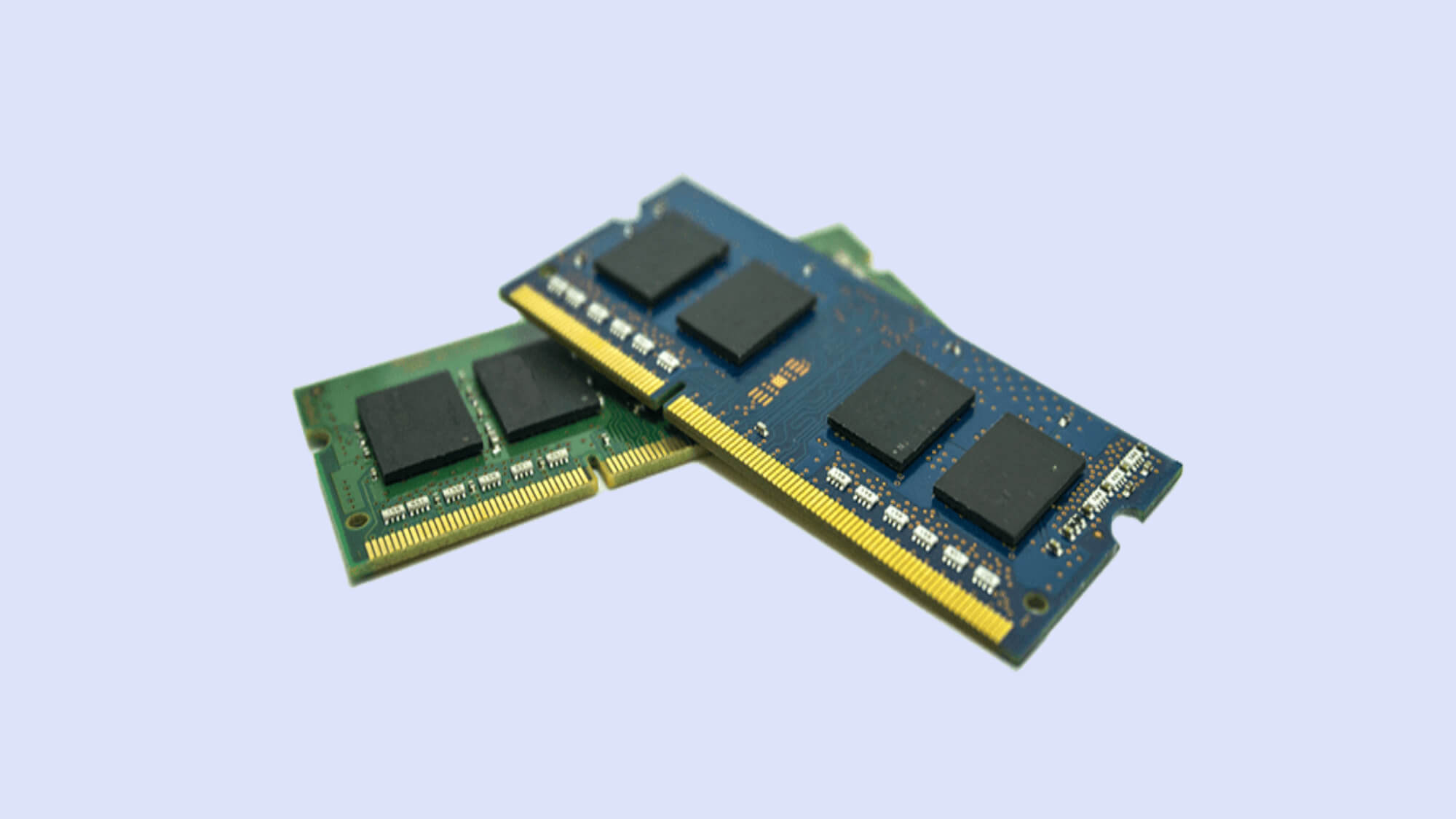
Before you can work on how to increase RAM in a laptop, you should check the maximum capacity of RAM in the device you are using. The amount of available RAM in a PC determines how many programs can operate on the system simultaneously. It influences the command response time of the system.
So, to understand the right RAM to upgrade, know the set parameters for the hardware and the OS by the device manufacturer.
Operating System
First, check the operating system of your laptop, like macOS or Windows.
- Mac– For the Mac devices, the 2006-2009 iMac models have 4 GB RAM, 2010-2012 (late) iMac models hold 16 GB RAM, and iMac 2013 (late) models have 32 GB of RAM. You cannot install the RAM if it does suit the PC model.
- Windows– For Windows laptops, check the type of processor first- 32-bit/64-bit. Choose RAM with the capacity indicated by the manufacturer. The limits are 2 TB of RAM on Windows Pro, Education, and Enterprise models with 64-bit processors, 128 GB of RAM on Windows Home models with 64-bit processors, and 3 GB of RAM in Windows laptops with 32-bit processors.
Hardware
Check the RAM space of the operating system in your laptop to know how to increase RAM in the laptop with said OS. If it is not compatible with the hardware, the upgrade cannot work. Checking the following points is important.
- Search about access to product documentation online
- Find motherboard documentation
- Operate a system cleaner software, like CCleaner for Windows or CleanMyMac X for macOS devices.
Methods to Upgrade RAM on a laptop
The steps on how to increase RAM in laptop devices are not complex, especially time-consuming, or extremely costly. However, users need to follow the process carefully to avoid system defects, damage, or inconsistent performance. For your better experience, we present the right methods to carry out RAM upgradation.
Method 1: Check the Occupied Space on Laptop
Before one can Upgrade RAM on a laptop, it is important to check the available RAM on the device. This is important to understand the type of RAM with the necessary capacity you need to install into the system.
How to do this for Mac laptops?
Step 1: On the Mac home screen, click on the Finder option to open the window.
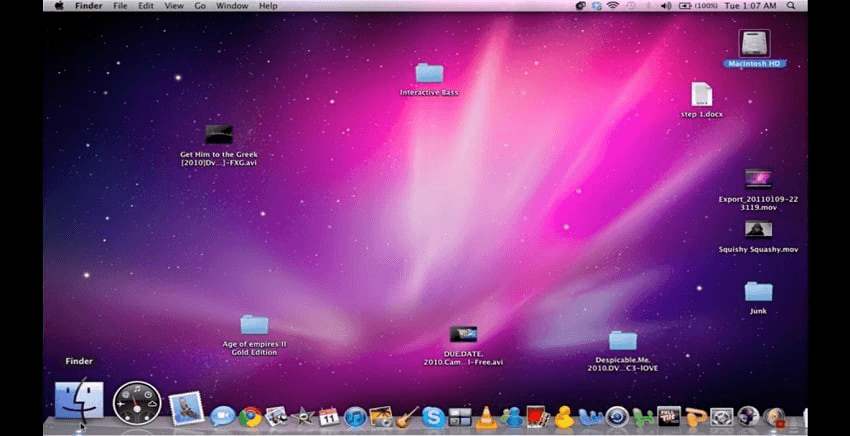
Step 2: Among the options that come up, choose the “Utilities” tab and click on it.
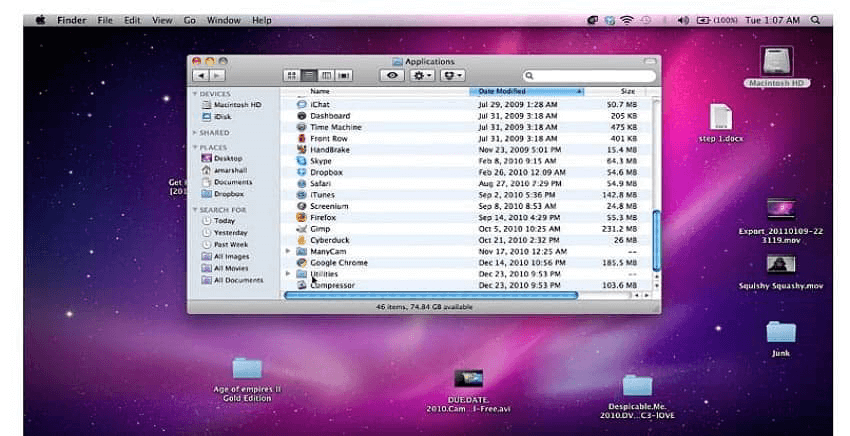
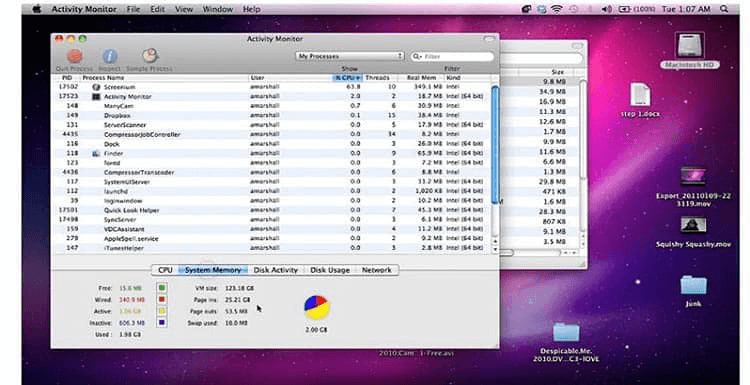
Step 3: Double-click your cursor on the “Activity Monitor” option to open the next window.
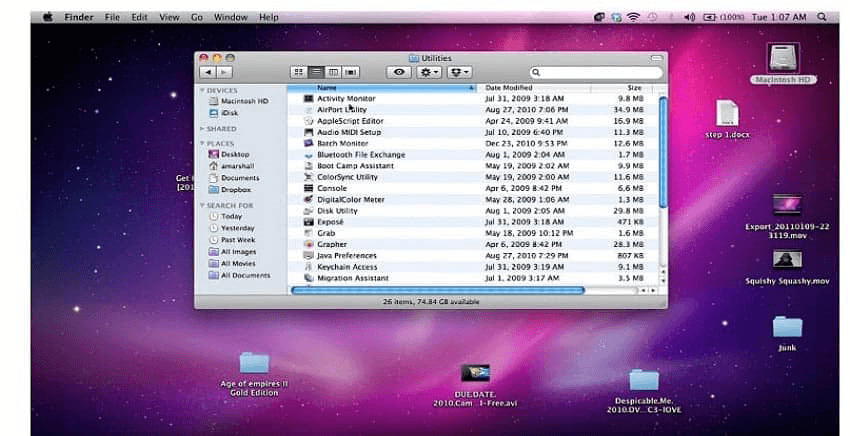
Step 4: Choose the “System Memory” tab. That would display the overall space that is in use within the device.
How to do this for Windows laptops?
Step 1: Click on the Start icon on your Windows home screen taskbar at the bottom.
Step 2: Type the term “Task Manager” into the search text field.
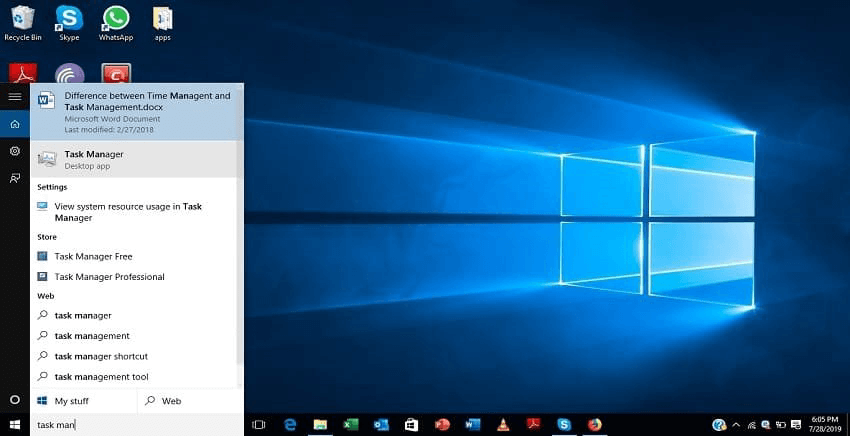
Step 3: Then, click on top of the Task Manager app option that comes up and opens. It would open the Task Manager menu.
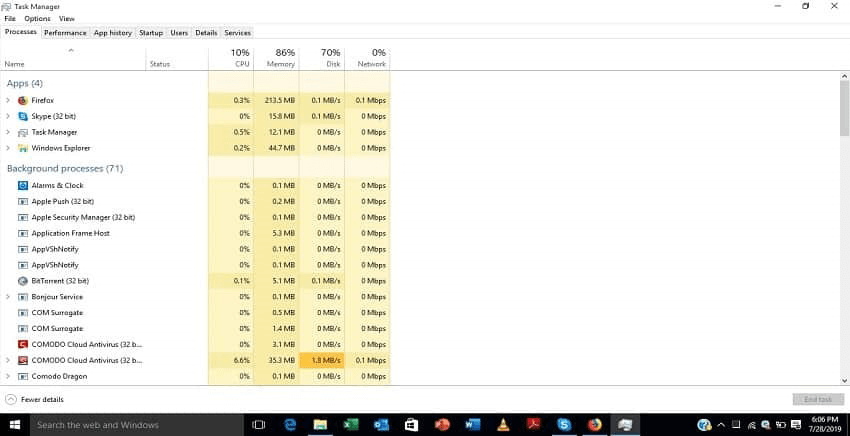
Step 4: Choose the “Performance Tab” option.
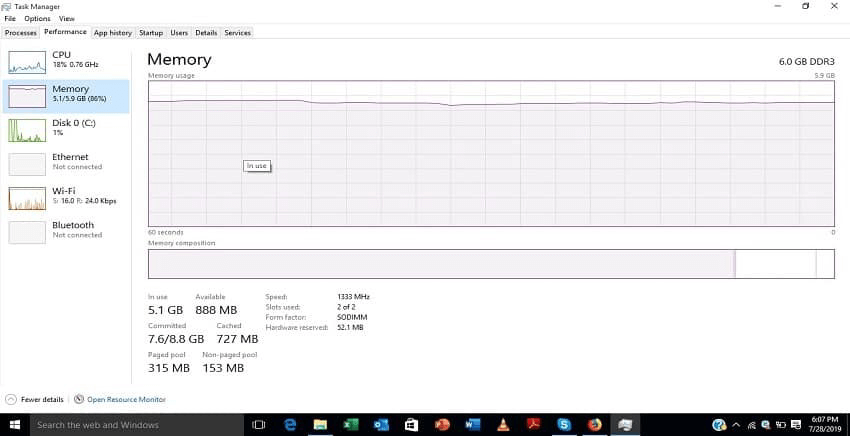
Step 5: Click on the “Memory” option. The details about the current space status are visible.
Method 2: Replace RAM Hardware Part in the Device
After checking the amount of RAM space left and choosing the RAM type, you have to open the device back portion to Upgrade RAM on a laptop. You can take steps to replace RAM in the laptop device safely. Here, we discuss the right sequence to follow. Do these steps carefully.
How to do this?
Step 1: Use a screwdriver to remove all of the screws holding the laptop backplate in place.
In some laptops, a strip of rubber feet covers the screws. Cautiously peel it off.
Step 2: Take a small tool and slowly pry open the backplate of the laptop to see the device’s internal part. Start putting it off from a looser point that you pry up with the tool.
Step 3: If there is a metal plate that is protecting the RAM, gently pull away part of its tape or unscrew the metal part.
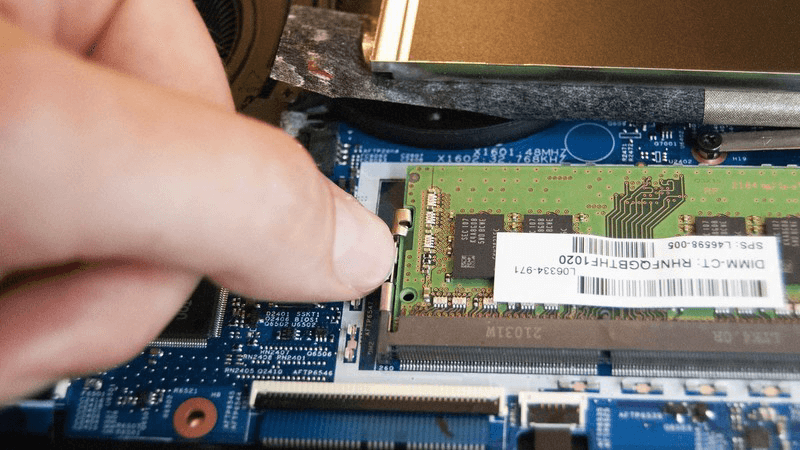
If metallic arms or clamps at the side hold the RAM in place, unfasten them or push them away cautiously. The RAM is free to take off. In some devices, the RAM pops out partially at this point.
Step 4: Pull this RAM gently from the slot space. Make sure to do this step at an angle to avoid damaging the laptop or RAM.
Step 5: Then, push the new RAM into the spot gently. When you hear a noticeable click sound, that indicates that the RAM is placed into the slot perfectly.
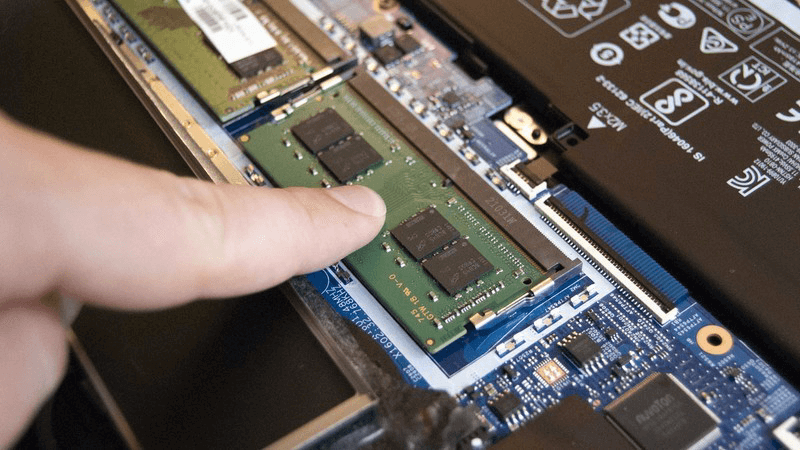
Repeat these steps for the other available RAM module as well, if necessary.
Step 6: Tape the piece back in the correct place for laptops with a RAM shield.
Step 7: Place the backplate of the laptop into place and then apply a little bit of pressure to put it perfectly. If you hear an audible clicking sound, it means that the backplate is attached well.
Step 8: Use a screwdriver to put all the screws in place. If there were rubber feet that you removed in Step 1, fix it in the right area at the end.
Method 3: Check the RAM Upgrade
After completing the hardware changing stage of how to increase RAM in the laptop process, you should check to see if it worked. Switch on your device after some minutes for the system to reorient properly. Take around 5 minutes.
How to do this?
Step 1: Power the PC back on.
Step 2: Click on the Start button on your device, like on Windows 10 laptops. You can then click on the System option that comes up.
Step 3: For Windows 11 devices or even 10 devices, type the term Task Manager into the search field after clicking on the Search icon on the home screen taskbar.
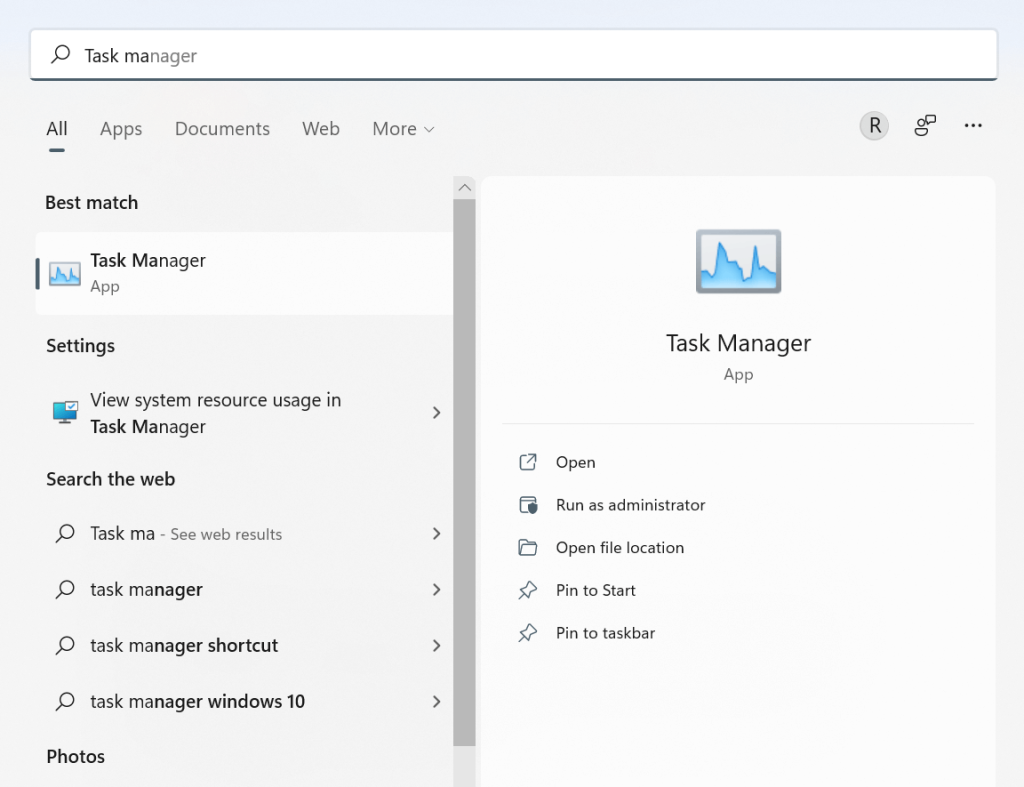
Step 4: Choose the Task Manager option
Step 5: Check the Memory option from the list. You can view the available RAM space.
Conclusion
Before starting the upgrading process for the laptop RAM, users need to check the available memory on the device. Also, make sure that you are using compatible software/hardware for your laptop device model. Follow the given sequence of steps and handle the hardware checking portion carefully. Take professional help, if necessary.
Found this post helpful? Please check out other posts on diverse software-related matters and get back to us with your thoughts.
Author Bio:
Dinesh Lakhwani 

Dinesh Lakhwani, the entrepreneurial brain behind “TechCommuters,” achieved big things in the tech world. He started the company to make smart and user-friendly tech solutions. Thanks to his sharp thinking, focus on quality and the motto of never giving up, TechCommuters became a top player in the industry. His commitment to excellence has propelled the company to a leading position in the industry.
Popular Post











Recent Post

How to Switch From Local To Microsoft Account On Windows
Many users begin with a local account when they set up a new Windows computer. A local account works only on that single device. It stores settings, files, and preferences locally. It does not connect to online Microsoft services. For basic offline use, it works well. However, as digital needs grow, many users want better […]

How to Switch Windows 10 to a Local Account: Complete Guide
Windows 10 allows users to sign in with either a Microsoft account or a local account. When you set up a new computer, the system often suggests using a Microsoft account. This account connects your device to Microsoft services such as Outlook, OneDrive, and the Microsoft Store. It also syncs settings, themes, and passwords across […]

How To Change Default Apps For File Types In Windows
Windows is designed to make using your computer easy. One way it does this is by assigning default apps to different file types. This means when you open a file, Windows automatically opens it with a specific program. For example, photos may open with Photos, music with Groove Music, and PDFs with Edge. These default […]

How To Adjust The Mouse Pointer Speed: Complete Guide
Using a computer every day means you use the mouse a lot. The mouse pointer moves on the screen and helps you click, scroll, and select items. Many people never think about the speed of the mouse pointer. They have used the default setting for years. This can cause small problems over time. A slow […]

How to Change Mouse Scrolling Settings In Windows
A mouse is one of the most used computer tools. People use it every day. They scroll through emails. They scroll through documents. They scroll through websites and images. The movement becomes automatic. Most users do not notice it. That is why problems often go unnoticed. Scrolling problems show up slowly. At first, it feels […]

Keyboard Light Settings: Keyboard Lighting Control [Complete Guide]
Keyboards are no longer simple typing tools. Well, yes! Over time, they have evolved to include features that improve comfort, visibility, and overall experience. One of the most useful features today is keyboard lighting. It helps users work comfortably in low-light conditions. It also reduces strain when typing for long hours. Many users first notice […]

Customizing Pointer Appearance: Complete Guide
The way your mouse pointer looks on your computer may seem like a small detail. But customizing pointer appearance can make using your PC more comfortable and visually appealing. Many users do not realize that they can change the pointer size, color, and style to fit their needs. Whether you want a bigger pointer for […]

How To Choose a Computer Monitor: Monitor Buying Guide
Buying a monitor looks easy. Many people think all screens are the same. That belief causes regret later. A monitor is not just a display. It is a daily tool. You read on it. You work on it. You relax with it. Small problems become big over time. Poor brightness hurts eyes. Bad size causes […]

How To Get Help With File Explorer in Windows 11 [Complete Guide]
File Explorer is one of the most important tools in Windows 11. It is used to open folders, view files, and manage stored data. Almost every action on a Windows computer depends on it in some way. When users open documents, save downloads, or organize photos, File Explorer is always involved. Because it is used […]

How To Fix A Frozen Computer: Complete Guide [Windows 11/10]
A frozen computer is one of the most common problems Windows users face. The screen stops responding. The mouse pointer does not move. Keyboard inputs do nothing. You may hear the fan running loudly. Sometimes the system looks alive, but nothing works. This situation often happens when you are busy or working on something important. […]

