How to Transfer Photos from iPhone to PC

Last updated on August 28th, 2025 at 12:46 pm
iPhone is one of the largest smartphone brands in the world. The stylish and sleek design combined with the powerful hardware configurations makes iPhone hard to beat. When it comes to the features, one of the best in the iPhone is, none other than the camera.
People adore this brand for the quality of photos it can take. But, there’s a problem here, faced by masses, which is not knowing how exactly to transfer photos from iPhone to PC. Actually, there are several procedures which you can use to easily do the job.
Transfer Photos from iPhone to Windows
When it comes to PC, Windows is the most prominent one among the people all around the globe. Here are a few ways that you can transfer photos from iPhone to PC that runs on Windows operating system:
iCloud
Since iOS and Windows are two completely different software frameworks, it can get quite hectic to do any type of file transfers, let alone photo transfers. This is exactly why Apple has released the iCloud software, in order to assist people in transferring photos from their iPhone to Windows PC.
You can download the iCloud software from here for absolutely free of cost. As soon as you install and launch this software, log in to the app with your Apple ID.
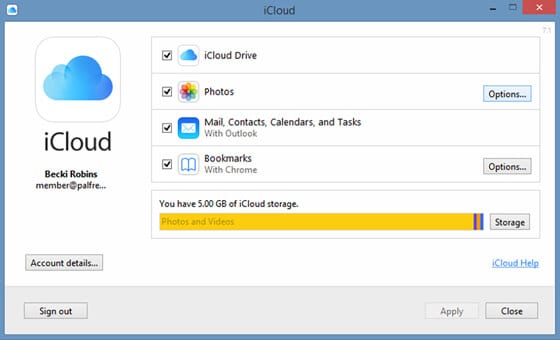
After doing this, you’ll be sent a verification code which you need to enter it in the software. Then, it’s time to proceed with the photo transfer by clicking options of the Photos label. Then select the checkbox of My Photo Stream and click on Done.
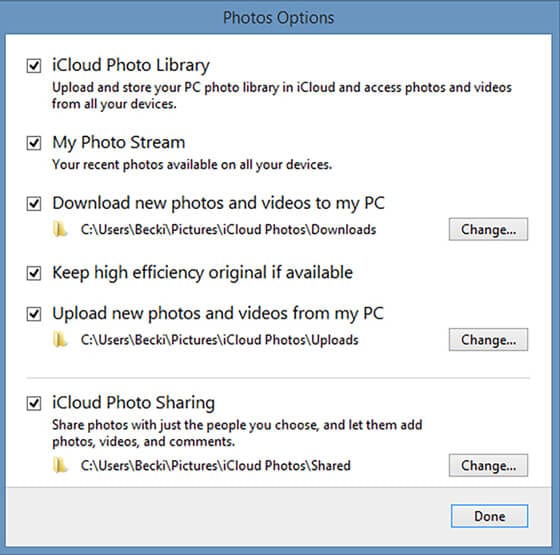
Now, go to your iPhone and go to your profile in settings. Then, go to iCloud -> Photos -> My Photo Stream and then enable it. After doing this, go to the Shared option in your Photos app and give a name to your shared photos.
Now, you can go back to your Windows PC and visit file manager where you will see an option iCloud Photos, from where you can transfer photos from iPhone to PC.
AutoPlay
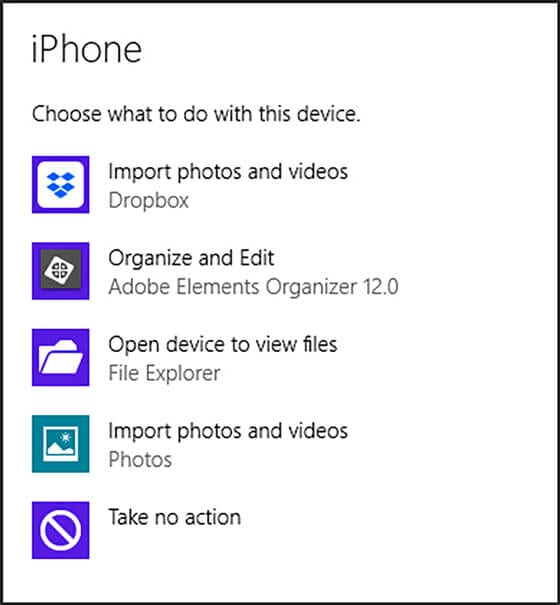
One of the simplest ways to transfer photos from iPhone to PC windows is by using AutoPlay. Connect your iPhone to your Windows PC through the data cable. Then you’ll notice a prompt in your computer asking if it’s okay to trust this device, for which you should click on Trust.
You’ll be give several options to select, among which you should click on either ‘Import Photos and Videos’ or ‘Open device to view files’. Now, you will be able to easily transfer photos from iPhone to PC without any hassles.
Windows Photo App
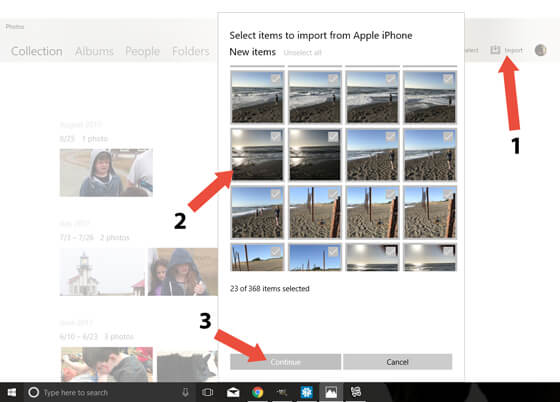
This is another method where you can easily transfer photos from iPhone to PC just with a few clicks. All you need here is, your devices, a data cable, and the Windows photo app. Now, attach your iPhone to PC through data cable.
Then, open the Photos app on your PC and click on ‘Import’, which will eventually show you all the thumbnails of your iPhone photos. You can select and deselect these photos according to your preference and finally transfer them.
Transfer Photos from iPhone to Mac
iPhone and Mac are from the same parent company, Apple, which is why they run on very similar software frameworks. There are several ways through which you can transfer photos from iPhone to PC running on Mac.
Since, one of such methods is through iCloud, which has already been explained above, here’s a look at some other methods for the photo transfer:
Photos App
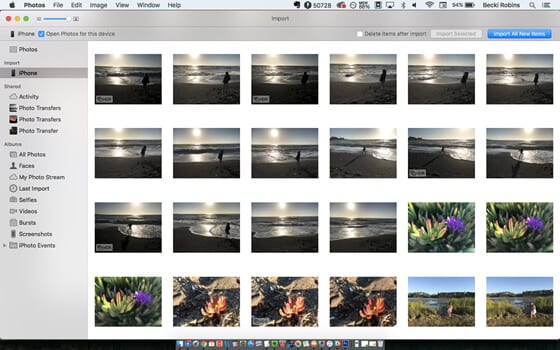
Also used to be known as iPhoto app, you can transfer photos from your iPhone to your Mac seamlessly through the Photos App, which is a built-in Mac application. Connect your iPhone to Mac and open the Photos app.
On the left side of navigation bar, you should see ‘Import’, which you should click. Then, select your iPhone and select the images you want to transfer to your Mac. Wait for a couple of minutes for the photo transfer to complete.
AirDrop
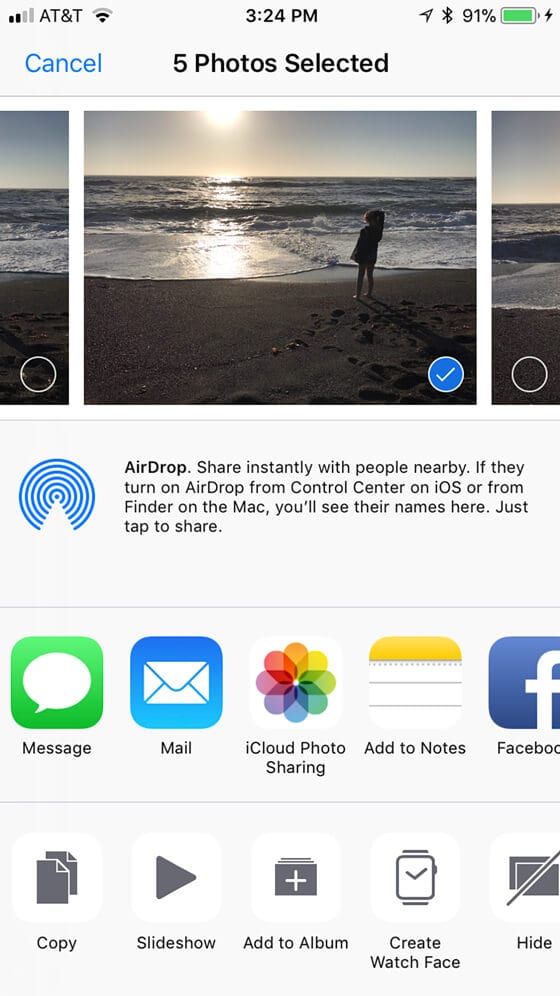
One of the latest models of file transfer and share apps, AirDrop is a revolutionary file transferring application, with which you can transfer files through WiFi direct. Connect your iPhone and Mac to your WiFi network and open your Photos app on your iPhone.
Select the photos that you would like to transfer and click on the Share option, which gives you AirDrop as the option. After a couple of minutes, you’ll be able to see a notification on your Mac saying that photos have been received.
You can find these photos in the Downloads section of your Mac, from where you can move photos to the desired location on your PC.
Conclusion
By now, you may have a complete understanding of several ways through which you can transfer photos from iPhone to PC. It’s very important to ensure that you maintain regular backups of your iPhone data on your PC, so that if any mishap happens, you’ll always have an alternative place where you can still have your important files and information.
Image Source: iphonephotographyschool
Author Bio:
Dinesh Lakhwani 

Dinesh Lakhwani, the entrepreneurial brain behind “TechCommuters,” achieved big things in the tech world. He started the company to make smart and user-friendly tech solutions. Thanks to his sharp thinking, focus on quality and the motto of never giving up, TechCommuters became a top player in the industry. His commitment to excellence has propelled the company to a leading position in the industry.
Popular Post











Recent Post

Artificial Intelligence Explained: Concepts, Terminology, Benefits, and Future Trends
Artificial Intelligence, or AI, is basically computers doing things that usually need a human brain. We’re talking about stuff like learning from experience, figuring out problems, understanding language, and making decisions. It’s not magic, just a lot of data, pattern-spotting, and math behind the scenes. Now, AI doesn’t actually think or feel like we do. […]

Resolving Microphone Detection Problems: Latest Guide [2026]
Microphones are important tools in daily life. People use them for office meetings, online classes, interviews, gaming, customer support, and content creation. When a system fails to detect a microphone, communication stops at once. This situation can cause stress and confusion. Many users believe the microphone is damaged. In reality, most problems are simple and […]

How To Switch To A Dark Background Theme In Windows [2026]
Most people spend many hours each day in front of a computer screen. Office work, online classes, editing, browsing, and streaming all require long screen time. A bright white background may look clean at first. However, over time, it can feel sharp and tiring. The strong contrast between white backgrounds and black text may cause […]

How to Switch From Local To Microsoft Account On Windows
Many users begin with a local account when they set up a new Windows computer. A local account works only on that single device. It stores settings, files, and preferences locally. It does not connect to online Microsoft services. For basic offline use, it works well. However, as digital needs grow, many users want better […]

How to Switch Windows 10 to a Local Account: Complete Guide
Windows 10 allows users to sign in with either a Microsoft account or a local account. When you set up a new computer, the system often suggests using a Microsoft account. This account connects your device to Microsoft services such as Outlook, OneDrive, and the Microsoft Store. It also syncs settings, themes, and passwords across […]

How To Change Default Apps For File Types In Windows
Windows is designed to make using your computer easy. One way it does this is by assigning default apps to different file types. This means when you open a file, Windows automatically opens it with a specific program. For example, photos may open with Photos, music with Groove Music, and PDFs with Edge. These default […]

How To Adjust The Mouse Pointer Speed: Complete Guide
Using a computer every day means you use the mouse a lot. The mouse pointer moves on the screen and helps you click, scroll, and select items. Many people never think about the speed of the mouse pointer. They have used the default setting for years. This can cause small problems over time. A slow […]

How to Change Mouse Scrolling Settings In Windows
A mouse is one of the most used computer tools. People use it every day. They scroll through emails. They scroll through documents. They scroll through websites and images. The movement becomes automatic. Most users do not notice it. That is why problems often go unnoticed. Scrolling problems show up slowly. At first, it feels […]

Keyboard Light Settings: Keyboard Lighting Control [Complete Guide]
Keyboards are no longer simple typing tools. Well, yes! Over time, they have evolved to include features that improve comfort, visibility, and overall experience. One of the most useful features today is keyboard lighting. It helps users work comfortably in low-light conditions. It also reduces strain when typing for long hours. Many users first notice […]

Customizing Pointer Appearance: Complete Guide
The way your mouse pointer looks on your computer may seem like a small detail. But customizing pointer appearance can make using your PC more comfortable and visually appealing. Many users do not realize that they can change the pointer size, color, and style to fit their needs. Whether you want a bigger pointer for […]

