Here’s How to Stop Receiving Spam Emails (Top 4 Tips)
Last updated on February 15th, 2026 at 11:02 am
Spam emails are simply annoying. They clutter your inbox, hide your important emails, and, importantly, threaten your privacy.
But unfortunately, spam emails are something that you can’t avoid either. Whenever you subscribe to a newsletter or use your email to create an account on a third-party site or app, it is an open invitation to spammers.
So, if your inbox is being bombarded with bulk or regular spam emails, you can stop these emails. Yes, with a little smart web browsing habits and technical knowledge, you can stop receiving spam emails.
Nowadays, almost every operating system and email service provider has introduced features to block, hide or trash spam emails. So, let’s check out all the methods to stop receiving spam emails.
Advantages: Why Stopping Spam Emails Is No Longer Optional?
Spam emails are more than a daily annoyance. They waste time, clog important inboxes, and often carry hidden risks. As spam tactics become smarter, ignoring them can lead to security issues, data loss, and constant distraction. Taking control of your inbox helps protect both your privacy and your peace of mind.
- Protects personal information
Spam emails often aim to steal passwords, banking details, or identity data through fake links and forms. - Reduces phishing risks
Many scams look genuine and target users emotionally. Fewer spam emails mean fewer chances of falling into such traps. - Keeps inbox organized
Stopping spam allows important emails to stand out instead of getting buried under junk messages. - Saves time every day
Less spam means less time deleting, blocking, or scanning unwanted messages. - Improves email security
Spam messages are common carriers of malware, ransomware, and harmful attachments. - Prevents accidental clicks
Even a single wrong click can lead to compromised accounts or infected systems. - Enhances focus and productivity
A clean inbox reduces distraction and helps maintain better work flow. - Protects work and business communication
Missing an important email due to spam overload can affect deadlines and decisions.
3 Things People Rarely Ask About Spam Emails
Can replying to a spam email make things worse
Yes. Replying confirms that your email address is active. This often leads to more spam, as the address gets shared across spam networks.
Why do spam emails keep coming from new addresses
Spammers constantly rotate email domains and sender names to bypass filters. Blocking one address rarely stops future spam unless filters are improved.
Do spam emails stop on their own over time
Usually, no. Once your email address appears on spam lists, emails continue until you actively filter, unsubscribe safely, or block senders.
How to Stop Receiving Spam Emails
To be honest, it is impossible to stop receiving spam emails in your inbox. Unless you have only shared your email address with a closed group of friends and never have mentioned it anywhere on the web. But that’s not possible today. So, let’s find better ways to deal with the situation:
1. Use Junk Email Filter
Today, almost every email application has a powerful spam filter that can move all spam emails to junk or spam folders. It will keep your primary inbox neat and clutter-free.
However, not all spam emails go to the junk folder. You have to define emails that should be moved to the junk folder for your email app.
For example, Gmail automatically detects suspicious emails and marks them as spam. Under the Spam folder, you can see all emails that Gmail has identified as spam. You also get the option to define Gmail whether a certain email is sent to the Spam folder.
2. Block Spam Sender
If an online shopping site or news website is sending bulk emails to your inbox after every hour, you can stop this craziness by blocking senders. You can find block options in all the email apps, such as:
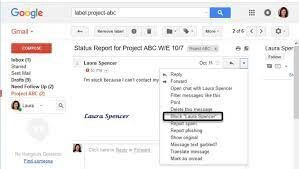
Gmail: Log in to Gmail account > Open an email from the sender you want to block > Tap three vertical dots on the top > Block.
Outlook: Open the email whose sender you want to block > Click on the arrow next to Junk > Block.
iCloud: Log in to your Apple ID > Mail > Settings icon on the bottom left corner > Add a Rule > Under “If a message” section, select the email address you want to block > Choose to Move to Trash and click Done.
3. Use Hide My Email
MacOS Monterey and iOS 15 users with the iCloud+ subscription can use the Hide My Email option to stop receiving spam emails. In this feature, you can hide your email whenever you have to subscribe to a newsletter or share your email with a third-party solution.
This feature will only hide your email address, but it will not stop you from receiving spam emails. It is simply a precautionary step that you can take to prevent spammers from getting your email address.
Here is how you can activate Hide My Email:
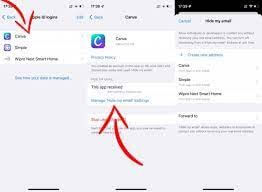
Mac: Go to the Apple menu > Select System Preferences > Apple ID > iCloud > Hide My Email > Click on the + to add your email address > Continue.
iOS: Go to Settings > Tap on your name > iCloud > Hide My Email > Create New Address > Add your email address > Next > Tap and hold on the address to Copy it > Done.
4. Never Respond to a Spam Email
No matter how tempting the subject line looks, never revert back to a spam email. Responding to a spam email leads to more spam in your inbox. Your reply will tell senders that you are interested in their product, and they will start to sell you more aggressively.
Usually, you can easily identify spam emails as they are promotional or catchy. But nowadays, spammers are getting smart and using different tactics to not look like a spooky email. So, you can recognize spam emails as follows:
Check the sender’s email: Most spam emails come from weird and complex-looking email addresses like “sephoradeals@tX93000aka09q2.com or lfgt44240@5vbr74.rmi162.w2c-fe”.
Google an email address: You can copy the email address and paste it into Google search to check the legitimacy of the email. If Google results show it is not a legit email, block it right away.
Observe subject line: Overly aggressive or threatening subject lines are clear indications of spam emails. For example, “Get an iPhone 13 for $1”, “COVID-19’s 100% cure” and so on.
Check your name: When you receive an email from legit companies, they will use your real name to address you. For instance, when Amazon sends a reminder for updating your billing address, they will address you by the name under which your account is created.
Check grammar and spelling: Most spam emails have poor grammar and lots of spelling errors. So, carefully look at weird phrases, misspelled words, broken sentences, and other grammatical errors in the email content.
Trust your gut: Your gut can always help you fish out spam. If the deal mentioned in the email looks too good to be real, or they are asking for your personal information like social security number, credit card details, etc. In this situation, your gut will provide you with a fair warning.
Parting Thoughts
It’s hard to dodge spam emails. But you can be a smart email user and follow the above-discussed tips to stop receiving spam emails in your inbox.
However, if none of the solutions worked for you, the best solution is to unsubscribe from the newsletter. On all the reputed companies’ newsletters, you will find an unsubscribe button at the bottom to stop receiving emails from the sender permanently.
But if spam emails still haven’t stopped, simply change your email address. Of course, it will be inconvenient for you at once, but this will definitely stop spam emails from cluttering your inbox.
So, that’s it for now! But if you find this post helpful, do follow us on social media for more informative content.
FAQs
What is the safest way to unsubscribe from spam emails
Only unsubscribe from emails sent by known brands or services. If the sender looks suspicious, use your email provider’s spam or block option instead of clicking unsubscribe links.
Are spam filters enough to stop all junk emails
Spam filters help, but they are not perfect. Combining filters with manual blocking and careful email sharing gives better long term results.
Can spam emails harm my device even without opening attachments
Yes. Some spam emails contain tracking pixels or malicious links. Opening the email is usually safe, but clicking links or downloading files can cause harm.
Author Bio:
Dinesh Lakhwani 

Dinesh Lakhwani, the entrepreneurial brain behind “TechCommuters,” achieved big things in the tech world. He started the company to make smart and user-friendly tech solutions. Thanks to his sharp thinking, focus on quality and the motto of never giving up, TechCommuters became a top player in the industry. His commitment to excellence has propelled the company to a leading position in the industry.
Popular Post











Recent Post

How to Switch From Local To Microsoft Account On Windows
Many users begin with a local account when they set up a new Windows computer. A local account works only on that single device. It stores settings, files, and preferences locally. It does not connect to online Microsoft services. For basic offline use, it works well. However, as digital needs grow, many users want better […]

How to Switch Windows 10 to a Local Account: Complete Guide
Windows 10 allows users to sign in with either a Microsoft account or a local account. When you set up a new computer, the system often suggests using a Microsoft account. This account connects your device to Microsoft services such as Outlook, OneDrive, and the Microsoft Store. It also syncs settings, themes, and passwords across […]

How To Change Default Apps For File Types In Windows
Windows is designed to make using your computer easy. One way it does this is by assigning default apps to different file types. This means when you open a file, Windows automatically opens it with a specific program. For example, photos may open with Photos, music with Groove Music, and PDFs with Edge. These default […]

How To Adjust The Mouse Pointer Speed: Complete Guide
Using a computer every day means you use the mouse a lot. The mouse pointer moves on the screen and helps you click, scroll, and select items. Many people never think about the speed of the mouse pointer. They have used the default setting for years. This can cause small problems over time. A slow […]

How to Change Mouse Scrolling Settings In Windows
A mouse is one of the most used computer tools. People use it every day. They scroll through emails. They scroll through documents. They scroll through websites and images. The movement becomes automatic. Most users do not notice it. That is why problems often go unnoticed. Scrolling problems show up slowly. At first, it feels […]

Keyboard Light Settings: Keyboard Lighting Control [Complete Guide]
Keyboards are no longer simple typing tools. Well, yes! Over time, they have evolved to include features that improve comfort, visibility, and overall experience. One of the most useful features today is keyboard lighting. It helps users work comfortably in low-light conditions. It also reduces strain when typing for long hours. Many users first notice […]

Customizing Pointer Appearance: Complete Guide
The way your mouse pointer looks on your computer may seem like a small detail. But customizing pointer appearance can make using your PC more comfortable and visually appealing. Many users do not realize that they can change the pointer size, color, and style to fit their needs. Whether you want a bigger pointer for […]

How To Choose a Computer Monitor: Monitor Buying Guide
Buying a monitor looks easy. Many people think all screens are the same. That belief causes regret later. A monitor is not just a display. It is a daily tool. You read on it. You work on it. You relax with it. Small problems become big over time. Poor brightness hurts eyes. Bad size causes […]

How To Get Help With File Explorer in Windows 11 [Complete Guide]
File Explorer is one of the most important tools in Windows 11. It is used to open folders, view files, and manage stored data. Almost every action on a Windows computer depends on it in some way. When users open documents, save downloads, or organize photos, File Explorer is always involved. Because it is used […]

How To Fix A Frozen Computer: Complete Guide [Windows 11/10]
A frozen computer is one of the most common problems Windows users face. The screen stops responding. The mouse pointer does not move. Keyboard inputs do nothing. You may hear the fan running loudly. Sometimes the system looks alive, but nothing works. This situation often happens when you are busy or working on something important. […]

