How to Stop Companies From Collecting Your Personal Information?
Last updated on February 10th, 2025 at 6:53 am
Introduction
With the increased focus on development and technology, most people use various digital devices for their daily tasks. Elements like IoT, wearables, and smartphones are common accompaniments for most people today for personal and professional use. However, such software always collects customer data, like browsing history, health data, GPS location tracking, etc.
Many companies collect user details for their products, like personal identity, address, IP address, and more. Therefore, it is vital to use the right preventive measures to stop companies from acquiring personal customer data, like with identity protection software.
Read ahead to know the different methods you can take to protect consumer data from digital devices, third-party service providers, and businesses.
Methods to block companies from getting customer data
Businesses in different industry verticals, organizations, and service providers collect customer details like identification, location status, payment information, etc., for streamlined performance. However, this can open you to external cyber-attacks, data thefts, and potential malware damage.
We looked through the known solutions to protect consumer data and compiled this list of the best ways to combat unauthorized digital data collection.
Solution 1: Download and Utilize a VPN
Using a VPN or Virtual Private Network is one of the most effective ways to protect one’s personal data while using online services. People often browse the internet while they are using public WiFi or a network. Even in privatized intranet within companies, there is the potential of connecting to one server system between multiple users.
You can use suitable VPN software like NordVPN to keep public browsing safe and defend all users’ online activity and movement data. This VPN service provider has more than 5500 servers across 60 countries, making it simple to access and use for most global users. You can privately search for content, access services like streaming videos from other countries, and safeguard yourself from dark web monitoring.
Solution 2: Opt for ad-blocking and anti-tracking tools across all devices
While searching for content or filling up any form, sites produce tracking cookies that reach users’ devise. These small-scale files in the browsers trace users’ online activity across websites and identity them.
A suitable solution is to apply anti-tracking extensions for mobile devices and desktops, like Adblock Plus. It blocks the tracking cookies from collecting any data without the user’s permission. The extensions work as browser add-ons and are compatible with most devices/platforms. Moreover, they stop ads and block third-party trackers efficiently.
Solution 3: Avoid using a tracking-centric search engine
For most people, Google is the main search engine of choice for their online activities and browsing. However, high-scale organizations like Google create user profiles and acquire data for analytical insights from past web activity and search history. Common reasons include understanding customer persona and requirements to promote targeted ads.
On the other hand, some search engines like Startpage do not ask for private user information or store it for external usage.
Solution 4: Study the privacy agreements carefully and configure settings
Some websites and applications do collect a certain amount of user information for operations. For example, for apps that allow users to order food online, data tracking and GPS location tracker activation are necessary for the software to find your correct location.
A common mistake many users make while downloading a new app or signing up for a service or account is not reading the fine script, i.e., privacy policies and T&C details. Not reading it and giving permission to the company can allow them to collect, use, and distribute your personal data as they need. Read the privacy and terms of service details to understand if you permit more complex matters than is acceptable.
You should access the settings and make adjustments to the preferences as necessary. For example, there is an Ad preference-related page on Google. In addition, you can go to the settings and switch off personalized ads from your account.
How to Do This (via Android smartphone)?
Step 1: Open your smartphone device and access the main menu.
Step 2: Go to the Settings section.
Step 3: After the Settings menu opens, scroll down to the “Accounts” option and click on Google.
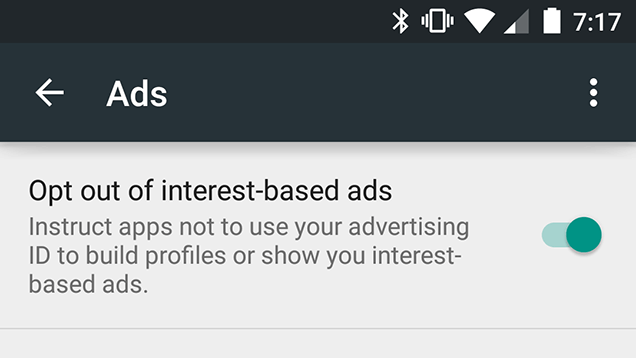
Step 4: On the next page, open Privacy > Ads.
Step 5: Click the check box off for the “Opt-out of interest-based ads” prompt under the Ads sub-menu.
Step 6: Close the Settings and return to regular browsing.
Solution 5: Avoid phishing scams
Many of the emails people receive are automated alerts or notifications from different companies. However, some email types from unknown senders can get jumbled among the various emails.
It is best to avoid opening these emails or clicking on the given links since they may be phishing or ID theft hacking attempts. Block any contact that continuously sends spam messages and inform the service provider about these messages. You can also use antivirus software to keep our phishing attacks due to its Anti-Scam Protection feature.
Solution 6: Activate Multi-Factor Authentication
While entering or registering an online account through another device, the service provider asks for permission to allow automated sign-in details. In addition, some sites ask multiple times for users to access a site or service, even when they reload the site after a few seconds of inactivity.
Service providers that allow 2FA or MFA password protection to enter accounts are more reliable options. Here, the software activates multiple steps of ID authentication, like Pincode, OTP, and fingerprint ID. Enable these features for extra security and control the limit of personal data companies can acquire or store.
Solution 7: Use a Password Manager
One of the most common manners of losing control over one’s personal information and how much companies can collect is forgetting one’s password. Many users set weak or generic passwords or use the same option for different accounts. Unfortunately, this is not strong enough to block hackers, who can acquire access quickly.
You should download and use a high-quality password manager like NordPass or Norton 360 Password Manager. With this software, you can securely store all account passwords in one location and even create new and unique random passwords for different accounts.
How to Use This?
Step 1: After opening the Norton Password Manager on the browser, choose its icon from the top-right side. Sign in to the account.
Or directly download the software extension and launch it.
Step 2: Set up the online vault and import your account information, passwords, and other information from different sites in it. Create a master password, as directed under the software.
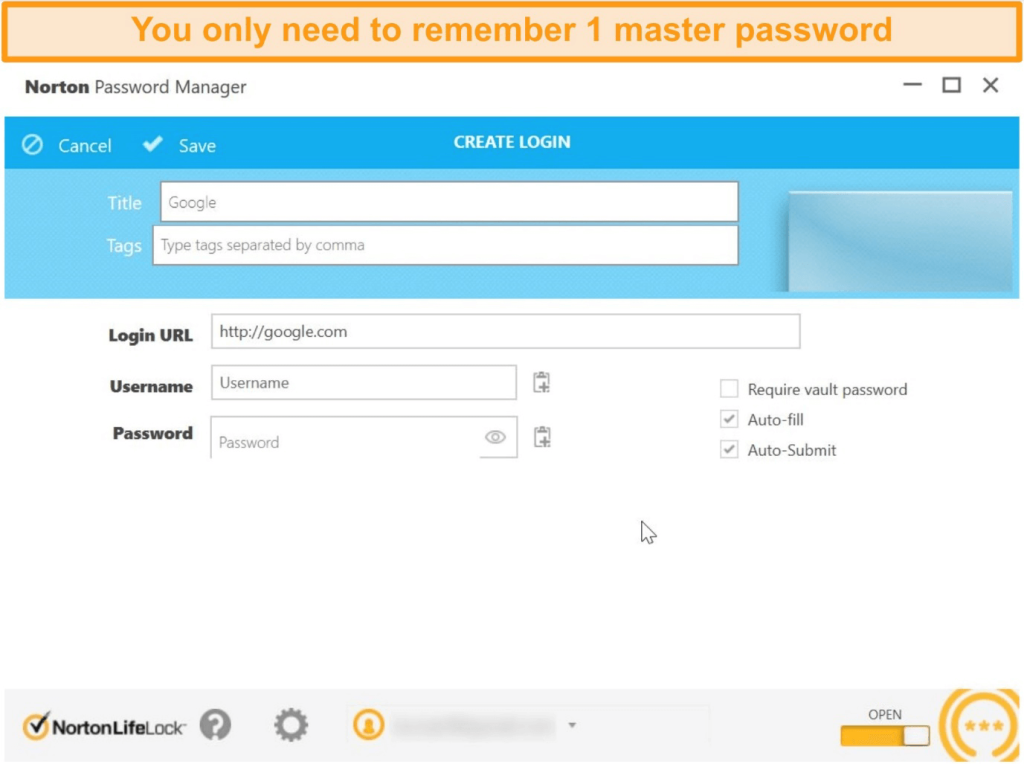
Step 3: the app would send occasional alerts about updating, saving, or filling up data in the vault.
Solution 8: Use an Identity Protection Software
To protect consumer data, you can opt for an all-in-one identity protection software like Systweak Advanced Identity Protector. This tool lets users keep their private data, like credit card information, email accounts, passwords, credential data, social security numbers, etc., completely private.
The app is simple to install and use on both Windows and Mac devices. The software stores all sensitive information in the pre-set Secure Vault for added protection or delete them if necessary. The software scans for faulty or unprotected details and carefully organizes all details in the vault for encrypted protection.
Through the Secure Vault, you can find details like account and password information quality across the connected devices.
Conclusion
You can use multiple techniques to safeguard your personal data from companies across different platforms. For example, you can download and apply a VPN service or use ad-blocking extensions/tools on your device. Alternatively, you can operate a specialized identity protection software like Systweak’s app or safeguard all details within a Password manager.
Try out multiple of these techniques to protection your details online before finalizing one method that suits your needs best.
Author Bio:
Dinesh Lakhwani 

Dinesh Lakhwani, the entrepreneurial brain behind “TechCommuters,” achieved big things in the tech world. He started the company to make smart and user-friendly tech solutions. Thanks to his sharp thinking, focus on quality and the motto of never giving up, TechCommuters became a top player in the industry. His commitment to excellence has propelled the company to a leading position in the industry.
Popular Post











Recent Post

How To Check If Your PC Is Infected? [Complete Guide]
Computers now sit at the center of almost everything we do. Well, yes! From sending emails to watching videos, we depend on them without much thought. Because of this, even a small issue can disrupt daily tasks. One common problem is hidden malware. It does not always show clear signs at first. It can enter […]

Repair Apps And Programs: Repair Apps That Aren’t Working
Computers have become an essential part of everyday life, supporting work, study, communication, and entertainment. Most of these activities rely on apps and programs, so when one stops functioning, even simple tasks can be disrupted. Common problems include error messages, frozen screens, or apps that fail to open. On Windows systems, such issues often arise […]

Troubleshooting Microphone Privacy Settings: Complete Guide
Sound is a basic part of how we use computers today. People attend meetings, record audio, speak to others, and use voice tools almost every day. A working microphone makes all these tasks easy. When the microphone fails, even simple work becomes difficult. Many users first think the device is broken. In reality, the issue […]

Windows Sound Settings – Sound Control Panel: Complete Guide
Sound plays an important role in how we use a computer every day. It supports both work and leisure. You need it for meetings, videos, music, and alerts. When audio fails, even simple tasks become difficult. Many users feel stuck when sound issues appear. This usually happens because they are not familiar with Windows Sound […]

Run a Troubleshooter For PC Issues Windows: Complete Guide
A computer plays an important role in everyday life. People use it for work, study, communication, and entertainment. When a problem appears, it can interrupt everything. Even a small issue can waste time and create frustration. Many users feel unsure about how to fix such problems. They often think they need expert help. In reality, […]
![Adjusting Audio Output Settings Complete Guide [2026]](https://www.techcommuters.com/wp-content/uploads/2026/03/Adjusting-Audio-Output-Settings-Complete-Guide.webp)
Adjusting Audio Output Settings: Complete Guide [2026]
Sound is part of almost everything we do on a computer. It lets you watch videos, join calls, play music, and hear alerts. When the audio stops working the right way, it can interrupt both work and daily use. That is why adjusting audio output settings matters for every user. Many people get unsure when […]

Artificial Intelligence Explained: Concepts, Terminology, Benefits, and Future Trends
Artificial Intelligence, or AI, is basically computers doing things that usually need a human brain. We’re talking about stuff like learning from experience, figuring out problems, understanding language, and making decisions. It’s not magic, just a lot of data, pattern-spotting, and math behind the scenes. Now, AI doesn’t actually think or feel like we do. […]

Resolving Microphone Detection Problems: Latest Guide [2026]
Microphones are important tools in daily life. People use them for office meetings, online classes, interviews, gaming, customer support, and content creation. When a system fails to detect a microphone, communication stops at once. This situation can cause stress and confusion. Many users believe the microphone is damaged. In reality, most problems are simple and […]

How To Switch To A Dark Background Theme In Windows [2026]
Most people spend many hours each day in front of a computer screen. Office work, online classes, editing, browsing, and streaming all require long screen time. A bright white background may look clean at first. However, over time, it can feel sharp and tiring. The strong contrast between white backgrounds and black text may cause […]

How to Switch From Local To Microsoft Account On Windows
Many users begin with a local account when they set up a new Windows computer. A local account works only on that single device. It stores settings, files, and preferences locally. It does not connect to online Microsoft services. For basic offline use, it works well. However, as digital needs grow, many users want better […]

