How to Set up and Use Microsoft Phone Link?
Last updated on February 4th, 2025 at 2:33 pm
Introduction
In terms of desktop or mobile system use, different operating systems are available with varying functions. In these device types, Windows and Android are widely useful for these device users. The Microsoft Phone Link application is available to integrate the Android smartphone with the PC to connect the operations on these two software types.
Therefore, it makes it simpler for desktop users to access information available on the phone directly on the PC. However, there are specific processes you have to take to activate this feature on your two devices. That is the main point of discussion in this post, so read ahead.
What is the Microsoft Phone Link app?
Before knowing the steps for setting up and using Microsoft’s two desktop and phone companion app types, you should understand what Phone Link here means. When connecting the Android phone to a Windows 10 or 11 device, users can utilize the Phone Link app as one side of the syncing.
The Phone Link version is mainly available on the Windows PC, while the phone companion app is named Link to Windows. Both of these apps sync via Bluetooth or WiFi. Users can use this process mainly to connect and sync data like Notifications, Calls, Photos, Media Controls, and App Sharing.
Supported Devices to Consider
It is essential to refresh the devices compatible with this process. Windows 10 and 11 versions are suitable for the Microsoft Phone Link app. On the side of the Android device, smartphones running with Android 9.0 and up includes the preset Link to Windows app.
Specific brands include the pre-installed Link to Windows app in the device, and these are some examples:
- Samsung Galaxy S9 series
- Samsung Galaxy Note9 series
- Samsung Galaxy Fold
- Samsung Galaxy Z Flip
- Samsung Galaxy S10 series
- Samsung Galaxy Note10 series
- Surface Duo
- Samsung Galaxy S20/S21/S22 series
- Samsung Galaxy Note20 series
- HONOR Magic4 Pro
How to Setup and Use Microsoft Phone Link App?
There are different steps for the initial setup process for Phone Link and the related phone companion app, Link to Windows. Here is a detailed step-by-step breakdown of the process from downloading to the final use.
Phase 1: How to Setup for Microsoft Phone Link App
Many steps go into setting up the Link to Windows on the Android smartphone and the Microsoft Phone Link app on the Windows PC overlap. So, for the setting up stage of the process, you have to keep both devices nearby and run the steps simultaneously on them.
How to proceed?
Step 1: Go to the Google Play Store and download the app- Link to Windows on the Android smartphone.
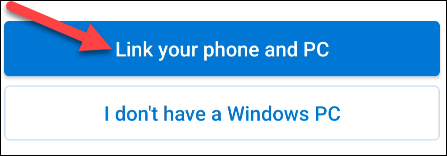
Step 2: After the download completes, launch the app on your smartphone or tablet and tap on the “Link your phone and PC” option.
Step 3: Install the Photo Link app on your Windows PC and tap the “Get Started” icon.
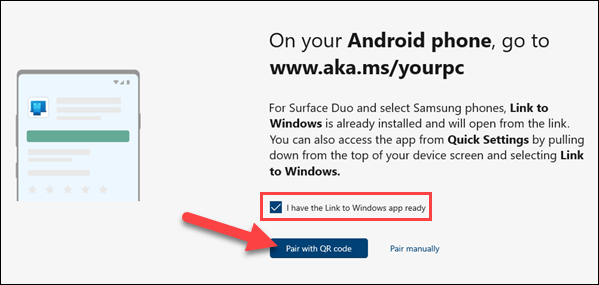
Step 4: Next, tap the “I have the Link to Windows app already” option and select the “Pair with QR Code” option.
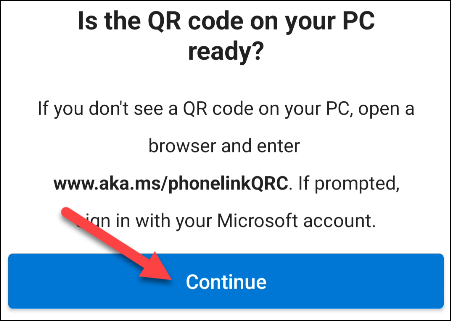
Step 5: Return to the Android phone for the pop-up alert verifying the QR code status. Tap on the Continue choice.
Step 6: Then, use your phone camera to scan the QR code on the PC to connect the device.
Step 7: The device will ask you to grant some app permissions. Click on Continue here.
Step 8: Next, allow app permission for contacts, messages, and media access. Click on the Allow button for all.
Step 9: The system will ask you to allow the app to keep running in the background to maintain the PC connection. Here, tap on the Continue button again.
Step 10: In the following pop-up message, press the Allow button.
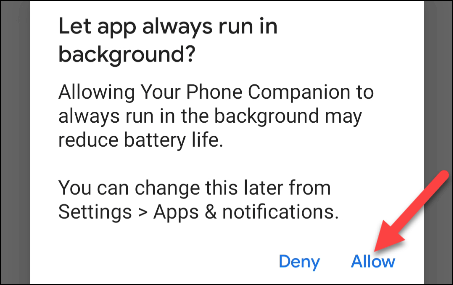
Step 11: Open the Microsoft Phone Link app on Windows PC and click Continue.
Step 12: Go through the app’s feature settings and click on the “See My Notification” option.
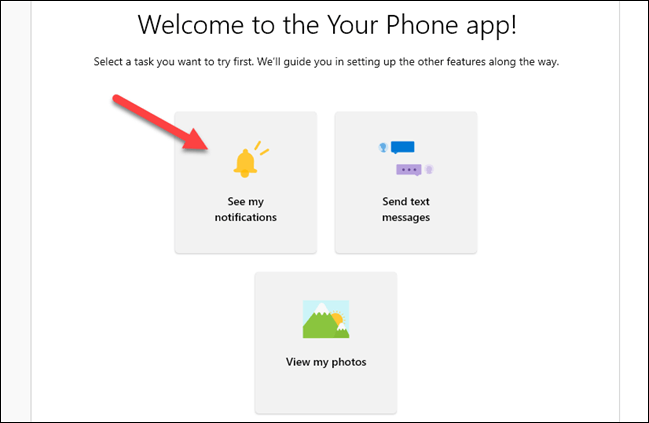
Step 13: Allow the Link to Windows app connection-based permissions for Android notifications by tapping the “Open Settings on Phone” key.
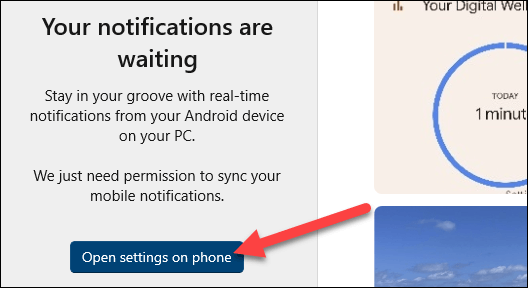
Step 14: An alert will come up in the Android device to allow access to Notification settings. Here, tap on the Open button to access.
Step 15: Next, search for Link to Windows under the Device & App Notifications section. Then, activate the “Allow Notification Access” option.
Phase 2: How to See Phone Notifications on the Microsoft Phone Link App
After activating the permissions for viewing all connected files and settings through the Allow Notification Access option, you can easily browse all alerts on the app.
How to process?
Step 1: Open the Microsoft Phone Link app on the Windows PC.
Step 2: Go to the Notifications section and see the new phone alerts in this area.
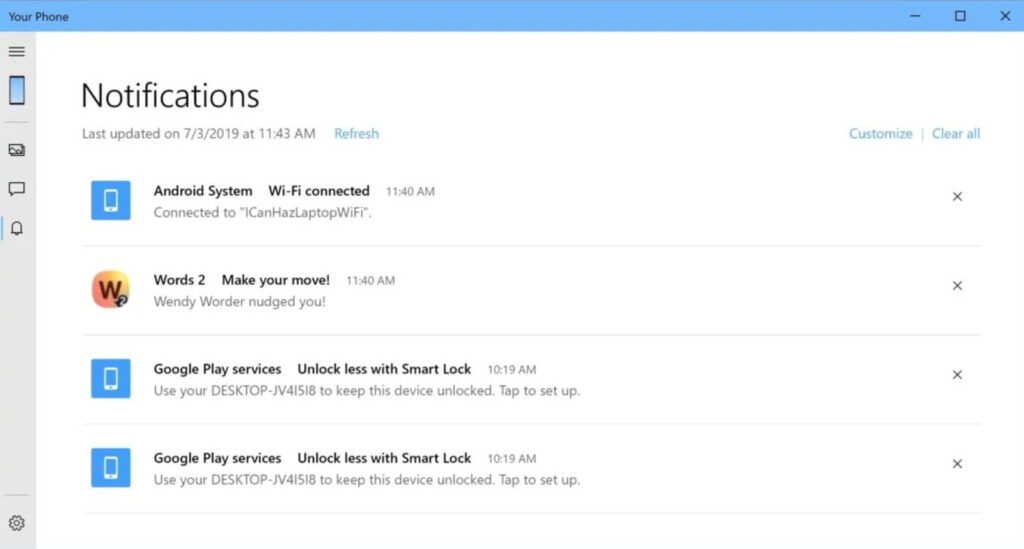
Step 3: You can click on the cross (X) button to delete any notification you wish to remove.
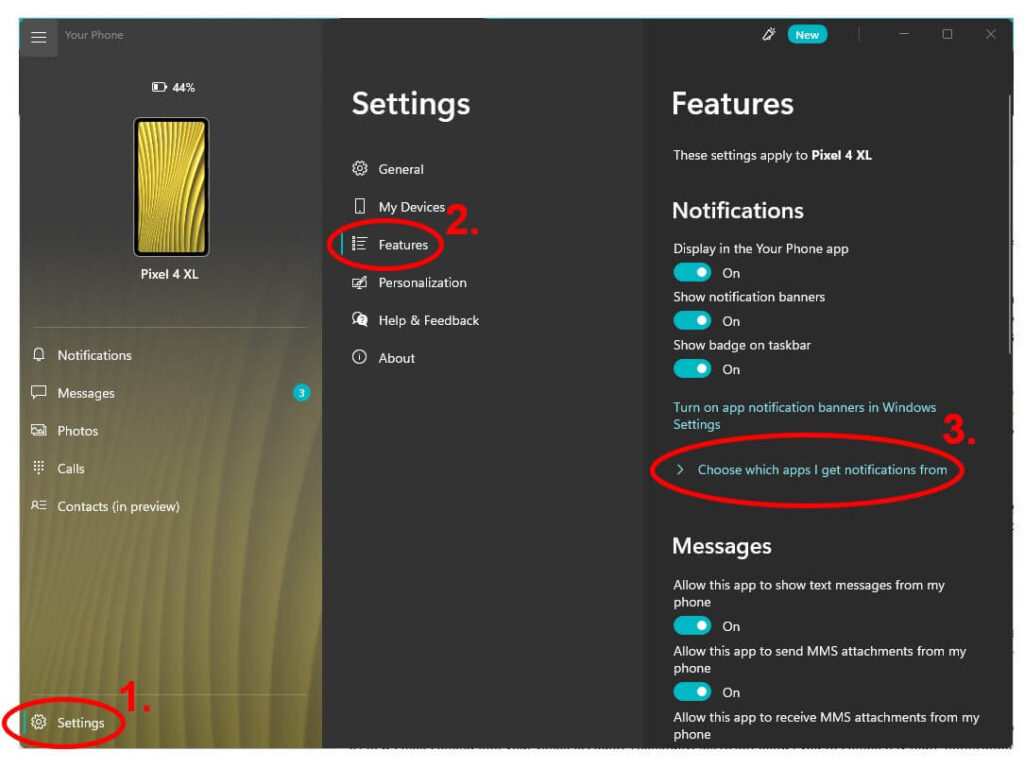
Step 4: Adjust which types of notifications you will get through Settings > Features > choose which apps.
Phase 3: How to See Messages on the Microsoft Phone Link App
The process of viewing messages from different apps is simple to do on the Microsoft Phone Link app. All synced messages appear automatically under the Messages app after linking the apps. There is no additional setup necessary.
How to proceed?
Step 1: Access the Microsoft Phone Link app.
Step 2: Go to the Messages tab at the top-left side of the screen.
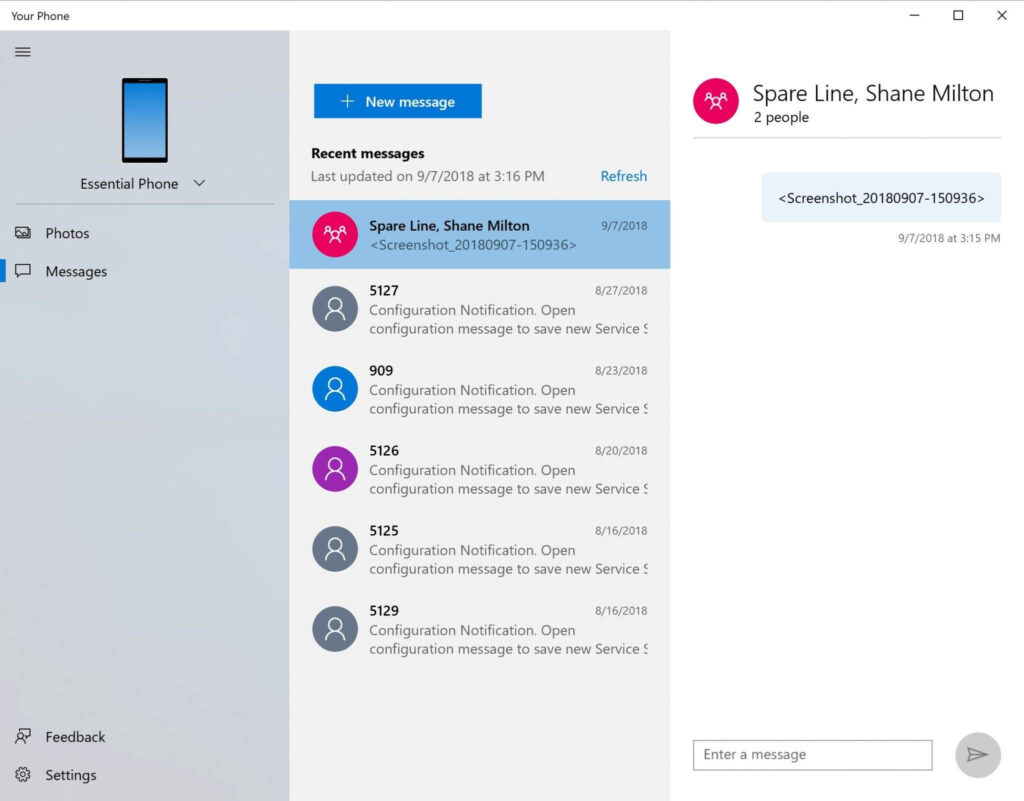
Step 3: Tap on the New Message button to start a new conversation or tap on the contact in the list and reply to their message.
Phase 4: How to See Media on the Microsoft Phone Link App
For the media files, there is the Photos category in this app. Or, you can use the sidebar to control the media settings besides managing other usage factors.
How to proceed?
Step 1: Open the Phone Link application.
Step 2: Go to the Photos tab to see the selected photos.
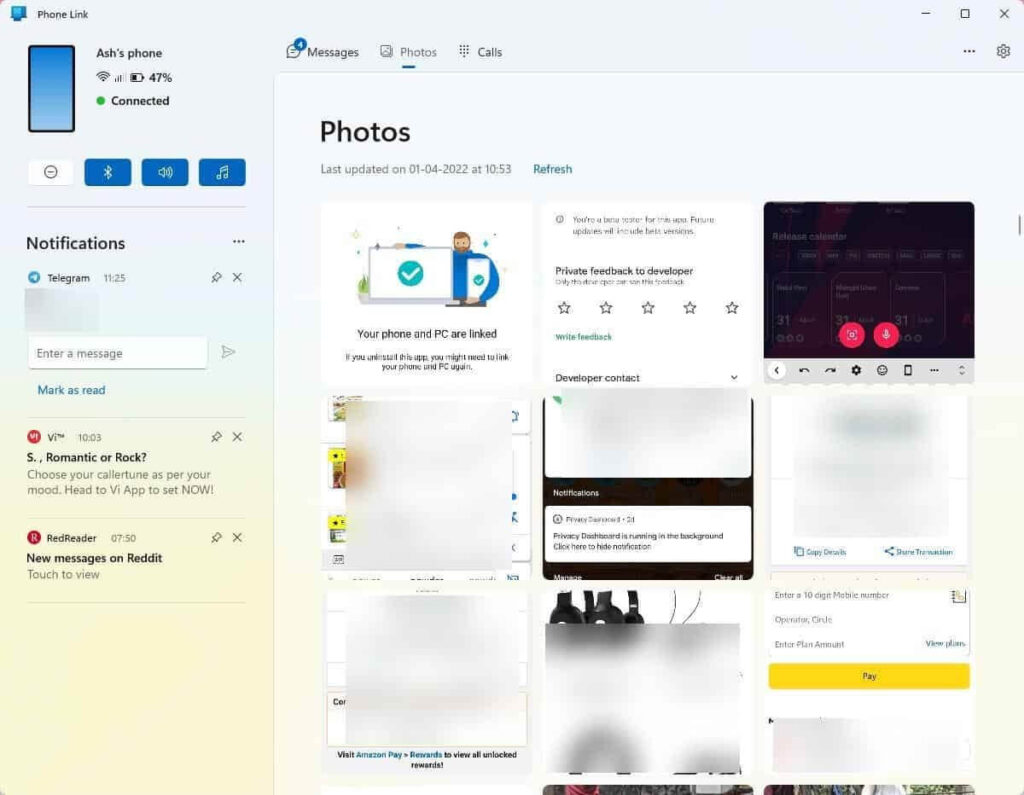
Step 3: Handle those processes through the sidebar to make other media controls. These include control settings like battery level checking, silent/mute features, volume control, etc.
Conclusion
Overall, activating and using the Phone Link app on your device is simple if you know the proper steps. Firstly, check if your device supports the feature and proceed with the setup and usage-related steps.
Author Bio:
Dinesh Lakhwani 

Dinesh Lakhwani, the entrepreneurial brain behind “TechCommuters,” achieved big things in the tech world. He started the company to make smart and user-friendly tech solutions. Thanks to his sharp thinking, focus on quality and the motto of never giving up, TechCommuters became a top player in the industry. His commitment to excellence has propelled the company to a leading position in the industry.
Popular Post











Recent Post

Resolving Microphone Detection Problems: Latest Guide [2026]
Microphones are important tools in daily life. People use them for office meetings, online classes, interviews, gaming, customer support, and content creation. When a system fails to detect a microphone, communication stops at once. This situation can cause stress and confusion. Many users believe the microphone is damaged. In reality, most problems are simple and […]

How To Switch To A Dark Background Theme In Windows [2026]
Most people spend many hours each day in front of a computer screen. Office work, online classes, editing, browsing, and streaming all require long screen time. A bright white background may look clean at first. However, over time, it can feel sharp and tiring. The strong contrast between white backgrounds and black text may cause […]

How to Switch From Local To Microsoft Account On Windows
Many users begin with a local account when they set up a new Windows computer. A local account works only on that single device. It stores settings, files, and preferences locally. It does not connect to online Microsoft services. For basic offline use, it works well. However, as digital needs grow, many users want better […]

How to Switch Windows 10 to a Local Account: Complete Guide
Windows 10 allows users to sign in with either a Microsoft account or a local account. When you set up a new computer, the system often suggests using a Microsoft account. This account connects your device to Microsoft services such as Outlook, OneDrive, and the Microsoft Store. It also syncs settings, themes, and passwords across […]

How To Change Default Apps For File Types In Windows
Windows is designed to make using your computer easy. One way it does this is by assigning default apps to different file types. This means when you open a file, Windows automatically opens it with a specific program. For example, photos may open with Photos, music with Groove Music, and PDFs with Edge. These default […]

How To Adjust The Mouse Pointer Speed: Complete Guide
Using a computer every day means you use the mouse a lot. The mouse pointer moves on the screen and helps you click, scroll, and select items. Many people never think about the speed of the mouse pointer. They have used the default setting for years. This can cause small problems over time. A slow […]

How to Change Mouse Scrolling Settings In Windows
A mouse is one of the most used computer tools. People use it every day. They scroll through emails. They scroll through documents. They scroll through websites and images. The movement becomes automatic. Most users do not notice it. That is why problems often go unnoticed. Scrolling problems show up slowly. At first, it feels […]

Keyboard Light Settings: Keyboard Lighting Control [Complete Guide]
Keyboards are no longer simple typing tools. Well, yes! Over time, they have evolved to include features that improve comfort, visibility, and overall experience. One of the most useful features today is keyboard lighting. It helps users work comfortably in low-light conditions. It also reduces strain when typing for long hours. Many users first notice […]

Customizing Pointer Appearance: Complete Guide
The way your mouse pointer looks on your computer may seem like a small detail. But customizing pointer appearance can make using your PC more comfortable and visually appealing. Many users do not realize that they can change the pointer size, color, and style to fit their needs. Whether you want a bigger pointer for […]

How To Choose a Computer Monitor: Monitor Buying Guide
Buying a monitor looks easy. Many people think all screens are the same. That belief causes regret later. A monitor is not just a display. It is a daily tool. You read on it. You work on it. You relax with it. Small problems become big over time. Poor brightness hurts eyes. Bad size causes […]

