











Introduction On the phone, there are different applications that people use daily. Most of them have an in-built alerting system that constantly sends push notifications to phones, from information related to software upgrades to text alerts. While these are useful, getting notifications from all of the apps on your phone can become troublesome after a […]
How To Remove Snapchat Filters From Saved Photos (Updated)?
As chat and messaging apps take communication to the next level Snapchat becomes a revolutionary ideology. Youngsters love this app because it is not a regular text and emoji chat app. It’s like a fresh breeze that offers unique ways to share pictures and short videos in Status. The main popularity of Snapchat comes from cool and interesting Filters.
You can find an awesome range of filters on Snapchat, using which you can redefine your regular looking photos. From wicked cat to blowing kisses you can find plenty of filters.
However, if you aren’t a fan of filters or just want to remove Snapchat filters from the saved photos, you can do that too. To learn how to delete filters from saved pics you just need to follow the step by step instructions given in the article.
Ways to Remove Snapchat Filter from Saved Pictures
Note: Previously, using Magic Eraser you could easily delete Snapchat filters. But now, this tool has been permanently removed from Snapchat. Therefore, if you want to edit or delete filters from a saved image you need to follow the steps explained below.
So, let’s get started with the process and learn how to get rid of filters from a picture.
Note: If no filters are added to an image you cannot edit them. This means you can edit the picture that has filters added to it.
Instructions to remove the Snapchat filter from a saved picture.
1. Launch Snapchat app
2. Tap Memories to load the Saved images
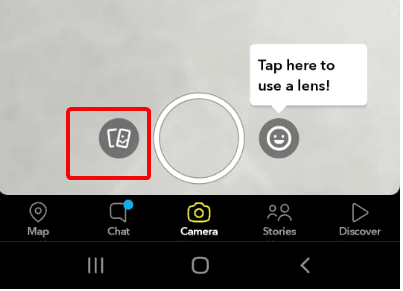
3. Select the image you want to edit and remove the filter from.
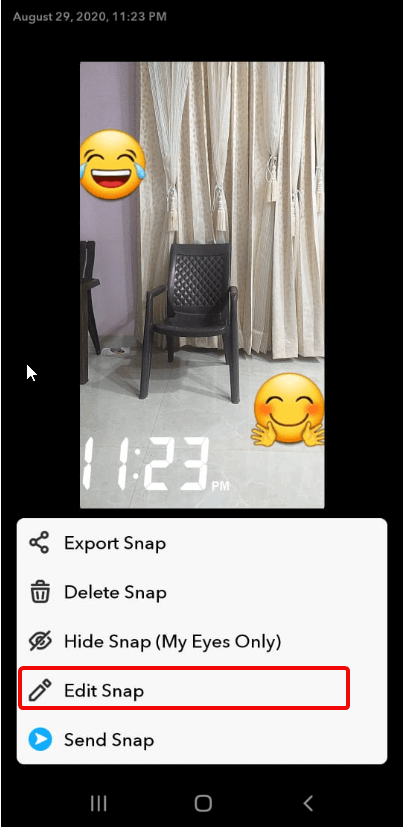
4. Once the image is loaded tap three vertical dots present at the top right corner.
5. Doing so will show different options at the bottom of the screen.
6. Tap Edit Snap.
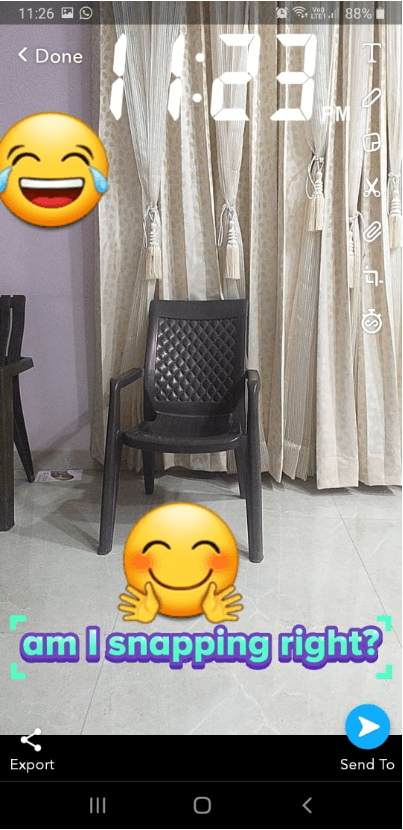
7. You can now edit the image. To add more filters like stickers, text, or time-lapse swipe left on the screen. You can use these and other filters to change the images. Alongside can crop images, correct color, and do a lot more.
Also Read: How to View Someone’s Snapchat Story without them Knowing?
8. Once the editing is finished; tap Done.
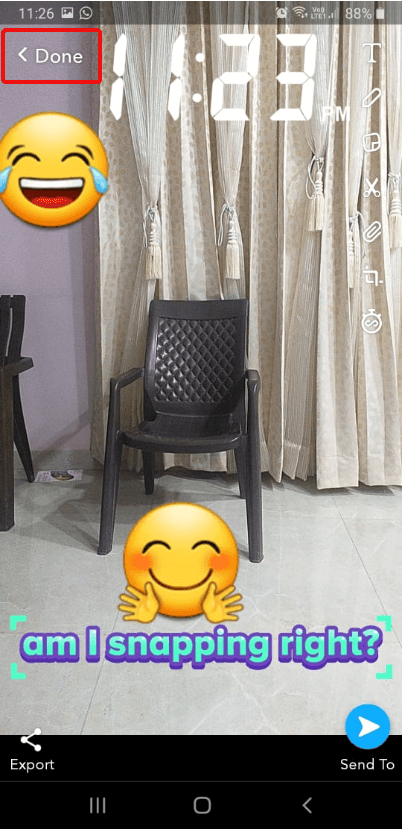
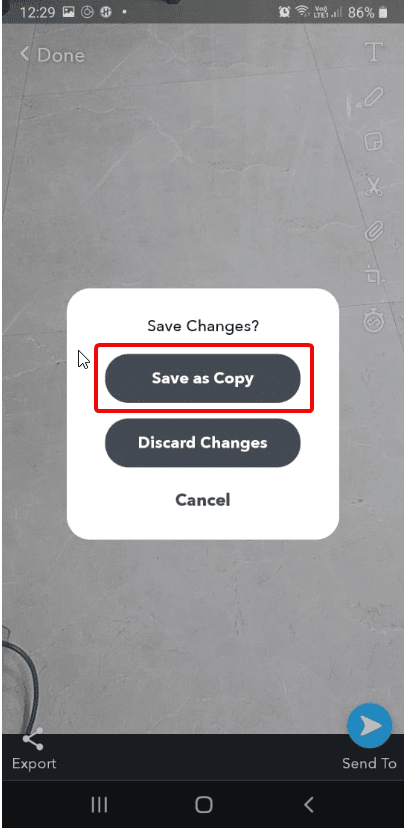
9. When prompted, make sure you tap Save as Copy option.
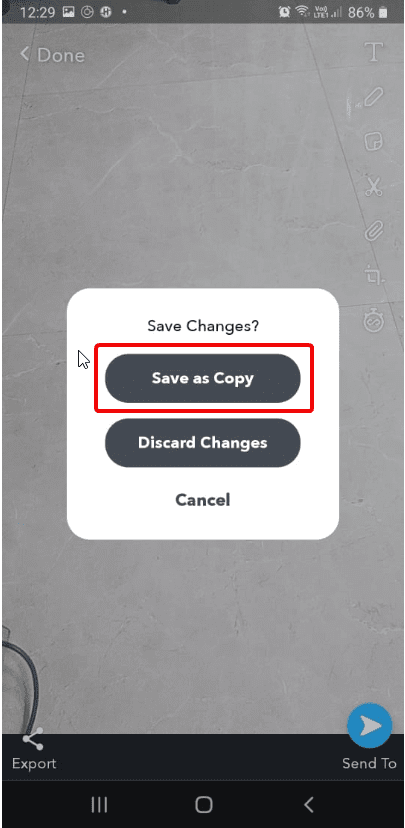
10. This will ensure that you have both original and edit images with Snapchat filters.
In addition to this, if you want to remove stickers from pictures, then you can do that too.
How to Tweak Photos with Snapchat?
Snapchat is highly creative and constantly improving. Adding or removing the filter from Snapchat photos is a hassle-free job. This is all possible because of the interesting features offered by Snapchat. To remove stickers from Snapchat, follow the steps below:
1. Open Snapchat app
2. Tap Memories section
3. Select the image from which you can to delete sticker
4. Tap the three stacked dots at the top right corner
5. Next, tap the sticker you wish to remove.
Note: Until you see Trash bin icon on the right-side list do not remove your finger
6. Once the Trash icon appears drag and drop the sticker.
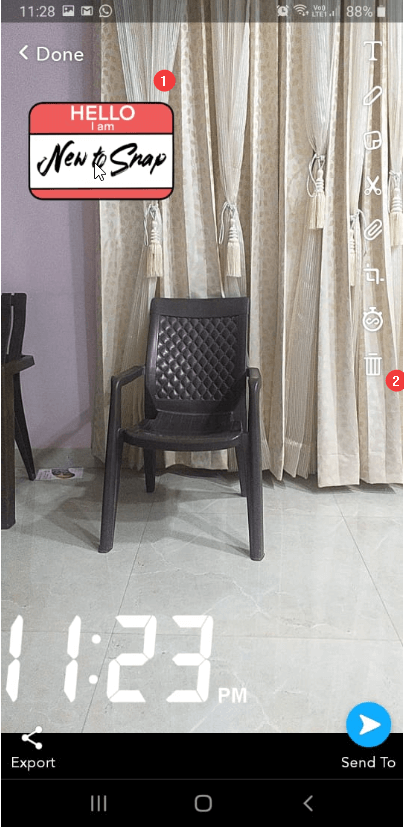
7. Repeat the process for all the stickers you wish to remove.
8. Tap the Done button to save the edited image.
Note: Alongside removing stickers from the same window you can add more stickers too.
9. Once done, remember saving the image by tapping Done > Save as Copy.
Can I remove Snapchat Emoji also from a Save Image?
Yes, if you have added an emoji you can delete that too from Snapchat. To do, so follow the steps explained above. However, if the emoji is added via keyboard then you need to follow the steps explained below:
1. Launch Snapchat app > Memories > Select image to edit
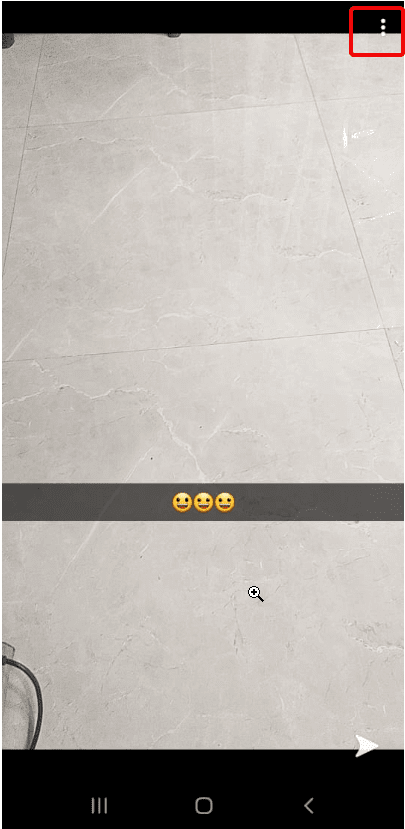
2. Tap three dots at the top right-corner > Edit Snap.
3. Tap Emoji.
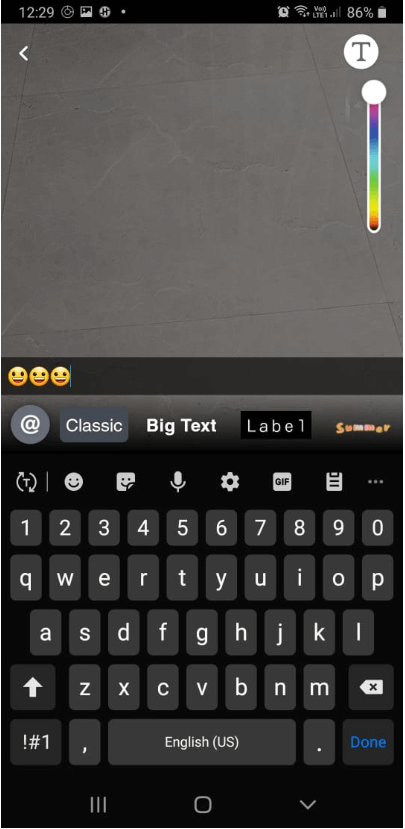
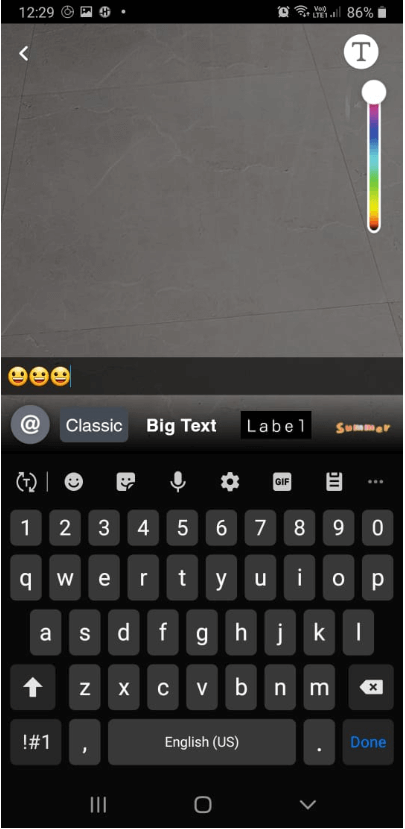
4. You will now get the edit text option. Tap Backspace to delete the emoji and leave it blank
5. When done tap Done > Save as copy.
That’s it using these simple steps you can easily remove filters from Snapchat.
Can I cancel the purchased filters?
We understand, sometimes you just want to cancel purchases. But before canceling purchased Snapchat filters, review how the refund works.
Note: The refund process is different for Snapchat app purchases and online purchases.
Here’s how to cancel Filters ordered online, bought as a guest, and purchased online.
How to cancel Filters ordered online
To cancel Filters bought online follow the steps below:
- Visit Create Your Own website and log in
- Click ☰ in the top-left corner > “My Orders”
- Select the Filters you want to cancel > click Trash icon and confirm cancellation
To cancel Filters bought online as a guest follow the steps below:
- Open your order confirmation email
- Click the link that reads “Click here to view details about your Filter” > Cancel
Refunds for Filters purchased online
Note: If you cancel the purchase before the filter goes live, you can get a full refund.
However, if you cancel the purchase while the filter is active, then you get the refund on a pro-rata basis. This means you will be charged for the time your order was active!
Moreover, if you cancel an Annual Filter after it starts to run you won’t be able to get a refund as the amount is paid
How to cancel in-app purchased Filters
To cancel Filters you made in Snapchat:
- Tap ⚙️ in My Profile to open Settings
- Tap “On-Demand Geofilters” > select the filter you want to cancel > Cancel
Refunds for Filters purchased in the Snapchat app
Unfortunately, no refund is issued for the purchases made in the Snapchat app. To learn more about it click here.
Monster Snap App
It won’t be wrong to call Snapchat a monster snap app as it offers features to add interesting objects to your boring photos. In addition to this, it provided effective and simple ways to remove the filter from Snapchat saved photos.
So, it is truly an amazing app that is going to change the history of photo communication apps. This was a quick guide to remove Snapchat filters from saved photos. If you know of any other tips, feel free to comment below.
Author Bio:
Dinesh Lakhwani 

Dinesh Lakhwani, the entrepreneurial brain behind “TechCommuters,” achieved big things in the tech world. He started the company to make smart and user-friendly tech solutions. Thanks to his sharp thinking, focus on quality and the motto of never giving up, TechCommuters became a top player in the industry. His commitment to excellence has propelled the company to a leading position in the industry.
Popular Post
Recent Post
Spotlight Search not working on iPhones and iPad? Try these hacks!
iPhone and iPad come with exclusive features offering multiple advantages for the users. The parent company Apple promises ease of use with these features with reduced time and effort. The in-built search engine names Spotlight Search offers a quick and powerful method to access any feature on iPhone and iPad. Spotlight Search can be quickly […]

How To Fix Fortnite Lag on Windows PC?
Introduction People who enjoy gaming have many high-quality game choices to choose between with PC compatibility. Some are accessible online, while others come in the form of software or apps they have to download. You are in luck if you have a high-powered Windows PC with a modern OS version that supports high-grade games like […]
How To Fix A Failed Microsoft Defender Update?
Introduction New updates come up for software and operating systems consistently, at least under Microsoft. However, the Microsoft Defender update failure can make it difficult to apply improvements. Multiple reasons block the updating process for Windows Defender in devices running on Windows 10 or 11. These include problems like corrupted Windows Update components, partial damage […]

How to Make a Photo Collage on iPhone?
iPhone users enjoy the benefits of advanced camera features. Many love to create fantastic photo collages using the same. These photo collages are a fun and entertaining way of expressing your story on social media or other platforms. It is easy to gain followers with some high-quality photo collages on iPhone. However, iPhone users may […]

How to Solve NVIDIA Drivers Not Installing Issue? [Updated]
Graphics are necessary for any high-performing system. The dedicated video cards on systems are necessary for different personal and professional users. The amazing NVIDIA Graphics GPU installed on the system can offer the benefits of the much-required graphic to the users. Thus, many professionals and beginners need to install NVIDIA drivers on their systems. However, […]

How To Fix Can’t Create a New Folder on Windows 11?
Windows 11 users praise this operating system’s ease and its prominent features. Creating a new folder on Windows 11 is easy; it can be completed by right-clicking over the blank space on the desktop or in File Explorer. Windows 11 users can select “New” and “Folder.” However, Windows 11 users may face the issue of […]
How To Import Playlists to Apple Music [100% Working]
Introduction Part Do you want to import your playlist to Apple music? Switching to Apple music can be the best experience for using Mac devices. However, users may feel skeptical about importing their playlists from different sources to Apple Music. There is no need of creating playlists again as we’ve done the research work on importing playlists […]
How to Easily Downgrade from Windows 11 to Windows 10?
Have you upgraded from Windows 10 to Windows 11? And realized you don’t like Microsoft’s latest operating system. Perhaps you dislike the new Start menu or taskbar. You may be missing some built-in apps or features. Though maybe you miss the familiarity of Windows 10. For whatever reason, you can revert to the previous operating […]
How to Repair Corrupted or Damaged Photo on Windows?
The development of the photography camera in 1816 made it possible for people to record their memories and share stories visually rather than only orally. However, keeping these pictures from deteriorating was just as challenging as the original camera breakthrough and it only became better over time. Digital images are popular today, but they are […]

