How To Install Pending Windows Updates Easily On Windows 11
Windows updates keep your computer healthy. They fix problems and improve security. Many people ignore updates because they worry about errors or slow performance. In most cases, the process is simple. You only need to follow a clear routine and give your computer enough time to finish the job.
A regular update habit saves you from bigger troubles later. Your system becomes stable and safe. It also runs better because Microsoft often adds small improvements in each update. This guide shows how to install pending Windows updates easily on a Windows 11 PC. It uses simple steps that are easy to follow, even if you are not very technical.
Precautions Before You Begin: Install Pending Windows Updates
Basic things to keep in mind
Before you start the update process, it helps to take some precautions. These small steps protect your files and reduce the chance of problems. They also give you more control. When you prepare well, you can install pending Windows updates easily on a Windows PC and avoid interruptions.
Create a backup
Save important files to an external drive or cloud storage. This prevents data loss if your system faces a rare update error.
Check your power supply
Keep your laptop plugged in. Desktop users should make sure their power is stable so the update process does not stop midway.
Close open programs
Shut down any apps you are not using. This frees system resources and avoids software conflicts.
Check free storage
Windows needs enough space to download and unpack updates. Remove unwanted files or move them to an external drive if needed.
Disconnect external hardware
Remove USB drives, printers, and other devices that are not required. This helps avoid driver conflicts during the update.
Pause active downloads
Stop large downloads in browsers or game launchers. This keeps your internet free for the update files.
Check your internet connection
Make sure your connection is steady. A slow or unstable line may interrupt the download.
Note your login details
You may need to sign back in after a restart. Keep your password handy to avoid delays.
Prepare Your PC for the Steps: Install Pending Windows Updates
Make your device ready for the update process
A small amount of preparation improves the success rate of updates. This part guides you through the basic checks that help you install pending Windows updates easily on a Windows PC. When your system is prepared, the steps ahead feel smooth and predictable.
Restart once before updating
A quick restart clears temporary files and resets some system processes. This gives Windows a fresh start before it begins the update.
Check your date and time settings
The wrong date or time can prevent update servers from working correctly. Set both to automatic mode to avoid mismatches.
Scan for malware
A simple scan catches threats that might block updates. Use your built-in Windows Security tool for this.
Disable third-party antivirus temporarily
Some antivirus tools block update files by mistake. Turn them off for a short time and turn them back on after the update.
Note any error messages from past attempts
If you saw update errors earlier, note them down. These messages help you understand what went wrong.
Keep your Microsoft Store updated
Some system parts depend on Store components. Update them first to avoid conflicts.
Check hardware health
Look for signs of overheating or slow startup. Weak hardware can delay updates.
Keep system drivers updated
Outdated drivers may block updates. Update key drivers such as graphics, audio, or network drivers before starting.
How to Install Pending Windows Updates Easily: Step-by-Step Guide.
Below is the core set of steps you need to follow. These steps work for most devices. They help you install pending Windows updates easily on a Windows PC without confusion.
Step 1. Open Windows Update Settings
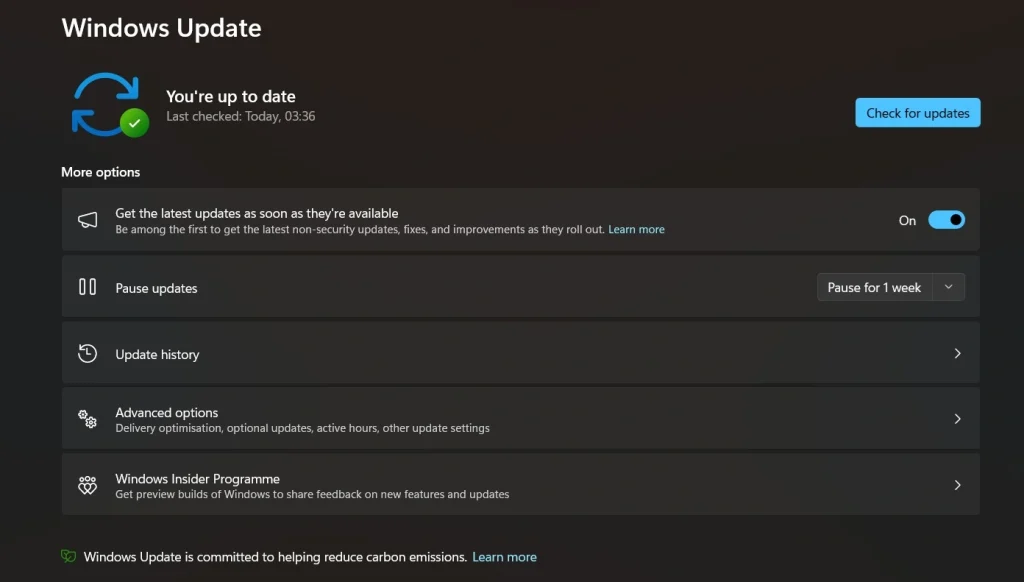
Open Start. Select Settings. Choose Windows Update. This screen shows all updates your computer needs. Look for pending updates near the top.
Step 2. Click the Check for Updates Button
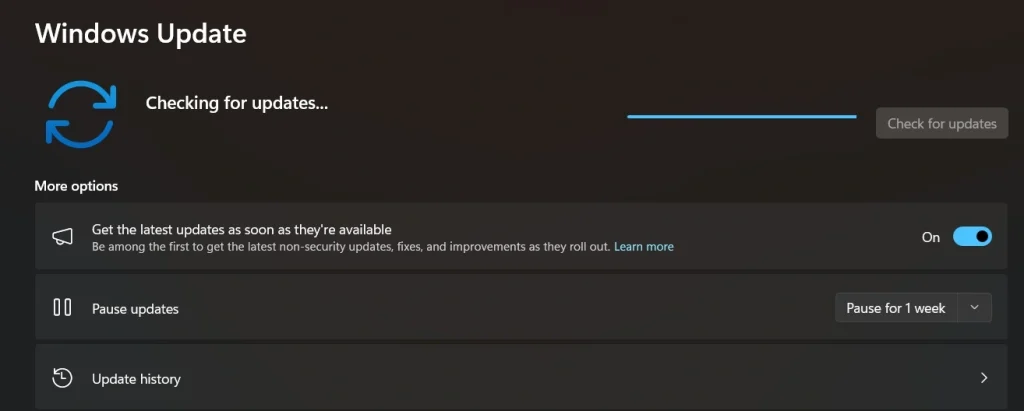
Press Check for updates. Windows starts looking for new files. It also verifies your system details and matches the right update package for you.
Step 3. Download and Install All Pending Updates
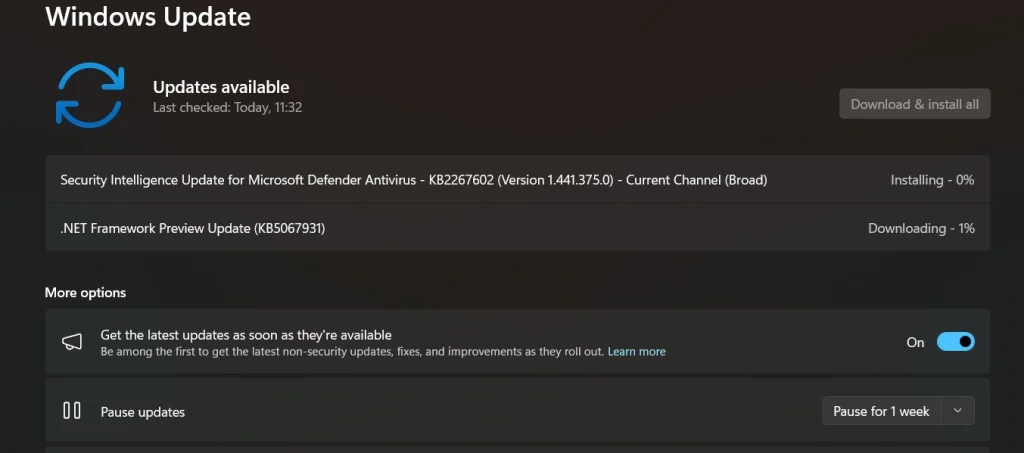
If updates appear, click Download and install. Some updates start on their own. Do not use heavy apps during this stage because Windows needs enough space and memory to work smoothly.
Step 4. Restart Your Computer
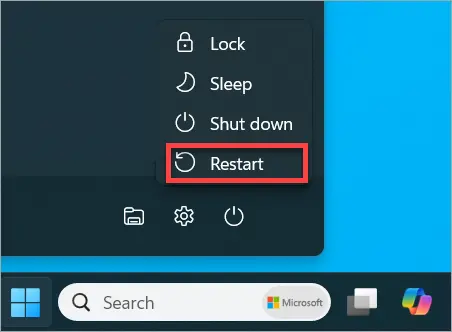
Once the download is done, Windows may ask for a restart. Click Restart now. Your system will show a blue screen with progress messages. Do not turn off your device. Wait until the process finishes. After the restart, check again to confirm if more updates are available. This completes the cycle that helps you install pending Windows updates easily.
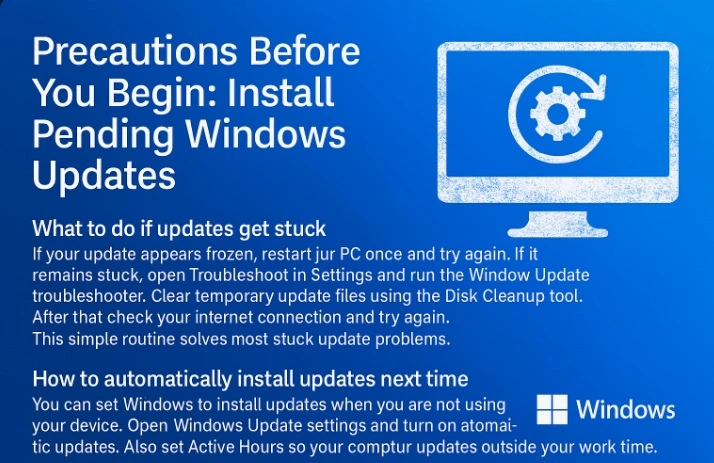
What to Do If Windows Updates Get Stuck
If your update seems frozen:
- Restart your PC once and try again.
- If it’s still stuck, go to Settings > Troubleshoot and run the Windows Update troubleshooter.
- Use the Disk Cleanup tool to clear temporary update files.
- Check your internet connection and retry the update.
This quick routine resolves most stuck update issues without needing advanced fixes.
How to Automatically Install Updates Next Time
To make future updates seamless:
- Open Windows Update settings and enable automatic updates.
- Set your Active Hours so updates happen when you’re not working.
- Windows will then download and install updates in the background, and restart your device during your selected time window.
Pro Tips for Smooth Updating
Ideas that make future updates easier
With the habits below, your updates will be quick and trouble-free. These tips help you install pending Windows updates easily on a Windows PC in future without long delays.
- Update drivers often
Regular driver updates prevent hardware conflicts. This keeps your system ready for new Windows patches. - Use Storage Sense
Turn on Storage Sense to clear temporary files. This helps avoid storage issues during updates. - Keep your device cool
Overheating slows the update process. Make sure your device has enough airflow. - Do not ignore small updates
Even minor patches improve system health. Installing them early makes major updates smoother. - Check the Windows Update history
This page shows what succeeded and what failed. Knowing this helps you plan your next steps. - Maintain a steady internet plan
A stable connection shortens download time. Use a reliable network for important updates. - Remove old programs
Outdated apps sometimes cause conflicts. Removing unused software reduces update risks. - Restart your system once every few days
A simple restart clears system memory and prepares your device for future updates.
Conclusion
Windows updates protect your computer and keep it stable. When you follow the precautions, prepare your system, and follow the right steps, the process feels simple and controlled. You reduce errors and save time. Each update adds a layer of improvement that helps Windows run better.
If you build a small routine around updates, your system stays healthy. You avoid unexpected crashes and slowdowns. The more you follow this guide, the easier it becomes to install pending Windows updates easily on Windows 11. A little patience and regular care keep your computer in its best shape.
FAQs:
Why do Windows updates take so long
Some updates are large. Others need several restarts. Your internet speed and hardware also affect the duration. If you keep your system clean and avoid heavy tasks during updates, the process becomes faster.
Do I need to install optional updates
Optional updates are not required, but they help improve performance. They include driver updates and small feature enhancements. Installing them early often prevents bigger problems later.
Can I stop updates midway
You should not stop updates once they start. Interrupting the process can corrupt system files. If you began by mistake, wait for the cycle to finish and manage future updates through the settings page.
Author Bio:
Dinesh Lakhwani 

Dinesh Lakhwani, the entrepreneurial brain behind “TechCommuters,” achieved big things in the tech world. He started the company to make smart and user-friendly tech solutions. Thanks to his sharp thinking, focus on quality and the motto of never giving up, TechCommuters became a top player in the industry. His commitment to excellence has propelled the company to a leading position in the industry.
Popular Post











Recent Post

Resolving Microphone Detection Problems: Latest Guide [2026]
Microphones are important tools in daily life. People use them for office meetings, online classes, interviews, gaming, customer support, and content creation. When a system fails to detect a microphone, communication stops at once. This situation can cause stress and confusion. Many users believe the microphone is damaged. In reality, most problems are simple and […]

How To Switch To A Dark Background Theme In Windows [2026]
Most people spend many hours each day in front of a computer screen. Office work, online classes, editing, browsing, and streaming all require long screen time. A bright white background may look clean at first. However, over time, it can feel sharp and tiring. The strong contrast between white backgrounds and black text may cause […]

How to Switch From Local To Microsoft Account On Windows
Many users begin with a local account when they set up a new Windows computer. A local account works only on that single device. It stores settings, files, and preferences locally. It does not connect to online Microsoft services. For basic offline use, it works well. However, as digital needs grow, many users want better […]

How to Switch Windows 10 to a Local Account: Complete Guide
Windows 10 allows users to sign in with either a Microsoft account or a local account. When you set up a new computer, the system often suggests using a Microsoft account. This account connects your device to Microsoft services such as Outlook, OneDrive, and the Microsoft Store. It also syncs settings, themes, and passwords across […]

How To Change Default Apps For File Types In Windows
Windows is designed to make using your computer easy. One way it does this is by assigning default apps to different file types. This means when you open a file, Windows automatically opens it with a specific program. For example, photos may open with Photos, music with Groove Music, and PDFs with Edge. These default […]

How To Adjust The Mouse Pointer Speed: Complete Guide
Using a computer every day means you use the mouse a lot. The mouse pointer moves on the screen and helps you click, scroll, and select items. Many people never think about the speed of the mouse pointer. They have used the default setting for years. This can cause small problems over time. A slow […]

How to Change Mouse Scrolling Settings In Windows
A mouse is one of the most used computer tools. People use it every day. They scroll through emails. They scroll through documents. They scroll through websites and images. The movement becomes automatic. Most users do not notice it. That is why problems often go unnoticed. Scrolling problems show up slowly. At first, it feels […]

Keyboard Light Settings: Keyboard Lighting Control [Complete Guide]
Keyboards are no longer simple typing tools. Well, yes! Over time, they have evolved to include features that improve comfort, visibility, and overall experience. One of the most useful features today is keyboard lighting. It helps users work comfortably in low-light conditions. It also reduces strain when typing for long hours. Many users first notice […]

Customizing Pointer Appearance: Complete Guide
The way your mouse pointer looks on your computer may seem like a small detail. But customizing pointer appearance can make using your PC more comfortable and visually appealing. Many users do not realize that they can change the pointer size, color, and style to fit their needs. Whether you want a bigger pointer for […]

How To Choose a Computer Monitor: Monitor Buying Guide
Buying a monitor looks easy. Many people think all screens are the same. That belief causes regret later. A monitor is not just a display. It is a daily tool. You read on it. You work on it. You relax with it. Small problems become big over time. Poor brightness hurts eyes. Bad size causes […]

