How to fix Thumbnails Not Showing in Windows 11, 10?
Last updated on January 7th, 2025 at 12:58 pm
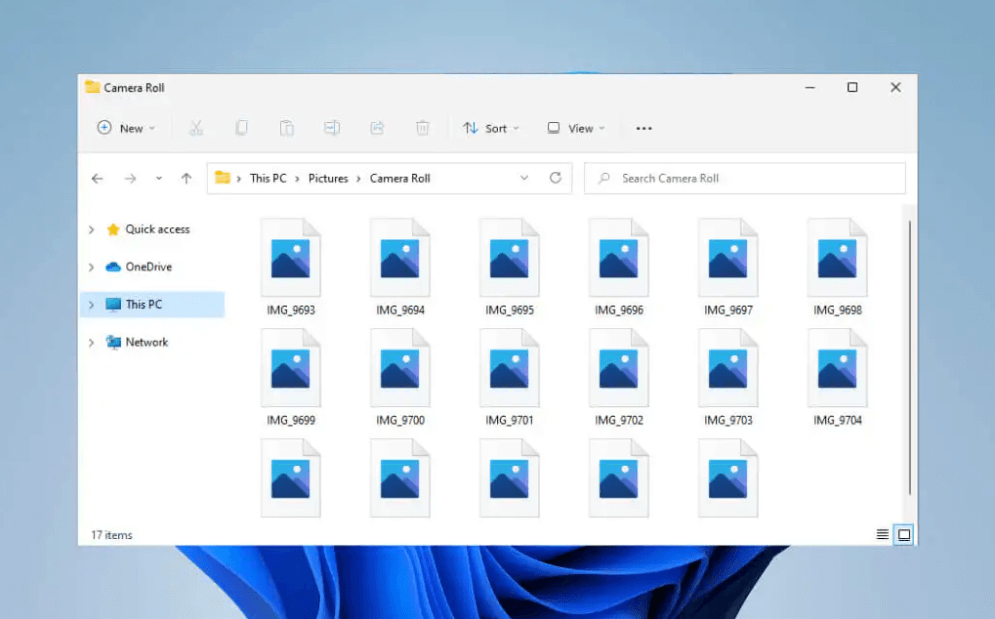
Thumbnails easily represent different files without the need to open them. Although Windows 11 is a leading operating system offering dedicated support to the thumbnail preview for videos and images. However, certain situations may cause the Windows 10 thumbnails not showing problems. So, what to do in such cases?
There is no need to worry as it is easy to troubleshoot this problem quickly with the help of the easy steps mentioned below. Let us go through the top reasons causing the issue in Windows 11, 10 followed by the quick fixes for the same.
Why are Thumbnails not showing in Windows 11 and 10?
Before jumping to the quick fixes for Windows 10 thumbnails not showing, it is important to go through the different reasons causing this problem. So, some of the top causes why you can not see Thumbnails on your Windows operating system are:
- Corrupted or missing files
- Insufficient free space due to cache files
- Less optimized files view
- Incompatible visual effects settings
- Incorrect Thumbnail preview settings
Top fixes for Thumbnails not showing in Windows 11, 10:
Now is the turn of the top solutions to handle Windows thumbnails not showing situation. These include:
1. Enabling thumbnails for Windows
The thumbnail problem can be due to the disabled thumbnail for Windows. So, the steps to enable them are as follows:
- Go to “File Explorer” by pressing the “Windows + S” keys.
- Type the “File Explorer” option and click “Enter.”
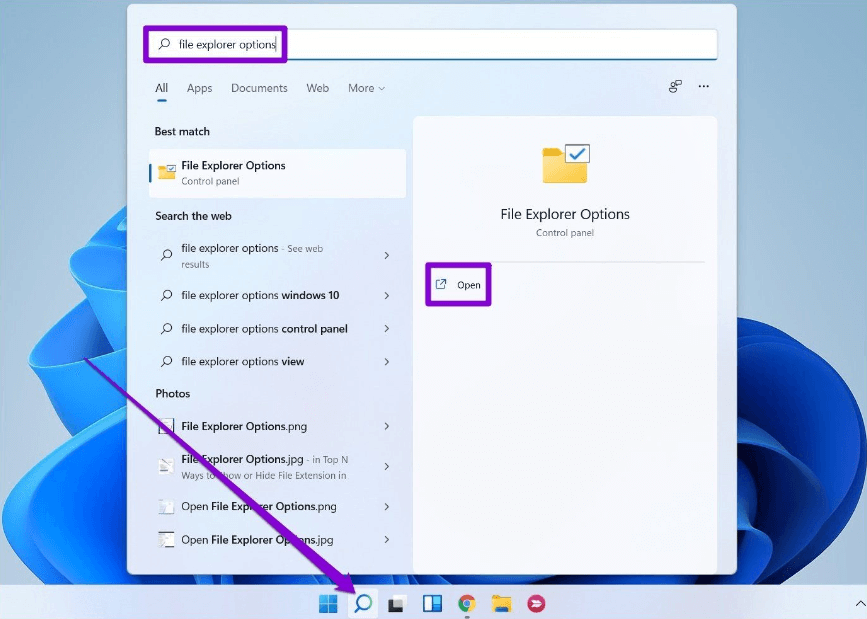
- Go to the “View” tab and uncheck the “Always show icons, never thumbnails” option.
- Now, click on the “Apply” option and select “OK.”

2. Restarting Windows Explorer
It is easy to restart Windows Explorer to overcome any errors in the File Explorer option causing thumbnail issues in Windows 11, 10. The quick steps for restarting Windows Explorer are as follows:
- Launch the “Task Manager” on your system by pressing the “Ctrl + Shift + Esc” keys.
- Expand the “Task Manager” by clicking on the “More details” option.
Alt text: selecting more details option
- Find the “Windows Explorer” option in the process tab and then select “Restart.”

3. Restoring File Explorer options
It is easy to restore the File Explorer option to the default settings to fix the Windows 10 thumbnail not showing problem. It can be done using the following steps:
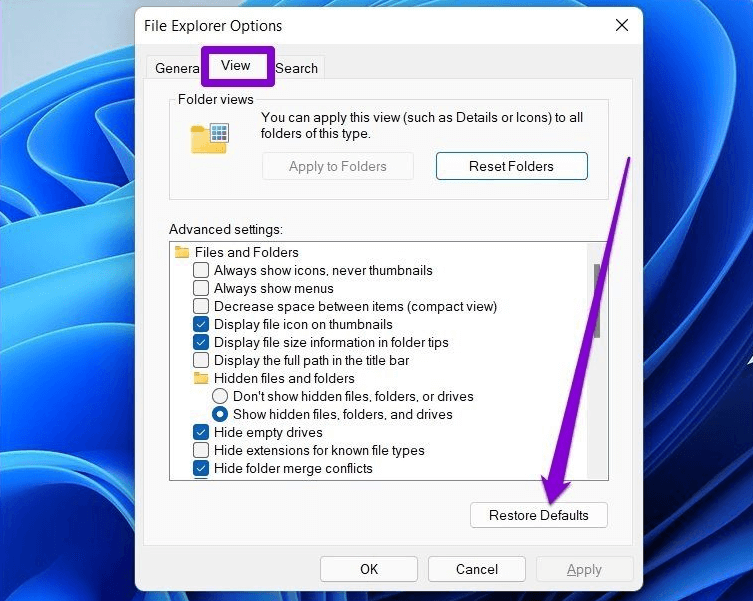
- Go to the “Start” menu and type the “File Explorer” option. Then press “Enter.”
- Go to the “View” option in the “File Explorer Options” window.
- Click on the “Restore Defaults” button.
- Click on the “Apply” and “OK” option.
4. Modifying advanced system settings
Any changes in the Windows performance options may lead to issues in thumbnails. So, the advanced system settings can be modified using the following steps:
- Go to the “Start” menu.
- Go to the “advanced system settings” and press “Enter.”
- Open the System properties window and go to the “Advanced” tab.
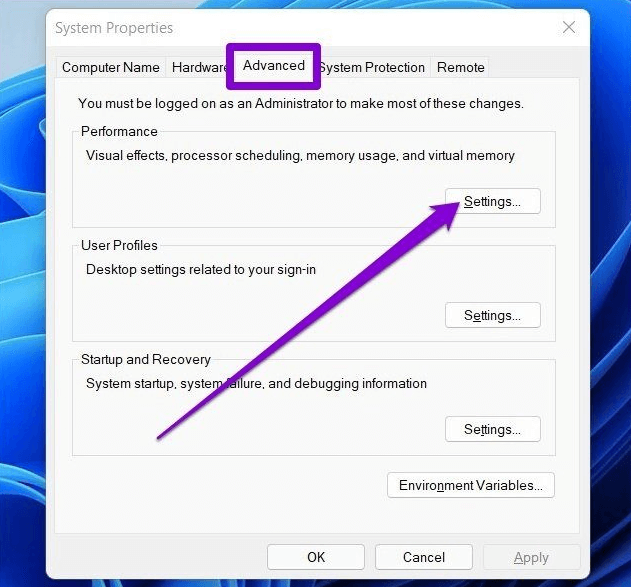
- Now select the “Settings” option under the “Performance” section.
- Go to the “Visual effects” tab, select “Custom,” and check on the “Save taskbar thumbnail previews” and “Show thumbnail instead of icons” options.
- Then click on “Apply” and “OK” to save changes.
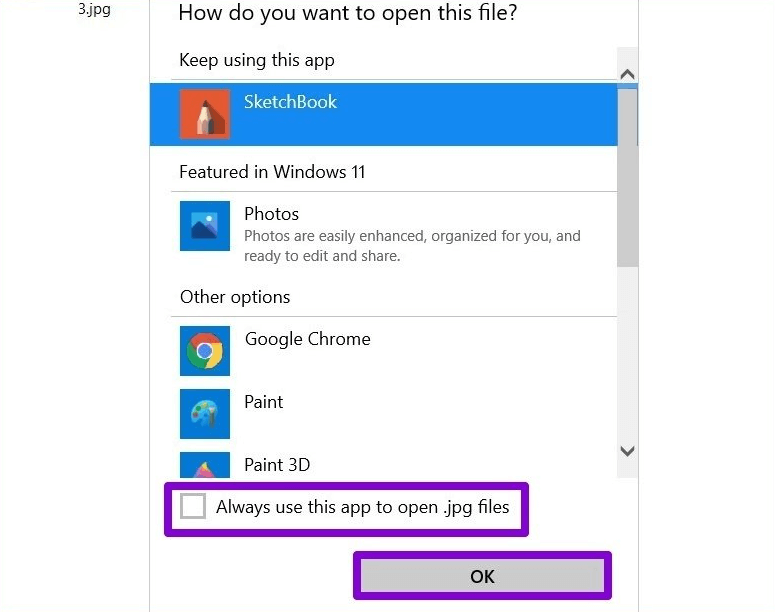
5. Changing the default app type
The Windows thumbnail not showing issue can occur on certain files due to the set default application. Hence, this problem can be resolved by changing the default app type in the following ways:
- Select the problematic file type, right-click on it, and go to the “Open” option.
- Now, select “Choose another app.”
- Here, select the different applications and check on the box “Always use this app to open files.” Next, click “OK” to save changes.
6. Rebuilding thumbnail cache
It is easy to rebuild the thumbnail cache as the data, when it gets corrupted, fails to load the thumbnails. So, the detailed steps for rebuilding the thumbnail cache are as follows:
- Go to “Windows + I” to open Settings.
- Go to the “Storage” option.
- Go to the “Temporary Files” option.
- Select the “Thumbnails” and go to the “Remove files” option.
7. Confirming the context menu
Windows could have been using codecs for software to display thumbnails. Hence, it is recommended to confirm the context menu by the following steps:
- Open the File Explorer by pressing the “Win + E” option.
- Navigate to the required folder and select the image that is not showing the thumbnail.
- Right-click on the image and select the preferred location.
- It will start showing a thumbnail after this step.

8. Running SFC scan
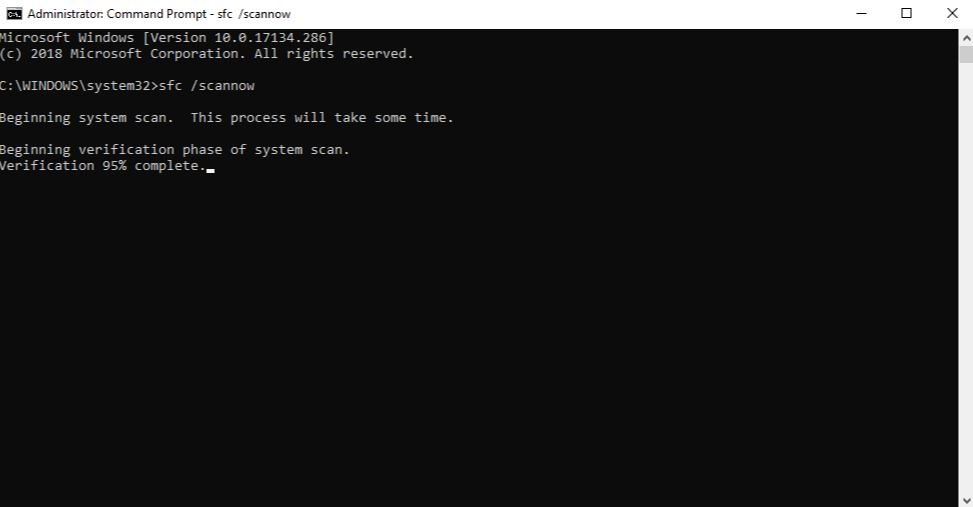
It is easy to run the System File Check to manage thumbnail issues due to missing or corrupted system files. The detailed instructions are as follows:
- Use the shortcut keys “Win + R” on your system and open the “Run” command.
- Type “cmd” and press “Ctrl + Shift + Enter” at the same time.
- Type the “sfc / scannow” command and press “Enter.”
- It will look for possible corrupt files and fix them successfully.
- Once the success message is displayed, it is time to close the window and reboot the system. Open File Explorer to check if the thumbnail problem is solved.
9. Changing Group Policy Editor Settings
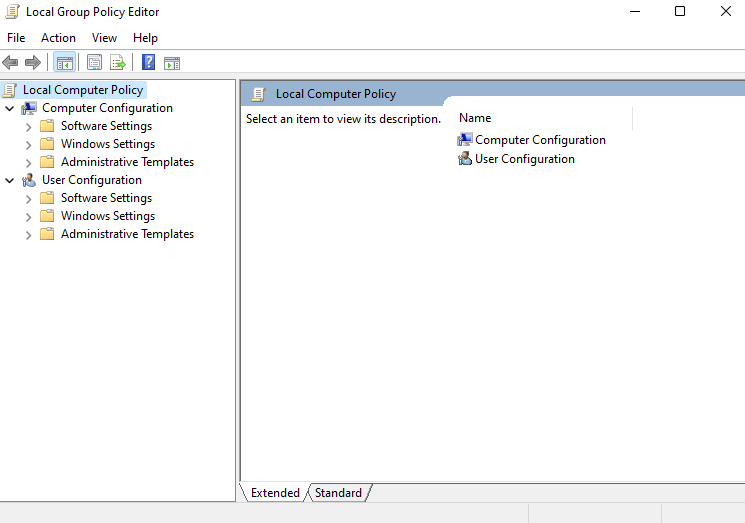
It is easy to make changes to the Group Policy Editor settings to eliminate the thumbnails not showing problem. The quick steps for changing the GPEdit settings are as follows:
- Use the shortcut keys “Win + R” on your system and open the “Run” command.
- Type “gpedit.msc” and click “OK” to launch the Group Policy Editor window.
- Follow the below path on the left side of the pane in the Group Policy Editor.
User Configuration > Administrative Templates > Start Menu and Taskbar
- Find the “Turn off taskbar thumbnails” option located at the end of the three lists on the right side of the pane.
- Now, turn off the taskbar Thumbnails dialogue box and select “Disable.”
10. Scanning for malware
Last in our list of the top fixes for the Thumbnails not showing is to run a malware scan on your system. If any of the above-mentioned methods fail to show Thumbnails on your Windows 11, 10 system, chances are high that your system is a victim of malware. So, you can quickly go to the Windows Defender or can use any other anti-virus program to scan your system for possible malware.
Wrapping Up:
Hope everything is clear to our readers about the Windows 10 thumbnails not showing problem. It can be due to missing or corrupted files, less optimized file views, insufficient free space, or incorrect settings. To ensure seamless functionality, both beginners and professionals can go for detailed fixes if they cannot see Thumbnails in Windows 11, 10.
Author Bio:
Dinesh Lakhwani 

Dinesh Lakhwani, the entrepreneurial brain behind “TechCommuters,” achieved big things in the tech world. He started the company to make smart and user-friendly tech solutions. Thanks to his sharp thinking, focus on quality and the motto of never giving up, TechCommuters became a top player in the industry. His commitment to excellence has propelled the company to a leading position in the industry.
Popular Post











Recent Post

Resolving Microphone Detection Problems: Latest Guide [2026]
Microphones are important tools in daily life. People use them for office meetings, online classes, interviews, gaming, customer support, and content creation. When a system fails to detect a microphone, communication stops at once. This situation can cause stress and confusion. Many users believe the microphone is damaged. In reality, most problems are simple and […]

How To Switch To A Dark Background Theme In Windows [2026]
Most people spend many hours each day in front of a computer screen. Office work, online classes, editing, browsing, and streaming all require long screen time. A bright white background may look clean at first. However, over time, it can feel sharp and tiring. The strong contrast between white backgrounds and black text may cause […]

How to Switch From Local To Microsoft Account On Windows
Many users begin with a local account when they set up a new Windows computer. A local account works only on that single device. It stores settings, files, and preferences locally. It does not connect to online Microsoft services. For basic offline use, it works well. However, as digital needs grow, many users want better […]

How to Switch Windows 10 to a Local Account: Complete Guide
Windows 10 allows users to sign in with either a Microsoft account or a local account. When you set up a new computer, the system often suggests using a Microsoft account. This account connects your device to Microsoft services such as Outlook, OneDrive, and the Microsoft Store. It also syncs settings, themes, and passwords across […]

How To Change Default Apps For File Types In Windows
Windows is designed to make using your computer easy. One way it does this is by assigning default apps to different file types. This means when you open a file, Windows automatically opens it with a specific program. For example, photos may open with Photos, music with Groove Music, and PDFs with Edge. These default […]

How To Adjust The Mouse Pointer Speed: Complete Guide
Using a computer every day means you use the mouse a lot. The mouse pointer moves on the screen and helps you click, scroll, and select items. Many people never think about the speed of the mouse pointer. They have used the default setting for years. This can cause small problems over time. A slow […]

How to Change Mouse Scrolling Settings In Windows
A mouse is one of the most used computer tools. People use it every day. They scroll through emails. They scroll through documents. They scroll through websites and images. The movement becomes automatic. Most users do not notice it. That is why problems often go unnoticed. Scrolling problems show up slowly. At first, it feels […]

Keyboard Light Settings: Keyboard Lighting Control [Complete Guide]
Keyboards are no longer simple typing tools. Well, yes! Over time, they have evolved to include features that improve comfort, visibility, and overall experience. One of the most useful features today is keyboard lighting. It helps users work comfortably in low-light conditions. It also reduces strain when typing for long hours. Many users first notice […]

Customizing Pointer Appearance: Complete Guide
The way your mouse pointer looks on your computer may seem like a small detail. But customizing pointer appearance can make using your PC more comfortable and visually appealing. Many users do not realize that they can change the pointer size, color, and style to fit their needs. Whether you want a bigger pointer for […]

How To Choose a Computer Monitor: Monitor Buying Guide
Buying a monitor looks easy. Many people think all screens are the same. That belief causes regret later. A monitor is not just a display. It is a daily tool. You read on it. You work on it. You relax with it. Small problems become big over time. Poor brightness hurts eyes. Bad size causes […]

