How to Fix the “This pc can’t run Windows 11” Error
Last updated on October 13th, 2025 at 10:15 am
Introduction
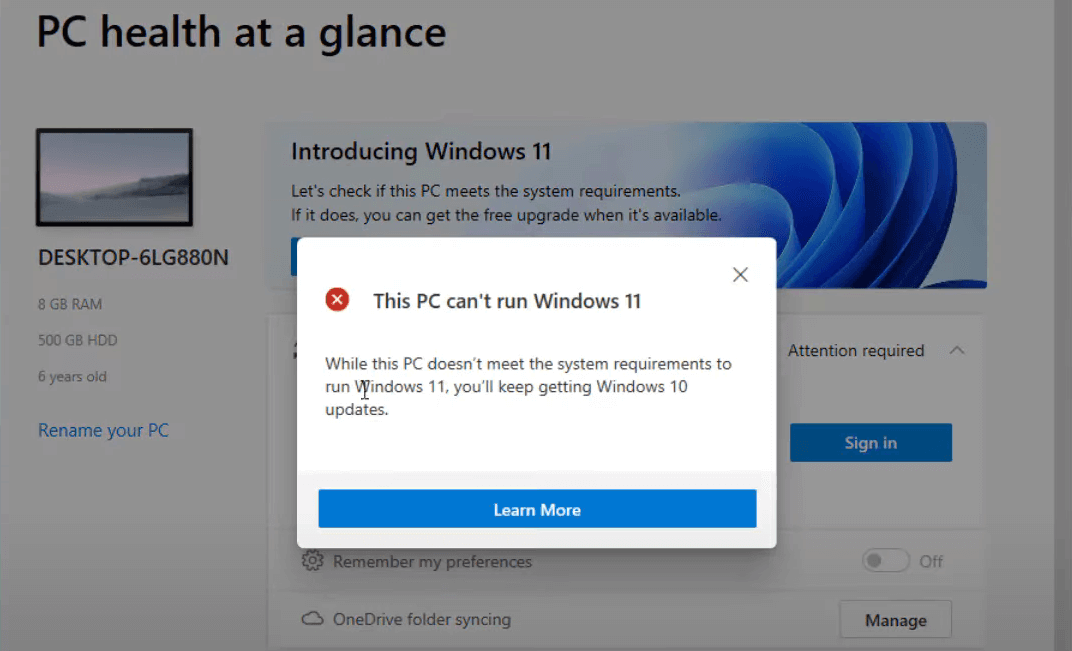
This pc can’t run Windows 11 problem may result from two crucial security settings being disabled if you have attempted downloading Windows 11 or employing the Microsoft PC Health Check app after getting that warning. They are known as Secure Boot with TPM 2.0. These two options are now necessary for Windows 11-powered machines.
Despite this, you may still set up Windows 11 on your device. This article will provide you several ways to fix this pc can’t run Windows 11 and enable Windows 11 on your computer.
Several Kinds of This PC Cannot Run Windows 11
The error notice that reads ” this pc can’t run Windows 11″ frequently includes the cause of the malfunction. The following are some potential causes you could observe the problem with the interface:
- TPM 2.0 is necessary to operate Windows 11.
- A system disk of 64GB or more is required.
- Windows 11 does not support the CPU.
- Secure Boot must work on the computer.
- PC must be TPM 2.0 compatible.
- The Basic Hardware Parameters for Windows 11 Are Not Satisfied by Your PC
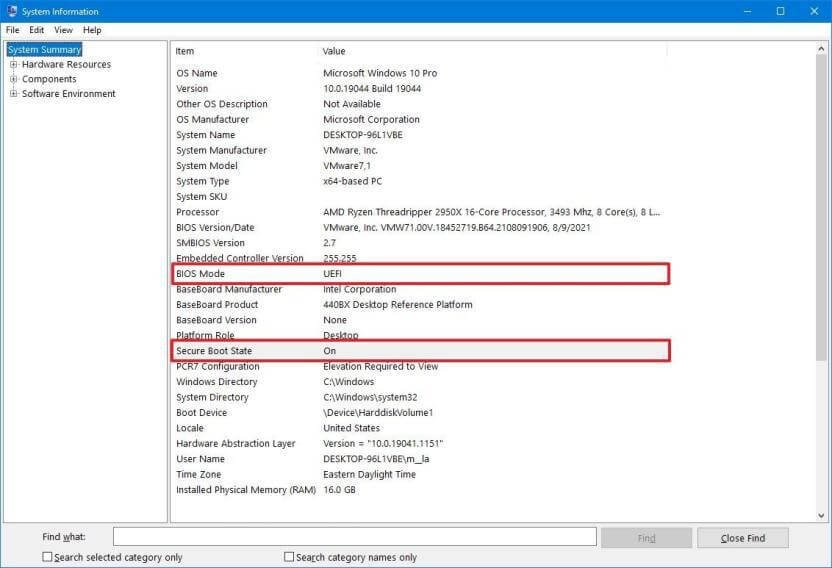
Knowing the cause will make it simple for you to fix the problem. Your machine needs to run UEFI using Secure Boot and have TPM 1.2 or 2.0 enabled for the latest version of Windows 11 to work with it.
If you downloaded Windows 10 using the conventional boot mode, Windows 11 would not recognize the necessary functionality since it needs a UEFI Secure Boot capable PC. Due to inadequate system demands, this can result in an error message and you then need to fix this pc can’t run windows 11.
What Components Do You Need to Install Windows 11?
Notably, the manufacturer’s Windows 11 system specifications are relatively inexpensive, and the majority of contemporary PCs ought to be able to run it right out of the box. There are some improvements from Windows 10, though.
The systems needed to set up and execute Windows 11 are as follows:
- 1GHz, 64-bit
- 4GB of RAM,
- 64 GB of space
- Firmware for the system – UEFI and Secure Boot compatible
- TPM 1.2/2.0: Trusted Platform Module.
Suppose you have a computer that meets the requirements for running Windows 11 but still receives this issue while installing the Personal Computer Health Checkup program. In that case, you may resolve it by adjusting your BIOS/UEFI configuration.
How Can You Fix the Windows 11 Cannot Run on This PC Error?
Configuring the Boot Option to UEFI and turning on Secure Boot can help you to resolve this issue. After that, make sure your machine has TPM 1.2/2.0 enabled. While the tab labels differ between manufacturers’ hardware, the manual must be universal.
Step 1: Set up Windows 10’s Secure Boot Accessible

To make Windows 10 compatible with Secure Boot, follow these procedures:
- Close every open window and store your work. Then turn off your computer.
- Press F2 to launch the BIOS setup after restarting your computer. For entering this pc can’t run Windows 11 bios, many laptop and personal computer manufacturers may utilize additional function keys like F12, F10, F8, or Esc.
- Using the keyboard shortcuts, choose the Boot option in the BIOS configuration tool. Look at the Boot Mode setting to highlight whether it is Legacy.
- Press Enter with the Boot Mode marked to change it.
- Pick UEFI from the list of alternatives. Select UEFI using the Up & Down button keys, then press Enter to choose.
- Click the Security tab next.
- Choose the secure boot option with the arrow keys, then press Enter.
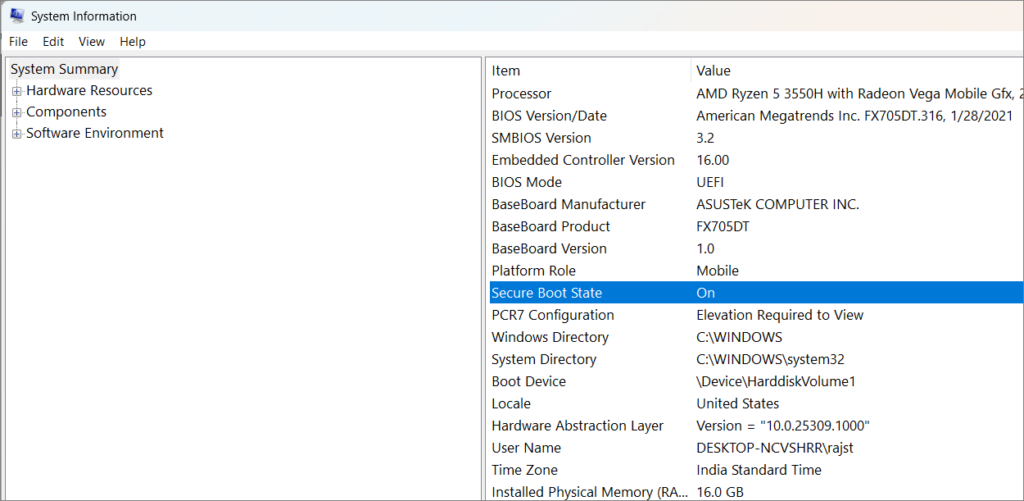
- To activate Secure Boot on the machine you are using, choose Enabled.
Ensure that TPM 1.2/2.0 has been turned on for your PC after you have encrypted Boot and UEFI activated in Boot Mode. Wait to shut the BIOS configuration panel.
Step 2: Turn on TMP 1.2 or 2.0 to resolve the “This PC Can not Install Windows 11 Error” issue.
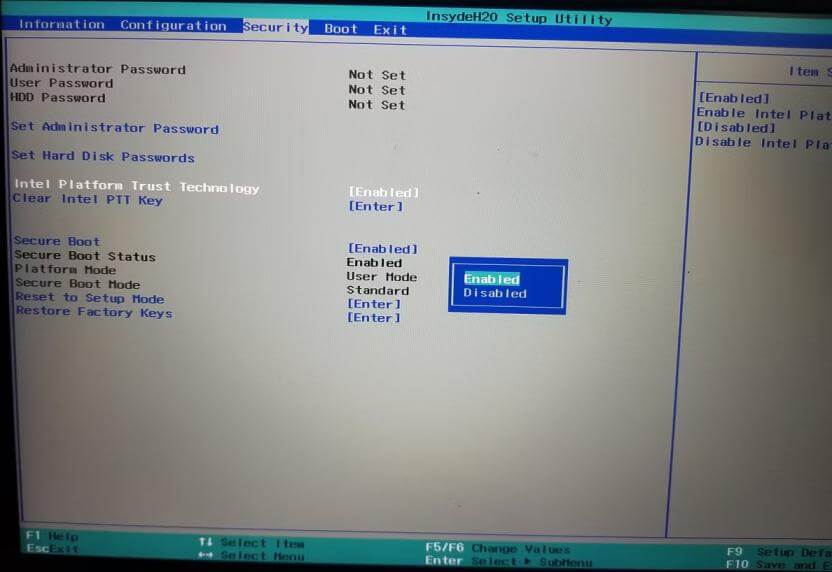
The BIOS configuration also provides access to the TMP 1.2/2.0 capability. Given below is the procedure:
- Activate the Security tab in BIOS/UEFI.
- Select the Trust Platform Technology choice by scrolling down and pressing Enter. You could notice an Intel System Trust Technology feature on Intel laptops in its place.
- Choose Enabled, then hit Enter to make your choice effective.
- Save your changes, then leave.
All done. On Windows 10, you have now successfully turned on TMP 2.0 and Secure Boot functionality. If the issue persists, restart your computer, use the PC Health Checkup utility, or install Windows 11.
Step 3: Avoid Secure Boot Requirements with TPM 2.0 Registry Editor use
You can get around the limitation by utilizing a workaround if your PC cannot use Secure Boot with TPM 2.0. We can accomplish this by changing the Windows registry entry, which will let you update without complying with Secure Boot with TPM 2.0 standards.
Note that for this solution to function, your system must support TPM 1.2 at the very least.
Please be aware that changing the Windows Registry is dangerous. Generate an operating system recovery point first, then complete the following step.
- Open Run by pressing Win + R.
- To launch Registry Editor, type regedit and press OK.
- Go to the following place in Registry Editor. For quicker navigation, you can copy and paste into the registry path:
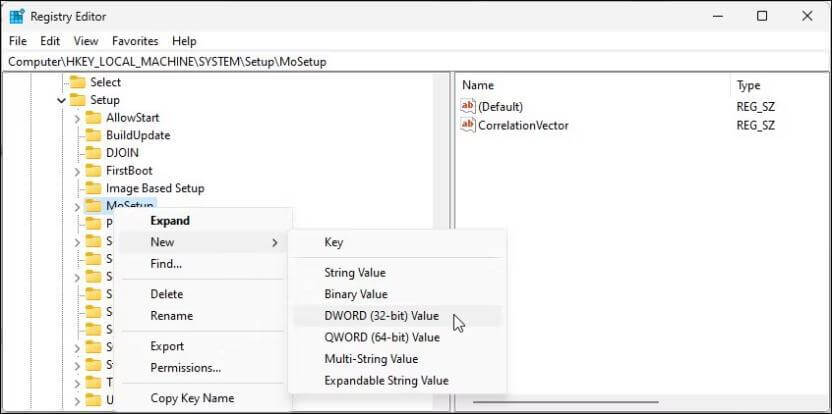
Computer\HKEY_LOCAL_MACHINE\SYSTEM\Setup\MoSetup
- Choose New > DWORD (32-bit) number with a right-click on the MoSetup key.
- Make AllowUpgradeWithUnsupportedTPMorCPU the value’s new name.
- Select Modify by performing a right-click upon the newly created item.
- Type “1” in the Value text field to confirm the modifications.
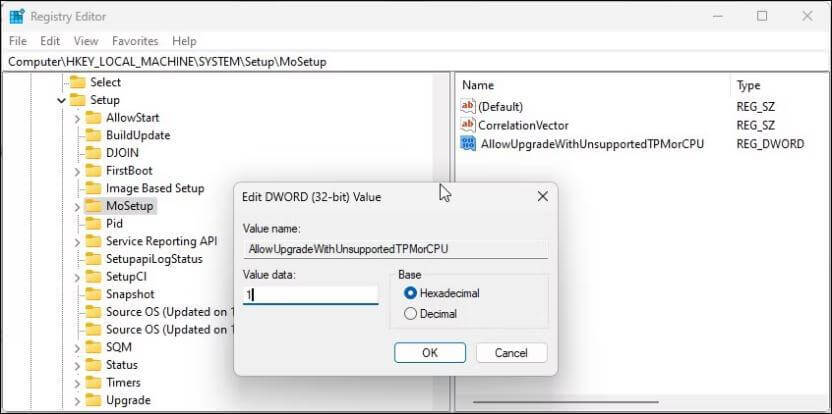
- Try installing Windows 11 with the media generation tool or ISO after quitting the Registry Editor. The modification ought should succeed without a problem.
If the problem continues, find guidelines online about installing Windows 11 with fewer prerequisites to find ways to get around the limitations and update your computer.
Error No Boot Interface Found After Switching from Legacy to UEFI
If you switch the Boot Type for a previous Windows 10 setup from Legacy to UEFI, you can get the No Boot Item Found issue. Still, by switching the Boot Mode between UEFI to Legacy once more in the BIOS settings, you may quickly boot into your current version of Windows 10.
Then, without changing or erasing any of the data stored on the disk, employ the MBR2GTP utility to switch your drive/disk configuration from the Master Boot Record (MBR) to the GUID Partition Table (GPT). You may read more about MBR2GRP use here.
After converting the disk, you may switch from Legacy to UEFI boot modes without seeing the No Boot Device Available warning. To avoid future problems, configure Windows 11 (or even Windows 10) in the UEFI version if you want to perform a fresh installation of the operating system.
After activating Secure Boot:
- Check if the bootable device appears within the Boot Manager.
- If not, make sure Rufus has prepared it using the UEFI standard.
- If not, make another bootable disc with UEFI (CMS) as the target system.
Conclusion
If your PC shows the “can’t run Windows 11” error, don’t worry. It often means some settings need to be changed. You can fix it by turning on Secure Boot and TPM in BIOS. Use the PC Health Check tool to see what’s missing.
Some older PCs may not meet the rules. In that case, you can stay on Windows 10 or try other options. Think about what works best for you. Fixing the error helps you move forward with a safer and faster system.
FAQs
1. What is TPM 2.0?
TPM 2.0 is a chip that keeps your PC safe. It helps protect passwords and files. Windows 11 needs it to work.
2. Can I install Windows 11 on an old PC?
Yes, but it’s not easy. You may need to change some files. Microsoft won’t give updates for unsupported PCs.
3. How do I turn on Secure Boot and TPM?
Restart your PC and open BIOS. Look for Secure Boot and TPM settings. Turn them on, save, and exit.
Author Bio:
Dinesh Lakhwani 

Dinesh Lakhwani, the entrepreneurial brain behind “TechCommuters,” achieved big things in the tech world. He started the company to make smart and user-friendly tech solutions. Thanks to his sharp thinking, focus on quality and the motto of never giving up, TechCommuters became a top player in the industry. His commitment to excellence has propelled the company to a leading position in the industry.
Popular Post











Recent Post

How To Get Help With File Explorer in Windows 11 [Complete Guide]
File Explorer is one of the most important tools in Windows 11. It is used to open folders, view files, and manage stored data. Almost every action on a Windows computer depends on it in some way. When users open documents, save downloads, or organize photos, File Explorer is always involved. Because it is used […]

How To Fix A Frozen Computer: Complete Guide [Windows 11/10]
A frozen computer is one of the most common problems Windows users face. The screen stops responding. The mouse pointer does not move. Keyboard inputs do nothing. You may hear the fan running loudly. Sometimes the system looks alive, but nothing works. This situation often happens when you are busy or working on something important. […]

How to Upgrade Computer RAM: Complete Guide
Upgrading RAM is one of the simplest ways to improve a computer. It helps the system feel faster and smoother. Apps open quicker. Browsers handle more tabs. Games and tools run with less delay. Many users search for how to upgrade computer RAM because it gives real results without high cost. You do not need […]

How To Clean Your Computer Keyboard: Complete Guide
A computer keyboard is touched more than almost any other device you own. It is used during work, study, gaming, and casual browsing. Fingers carry natural oils, sweat, and dirt. Small food crumbs fall between keys without notice. Dust settles each day slowly. Over time, this creates a hidden layer of grime. Many users do […]
Computer Mouse Buying Guide for Beginners and Advanced Users
Buying a mouse looks easy at first. Many people think all mouse work the same way. Well, that idea often leads to regret later. A mouse affects comfort, speed, and daily work. It matters for office tasks, gaming, design, and study. The right choice reduces strain and improves control. The wrong one feels annoying every […]

How To Overclock a Computer: A Complete Guide
Overclocking is the process of making your computer run faster than its factory settings. It mainly affects the processor, graphics card, and sometimes memory. Many people choose this method to improve performance without buying new hardware. It is popular among gamers, video editors, and users who run heavy software. When done properly, overclocking can give […]
How To Find Password Saved on This Computer: Complete Guide
Many people forget their login details at some point. It happens often. We create many accounts every year. Each one needs a username and a password. Over time, it becomes hard to remember all of them. That is why computers offer ways to store login details. These saved details help users sign in faster. They […]
How To Open/Access Computer Management & Advanced Tips
Every Windows computer has many hidden tools. Most users never see them. They only use basic settings. They change wallpapers. They install apps. They adjust sound and display. That is enough for daily work. But problems still happen. The system slows down. Storage fills up. Errors appear without warning. At this stage, normal settings do […]
How To Transfer Photos From Android Phone To PC/Laptop [2026]
Moving photos from a phone to a computer is something most people need to do often. Phones fill up fast. Photos also matter more than apps. You may want a safe backup. You may want to edit images on a bigger screen. This guide explains how to transfer photos from Android to PC without stress. […]
Top 9 Browsers With Built-In VPN – VPN Browser
Online browsing is no longer private by default. Every website collects data in some form. This includes location details, device information, and browsing habits. Over time, this data builds a clear picture of user behavior. Many people are now uncomfortable with this level of tracking. A VPN browser helps reduce this exposure. It adds a […]

