How to Fix Ethernet Not Working on Windows 10?
Last updated on December 16th, 2024 at 9:58 am
You are all set to start your new WFH day. But, when you fire up your computer, you realize that your Ethernet is not working.
OMG! Now what to do now?
Wait for a second, don’t go frantic yet as you can easily fix the Ethernet cable not working on your PC. Usually, Ethernet port not working issues occur due to a faulty driver or internal Windows settings. The reason could also vary, but nothing that can’t be fixed quickly.
Based on our team’s research and readers’ questions, we have created LAN not working quick fixes. Just try these methods and fix the Ethernet connected but no internet issue.
How to Fix Ethernet Not Working on Windows 10 — 11 Quick Fixes
Ethernet cable not working issues can cripple your internet connectivity in many ways. Common scenarios are:
- Ethernet connected but no internet connection
- Ethernet cable connection fluctuation
- Ethernet not detected, etc.
You can fix LAN not working on Windows with ease by using the following methods:
1. Check Connection
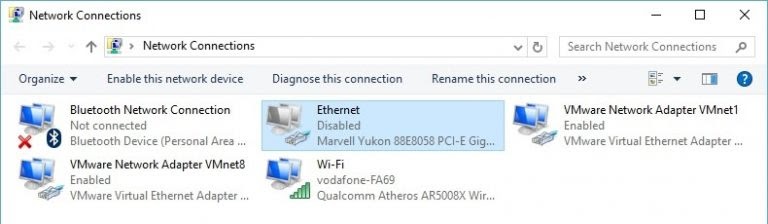
It is a very obvious solution that people sometimes forget to try. Make sure that the network connection is enabled and not causing Ethernet connected but no internet problem.
- Right-click on the Start button and choose the Network Connections option.
- If Ethernet is disabled, right-click over it and click on the Enable.
2. Disable and Enable Ethernet
If your Ethernet is enabled in the Network Connection Settings, but the internet isn’t working, you can try to disable and enable it. This old disable and enable trick can fix Ethernet ports not working in most cases.
- Press Windows and I keys together to open Settings.
- Click on the Network & Internet option from the Settings window.
- Select the Ethernet option from the left pane. Then, click on the Change Adapter option.
- At the Network Connection window, navigate for the Ethernet Connection. Right-click to disable it and then enable it.
3. Enable Ethernet Driver
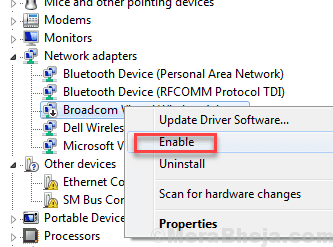
In many cases, Ethernet drivers are disabled on PCs, causing Ethernet not to work. Go and simply enable it.
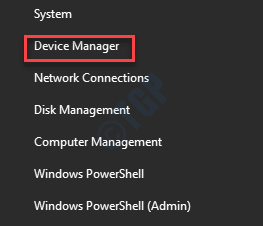
- Press Windows and X keys together. Click on the Device Manager option.
- On the Device Manager window, expand the Network Adapters option. Navigate for Ethernet driver and right-click and Enable it. You can also first disable it and then enable it again.
4. Update Ethernet Driver
If you haven’t updated your Windows drivers in a long time, it can cause LAN not working trouble. You can try to update your old Ethernet driver to fix your internet connection.
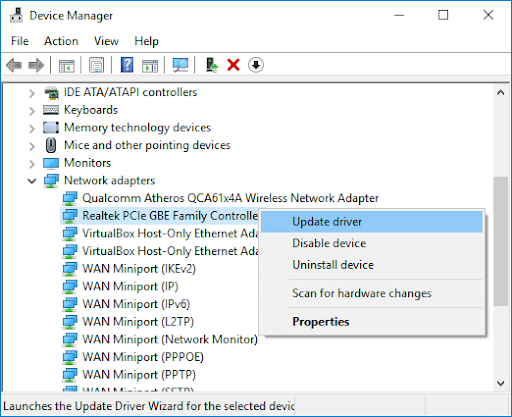
- Open Device Manager.
- Expand the Network Adapter option and identify the Ethernet card.
- Right-click on it and choose the Properties option.
- Under the Device Status window, it will show that your device is working properly.
- If the Ethernet controller shows a question mark or exclamation, you should update the driver from the vendor’s website.
5. Switch Back To Previous Drive
If you have recently updated your Ethernet driver and since then the Ethernet not working problem starts, you should switch back to the previous driver version. When your latest driver version doesn’t support Windows OS or Ethernet cable, it raises errors.
- Launch Device Manager, go to Network Adapters and select the network adapter.
- Right-click on it and click on the Properties.
- Select the Driver tab and click on the Roll Back Driver.
- Follow on-screen instructions to install a previous driver version.
- If this option is unavailable, that means there’s no driver to roll back to.
6. Examine Connection Details
Sometimes wrong connection details can cause the Ethernet not working problem.
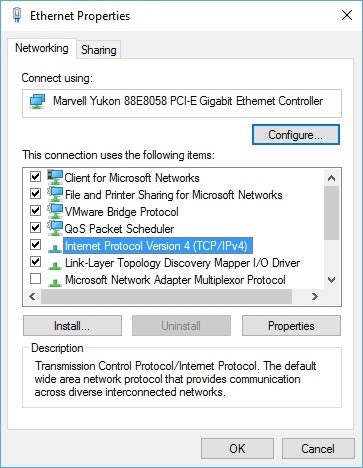
- Right-click on the Ethernet Connection and select the Properties.
- Once the Ethernet Properties window opens, double click on the Internet Protocol Version 4 option.
- Now, you can enter the correct connection details.
- Mostly, enabling the Obtain an IP address automatically and Obtain DNS server address automatically is sufficient. But, in some situations, you have to manually input the details. To do so, you have to consult your router configuration manual.
7. Change Power Management Settings
Your system power management settings can raise the Ethernet port not working issue.
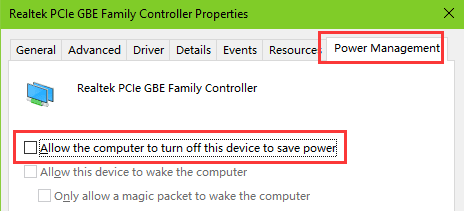
- Open Device Manager, expand the Network Adapter, right-click on the Ethernet device, and select Properties.
- Under the Ethernet Properties window, click on the Power Management tab.
- Now, uncheck the “Allow the computer to turn off this device to save power.”
- Click on Apply and reboot your PC to save changes.
8. Reset Network
When Ethernet is connected, but no internet connection is showing on your device, you can reset network settings.
- Navigate to the Settings, click on the Network & Internet, and then Status.
- Look for the Network Reset option to reset your network components to default.
- Click on the Resent Now button and confirm it with Yes.
9. Switch Off Antivirus and VPN Software
If you are using VPN, firewall, or antivirus software to secure your network, try to turn them off. Sometimes the problem is with third-party tools that make your LAN not working.
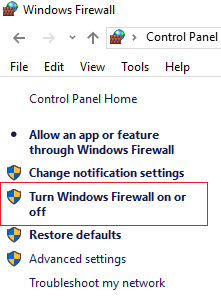
- Launch Windows Firewall from the Start menu.
- Select the Turn Windows Firewall on and off.
- Click on the Disable button.
- Reconnect Ethernet to see results.
10. Use Internet Troubleshooter
A Windows 10 troubleshooter has solutions for everything. It can indeed fix Ethernet not working on your device too.
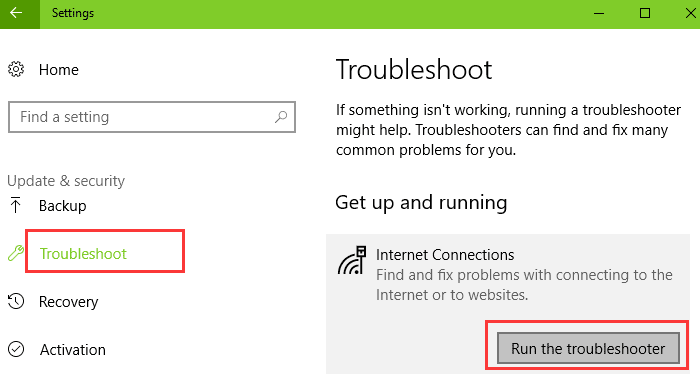
- Open the Start menu and type Settings.
- Move to Update & Security and click on the Troubleshooter.
- Launch the internet connection troubleshooter. Restart your computer and check the Ethernet connection now.
11. Miscellaneous Fixes
By now, you must have a working Ethernet connection. But, if luck isn’t on your side, try some miscellaneous fixes:
- Change Computer: If nothing fixes Ethernet not working on your PC, maybe the problem is related to the PC. Try to connect networks on a different computer and ensure if the problem is the same on it.
- Update Windows OS: If you have a Windows OS update available, do it. Updating software can fix many minor issues on Windows 10.
- Check Ethernet Cable: Check your Ethernet port physical connection to fix the problem. Ensure that the cable isn’t damaged or broken from anywhere.
- Replace Router: Home-based users can try to change the router to fix LAN not working issues.
Ethernet is working! If you follow our certified solutions, you will exclaim that with joy. For further queries, we are always open. So, comment, like, and share if you find our post useful.
Author Bio:
Dinesh Lakhwani 

Dinesh Lakhwani, the entrepreneurial brain behind “TechCommuters,” achieved big things in the tech world. He started the company to make smart and user-friendly tech solutions. Thanks to his sharp thinking, focus on quality and the motto of never giving up, TechCommuters became a top player in the industry. His commitment to excellence has propelled the company to a leading position in the industry.
Popular Post











Recent Post

How to Upgrade Computer RAM: Complete Guide
Upgrading RAM is one of the simplest ways to improve a computer. It helps the system feel faster and smoother. Apps open quicker. Browsers handle more tabs. Games and tools run with less delay. Many users search for how to upgrade computer RAM because it gives real results without high cost. You do not need […]

How To Clean Your Computer Keyboard: Complete Guide
A computer keyboard is touched more than almost any other device you own. It is used during work, study, gaming, and casual browsing. Fingers carry natural oils, sweat, and dirt. Small food crumbs fall between keys without notice. Dust settles each day slowly. Over time, this creates a hidden layer of grime. Many users do […]

Computer Mouse Buying Guide for Beginners and Advanced Users
Buying a mouse looks easy at first. Many people think all mouse work the same way. Well, that idea often leads to regret later. A mouse affects comfort, speed, and daily work. It matters for office tasks, gaming, design, and study. The right choice reduces strain and improves control. The wrong one feels annoying every […]

How To Overclock a Computer: A Complete Guide
Overclocking is the process of making your computer run faster than its factory settings. It mainly affects the processor, graphics card, and sometimes memory. Many people choose this method to improve performance without buying new hardware. It is popular among gamers, video editors, and users who run heavy software. When done properly, overclocking can give […]

How To Find Password Saved on This Computer: Complete Guide
Many people forget their login details at some point. It happens often. We create many accounts every year. Each one needs a username and a password. Over time, it becomes hard to remember all of them. That is why computers offer ways to store login details. These saved details help users sign in faster. They […]

How To Open/Access Computer Management & Advanced Tips
Every Windows computer has many hidden tools. Most users never see them. They only use basic settings. They change wallpapers. They install apps. They adjust sound and display. That is enough for daily work. But problems still happen. The system slows down. Storage fills up. Errors appear without warning. At this stage, normal settings do […]

How To Transfer Photos From Android Phone To PC/Laptop [2026]
Moving photos from a phone to a computer is something most people need to do often. Phones fill up fast. Photos also matter more than apps. You may want a safe backup. You may want to edit images on a bigger screen. This guide explains how to transfer photos from Android to PC without stress. […]

Top 9 Browsers With Built-In VPN – VPN Browser
Online browsing is no longer private by default. Every website collects data in some form. This includes location details, device information, and browsing habits. Over time, this data builds a clear picture of user behavior. Many people are now uncomfortable with this level of tracking. A VPN browser helps reduce this exposure. It adds a […]

AI In Cyber Security: Who is Winning, Hackers or Security Companies
Cybersecurity once followed clear rules. Companies built firewalls. Users created passwords. Antivirus tools scanned files and removed known threats. When an attack happened, security teams studied it and added new rules. This method worked for many years. It created a sense of control and stability. That sense is gone today. Artificial intelligence has changed how […]

The Biggest AI-Run Cyber Attacks Of All Time
Artificial intelligence is now part of everyday technology. It helps people search faster. It improves medical research. It supports businesses in making better choices. But AI is not used only for good purposes. Cyber criminals have also learned how to use it. This has changed the nature of cyber attacks across the world. In the […]

