11 Solutions to Fix the Seagate External Hard Drive Not Working
Last updated on December 13th, 2024 at 9:05 am
Has your computer refused to detect your Seagate external hard drive? Do you have important data stored on your Seagate disk?
Then, no need to panic. There are many easy ways to fix a Seagate external drive issue for you. Just follow the steps discussed below to access your data stored on the Seagate hard disk.
Why Is the External Hard Disk Seagate Not Working for You?
Many reasons contribute to stimulating the Seagate external hard drive not working issue on Windows and Mac, such as:
- Faulty or damaged USB ports or cables
- Outdated operating system
- Unsupported file system
- Problematic motherboard
- A virus infected a USB device
- Hard drive partitioning issues
- Corrupted or outdated hard disk
- Physically damaged external hard drive, etc.
Take a Backup Before Fixing the Seagate Hard Drive Not Working Issue
There is a possibility that you might lose your hard disk data while fixing the error. Thus, you must back up all your external hard drive data for the safe side.
How to Fix a Seagate Hard Drive Not Working Error?
We are going to show the easiest to hardest solutions to fix a Seagate hard drive not working error. This way, you can rule out the easy solutions first before trying technical solutions.
Solution 1. Try a Different USB Port or Cable
If your external hard drive flashes, but your PC is unable to detect it. In that case, there is no problem with your USB drive. It is an issue with your computer or connecting cable.
So, you can attach your Seagate drive to another USB port or cable. You can also restart your PC to fix temporary memory glitches. If this doesn’t work, let’s move to the next solution.
Solution 2. Reinstall Seagate Hard Drive Driver
If your hard drive is not visible in Disk Management or Device Manager, this might be an issue with your hard drive driver. So, you can uninstall and reinstall the Seagate hard drive driver on your computer. Here’s how to do it:
Step 1. Attach your Seagate external hard drive to your computer.
Step 2. Launch Device Manager from the Start menu.
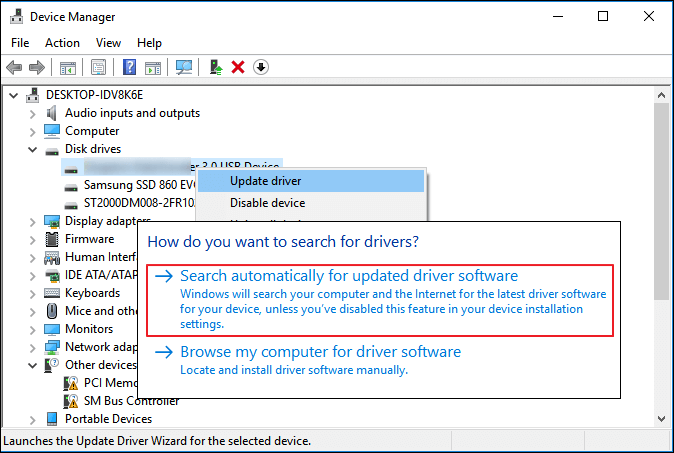
Step 3. Expand the disk driver and, right-click on your external hard drive, choose Update Driver.
Step 4. Choose the Search automatically for updated driver software and restart your computer.
Solution 3. Format RAW Seagate External Hard Drive
This is a bit of a tricky solution. You might lose data on your external hard drive. So, you must back up your external hard disk data before moving ahead.
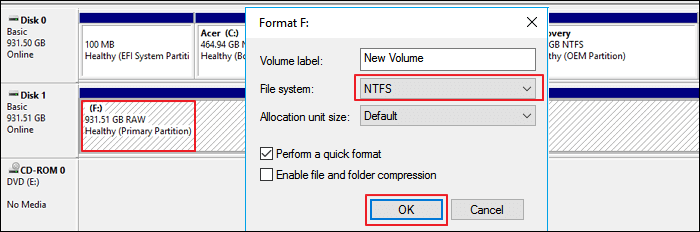
When your external hard drive is Unallocated on your computer, you can format it to NTS format as follows:
Step 1. After connecting the hard drive to your computer, open Disk Management.
Step 2. Right-click on your external hard drive and select Format.
Step 3. Set volume label to New Volume and File System to NTFS. Then, check the Quick Format box and click on OK to start the formatting. This will take a few minutes.
Solution 4. Create a New Partition on RAW Seagate External Drive
Again, this method can lead to data loss, so back up your data. After that, go to Disk Management and create a new partition as follows:
Step 1. Connect the Seagate drive and open Windows Disk Management.
Step 2. Right-click on the unallocated partition and select New Simple Volume.
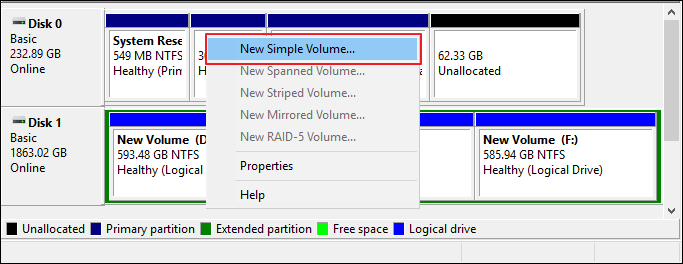
Step 3. After that, define partition size, drive letter, and file system to NTFS. Click on OK to confirm your actions.
Step 4. Finally, click on Finish to complete the process.
Solution 5. Change Seagate Drive Letter
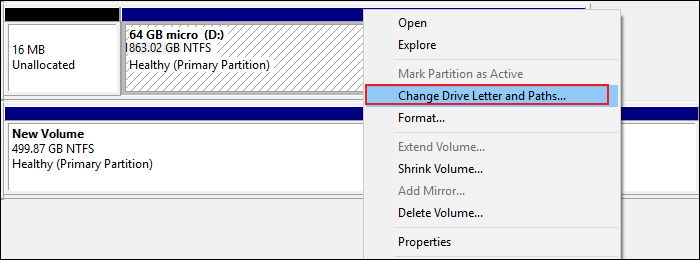
Another solution to fix the Seagate hard drive not working is changing the drive letter. When the driver letter does not show up, your external hard drive will display as New Volume in Disk Management without a driver letter.
To fix this problem, you can add a new driver letter to your Seagate hard drive as follows:
Step 1. Go to Disk Management, right-click on the partition and select the Change Drive Letter and Paths.
Step 2. Set a new drive letter and click on OK to confirm.
Solution 6. Turn On USB Root Hub
Sometimes, USB drives may not function correctly if you have connected multiple devices to the same USB hub. This will take your device into selective suspension.
You can enable the USB root hub to recover the USB port from its unresponsive condition to make your drive work again:
Step 1. Open Device Manager and expand the Universal Serial Bus controllers.
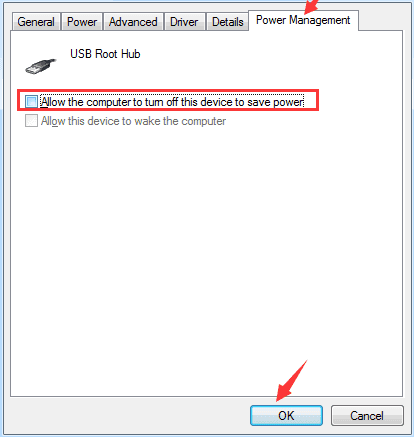
Step 2. Right-click on USB Root Hub > Properties > Power Management.
Step 3. Uncheck the “Allow the computer to turn off this device to save power” option and restart the PC.
Solution 7. Check all the Hidden Devices
Sometimes, you might not notice, but some hidden devices are linked to your Windows device. Unfortunately, this can interfere with your Seagate portal getting detected on your device. Here’s how to do it:
Step 1. Press the Windows and R keys to open the Run command box. Type devmgmt.msc and press Enter.
Step 2. Click on the View menu and select Show Hidden Devices.
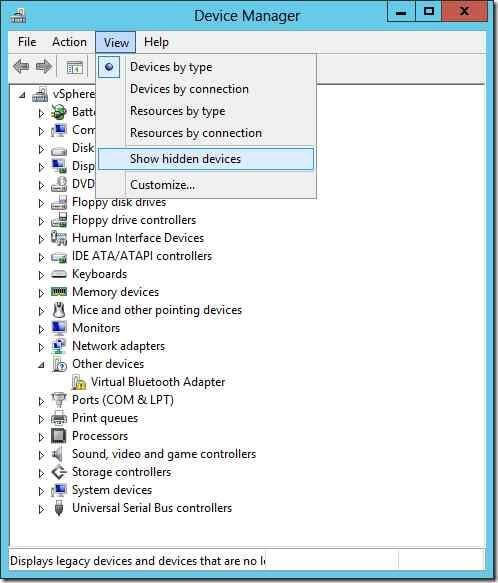
Step 3. Select the Uninstall option from the context menu if you see any gray entries.
Step 4. Restart your computer and see if the error is fixed now.
Solution 8. Use a Different Device
When your USB drive is corrupted or infected with viruses, the computer will not detect it. So, you can change your Seagate device and check if your system recognizes it now. If it does, you can replace it or contact the manufacturer to fix the drive.
Solution 9. Turn on the External Hard Drive Visibility
This solution is for Mac users. They can check disk visibility to ensure they can view external hard drives. There is also an option to set preferences on Mac as follows:
Step 1. Go to Finder and select Preferences from the menu. Then, from the dropdown menu, select General.
Step 2. Check under ‘Show these things on the desktop’ for either Hard drives or External disks.
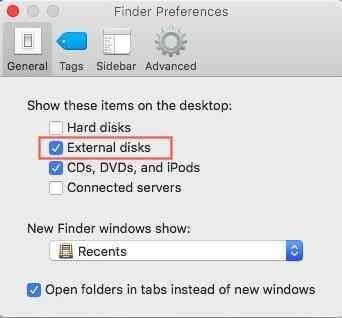
Step 3. Here you can enable external hard drive visibility.
Step 4. Likewise, go to Finder > Preferences > Sidebar. Look for the Hard drives and External disks under Show these objects on the sidebar.
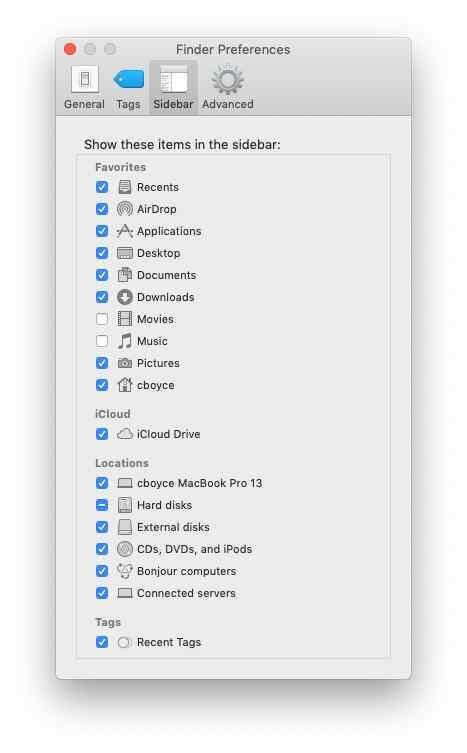
Step 5. Also, go to Finder > Applications > Utilities > Disk Utility. From there, you can check all mountable and non-mountable devices.
Solution 10. Initialize the External Hard Drive
When the Seagate external hard drive is not working on your computer, you can Disk Management. From there, you can manually connect a USB drive to your computer. However, if you are connecting a new hard disk for the first time, you have to initialize it first. Here’s how you can do it:
Step 1. Press the Windows and R keys. Type diskmgmt.msc and press Enter to launch Disk Management.
Step 2. Right-click on your Seagate disk and select Initialize Disk.
Step 3. Select a partition style and click OK.
Solution 11. Use First Aid
First Aid is an awesome feature for Mac users to repair Seagate hard disks. You can use this program when you can’t access an external drive after manually monitoring from Disk Utility. First Aid will automatically repair your external disk as follows:
Step 1. Go to the Dock and search for the Other Option. And click open Disk Utility.
Step 2. From there, you can select the unmountable Seagate drive and select First Aid from the top menu.
Step 3. Click on Run to repair the hard disk.
Parting Remarks: Ready to Fix a Seagate Hard Drive Not Working?
As you can see, there are many ways to fix a Seagate hard drive working on Windows and Mac. However, we suggest you start with easy fixes like updating drivers or checking USB ports.
When simple solutions fail, you can try technical solutions like formatting RAW hard drives or changing a driver letter. Moreover, don’t forget to back up your data using the EaseUS Data Recovery wizard before trying any technical solutions. That’s because of a small goof-up, and you might end up losing your entire data.
That’s it for now! Keep on following us for more updates and guides.
Author Bio:
Dinesh Lakhwani 

Dinesh Lakhwani, the entrepreneurial brain behind “TechCommuters,” achieved big things in the tech world. He started the company to make smart and user-friendly tech solutions. Thanks to his sharp thinking, focus on quality and the motto of never giving up, TechCommuters became a top player in the industry. His commitment to excellence has propelled the company to a leading position in the industry.
Popular Post











Recent Post

How To Adjust The Mouse Pointer Speed: Complete Guide
Using a computer every day means you use the mouse a lot. The mouse pointer moves on the screen and helps you click, scroll, and select items. Many people never think about the speed of the mouse pointer. They have used the default setting for years. This can cause small problems over time. A slow […]

How to Change Mouse Scrolling Settings In Windows
A mouse is one of the most used computer tools. People use it every day. They scroll through emails. They scroll through documents. They scroll through websites and images. The movement becomes automatic. Most users do not notice it. That is why problems often go unnoticed. Scrolling problems show up slowly. At first, it feels […]

Keyboard Light Settings: Keyboard Lighting Control [Complete Guide]
Keyboards are no longer simple typing tools. Well, yes! Over time, they have evolved to include features that improve comfort, visibility, and overall experience. One of the most useful features today is keyboard lighting. It helps users work comfortably in low-light conditions. It also reduces strain when typing for long hours. Many users first notice […]

Customizing Pointer Appearance: Complete Guide
The way your mouse pointer looks on your computer may seem like a small detail. But customizing pointer appearance can make using your PC more comfortable and visually appealing. Many users do not realize that they can change the pointer size, color, and style to fit their needs. Whether you want a bigger pointer for […]

How To Choose a Computer Monitor: Monitor Buying Guide
Buying a monitor looks easy. Many people think all screens are the same. That belief causes regret later. A monitor is not just a display. It is a daily tool. You read on it. You work on it. You relax with it. Small problems become big over time. Poor brightness hurts eyes. Bad size causes […]

How To Get Help With File Explorer in Windows 11 [Complete Guide]
File Explorer is one of the most important tools in Windows 11. It is used to open folders, view files, and manage stored data. Almost every action on a Windows computer depends on it in some way. When users open documents, save downloads, or organize photos, File Explorer is always involved. Because it is used […]

How To Fix A Frozen Computer: Complete Guide [Windows 11/10]
A frozen computer is one of the most common problems Windows users face. The screen stops responding. The mouse pointer does not move. Keyboard inputs do nothing. You may hear the fan running loudly. Sometimes the system looks alive, but nothing works. This situation often happens when you are busy or working on something important. […]

How to Upgrade Computer RAM: Complete Guide
Upgrading RAM is one of the simplest ways to improve a computer. It helps the system feel faster and smoother. Apps open quicker. Browsers handle more tabs. Games and tools run with less delay. Many users search for how to upgrade computer RAM because it gives real results without high cost. You do not need […]

How To Clean Your Computer Keyboard: Complete Guide
A computer keyboard is touched more than almost any other device you own. It is used during work, study, gaming, and casual browsing. Fingers carry natural oils, sweat, and dirt. Small food crumbs fall between keys without notice. Dust settles each day slowly. Over time, this creates a hidden layer of grime. Many users do […]
Computer Mouse Buying Guide for Beginners and Advanced Users
Buying a mouse looks easy at first. Many people think all mouse work the same way. Well, that idea often leads to regret later. A mouse affects comfort, speed, and daily work. It matters for office tasks, gaming, design, and study. The right choice reduces strain and improves control. The wrong one feels annoying every […]

