How To Fix Dell Laptop Screen Flickering On Windows 11 and 10
Last updated on February 12th, 2026 at 4:38 pm
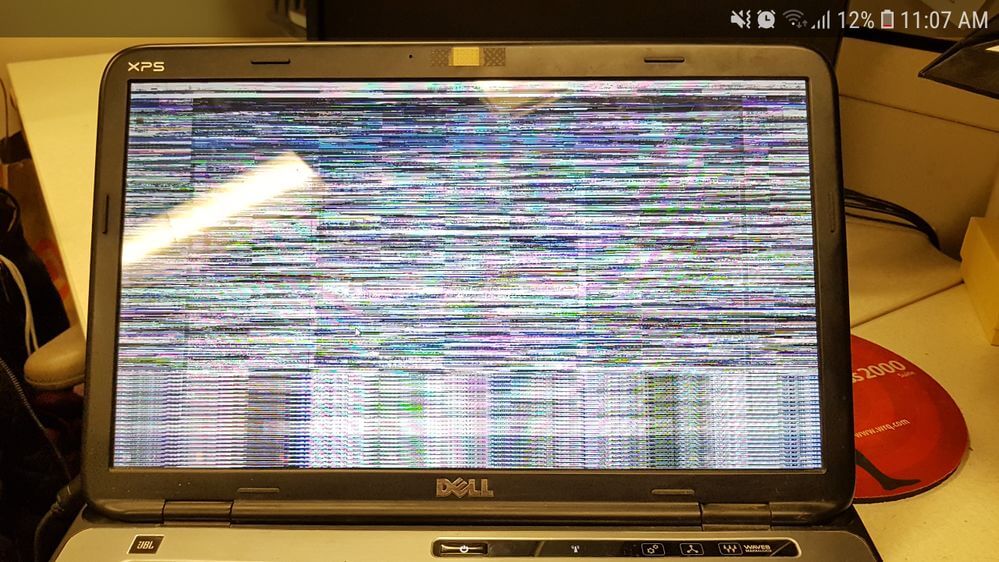
So, you are facing a Dell laptop screen flickering issue. Well, this screen flickering issue on the Dell laptop is very common. But most of the time, you can experience this issue after a system upgrade or installing new applications in your system, or it could even happen due to some physical damage to your Dell laptop. Sometimes, it can even happen without you making any apparent changes to the laptop.
The flicker changes could vary due to different reasons. Sometimes, these issues can happen due to software or hardware causes. So, you must find the best ways and probable causes to resolve these.
How To Troubleshoot the Screen Flickering Issue On Windows 11 and 10
Before fixing the issue, you must learn why the Dell laptop screen flickers on Windows 11. Follow and use these steps.
Open Start option
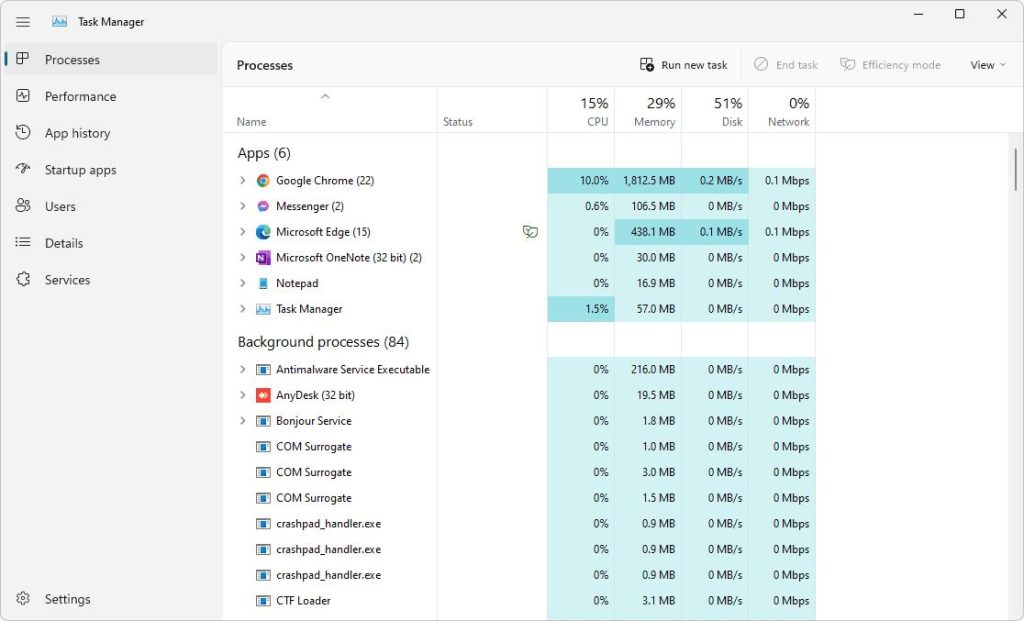
Search for the Task Manager option and click the top result to open the app.
Step 1: Confirm if you find the Task Manager window flickers.
If the Task Manager window doesn’t flicker, but the other things visible on the screen do, the flickering problem might be in one of the apps. If everything on the screen flickers with the Task Manager window, the issue is probably related to the graphics driver.
So, let’s take a look at all the troubleshooting steps. You can have a clear understanding and apply the fixing methods mentioned below.
These 6 fixes have helped many users resolve the Dell laptop screen flickering issue. You don’t need to try them all. We have just listed them down to determine which works best for you.
Fix 1: Check your cables
There are many cases when a loose or damaged laptop charging cable can cause the issue of screen flickering on your Dell laptop. Before working on the screen flickering issues, check whether the power cable is attached to your laptop.
Now, you can completely turn off your laptop. Unplug the power cable and plug it back in properly.
If your laptop charging cable is damaged, you should change it.
Once you confirm that the issue is not with the charging cable, you can troubleshoot the driver issues.
Fix 2. Change the refresh rate
The refresh rate of a laptop display is the number of times per second your laptop draws a new image. If the display refresh rate is not set properly, you may face the Dell computer screen flashing in Windows 11 or 10. To fix this problem, you can get the chance to change the refresh rate. Here’s take a look:
Step 1: Right-click a space on your laptop and select Display settings.
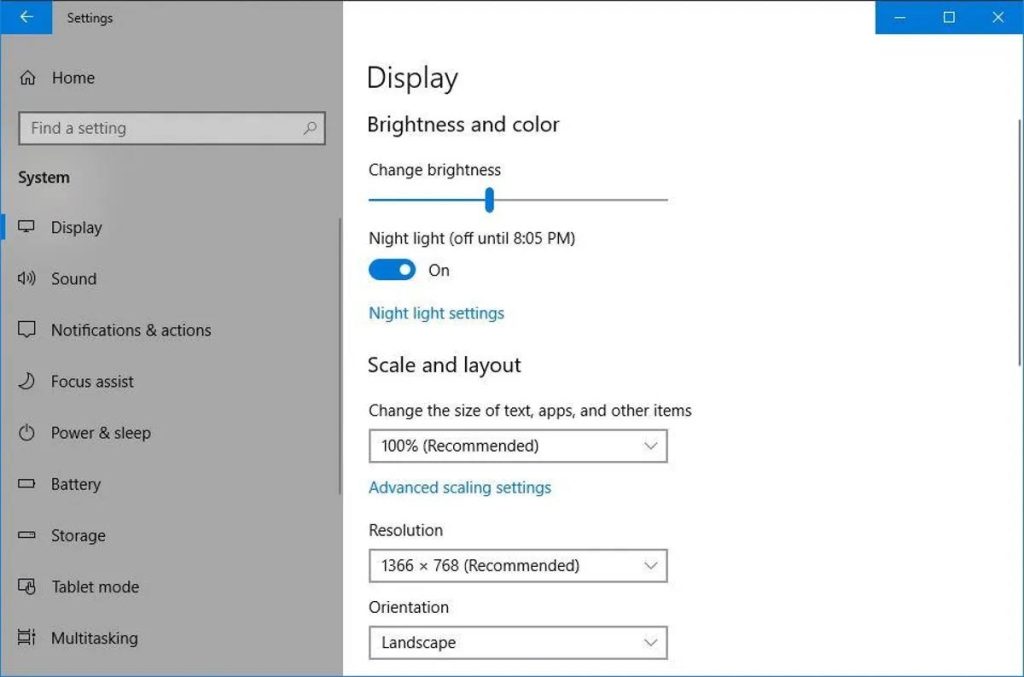
Step 2: In the pop-up window, scroll down the page and select Advanced Display.
Step 3: For choosing a refresh rate, select a different refresh rate.
If changing the refresh rate doesn’t solve your problem, consider updating or uninstalling some incompatible apps.
Fix 3. Update or uninstall incompatible apps
The app developers often release some of the latest updates for Windows to deal with compatibility issues. It is crucial for the operating systems. However, if your apps are still running in an older version, there are higher chances that you may encounter a flickering screen issue on your Dell laptop. To fix the potential problem, you must focus on updating all the apps to the latest version.
If you find the flickering issue has not yet been solved, uninstall the recently installed apps. To uninstall an app, follow these steps:
Step 1:Click Start and select Settings.
Step 2: In the left panel, select the option Apps, then click on Installed Apps.
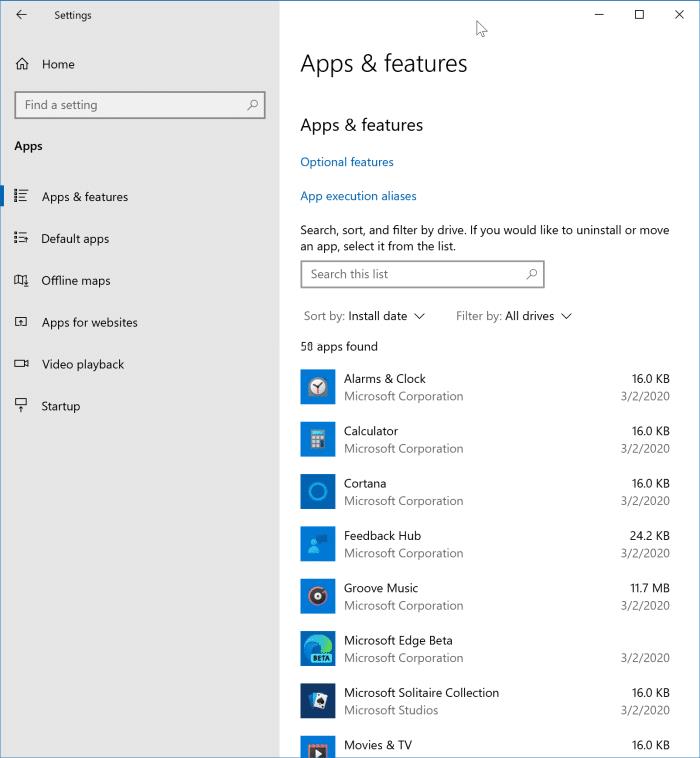
Step 3: Scroll down the list and find the app you want to uninstall. Then, you will find the three dots icon; click on that and select Uninstall.
Step 4: Click the Uninstall option again to confirm your choice.
After uninstalling an app, you need to restart your computer and ensure whether or not the flickering issue is resolved. If not, uninstall each app and wait until the Dell laptop screen flickering issue is solved.
Fix 4. Work On Changing the Accent Color and Background
Like Windows 10, you will get an option in Windows 11. It automatically lets your system pick an accent color for your laptop screen Background. Many reports show the background color issue is a prime reason for the screen flickering. So opt for these steps and turn it off:
Step 1: Press the Windows logo key and I together on the keyboard to open the Windows Settings.
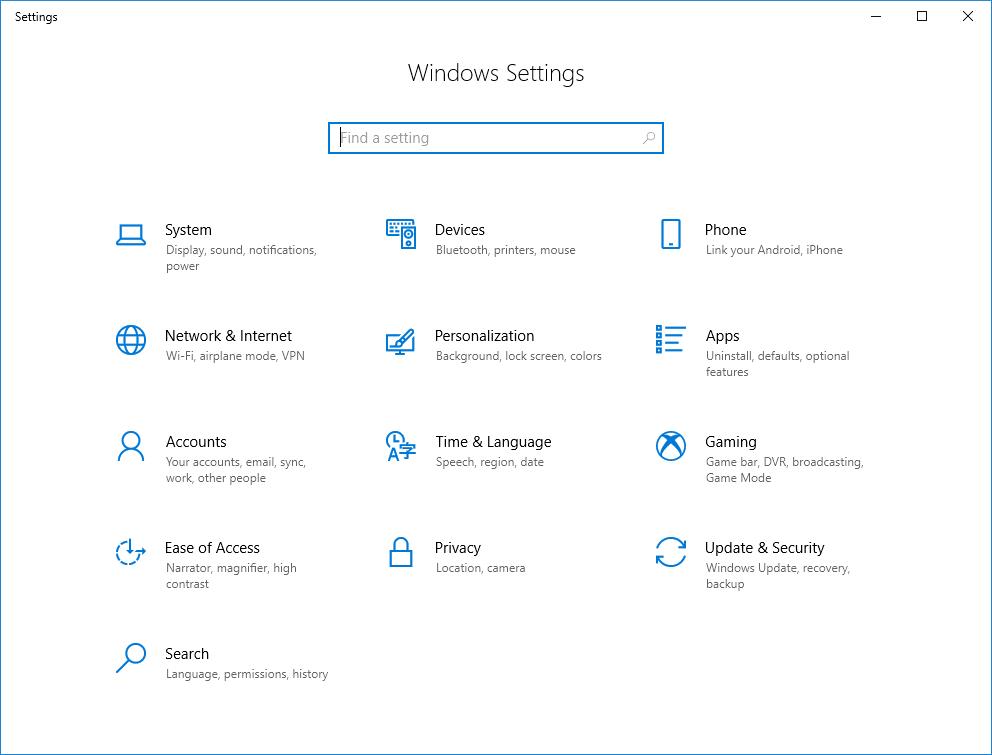
Step 2: In the left panel, choose the option Personalization, and then click on Background.
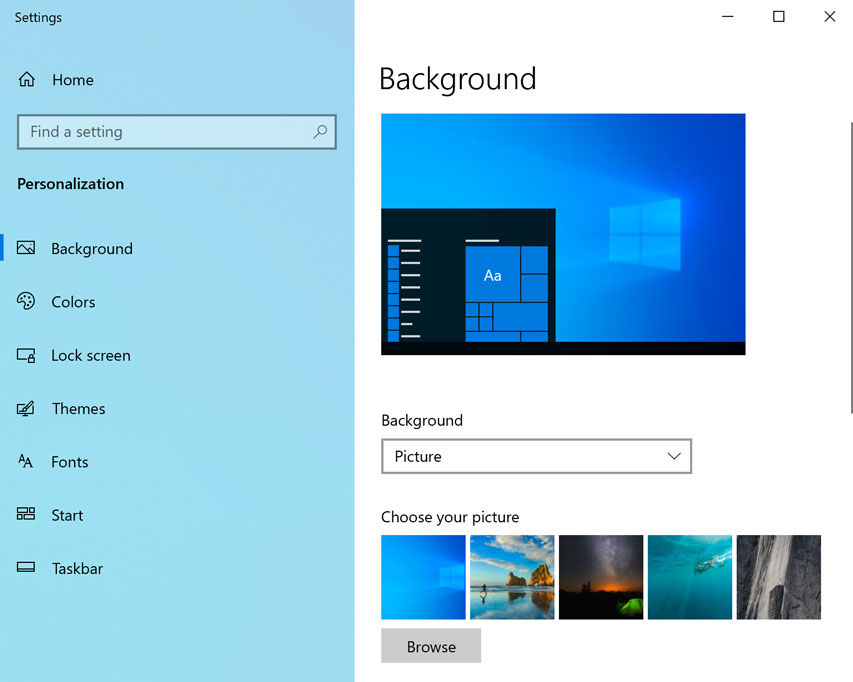
Step 3: Select a Picture or Solid color to personalize your Background settings.
Step 4: Return to the Personalization window and select the right Colors.
Step 5: For Accent color, select the Manual option.
Once done, check whether the Dell laptop screen flickering issue is resolved. If not, try the next fix below.
Fix 5: Disable Animation Effects.
Many users have reported that they fixed the screen flickering issue in Windows 11 or 10 by disabling the animation effects. You can give this a try. Here’s how:
Step 1: Press the Windows logo key and I on your keyboard and open the Windows Settings.
Step 2: The left panel will open. In that panel, select the accessibility, then click on Visual Effects.
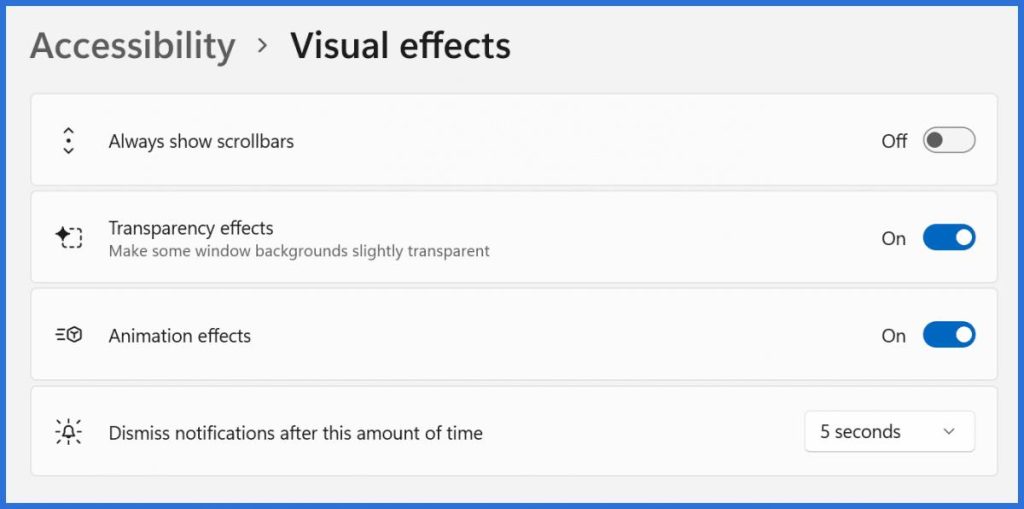
Step 3: Turn off the Animation effects.
Check if you are still facing the screen flickering on Dell laptop, and try the next option.
Fix 6: Updating Graphics Driver On Windows 11
If the flickering issue is because of the graphics driver, you can handle the problem by updating, rolling back, and even reinstalling the graphics driver.
Update graphics driver
If you want to update the graphics driver on Windows 11 or 10, use these steps:
Step 1: Open Start.
Step 2: Click on the option showing Windows Update.
Step 3: Now click on the Advanced options settings.
Step 4: You will have the Optional updates setting under the “Additional options” section.
Step 5: Now, click on the Driver updates.
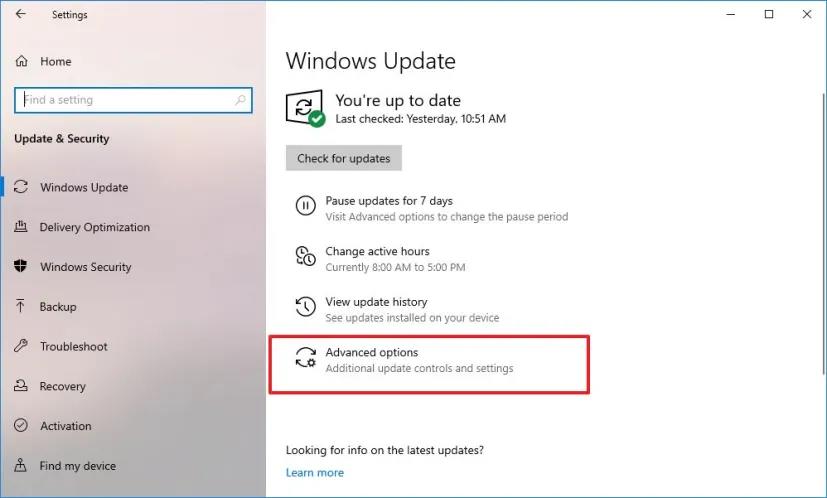
Step 6: Check the options display driver update.
Step 7: Now click on the Download & install button.
Once you complete all the steps one after one, you will find there is no flickering issue in your Dell laptop.
Roll back the previous version of the driver.
If you recently updated the graphics driver, try rolling back to the previous version to resolve the issue. Here’s how:
Step 1: Open Start.
Step 2: Search for Device Manager and click the top result to open the app.
Step 3: Open the Display Adapters branch.
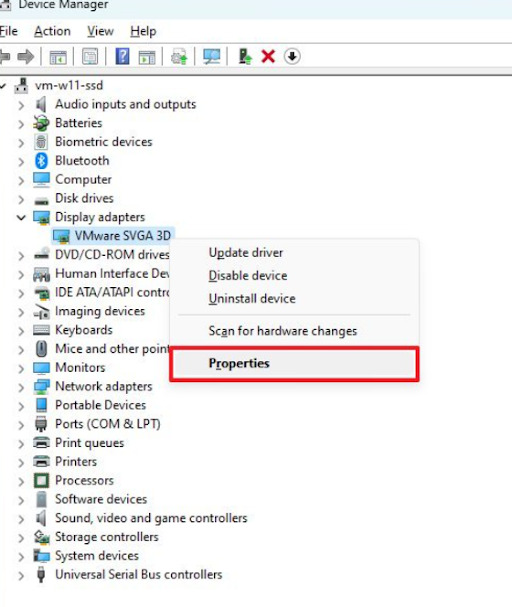
Step 4: Right-click the graphics card adapter and choose the Properties option.
Step 5: Click the Driver tab.
Step 6: Click the “Roll Back Driver” button.
Step 7: Choose any reason from the list.
Step 8: Click the Yes button.
Step 9: Restart the computer.
Once you complete the steps, you will find that your system will be reinstalled in the previous driver version, solving the Dell computer screen flashing problem.
However, if the problem still exists or you can not find the “Roll Back Driver” option unavailable, uninstall and then install the graphics driver again. Follow the steps.
Reinstall graphics driver
If you want to update the graphics driver to solve this Dell laptop screen flickering problem, use these steps:
Step 1: Open Start.
Step 2: Search for the Device Manager option and click the top result to open the app.
Step 3: Open the Display Adapters branch.
Step 4: Right-click on the graphics card adapter and select the option” Uninstall device option.” Now, check the option “Attempt to remove the driver for the device” option.
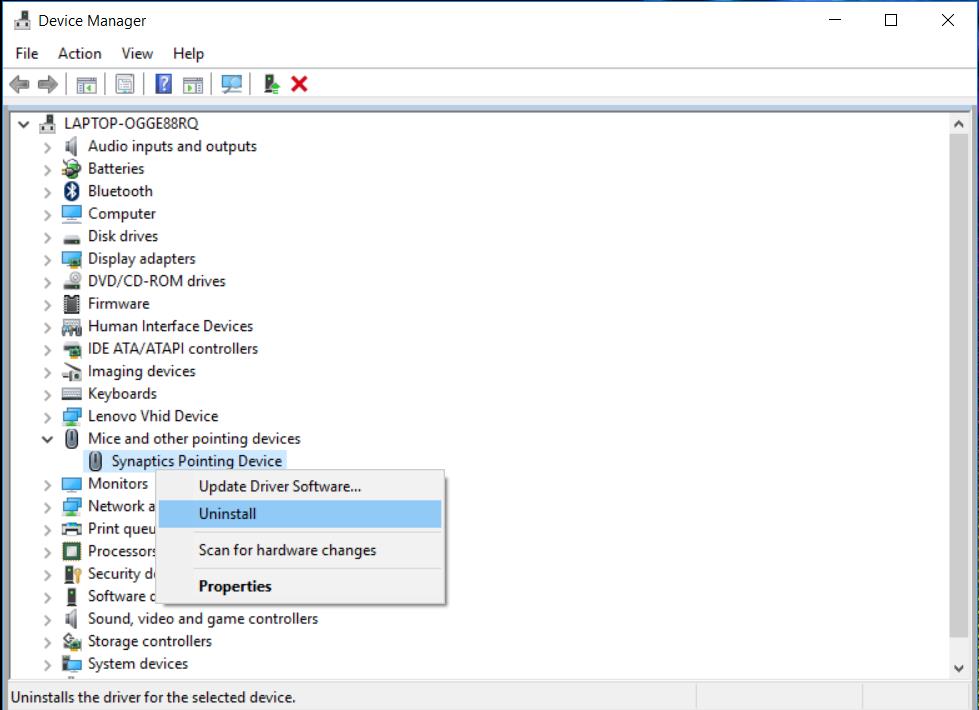
Step 5: Click the OK button.
Step 6: Restart the computer.
Once you apply these steps, you probably find that the Dell system will reinstall the drivers automatically from Windows Update, and the screen flickering problem will be solved.
Conclusion
Screen flickering on Dell laptops is usually linked to software issues. Outdated display drivers are a common cause. Conflicting apps can also trigger the problem. Incorrect refresh rate settings may make it worse. Updating drivers often fixes the issue. Checking Safe Mode helps identify software-related causes.
If the flickering continues, hardware issues may be involved. A loose display cable is one possibility. A failing screen panel is another. Running Dell diagnostics can help confirm this. Testing with an external monitor is also useful. Early fixes help prevent further damage and improve display stability.
FAQs
Can outdated graphics drivers cause screen flickering on Dell laptops?
Yes. Outdated or corrupted graphics drivers are one of the most common reasons for screen flickering. Updating drivers through Dell Support or Device Manager often fixes the issue.
Does changing the refresh rate help reduce flickering?
In some cases, yes. Setting the refresh rate to the recommended value for your display can reduce or stop flickering, especially after a Windows update.
How can I tell if the problem is hardware-related?
If the screen flickers even in BIOS or on an external monitor, it may indicate a hardware problem. Dell diagnostics can help confirm whether the screen or cable needs attention.
Author Bio:
Dinesh Lakhwani 

Dinesh Lakhwani, the entrepreneurial brain behind “TechCommuters,” achieved big things in the tech world. He started the company to make smart and user-friendly tech solutions. Thanks to his sharp thinking, focus on quality and the motto of never giving up, TechCommuters became a top player in the industry. His commitment to excellence has propelled the company to a leading position in the industry.
Popular Post











Recent Post

How To Change Default Apps For File Types In Windows
Windows is designed to make using your computer easy. One way it does this is by assigning default apps to different file types. This means when you open a file, Windows automatically opens it with a specific program. For example, photos may open with Photos, music with Groove Music, and PDFs with Edge. These default […]

How To Adjust The Mouse Pointer Speed: Complete Guide
Using a computer every day means you use the mouse a lot. The mouse pointer moves on the screen and helps you click, scroll, and select items. Many people never think about the speed of the mouse pointer. They have used the default setting for years. This can cause small problems over time. A slow […]

How to Change Mouse Scrolling Settings In Windows
A mouse is one of the most used computer tools. People use it every day. They scroll through emails. They scroll through documents. They scroll through websites and images. The movement becomes automatic. Most users do not notice it. That is why problems often go unnoticed. Scrolling problems show up slowly. At first, it feels […]

Keyboard Light Settings: Keyboard Lighting Control [Complete Guide]
Keyboards are no longer simple typing tools. Well, yes! Over time, they have evolved to include features that improve comfort, visibility, and overall experience. One of the most useful features today is keyboard lighting. It helps users work comfortably in low-light conditions. It also reduces strain when typing for long hours. Many users first notice […]

Customizing Pointer Appearance: Complete Guide
The way your mouse pointer looks on your computer may seem like a small detail. But customizing pointer appearance can make using your PC more comfortable and visually appealing. Many users do not realize that they can change the pointer size, color, and style to fit their needs. Whether you want a bigger pointer for […]

How To Choose a Computer Monitor: Monitor Buying Guide
Buying a monitor looks easy. Many people think all screens are the same. That belief causes regret later. A monitor is not just a display. It is a daily tool. You read on it. You work on it. You relax with it. Small problems become big over time. Poor brightness hurts eyes. Bad size causes […]

How To Get Help With File Explorer in Windows 11 [Complete Guide]
File Explorer is one of the most important tools in Windows 11. It is used to open folders, view files, and manage stored data. Almost every action on a Windows computer depends on it in some way. When users open documents, save downloads, or organize photos, File Explorer is always involved. Because it is used […]

How To Fix A Frozen Computer: Complete Guide [Windows 11/10]
A frozen computer is one of the most common problems Windows users face. The screen stops responding. The mouse pointer does not move. Keyboard inputs do nothing. You may hear the fan running loudly. Sometimes the system looks alive, but nothing works. This situation often happens when you are busy or working on something important. […]

How to Upgrade Computer RAM: Complete Guide
Upgrading RAM is one of the simplest ways to improve a computer. It helps the system feel faster and smoother. Apps open quicker. Browsers handle more tabs. Games and tools run with less delay. Many users search for how to upgrade computer RAM because it gives real results without high cost. You do not need […]

How To Clean Your Computer Keyboard: Complete Guide
A computer keyboard is touched more than almost any other device you own. It is used during work, study, gaming, and casual browsing. Fingers carry natural oils, sweat, and dirt. Small food crumbs fall between keys without notice. Dust settles each day slowly. Over time, this creates a hidden layer of grime. Many users do […]

