10 Best Duplicate Video Finder and Remover Software [2026]
Last updated on December 26th, 2025 at 1:17 am
Do you find yourself constantly running out of storage space on your computer due to duplicate video files? Don’t worry, you’re not alone. With the rise of streaming services and easy access to media, it’s easy to accumulate multiple copies of the same video without even realizing it. Fortunately, there are plenty of duplicate video finder programs available to help you declutter your PC and free up valuable space.
In this blog post, we’ll introduce you to 10 of the best duplicate video remover software for Windows and macOS that will make finding and removing dupes a breeze.
Say goodbye to unnecessary duplicates and hello to an organized and clutter-free digital library!
Why Clearing Duplicate Videos Is Essential for Your Computer?
In today’s digital world, our computers overflow with countless media files, especially videos. From funny clips to cherished family moments, we often gather multiple copies without realizing it. This creates clutter and disarray in our digital collections.
Clearing duplicate videos is crucial. Using software to find and remove these extra copies helps reclaim precious hard drive space. But why does it matter?
Removing duplicates optimizes your computer’s performance. Multiple copies hog space and slow down your system, causing lags, longer load times, and potential crashes. Eliminating these duplicates streamlines operations, ensuring smoother functionality.
Precautions to Take: When Using a Duplicate Video Finder Software
Duplicate video finder software can be a powerful tool for organizing your media library and freeing up valuable storage space. However, using these tools without proper caution can lead to unintended data loss or system issues. To ensure a safe and effective cleanup process, it’s important to follow a few key precautions.
- Always back up your video files before initiating any scan or deletion process.
- Manually review the list of detected duplicates before confirming deletion.
- Avoid scanning system folders or directories containing original project files.
- Understand the criteria used by the software to identify duplicates—whether it’s file name, size, metadata, or content.
- Use software that offers a preview feature to visually verify duplicates.
- Never perform batch deletions without reviewing the selections first.
- Test the software on a small folder to evaluate its accuracy and behavior.
- Choose tools that offer a restore or recovery option in case of accidental deletion.
Comparison Table: Top 5 Duplicate Video Finder and Remover Tools
With a wide range of duplicate video finder tools available, selecting the right one depends on your specific needs—whether it’s speed, accuracy, user interface, or platform compatibility. Below is a comparison of five popular options to help you make an informed decision.
| Software | Key Features | Ease of Use | Platform Support | Price |
| CCleaner | System cleaner with duplicate finder, safe deletion, and flexible scan options | High | Windows, macOS | Free / Paid |
| Duplicate Files Fixer | Intelligent scan, preview, auto-mark, backup, and restore | Very High | Windows, macOS, iOS, Android | Paid |
| Duplicate Cleaner | Advanced matching algorithms, selection assistant, image/audio support | High | Windows | Free / Paid |
| Easy Duplicate Finder | Multiple scan modes, cloud support, folder comparison, and preview | Very High | Windows, macOS | Paid |
| Auslogics Duplicate File Finder | Simple UI, customizable filters, secure deletion, free to use | High | Windows | Free |
10 Best Duplicate Video Finder and Remover Software
Suppose you’re tired of sifting through countless duplicate video files and wasting valuable storage space on your computer. In that case, it’s time to discover the best duplicate video finder and remover software available.
These programs are designed to efficiently search your entire computer for duplicate video files, making it easy to locate and eliminate those unnecessary copies.
1. CCleaner
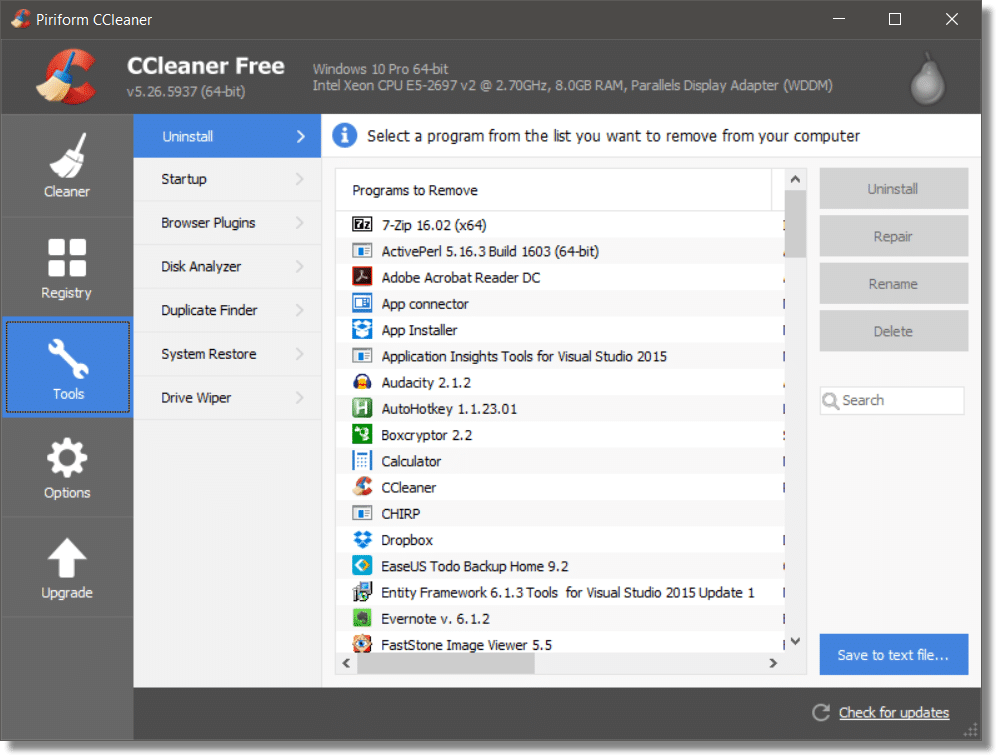
Known for its system cleaning capabilities, CCleaner also has a duplicate finder feature that helps you locate and remove duplicate videos. It’s a comprehensive duplicate video search tool for optimizing your computer’s performance.
Key Features:
- Duplicate Finder: Scans the system for duplicate files, including videos, based on file content and file names.
- Flexible Scan: Offers customization in terms of file types and locations to scan, allowing users to target specific folders or file formats.
- Selection Options: Provides options to select and review duplicate files before deletion.
- Safe Deletion: Ensures safe removal of duplicates without risking the deletion of important files.
- User-Friendly Interface: Presents a straightforward interface for easy navigation and use.
Pros:
- Bundled with other system optimization tools, making it a comprehensive solution.
- Provides customization options for more refined scans.
- Offers a safe deletion process to prevent accidental removal of essential files.
- User-friendly interface for ease of use.
Cons:
- The duplicate finder feature might have limitations compared to specialized duplicate file finder software.
- Advanced features for managing duplicates might be lacking compared to dedicated tools.
Compatibility: Windows and macOS.
2. Duplicate Files Fixer
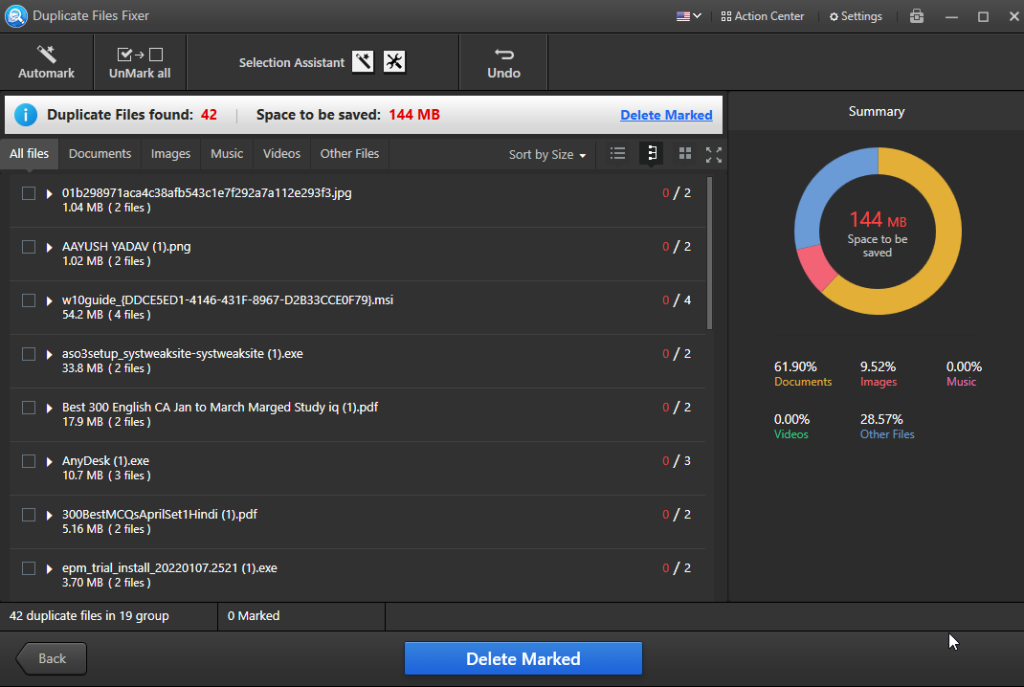
This intuitive software scans your computer for duplicate video files and offers various scan modes to ensure comprehensive results. You can preview files before deletion and even recover accidentally deleted files.
Key Features:
- Intelligent Scan: Uses smart algorithms to locate duplicate videos based on content and file names.
- Customized Scanning: Allows users to specify folders or drives to scan for duplicates.
- Preview Functionality: Offers a preview option to review duplicate videos before deletion.
- Multiple File Formats: Supports various video file formats for comprehensive scanning.
- Auto-Mark Options: Provides options to automatically mark duplicates for deletion based on criteria set by the user.
- Backup and Restore: Enables users to create backups before deletion and restore files if necessary.
Pros:
- User-friendly interface for easy navigation and use.
- Advanced algorithms for accurate duplicate detection.
- Offers preview functionality for users to confirm before deletion.
- Customizable scanning options for targeted searches.
Cons:
- The free version might have limitations in terms of functionality or scanning capabilities.
- Advanced features might be available only in the premium version.
Compatibility: Windows, macOS, Android, and iOS mobile devices.
3. Duplicate Cleaner
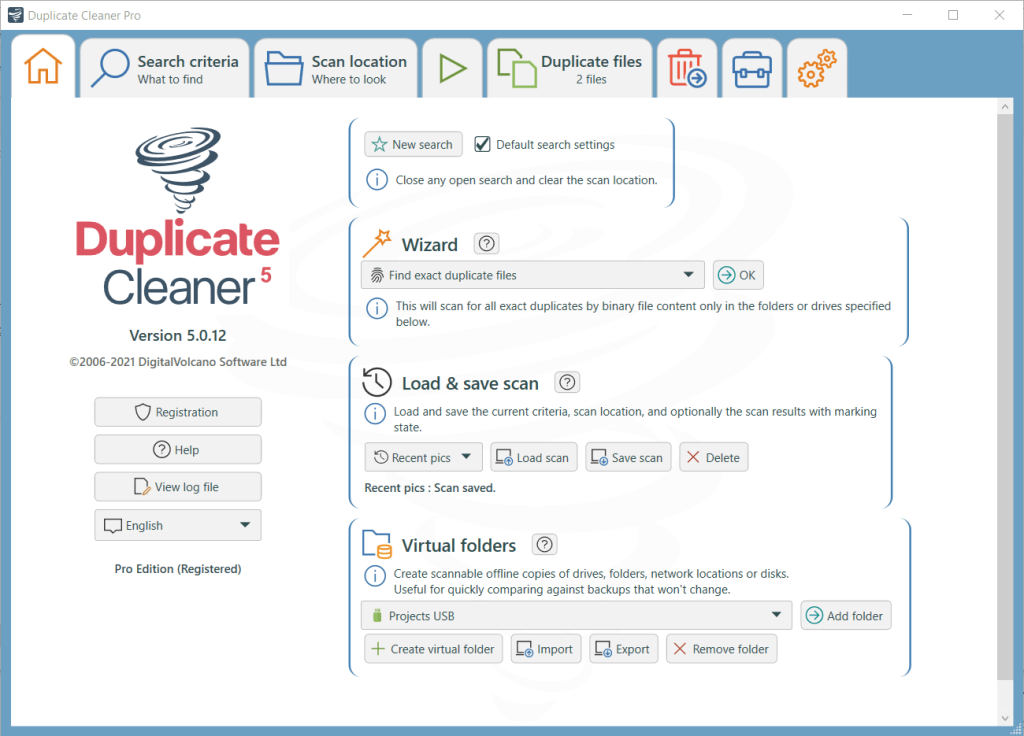
This user-friendly duplicate video finder software allows you to scan your computer for duplicate videos and provides various options for deleting or moving them. Its advanced algorithms ensure accurate results and quick scanning. Duplicate Cleaner is a software designed to help users identify and remove duplicate video files on their systems, thereby freeing up storage space and organizing their libraries efficiently.
Key Features:
- File Comparison: Utilizes advanced algorithms to identify identical or similar video files based on content or file name.
- Flexible Search: Offers various search criteria such as file size, date, and file types to refine the search for duplicates.
- Preview Functionality: Allows users to preview duplicate videos before deleting them.
- Selection Options: Provides options to automatically or manually select which duplicates to remove.
- Multiple File Formats: Supports a wide range of video file formats for comprehensive duplicate scanning.
- Customization: Enables users to customize search parameters and criteria for better accuracy.
Pros:
- User-friendly interface for easy navigation and use.
- Offers multiple selection options, providing control over what duplicates to delete.
- Provides preview functionality, allowing users to verify files before deletion.
Cons:
- The free version might have limited functionality compared to the paid version.
- The scanning process can be time-consuming for large libraries.
Compatibility: Windows 11, 10, 8, 7, Vista, and XP.
4. Easy Duplicate Finder
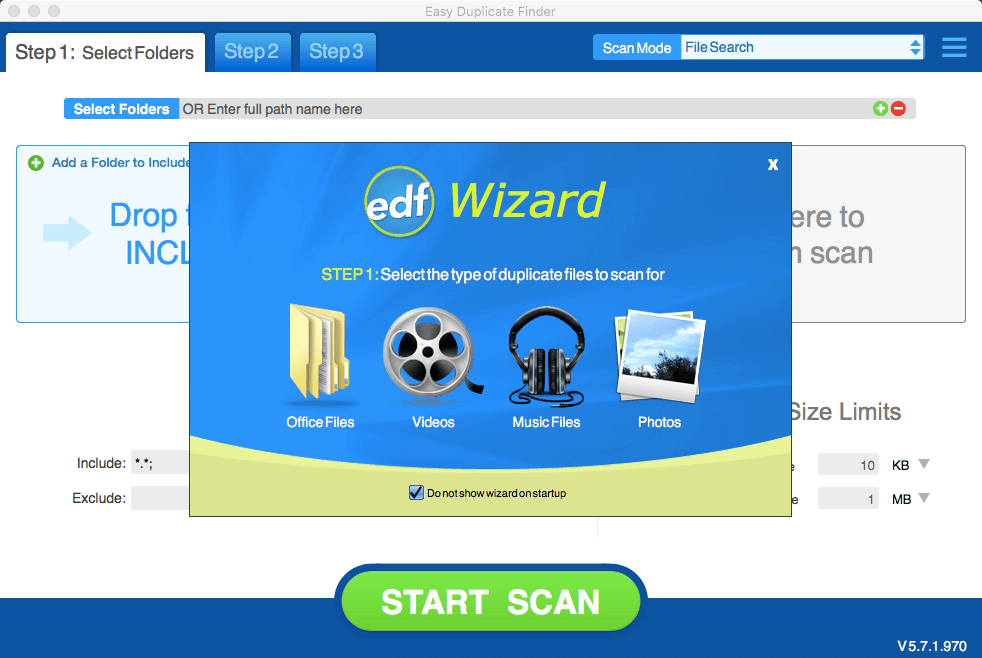
With a user-friendly interface, Easy Duplicate Finder makes it simple to identify and remove duplicate videos. It also provides a backup feature to ensure you don’t accidentally delete important files.
Key Features:
- Accurate Detection: Utilizes advanced algorithms to find duplicate videos based on content, file names, and metadata.
- Customizable Scan Modes: Offers different scan modes such as exact matches, similar content, and file attributes to cater to varying user preferences.
- Preview Option: Allows users to preview duplicate videos before deciding to delete them.
- Flexible Selection: Provides options for automatic or manual selection of duplicates for deletion.
- Backup and Restore: Enables users to create backups before removing files and restore them if needed.
- Multiple File Formats: Supports various video file formats for comprehensive scanning.
Pros:
- Intuitive interface for easy navigation and use.
- Advanced algorithms for accurate and thorough duplicate detection.
- Provides various scanning modes for customized searches.
Cons:
- The scanning process might take longer for larger libraries or when using complex search modes.
- Some users might find the pricing for the premium version relatively high.
Compatibility: Windows and macOS.
5. Auslogics Duplicate File Finder

This software scans your computer’s entire file system and identifies duplicate video files based on various criteria such as file size, name, and content. It’s a powerful tool for decluttering your computer.
Key Features:
- Smart Selection Assistant: Helps users select which duplicate files to keep or delete based on pre-set criteria such as date, size, and file type.
- Flexible Search Settings: Offers various scanning modes to find duplicate videos based on content, name, and size, with customizable filters.
- Preview Function: Allows users to preview duplicate videos before deciding to remove them, ensuring they don’t delete important files accidentally.
- Duplicate Grouping: Automatically groups detected duplicates for easier review and management.
- Safe Deletion: Ensures the safe removal of duplicates, preventing the accidental deletion of critical files.
- Customization Options: Provides options for users to tailor scans and settings to their preferences and requirements.
Pros:
- Employs sophisticated algorithms for accurate duplicate detection.
- Assists in making informed decisions about which duplicates to delete.
- Allows users to verify files before deletion.
- Offers flexibility in scan configurations.
Cons:
- The preview function might not cover all video file formats.
Compatibility: Windows.
6. Wise Duplicate Finder
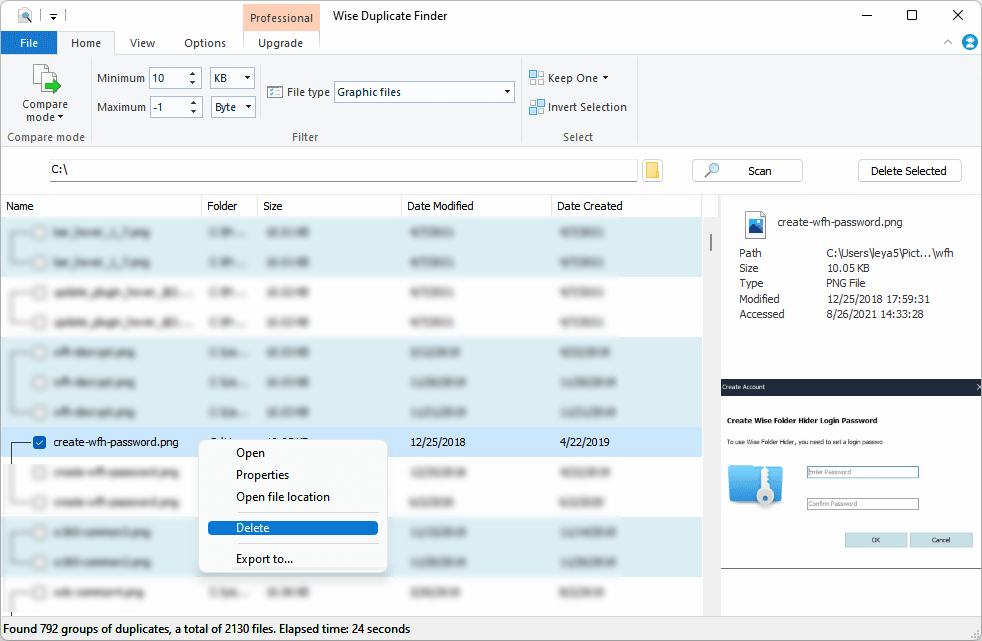
This program scans your computer for duplicate videos and allows you to preview and select which ones to delete. It also offers automatic deletion options to save you time.
Key features:
- File Exclusion: Allows users to exclude specific folders or file types from the scanning process, providing more control over the search.
- Scan History: Keeps a record of previous scans, enabling users to track changes and compare results over time.
- File Management: Offers options to manage duplicate files directly within the interface, providing ease in organizing the cleaned-up library.
- File Renaming: Provides the ability to rename duplicate files to avoid confusion or overwrite issues.
- Customizable Preferences: Allows users to set preferences for scan behavior, notifications, and deletion methods according to their preferences.
Pros:
- Utilizes advanced algorithms for precise duplicate identification.
- Offers a 60-day money-back guarantee.
- 24×7 customer support service.
- Offers flexibility in scan configurations for tailored searches.
Cons:
- Scanning larger libraries may take a bit of time.
- Certain advanced functionalities might be restricted to the paid version.
Compatibility: Windows 11/10/8.1/8/7.
7. Duplicate Media Finder
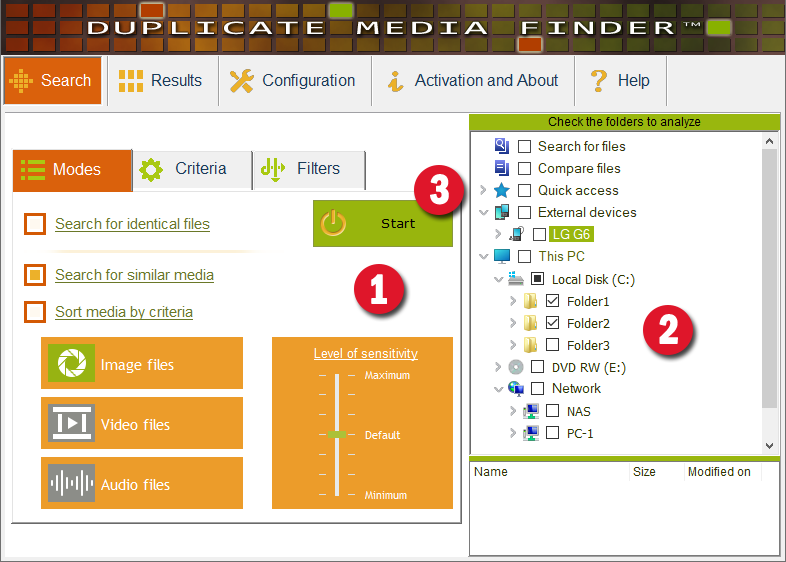
Specifically designed for media files, this software quickly scans your computer for duplicate video files, even if they have different file names. This duplicate video finder tool also offers advanced search options for more accurate results.
Key Features:
- Advanced Matching Algorithms: Utilizes sophisticated algorithms to identify duplicate video files accurately.
- Comprehensive Media Support: Scans various multimedia formats, including videos, images, and audio files.
- Customizable Scan Modes: Offers multiple scan modes and filters for precise duplicate searches.
- Preview Function: Allows users to preview duplicate videos before deletion for verification.
- Auto-Selection: Automatically marks duplicates based on predefined criteria for efficient removal.
- Intuitive Interface: Presents an intuitive interface for easy navigation and use.
Pros:
- Does not contain ads.
- Multi-language support.
- Allow you to export results in multiple formats like HTML, and CSV.
- Utilizes advanced algorithms for precise duplicate identification.
Cons:
- Resource-intensive.
- Limited file size handling support functionalities.
Compatibility: Windows 11 to Windows XP (32-bit and 64-bit).
8. Anti-Twin
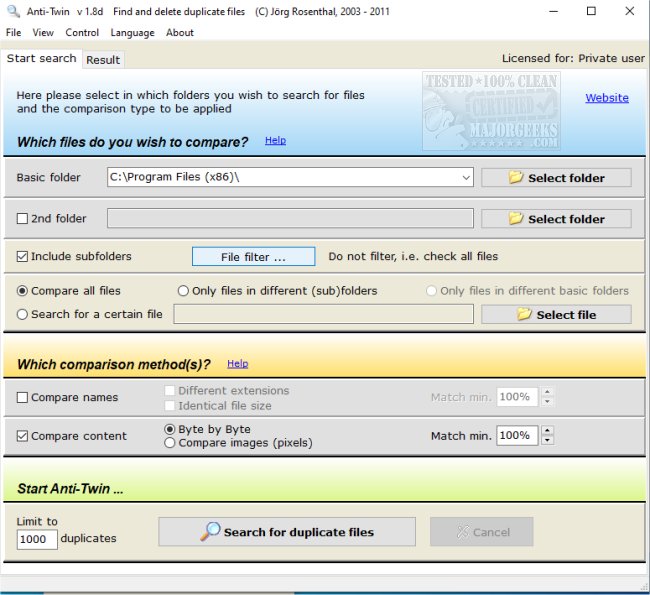
This lightweight duplicate video remover tool scans your computer for duplicate videos and allows you to choose which copies to keep or delete. It’s a straightforward tool for decluttering your computer.
Key features:
- Customizable Comparison Criteria: Allows users to define specific parameters for comparison, such as file attributes, creation date, or exclusion of certain file sizes.
- Batch Processing: Enables handling duplicates in bulk, allowing users to process multiple duplicate groups simultaneously for quicker cleanup.
- Integration with File Explorer: Provides integration with the file explorer, allowing users to initiate scans or manage duplicates directly from the context menu.
- Smart Selection: Offers intelligent selection suggestions based on various criteria, simplifying the decision-making process for file deletion.
- Duplicate File Versions: Recognizes and manages multiple versions of the same file, helping users differentiate and manage them effectively.
Pros:
- Anti-Twin checks existing file collections for duplicates, ensuring a clutter-free library.
- Allows manual comparison of similar folders across devices, aiding seamless synchronization between laptop and PC directories.
Cons:
- May lack the same level of advancement found in competing tools.
Compatibility: Windows 11 to Windows XP (32-bit and 64-bit).
9. Gemini 2

Gemini 2 is a robust duplicate file finder designed to help users locate and remove duplicate files, including videos, photos, and documents, from their Mac systems. Using intelligent algorithms, it aims to declutter and optimize storage space.
Key Features:
- Smart Selection: Offers an intelligent selection algorithm to choose the best copy for deletion while preserving the original.
- Customizable Scans: Provides various scan modes for targeted searches, allowing users to specify criteria and folders.
- Quick Cleanup: Streamlines the deletion process with one-click removal of duplicates.
- Visual Representation: Presents a visual chart showcasing duplicate files, aiding in easy identification and management.
- Auto-Select: Automatically selects duplicates based on specific criteria for swift removal.
Pros:
- Ensures safe removal of duplicates without risking original files.
- Offers a clear view of duplicate files for effortless management.
Cons:
- Currently available only for macOS systems.
Compatibility: macOS 10.10 and higher.
10. CloneSpy
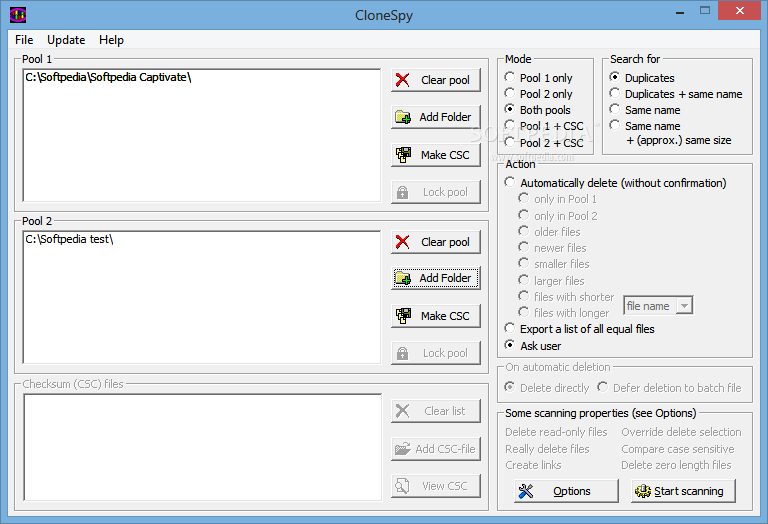
CloneSpy is a Windows-based duplicate video remover tool designed to identify and remove duplicate files, freeing up disk space and organizing files efficiently. It uses byte-by-byte comparison to ensure accurate duplicate detection.
Key Features:
- Byte-by-Byte Comparison: Utilizes precise byte-by-byte comparison for accurate duplicate identification.
- Customizable Search: Offers various search criteria, including file name, size, and date for tailored searches.
- File Management: Provides options to move, archive, or delete duplicate files as per user preference.
- Checksum Verification: Uses checksums to verify duplicate files for enhanced accuracy.
Pros:
- Offers multiple options for managing duplicate files.
- Provides a portable version for use without installation, offering flexibility in usage across different systems.
Cons:
- The interface might be less intuitive for beginners.
- Available only for Windows systems.
Compatibility: Windows XP/Vista/7/8/8.1/10.
Tips for Preventing Video Duplication in the Future
It’s time to stop the cycle of accumulating duplicate video files and take proactive steps to prevent video duplication in the future. Here are some helpful tips to keep your digital library organized and clutter-free:
1. Use a reliable file naming system: Establish a consistent and logical file naming convention for your videos.
2. Regularly clean up your library: Make it a habit to regularly review and clean up your video library. Set aside some time every month or quarter to go through your videos and delete any duplicates or unnecessary files.
3. Be mindful of file locations: When downloading or saving videos, pay attention to where they are being stored on your computer.
4. Utilize cloud storage: Consider using cloud storage services like Google Drive or Dropbox to store and organize your videos.
5. Invest in reliable media management software: Use media management software that is specifically designed to handle your video library.
6. Regularly backup your videos: Backing up your videos is essential for protecting your valuable content.
By implementing these helpful tips, you can minimize the occurrence of video duplication and maintain a well-organized digital library. Enjoy hassle-free access to your videos and maximize the storage space on your computer.
Author’s Tip
Many users rely too much on auto-marking. It saves time but can misidentify original files. Always review flagged items before deleting. This is crucial if your videos are valuable or hard to replace.
Organize your files before scanning. Sort them by project, date, or category. This helps the software compare more accurately. It also makes it easier for you to spot duplicates. A little prep can prevent big mistakes.
Pick a tool that fits your workflow. Professionals need format support and detailed controls. Casual users should focus on ease and safety. The right software should work with you, not against you.
Conclusion
In the digital age, it’s crucial to have a well-organized and clutter-free computer, especially when it comes to your video library. After reviewing the top 10 best duplicate video finder and remover software programs, it’s clear that they are invaluable tools for decluttering your PC and optimizing its performance.
So, say goodbye to unnecessary duplicates and hello to an organized and clutter-free digital library with the help of these top 10 duplicate video remover software programs. Your computer will thank you for it!
FAQs:
Q: What are the benefits of using duplicate video finder software?
These software helps you save storage space by identifying and removing duplicate copies of videos on your computer or external drives. It can find duplicate videos even if they have different names or formats. Using this software also makes it easier to organize and manage your video collection.
Q: What features should I look for in duplicate video finder software?
Look for features like automatic duplicate detection using file content analysis, the ability to scan specific folders or entire drives, filtering by video type, resolution, and size, previewing identified duplicates before deletion, and the ability to selectively delete duplicates while keeping the original files. Prioritizing ease of use is also recommended.
Q: How can I avoid duplicate videos in the future?
Some tips to avoid duplicate videos: use the same storage location each time you transfer videos from devices/memory cards, rename files during transfer to avoid duplicates, delete originals after transfer to one storage location, regularly run a duplicate finder tool, and consolidate video storage into fewer drives. Using cloud storage can also prevent duplicating files across devices.
Author Bio:
Dinesh Lakhwani 

Dinesh Lakhwani, the entrepreneurial brain behind “TechCommuters,” achieved big things in the tech world. He started the company to make smart and user-friendly tech solutions. Thanks to his sharp thinking, focus on quality and the motto of never giving up, TechCommuters became a top player in the industry. His commitment to excellence has propelled the company to a leading position in the industry.
Popular Post











Recent Post

How to Switch Windows 10 to a Local Account: Complete Guide
Windows 10 allows users to sign in with either a Microsoft account or a local account. When you set up a new computer, the system often suggests using a Microsoft account. This account connects your device to Microsoft services such as Outlook, OneDrive, and the Microsoft Store. It also syncs settings, themes, and passwords across […]

How To Change Default Apps For File Types In Windows
Windows is designed to make using your computer easy. One way it does this is by assigning default apps to different file types. This means when you open a file, Windows automatically opens it with a specific program. For example, photos may open with Photos, music with Groove Music, and PDFs with Edge. These default […]

How To Adjust The Mouse Pointer Speed: Complete Guide
Using a computer every day means you use the mouse a lot. The mouse pointer moves on the screen and helps you click, scroll, and select items. Many people never think about the speed of the mouse pointer. They have used the default setting for years. This can cause small problems over time. A slow […]

How to Change Mouse Scrolling Settings In Windows
A mouse is one of the most used computer tools. People use it every day. They scroll through emails. They scroll through documents. They scroll through websites and images. The movement becomes automatic. Most users do not notice it. That is why problems often go unnoticed. Scrolling problems show up slowly. At first, it feels […]

Keyboard Light Settings: Keyboard Lighting Control [Complete Guide]
Keyboards are no longer simple typing tools. Well, yes! Over time, they have evolved to include features that improve comfort, visibility, and overall experience. One of the most useful features today is keyboard lighting. It helps users work comfortably in low-light conditions. It also reduces strain when typing for long hours. Many users first notice […]

Customizing Pointer Appearance: Complete Guide
The way your mouse pointer looks on your computer may seem like a small detail. But customizing pointer appearance can make using your PC more comfortable and visually appealing. Many users do not realize that they can change the pointer size, color, and style to fit their needs. Whether you want a bigger pointer for […]

How To Choose a Computer Monitor: Monitor Buying Guide
Buying a monitor looks easy. Many people think all screens are the same. That belief causes regret later. A monitor is not just a display. It is a daily tool. You read on it. You work on it. You relax with it. Small problems become big over time. Poor brightness hurts eyes. Bad size causes […]

How To Get Help With File Explorer in Windows 11 [Complete Guide]
File Explorer is one of the most important tools in Windows 11. It is used to open folders, view files, and manage stored data. Almost every action on a Windows computer depends on it in some way. When users open documents, save downloads, or organize photos, File Explorer is always involved. Because it is used […]

How To Fix A Frozen Computer: Complete Guide [Windows 11/10]
A frozen computer is one of the most common problems Windows users face. The screen stops responding. The mouse pointer does not move. Keyboard inputs do nothing. You may hear the fan running loudly. Sometimes the system looks alive, but nothing works. This situation often happens when you are busy or working on something important. […]

How to Upgrade Computer RAM: Complete Guide
Upgrading RAM is one of the simplest ways to improve a computer. It helps the system feel faster and smoother. Apps open quicker. Browsers handle more tabs. Games and tools run with less delay. Many users search for how to upgrade computer RAM because it gives real results without high cost. You do not need […]

