10 Best Registry Cleaner For Windows 10 & 11 (Free & Paid) 2026
Last updated on December 28th, 2025 at 10:02 am
What Is The Windows Registry?
All the applications used in the Windows operating system need some user settings to be stored. Windows registry is a database containing all settings, and options for both software and hardware available in the operating system. Settings of each program will be stored in subkeys created in the registry during the installation of the program.
The seamless working of the registry can be ensured with the aid of the best registry cleaners for Windows 10 and Windows 11.
| 1 | 2 | 3 |
| CCleaner Professional | Auslogics Registry Cleaner | Advanced PC Cleanup |
| Can provide faster computer Capable of protecting your privacy Active system monitoring Advanced registry cleaning options | Compatible with almost all types of Windows OS Capable of searching a variety of registry issues Can create groups with the detected errors Automatically creates backups | Ability to scan and repair all registry entries Can merge the fragmented files of the registry Creates backup before resolving an issue Better optimization capacity |
What Causes Broken Registry Items?
There are various reasons for the failure of the registry. Some of the most common reasons are explained below.
Registry may sometimes fail due to the inclusion of harmful entries like Trojans, Viruses, Spyware, Adware, and Malware. While installing several applications, some files of the software will remain in the registry as Orphan keys. These files will affect the performance of the registry.
How To Fix Broken Registry Items?
The errors in the registry can be resolved using any one of the following techniques.
- Backup and Restore the registry entry.
- Scan the registry with a system file checker.
- Resolve the errors with the help of the best registry cleaner software.
Useful Suggestion to Back Up The Computer
The best way to treat the registry errors is to create a backup of the entries which can be restored replacing the corrupt registry. This can be done with the following steps on Windows 10.
Step 1: Invoke the run tab from the start menu.
Step 2: Type (regedit.exe) in the run tab.
Step 3: Right-click on the ‘Computer’ option available on the top left-hand side of the registry window.
Step 4: Select the Export option to create a backup of the registry entry.
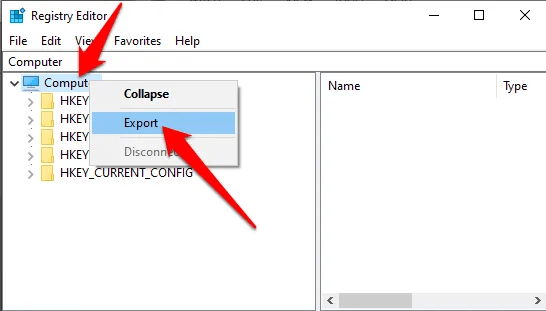
Step 5: Assign a name to the backup file and save it in system storage.
Best Registry cleaners for Windows 10 and Windows 11 for 2026
When the disputes with the registry entry cannot be rectified with the above-mentioned proceedings, it’s advisable to rely on some of the free or paid software for cleaning registry available on the web sources.
This page will brief you about the best registry editor software for Windows and their features.
1. CCleaner Professional
This the best solution that can be availed online for registry-related issues. This best registry cleaner is available as freeware with limited features and a paid version with all features. The application is capable of ensuring privacy and can increase the processing speed of the computer safely.
The free version of the software will offer privacy protection with application usage management. Whereas the paid version is equipped with a software updater, automatic update, and PC cleaning options. The free version of this tool is sufficient to clean the registry and other temporary entries.
Features
- Can provide faster computer
- Capable of protecting your
privacy - Active system monitoring
- Advanced registry cleaning
options
Pros
- Active support to resolve registry issues
- Capable of repairing registry files
- Increases the boot speed of your PC
- Can clear a lot of disk space
Cons
- Limited trial period
- Lack Of Customization features
Price:$29.95

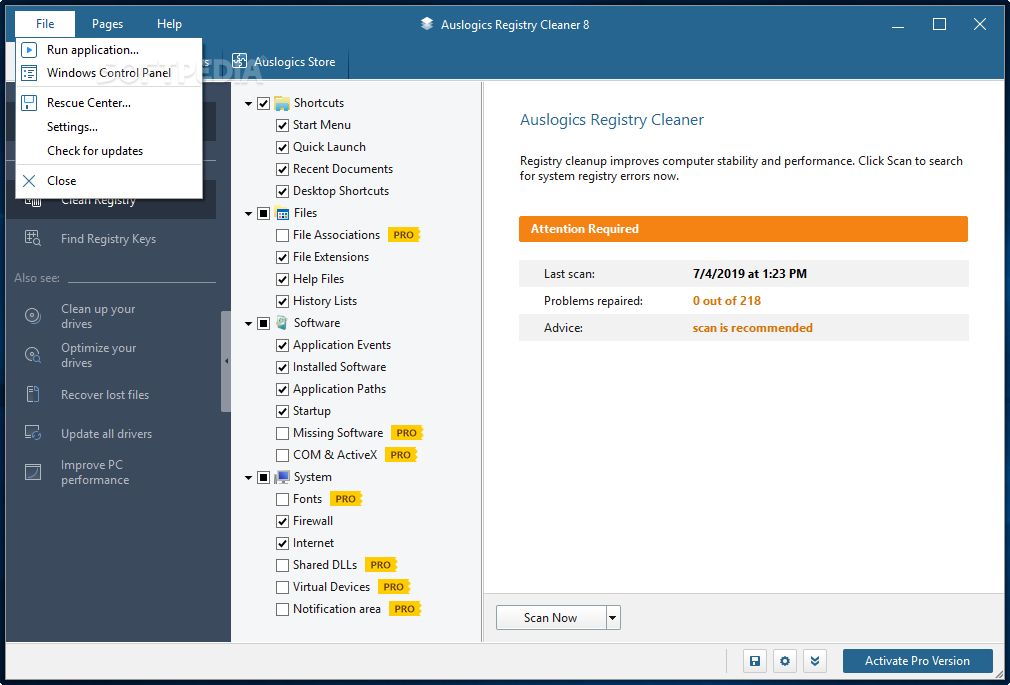
2. Auslogics Registry Cleaner
It is reliable registry cleaner software that can effectively optimize the registry for errors. To access the full version of the software with extended options downloading a paid pro version is mandatory. This software ensures registry security and cleans the unwanted residual files of the registry.
Also, the registry repair software can quarantine the registry errors and can solve the registry issues. You can also use this tool to speed up the boot process. Moreover, the performance of the system can be increased with periodical cleaning of residual and unwanted files.
Features
- Compatible with almost all
types of Windows OS - Capable of searching a variety
of registry issues - Can create groups with the
detected errors - Automatically creates backups
Pros
- Advanced scanning options
- Simple and easy-to-use interface
- Faster scans
- Advanced registry editor
Cons
- Poor tutorials and tips
- No multi-language support
Price: $29.95
3. Advanced PC Cleanup
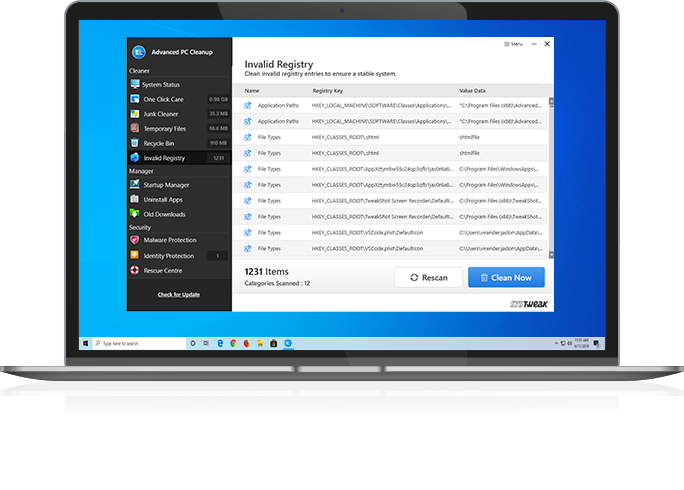
This desktop software is one of the best free registry cleaners for Windows that can be availed from any of the reliable online sources. This application can examine the status of the registry and optimize the same for any issues to offer a seamless user experience. When the registry scan is done, the registry repair software will provide a report with all errors encountered and their effects on system performance.
Features
- Ability to scan and repair all
registry entries - Can merge the fragmented files
of the registry - Creates backup before resolving
an issue - Better optimization capacity
Pros
- Ensures uninterrupted usage of
your PC - Reduce system errors
- Faster computer performance
- Clear up more space to store
registry files
Cons
- Expensive in comparison to other tools
- The free version can fix only 15 errors
Price: $47.14
4. Wise Registry Cleaner Pro
As the name suggests, this software is wise in its operation and clears and secures the registry effectively. This genuine registry cleaner for Windows 10/11 and earlier versions can be downloaded online for free. This is available as a standard free version and a paid pro version with additional features. Apart from scanning and cleaning the registry this efficient registry repair application can also create a backup of the registry and can restore the same.
Features
- Can be used to clear registries
of multiple users - Effective solves registry
issues - Ability to create restoration
points while fixing errors - Scheduled registry cleaning
Pros
- Cleans the system down to the
bottom - Secured cleaning functionality
- Variety of options and features
- Continuous customer support
Cons
- Can make an unwanted
change to your system setting - Requires frequent reboots
Price: $17.69

5. Iobit Advanced SystemCare 14 Pro
This advanced tool for PCs could be availed and used for cleaning unwanted junk files. Iobit software also assists in registry optimization. This app is capable of boosting the internet speed by clearing the temporary files along with other unwanted files. The computer system enabled with this genuine application will enjoy elevated performance speed with error-free operation.
Features
- Capable of scanning and cleaning junk files
- The turbo boost option can speed up your process
- Optimizes the system startup
- Secured operation
Pros
- Improved competitive features
- Low price
- Enhanced private data security
- Increases internet connectivity
speed
Cons
- The user has to enable some features manually
- Can slow down your PC
Price: Advanced System care: Free
Advanced System Care Pro: $16.77
![Advanced SystemCare Pro 14.02.171 Crack With License Key [Latest]](https://i1.wp.com/www.europe4health.com/wp-content/uploads/2019/06/Advanced-SystemCare-Pro-Key.png?fit=940%2C640&ssl=1&resize=1280%2C720)
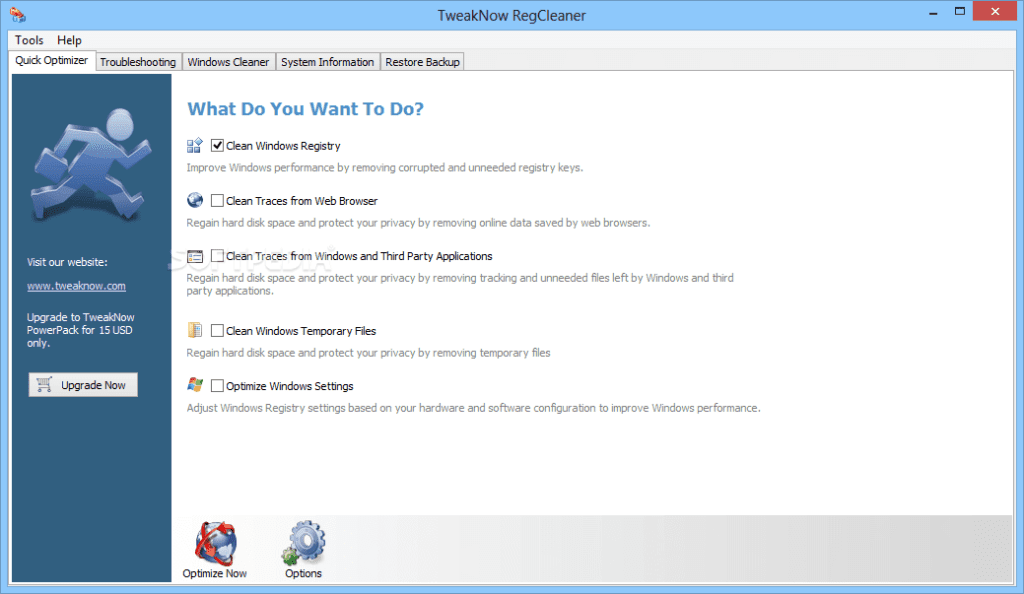
6. Tweek Now Reg Cleaner
This awesome software can clean and optimize the operating system. Users can scan the entire system or they can choose files and folders of their choice for cleaning. This software will eventually delete the unwanted junk files available in the physical memory of the computer. Also, a backup of registry files can be created for future restoration.
Features
- Ultimate ability to clear registry entries created by browsing
- Enhances the Windows performance
- Clear the unwanted temp files
- Formulate an ideal network setting
Pros
- Enhanced variety of modules
- Easy user-interface
- Can optimize your Windows
settings - Simple registry cleaning option
Cons
- Not suitable for all OS
versions - Presence of minor bugs
Price: $17.70
7. Glary Soft Registry Repair
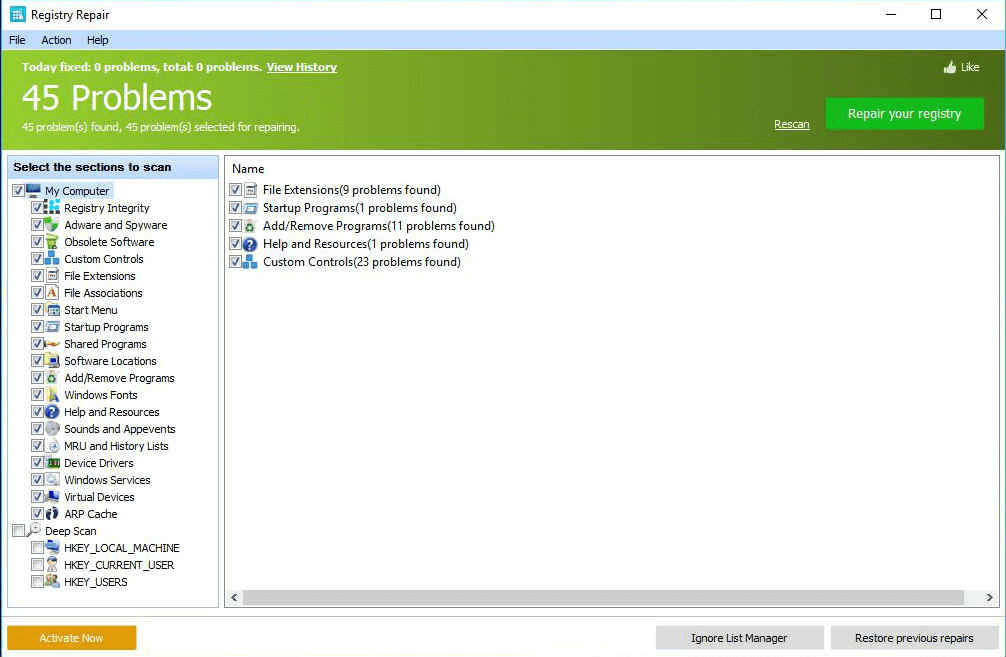
This free registry cleaner software is an efficient tool to enhance the performance of the system by removing unwanted file entries. This software can be assigned to operate automatically or can be accessed manually. Previous repairs and corrections made by the software can be reviewed by using the Action keys available in the main interface of the software.
Features
- Can identify invalid paths and files
- Removes Adware and spyware available in the registry
- Locates and removes dead file extensions
- Elaborate scan with the brief result
Pros
- Creates backup files automatically
- Detailed registry analysis
- Improves system stability
- Safe scanning engine
Cons
- Cannot improve network connectivity speed
- No unique futures are available
Price: Free
8. Argente Registry Cleaner
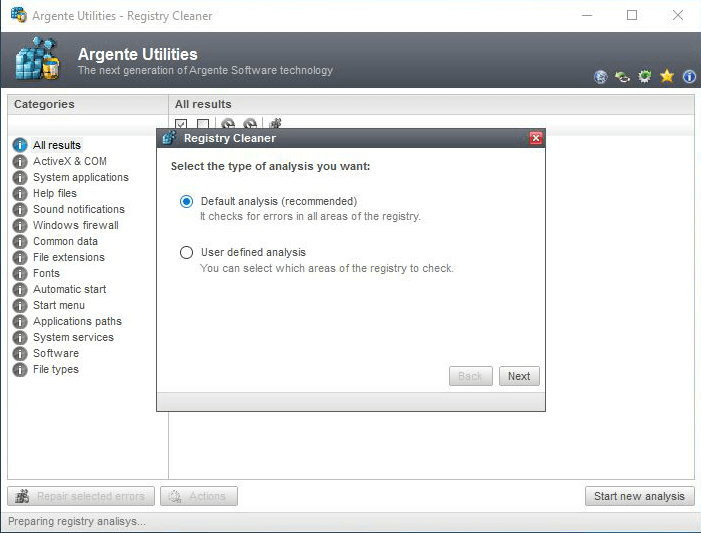
This free registry scanner is a competent tool used in resolving registry errors and discharging unwanted junk files from the system memory. Argente application is provided with a wizard-based user interface that enables users to perform registry scans manually and automatically.
Features
- Compatible with multiple
Windows OS - Ability to restore registry
files - Can elevate and maintain the performance
level of the system - Faster system repairs
Pros
- Extended dual analysis mode
- Can retrieve the lost data
- Automatic backup options
- Automatic maintenance mode
Cons
- Poor user-interface
- Don’t have a scheduled scanning option
Price: Free
9. JetClean
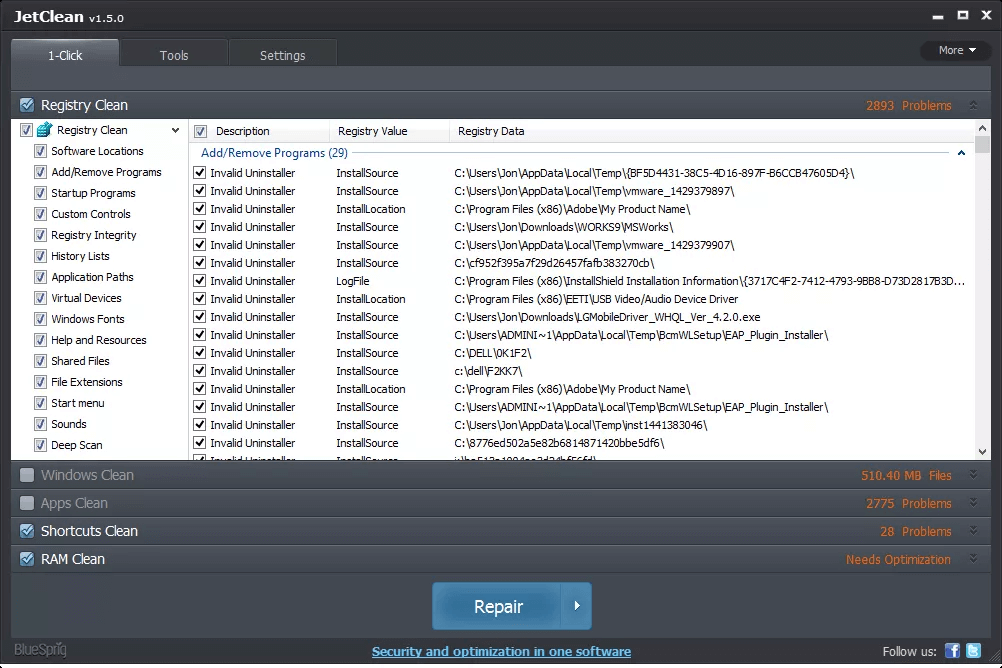
This register repair software offers a simple interface with scheduled scanning and automatic backup features. Jet Clean is the free registry cleaner for Windows 10/11 with one-click scanning capabilities. The application is available in 32-bit as well as 64-bit versions for various operating systems.
Features
- One-click operation
- Capable of cleaning Windows file
- Enhance the PC boot and program
startup speed - Terminates unwanted programs
Pros
- Available as a portable version
- Can identify registry issues
- Scheduled scanning
- Creates registry
backups
Cons
- Creates a toolbar along with the software
- More number of cookies
Price: JetClean is free to download
10. AML Registry Cleaner
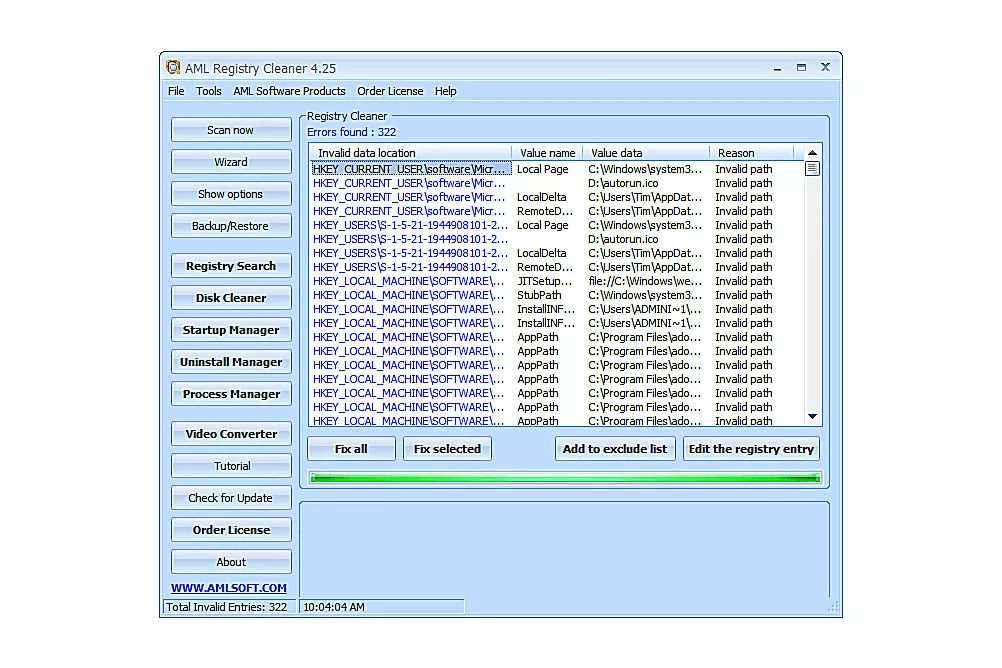
AML is a cost-free app for Windows 11/10 that can perform registry cleaning fast and smoothly. Apart from registry files other junk files can be identified and cleared by this application. Also, the scanning can be customized as per the user’s requirements.
Features
- Capable of monitoring the
startup programs - Extensive ability to locate and
remove junk files - Extendable file types
- Availability of free additional
tools
Pros
- Simple User-interface
- Inbuilt additional tools
- Can exclude files from registry
scan - Suitable for almost all Windows
OS
Cons
- Cannot create automatic backup
- Slower scanning options
Price: Free
Summing Up
Cleaning the registry is a necessary operation to be done to ensure the smooth operation of the operating system. When the junk file is accumulated in the system, it will reduce the speed of operations which can be avoided by clearing the registry periodically.
This page will provide the reader with an enhanced view of different means and methods to scan and clear unwanted registry entries. Different registry cleaner for Windows 11/10/8/7 versions is enumerated with necessary download links. Try any of these powerful tools to keep your system in good health.
FAQs:
Q: What does a registry cleaner do?
These tools scans the Windows registry for invalid, obsolete, or corrupt entries and fixes errors and clutter in the registry. This can help improve system performance and stability.
Q: How does a registry editor improve my PC?
By cleaning the registry, it removes dead entries that can slow down your system. It also fixes issues that can cause crashes or errors. Overall, using a registry cleaner regularly helps keep your PC running smoothly.
Q: What are the top free tools to clean registry in 2026?
Some of the top free tools are CCleaner, Auslogics, Advanced PC Cleanup, and more. These offer strong cleaning capabilities for the registry.
Q: How often should I clean the registry?
It’s generally recommended to clean the registry about once every 3-6 months for regular PC users. Gamers or those who install/uninstall programs frequently may need to clean it more often.
Also, those with older systems or fragmented hard drives may need more frequent registry cleaning to optimize performance. In addition, cleaning the registry before or after major operating system updates is recommended to deal with any registry errors the update may have created.
Author Bio:
Dinesh Lakhwani 

Dinesh Lakhwani, the entrepreneurial brain behind “TechCommuters,” achieved big things in the tech world. He started the company to make smart and user-friendly tech solutions. Thanks to his sharp thinking, focus on quality and the motto of never giving up, TechCommuters became a top player in the industry. His commitment to excellence has propelled the company to a leading position in the industry.
Popular Post











Recent Post

How to Switch Windows 10 to a Local Account: Complete Guide
Windows 10 allows users to sign in with either a Microsoft account or a local account. When you set up a new computer, the system often suggests using a Microsoft account. This account connects your device to Microsoft services such as Outlook, OneDrive, and the Microsoft Store. It also syncs settings, themes, and passwords across […]

How To Change Default Apps For File Types In Windows
Windows is designed to make using your computer easy. One way it does this is by assigning default apps to different file types. This means when you open a file, Windows automatically opens it with a specific program. For example, photos may open with Photos, music with Groove Music, and PDFs with Edge. These default […]

How To Adjust The Mouse Pointer Speed: Complete Guide
Using a computer every day means you use the mouse a lot. The mouse pointer moves on the screen and helps you click, scroll, and select items. Many people never think about the speed of the mouse pointer. They have used the default setting for years. This can cause small problems over time. A slow […]

How to Change Mouse Scrolling Settings In Windows
A mouse is one of the most used computer tools. People use it every day. They scroll through emails. They scroll through documents. They scroll through websites and images. The movement becomes automatic. Most users do not notice it. That is why problems often go unnoticed. Scrolling problems show up slowly. At first, it feels […]

Keyboard Light Settings: Keyboard Lighting Control [Complete Guide]
Keyboards are no longer simple typing tools. Well, yes! Over time, they have evolved to include features that improve comfort, visibility, and overall experience. One of the most useful features today is keyboard lighting. It helps users work comfortably in low-light conditions. It also reduces strain when typing for long hours. Many users first notice […]

Customizing Pointer Appearance: Complete Guide
The way your mouse pointer looks on your computer may seem like a small detail. But customizing pointer appearance can make using your PC more comfortable and visually appealing. Many users do not realize that they can change the pointer size, color, and style to fit their needs. Whether you want a bigger pointer for […]

How To Choose a Computer Monitor: Monitor Buying Guide
Buying a monitor looks easy. Many people think all screens are the same. That belief causes regret later. A monitor is not just a display. It is a daily tool. You read on it. You work on it. You relax with it. Small problems become big over time. Poor brightness hurts eyes. Bad size causes […]

How To Get Help With File Explorer in Windows 11 [Complete Guide]
File Explorer is one of the most important tools in Windows 11. It is used to open folders, view files, and manage stored data. Almost every action on a Windows computer depends on it in some way. When users open documents, save downloads, or organize photos, File Explorer is always involved. Because it is used […]

How To Fix A Frozen Computer: Complete Guide [Windows 11/10]
A frozen computer is one of the most common problems Windows users face. The screen stops responding. The mouse pointer does not move. Keyboard inputs do nothing. You may hear the fan running loudly. Sometimes the system looks alive, but nothing works. This situation often happens when you are busy or working on something important. […]

How to Upgrade Computer RAM: Complete Guide
Upgrading RAM is one of the simplest ways to improve a computer. It helps the system feel faster and smoother. Apps open quicker. Browsers handle more tabs. Games and tools run with less delay. Many users search for how to upgrade computer RAM because it gives real results without high cost. You do not need […]

