5 Best Duplicate Photos Finder & Remover for Windows 11/10 [2026]

Last updated on December 28th, 2025 at 2:19 am
After years of use, Windows often run out of storage space, and cause your computer to run slowly and perform sluggishly. Keeping this rigorous issue in mind, at Tech Commuters we regularly advise our readers to follow these few simple steps to speed up Windows to preserve the health of their computer. If you are facing the same issue, one of the main causes of your computer’s sluggishness can be duplicate and similar-looking photos. Over time, we tend to preserve copies of the pictures we take on vacation, at holidays, and events as backups.
This eventually leads to many duplicate images which takes up a significant amount of space on the computer. The performance of Windows is also impacted over time by these identical and similar-looking photographs. Hence, it becomes essential to keep your computer clutter-free. However, it’s super challenging to identify and manually remove duplicate images from your device, especially when there are numerous folders containing lookalike photos.
Thankfully, you don’t have to deal with the hassle of finding and deleting identical images from computers & mobile devices because there are dedicated software and applications designed specifically for de-duplicating your device. But with so many duplicate photo finder/cleaner tools available in the market, it could be hard to choose the ideal one for your device. To save you time and effort, we have listed down the top 5 duplicate photo detectors and removers for Windows 11/10 PC.
Issues Raised by Identical Pictures Storage space wasted Reduced system speed having trouble organizing files longer backup and transfer durations That’s why eliminating duplicate images offers the following advantages: Your hard drive or SSD will have more valuable disk space available. Makes it simpler to locate particular photos in your photo library. Enjoy quicker file searches and more responsive systems in general. Cuts down on backup duration and storage needs.
Important Qualities to Consider When Choosing the Best Duplicate Photo Finder Software:
Before investing your precious time and efforts, make sure the duplicate photo cleaner you use provides the following features:
- Fast processing and scanning.
- Capable of finding duplicates irrespective of metadata or file name.
- Sorting by file size, kind, or modification date is possible with customizable filters.
- The preview feature enables you to confirm before deleting.
- Provides Cross-Platform support between many gadgets.
- Backup options guarantee the secure recovery of files that have been inadvertently erased.
Top 5 Comparison Table:
These tools continue to stand out because they scan large folders quickly and help you clear storage without much effort. Each one handles image matching in its own way, so this table gives a direct view of their strengths.
| Tool | Scan Accuracy | Speed | Extra Features | Best For |
| Awesome Duplicate Photo Finder | Strong visual comparison for similar shots | Fast | Folder-based scanning | Users who want a light and simple tool |
| Duplicate Photos Fixer Pro | Very accurate matching | Very fast | Auto-selection and smart grouping | Users who want a quick cleanup with guidance |
| dupeGuru | Reliable matching with clear results | Moderate | Custom filters and modes | Users who like control over scan details |
| Duplicate Cleaner Pro | High precision on large collections | Fast | Advanced rules and deep search | Users who need full management tools |
| VisiPics | Good similarity detection | Moderate | Adjustable strictness levels | Users who want flexible comparison settings |
Must-Have Windows’ Top Duplicate Photo Remover Tools
1. Awesome Duplicate Photo Finder
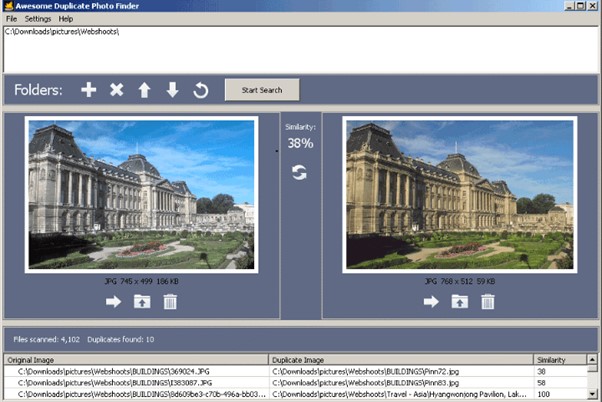
It is a free, lightweight and portable app that makes it simple for users to find and remove duplicate images, no matter on which drive they are stored. Both novices and experts will find it easy to use, thanks to its straightforward and clear interface. Listed below are its set of functionalities:
Price: Free
FEATURES:
- Drag-and-drop functionality, making it straightforward to use for selecting multiple folders.
- Holds the potential to identify duplicate photos based on visual content & not just filename.
- Accurately shows how similar the two photos are to one another.
- Preview files before deleting anything, ensuring no important photo gets deleted by mistake.
- Once duplicates are found, it shows options for manual removal (transfer to Recycle Bin or another folder)
PROS:
- Quick scanning speed.
- Multiple image formats (JPG, BMP, GIF, PNG, and TIFF) are supported.
- Spyware and adware are not included.
- Useable on SD cards and external disks, the portable edition.
CONS:
- Cannot integrate with cloud storage.
- Basic user interface design.
- No in-app backup option.
How to use Awesome Duplicate Photo Finder?
STEP 1: Install the software on your computer after downloading it from its official website.
STEP 2: Launch the application & you can either manually pick folders using the “Add” button or drag and drop photo-containing folders which you would like to scan or duplicate.
STEP 3: To start looking for duplicates, click the “Start Search” button.
STEP 4: After the scan is finished, go over the duplicates that were found in the results section.
STEP 5: To determine which photos to keep or remove, use the preview option to compare them side by side.
STEP 6: Select duplicates and delete them by moving them directly to the Recycle Bin or a different folder.
| Recent Updates added to the Software: It can locate duplicate photo files on a network (NAS) and removable drives. Now supports CR2 (Canon RAW) file images as well. Added a few style changes to improve the UI. |
| Reviews from: Softonic: 3.7 Stars Softpedia: 4 Stars |
2. Duplicate Photos Fixer Pro
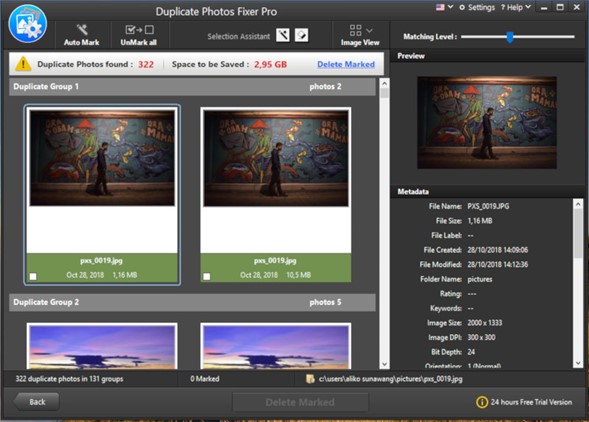
Duplicate Photos Fixer Pro is a robust duplicate photo remover tool that assists users in quickly locating and eliminating duplicate images from their computers and Android devices. All thanks to this tool’s sophisticated algorithms and intuitive UI, you can easily de-duplicate your photo collection and reclaim an enormous amount of storage space in no time.
Price: $39.95 (one-time purchase)
FEATURES:
- An easy-to-use UI makes it simple to use and navigate.
- Lets users change the criteria and scan settings to ensure accurate identification of duplicates.
- Allows users to delete duplicate photos in batches.
- Let users preview the found duplicate and similar-looking picture before removing it.
- Automatic selection options based on user-defined criteria.
PROS:
- Supports cloud-based storage like Google Drive.
- The auto-mark feature saves time.
- Provides detailed reports on duplicate findings.
- Regular updates ensure compatibility with new file formats.
CONS:
- Features in the free version are restricted.
- With vast photo collections, it might not work well.
- Not compatible with RAW image files.
How to use Duplicate Photos Fixer Pro?
STEP 1: Install Duplicate Photos Fixer Pro on your device by downloading it from its website.
STEP 2: When the installation is finished, launch the software & select the directory of images you wish to have scanned for duplicates by clicking on “Add Folder”.
STEP 3: If required, change parameters like file types and similarity levels. Once satisfied, hit the “Scan Now” to begin the search for duplicates.
STEP 4: Preview the outcomes shown in clusters of duplicates discovered throughout the scan.
STEP 5: Click “Delete” or “Move” depending on whether you want to eliminate duplicates.
| Recent Updates added to the Software: High accuracy with a more enhanced AI-powered scanning engine. Improved ability to filter images based on their similarity. Minor bug fixes and improvements. |
| Reviews from: Softonic: 4 Stars Softpedia: 4 Stars |
3. dupeGuru
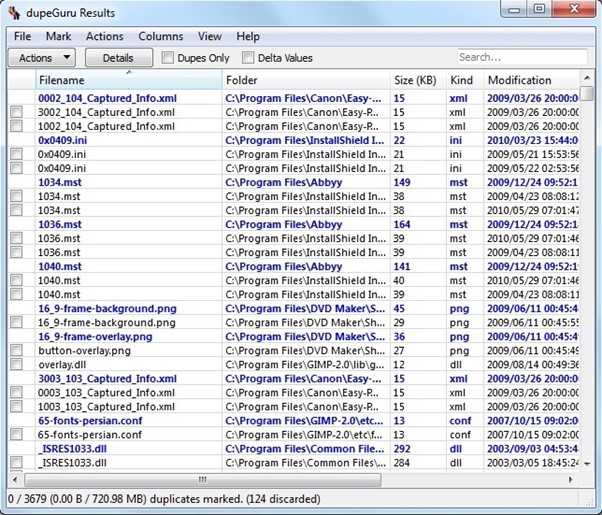
dupeGuru is an open-source, cross-platform duplicate photo cleaner, known for its adaptability for all types of Windows, Mac and Linux users. It is a fantastic all-in-one solution that supports the ability to find and delete duplicate text files, music, and photos in a few clicks. With its advanced algorithms and customizable settings, this duplicate photo finder tool makes it easy to declutter your file collection.
Price: Free
FEATURES:
- An all-purpose tool for locating duplicate files
- Supports several picture formats, to ensure your storage space remains duplicate-free.
- Adaptable scanning choices to accurately detect and delete different types of formats, file sizes, and photos with similar visual content.
- Shows in-depth comparison of found duplicates, so that you can ensure which one to delete.
- Helps users to find and remove duplicate files in batches.
- Before erasing files, users can preview them using the preview feature.
PROS:
- Robust community support for upgrades and troubleshooting.
- It is a lightweight duplicate cleaning app and uses little system resources.
- The scanning process is fast and precise.
- Free and open-source duplicate photo cleaner.
CONS:
- The higher learning curve for novices
How to use dupeGuru?
STEP 1: Download the version that corresponds to your operating system by going to the official website.
STEP 2: Install software according to the guidelines provided by your operating system (Windows, Mac, or Linux).
STEP 3: When the installation is finished, launch the application & select the Scan Type – Depending on your needs, choose “Picture Mode” or another mode (like Music Mode).
STEP 4: To add folders you wish to have scanned for duplicates, click “Add.”
STEP 5: To start the duplicate search procedure across the chosen directories, click “Scan.” Once the scanning process is complete, preview any duplicates found in groups and start deleting.
| Recent Updates added to the Software: Recent updates address issue #1015, which may cause non-duplicate files to be identified as duplicates when the normal content mode scan is used. The “Folders” scan type was added. A few crashes have been fixed. “PermissionError” when saving results has been fixed. Block-matching algorithms are better at catching memory errors. The ‘Reset’ attribute is absent from the ‘ComboboxModel’ object. [Windows, Linux] |
| Reviews from: Softonic: 3.5 Stars Softpedia: 3.4 Stars |
4. Duplicate Cleaner Pro
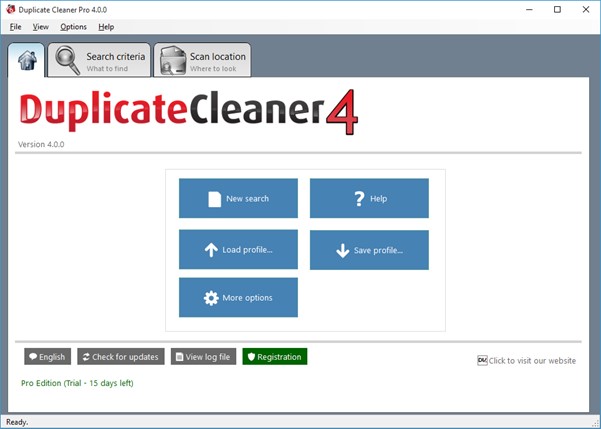
Talking about the best duplicate snap finder and remover and not including Duplicate Cleaner Pro is certainly not possible. It’s a highly effective tool designed to detect all types of duplicates including documents, and music files in addition to images. Both novice users and experts handling huge datasets can benefit from its powerful capabilities.
Price: $39.95 (one-time purchase)
FEATURES:
- Sophisticated scanning algorithms that use text analysis to find identical and related files.
- Search parameters that can be changed (file type, size, date modified).
- The ability to process data in batches for effective file management operations.
- Solid ability to search local storage, external devices, and network drives.
- Options for automatically choosing files according to rules that the user has specified.
- Detailed reporting gives information about storage savings from removals.
PROS:
- Incredibly good at identifying visually similar photos as well as exact matches.
- Frequent upgrades improve functionality and stay current with newly released file formats and types.
- When working with huge photo/file libraries, batch processing significantly reduces processing time.
- Excellent customer service is accessible via forums.
CONS:
- Limited capability in the trial edition.
- Because there are so many customization choices available, initial setup can be challenging.
- When scanning extremely big directories, performance may drastically deteriorate.
- It might not always correctly identify significantly altered photos as duplicates.
- Under specific circumstances, some users experience sporadic crashes during scans.
How to use Duplicate Cleaner Pro?
STEP 1: Download and install Duplicate Cleaner Pro on your Windows computer by going to their official website.
STEP 2: Launch the application and choose Scan Type, for identifying duplicate photos, select “Images.”
STEP 3: Add Folders for Scanning & select folders with images that require inspection by clicking the “Add Folder” button.
STEP 4: Before continuing, modify preferences such as the minimum size/type criterion.
STEP 5: Wait for the program’s complete analysis of the chosen directories. At this step, now preview the results in an organized format and choose which ones to move or delete as needed.
| Recent Updates added to the Software: Comprehensive reporting options that display duplicates identified in an organized way have been enhanced now. Easy-to-use navigation features are improved, making the entire interface appealing. Fix: A white backdrop was produced by turning off row shading in dark mode. Fix: Files that have already been dumped are displayed again when they are directly deleted from the list. |
| Reviews from: Softonic: 3.7 Stars Sotpedia: 3 Stars |
5. VisiPics
VisiPics is a solid duplicate photo finder and remover for Windows 11/10 PC and is dedicatedly designed to assist users to eliminate all types of duplicate images and reclaim a significant amount of storage space in one go. Decluttering your photo collection is made simple with this tool’s sophisticated algorithms and adjustable settings, ensuring accurate detection.
Price: Free
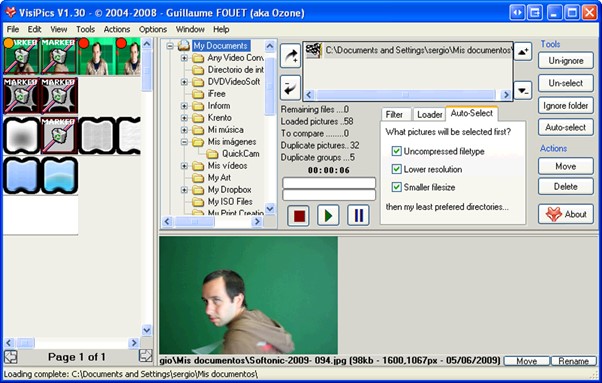
FEATURES:
- Look for duplicate photographs on your computer quickly.
- To guarantee accurate findings, sophisticated algorithms are used.
- Supports Three modes: Strict, Basic, and Loose matching.
- Allows duplicate photos to be deleted in batches.
- Lets users see a picture before removing it.
- Several photo formats are supported.
PROS:
- Quick and precise duplicate photo scanning experience.
- Completely free to use.
- Lightweight and fast.
- Enables users to alter the criteria and scan settings.
CONS:
- Limited to photo duplicates only.
- No cloud or external storage integration.
- Doesn’t receive regular updates.
How to use VisiPics?
STEP 1: Install VisiPics on your device by downloading it from the official website.
STEP 2: After the installation is successful, open the application.
STEP 3: Drag the folders into the program window or click the “Add Folder” button to choose which folders to scan.
STEP 4: Before starting the scan process, which is started by clicking the Start button, set the similarity levels to your preferences.
STEP 5: Keep patience and let the program’s comprehensive analysis of a few chosen directories be shown by the degree of similarity found during the scanning.
| Recent Updates added to the Software: Now supports more languages, including French, German, Chinese, Polish, etc.Added a unique visual comparison feature to ensure accurate results. |
| Reviews from: Softonic: 4.2 Stars Softpedia: 3 Stars |
Conclusion
Removing duplicate images helps your system stay organized and prevents wasted storage. These five tools offer dependable scanning methods that highlight both exact matches and similar photos. They are useful for photographers, content creators, and regular users who want a cleaner library.
Some people need a simple program, while others prefer detailed filters and advanced control. With the right tool, the whole process becomes smooth and predictable. Once you clear unwanted copies, your folders load faster, and your photo collection becomes easier to handle.
FAQs:
1. Can these tools delete files automatically
Most of them include auto-select features, but they still let you review the results before removing anything. This gives you control and protects important images from accidental deletion.
2. Do these tools work with external drives
Yes. They can scan external drives, memory cards, and network folders as long as your system can access the location. The scan may take longer if the drive is slow.
3. Will the tools change the quality of my photos
No. They only identify or remove duplicates. They do not edit the images in any way, so your original quality stays the same.
FLUQ:
1. What if the tool marks important photos as duplicates
This is a quiet concern for many users. Most tools show a clear preview so you can check each pair before deleting anything. Manual review helps you avoid mistakes and gives you confidence while cleaning large folders.
2. Will scanning a huge collection slow down my PC
Large scans may take time, but they do not harm system performance. These programs use safe methods that rely on file comparison, and they free up resources once the scan finishes.
3. What if two photos look similar, but I want to keep both
You are free to keep any images you value. The software only highlights possible duplicates. You can uncheck specific files and keep both versions without affecting the rest of the results.
NEXT READ:
Author Bio:
Dinesh Lakhwani 

Dinesh Lakhwani, the entrepreneurial brain behind “TechCommuters,” achieved big things in the tech world. He started the company to make smart and user-friendly tech solutions. Thanks to his sharp thinking, focus on quality and the motto of never giving up, TechCommuters became a top player in the industry. His commitment to excellence has propelled the company to a leading position in the industry.
Popular Post











Recent Post

How To Change Default Apps For File Types In Windows
Windows is designed to make using your computer easy. One way it does this is by assigning default apps to different file types. This means when you open a file, Windows automatically opens it with a specific program. For example, photos may open with Photos, music with Groove Music, and PDFs with Edge. These default […]

How To Adjust The Mouse Pointer Speed: Complete Guide
Using a computer every day means you use the mouse a lot. The mouse pointer moves on the screen and helps you click, scroll, and select items. Many people never think about the speed of the mouse pointer. They have used the default setting for years. This can cause small problems over time. A slow […]

How to Change Mouse Scrolling Settings In Windows
A mouse is one of the most used computer tools. People use it every day. They scroll through emails. They scroll through documents. They scroll through websites and images. The movement becomes automatic. Most users do not notice it. That is why problems often go unnoticed. Scrolling problems show up slowly. At first, it feels […]

Keyboard Light Settings: Keyboard Lighting Control [Complete Guide]
Keyboards are no longer simple typing tools. Well, yes! Over time, they have evolved to include features that improve comfort, visibility, and overall experience. One of the most useful features today is keyboard lighting. It helps users work comfortably in low-light conditions. It also reduces strain when typing for long hours. Many users first notice […]

Customizing Pointer Appearance: Complete Guide
The way your mouse pointer looks on your computer may seem like a small detail. But customizing pointer appearance can make using your PC more comfortable and visually appealing. Many users do not realize that they can change the pointer size, color, and style to fit their needs. Whether you want a bigger pointer for […]

How To Choose a Computer Monitor: Monitor Buying Guide
Buying a monitor looks easy. Many people think all screens are the same. That belief causes regret later. A monitor is not just a display. It is a daily tool. You read on it. You work on it. You relax with it. Small problems become big over time. Poor brightness hurts eyes. Bad size causes […]

How To Get Help With File Explorer in Windows 11 [Complete Guide]
File Explorer is one of the most important tools in Windows 11. It is used to open folders, view files, and manage stored data. Almost every action on a Windows computer depends on it in some way. When users open documents, save downloads, or organize photos, File Explorer is always involved. Because it is used […]

How To Fix A Frozen Computer: Complete Guide [Windows 11/10]
A frozen computer is one of the most common problems Windows users face. The screen stops responding. The mouse pointer does not move. Keyboard inputs do nothing. You may hear the fan running loudly. Sometimes the system looks alive, but nothing works. This situation often happens when you are busy or working on something important. […]

How to Upgrade Computer RAM: Complete Guide
Upgrading RAM is one of the simplest ways to improve a computer. It helps the system feel faster and smoother. Apps open quicker. Browsers handle more tabs. Games and tools run with less delay. Many users search for how to upgrade computer RAM because it gives real results without high cost. You do not need […]

How To Clean Your Computer Keyboard: Complete Guide
A computer keyboard is touched more than almost any other device you own. It is used during work, study, gaming, and casual browsing. Fingers carry natural oils, sweat, and dirt. Small food crumbs fall between keys without notice. Dust settles each day slowly. Over time, this creates a hidden layer of grime. Many users do […]

