












Read my honest Wise Duplicate Finder review. See features, pricing, pros and cons, and real PC test results. Find out if this free duplicate cleaner can free up your Windows storage.
Tenorshare ReiBoot Review – Fix iPhone Stuck In Loop, Apple Logo & Other Issues
Over the years, Apple devices like iPhone, iPad, & iPod Touch have acquired a large market share. Yet they are prone to a lot of problems like the device gets stuck at recovery mode or it does not go beyond the Apple logo.
When this happens, the device becomes unusable and things get complicated. If you are facing the same problem as others, there’s good news. You can fix it with Tenorshare ReiBoot and get your iPhone, iPad working.
But what is Tenorshare ReiBoot & how does it work?
To get an answer and know more about this amazing tool read the post till the end. In this write-up, we will share a comprehensive review of Tenorshare ReiBoot.
What is Tenorshare ReiBoot?
Trusted by more than a million users, Tenorshare ReiBoot is a reliable repair tool for iOS devices, that helps fix problems related to iPhone and iPad. Using this professional tool users can easily enter and exit recovery mode, thereby fixing iOS related issues like frozen screen, black screen of death, and more. Also, it can be used to downgrade to an older version of iPhone/iPad without iTunes.
In addition to this, the software can run on both Mac and Windows and takes only a few seconds to install. To fix iPhone/iPad related issues all you need to do is connect the device, run the program and click the Fix Now button.
| Advantages | Disadvantages |
| Easy to use interactive interface | Pro version is required to fix major iOS issues |
| In a single-click enter and exit Recovery mode | |
| Restore iPhone/iPad without iTunes in a one-click | |
| Helps fix the stubborn iOS related issues | |
| During the recovery process, users do not face data loss | |
Price: $35.95 Windows/macOS
Highlights
- Works on iOS 14
- Helps recover iPhone
from booting failure, Blue Screen, Boot Loop, etc - Exit and enter
Recovery mode/DFU mode. - Repair iOS System
- Fix iTunes Error
3419,3014,4013, etc.
Why Use Tenorshare ReiBoot?
According to me, here are some reasons why we suggest using ReiBoot:
Effectiveness –
When it comes to user-friendliness this tool is the best. I did not find any problem using it also it just took a few clicks to get the software installed and running. Moreover, the home screen has all the options listed nicely, this makes using the tool easy.
Ease of Use
With an intuitive interface Tenorshare ReiBoot comes in easy for both beginner and advanced users. To use it no technical assistance is required. Furthermore, the tool automatically detects connected devices and highlights the recovery options.
Price

When compared with other iOS recovery tools, Tenorshare is cheap and pocket friendly. Please check the pricing below to confirm the same:
Support
When reviewing a tool, one thing that we keep in mind is to check for the support they offer. When contacting them at first it took time, but the answers were very prompt. So, I can say if you have a bit of patience you will get answers to all your queries.
Is there a free version available for Tenorshare ReiBoot?
Yes, there is one, and using it you can put your iPhone into and out of Recover mode, but it has some limitations. Therefore, if you are facing some serious issues or want a version that works without any limit go with the paid version.
Difference between Paid and Free Version
| Free Version | Paid Version |
| Exit from Recovery Mode (5 times) | No limitation on entering and exiting Recovery Mode |
| Enter Recovery Mode without any limit | Fix stuck on Apple logo problem |
| Fix iTunes Restore/Update errors | |
| Resolve Black & Frozen screen issues | |
| Troubleshoot iPhone boot loop, stuck on loading | |
| Factory Reset without iTunes | |
| Downgrade without losing data |
How to enter and exit recovery mode using Tenorshare ReiBoot (Free Version)
Tenorshare, the company understands before paying users, wants to try the tool. Hence, keeping this in mind they offer a free version that allows entering and exiting Recovery Mode. To use it follow the steps below:
- Download, install and run the free version of Tenorshare ReiBoot
- Connect your iPhone to the PC using a USB
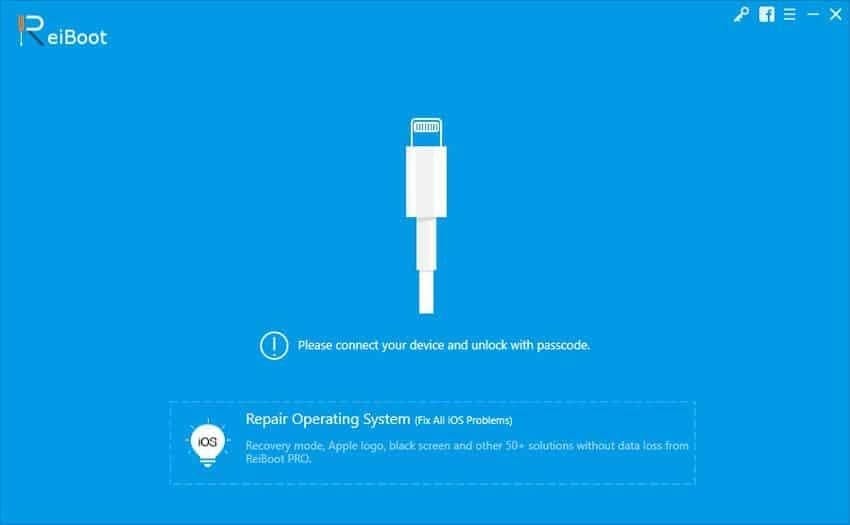
3. To enter Recovery mode, select the first option
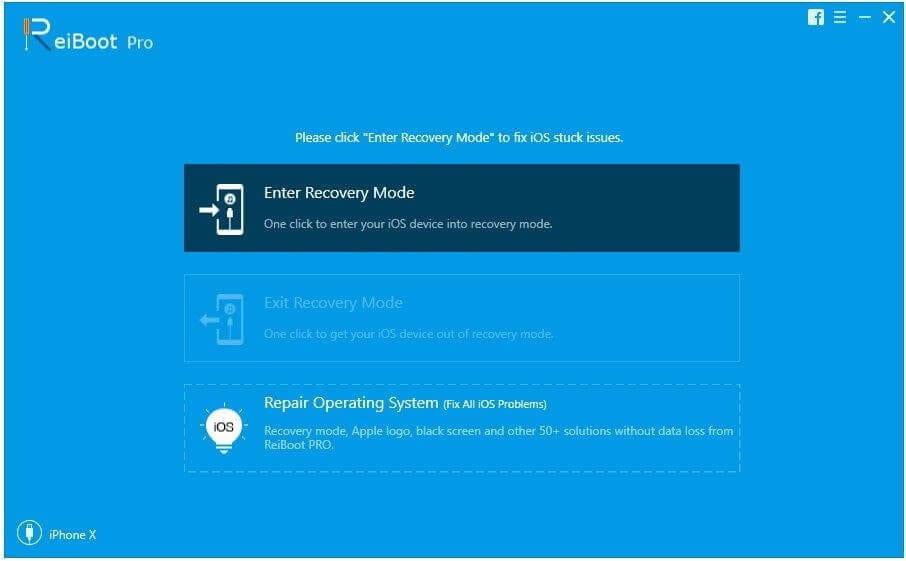
4. Doing so will boot your iPhone into Recovery Mode and you will now see Apple Logo on the screen
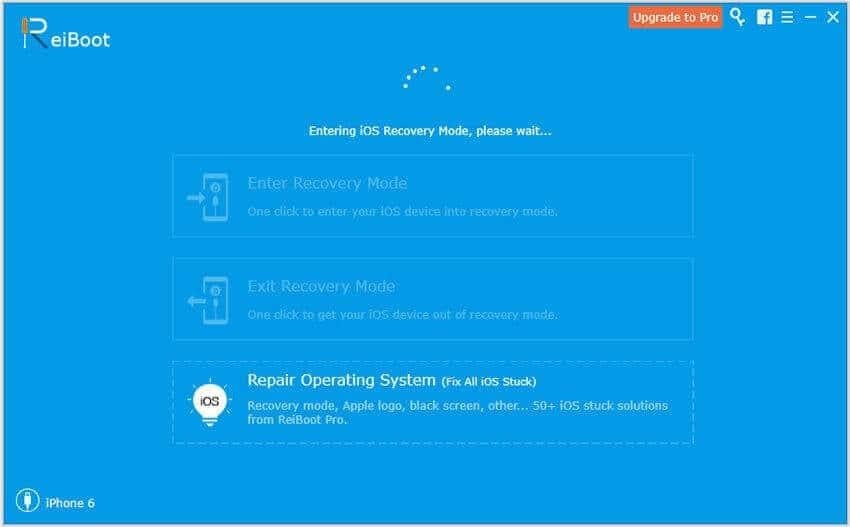
This is using these simple steps you can make your iPhone boot into Recovery Mode.
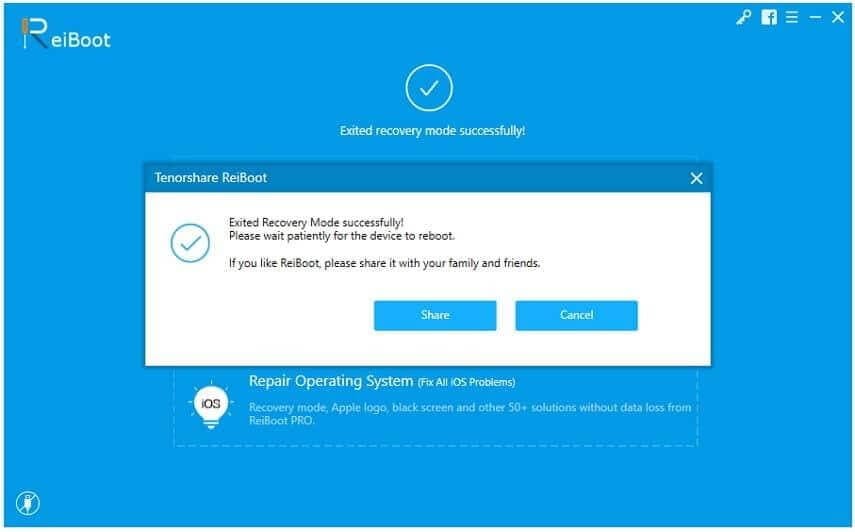
In addition to this, if your phone is already in Recovery Mode then too you can use the trial version of ReiBoot. To exit recovery mode, follow the steps below:
Steps to exit Recovery Mode
- Connect the iPhone
that is already in Recovery Mode with the PC/Mac and let ReiBoot detect it.
2. Once detected, you will see the Exit Recovery Mode option highlighted. Click it.
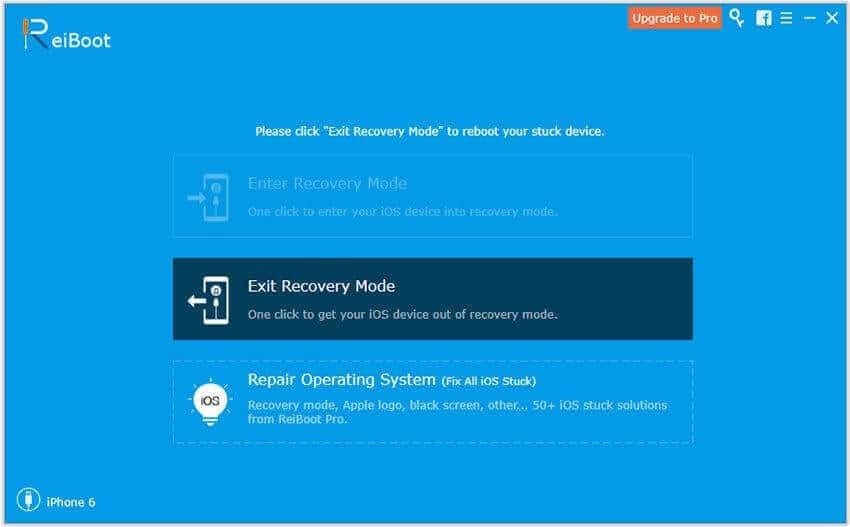
3. Wait for the process to finish, once done your iPhone will be reset to default state. This means you will now be out of Recovery Mode.
How to fix iPhone/iPad related issues using Tenorshare ReiBoot (Pro Version)
As discussed Tenorshare ReiBoot is specifically designed to fix iOS bugs, this means once you have the tool you can troubleshoot all the problems.
To use this excellent tool, follow the steps below:
- Download, install and run
Tenorshare ReiBoot on your PC /Mac.
2. Connect your iPhone to the PC > Start
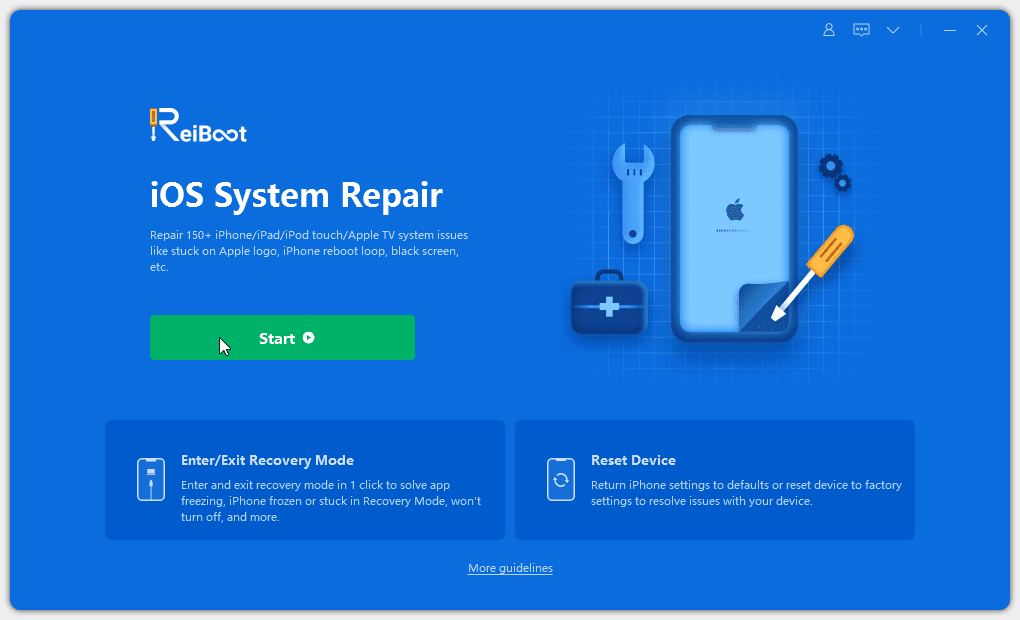
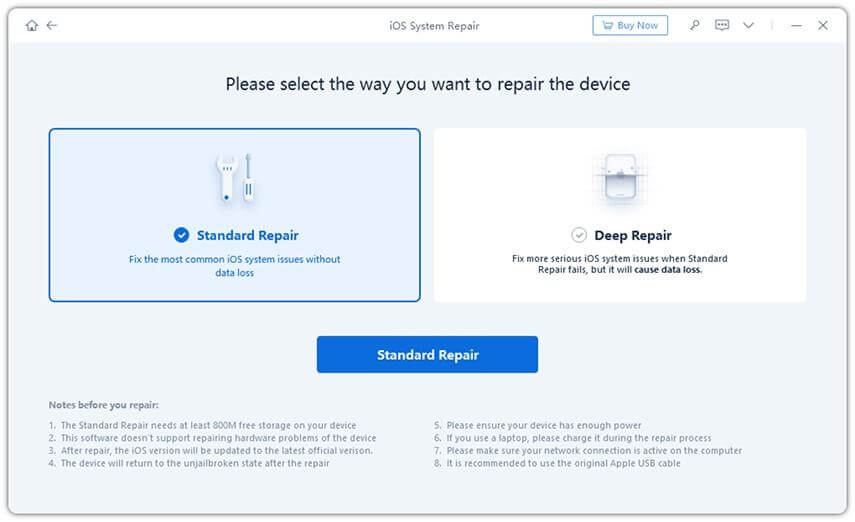
3. You will now get two options, using which you can repair the iPhone. Click Standard Repair to start the iOS recovery process.
Note: Deep Repair should only be used when you are facing serious problems and Standard Repair fails, because using this thorough repair mode can cause data loss.
4. Click the Download button to get the firmware package
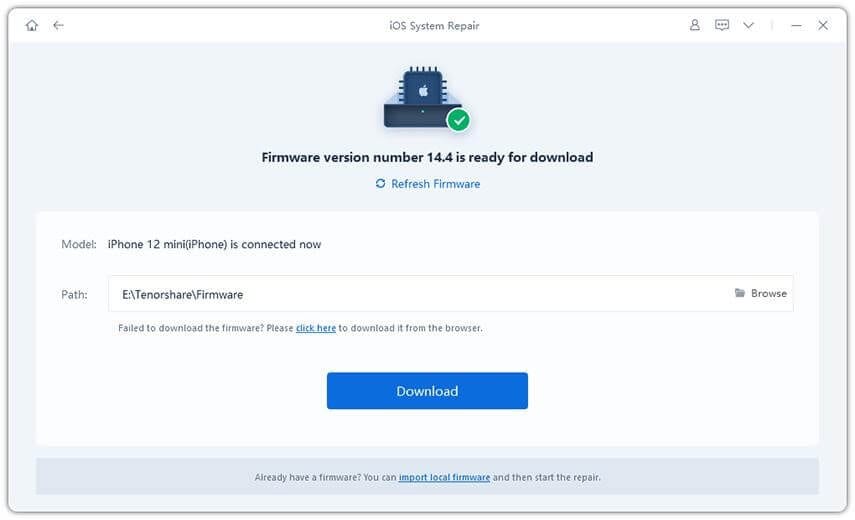
5. Once the process is completed, click Start Standard Repair and wait for the process to finish.
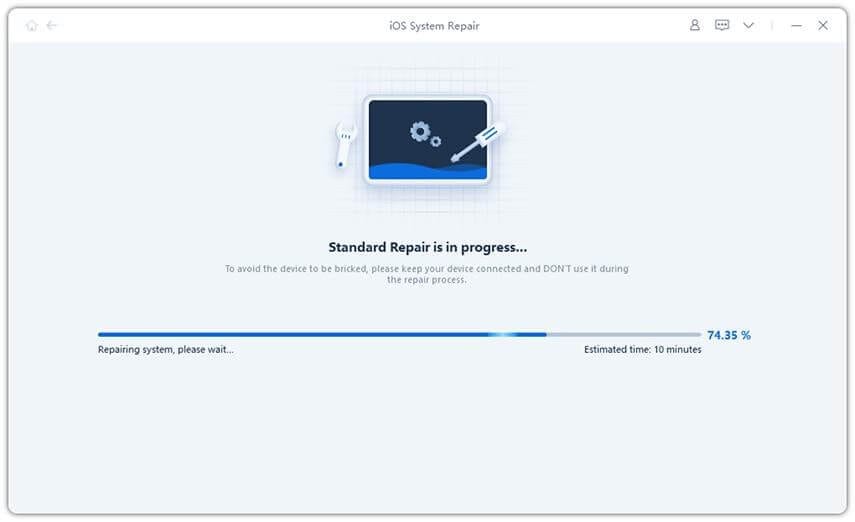
6. Now try to use your iPhone, you should not face any problems.
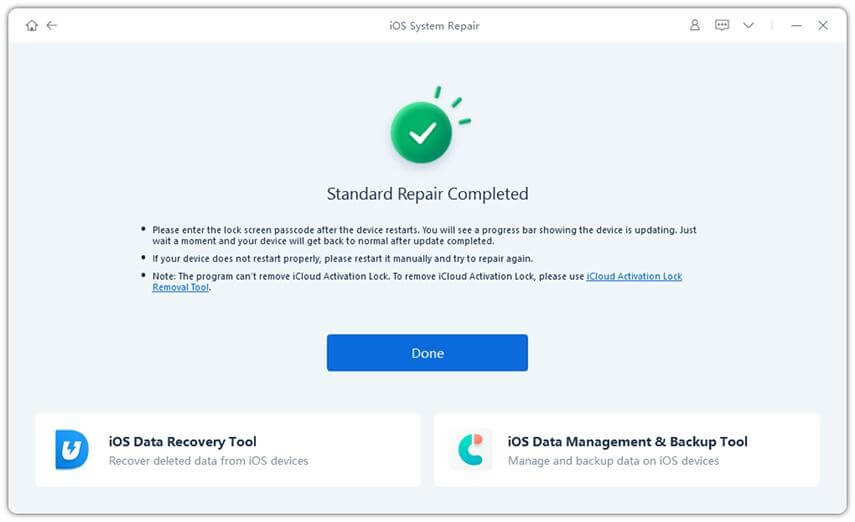
7. Once this is done, restart the device and use it without any problems.
FAQs
Is Tenorshare ReiBoot safe to use?
The priority of Tenorshare ReiBoot is to cause no harm to user’s data; therefore, they offer Standard Recovery mode. In a nutshell, the tool is 100% secure, and you can trust it for data security and safety.
Do we have to pay to use ReiBoot by Tenorshare?
Tenorshare ReiBoot offers both free and pro versions. While the free version allows entering and exiting recovery mode for limited sessions, the pro version is unlimited. Also, using it you can recover iPhone and fix complex issues.
Is ReiBoot legit?
The answer is yes. ReiBoot is malware-free and 100% safe to use with your iOS devices.
Wrap Up
This is it. Now, without any issues or problems, you can easily fix all iPhone/iPad related problems using Tenorshare ReiBoot. Also, this amazing recovery tool without making you lose any data helps enter and exit recovery mode.
Tenorshare ReiBoot Review – Fix iPhone Stuck In Loop, Apple Logo & Other Issues We hope you will give it a try. Do share your feedback about the same.
Author Bio:
Dinesh Lakhwani 

Dinesh Lakhwani, the entrepreneurial brain behind “TechCommuters,” achieved big things in the tech world. He started the company to make smart and user-friendly tech solutions. Thanks to his sharp thinking, focus on quality and the motto of never giving up, TechCommuters became a top player in the industry. His commitment to excellence has propelled the company to a leading position in the industry.
Popular Post
Recent Post

How to Recover Deleted Files from Pen drive, USB Drive, SD Card
Introduction: On tech forums, you’ll often see posts like this: “I connected my pen drive to my laptop this morning, but the folder was empty. All my college project files had vanished. I don’t have a backup. Can someone help me?” Stories like this are very common. Pen drives, USB drives and SD cards are […]

How To Recover Files Deleted from the Recycle Bin [Windows 11]
Losing a file can happen in seconds. You clear your desktop, hit Delete, and empty the Recycle Bin. Then, just when you need that file again, it seems to have vanished. This guide will walk you through ways to restore files removed from the Recycle Bin. We will begin with simple fixes, then look at […]

Disk Drill Data Recovery Tool Explained: Full Review and Guide
It happens in a split second. You delete a folder by mistake. Your drive stops showing up. A photo album from your last trip just vanishes. And your stomach drops. Lost files feel personal. They are not just data. They are memories, work hours, and sometimes years of effort packed into a few gigabytes. When […]

Recover Deleted Files In Windows 11 With Software & Without
Introduction What is the first thing that goes through your mind the second an important file vanishes from a Windows 11 PC? For most people, it is a mix of panic and disbelief, followed by a frantic click through every folder that file could possibly be hiding in. It happens in a split second: one […]

EaseUS Data Recovery Wizard: Everything To Know
Data loss does not always come from a big disaster either. Most cases start small and boring. A drive gets formatted by mistake. A laptop freezes mid-save and restarts on its own. A memory card stops showing up after being pulled out too fast. None of these feel like emergencies at first, until you realize […]

Recuva Data Recovery Tool: Is it Actually Worth it?
When I first tried Recuva Data Recovery, I wanted to see if it could really bring back lost files. The tool is free, small in size, and promises quick recovery, which made me curious enough to test it on my own PC. The setup was fast, and the wizard guided me step by step. I […]

GetData Recover My Files Data Recovery Tool: Honest Review
A hard drive error brings a special kind of silence. Well, yes! The screen freezes, then a message appears saying the drive can’t be found or must be formatted. In that moment, years of photos and work files feel at risk. It never happens at a good time. Coffee spills near a laptop, a memory […]

Windows File Recovery: A Complete Review [Tried & Tested]
Imagine this. You spend hours perfecting a video project. You hit save. Then your laptop freezes, reboots, and when the screen comes back. The file is gone. Your stomach sinks. It’s not just you. Lost files happen all the time. A dropped hard drive, a bad update, an accidental delete, or a corrupted partition can […]

5 Best Data Recovery Software For Windows 11 and Windows 10
Introduction: A crashed drive can ruin a whole day. One minute your photos, work files, and tax records sit safe on your PC. The next minute they are gone. A power cut, a bad update, or one wrong click can wipe out years of memories and months of work in seconds. That sinking feeling is […]

