












A slow computer makes it hard to focus. Programs take too long to open. Free space keeps shrinking until the disk is almost full. This happens to most PC owners at some point. Even new machines can slow down after a while. That is the exact problem cleanup tools are built to solve. They comb […]
10 Cool Streaming Apps for YouTube To Go Live
Whether you wish to perform live music concerts, interact with your audience, or share breaking news, YouTube can help you with everything. You just need to activate live streaming on your YouTube channel, and you are ready to go live. However, to stream live on YouTube, you also need a streaming app that can help you chat, collect payments, and make your videos interactive. There are many streaming apps for YouTube available, but the best ten are shared ahead.
10 Best Streaming Apps for YouTube That You Can’t Avoid
To make YouTube live streaming a smooth process, we have downloaded various Android, iOS, and Windows apps. And tested them under different pressure points before finding the ten best streaming apps for YouTube:
1. YouTube Studio
Play Store Rating – 4.4/5
App Store Rating – 4.6/5
User’s Age – 13+
Compatibility – Android, iOS, Mac, and Windows
Price – Free
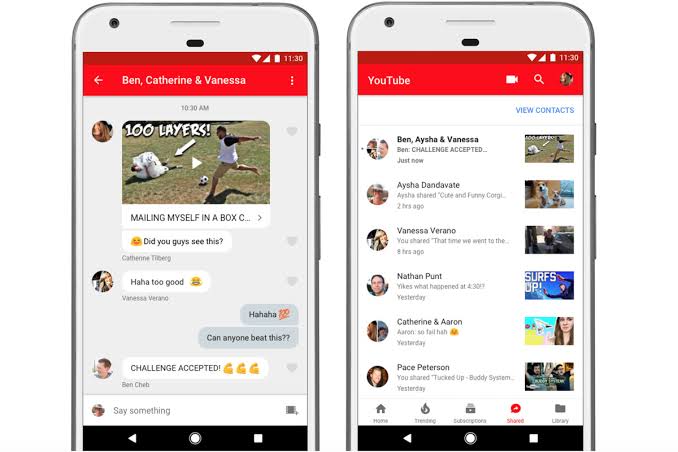
To live stream YouTube videos, you won’t find a better app than YouTube Studio. Obviously, it is one of the best streaming apps for YouTube to stay connected with the audience with the most entertaining videos, game hot spots, news channels—in short, all types of video content. People can subscribe to channels, like videos, add comments, and even share video links through a YouTube Studio. You can use this app to manage videos, live streams, posts, and stories in one place.
Amazing Features
- Users can easily browse video content on the Home tab.
- By pressing the bell icon, you can subscribe to your favorite YouTube channels and receive notifications.
- Below a video, you can leave your comments, click on like buttons, and even share video links on social media.
- Using the top-quality filters, you can customize and edit videos as per your desire.
- Notably, you can watch, download, upload, and manage your YouTube videos with this app.
Pros
- You can earn money through YouTube.
- Completely free.
- Easy to use.
Cons
- The interface could be improved
- It takes 24 hours to activate your account for live streaming.
2. GoStream
Play Store Rating – 4.1/5
App Store Rating – 3.3/5
User’s Age – 12+
Compatibility – Android, iOS, and Windows
In-app Purchase – Yes
Price – Free with upgrade option.
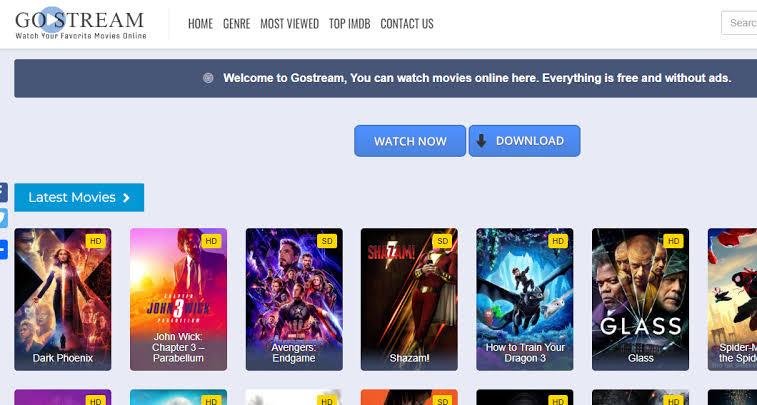
It is the first streaming app for YouTube that can convert any video into a live-stream format. With GoStream, you can live broadcast by filming a screen and save lots of time. The interactive interface and configuration options let you start live streaming within a few minutes.
Amazing Features
- You can livestream as well as perform other tasks with GoStream.
- App supports all the leading social media platforms to easily share your videos.
- By following the simple steps, you can log in and start creating engaging videos.
- Multiple price options are available that users can pick as per their requirements.
- Anyone can use it.
Pros
- Saves time.
- User-friendly interface.
- The paid version contains many features.
Cons
- Livestream often crashes.
- The free version isn’t that great.
3. OneStream
Play Store Rating – 3.7/5
App Store Rating – N/A
User’s Age – 4+
Compatibility – Android, iOS, and Windows
In-app Purchase – No
Price – Free for 5 minutes. Eight hours of streaming for $89.
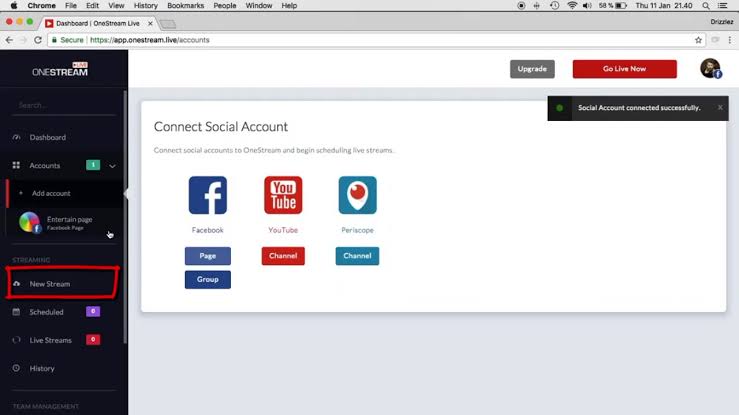
OneStream is categorized among the finest streaming apps for YouTube because it can stream, record live, and even pre-record videos. With the pre-record feature, you can schedule your broadcast up to 60 days in advance. OneStream enables you to configure other tools to easily multitask. You can stream videos on destinations like Facebook, Instagram, YouTube, Periscope, and more.
Amazing Features
- It can stream videos on over 40 platforms.
- Multiple team members can work in one account.
- You can upload different file formats like camera, files, and screen shares.
- Customizing RTMP streaming is possible through the server URL and streak key.
Pros
- 60 days advance social media scheduling.
- No software installation is needed.
Cons
- Free stream for up to 5 minutes only.
- Sometimes crashes.
4. Omlet Arcade
Play Store Rating – 4.4/5
App Store Rating – 4.3/5
User’s Age – 12+
Compatibility – Android, iOS, and Windows
In-app Purchase – Yes
Price – Free with update options.
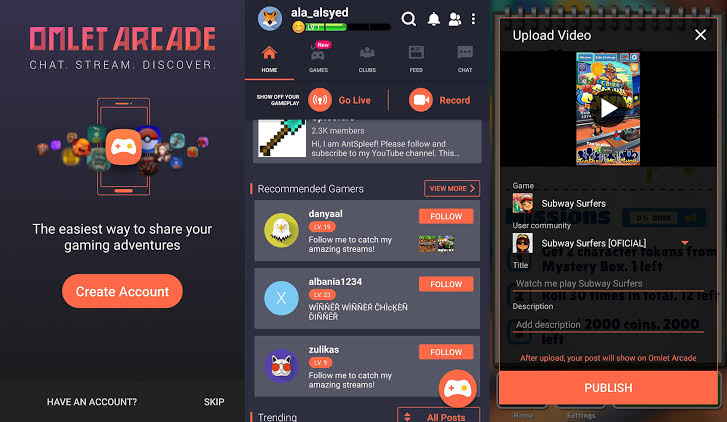
Omlet Arcade is a premium-quality video live-streaming app for gamers. You can record your gameplay, squad up with your friends, and improve your gaming skills with custom tools. This app is compatible with all the leading gaming platforms, including PUBG Mobile, Fortnite, Minecraft, Brawl Stars, Roblox, and more. Additionally, you can share your gameplay on multiple social media accounts such as Facebook, YouTube, Twitch, etc.
Amazing Features
- You can generate personal RTMP links to stream your videos on any platform.
- Users can join the mobile esports community to play tournaments with gamers around the globe.
- You can create a squad, invite your friends, and together create fun moments.
- Using unlimited real-time group voice chats, you can easily coordinate with your friends while playing games.
Pros
- Highly customizable.
- The free version offers almost everything.
- Easy to use.
Cons
- The PC version has a few issues.
- Some problems with microphone connectivity.
5. NEXPLAY
Play Store Rating – 4.1/5
App Store Rating – 2.6/5
User’s Age – 12+
Compatibility – Android, iOS, and Windows
In-app Purchase – Yes
Price – Free with upgrade option.
NEXPLAY is yet another streaming app for gamers. You can record your gaming sessions and easily share them with your online community from your mobile phone. It is one of the top-rated streaming apps for YouTube because—it comes with easy one-tap live streaming and multiple platforms support.

Amazing Features
- It offers mobile cross-platform sharing with one tap.
- You can join various communities and participate in numerous events to grow your gaming skills.
- There are multiple PC streaming functions available.
- You can follow your favorite gamers and learn from them.
Pros
- Shield mode helps in staying anonymous.
- Good app for beginners.
Cons
- Subscription is expensive.
6. Ustream
Play Store Rating – 3.9/5
App Store Rating – 4.5/5
User’s Age – 9+
Compatibility – Android, iOS, and Windows
In-app Purchase – Yes
Price – Free with upgrade options.
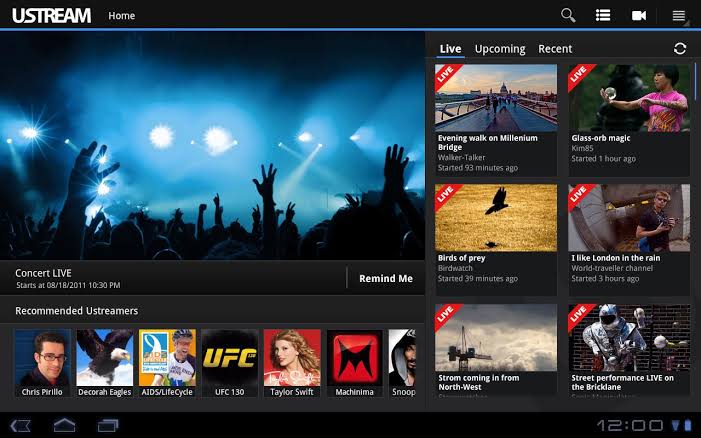
When you want to upload, watch, and create live streaming videos anytime and anywhere, you can get Ustream. This app lets you connect with global users with your interactive videos. You can even pre-record videos and schedule them for later on to share over your multiple social media accounts.
Amazing Features
- You can live chat with your audiences to keep them engrossed in your videos.
- Ustream can pre-record videos in the original quality.
- Broadcasting videos to a large number of viewers is possible through any device camera.
- You can easily manage and schedule upcoming events on your Ustream account.
Pros
- Very user-friendly.
- Quick event reminders and notifications.
- It offers a TV-watching experience.
Cons
- Users need to create an IBM Watson Media account to live stream.
- Login errors.
7. Streamlabs OBS
Play Store Rating – 3.6/5
App Store Rating – 3.4/5
User’s Age – 4+
Compatibility – Android, iOS, and Windows
In-app Purchase – Yes
Price – Free with upgrade options.
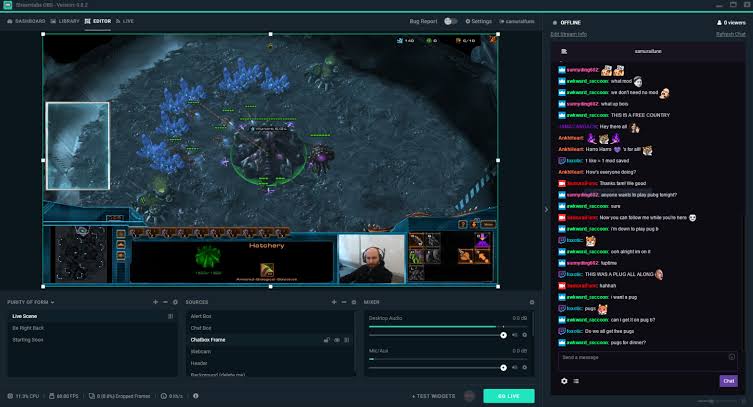
Streamlabs is a free broadcasting and live-streaming tool that has gained popularity in the streaming apps for the YouTube category. The app facilitates users to chat with global audiences while sharing their gameplays or everyday life adventures in real time. To enhance the streaming experience, users have the option to upgrade to Streamlabs Prime and unlock multiplatform broadcasting and stunning themes.
Amazing Features
- Streamlabs can easily pair up with your exciting social media networks so you can share your live streams with your friends and fans.
- You can effortlessly swap between the front and back camera to beautifully narrate your video story.
- You can customize your stream with numerous interactive mobile themes.
- It is easier to make your content interesting with one-tap widgets like Chat Box, Donation Ticket, Event List, etc.
Pros
- Vast community.
- Highly secure and safe.
- A few taps start.
Cons
- Poor PC version.
- Login issues.
8. Facebook Gaming
Play Store Rating – 4.2/5
App Store Rating – 2.4/5
User’s Age – 12+
Compatibility – Android, iOS, and Windows
In-app Purchase – Yes
Price – Free with upgrade options.
Obviously, it is a game streaming app by Facebook. So, you can play your favorite games, record, or live-stream your sessions with your Facebook community. Importantly, you can join gaming groups around the globe and increase your fan following.

Amazing Features
- You can watch streams of world-renowned exporters and top gaming publishers.
- Anytime and anywhere, the gameplay is possible without downloading anything.
- From amateurs to pros, there are millions of game groups available for everyone.
- The app is compatible with Facebook data plans.
Pros
- Large community.
- Easy to use.
Cons
- Live streaming needs to be improved.
- The interface is poor.
9. LiveMe
Play Store Rating – 4/5
App Store Rating – 4.3/5
User’s Age – 17+
Compatibility – Android, iOS, and Windows
In-app Purchase – Yes
Price – Free with upgrade options.
LiveMe is not a regular streaming app for YouTube—it is a complete video-streaming social network. You can capture your special life moments, share them with your friends, and live talk with them. Furthermore, you can upgrade to LiveMe Pro and broadcast your videos, receive gifts, and grow your fan base.

Amazing Features
- You can share your special life moments with one tap and gain lots of followers.
- Try the Live PK challenge with your friends and see who gets more attraction points.
- In a live chat room, you can talk with anyone from anywhere, sing karaoke together, and send voice emojis.
- You can invite your Facebook, Twitter, Instagram, and other social networking platforms friends to connect with you.
Pros
- A complete social networking experience.
- Good to connect with old friends and have a blast.
Cons
- It’s an adult app.
- Over pricey.
10. Livestream
Play Store Rating – 3.6/5
App Store Rating – 4.2/5
User’s Age – 9+
Compatibility – Android, iOS, and Windows
In-app Purchase – No
Price – Free with upgrade options.
You can search, watch, and stream video content on your various devices. This app is among the perfect streaming apps for YouTube because you can participate in thousands of events, follow your favorite broadcasters, get instant notifications, and chat with your viewers.

Amazing Features
- You can broadcast your videos on the big screen with Roku, Chromecast, and Apple TV support.
- It has a built-in chatbox.
- Supports live streaming from GoPro Hero on iOS devices.
Pros
- Good performance with 4G network.
- Can participate in multiple events.
Cons
- The free version only supports Vimeo Live.
- Have some interface glitches.
Bottom Line
When you wish to share your special life moments or talent with global audiences, you need the best streaming apps for YouTube to take you to live in one tap. You can become a viral broadcaster by downloading one or all of the apps from our suggestions. Once you start live streaming, don’t forget to share video links with us.
Author Bio:
Dinesh Lakhwani 

Dinesh Lakhwani, the entrepreneurial brain behind “TechCommuters,” achieved big things in the tech world. He started the company to make smart and user-friendly tech solutions. Thanks to his sharp thinking, focus on quality and the motto of never giving up, TechCommuters became a top player in the industry. His commitment to excellence has propelled the company to a leading position in the industry.
Popular Post
Recent Post

Fortect Software Review: The Ultimate PC & Mobile Cleaning, Optimization & Security Tool
Slow computers are a common problem for almost every Windows user. Well, yes! Over time, your PC picks up junk files. These files sit quietly in the background. They take up space and slow things down. Programs open slower. Windows takes longer to boot. Even simple tasks like opening a folder can feel sluggish. There […]

CCleaner PC Optimizer Review: A Complete Guide for Windows Users
If your computer has started to feel slow, you are not alone. Most Windows PCs slow down over time. Junk files pile up. The registry gets messy. Too many apps open when you start your PC. All this adds up and makes even a good machine feel tired. This is where a PC cleaner tool […]

Auslogics Duplicate File Finder: Full Review and User Guide
A computer quietly gathers clutter over time. This includes duplicate photos, repeated downloads, and forgotten backups hiding in random folders. This buildup slowly eats away at storage and can make even a fast PC feel sluggish. Manually finding and deleting duplicates is tedious. It means checking every folder, comparing file names, and guessing which copies […]

CCleaner Duplicate File Finder: Key Features, Pricing, Step-by-Step Guide and More
Every computer collects junk over time. Right? Well, yes! Photos often get copied twice. Documents get saved in two folders by mistake. Old downloads pile up and never get deleted. This slowly eats up your storage space, and most people do not even notice until their drive is almost full. That is where a duplicate […]

Duplicate File Finder Pro: A Complete Review, Everything You Should Know
Computers collect thousands of files over time. Well, yes! Many of them end up being duplicates created by backups, downloads, or accidental copies. These extra files take up valuable storage space and make it harder to keep everything organized. Finding and removing them manually can take hours. Right? Duplicate File Finder Pro is a tool […]

Top 3 Duplicate File Finder for Windows 11 & Windows 10
If your PC storage keeps filling up even after you delete big files, duplicate files could be the real reason. Most of us save the same photo twice, download a document more than once, or copy a whole folder by mistake. Over months and years, these duplicate files pile up quietly. You do not even […]

Monitor Screen Calibration Guide: Everything You Should Know
Your monitor shows colors every single day. But are those colors actually correct? Most people never stop to check this. They just use the screen as it comes out of the box. This habit can lead to wrong colors in photos, videos, and work files. Colors may look too warm or too cold without you […]

How To Check Installed RAM and RAM Slots [Complete Guide]
RAM plays an important role in how smoothly a computer runs. Short for Random Access Memory, it stores the data and instructions that Windows and active applications need at any given moment. From opening multiple browser tabs to running games and productivity software, RAM helps keep everything responsive. A system with limited memory may experience […]

What is Microsoft Autopilot Everything You Need To Know
Technology has changed the way companies manage computers. Well, yes! Employees now work from offices, homes, and remote locations. Setting up devices manually for every worker takes time and effort. It can also create mistakes that slow down productivity. This is where Microsoft Autopilot becomes useful. It helps businesses prepare and deploy Windows devices with […]

