











Antivirus is the one kind of software that people think about at only two moments. The first is right after installing it. The second is right after something goes wrong. In between, it runs quietly, and most users never check if it is doing a good job. That silence makes the choice harder. Windows 10 […]
Top 10 Best Password Managers for iPhone [Updated]
Introduction:
Having strong and unique passwords for all your online accounts is essential for good digital security and privacy. Reusing the same passwords on multiple sites is a risky practice as a breach on one site puts all your accounts at risk.
This is where a dedicated app for password management comes in very handy. These apps allow you to store all your login credentials securely in one place. It also helps generate strong random passwords for each account.
For iPhone users, there are many great apps available to manage passwords. In this article, we will discuss the 10 best password managers for iPhones based on features, security, user-friendliness, and cost.
10 Best Password Managers for iPhone to Use
1. NordPass
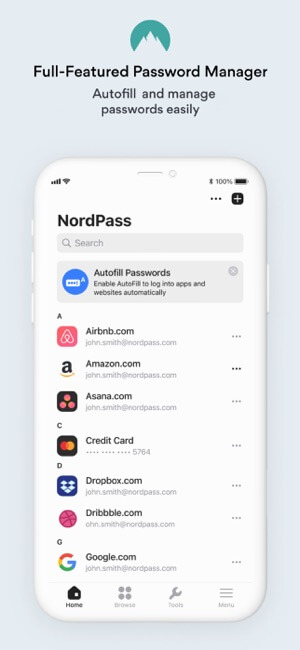
NordPass is one of the best and most secure iPhone password managers available currently. Developed by NordVPN, it offers robust encryption, zero-knowledge architecture, and other advanced security features. NordPass has an intuitive interface and provides a seamless experience across Windows, macOS, iOS, Android, and browsers.
Key Features:
- Military-grade encryption using XChaCha20, Argon2, and zero-knowledge cryptography. Data is fully encrypted on the device before syncing.
- Secure password sharing via encrypted links.
- Offers a Breach scanner to check if your accounts are compromised in data breaches.
- Auto password changer to update leaked credentials.
- Support for biometric authentication like Face ID and Touch ID.
- Secure notes for storing confidential data beside logins.
- Powerful password generator to create unique and complex passwords.
Pros:
- Very strong encryption (XChaCha20, Argon2, zero-knowledge).
- Breach scanner and auto password changer.
- Secure sharing and notes.
- Biometric unlock.
- Powerful password generator.
Cons:
- No VPN is included, unlike some competitors.
- Limited organization/team management features.
Compatibility: iOS 15.0 or later.
NordPass offers both personal and business plans. The pricing plans for companies start from $1.79 per user / per month and offer a 14-day free trial.
2. LastPass
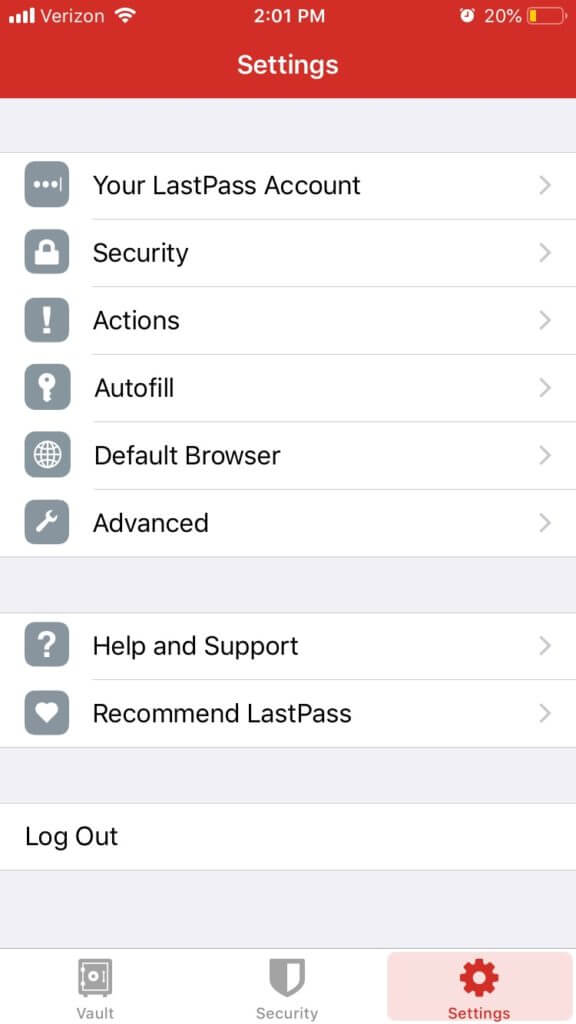
LastPass is a veteran in the password manager space but still competes well with newer offerings. It has a polished and user-friendly interface across mobile and desktop platforms. LastPass also has a good browser extension and integrates well across devices. Overall a solid choice for those who want an easy-to-use password manager for iOS.
Key Features:
- AES-256-bit encryption for securing all data.
- Biometric authentication is available through Face ID or Touch ID.
- Auto password generator and auto form filling capabilities.
- Password sharing with emergency access option.
- Dark web monitoring to detect compromised credentials.
Pros:
- Trusted name with a long history.
- Easy to use interface.
- Biometric unlock with Face/Touch ID.
- Password sharing and emergency access.
- Broad platform support.
Cons:
- Occasional syncing issues were reported.
- The free version lacks advanced features.
Compatibility: iOS 15.0 or later.
3. 1Password
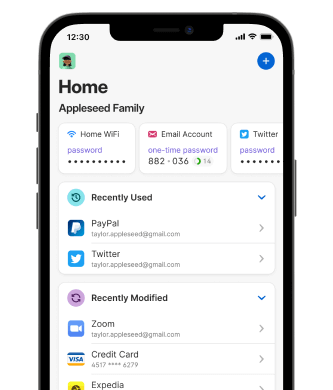
1Password stands out for its elegant design and focus on user experience. It makes password management easy through well-thought-out features and multi-device sync. 1Password is trusted by both consumers and businesses for its security and usability. Overall one of the best options for iPhone password management.
Key Features:
- End-to-end encryption ensures only you can access your data.
- Cryptographic secrets are stored on the device.
- Watchtower feature monitors for compromised passwords and sensitive info on the dark web.
- Biometric unlock with Face ID or Touch ID for quick access.
- Secure sharing of passwords, files, and notes with other users.
- Strong randomly generated passwords for all your logins.
- Supports Organizations for managing team passwords securely.
Pros:
- Elegant and intuitive design.
- Watchtower monitors for breaches.
- Secure sharing capabilities.
- Biometric unlock.
- Organizations support.
Cons:
- Expensive compared to some rivals.
- No offline mode for local storage.
Compatibility: iOS 16.4 or later.
4. Dashlane Password Manager
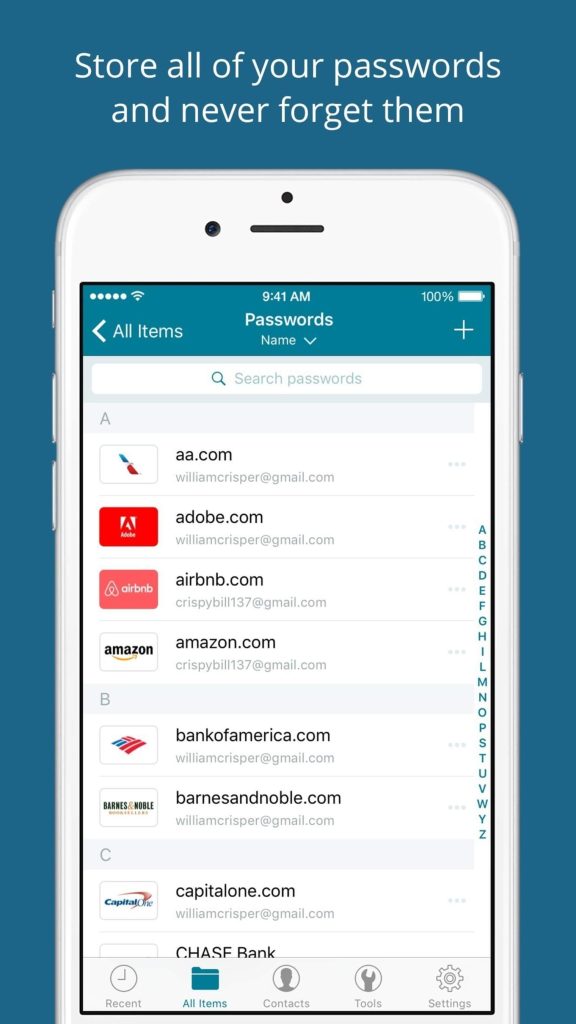
Dashlane is one of the finest apss for iPhone with advanced security features bundled with a slick user interface. It makes password management effortless through its user-friendly design and automation capabilities. Dashlane is great for users who want a fully-featured password manager with top-notch security. The mobile and desktop apps work seamlessly together.
Key Features:
- Leading zero-knowledge architecture encrypts all data using AES-256-bit encryption.
- Autofill passwords seamlessly on iOS apps and websites.
- SMS auto-login for accounts with two-factor authentication.
- Scan credit cards to store safely in the vault and use for auto-filling payment details.
- Integrated VPN for securing web traffic on public networks.
- The identity dashboard monitors personal info on the dark web for exposure.
Pros:
- Zero-knowledge architecture.
- Auto form filling for apps and websites.
- SMS auto login for 2FA accounts.
- Integrated VPN.
- Identity dashboard.
Cons:
- No offline mode or local storage.
- Limited sharing in the free version.
Compatibility: iOS 16.0 or later.
5. Keeper Password Manager
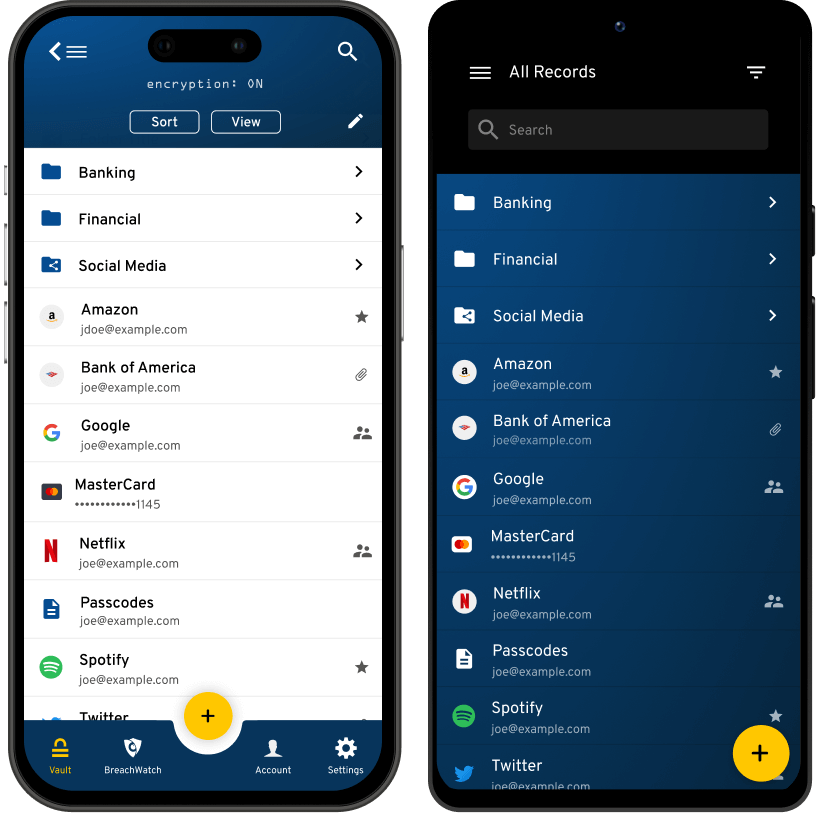
It excels in offering robust security at an affordable price point. It packs powerful encryption, zero-knowledge architecture, biometrics, and other security capabilities in both its free and paid plans. Keeper also has good support options and provides solid protection across devices. It is an ideal low-cost alternative for those seeking enterprise-grade security.
Key Features:
- End-to-end encryption with AES-256 bit and PBKDF2 SHA-256.
- All data is exclusively stored on the user’s device.
- Extensive two-factor authentication options including YubiKey and Duo.
- Biometric unlock with Face ID or Touch ID.
- Emergency access for trusted contacts to access your vault if needed.
- Extensive reporting for audits and compliance requirements.
Pros:
- Very strong encryption (zero-knowledge).
- Extensive 2FA and MFA options.
- Biometric unlock.
- Emergency access for contacts.
- Strong reporting capabilities.
Cons:
- The web interface is not as smooth as desktop/mobile.
- Lacks advanced identity protection features.
Compatibility: iOS 14.0 or later.
6. RoboForm
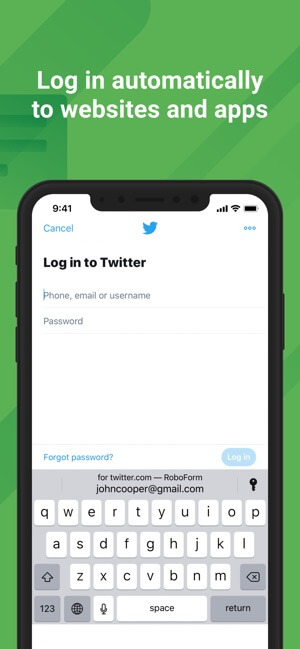
RoboForm has been around for many years and has evolved into a very reliable solution. While it may lack some bells and whistles of modern apps, it more than makes up through solid fundamentals.
RoboForm may not be the flashiest option but it delivers where it matters – rock-solid encryption and portability across devices. It’s a great choice for those who need basic iOS password management that just works.
Key Features:
- AES-256 bit encryption along with a zero-knowledge architecture.
- Hassle-free form-filling powered by intelligent password-matching algorithms.
- Identity management tools like masked emails and virtual credit cards for protecting sensitive info.
- Sync passwords securely across unlimited devices.
- Biometric login is available through fingerprint or Face ID.
- Safe sharing of passwords among teammates.
Pros:
- Long track record of reliable service.
- Zero-knowledge encryption.
- Hassle-free form filling.
- Identity management tools.
- Affordable pricing.
Cons:
- Not the best for sharing passwords.
- Browser extension requires improvement.
Compatibility: iOS 15.0 or later.
7. LogMeOnce
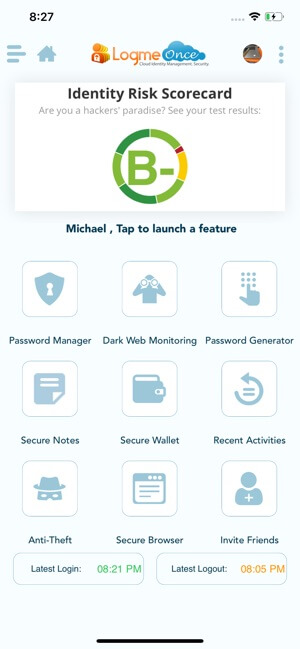
LogMeOnce is a relatively new platform but brings some unique innovations in password security. Two key highlights are the anti-keylogger functionality and the array of MFA options to complement Master Passwords. LogMeOnce brings unique security capabilities. Though not as polished as some competitors, it’s a great option for security-conscious consumers on iPhone.
Key Features:
- Anti-keylogging technology to evade malware attempts to steal passwords.
- Multiple forms of MFA including fingerprint, Face/Iris ID, FIDO U2F, YubiKey, and email codes.
- Biometric authentication works offline and across devices.
- Emergency PIN access if biometrics are unavailable.
- Advanced AES & RSA encryption to secure passwords in transit and at rest.
- Card Vault for storing payment card details securely.
Pros:
- Anti-keylogging technology.
- Wide range of MFA options.
- Offline biometric unlock.
- Emergency PIN access.
- Card vault for payment details.
Cons:
- The mobile app is not as user-friendly.
- Smaller user base than top brands.
Compatibility: iOS 12.0 or later.
8. Sticky Password
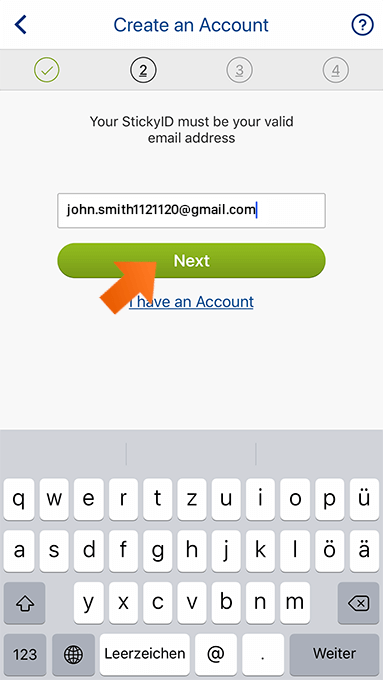
As the name suggests, Sticky Password offers a familiar and straightforward password management experience on iPhone. It packs enterprise-grade features like zero-knowledge architecture and two-factor authentication in a direct and fuss-free manner. Sticky Password offers a wide range of features at a budget-friendly cost. It’s a great option for price-conscious users who value simplicity.
Key Features:
- AES-256 and PBKDF2-SHA512 encryption to secure all data exclusively on the device.
- Biometric authentication is available through Face ID, Touch ID, or Windows Hello.
- Auto form-filling across browsers and apps for fast logins.
- Password sharing with other users through encrypted links.
- Cloud or local-only storage options for suiting different privacy needs.
Pros:
- AES-256 and PBKDF2-SHA512 encryption.
- Biometric authentication.
- Password sharing through links.
- Local storage option available.
- Low pricing.
Cons:
- The desktop app needs improvement.
- Smaller feature set than competitors.
Compatibility: iOS 12.0 or later.
9. BitWarden
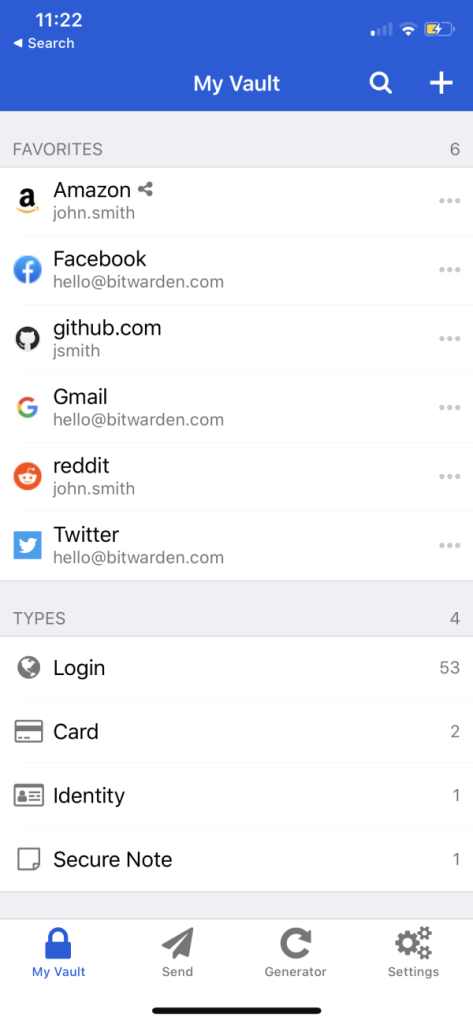
Bitwarden is extremely popular among the open-source community for being 100% free and transparent. All its source code is available on GitHub for anyone to inspect and audit. It has a no-nonsense design focused on robust fundamentals rather than flashy features. For users who value openness and transparency, Bitwarden is a superb choice. It offers uncompromised security free of charge.
Key Features:
- End-to-end AES-256 encryption with salted hashing rounds.
- Seamlessly auto-fill login credentials on websites and apps.
- Biometrics support through Face ID, Touch ID, or Windows Hello.
- Customizable random password generator.
- Group sharing of passwords securely between colleagues and friends.
- Active open source community continuously improving the product.
- Available at absolutely no cost without any feature limitations.
Pros:
- 100% open source code.
- End-to-end AES-256 encryption.
- Biometrics through Face/Touch ID.
- Active open source community.
- Free for unlimited use.
Cons:
- Very basic interface.
- Lacks advanced identity protection features.
Compatibility: iOS 11.0 or later.
10. Enpass
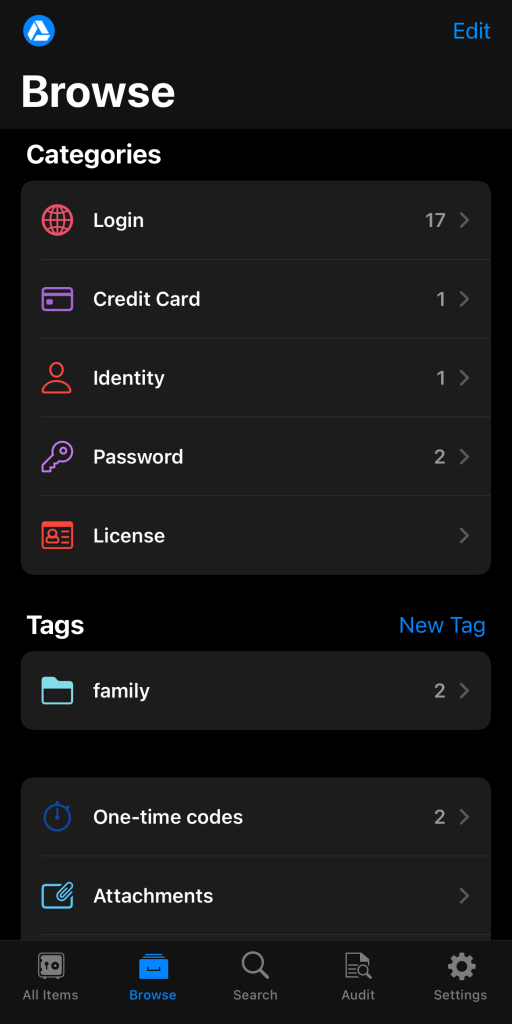
Enpass offers a good combination of security, features, and affordability. It employs 256-bit AES encryption to secure data and provides flexible cloud sync options. For those seeking a budget-friendly solution, Enpass is an excellent choice that delivers core password management features without breaking the bank.
Key Features:
- Encryption keys are always stored locally, and cloud data is encrypted before syncing.
- Fingerprint and Face ID support for quick unlocking.
- TOTP support for one-time passwords used in two-factor authentication.
- Item tagging for organized management of passwords.
- Cross-platform availability across Windows, Mac, Linux, iOS and Android.
Pros:
- Strong 256-bit AES encryption.
- Flexible sync options.
- Fingerprint/Face ID unlock.
- TOTP support.
- Lifetime license available.
Cons:
- Less polished interface than rivals.
- Smaller user base and support channels.
Compatibility: iOS 12.4 or later.
Conclusion
Protecting accounts with strong unique passwords is one of the top ways to improve digital security. Password managers for iPhone make this process convenient by securely storing passwords and enabling good password hygiene across all your devices.
There are many great options for iOS users that fit a variety of needs and preferences. NordPass, LastPass, and 1Password are excellent choices that balance security, usability, and features. Dashlane, Keeper, and LogMeOnce offer advanced capabilities for power users. RoboForm, Sticky Password, Bitwarden, and Enpass are more budget-friendly options that get the core job done well.
When choosing a suitable iPhone password management app, assess your specific requirements like encryption methods, convenience features, and sync capabilities. Ultimately the best solution is one that makes password management on iPhone easy so that you use it consistently across all accounts. Implementing a password manager goes a long way in reducing password fatigue and strengthening your online security.
FAQs:
Q1. Are password managers safe to use?
Yes, the apps from reputed brands are generally very safe to use. Features like zero-knowledge encryption, local storage of encryption keys, and minimal data collection ensure your passwords remain secure. Avoid questionable free password managers and read reviews before choosing one.
Q2. Can I share passwords securely from my password manager?
The best password management tools allow sharing of certain passwords or your entire vault securely. This is done via encrypted links or temporary permissions so the master password is never revealed. Look for emergency access and family-sharing features when picking an iPhone password management app for secure collaboration.
Author Bio:
Dinesh Lakhwani 

Dinesh Lakhwani, the entrepreneurial brain behind “TechCommuters,” achieved big things in the tech world. He started the company to make smart and user-friendly tech solutions. Thanks to his sharp thinking, focus on quality and the motto of never giving up, TechCommuters became a top player in the industry. His commitment to excellence has propelled the company to a leading position in the industry.
Popular Post
Recent Post

Top 5 Lightest Antivirus Software To Protect Your PC
Introduction: Antivirus software helps protect Windows PCs from digital threats. It detects viruses, blocks ransomware, and alerts users about unsafe websites. However, some security tools consume too much RAM and CPU power. This can make everyday tasks feel slow. Older laptops and low-end PCs often face this problem. The computer may take longer to start. […]

How To Disable Cookies in Browser [Complete Guide]
So, search for a pair of shoes once online. Close the tab. By evening, those same shoes are sitting on your news site, your video app, and even your recipe blog. Nobody placed them there by chance. A cookie did. Well, yes! Cookies are small files that websites place on your device while you browse. […]

How To Disable Background Apps In Windows: 4 Quick Methods
A slow PC rarely gives a warning. One day, it simply takes longer to start. Apps open late. The fan runs loud, even when the screen is almost empty. Most people blame old hardware. Often, that is not the real reason. The real reason is hiding in plain sight. Windows keeps many apps active in […]

How to Activate Windows with a Product Key for Windows 11 & Windows 10
It always shows up at the worst time. You are halfway through a report, or about to join a video call. Then you spot it in the bottom right corner of the screen. Activate Windows. Go to Settings to activate Windows. Initially, an unactivated copy of Windows may seem like a minor inconvenience. Over time, […]

Is Easy Duplicate Finder Worth It? Honest Review
The photos folder looked normal at first glance. Then the storage warning popped up. One trip photo appeared four times. A tax PDF sat in three different folders. Two old setup files were still in Downloads, and each one was over 500 MB. Nobody plans this mess. Copies pile up slowly. A download runs twice. […]

Wise Duplicate Finder Review: Real Results from Wise Duplicate Finder
Read my honest Wise Duplicate Finder review. See features, pricing, pros and cons, and real PC test results. Find out if this free duplicate cleaner can free up your Windows storage.

How to Recover Deleted Files from Pen drive, USB Drive, SD Card
Introduction: On tech forums, you’ll often see posts like this: “I connected my pen drive to my laptop this morning, but the folder was empty. All my college project files had vanished. I don’t have a backup. Can someone help me?” Stories like this are very common. Pen drives, USB drives and SD cards are […]

How To Recover Files Deleted from the Recycle Bin [Windows 11]
Losing a file can happen in seconds. You clear your desktop, hit Delete, and empty the Recycle Bin. Then, just when you need that file again, it seems to have vanished. This guide will walk you through ways to restore files removed from the Recycle Bin. We will begin with simple fixes, then look at […]

Disk Drill Data Recovery Tool Explained: Full Review and Guide
It happens in a split second. You delete a folder by mistake. Your drive stops showing up. A photo album from your last trip just vanishes. And your stomach drops. Lost files feel personal. They are not just data. They are memories, work hours, and sometimes years of effort packed into a few gigabytes. When […]

