











Antivirus is the one kind of software that people think about at only two moments. The first is right after installing it. The second is right after something goes wrong. In between, it runs quietly, and most users never check if it is doing a good job. That silence makes the choice harder. Windows 10 […]
10 Best Free Password Manager Apps for Android [Updated]
Introduction:
Managing passwords is a major challenge in the digital era. With the proliferation of online accounts, we’re expected to create and remember many complex, unique passwords. This poses a significant burden on our memory.
Fortunately, Android password managers offer a convenient solution. These applications store passwords securely, generate strong random passwords, and auto-fill login credentials. By using a password management app, you can keep all your passwords organized in a single vault and no longer struggle to recall dozens of cryptic codes. This technology streamlines password management and enhances online security.
For Android users, there are many great apps to manage passwords. In this article, we will cover the top 10 best free password manager apps for Android this year based on features, security, user-friendliness, and more.
Let’s get started!
How to Choose the Best Password Manager
Choosing a password manager matters because it protects your accounts, personal info, and digital identity. A good manager keeps passwords safe, easy to access, and synced across devices. Focus on security, ease of use, and reliability when you compare options. These points will help you pick the right one for your needs.
- Security and encryption
Look for strong encryption like AES-256. This keeps your data unreadable to anyone else. Avoid apps with weak or unclear security standards. - Cross-device sync
Your passwords should sync across Android, desktop, and tablets. Cloud sync makes it easy to access logins anywhere. Check if sync is free or part of a premium plan. - Ease of setup and use
A clear, simple interface matters. Auto-fill and auto-save make daily use smooth. Choose a tool you can navigate without confusion. - Password generation
A built-in generator helps you make strong, unique passwords. Look for options to customize length and complexity. - Backup and recovery
Good apps offer secure backups and easy recovery options. This protects you if you switch phones or uninstall the app. - Multi-factor authentication (MFA)
Support for MFA adds a second layer of defense. It makes your vault safer even if your master password is compromised. - Free vs premium features
Free plans vary in sync and features. Premium plans often add shared vaults, security monitoring, and priority support. Know what you get before subscribing. - Reputation and support
Choose tools with a strong track record and regular updates. Good customer support helps when you run into issues.
Top 5 Free Password Managers for Android
Here are five well-known password managers that work well on Android. They vary in security, sync options, ease of use, and bonus features. Use this table to compare at a glance.
| App Name | Encryption | Device Sync | Auto-Fill Support | Free Plan Strength | Extra Features | Best For |
| NordPass | AES-256 | Android + other devices | Yes | Good | Breach scanner, password health | Users who want strong security with simple use |
| LastPass | AES-256 | Sync across devices | Yes | Solid (some limits) | One-to-many sharing, secure notes | Users who want free sync and basic extras |
| Dashlane | AES-256 | Limited free sync | Yes | Moderate | Dark web monitoring, VPN (premium) | Users who want security insights |
| 1Password | AES-256 | Full device sync | Yes | Limited trial-based | Travel mode, vault sharing | Users who want polished design |
| Enpass | AES-256 | Local + cloud options | Yes | Good (no subscription) | Local storage control | Users who prefer no recurring fees |
10 Best Free Password Manager Apps for Android to Try
1. NordPass
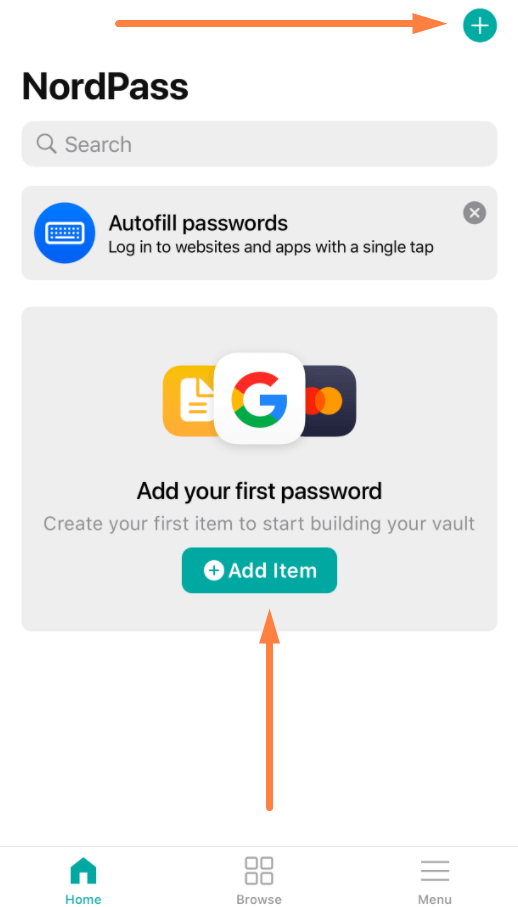
NordPass is a very secure and user-friendly password manager created by the same company behind the popular NordVPN service. Available for both mobile and desktop, NordPass stores all your passwords encrypted on your device.
NordPass has an intuitive interface and is easy to set up. It offers robust encryption and security practices to keep your passwords safe. The biometric authentication options like fingerprint or face unlock make logging into your vault very seamless. NordPass also has a handy password generator to create long unique passwords for each account. The autofill capabilities allow you to easily log into sites and apps without having to copy or memorize passwords. You can securely share passwords with other NordPass users as needed.
Key Features:
- Multiple Biometric authentication options
- Password generator to create unique complex passwords
- Autoform filling for logins
- Secure password sharing
- Cloud sync between devices
- Dark web monitoring for compromised passwords
Pros:
- Very secure encryption and cryptography practices
- Intuitive user interface
- Handy password importer and digital wallet for storing secure notes
- Affordable pricing for the premium version
Cons:
- Limited free version
- Fewer features than some competitors
Works On: Android 5.0 and above
NordPass offers both personal and business plans. The pricing plans for companies start from $1.79 per user / per month and offer a 14-day free trial.
2. LastPass
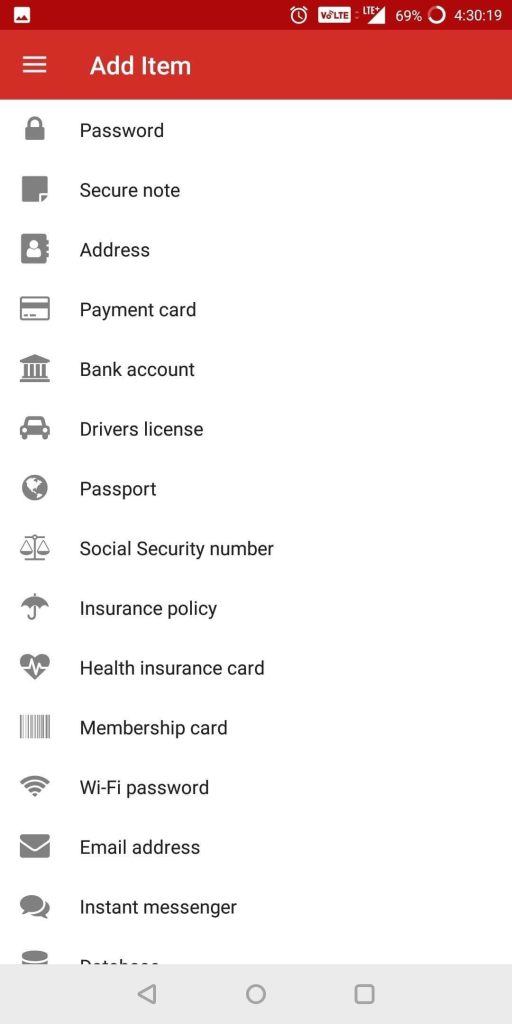
LastPass is one of the most well-known and trusted password managers available for Android. It can securely store unlimited passwords and sync them across all your devices.
The LastPass app has an elegant intuitive interface that makes setting up and organizing your passwords very straightforward. Your password vault is securely encrypted both locally on your device and in the cloud when synced. LastPass offers excellent autofill functionality that allows you to easily log into apps and sites without having to copy or memorize passwords. Its password generator creates lengthy random passwords for each account.
LastPass allows you to conveniently share passwords between accounts when needed. Your vault seamlessly syncs across mobile and desktop devices with multi-factor authentication. It also monitors the dark web and alerts you of any compromised passwords.
Key Features:
- Password generator and autofill
- Encrypted password vault storage locally and in the cloud
- Biometric login with fingerprint or face unlock
- Password sharing between accounts
- Dark web monitoring
Pros:
- Excellent autofill functionality
- Great password generator
- Robust multi-device syncing capabilities
- Solid encryption and security practices
Cons:
- The free version lacks some key features
- Occasional performance issues
Works On: Android 5.0 and above
3. Dashlane
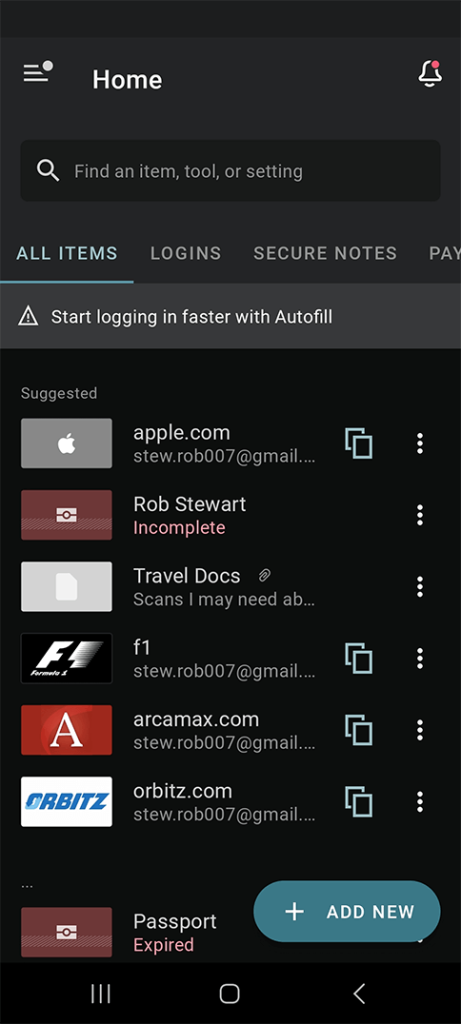
Dashlane is a very user-friendly free password manager for Android which has excellent organization features. It offers military-grade encryption to secure your password vault and digital wallet.
The Dashlane app makes it easy to store, manage, and autofill your passwords. It has a clean intuitive interface with useful organization features like folders and tags. Your passwords are secured with end-to-end military-grade AES 256-bit encryption. Biometric authentication via fingerprint/face unlock allows fast secure access to your vault. Dashlane conveniently syncs your vault across devices while keeping the data encrypted. Dashlane’s digital wallet securely stores payment methods and other sensitive information. You can enable a VPN for an extra layer of privacy.
Key Features:
- Password generator and autofill
- Biometric authentication for fast logins
- Cross-device password syncing
- Breach alerts and dark web monitoring
- Built-in VPN service
Pros:
- Great digital wallet for storing secure notes
- Very intuitive UI design
- Useful password-sharing features
- Excellent organization with folders
Cons:
- Expensive subscription pricing
- Limited free version
Works On: Android 6.0 and above
4. 1Password
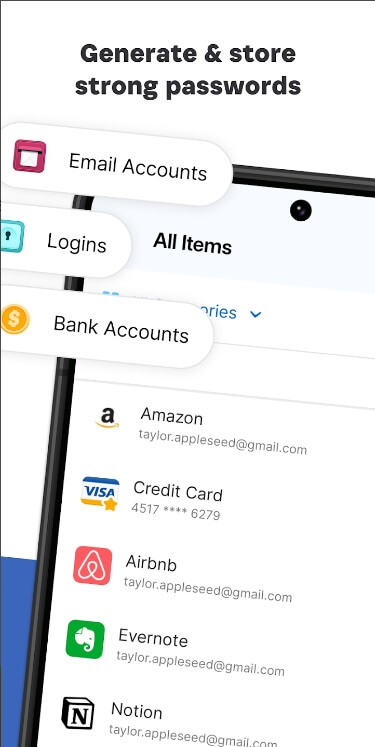
1Password is highly regarded for its excellent design, security, and user experience. It makes password management easy with useful tools and organizational features.
The 1Password app has a gorgeous clean interface that makes managing passwords a delightful experience. All your passwords are secured with end-to-end encryption and biometric authentication via fingerprint/face unlock. You can conveniently organize logins into customizable folders.
The built-in password generator creates lengthy unique passwords for each account. Your password vault seamlessly syncs across devices while remaining securely encrypted. 1Password allows you to share passwords from your vault with other users when required. The instant autofill makes logging into apps and sites very quick and easy.
Key Features:
- End-to-end encryption and biometric unlock with fingerprint/face
- Customizable folders for organizing logins
- Auto-generate strong passwords
- Sync vaults across devices
- Secure password sharing between accounts
Pros:
- Fantastic UI design
- Very secure encryption and practices
- Useful organization with tags and folders
- Solid autofill and password capture
Cons:
- Costly subscription plan
- No free version is available
Works On: Android 5.0 and above
5. Enpass
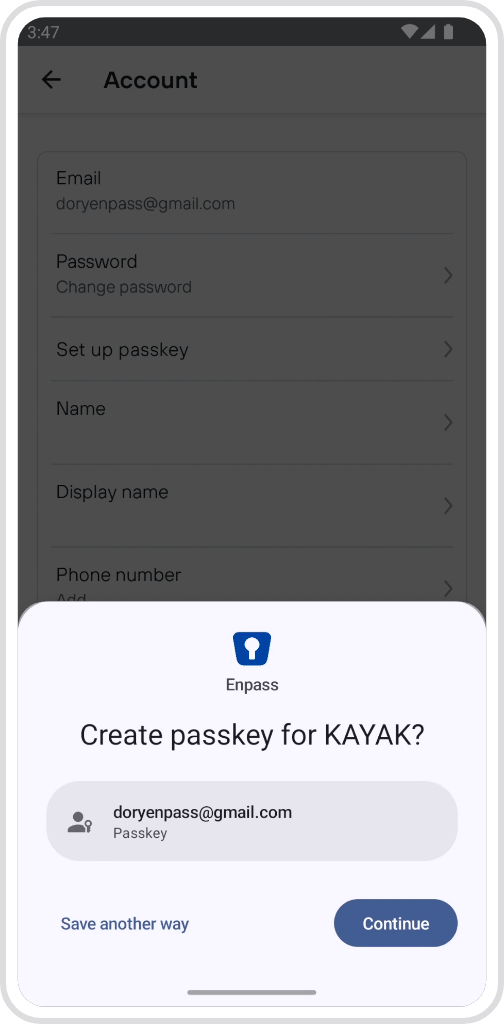
Enpass offers a wide range of features for both individuals and business users. It is highly flexible with support for multiple vaults and offline availability.
The Enpass password manager provides the core features you need along with advanced options for power users. Your password vaults are encrypted locally on each device before syncing across your account. This allows you to access your passwords offline as well.
Enpass makes it easy to autofill login credentials in apps and browsers. You can organize passwords using customizable folders and tags. The app allows you to store other sensitive data beyond just passwords. Syncing your vaults across devices is seamless. For businesses, Enpass has useful collaboration and sharing features between teammates.
Key Features:
- Offline access to password vaults
- Encrypts data locally before syncing
- Autofill logins and store other data
- Customizable folders for organizing
- Access vaults across devices
Pros:
- Solid local encryption and offline accessibility
- Great for accessing passwords on multiple devices
- The low one-time cost for the premium version
- Good selection of features including a secure wallet
Cons:
- The setup process can be a bit complex
- UI design is just average
Works On: Android 5.0 and above
6. Keeper Password Manager
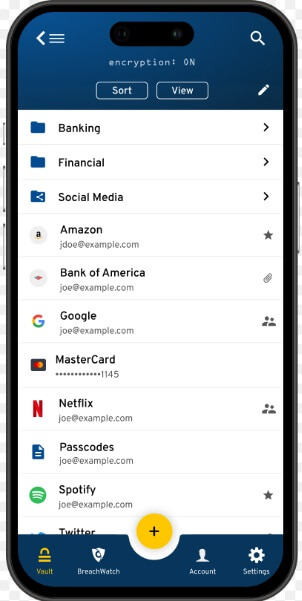
Keeper is a very secure password manager for Android with extensive features for enterprise users. It stores and syncs your password vault across unlimited devices.
Keeper offers top-notch security including end-to-end 256-bit AES encryption and zero-knowledge architecture. Your password vault is protected locally on each device with biometric face/fingerprint unlock. Keeper makes it easy to autofill logins and generate randomized complex passwords.
You can securely store other sensitive information beyond passwords in the digital vault. Keeper allows convenient sharing of passwords between authorized users when needed. For business teams, Keeper provides useful administrative controls, permissions, and workflows. The user interface is polished and focused on productivity.
Key Features:
- End-to-end 256-bit AES encryption
- Biometric authentication like face/fingerprint unlock
- Auto password generator and autofill
- Secure digital vault for storing files and notes
- Password sharing between accounts
Pros:
- Powerful security practices
- Excellent organizational features
- Useful digital vault capabilities
- Decent password importer
Cons:
- Expensive for personal use
- Geared more towards business users
Works On: Android 6.0 and above
7. Bitwarden
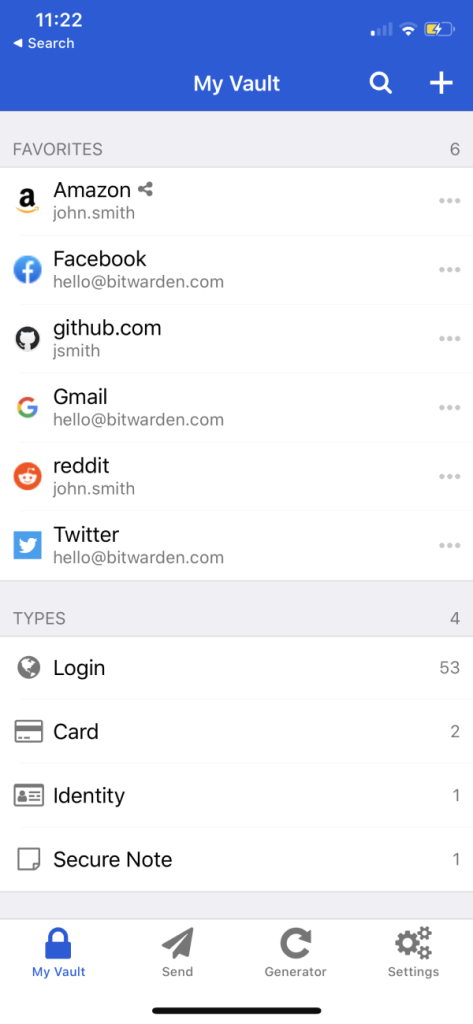
Bitwarden is a great open-source option with a minimalist design. It offers the core password management features you need for free.
The Bitwarden Android password manager app has an open-source codebase that is frequently audited for vulnerabilities. Your password vault is fully encrypted end-to-end before syncing across devices. Bitwarden’s minimalist design makes it easy to use while still providing robust security.
It includes the key features you need like auto password generator and autofill, biometric unlock, and cross-device vault syncing. The free version has no limits on password storage. Bitwarden is great for basic password management needs without advanced extras. The simple straightforward interface gets out of your way.
Key Features:
- Open source code that is regularly audited
- End-to-end encryption for password vault
- Auto password generator and autofill
- Biometric unlock with fingerprint/face
- Syncs vaults between devices
Pros:
- The free version includes all the essential features
- Simple and easy-to-use interface
- Solid encryption and security practices
- Open source transparency
Cons:
- Lacks advanced features like a digital wallet
- Basic design may turn off some users
Works On: Android 5.0 and above
8. RoboForm
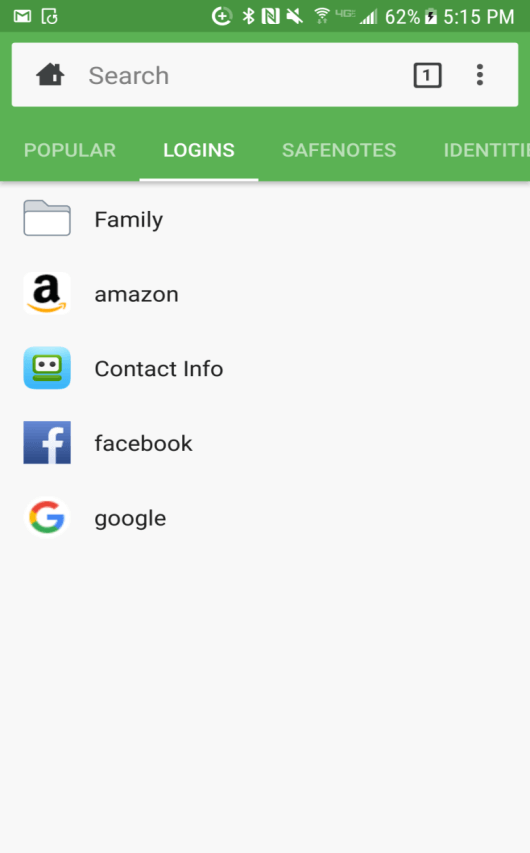
RoboForm is packed with features and options for managing passwords. It has a desktop-style interface designed for efficient password organization.
The RoboForm password manager app for Android provides extensive categorization and organization options for your passwords. It supports multiple locker categories like logins, identities, secure notes, etc. RoboForm makes it easy to autofill passwords into apps and browsers.
You can use folders, tags, and favorites to create a customized system for your passwords. It conveniently matches and syncs passwords across all your devices. Biometric authentication via fingerprint or face unlock provides quick secure access. RoboForm also offers robust privacy and security controls.
Key Features:
- Offers multiple locker categories like logins, IDs, and secure notes
- Autofill passwords in apps and browsers
- Customizable folders and tags for organization
- Syncs and matches passwords across devices
- Biometric sign-in options
Pros:
- Excellent categorization system for passwords
- Handy form-filling capabilities
- Useful security and privacy options
- Robust cross-device syncing
Cons:
- Dated interface design
- Steeper learning curve than some competitors
Works On Android 5.0 and above
9. LogMeOnce
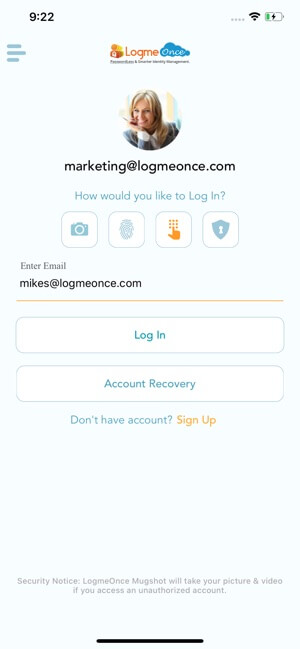
LogMeOnce focuses on maximum security with features like encrypted video chat and real-time alerts. It’s an excellent choice for managing financial accounts.
Key Features:
- Bank-grade AES-256 encryption
- Instant breach alerts and dark web monitoring
- Biometric authentication with fingerprint/face
- Extra verification options like video chat
- Send password links to others securely
Pros:
- Top-notch security features
- Useful tools for managing financial accounts
- Generous free version
- Clear status indicators and alerts
Cons:
- The mobile interface is just average
- Geared towards security over user-friendliness
Works On: Android 5.0 and above
10. SecureSafe Password Manager
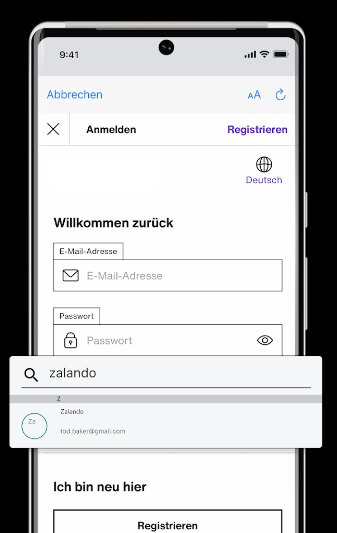
SecureSafe stands out for its lifetime license cost along with solid features and encryption. It’s an affordable and secure option.
SecureSafe stands out as a top-tier application for online file storage and password management, boasting multiple accolades. Its distinctive features include robust double encryption, triple data storage, and a zero-knowledge architecture, guaranteeing users unparalleled levels of data security and privacy protection.
Key Features:
- Highly secure AES-256 and RSA-2048 encryption
- Autofill logins and store records
- Fingerprint/face unlock
- Synchronize data between devices
- Import passwords from other managers
Pros:
- One-time low cost for lifetime premium access
- No limits on password entries
- Simple straightforward interface
- Strong local encryption and security
Cons:
- The design is a bit dated-looking
- Light on extra features like a digital wallet
Works On: Android 4.1 and above
Conclusion
With the prevalence of online accounts and threats of password theft, it’s highly advisable to start using a dedicated password manager app. There are lots of excellent options available for Android devices, each with its strengths and features.
Based on design, security, feature set, and value, our top overall choices are NordPass, LastPass, Dashlane, and 1Password. But every app on this list has something unique to offer. Take the time to consider your specific password management needs, and match them to the right app accordingly.
By using the best free password manager app for Android, you can securely store all your login details and stay protected against hacking and data breaches. No longer will you need to use weak, repeated passwords or struggle to remember them. With a quick scan of your fingerprint or face, your full vault of unique complex passwords is at your fingertips anytime.
FAQs
Is a free password manager safe to use?
Yes, many free password managers use strong encryption and secure vaults. Safety depends on the app’s design, not price. Read reviews and choose ones with good security records. Avoid apps with unclear privacy policies.
Can a password manager auto-fill logins on Android?
Most modern password managers support auto-fill on Android. Once you enable it in settings, logins appear when you open apps or websites. This saves time and reduces typos.
What if I forget my master password?
If an app uses zero-knowledge encryption, only you know the master password. Some tools offer recovery options like backup keys or biometrics. Others do not allow recovery at all. Always note your master password somewhere safe.
Author Bio:
Dinesh Lakhwani 

Dinesh Lakhwani, the entrepreneurial brain behind “TechCommuters,” achieved big things in the tech world. He started the company to make smart and user-friendly tech solutions. Thanks to his sharp thinking, focus on quality and the motto of never giving up, TechCommuters became a top player in the industry. His commitment to excellence has propelled the company to a leading position in the industry.
Popular Post
Recent Post
Top 5 Lightest Antivirus Software To Protect Your PC
Introduction: Antivirus software helps protect Windows PCs from digital threats. It detects viruses, blocks ransomware, and alerts users about unsafe websites. However, some security tools consume too much RAM and CPU power. This can make everyday tasks feel slow. Older laptops and low-end PCs often face this problem. The computer may take longer to start. […]

How To Disable Cookies in Browser [Complete Guide]
So, search for a pair of shoes once online. Close the tab. By evening, those same shoes are sitting on your news site, your video app, and even your recipe blog. Nobody placed them there by chance. A cookie did. Well, yes! Cookies are small files that websites place on your device while you browse. […]

How To Disable Background Apps In Windows: 4 Quick Methods
A slow PC rarely gives a warning. One day, it simply takes longer to start. Apps open late. The fan runs loud, even when the screen is almost empty. Most people blame old hardware. Often, that is not the real reason. The real reason is hiding in plain sight. Windows keeps many apps active in […]

How to Activate Windows with a Product Key for Windows 11 & Windows 10
It always shows up at the worst time. You are halfway through a report, or about to join a video call. Then you spot it in the bottom right corner of the screen. Activate Windows. Go to Settings to activate Windows. Initially, an unactivated copy of Windows may seem like a minor inconvenience. Over time, […]

Is Easy Duplicate Finder Worth It? Honest Review
The photos folder looked normal at first glance. Then the storage warning popped up. One trip photo appeared four times. A tax PDF sat in three different folders. Two old setup files were still in Downloads, and each one was over 500 MB. Nobody plans this mess. Copies pile up slowly. A download runs twice. […]

Wise Duplicate Finder Review: Real Results from Wise Duplicate Finder
Read my honest Wise Duplicate Finder review. See features, pricing, pros and cons, and real PC test results. Find out if this free duplicate cleaner can free up your Windows storage.

How to Recover Deleted Files from Pen drive, USB Drive, SD Card
Introduction: On tech forums, you’ll often see posts like this: “I connected my pen drive to my laptop this morning, but the folder was empty. All my college project files had vanished. I don’t have a backup. Can someone help me?” Stories like this are very common. Pen drives, USB drives and SD cards are […]

How To Recover Files Deleted from the Recycle Bin [Windows 11]
Losing a file can happen in seconds. You clear your desktop, hit Delete, and empty the Recycle Bin. Then, just when you need that file again, it seems to have vanished. This guide will walk you through ways to restore files removed from the Recycle Bin. We will begin with simple fixes, then look at […]

Disk Drill Data Recovery Tool Explained: Full Review and Guide
It happens in a split second. You delete a folder by mistake. Your drive stops showing up. A photo album from your last trip just vanishes. And your stomach drops. Lost files feel personal. They are not just data. They are memories, work hours, and sometimes years of effort packed into a few gigabytes. When […]

